Autonomous VM Cluster
Learn how to create an Autonomous Exadata VM Cluster.
Creating an Autonomous Exadata VM Cluster requires an existing Resource Anchor, Network Anchor and Exadata Infrastructure. Creating an Autonomous Exadata VM Cluster may take up to 4 hours or more.
Creating an Autonomous Exadata VM Cluster must be done from the OCI console.
These are the steps to create an Autonomous Exadata VM Cluster from the OCI Console.
- Complete the prerequisites before creating an Autonomous Exadata VM Cluster. For more information, see the Prerequisites section.
-
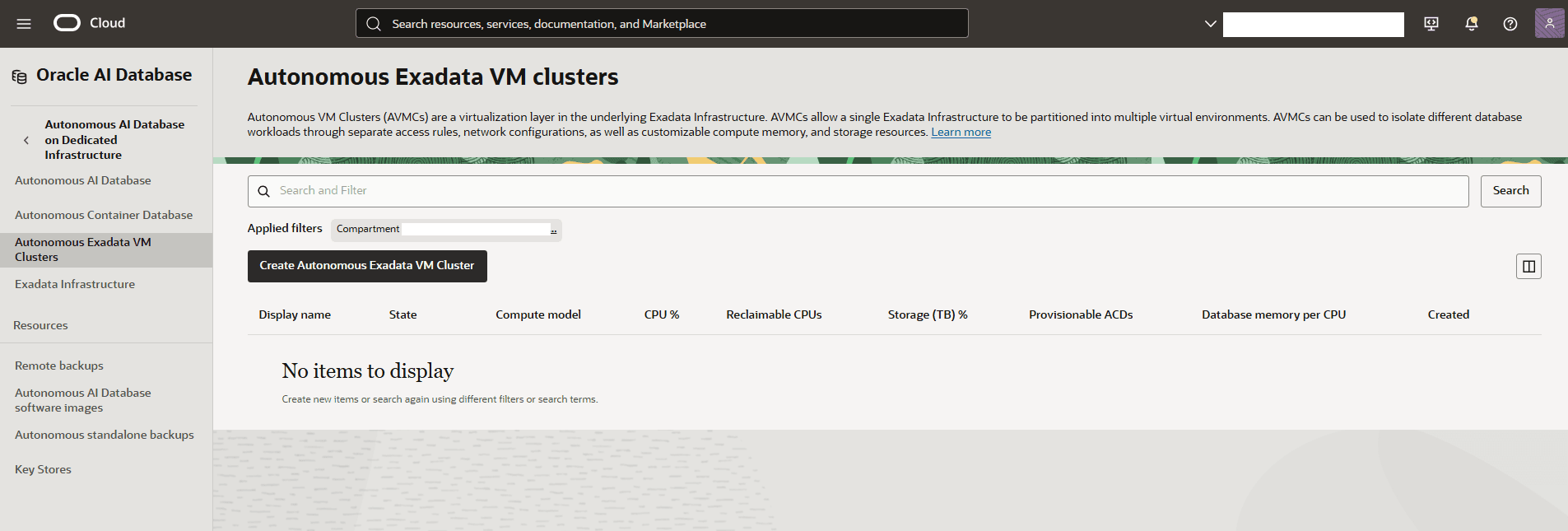
From the OCI console, select Oracle AI Database, and then select Autonomous AI Database on Dedicated Infrastructure.
-
From the left menu, select Autonomous Exadata VM Clusters, and then select the Create Autonomous Exadata VM Cluster button.
-
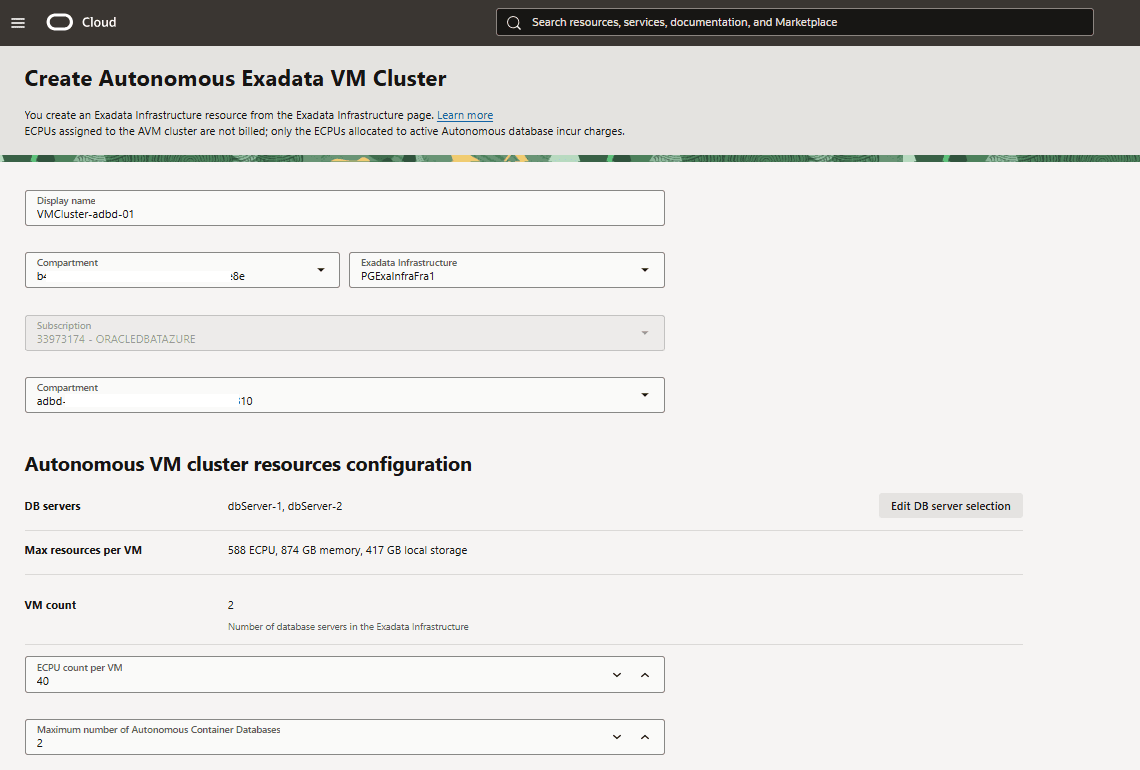
From the Create Autonomous Exadata VM Cluster page, enter the following information.
-
In the Display name field, enter a name for your VM cluster. Display name must be 1 to 255 characters, of letters, numbers, underscores () and hyphens (-). Display name must start with a letter or underscore() and cannot contain two successive hyphens(-).
-
In the Compartment field, select the compartment where your Exadata Infrastructure is provisioned.
-
In the Exadata Infrastructure field, select the Exadata Infrastructure that you are using.
-
In the Subscription field, verify the displayed subscription. This field is automatically populated. For example:
XXXXXXXX - ORACLEDBATAZURE. -
In the Compartment field, select the compartment where you want to create your Autonomous Exadata VM Cluster. This is the compartment that was created when you created your Resource Anchor.
-
From the Autonomous VM cluster resources configuration section, enter the following information.
-
Review the DB servers information provided. If you want to make a change, select the Edit DB server selection button.
-
Review the Max resources per VM, including ECPU, memory, and local storage.
-
Confirm the VM count is set to the required number of database servers in the Exadata Infrastructure.
-
In the ECPU count per VM field, select the number of ECPUs to allocate to each VM.
-
In the Maximum number of Autonomous Container Databases field, select the number of container databases to permit per VM.
-
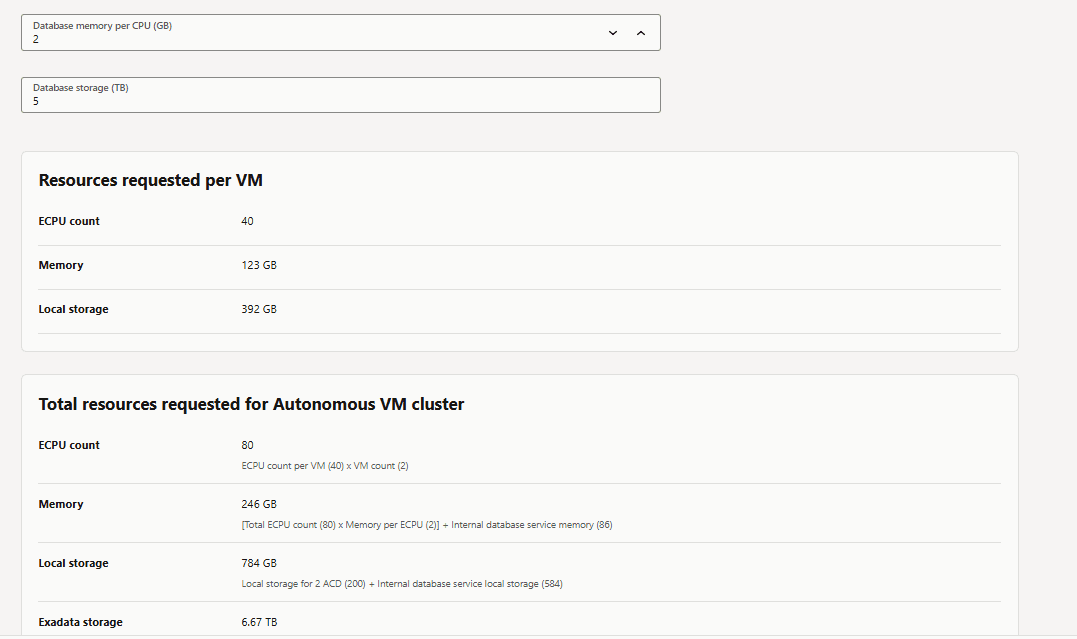
In the Database memory per CPU (GB) field, select the amount of memory to allocate for each CPU.
-
In the Database storage (TB) field, enter the amount of storage in terabytes to allocate per VM.
-
-
From the Resources requested per VM section, review the summary of resources requested per VM, including ECPU count, Memory and Local storage.
-
From the Total resources requested for Autonomous VM cluster section, review the summary of resources including ECPU count, Memory, Local storage and Exadata storage.
-
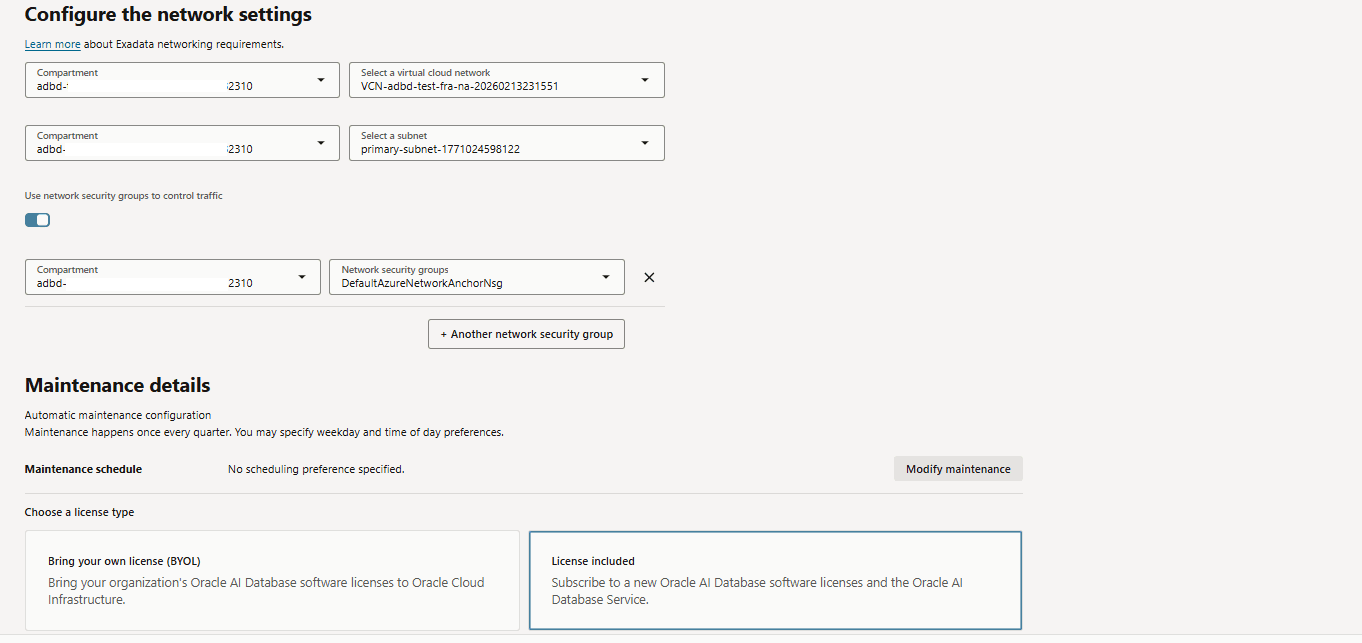
From the Configure the network settings section, complete the following steps:
-
In the Compartment field, select the compartment that was created when you created your Resource Anchor.
-
In the Select a virtual cloud network field, select the virtual cloud network for your cluster. This is the virtual cloud network that was created when you created your Network Anchor.
-
In the Compartment field, select the compartment containing your subnet resources.
-
In the Select a subnet field, select the subnet within the chosen compartment and virtual cloud network.
-
Activate the toggle for Use network security groups to control traffic if network security groups are required. This step is optional.
-
-
From the Maintenance details section, complete the following steps:
-
Select the Modify maintenance button to set specific scheduling preferences, if needed.
-
In the Select a license type section, select one of the following:
-
Bring your own license (BYOL) to bring your organization’s Oracle AI Database software licenses to Oracle Cloud Infrastructure.
-
License included to subscribe to a new Oracle AI Database software licenses and the Oracle AI Database Service.
-
-
-
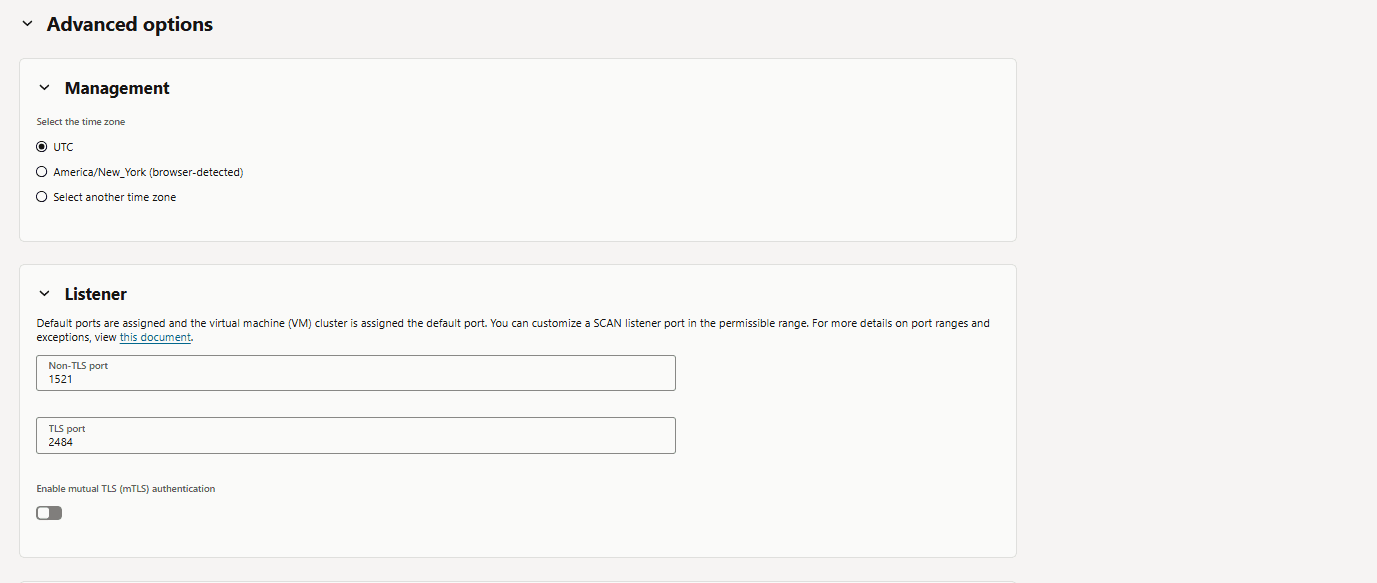
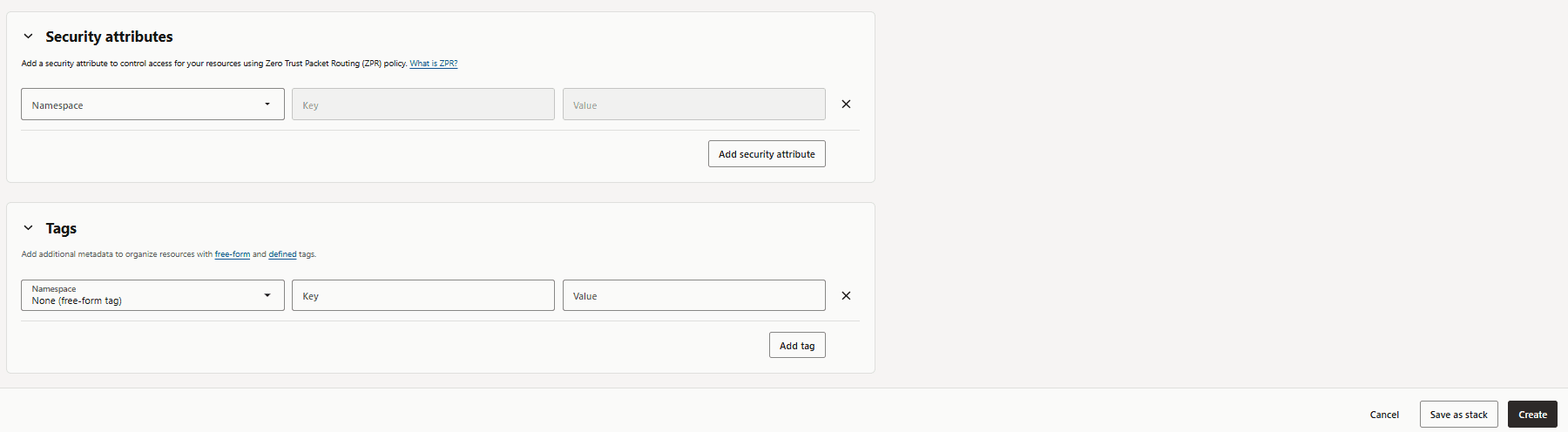
From the Advanced options section, you can select the timezone, customize a SCAN listener, enable mutual TLS (mTLS) authentication, add security attributes and tags.
-
Review your information, and then select the Create button.
-
- From the Autonomous Exadata VM clusters list, you can review the State of your cluster. Once the creation is complete, the State column will shown as Available.
There is currently no content for this page. Oracle AI Database@Azure team intends to add content here, and this placeholder text is provided until that text is added. The Oracle AI Database@Azure team is excited about future new features, enhancements, and fixes to this product and this accompanying documentation. We strongly recommend you watch this page for those updates.
Creation of an Oracle Autonomous AI Database on Dedicated Exadata Infrastructure must be completed from the OCI console.
There is currently no content for this page. Oracle AI Database@Azure team intends to add content here, and this placeholder text is provided until that text is added. The Oracle AI Database@Azure team is excited about future new features, enhancements, and fixes to this product and this accompanying documentation. We strongly recommend you watch this page for those updates.