Exadata VM Cluster
This topic explains how to scale an Exadata VM Cluster and modify tags and virtual machines.
Scale an Exadata VM Cluster
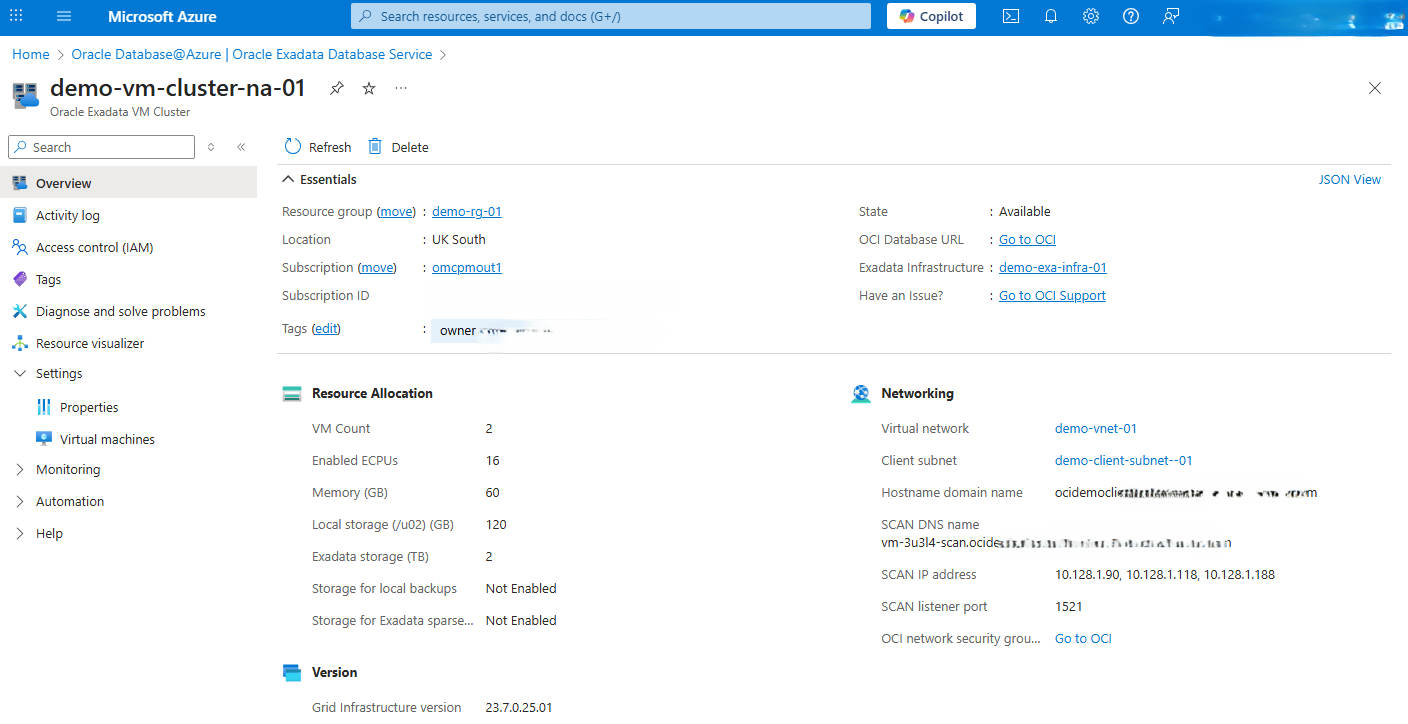
Scale an Exadata VM Cluster is only available through the OCI Console and OCI CLI. To navigate to the OCI console, complete the following steps:- From the Azure portal, select Oracle AI Database@Azure.
- From the left navigation menu, select Oracle Exadata Database Service on Dedicated Infrastructure.
- Click the Oracle Exadata VM Clusters tab, and then select your Exadata VM Cluster that you want to modify.
- From the Overview page, expand the Essentials section, and then select the Go to OCI link.
Virtual Machine
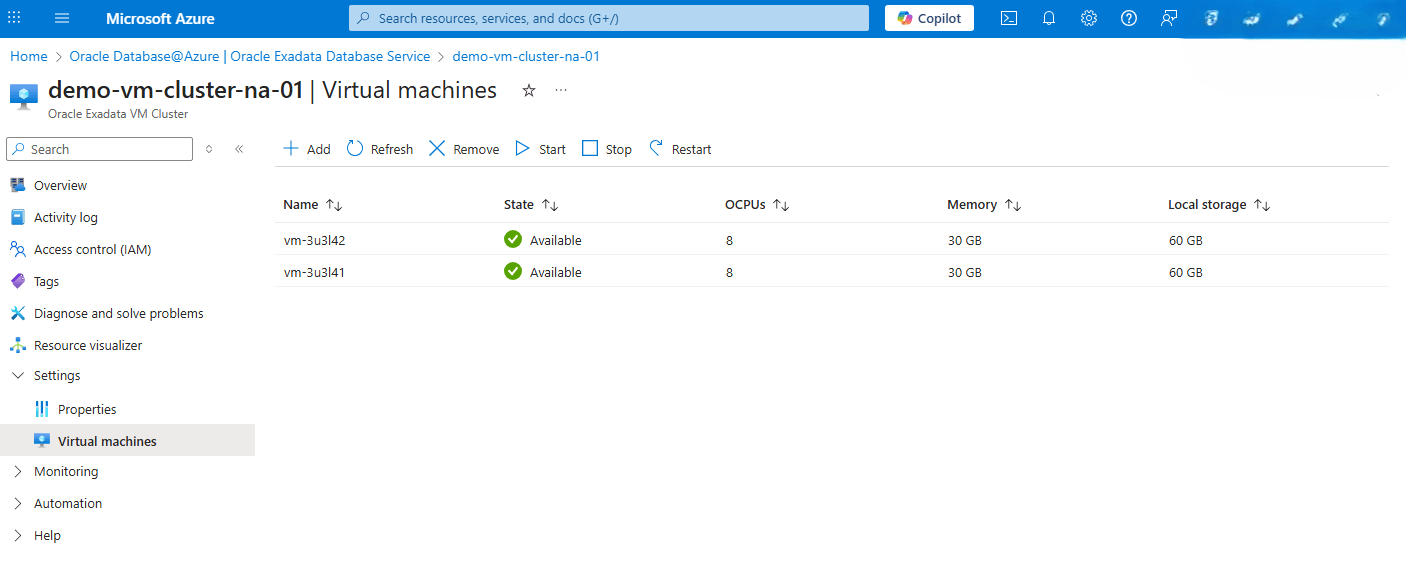
This topic explains how to modify a virtual machine from Oracle AI Database@Azure.- From the Azure portal, select Oracle AI Database@Azure.
- From the left navigation menu, select Oracle Exadata Database Service on Dedicated Infrastructure.
- Click the Oracle Exadata VM Clusters tab, and then select your Exadata VM Cluster that you are using.
- Expand the Settings section, and then select Virtual machines.
- You can add, remove, start, stop and restart your virtual machine(s).
Tags
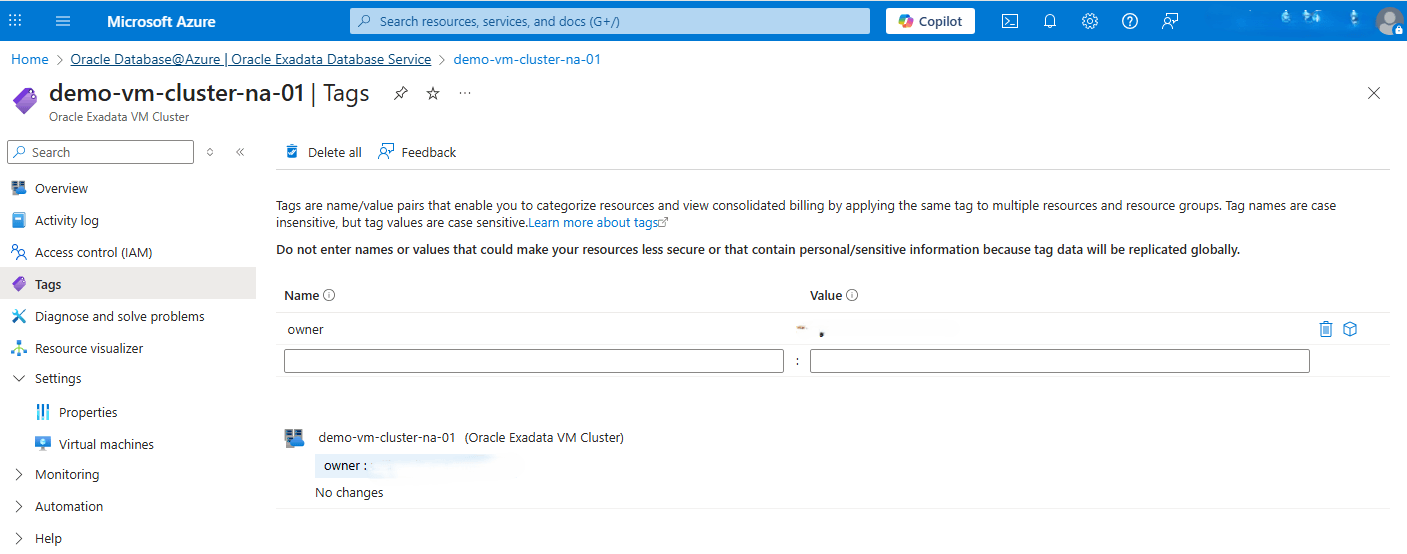
This topic explains how to modify tags from Oracle AI Database@Azure.- From the Azure portal, select Oracle AI Database@Azure.
- From the left navigation menu, select Oracle Exadata Database Service on Dedicated Infrastructure.
- Click the Oracle Exadata VM Clusters tab, and then select your Exadata VM Cluster that you are using.
- From the left navigation menu , select the Tags link.
- You can add, remove or modify Tags based on the requirements.
Scale an Exadata VM Cluster
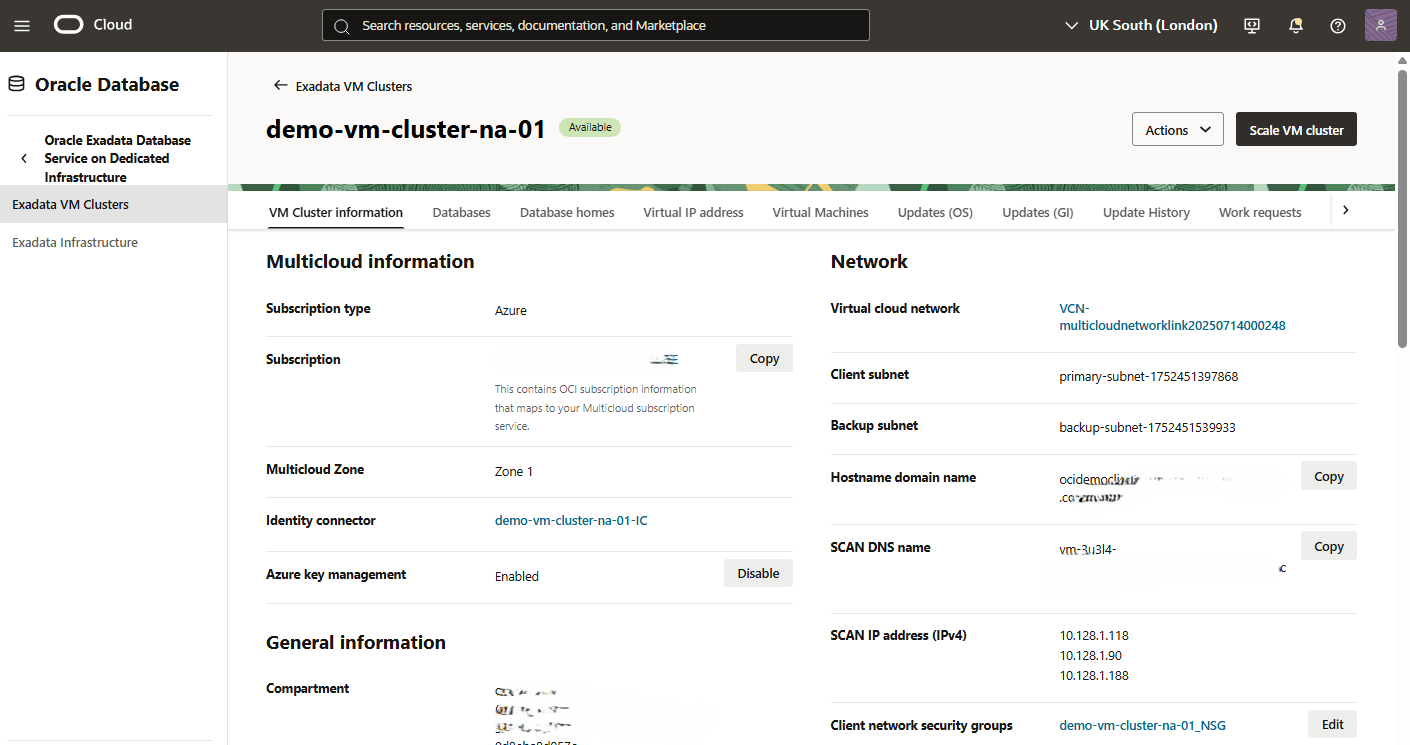
- From the OCI console, navigate to Exadata VM Cluster that you want to modify.
- From the VM Cluster Information tab, click the Scale VM cluster button.
- From the Scale VM cluster page, you can modify the Resource allocation per VM, Local Storage per VM, and Exadata storage fields.
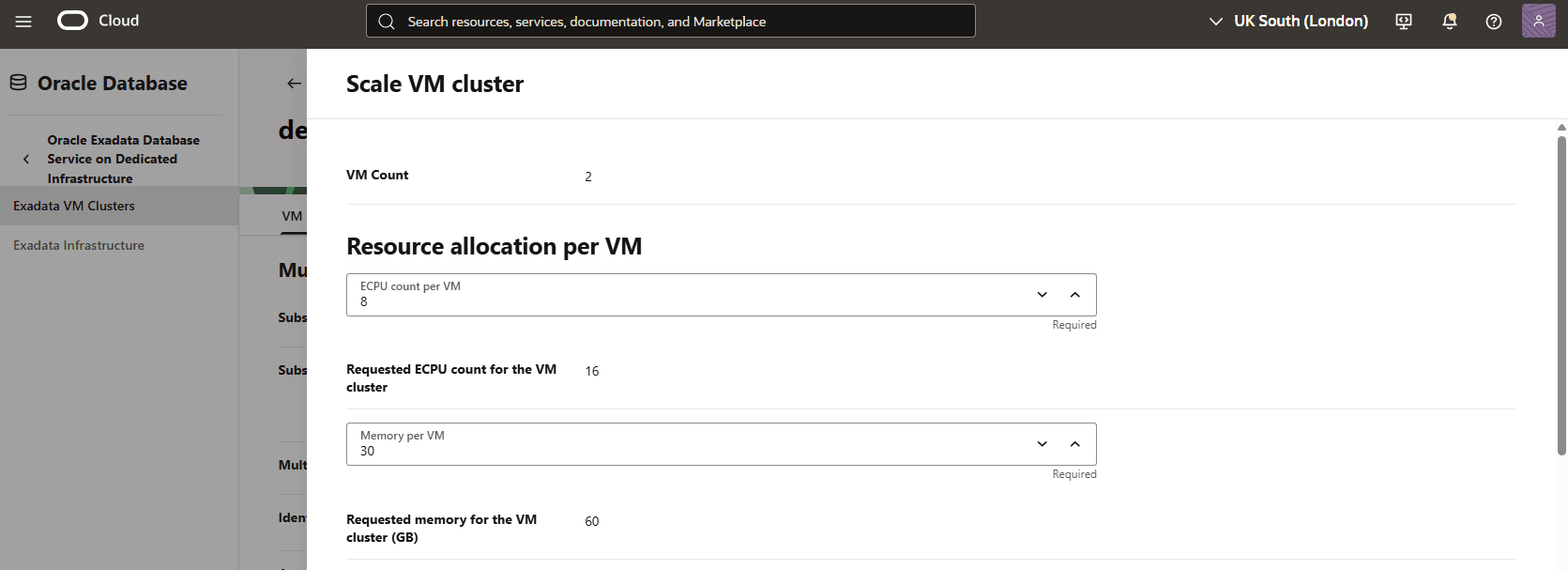
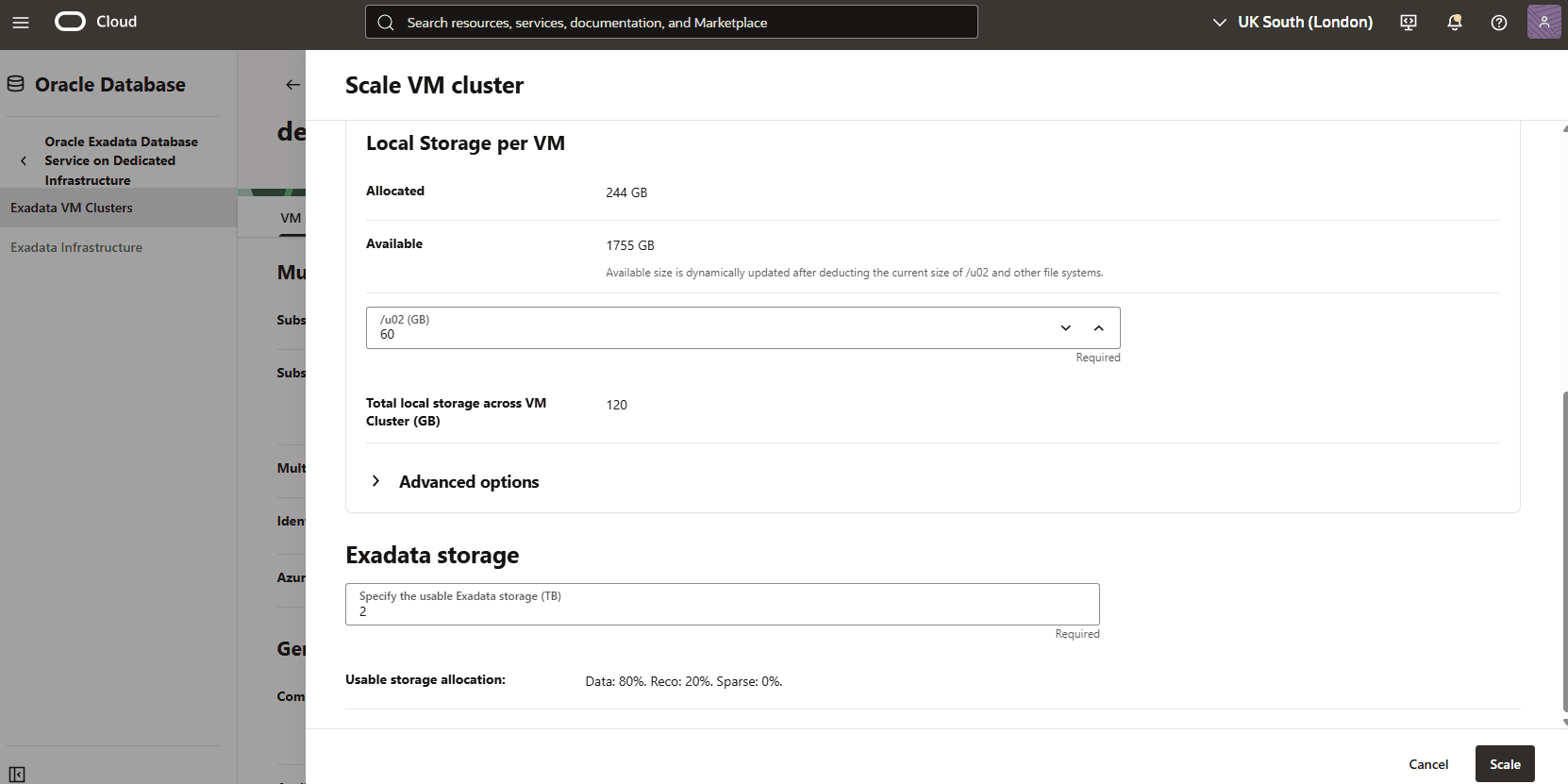
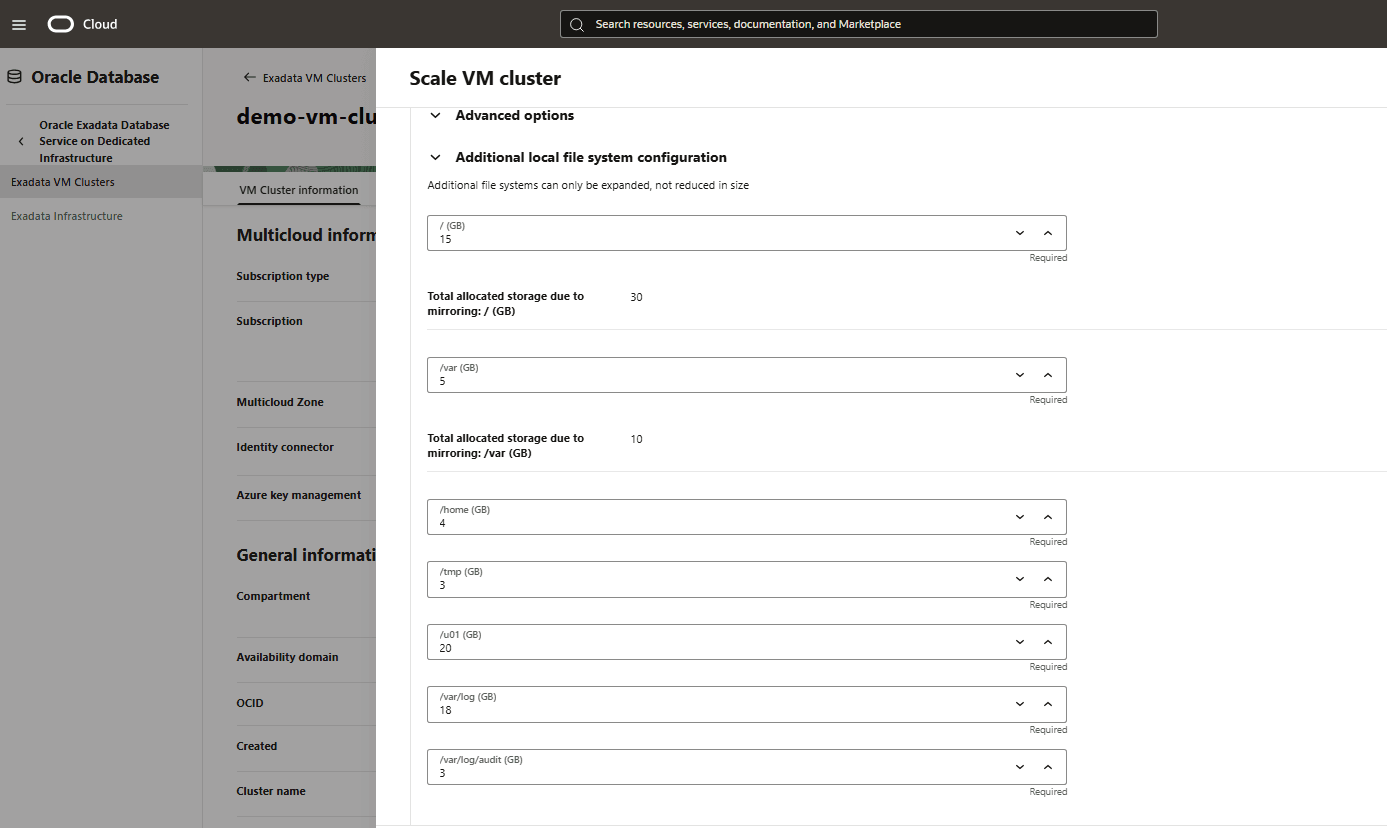
- Expand the Advanced options section for Additional local file system configuration. Once you have made your modification(s), click the Scale button to apply the changes.
There is currently no content for this page. Oracle AI Database@Azure team intends to add content here, and this placeholder text is provided until that text is added. The Oracle AI Database@Azure team is excited about future new features, enhancements, and fixes to this product and this accompanying documentation. We strongly recommend you watch this page for those updates.
There is currently no content for this page. Oracle AI Database@Azure team intends to add content here, and this placeholder text is provided until that text is added. The Oracle AI Database@Azure team is excited about future new features, enhancements, and fixes to this product and this accompanying documentation. We strongly recommend you watch this page for those updates.
There is currently no content for this page. Oracle AI Database@Azure team intends to add content here, and this placeholder text is provided until that text is added. The Oracle AI Database@Azure team is excited about future new features, enhancements, and fixes to this product and this accompanying documentation. We strongly recommend you watch this page for those updates.