Azure Log Analytics
Azure Log Analytics provides a centralized platform to collect, analyze, and correlate logs and metrics across Oracle AI Database@Azure and Azure services. This platform enables proactive monitoring, faster troubleshooting, and improved operational visibility.
Azure Log Analytics in the Azure portal allows you to run and edit log queries against data stored in Azure Monitor Logs. The tool supports two modes:
- Simple mode, which provides an intuitive, spreadsheet-like, point-and-select experience for filtering, sorting, and aggregating log data.
- KQL mode, which enables advanced users to use Kusto Query Language (KQL) for deeper analysis.
Log Analytics is also the primary tool for building and validating queries that users can consume interactively or integrate with other Azure Monitor features, such as log-based alerts and workbooks.
Azure Log Analytics is the observability layer for Oracle AI Database@Azure, consolidating audit logs and metrics with Azure infrastructure telemetry into a single analytics platform to close operational visibility gaps.
By consolidating these signals, Azure Log Analytics enables a single-pane-of-glass view across Oracle and Azure layers.
Azure Monitor Logs use a central data store where Azure collects and organizes log data into tables so you can query, correlate, alert, and visualize it. This central data store is called the Azure Log Analytics workspace. For Oracle AI Database@Azure, it becomes the landing zone where you can bring together audit logs and metrics to get a single operational view.
- Oracle Exadata Database Service on Dedicated Infrastructure
- Oracle Autonomous AI Database Serverless
- Oracle Base Database Service
- Oracle Exadata Database Service on Exascale Infrastructure
- Oracle GoldenGate
Based on the diagnostic settings page, the service is configured to emit logs and audit-related events.
Overview of Azure Log Analytics for Oracle AI Database@Azure
- Setup Log Analytics workspace
- Setup Log Analytics
Setup Log Analytics Workspace
- Sign in to the Azure portal.
- Navigate to Log Analytics workspaces.
- Select the Create button.
- In the Basics section, enter the following information:
- From the dropdown list, select your Subscription.
- From the dropdown list, select your Resource group. If you want to create a new one, select the Create new link.
- Enter a descriptive name for your Log Analytics workspace. The workspace name must be between 4 and 63 characters. The workspace name can contain only letters, numbers and hyphen (-). The hyphen (-) shouldn't be the first or the last symbol.
- Select your Region for Oracle AI Database@Azure.
- Select the Next: Tags > button.
- The Tags section is optional. Tags are name/value pairs that enable you to categorize resources and view consolidated billing by applying the same tag to multiple resources and resource groups.
- Configure pricing/retention settings according to your organizational standards. This step is optional. You can configure these settings after creation of Log Analytics workspace as part of governance.
- Select the Next: Review + Create >.
- Select the Create button to deploy the workspace.
- After the workspace is created, connect data sources such as Azure resources, agents, or diagnostics settings to begin collecting logs in the workspace tables.
- Exadata Database
- Autonomous AI Database Serverless
- Base Database
- Exascale Database
- Oracle GoldenGate
Set Up Log Analytics for Oracle Exadata Database Service on Dedicated Infrastructure
- From the Azure portal, select Oracle AI Database@Azure.
- From the left menu, select Oracle Exadata Database Service on Dedicated Infrastructure and then select Oracle Exadata VM Clusters tab.
- From the list, select your Oracle Exadata VM Cluster that you want to monitor.
- Expand the Monitoring section, and then select Diagnostics settings.
- Select the Add diagnostic setting button. To enable Diagnostic settings ,configure the following event data:
- Creation Events
- Update Events
- Delete Events
- Backup Events
- Critical Events
- Restore Events
- Information Events
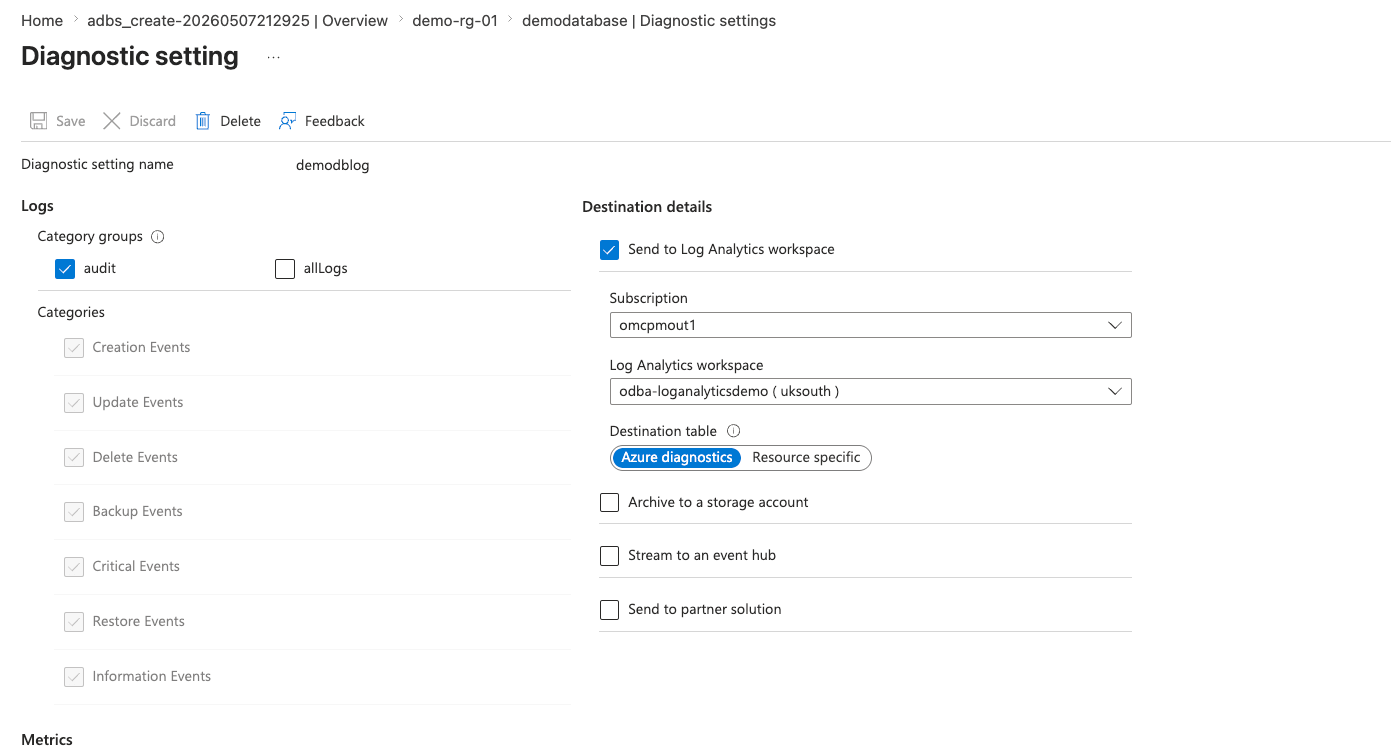
- On the Diagnostic Settings page, enter a descriptive Diagnostic setting name and then choose the audit option under Category groups in the Logs section.
- Select Log Analytics Workspace as the destination detail that you created earlier, and then select the Subscription and the Log Analytics workspace.
- Review your information and then select the Save button to save your settings.
Set Up Log Analytics for Oracle Autonomous AI Database Service
- From the Azure portal, select Oracle AI Database@Azure.
- From the left menu, select Oracle Autonomous AI Database.
- From the list, select your Autonomous AI Database that you want to monitor.
- Expand the Monitoring section, and then select Diagnostics settings.
- Select the Add diagnostic setting button. To enable Diagnostic settings ,configure the following event data:
- Creation Events
- Update Events
- Delete Events
- Backup Events
- Critical Events
- Restore Events
- Information Events
- On the Diagnostic Settings page, enter a descriptive Diagnostic setting name and then choose the audit option under Category groups in the Logs section.
- Select Log Analytics Workspace as the destination detail that you created earlier, and then select the Subscription and the Log Analytics workspace.
- Review your information and then select the Save button to save your settings.
Set Up Log Analytics for Oracle Base Database Service
- From the Azure portal, select Oracle AI Database@Azure.
- From the left menu, select Oracle Base Database Service.
- From the list, select your Base Database that you want to monitor.
- Expand the Monitoring section, and then select Diagnostics settings.
- Select the Add diagnostic setting button. To enable Diagnostic settings ,configure the following event data:
- Creation Events
- Update Events
- Delete Events
- Backup Events
- Critical Events
- Restore Events
- Information Events
- On the Diagnostic Settings page, enter a descriptive Diagnostic setting name and then choose the audit option under Category groups in the Logs section.
- Select Log Analytics Workspace as the destination detail that you created earlier, and then select the Subscription and the Log Analytics workspace.
- Review your information and then select the Save button to save your settings.
Set Up Log Analytics for Oracle Exadata Database Service on Exascale Infrastructure
- From the Azure portal, select Oracle AI Database@Azure.
- From the left menu, select Oracle Exadata Database Service on Exascale Infrastructure and then select VM Clusters tab.
- From the list, select your Exascale VM Cluster that you want to monitor.
- Expand the Monitoring section, and then select Diagnostics settings.
- Select the Add diagnostic setting button. To enable Diagnostic settings ,configure the following event data:
- Creation Events
- Update Events
- Delete Events
- Backup Events
- Critical Events
- Restore Events
- Information Events
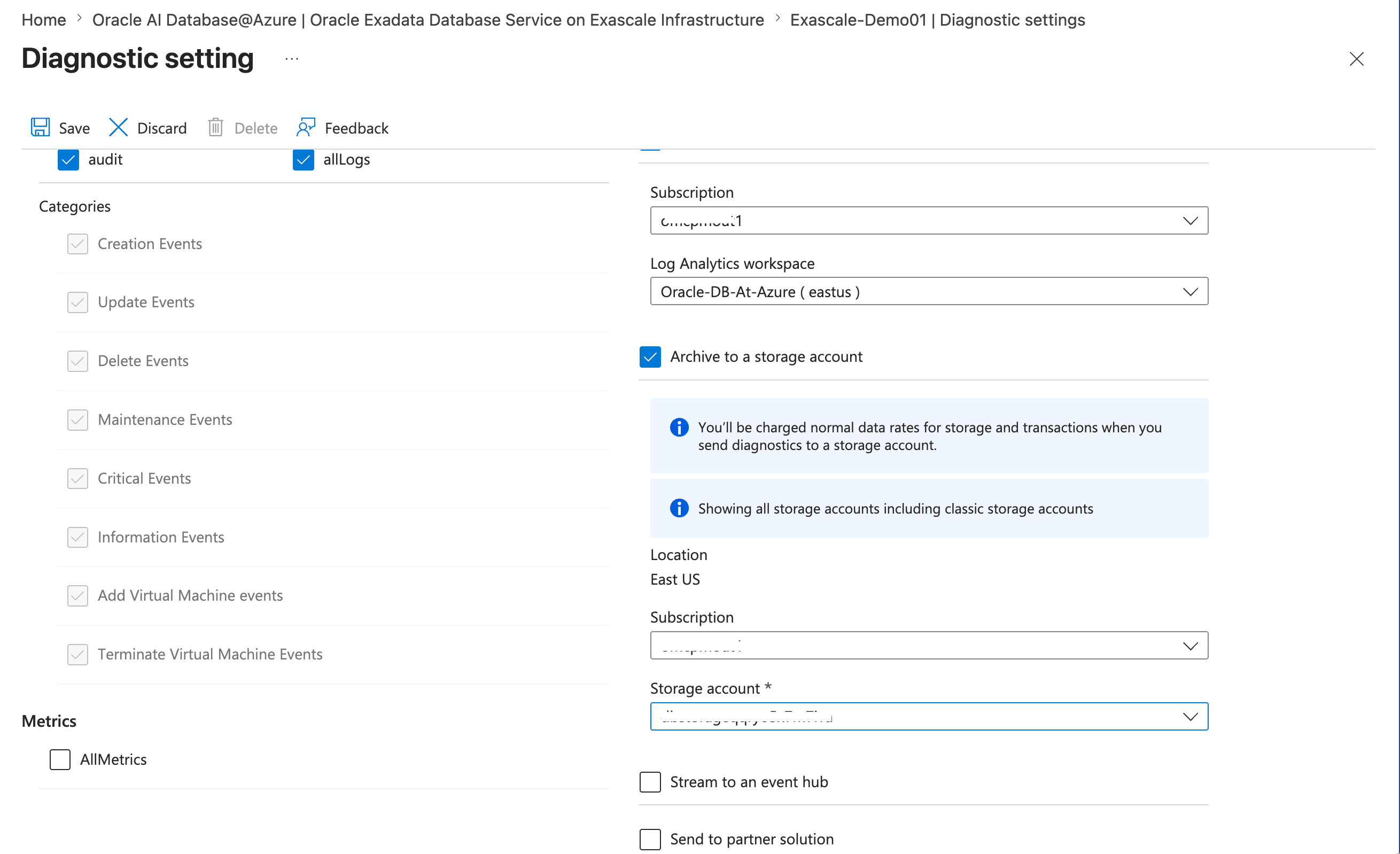
- On the Diagnostic Settings page, enter a descriptive Diagnostic setting name and then choose the audit option under Category groups in the Logs section.
- Select Log Analytics Workspace as the destination detail that you created earlier, and then select the Subscription and the Log Analytics workspace.
- Review your information and then select the Save button to save your settings.
Set Up Log Analytics for Oracle GoldenGate
- From the Azure portal, select Oracle AI Database@Azure.
- From the left menu, select Oracle GoldenGate, and then select Oracle GoldenGate Deployments tab.
- Select your deployment that you want to monitor.
- Expand the Monitoring section, and then select Diagnostics settings.
- Select the Add diagnostic setting button. To enable Diagnostic settings ,configure the following event data:
- Creation Events
- Update Events
- Delete Events
- Backup Events
- Critical Events
- Restore Events
- Information Events
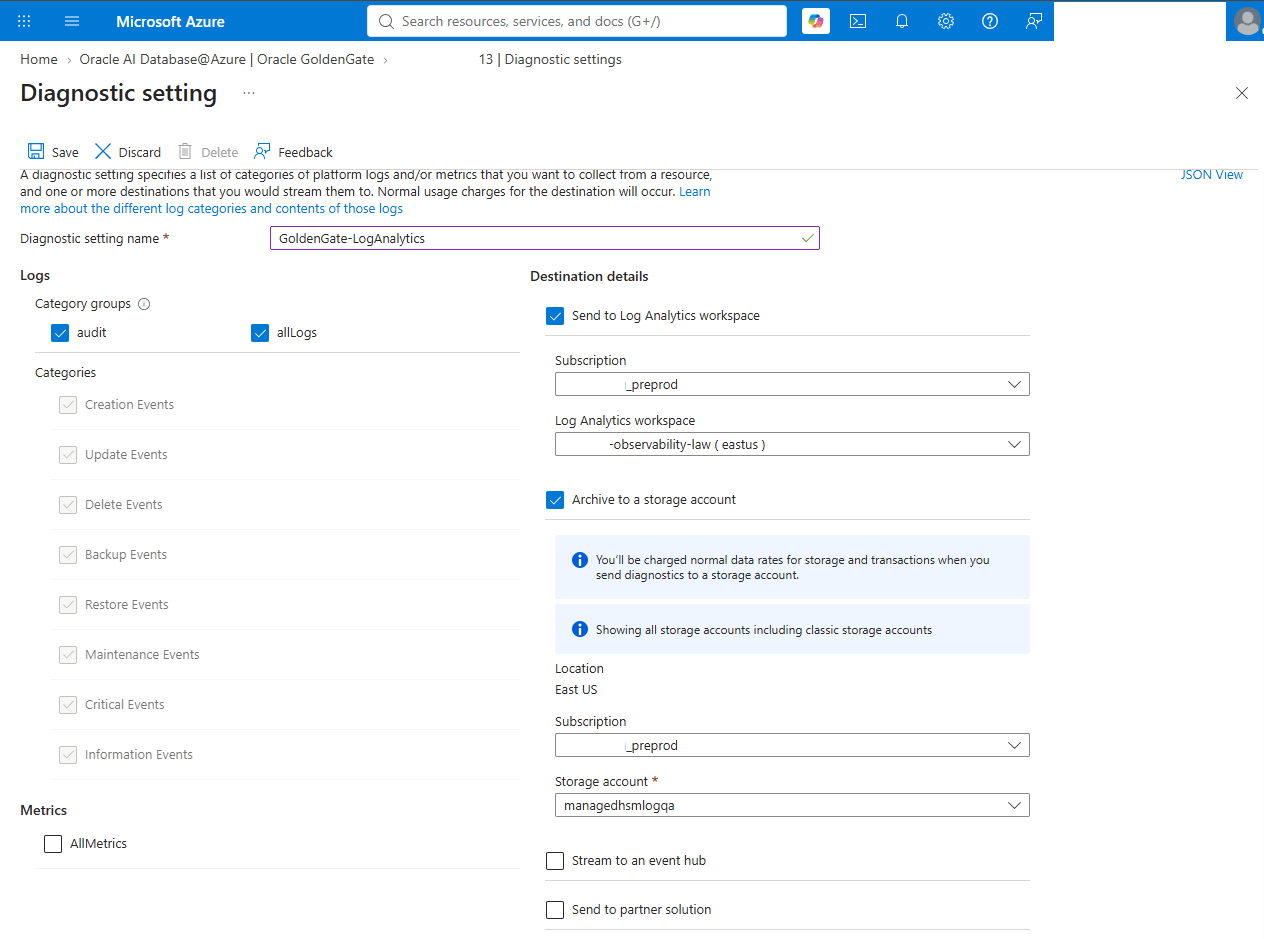
- On the Diagnostic Settings page, enter a descriptive Diagnostic setting name, and then choose the audit option under Category groups in the Logs section.
- Select the Send to Log Analytics workspace checkbox, and then select the Subscription and the Log Analytics workspace.
- Review your information and then select the Save button to save your settings.
Monitor Data in Azure Log Analytics
- From the Azure portal, navigate to Log Analytics workspaces.
- From the list, select the workspace that you want to view.
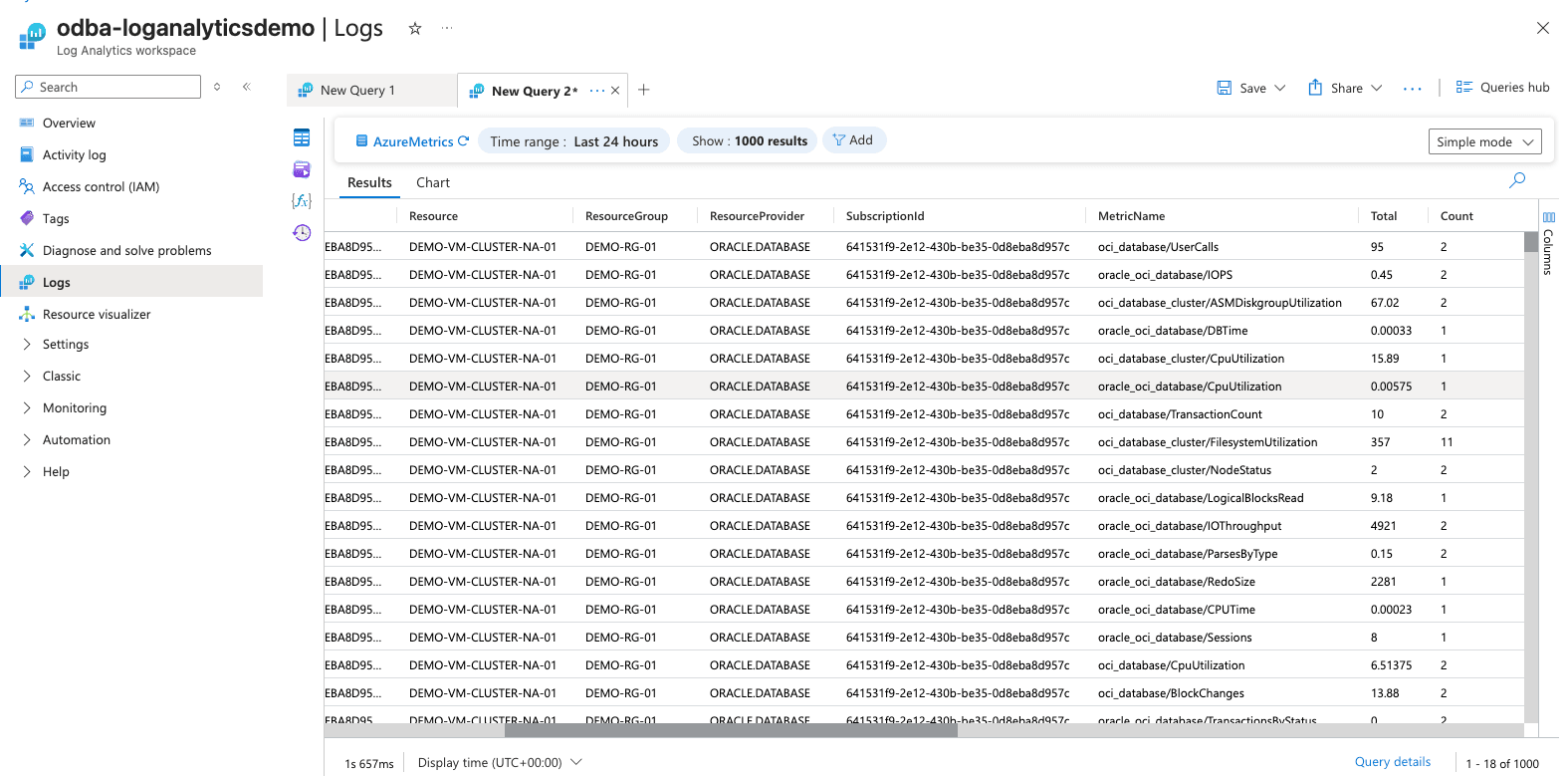
- From the left menu, select Logs. This opens the Log Analytics query editor.
- Select the tables you want to query.
- Explore Data (Simple mode)
-
- By default, you can see the Simple mode, which provides a spreadsheet-like experience.
- Use point-and-Select filters, sorting, and aggregation to explore available log data.
- Ideal for quick checks such as recent errors, activity logs, or resource health events.
Note
Few metrics, such as CPU Utilization, can appear multiple times with different labels. For example, CPU Utilization (OCI Database Cluster), CPU Utilization (OCI Database), and CPU Utilization (Oracle OCI Database).- OCI Database Cluster is for the VM Cluster metrics.
- OCI Database is for the Container Database metrics.
- Oracle OCI Database is for the Pluggable Database metrics.
-
- Query Data Using KQL (Advanced Mode)
- From the dropdown, switch the mode to KQL mode.
- Browse available tables shown on the left side. For example:
AzureMetrics, OracleCloudDatabase, UsageFor more information, see the table reference AzureMetrics, OracleCloudDatabase, and Usage.
- Run a basic query. For example:
- The following query lists CPU Utilization Metrics of all resources in the Exadata Infrastructure which includes VM cluster, Container Database and Pluggable Database.
search in (AzureMetrics) "CpuUtilization" | take 100 - The following query lists CPU Utilization Metrics of all Container Databases.
search in (AzureMetrics) "oci_database/CpuUtilization" | take 100 - The following query lists CPU Utilization Metrics of all Pluggable Databases.
search in (AzureMetrics) "oracle_oci_database/CpuUtilization" | take
    100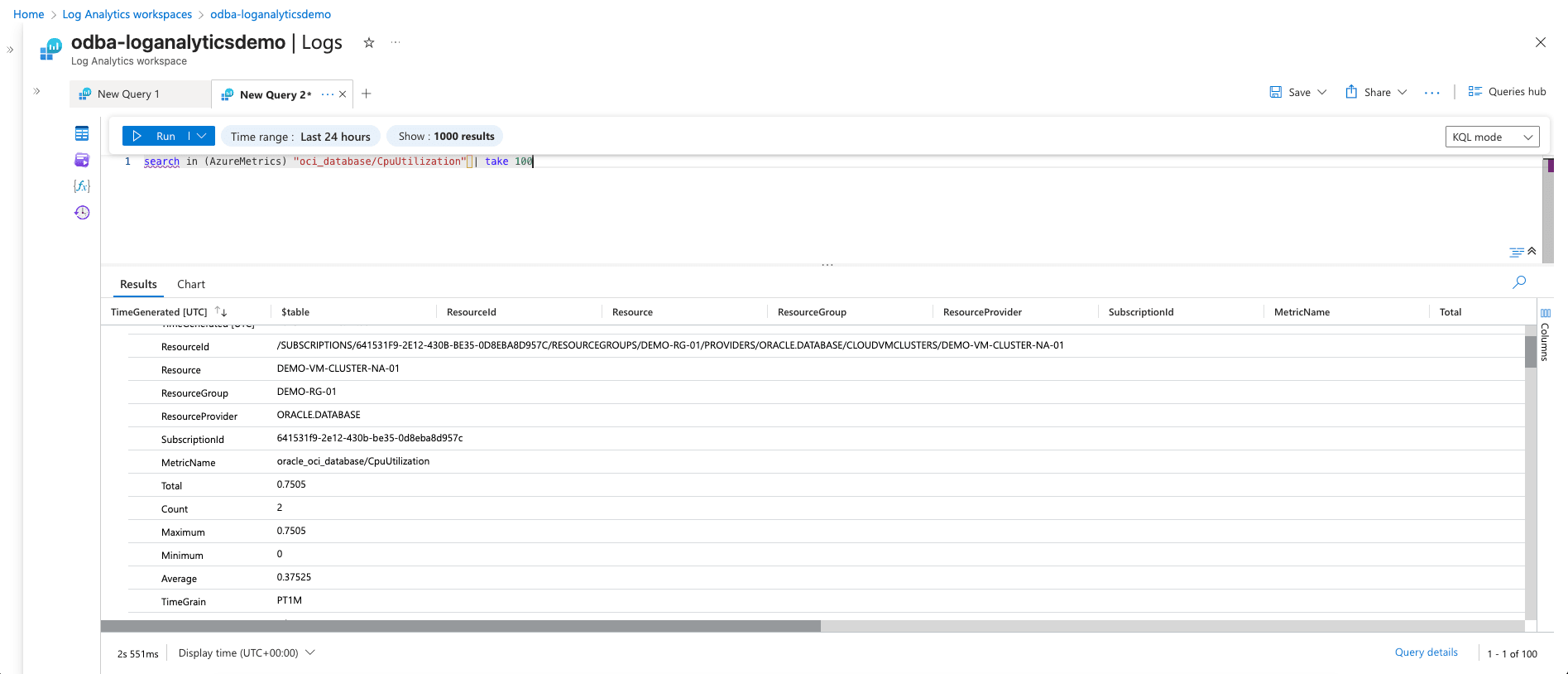
- The following query lists all events in the Autonomous AI Database Serverless for the last 30 minutes.
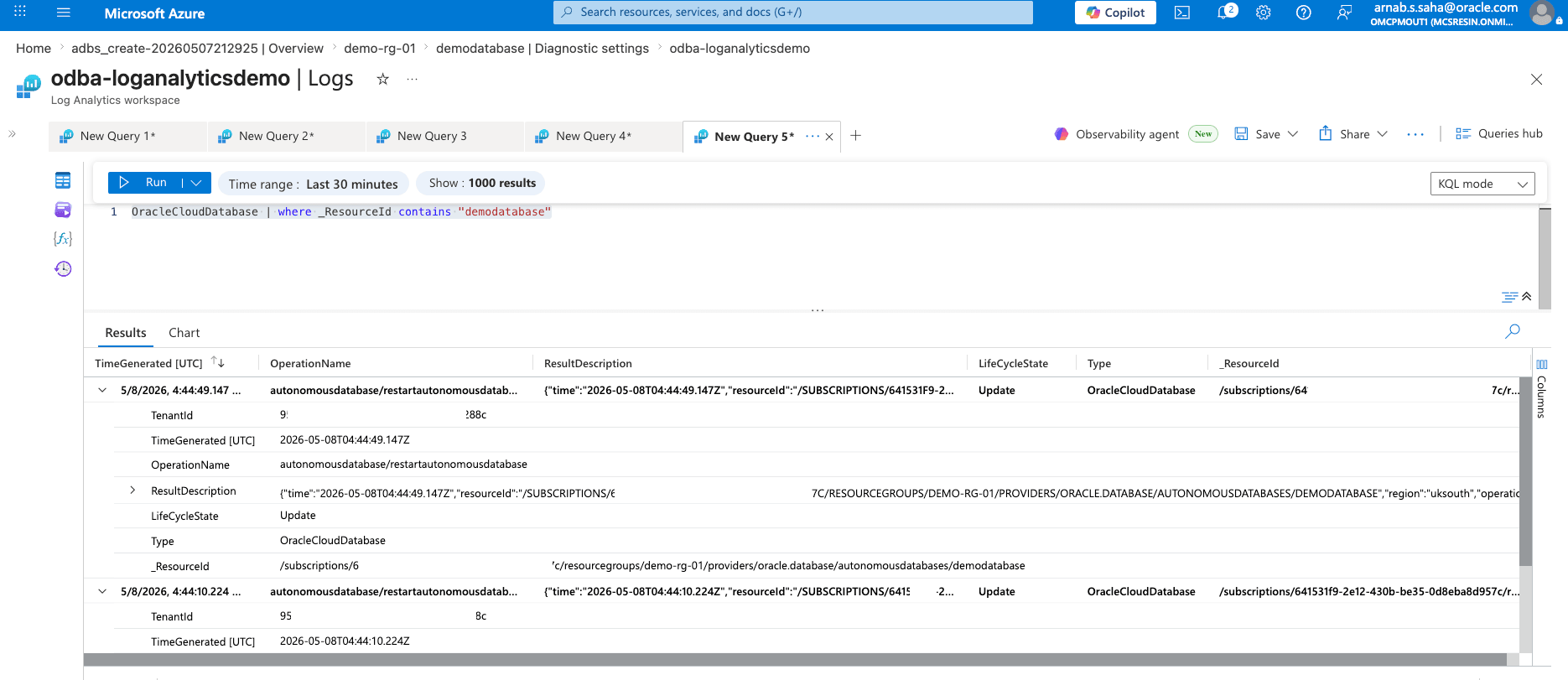
- The following query lists CPU Utilization Metrics of all resources in the Exadata Infrastructure which includes VM cluster, Container Database and Pluggable Database.
- Convert query results into charts, graphs, or tables directly from the query results pane.
Create Alert Directly from a Log Query
- From the Azure portal, navigate to Log Analytics workspaces.
- From the list, select the workspace that you want to view.
- From the left menu, select Logs. This opens the Log Analytics query editor.
- Run your query and verify the results.
- From the Logs query window, select the ... icon and then select the + New alert rule option. From the Create an alert rule page, enter the following information.
- In the Scope section, the required fields are populated automatically.
- In the Condition section, confirm the Search Query condition and then set the following based on your requirements:
- Measurement: Measure for the aggregation, Aggregation type, Aggregation granularity
- Alert logic: Operator as Greater than, Threshold value and Frequency of evaluation
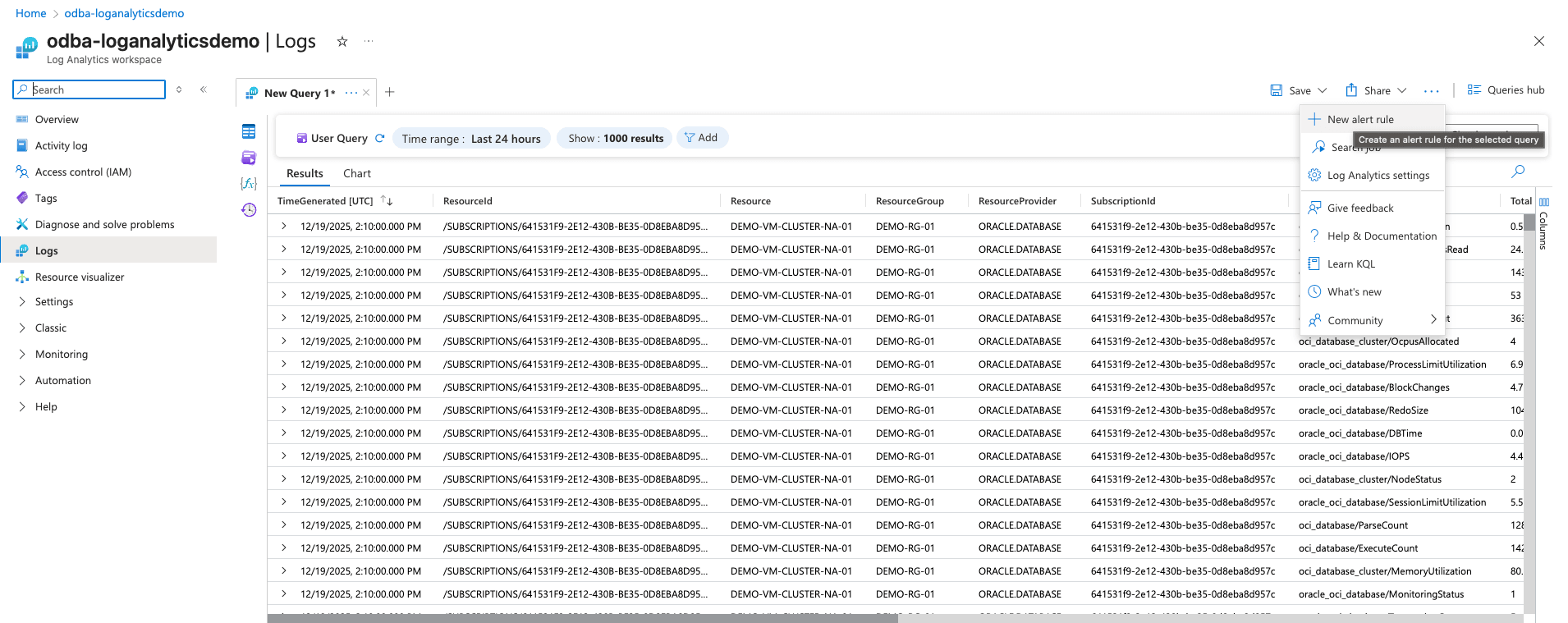
- In the Actions section, select an existing Action group or Create a new one. For example:
email/SMS/webhook/Logic App/Function. Select the Next: Details button. - In the Details section,
- Enter Alert rule name. This is required field.
- The Alert rule description field is optional.
- Select the Region.
- Choose the Identity which will determine the permissions you have for accessing Azure Data Explorer and other resources when the query is running.
- The Tags section is optional. Tags are name and value pairs that enable you to categorize resources and view consolidated billing by applying the same tag to multiple resources and resource groups.
- Review your information, and then select the Create button to enable alert rule.