Migrate to Autonomous AI Database
Oracle Zero Downtime Migration (ZDM) facilitates complex database migrations with maximum availability and minimal disruption. It follows Oracle Maximum Availability Architecture (MAA) best practices during migration. This topic describes how to use Oracle Zero Downtime Migration for migrations to Autonomous AI Database. The capability supports database movement across platforms and versions and enables deployment in multicloud environments.
Target Environment: Autonomous AI Database
Autonomous AI Database automatically manages provisioning, security, patching, and tuning. This automation reduces operational cost and helps prevent human error. When you deploy Autonomous AI Database on Oracle AI Database@Azure, it uses a native, low-latency connection to Azure cloud applications. This setup maintains performance and simplifies integration with other Azure cloud services.
Key Benefits of Using Oracle Zero Downtime Migration for Autonomous AI Database Migrations
Minimal/Zero Downtime Oracle Zero Downtime Migration uses Oracle Data Guard and Oracle GoldenGate to maintain synchronization between source and target, ensuring availability throughout the migration process. Automated Orchestration The utility provides a simplified, one-button experience by automating prevalidation checks, data transfer, and final cutover, therefore reducing manual effort and potential human error. Platform Flexibility Oracle Zero Downtime Migration supports migrations between identical or different database platforms and versions, allowing simultaneous modernization as part of the move. Cost Efficiency Oracle Zero Downtime Migration is available at no cost, helping you reduce overall migration project costs. Risk Reduction By following Oracle Maximum Availability Architecture (MAA) best practices and using automated validation, Oracle Zero Downtime Migration provides a reliable migration path. Supported Migration Workflows
Oracle Zero Downtime Migration supports two workflows, giving you flexibility to select the best option based on your availability requirements and the compatibility of your source and target environments.
-
Logical Online Migration
Downtime Profile: Minimal (near zero).
Compatibility: Supports migrations between the same or different database versions and platforms.
Process: This method uses Oracle Data Pump export and import to create the target database. An NFS file share can be provided by using Oracle Advanced Cluster File System (Oracle ACFS), an NFS server, Azure Files, or Azure NetApp to store the Data Pump dump files. Oracle GoldenGate keeps the source and target databases synchronized to achieve minimal downtime.
-
Logical Offline Migration
Downtime Profile: Offline (requires application downtime).
Compatibility: Supports migrations between the same or different database versions and platforms.
Process: This method uses Oracle Data Pump export and import to create the target database. An NFS file share can be provided by using Oracle Advanced Cluster File System (Oracle ACFS), an NFS server, Azure Files, or Azure NetApp to store the Data Pump dump files.
For more information on Oracle Zero Downtime Migration, see the following resources:
-
In multicloud environments, you can transfer data between cloud providers or store data in one environment while you query or access it from another. The DBMS_CLOUD PL/SQL package in Oracle AI Database enables direct access to object storage services, including Oracle Cloud Infrastructure Object Storage and Azure Blob Storage. You can query data by using external tables or load data directly into database tables.
This document provides a step-by-step guide on accessing and importing data from Azure Blob Storage into an Oracle AI Database.
Solution Architecture
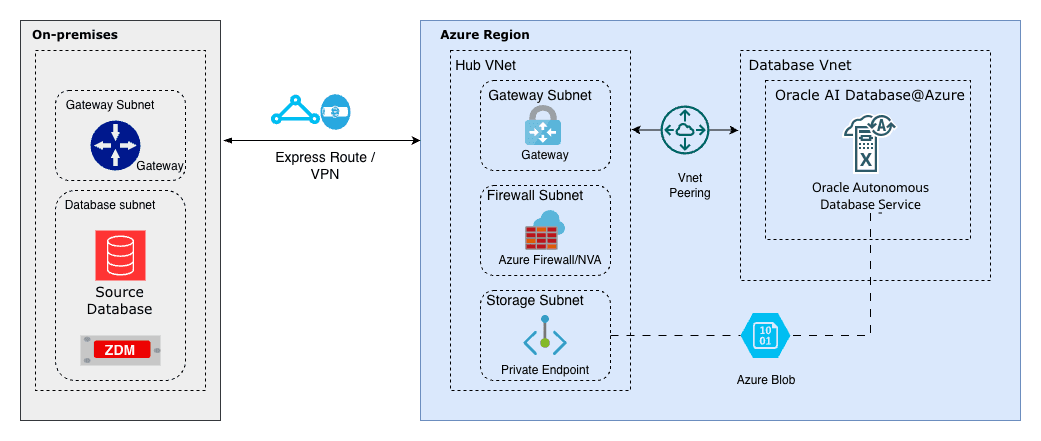
This solution demonstrates how Azure Blob Storage can be used as a landing zone for backups and files.
The Oracle DBMS_CLOUD package lets you query data directly from Azure Blob Storage buckets (Parquet, CSV, JSON, etc.) as external tables without moving it, join it in real time with Oracle tables for unified analytics, bulk import files into Oracle AI Database efficiently with parallel loading, minimize data duplication and costs in multicloud setups, and support hybrid scenarios like blending ERP data with Azure-stored logs, IoT streams, or ML features for faster insights and reporting.
The architecture illustrates a workflow in which the source is an Oracle AI Database running on Linux or Autonomous AI Database, and the target is an Oracle AI Database environment running on Azure infrastructure (Oracle AI Database@Azure). Azure Blob Storage is used by both the source and target database systems, enabling RMAN backups and Data Pump exports to be written once and restored directly, without additional file transfer steps.
By leveraging Azure Blob Storage as shared storage, migration workflows benefit from a managed service that supports movement of data with ease.
Prerequisites
-
Oracle Database Environment
-
Source: An Oracle AI Database platform, such as Autonomous AI Database, Oracle RAC, or a standalone Oracle AI Database instance on Linux.
-
Target: Autonomous AI Database running on Oracle AI Database@Azure.
-
-
Azure Blob Storage Container
- A container that contains the data files, such as a Data Pump dump file.
-
Network Connectivity
-
For Oracle AI Database@Azure: The service supports internal connectivity within the same Azure region and virtual network by default, often by using private endpoints for performance and security.
-
For on-premises or other OCI-based sources: Use internet connectivity or a private link by using Oracle Interconnect for Microsoft Azure, if applicable.
-
-
Credentials
-
An Azure Storage account name and access key with permissions to access the container.
-
Alternatively, use an Azure service principal for improved security in supported setups.
-
These are the steps for configuration.
Note
Note: Ensure that you have Azure Blob Storage configured with a private endpoint.-
Assign an Azure Role for Access to Blob Data in a Storage Account
To grant the required roles to access data in Azure Blob Storage, see the Assign an Azure role for access to blob data documentation. For example, you can assign the roles by using the Azure CLI, as shown in the following example:
# replace the placeholder values in brackets with your own values az role assignment create \ --role "Storage Blob Data Contributor" \ --assignee <email> \ --scope "/subscriptions/<subscription>/resourceGroups/<resource-group>/providers/Microsoft.Storage/storageAccounts/<storage-account>/blobServices/default/containers/<container>" -
Copy the Access Key of Your Storage Account
-
Open your storage account page.
-
Select Access keys under Security + networking.
-
Select Show keys.
-
Copy the Storage account name and Key information. Store them in a secure location. Then, you can select the Hide button.
Note
Note: You need these keys when you run theCREATE_CREDENTIALcommand on the database.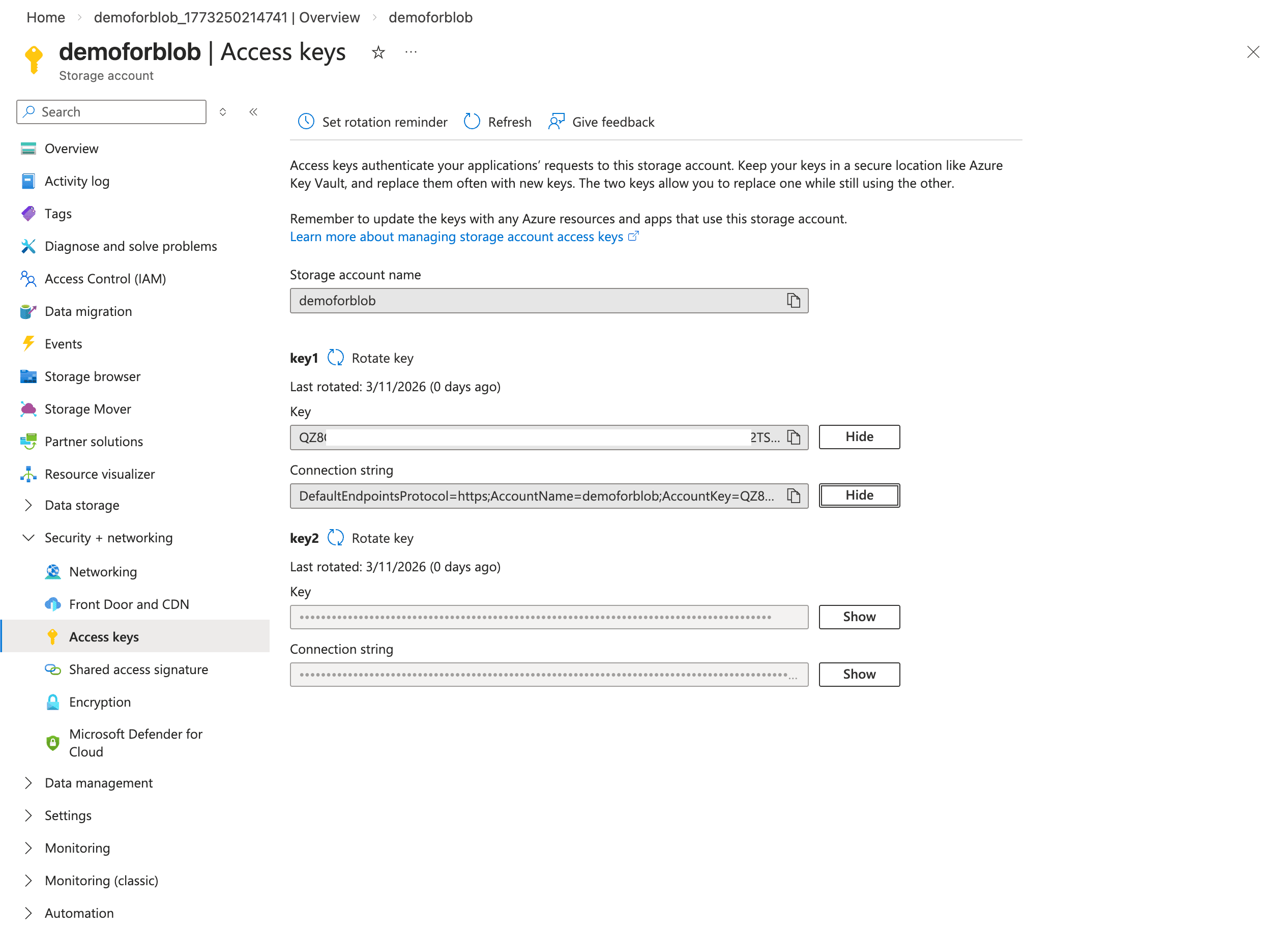
-
-
Obtain Your Azure Blob Storage URL
To obtain the direct URL of the file stored in your Azure Blob Storage container for importing into Oracle AI Database, complete the following steps:
- Note
-
In the Azure portal, open your storage account.
-
Select Containers in the left menu.
-
Select the target container.
-
Select the specific object or file.
-
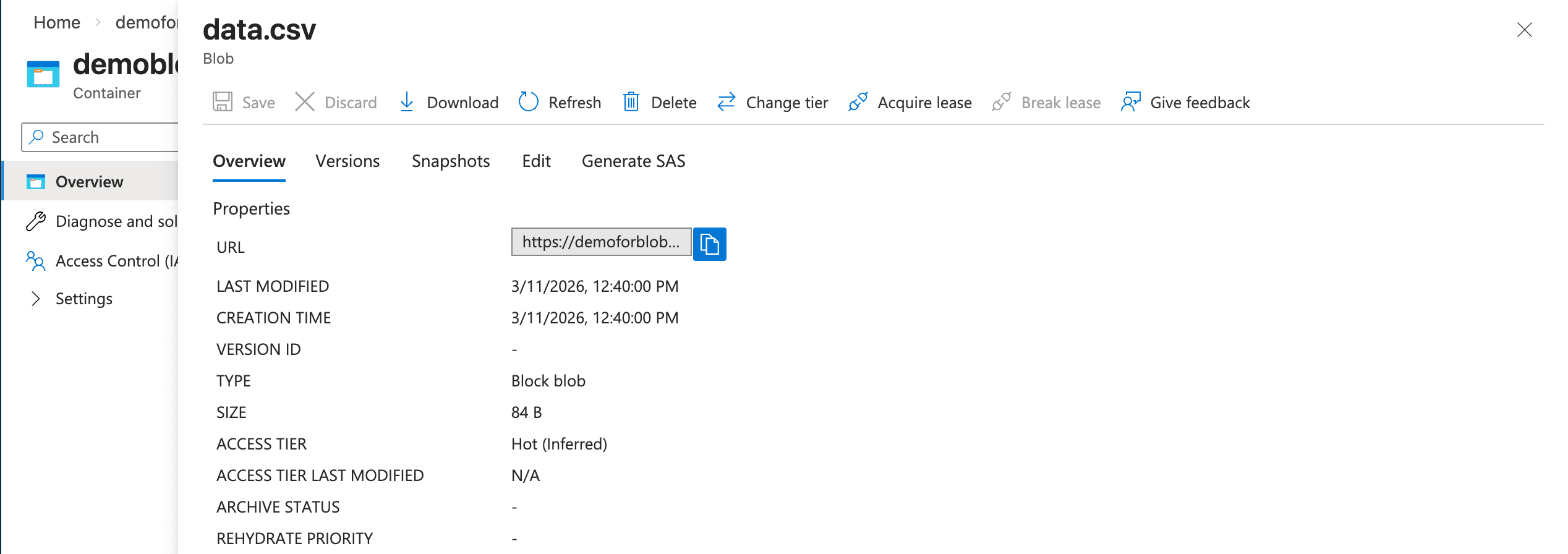
Copy the value shown as Object URL. Note: You need this URL for the HOST parameter in the DBMS_NETWORK_ACL_ADMIN.APPEND_HOST_ACE command.
-
-
In this example, the
data.csvfile is a sample file that contains two rows of comma separated values:SNO NAME City 1 Alice Chicago 2 Bob New York 3 Charlie San Francisco 4 Diana Austin
Connect the Autonomous AI Database to Azure Blob Storage
-
Obtain the Azure Blob Storage Fully Qualified Domain Name (FQDN)
Note
Note: Ensure that you have a running Azure Blob Storage configured with a private endpoint.-
From the Azure portal, navigate to Storage accounts, and then select your account from the list.
-
From the left menu, expand the Security + networking section, and then select Networking.
-
Select the Private endpoints tab and select your private endpoint from the list.
-
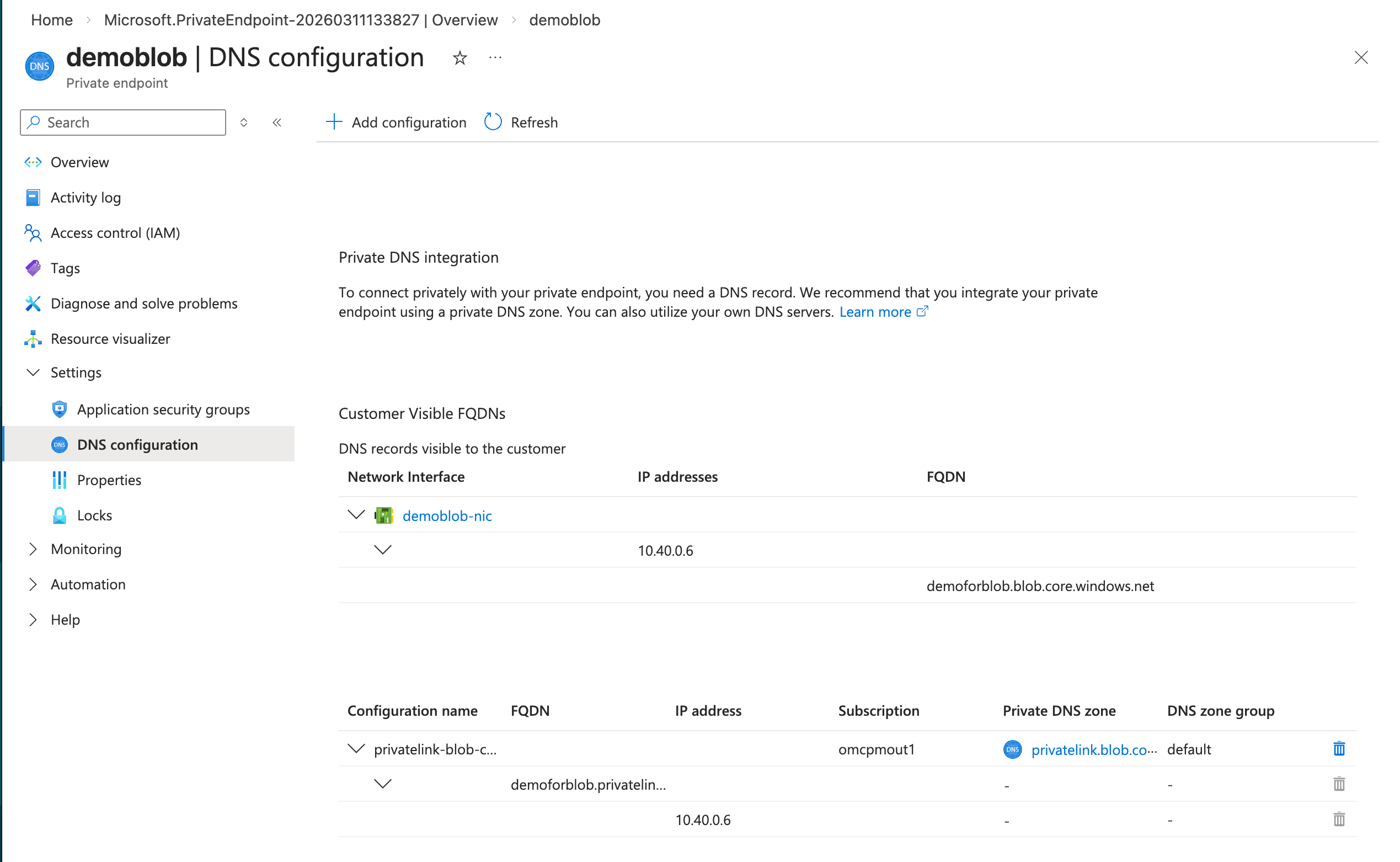
From the left menu, expand the Settings section and then select DNS configuration.
-
From the Network interface section, obtain the FQDN and IP address information. Record this information because it is required when creating a Private DNS Zone in OCI.
-
-
Configure the OCI DNS
- From the Azure portal, navigate to your resource. From the Overview section, select the Go to OCI link.
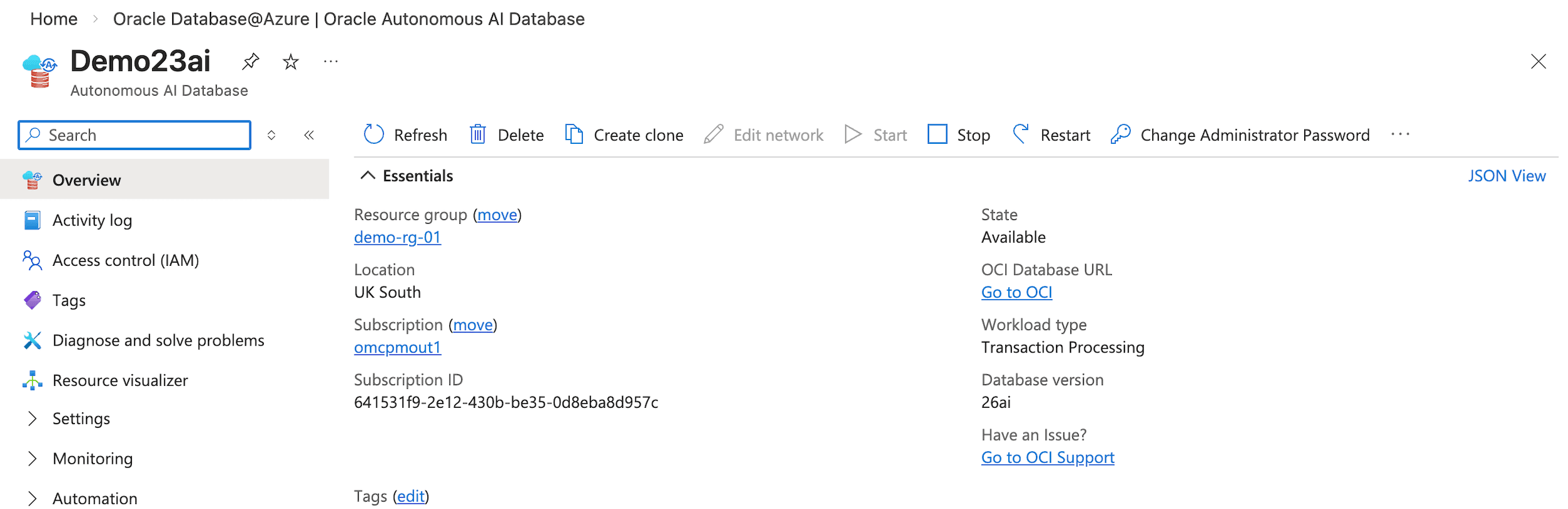
- From the Azure portal, navigate to your resource. From the Overview section, select the Go to OCI link.
-
Create Private DNS Zone
Create a private DNS zone that matches the fully qualified domain name of the NFS share in Azure. When Autonomous AI Database resolves that fully qualified domain name, it queries the VCN resolver, which checks the zones in the private view. The zone includes an A record that maps to the private endpoint for the Azure NFS storage.
Note
Note: Use the FQDN and IP address that you copied previously to create your Private DNS zone.-
From the OCI console, select Networking and then select Virtual cloud networks.
-
From the list, select your Virtual Cloud Network (VCN) that you are using.
-
From the Details tab, select the DNS Resolver link.
-
From the Private resolvers page, select the Details tab and then select the Default private view link.
-
From the Private views page, select the Private zones tab and then select the Create zone button. For example,
blob.core.windows.net. -
After creating a private zone, select the Records tab and then add a record. For example,
demoforblob. Ensure that the record points to the actual IP address of Azure Blob Storage. -
Publish the changes.
-
Update the Network Security Group (NSG) in OCI to allow traffic from the VPC where the Azure Blob Storage resides.
-
After you complete the configuration, the fully qualified domain name from the OCI database resolves to the Azure Blob Storage endpoint.
-
Complete the following steps in OCI:
-
Create the credentials in the Oracle AI Database:
-
Ensure that you have a successful connection from an Oracle AI Database client or tool to Autonomous AI Database. For more information, see Connect - Autonomous AI Database (Serverless).
-
Make sure that all outbound connections to the target host comply with the private endpoint egress rules and are limited by those rules.
ALTER DATABASE PROPERTY SET ROUTE_OUTBOUND_CONNECTIONS = ‘ENFORCE_PRIVATE_ENDPOINT’; -
Add the Azure Blob Storage FQDN to the Access Control List (ACL).
-
Use the
DBMS_NETWORK_ACL_ADMIN.APPEND_HOST_ACEprocedure to add an Access Control Entry (ACE) for the network host. Below is an example to replace it with your Azure Blob Storage endpoint from above (FQDN).BEGIN DBMS_NETWORK_ACL_ADMIN.APPEND_HOST_ACE( host => 'demoforblob.blob.core.windows.net', ace => xs$ace_type(privilege_list => xs$name_list('connect', 'resolve'), principal_name => 'ADMIN', principal_type => xs_acl.ptype_db)); END; -
Run the appropriate
DBMS_CLOUD.CREATE_CREDENTIALstatement (or similar procedure) to register credentials for Azure Blob Storage access. Make sure to provide the Access Key from above in the credential parameters.BEGIN DBMS_CLOUD.CREATE_CREDENTIAL( credential_name => '<Credential_Name>', username => '<Storage_Account_Name>', password => '<Key>' ); END;Replace the placeholders with your values:
-
<Credential_Name>: A name for the credential in the database. -
<Storage_Account_Name>: Your Azure Storage account name. -
<Key>: The access key for the Azure Storage account.
-
-
-
Test the access to Azure Blob Storage:
-
To verify that your Oracle AI Database can access the Azure Blob Storage container, list the objects inside it by using the
LIST_OBJECTSfunction in theDBMS_CLOUDpackage. -
Use the credential name that you created in step 1 and the container location URL that you obtained previously.
-
Make sure to omit the specific object name at the end of the URL.
select * from dbms_cloud.list_objects('AZURECRED','https://demoforblob.blob.core.windows.net/demoblob/');
-
Importing Data
-
Import the data from
.csvfile.-
To import the data, use the
COPY_DATAprocedure of theDBMS_CLOUDpackage.create table mytab (id number, name VARCHAR2(64), city VARCHAR2(64)); -
Run the following procedure to load data from a file in Azure Blob Storage into a table in your Oracle AI Database:
BEGIN DBMS_CLOUD.COPY_DATA( table_name => 'mytab', credential_name => 'AZURECRED', file_uri_list => 'https://demoforblob.blob.core.windows.net/demoblob/data.csv', format => json_object('delimiter' value ',') ); END; -
Run the following query to retrieve all columns and all rows from the table named
MYTAB:select * from mytab; -
Run the following procedure to import the data from
.txtfile:BEGIN DBMS_CLOUD.COPY_DATA( table_name => 'mydata', credential_name => 'AZURECRED', file_uri_list => 'https://demoforblob.blob.core.windows.net/demoblob/data.txt', format => json_object('delimiter' value ',') ); END; -
Run the following procedure to import the data using
.dmpfile.# data pump parameter file: impdemo.par directory=DATA_PUMP_DIR credential=AZURECRED schemas=demouser dumpfile=https://demoforblob.blob.core.windows.net/demoblob/demouser.dmp logfile=demoimp.log # data pump import commandimpdp userid=ADMIN@adb_high parfile=impdemo.par
-
-
Access to import Log file in Autonomous AI Database
-
After you import data by using Data Pump into Autonomous AI Database, you can check the files that the import creates in
DATA_PUMP_DIRon the database server:select object_name from DBMS_CLOUD.LIST_FILES('DATA_PUMP_DIR') order by last_modified desc; -
Copy the log file directly to Azure Blob Storage and download it from there:
BEGIN DBMS_CLOUD.PUT_OBJECT( 'AZURECRED', 'https://demoforblob.blob.core.windows.net/demoblob/logs/', 'DATA_PUMP_DIR', 'demoimp.log'); END; -
If you keep files in Azure Blob Storage and want to query them as tables in Oracle AI Database, use the
DBMS_CLOUD.CREATE_EXTERNAL_TABLEprocedure to define an external table that references the Azure Blob Storage location.BEGIN DBMS_CLOUD.CREATE_EXTERNAL_TABLE( table_name => 'exttab', credential_name => 'AZURECRED', file_uri_list => 'https://demoforblob.blob.core.windows.net/demoblob/data.csv', column_list => 'id NUMBER, name VARCHAR2(64)', format => json_object('delimiter' value ',') ); END; -
Run the following query to retrieve all columns and all rows from the table :
select * from exttab;
-
Learn More
For more information, see the following resources:
-
DBMS_CLOUD package
-
Cloud providers each have distinct strengths. As demand for cloud-native capabilities grows, many organisations adopt multi-cloud strategies to take advantage of the best services from each platform while reducing exposure to vendor lock-in.
Databases remain central to enterprise architectures. Oracle AI Database is well suited for high-volume transaction workloads and advanced analytic, delivering the consistency and availability businesses rely on. In a multicloud model, Oracle AI Database can help organizations run and manage data reliably and efficiently across multiple cloud environments.
This post focuses on the network configuration required to enable an Autonomous AI Database deployed in Oracle AI Database@Azure to mount an NFS Azure Files share.
Creating the Azure file share and establishing connectivity between the NFS private endpoint and the Autonomous Database endpoint are outside the scope of this article.
Before continuing, you should be comfortable with Oracle AI Database@Azure network topologies, Autonomous AI Database provisioning, NFS storage options, and Oracle AI Database@Azure DNS choices.
Solution Architecture
Oracle Autonomous AI Database at Azure uses the VCN DNS resolver. This resolver first checks the private DNS zones defined in the VCN’s private view. If the queried FQDN is not found there, the request is forwarded to the OCI public Internet DNS resolver. As a result, Azure DNS and the Oracle AI Database@Azure DNS capability operate separately, and private DNS zones cannot be resolved across clouds.
When the Autonomous AI Database networking is provisioned, the database is assigned an FQDN under the Oracle Cloud domain. That domain is hosted as a private DNS zone in OCI. After the service is created, the relevant DNS records are replicated from OCI into a matching Azure private DNS zone. Azure-based applications then resolve the Autonomous AI Database FQDN using that Azure private zone.
The Azure private DNS zone is linked to the virtual network where the Autonomous AI Database is deployed.
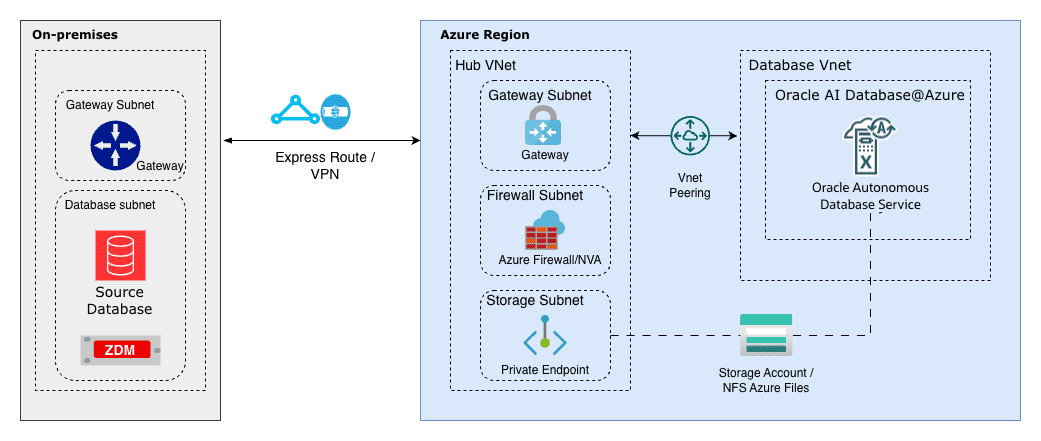
Ensure that you already have an Azure Files NFS share that is exposed through a private endpoint. If you do not have this configuration, see the Create an Azure classic file share to create one.
Complete the following steps to obtain the FQDN and IP address information.
-
From the Azure portal, navigate to Storage accounts, and then select your account from the list.
-
From the left menu, expand the Security + networking section, and then select Networking.
-
Select the Private endpoints tab and select your private endpoint from the list.
-
From the left menu, expand the Settings section and then select DNS configuration.
-
From the Network interface section, obtain the FQDN and IP address information.
Configure the OCI DNS
- From the Azure portal, navigate to your resource. From the Overview section, select the Go to OCI link.
Create Private DNS Zone
Create a private DNS zone that matches the fully qualified domain name of the NFS share in Azure. When Autonomous AI Database resolves that fully qualified domain name, it queries the VCN resolver, which checks the zones in the private view. The zone includes an A record that maps to the private endpoint for the Azure NFS storage.
Note
Note: Use the FQDN and IP address that you copied previously to create your Private DNS zone.-
From the OCI console, select Networking and then select Virtual cloud networks.
-
From the list, select your Virtual Cloud Network (VCN) that you are using.
-
From the Details tab, select the DNS Resolver link.
-
From the Private resolvers page, select the Details tab and then select the Default private view link.
-
From the Private views page, select the Private zones tab and then select the Create zone button. For example,
file.core.windows.net. -
After creating a private zone, select the Records tab and then add a record. For example,
demofornfs. Ensure that the record points to the actual IP address of Azure NFS storage. -
Publish the changes.
-
Update the Network Security Group (NSG) in OCI to allow traffic from the VPC where the Azure NFS server resides.
-
After you complete the configuration, the fully qualified domain name from the OCI Database resolves to the Azure NFS endpoint.
Mount the NFS Azure File Share on Autonomous AI Database
Before you continue, you need an established connection from an Oracle AI Database client or tool to the Autonomous AI Database. Configuring the client and setting up connectivity to the database are outside the scope of this post.
For more information about Oracle AI Database tools, see Oracle Database Tools Service.
To begin accessing an NFS target from your Autonomous AI Database, make sure that the following prerequisite is met:
-
Confirm that all outbound traffic to the target host is governed by and limited to the private endpoint’s egress rules.
SQL > ALTER DATABASE PROPERTY SET ROUTE_OUTBOUND_CONNECTIONS = ‘ENFORCE_PRIVATE_ENDPOINT’; -
Add NFS Mount FQDN to the Access Control List (ACL).
-
Use the
DBMS_NETWORK_ACL_ADMIN.APPEND_HOST_ACEprocedure to append an Access Control Entry (ACE) to the Access Control List of a network host. The following example shows how to do this. Replace the values with your NFS details.SQL > exec DBMS_NETWORK_ACL_ADMIN.APPEND_HOST_ACE( host =>’demofornfs.file.core.windows.net’, ace => xs$ace_type(privilege_list => xs$name_list(‘connect’, ‘resolve’), principal_name => ‘ADMIN’, principal_type =>xs_acl.ptype_db)); -
Create a directory, or use an existing directory, to attach an NFS share in your Autonomous AI Database. For more information, see Create a Directory.
SQL >CREATE or replace DIRECTORY FSS_DIR AS ‘fss’; -
Attach the NFS share to a directory in your Autonomous AI Database. For more information, see Mounting an NFS Share. The following example shows how to do this. Replace the values with your NFS details.
SQL >exec DBMS_CLOUD_ADMIN.ATTACH_FILE_SYSTEM( file_system_name => ‘AZURE_FILES’, file_system_location =>’demofornfs.file.core.windows.net:/demo_nfs/backup’, directory_name => ‘FSS_DIR’, description => ‘Attach Azure Files’, params => JSON_OBJECT(‘nfs_version’ value 4) ); -
Verify the result by running the following command.
SQL >SELECT file_system_name, file_system_location, directory_path FROM
      dba_cloud_file_systems;
SQL> SELECT file_system_name, file_system_location, directory_path FROM dba_cloud_file_systems; FILE_SYSTEM_NAME -------------------------------------------------------------------------------- FILE_SYSTEM_LOCATION -------------------------------------------------------------------------------- DIRECTORY_PATH -------------------------------------------------------------------------------- AZUREFILES demofornfs.file.core.windows.net:/demo_nfs/backup /u03/dbfs/123456789012345678/data/fss/ -
As a validation step, import a database dump into the Autonomous AI Database from a source environment. Mounting the NFS share on the source database is outside the scope of this post. From the source system, copy the required export dump file to the NFS-backed storage so it can be imported into the Autonomous AI Database.
In this example, place an export of the HR schema on the NFS mount, and then import it into a new schema named HRNEW.
$ ./impdp admin/********@adbdemo_high directory=fss_dir dumpfile=hrexp.dmp logfile=impsh.log full=y remap_schema=HR:HRNEW

Import: Release 23.0.0.0.0 - Production on Tue Feb 25 17:48:29 2025
Version 23.4.0.24.05

Copyright (c) 1982, 2024, Oracle and/or its affiliates.  All rights reserved.

Connected to: Oracle Database 19c Enterprise Edition Release 19.0.0.0.0 - Production
Master table "ADMIN"."SYS_IMPORT_FULL_01" successfully loaded/unloaded
Starting "ADMIN"."SYS_IMPORT_FULL_01":  admin/********@adbdemo_high directory=fss_dir dumpfile=hrexp.dmp logfile=impsh.log full=y remap_schema=HR:HRNEW
Processing object type SCHEMA_EXPORT/SYSTEM_GRANT
Processing object type SCHEMA_EXPORT/ROLE_GRANT
Processing object type SCHEMA_EXPORT/DEFAULT_ROLE
Processing object type SCHEMA_EXPORT/PRE_SCHEMA/PROCACT_SCHEMA
Processing object type SCHEMA_EXPORT/TABLE/TABLE
Processing object type SCHEMA_EXPORT/TABLE/TABLE_DATA
. . imported "HRNEW"."REGIONS"                     3.20 KB   15 rows
. . imported "HRNEW"."LOCATIONS"                 6.8 KB   36 rows
. . imported "HRNEW"."DEPARTMENTS"                59.17 KB     24 rows
. . imported "HRNEW"."JOBS"                  2.3 KB       15 rows
. . imported "HRNEW"."EMPLOYEES"                 12.53 MB     122345 rows
. . imported "HRNEW"."JOB_HISTORY" 14.6 KB   4500 rows
Processing object type SCHEMA_EXPORT/TABLE/GRANT/OWNER_GRANT/OBJECT_GRANT
Processing object type SCHEMA_EXPORT/TABLE/COMMENT
Processing object type SCHEMA_EXPORT/TABLE/CONSTRAINT/CONSTRAINT
Processing object type SCHEMA_EXPORT/TABLE/CONSTRAINT/REF_CONSTRAINT
Processing object type SCHEMA_EXPORT/TABLE/STATISTICS/TABLE_STATISTICS
Processing object type SCHEMA_EXPORT/STATISTICS/MARKER
Processing object type SCHEMA_EXPORT/POST_SCHEMA/PROCACT_SCHEMA
Job "ADMIN"."SYS_IMPORT_FULL_01" successfully completed
Conclusion
Loading data from external storage is an important capability of Autonomous AI Database that administrators use for bulk loads, migrations, and ongoing data ingestion. This post describes the configuration required to attach Azure-based NFS storage to your Autonomous AI Database environment. It covers the prerequisites, the key setup steps, and how to validate the mount and access permissions. After you complete these steps, you can use the attached file system as a staging area for Data Pump and other load utilities.
-