Prerequisites
Before configuring your Oracle AI Database@Azure environment, it is necessary to understand the prerequisites for your selected encryption method.
- Oracle-managed Key (OMK)
- Oracle Wallet
- Customer-managed Key (CMK)
- OCI Vault
- Oracle Key Vault (OKV)
- Azure Key Vault (AKV)
This section explains the required prerequisites to configure your Oracle AI Database@Azure.
Oracle-Managed Keys (OMK) are the default method for securing data encryption in Oracle AI Database@Azure. In Oracle AI Database, data encryption at rest is enabled by transparent data encryption (TDE). When you choose Oracle-Managed Keys, the database system automatically manages all key operations, including key generation, secure storage, and rotation required by TDE. There are no prerequisites or additional configuration steps required to use Oracle-Managed Keys in Oracle AI Database@Azure.
Prerequisites to Use Customer-Managed Keys on Oracle AI Database@Azure with OCI Vault
Using customer-managed encryption keys on Oracle AI Database@Azure with Oracle Cloud Infrastructure Vault (OCI Vault) involves creating a master key in OCI Vault and configuring your Oracle Cloud Infrastructure Vault database to use encryption keys in OCI Vault.
- Create an OCI Vault
- From the OCI Console, select Identity and Security. Under Key Management, select Vault.
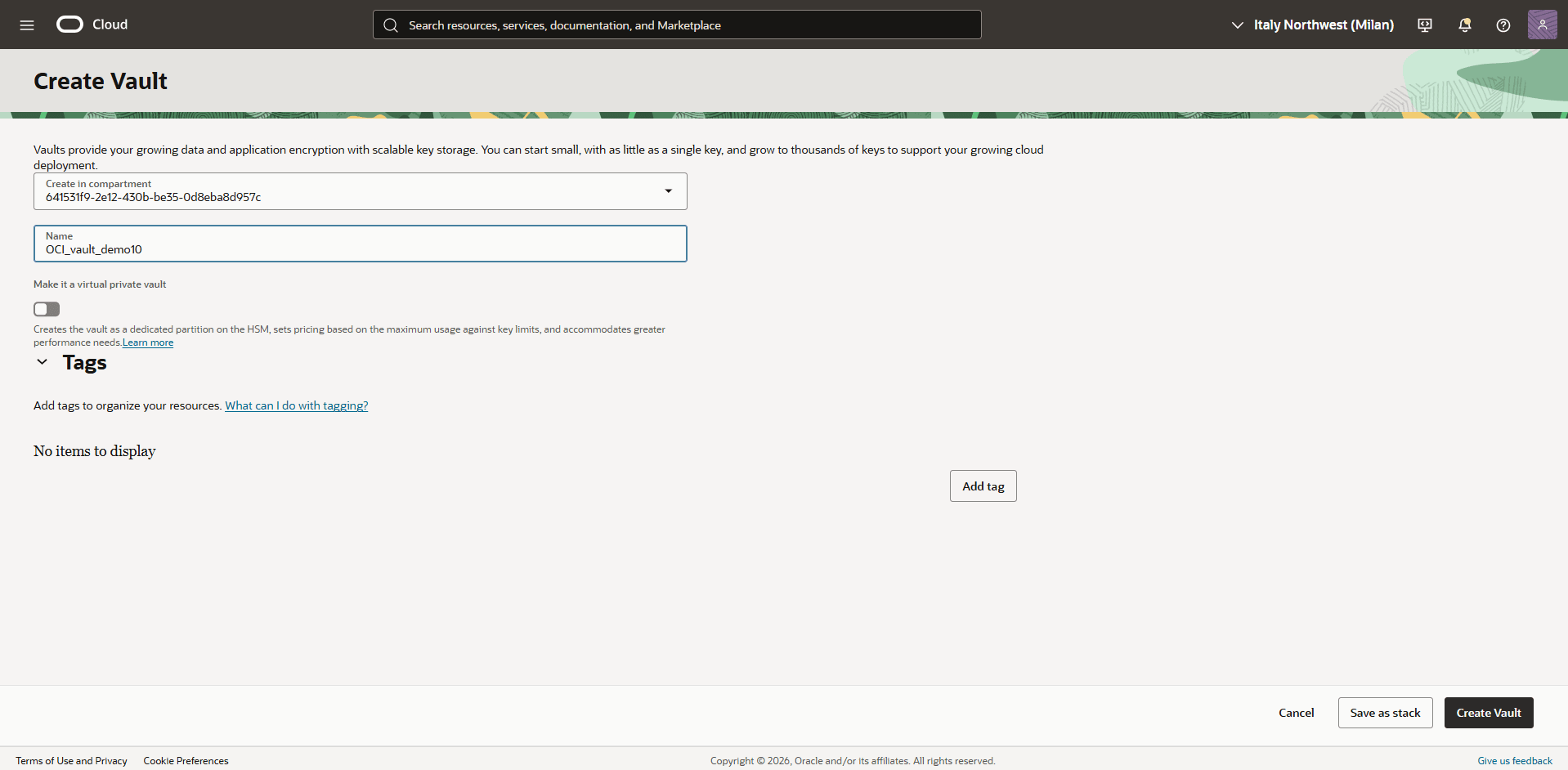
- Select the Create Vault button.
- Select a compartment.
- Enter a name for the vault.
- Enable the Make it a virtual private vault toggle to create a dedicated partition in a hardware security module (HSM), if required.
Note
You cannot change the vault type after you create the vault. - The Tags section is optional.
- Select the Create Vault button.
Note
We recommend creating the vault in a compartment dedicated to customer-managed keys, as described in Before You Begin: Compartment Hierarchy Best Practice. For more information, see Creating a Vault.
- Create a Master Encryption Key in the Vault
- From the Vault menu, select the vault that you created previously.
- Select the Master Encryption Keys tab, then select the Create Key button.
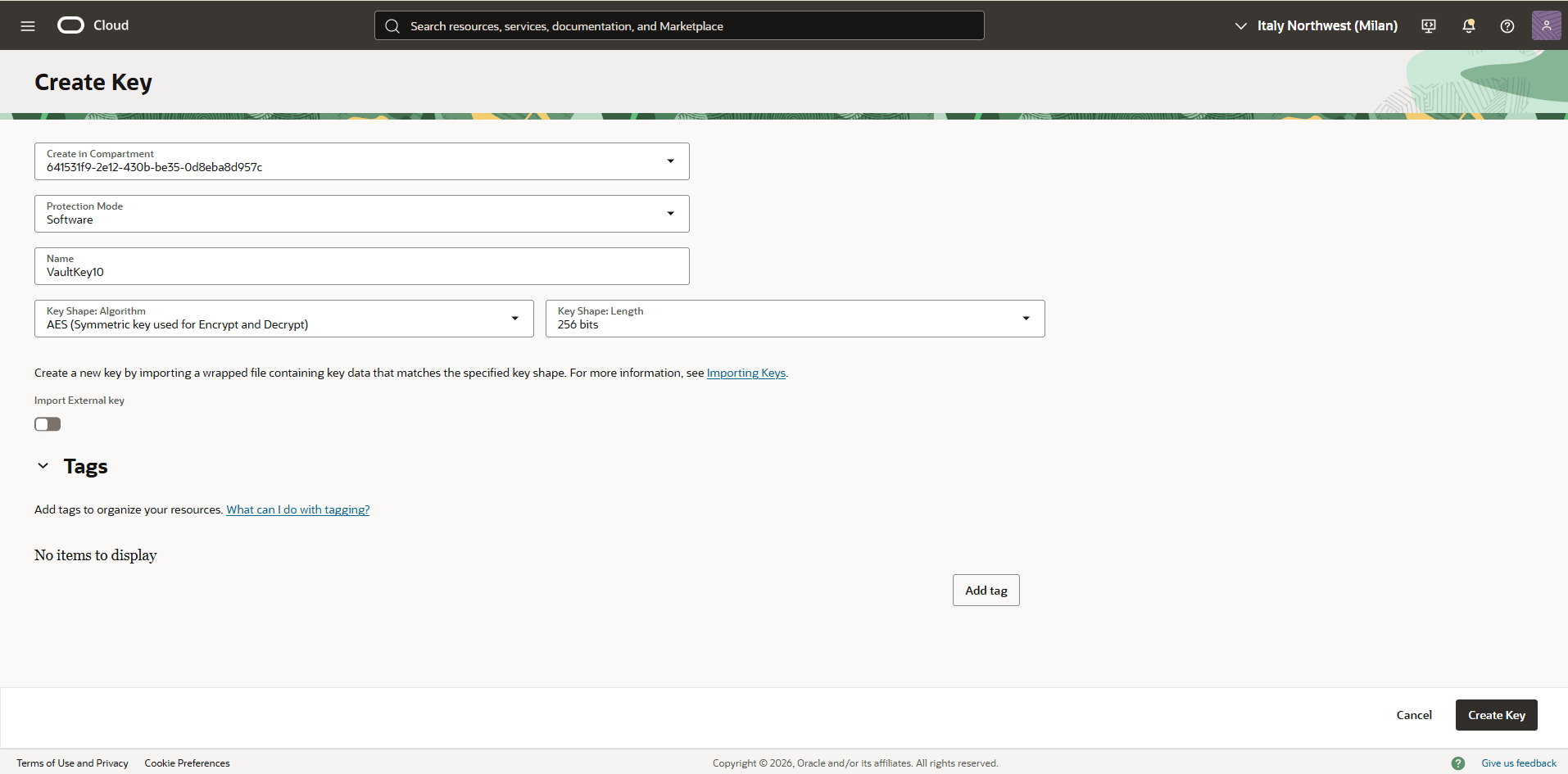
- Choose a compartment.
- Select the protection mode from the dropdown list:
- HSM: Creates a master encryption key that is stored and processed on an HSM.
- Software: Creates a master encryption key that is stored in a software file system in the Vault service. Software-protected keys are protected at rest using an HSM-based root key. You can export software keys to other key management devices or to a different OCI region. Software-protected keys do not incur cost.
- Enter a key name.
- From the Key Shape: Algorithm dropdown list, select AES (Symmetric key used for Encrypt and Decrypt).
- From the Key Shape: Length dropdown list, select 256 bits.
Note
We recommend creating a separate master encryption key for each container database (CDB). This approach simplifies key rotation management.For more information, see Creating a Master Encryption Key and Overview of Key Management..
- Configure a Service Gateway, Route Rule, and Egress Security Rule
To enable communication between OCI Vault and Oracle AI Database@Azure, configure a Service Gateway, update the Route table(s), and configure the required security list permissions.
- From the OCI Console, navigate to the Virtual Cloud Network (VCN) associated with your Oracle AI Database@Azure database.
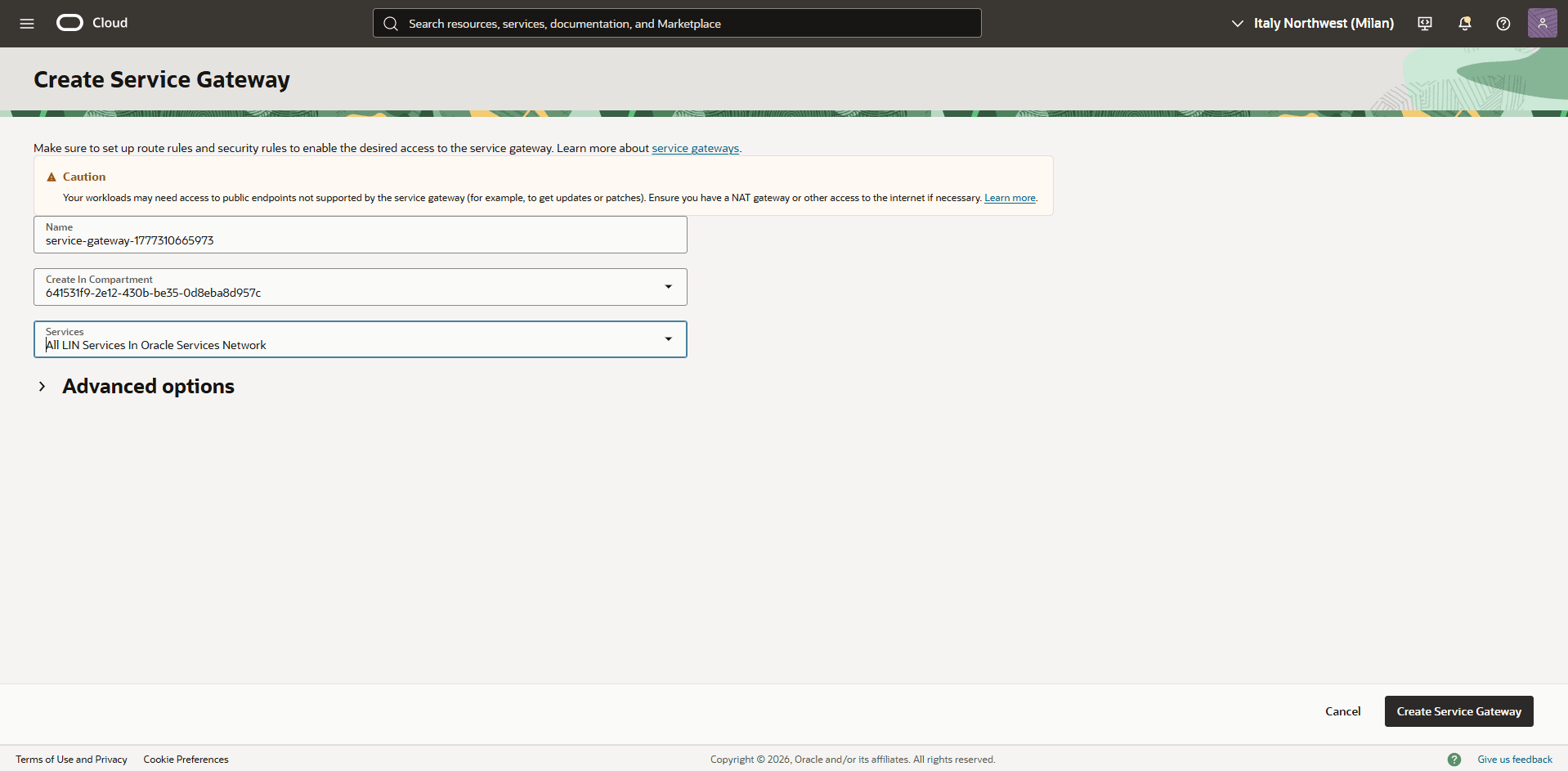
- Select the Gateways tab. In the Service Gateways section, select the Create Service Gateway button.
- Enter a descriptive name for the service gateway.
- For Services, select the All KQQ Services in Oracle Services Network option.
- Review your information, and then select the Create Service Gateway to create your service gateway.
- Select the Routing tab, then select your default route table.
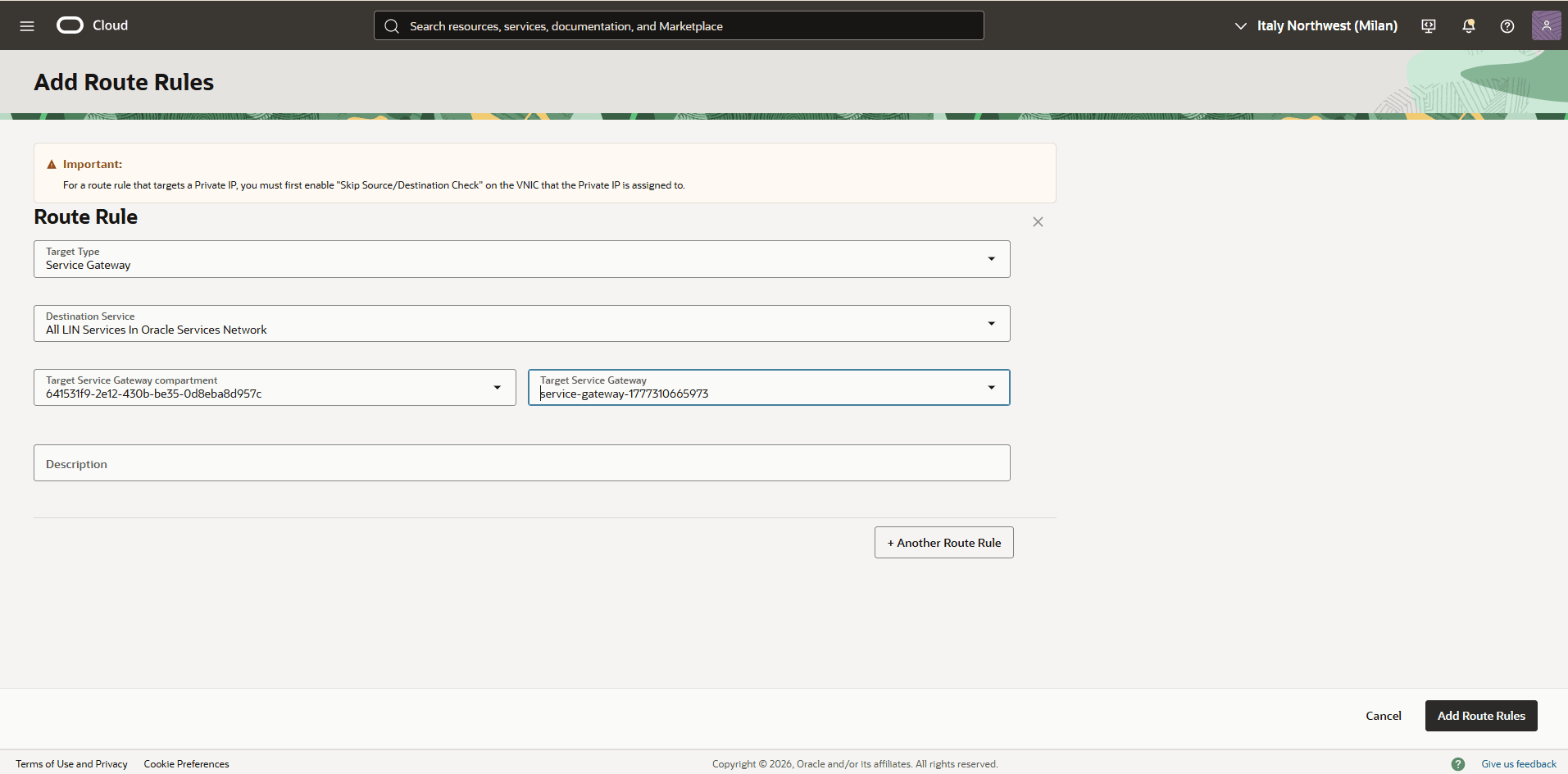
- Select the Route Rules tab, then select the Add Route Rules button.
- Set Target Type to Service Gateway.
- Set Destination Service to All KQQ Services in Oracle Services Network.
- In the Target Service Gateway compartment field, select the compartment that contains the service gateway.
- In the Target Service Gateway field, select the service gateway that you created previously.
- Review your information, and then select the Add Route Rules button.
- From the Virtual Cloud Network (VCN) that is associated with your Oracle AI Database@Azure database, select the Security tab.
- In the Security List section, select the default security list.
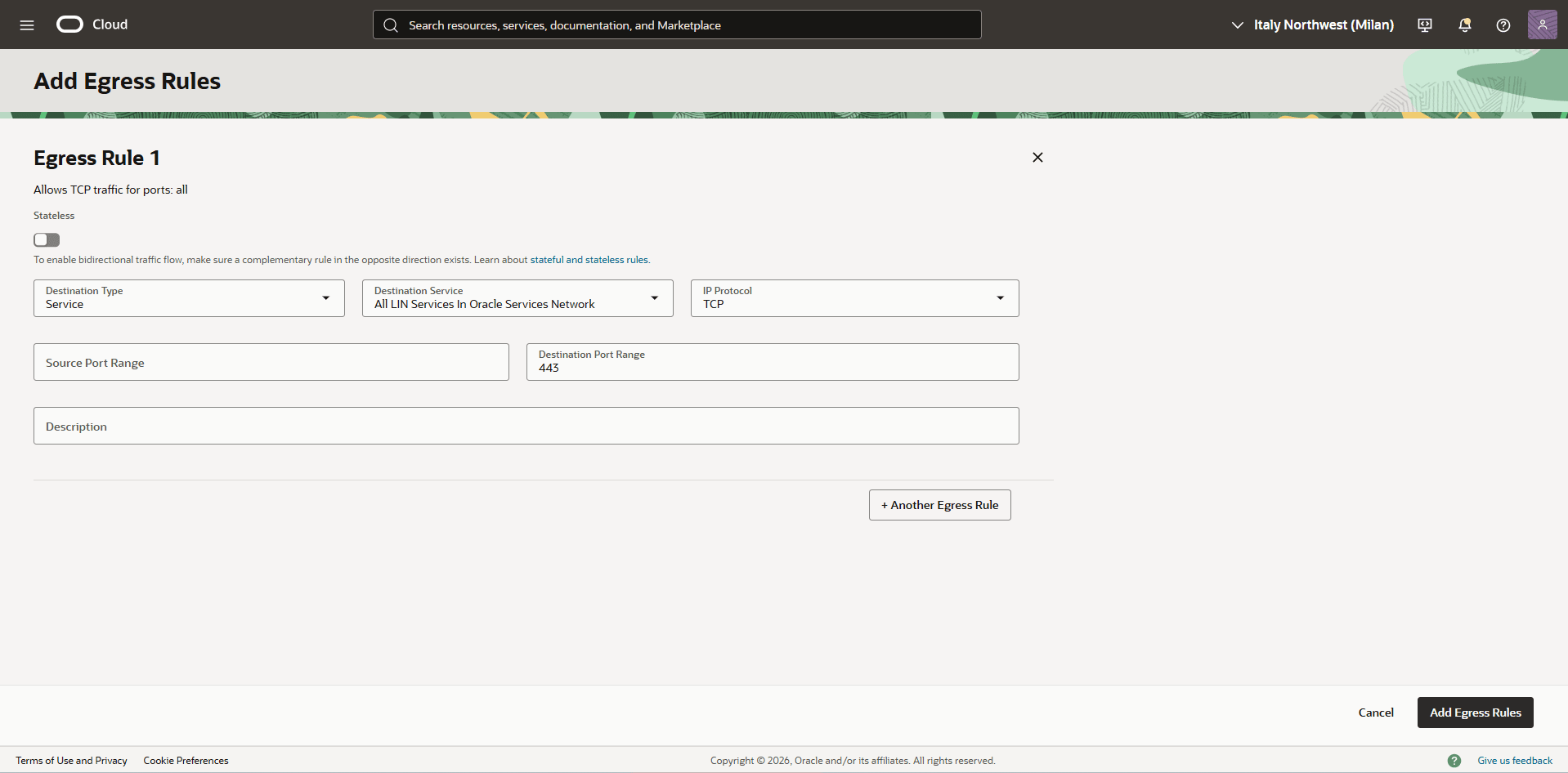
- Select the Security Rules tab, then select the Add Egress Rules button.
- Set Stateless to No.
- Set Destination Type to Service.
- Set Destination Service to All IAD Services in Oracle Services Network.
- Set IP Protocol to TCP.
- Set Source Port Range to All.
- Set Destination Port Range to 443.
- Select the Add Egress Rules button.
- Create an OCI Vault
There is currently no content for this page. The Oracle AI Database@Azure team intends to add content here, and this placeholder text is provided until that text is added.
The Oracle AI Database@Azure team is excited about future new features, enhancements, and fixes to this product and this accompanying documentation. We strongly recommend you watch this page for those updates.
Oracle AI Database@Azure now supports integration with Azure Key Vault. This capability allows you to manage transparent data encryption (TDE) master encryption keys (MEKs) using Azure Key Vault. Previously, TDE master encryption keys can only be stored in a file-based Oracle Wallet, Oracle Cloud Infrastructure (OCI) Vault, or Oracle Key Vault (OKV).
With this update, you can now store and manage CMKs directly in Azure Key Vault , providing improved key lifecycle control and alignment with your organization’s security policies. To configure Azure Key Vault to encrypt your database, complete the following prerequisite steps.- Create an Azure Key Vault
- From the Azure portal, select Key vaults.
- Select the Create button.
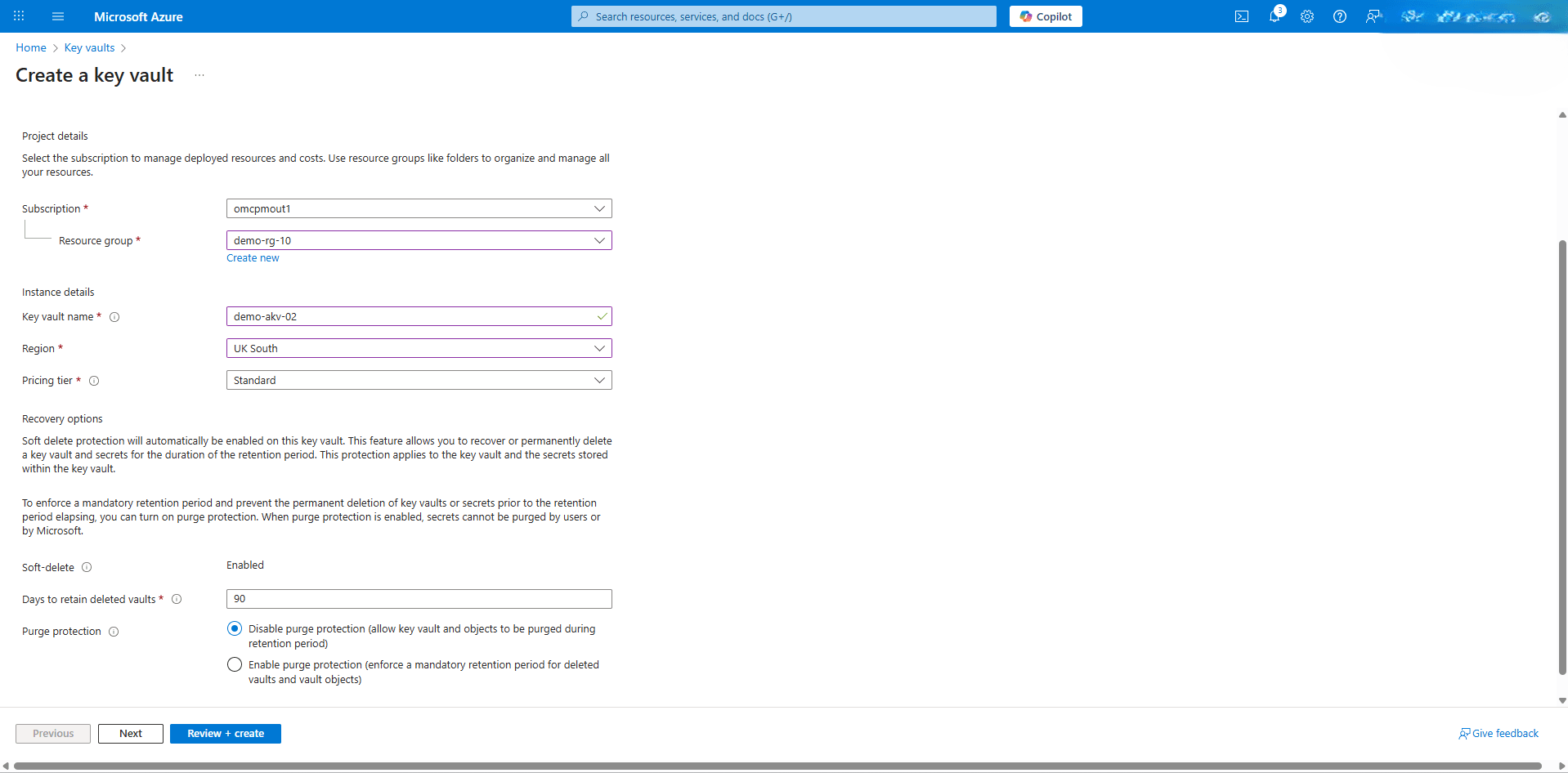
- From the Basics tab of the Create a key vault flow, enter the following information.
- From the dropdown list, select your Subscription that you want to use, and then select the Resource group.
- Enter a descriptive name in the Key vault name field. The Key vault name must only contain alphanumeric characters and dashes and cannot start with a number. A vault's name must be between 3-24 alphanumeric characters. The name must begin with a letter, end with a letter or digit, and not contain consecutive hyphens.
- Select the Region where you want to deploy the key vault.
- From the dropdown list, select Pricing tier.
- From the Recovery options section, enter the value in the Days to retain deleted vaults field. It can be configured to between 7 to 90 days. Once it has been set, it cannot be changed or removed.
- Choose your Purge protection based on your requirements.
- Select the Next button.
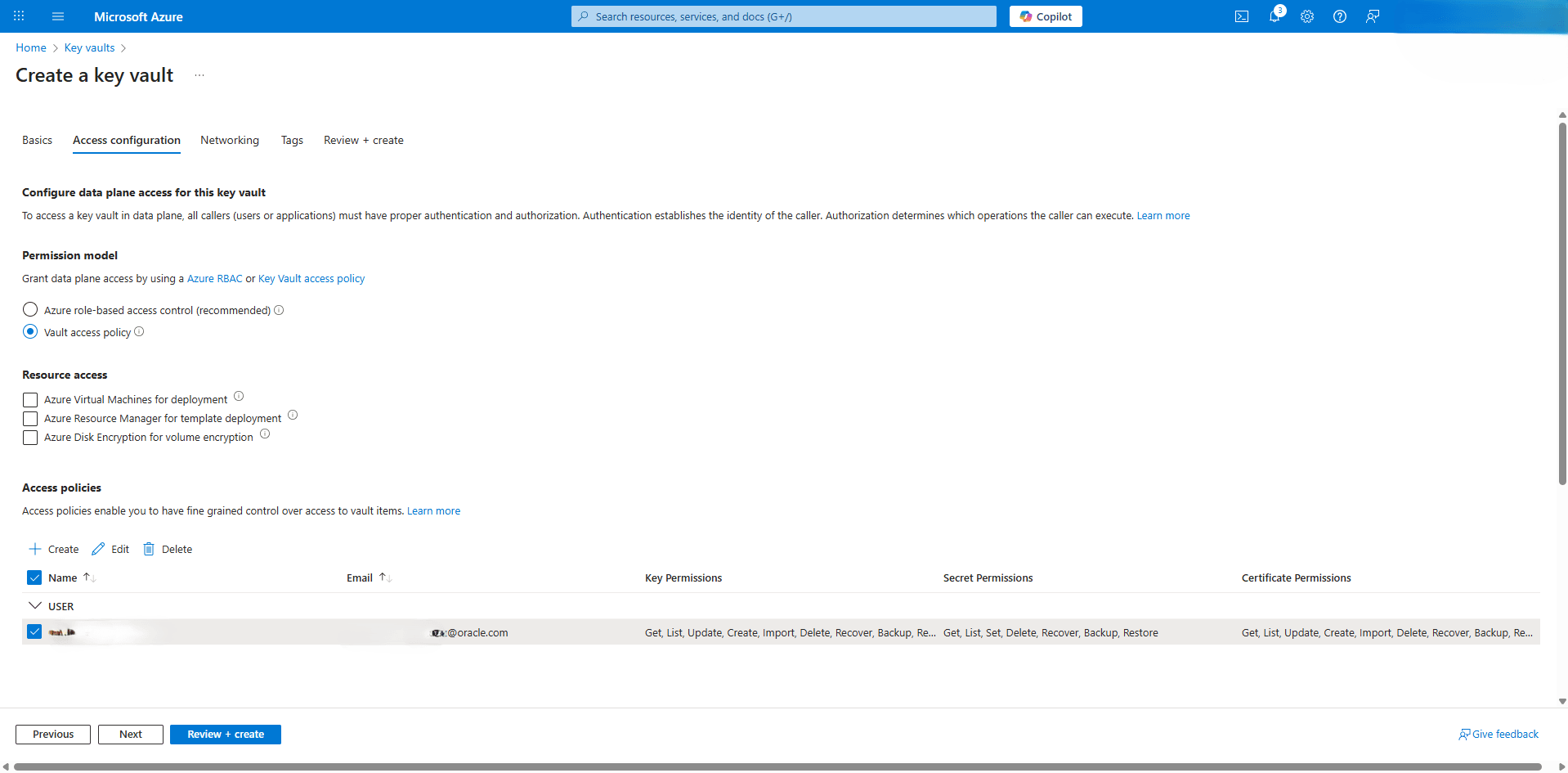
- From the Access configuration tab of the Create a key vault flow, enter the following information.
- Choose the Vault access policy option as your Permission model. This option enable you to create users the required permissions.
- Choose the Resource access based on your requirementa.
- Select the Next button.
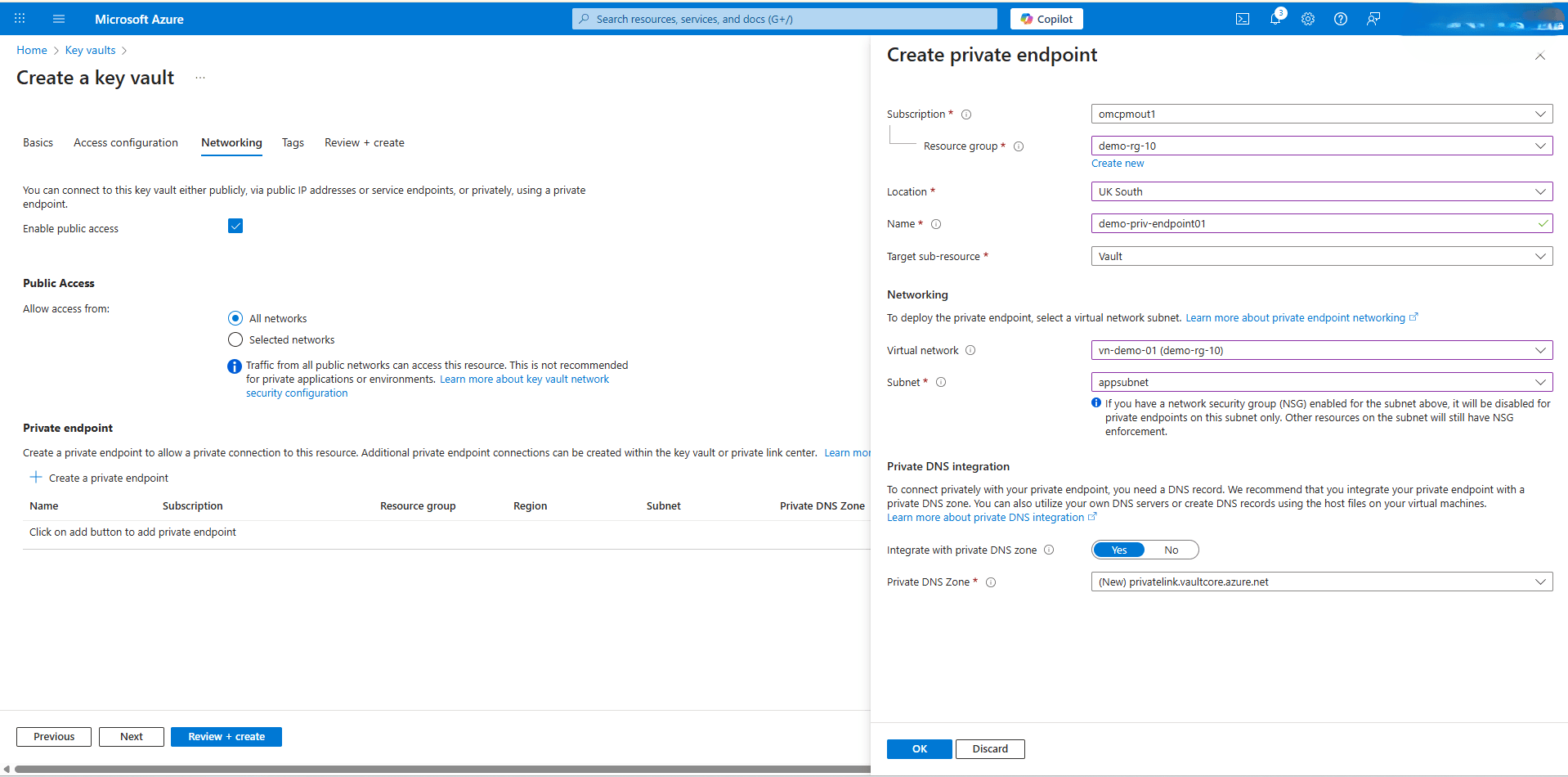
- From the Networking tab of the Create a key vault flow, enter the following information.
- The Enable public access is selected by default. With this option, you can connect to this key vault either publicly, via public IP addresses or service endpoints, or privately, using a private endpoint.
- From the Public access section, if you select the Selected networksoption, only networks you choose can access this key vault. If you select the All networks option, traffic from all public networks can access this resource. This is not recommended for private applications or environments.
- Under the Private endpoint section, select the + Create a private endpoint button.
- From the dropdown list, select your Subscription that you want to use, and then select the Resource group.
- Select the Location where you want to create the key vault and the private endpoint.
- Enter a descriptive Name for your private endpoint. The name must begin with a letter or number, end with a letter, number or underscore, and may contain only letters, numbers, underscores, periods, or hyphens.
- Select Vault as the Target sub-resource.
- From the Networking section, select Virtual network and Subnet
- In the Private DNS integration section, the Integrate with private DNS zone option is enabled. From the dropdown list, you must select Private DNS Zone.
- Select the OK button to save the changes.
- From the Tags tab of the Create a key vault flow, you can categorize resources. This section is optional.
- From the Review + create tab of the Create a key vault flow, you can check the values that you entered from the previous steps. If the validation fails, you must correct any errors before you can start the provisioning process.
Note
- Azure Key Vault is only supported in commercial regions.
- Azure Key Vault is not supported in cross-region Autonomous Data Guard standbys.
- Create a Key on Azure Key Vault
- From the Azure portal, select Key vaults, and then select the key vault you created in the step 1.
- From the left menu, expand the Objects section, and then select Keys.
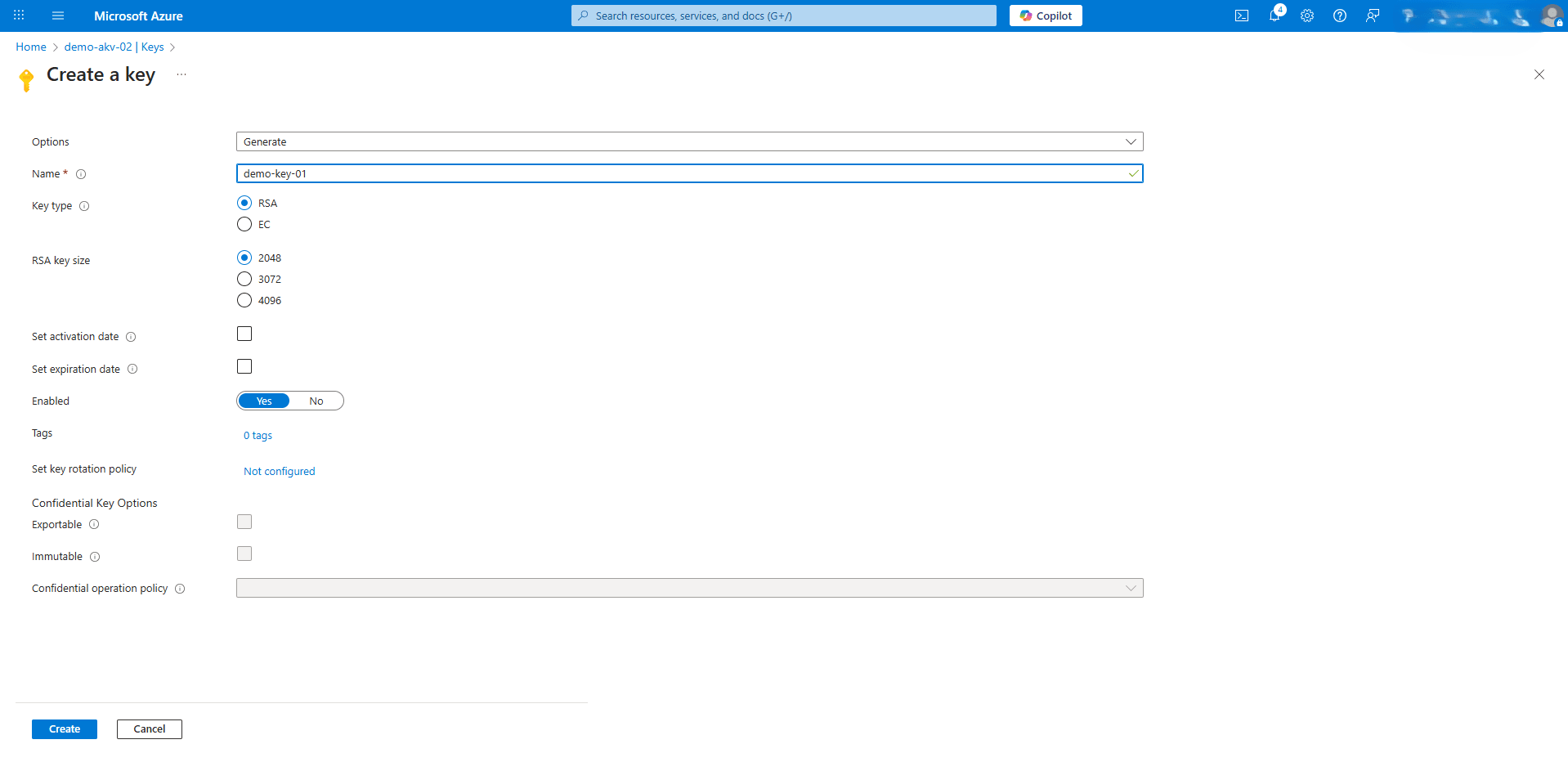
- Select the + Generate/Import button to create a key.
- Select the Generate option as your Options.
- Enter a descriptive Name for the key. Key names can only contain alphanumeric characters and dashes. The value you provide may be copied globally for the purpose of running the service. The value provided should not include personally identifiable or sensitive information.
- Choose the RSA option as your Key type.
- Choose the 2048 option as your RSA key size.
- If you want to set activation date, select the Set activation date checkbox,, and enter the required information.
- If you want to set expiration date, select the Set expiration date checkbox, and enter the required information.
- For the Enabled option, select Yes.
- Select the Create button to save the changes.
Note
- Supported key shapes and sizes are the following:
- RSA 2048, 3072, and 4096
- EC-P256, EC-P256K, EC-P384, EC-P521
- To connect to Azure Key Vault private endpoint from the same VNet, you must activate Advanced Network. For more information, see Delegated Subnet.
- Obtain the Azure Key Vault URI
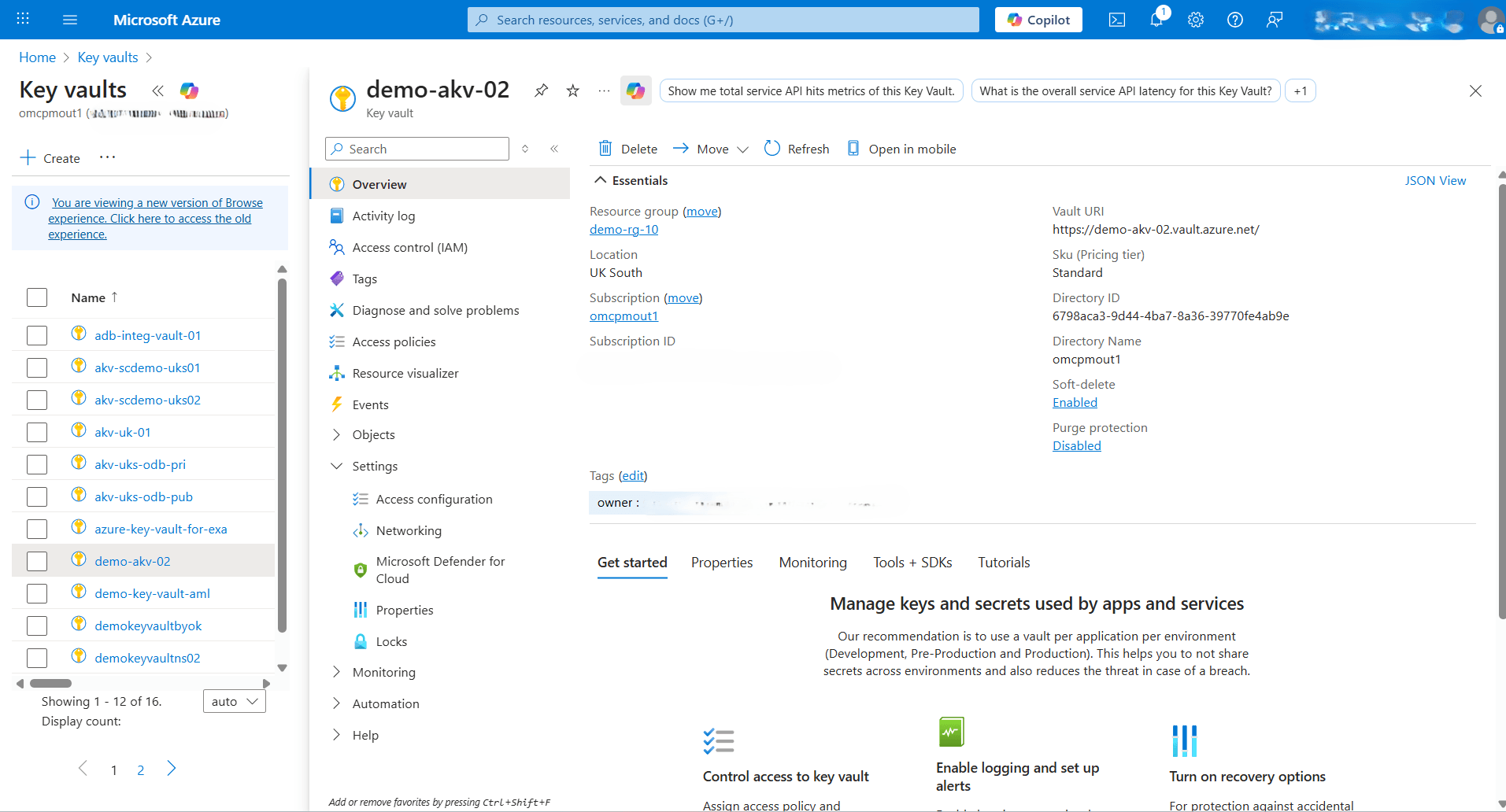
- From the Azure portal, select Key vaults, and then select the Name field of the key vault that you want to use.
- From the left menu, select Overview, and then note of the Vault URI.
- Create an Azure Key Vault