Azure Machine Learning and OpenAI
You can migrate your e-commerce application from an on-premises environment to Microsoft Azure using Oracle AI Database@Azure to store the product catalog data. if you are limited to the Like search in the on-premises environment, then you can leverage Oracle AI Vector Search capabilities in Oracle AI Database 26ai with Azure OpenAI to replace Like-based search with semantic search.
Solution Architecture
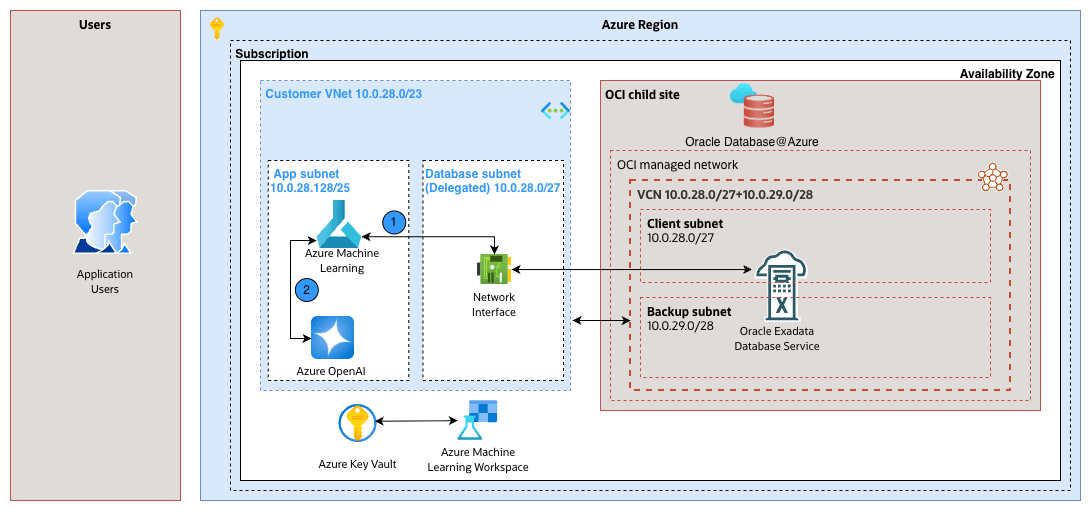
In this architecture, the application and Oracle AI Database@Azure run in a virtual network (VNET). The application server runs in a dedicated subnet and communicates with the Oracle AI Database@Azure through a delegated subnet that maps to the client subnet. For existing product catalog data, Azure OpenAI generates vector embeddings. Azure OpenAI workspace compute serves as a batch server for one-time vector embedding generation. The application server communicates with Azure OpenAI for real-time vector embedding generation.
Prerequisites
- Create an Oracle Exadata Database (26ai).
- Obtain the connection string for the Oracle Database Pluggable Database (PDB).
To request an Azure OpenAI Foundry service quota increase, see Azure OpenAI in Microsoft Foundry Models quotas and limits.
This solution has the following steps:
- Create the database schema.
- Create the database table for the current state.
- Update the schema to use AI Vector for the future state.
- Create Azure OpenAI.
- Deploy a text embedding model.
- Create Azure Machine Learning.
- Create a compute instance.
- Use the compute instance to run notebook code.
- Create a Python notebook.
- Load sample data into the existing table.
- Enrich the data with Oracle AI Vector Search.
- Run semantic search queries (Magic Query).
- Create a compute instance.
Next Steps: Switch to Oracle AI Database tab and follow the step-by-step instructions.
- Create the database schema.
Create Oracle AI Database Table (Current State)
- Connect to Oracle Exadata Database. For the step-by-step instructions, see the Connect - Exadata Database section.
- Create a new user in the database, and grant the user the
dbarole which allows the user to connect to the database.create user DEMO_USER identified by "demo****password"; grant connect, dba to DEMO_USER; - Create a new database table named Product in the Oracle AI Database.
CREATE TABLE product
(
    product_id INT GENERATED ALWAYS AS IDENTITY(START WITH 1 INCREMENT BY 1),
    main_category VARCHAR2(255),
    title VARCHAR2(2000),
    average_rating FLOAT,
    rating_number INT,
    features CLOB,
    description CLOB,
    price VARCHAR2(256),
    images JSON,
    videos CLOB,
    store VARCHAR2(4000),
    categories CLOB,
    details CLOB,
    parent_asin VARCHAR2(255),
    bought_together CLOB
);

-- Add indexes
alter table "DEMO_USER"."PRODUCT" add constraint PK_PRODUCT_PRODUCTID primary key("PRODUCT_ID");
Modernize the Schema with Oracle AI Vector Search (Future State)
Update the existing Oracle AI Database table to use AI capabilities available in Oracle AI Database 26ai or later for integration with the Azure OpenAI text embedding model.
- Run the following SQL statement in Oracle AI Database to alter the Product table and add a vector column:
ALTER TABLE product ADD (title_embedding VECTOR(3072, FLOAT32)); - Run the following SQL statement in Oracle AI Database to update rows with a null title value for AI logical identification:
UPDATE "DEMO_USER"."PRODUCT"
SET title = 'Missing Title'
WHERE title IS NULL;
Next Steps: Switch to Azure OpenAI tab and follow the step-by-step instructions.
These are the steps to create an Azure OpenAI resource.
- From the Azure portal, navigate to Azure OpenAI.
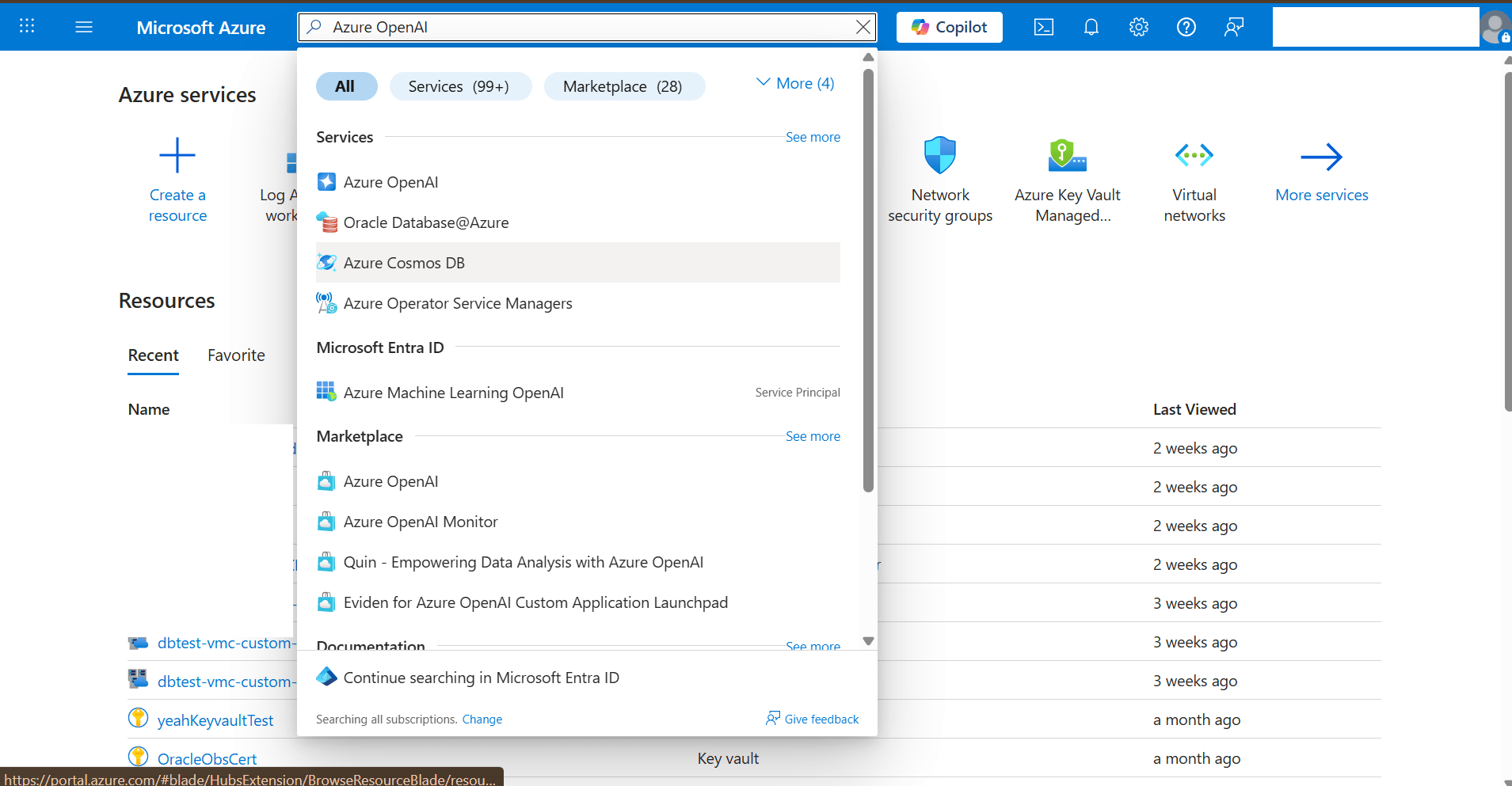
- In the left navigation menu, locate the Use with Foundry section, and then select Azure OpenAI.
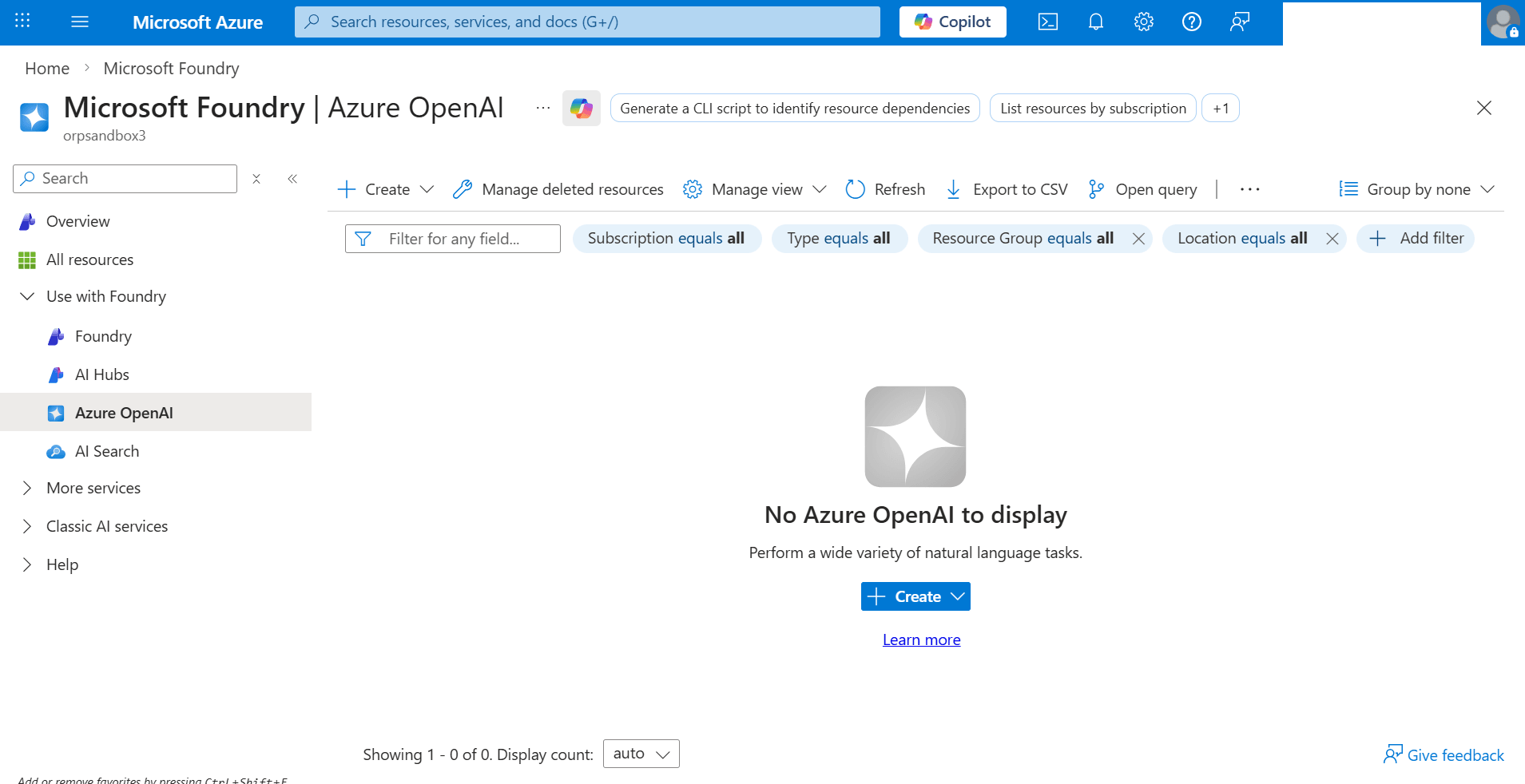
- Select the + Create button.
- You can select + Create in the top toolbar, or
- Select the + Create button in the center of the page under No Azure OpenAI to display.
- From the + Create dropdown list, select the Azure OpenAI option to start the Create Azure OpenAI workflow.
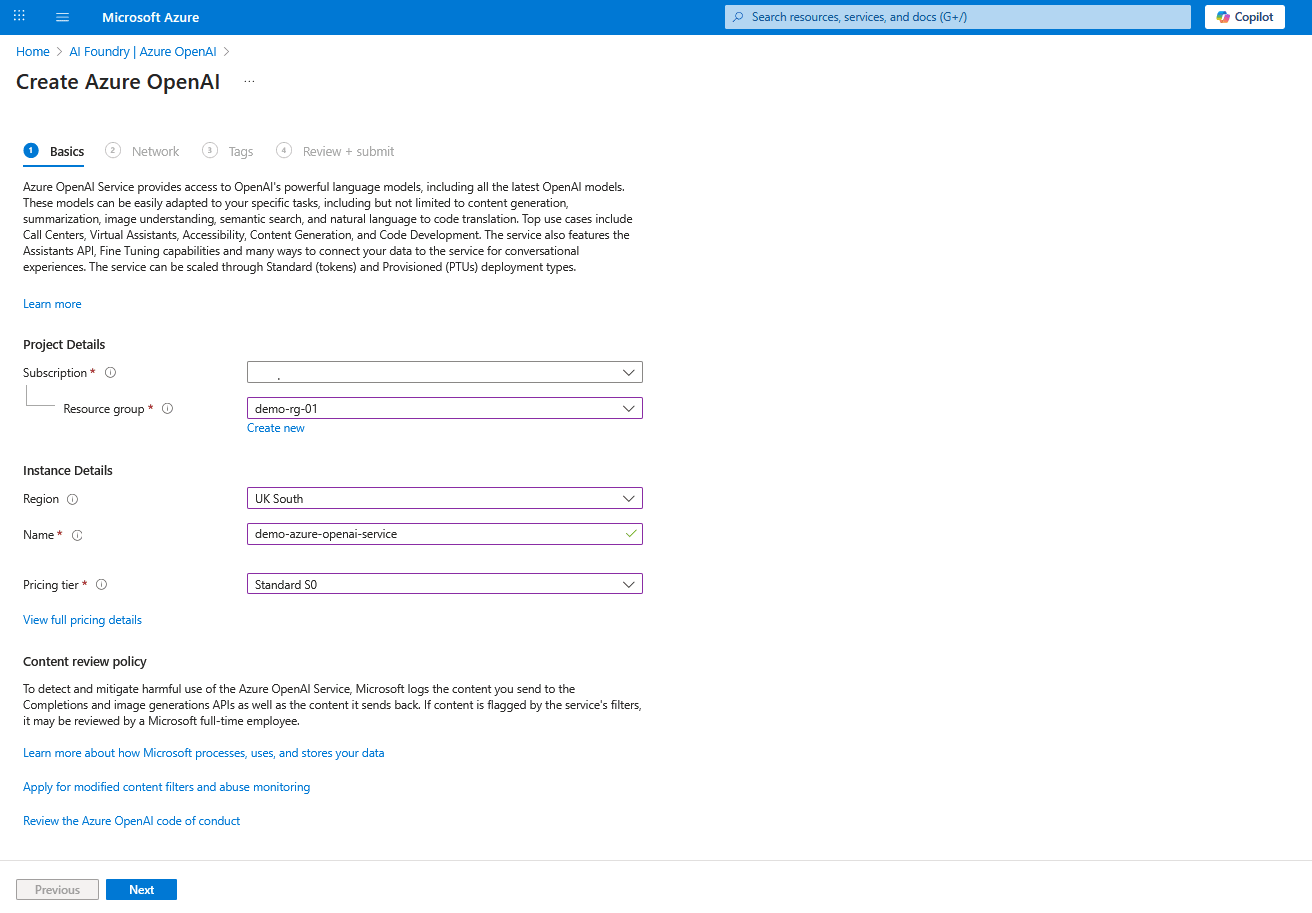
- From the Basics tab of the Create Azure OpenAI workflow, enter the following information:
- From the Subscription dropdown list, select your Azure subscription.
- Select an existing Resource group or select Create new to create one.
- Enter a unique resource Name within the selected subscription. Only alphanumeric characters and hyphens are allowed. The value must be 2-64 characters long and cannot start or end with a hyphen.
- Select the Pricing tier required for sizing and capacity. For more information, see View full pricing details.
- Review the policy information and links from the Content review policy section.
- Select the Next button to proceed.
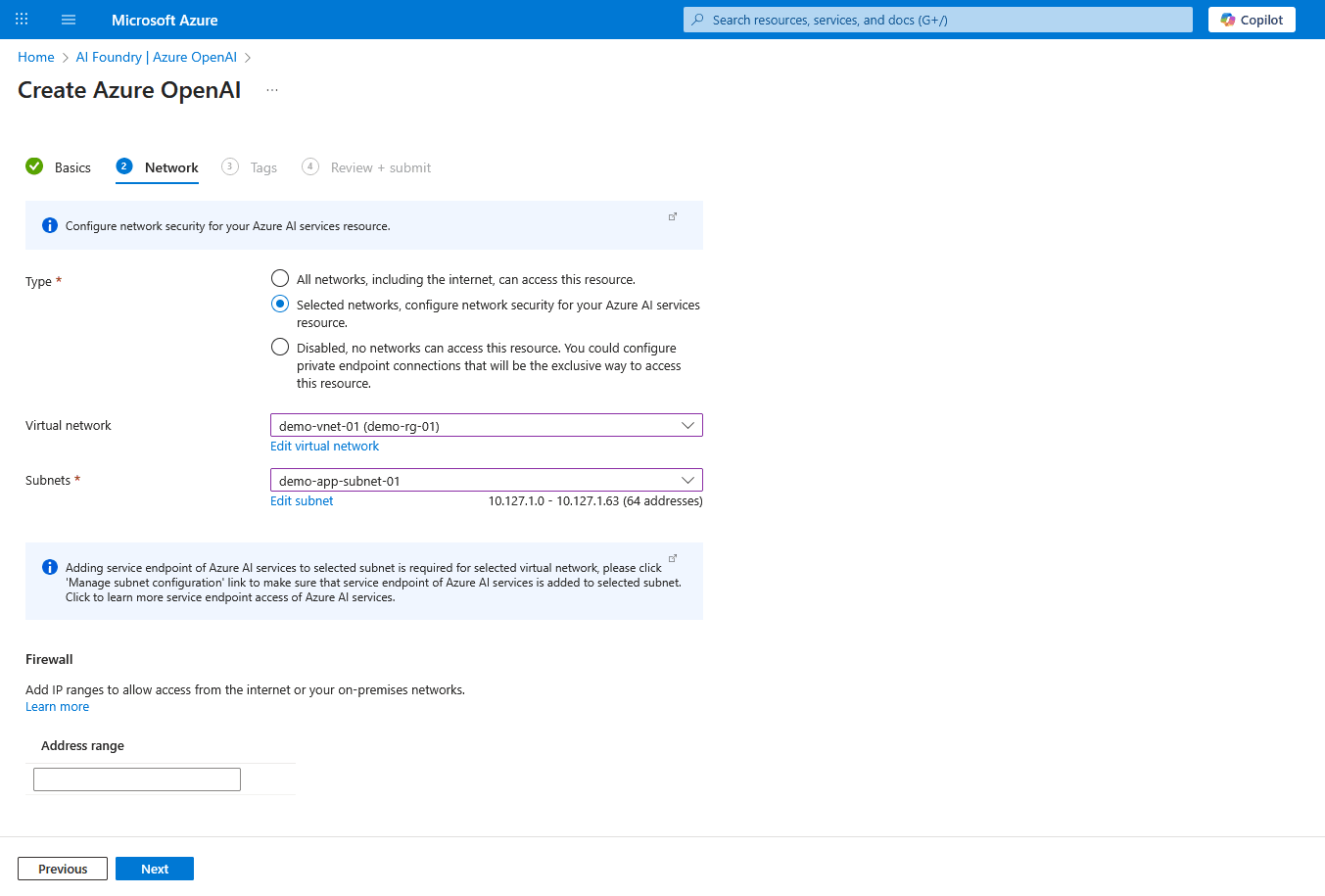
- From the Network tab of the Create Azure OpenAI workflow, enter the following information:
- From the Type section, choose the Selected networks, configure network security for your Azure AI services resource option to allow access from specific Virtual Network and Subnet.
- Select Virtual Network from the list of existing virtual networks.
- Select the subnet that you created for the application from the list of Subnets.
- Under the Firewall section, you can leave the Address range field blank unless you wish to whitelist the source IP/CIDR.
- Select the Next button to proceed.
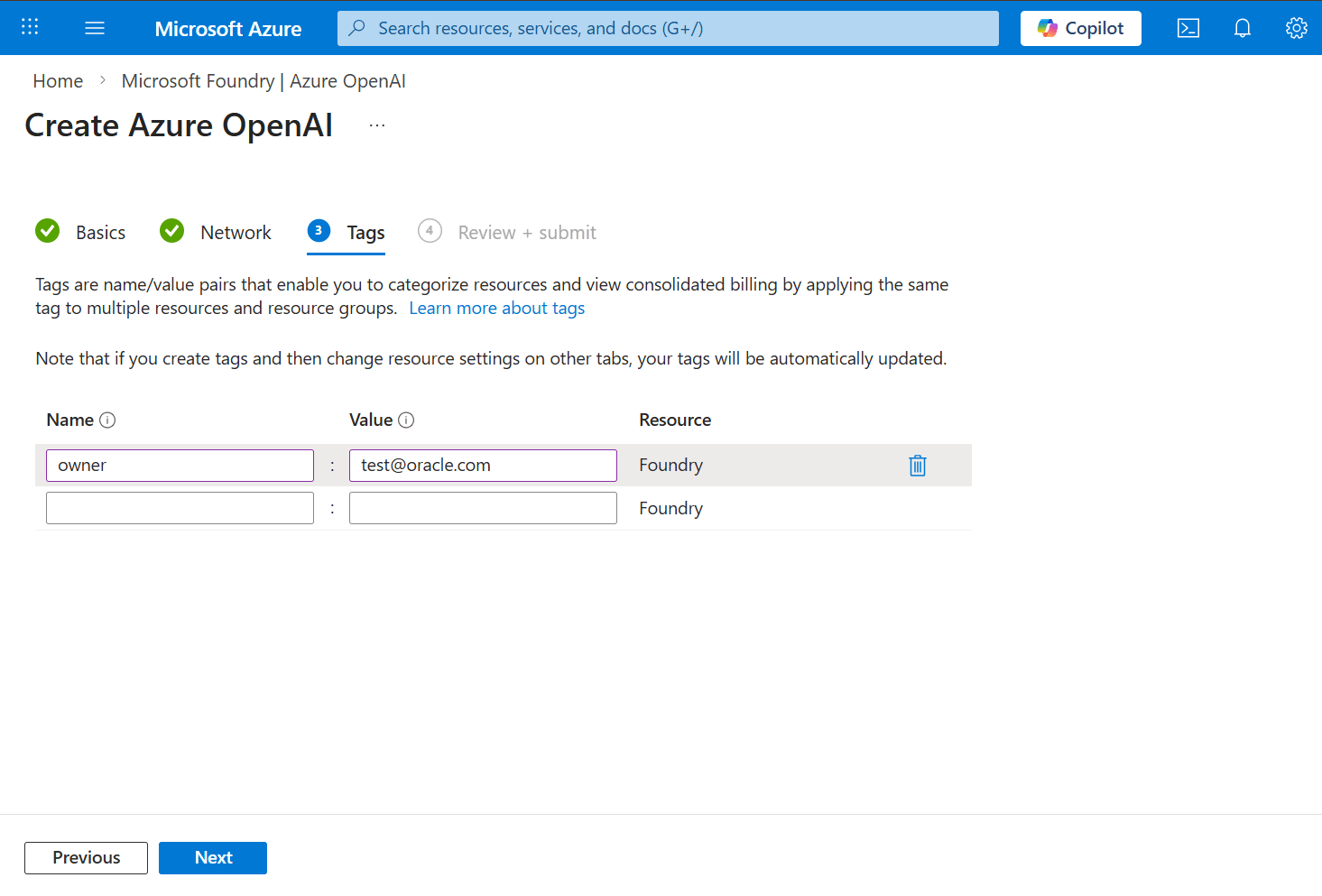
- From the Tags tab of the Create Azure OpenAI workflow, enter the following information:
- Add Name and Value for tags. You can add multiple tags.
- Select the Next button to proceed.
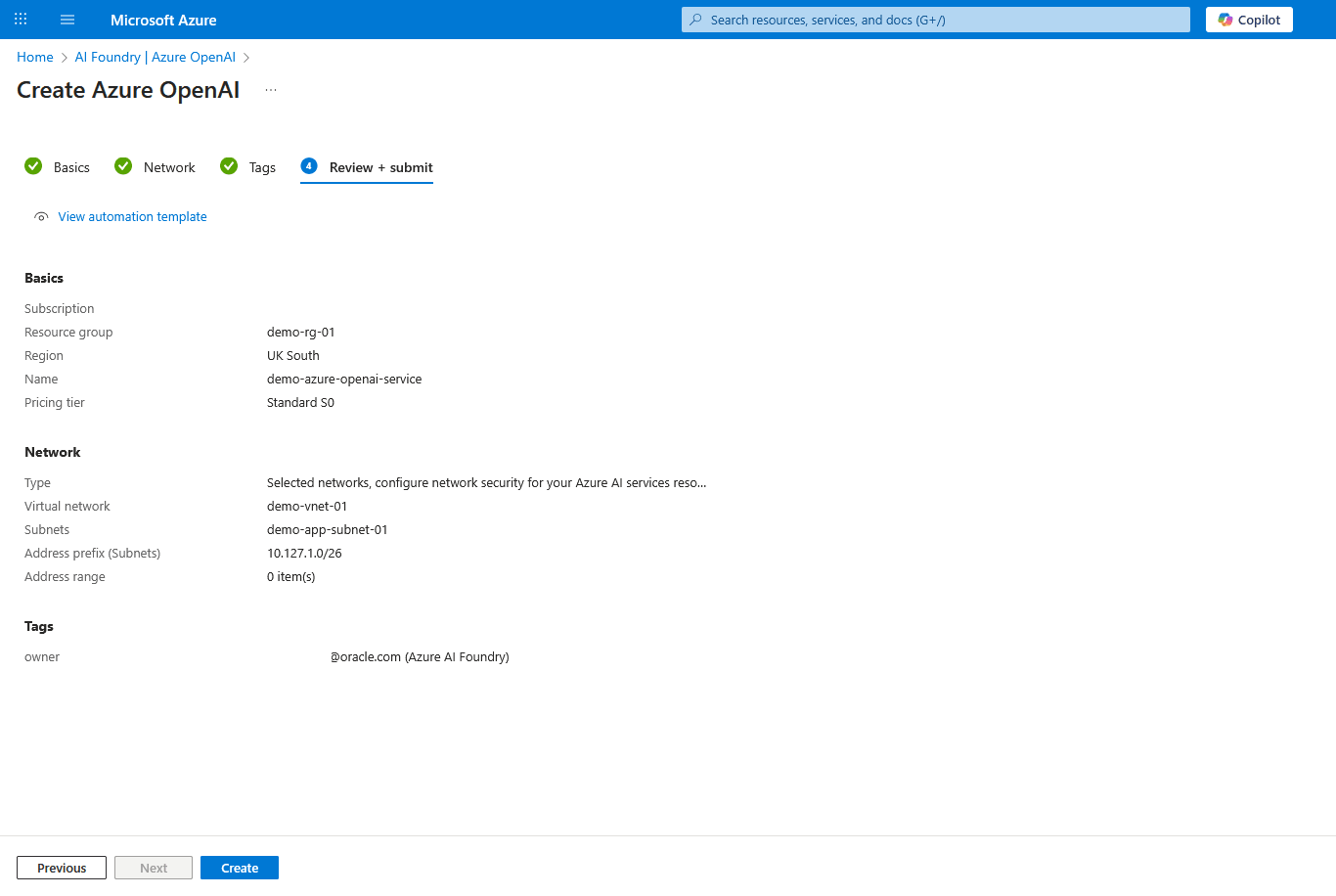
- From the Review + submit tab of the Create Azure OpenAI workflow, review your information. Select the Create button to start resource creation or select the Previous to make any required changes.
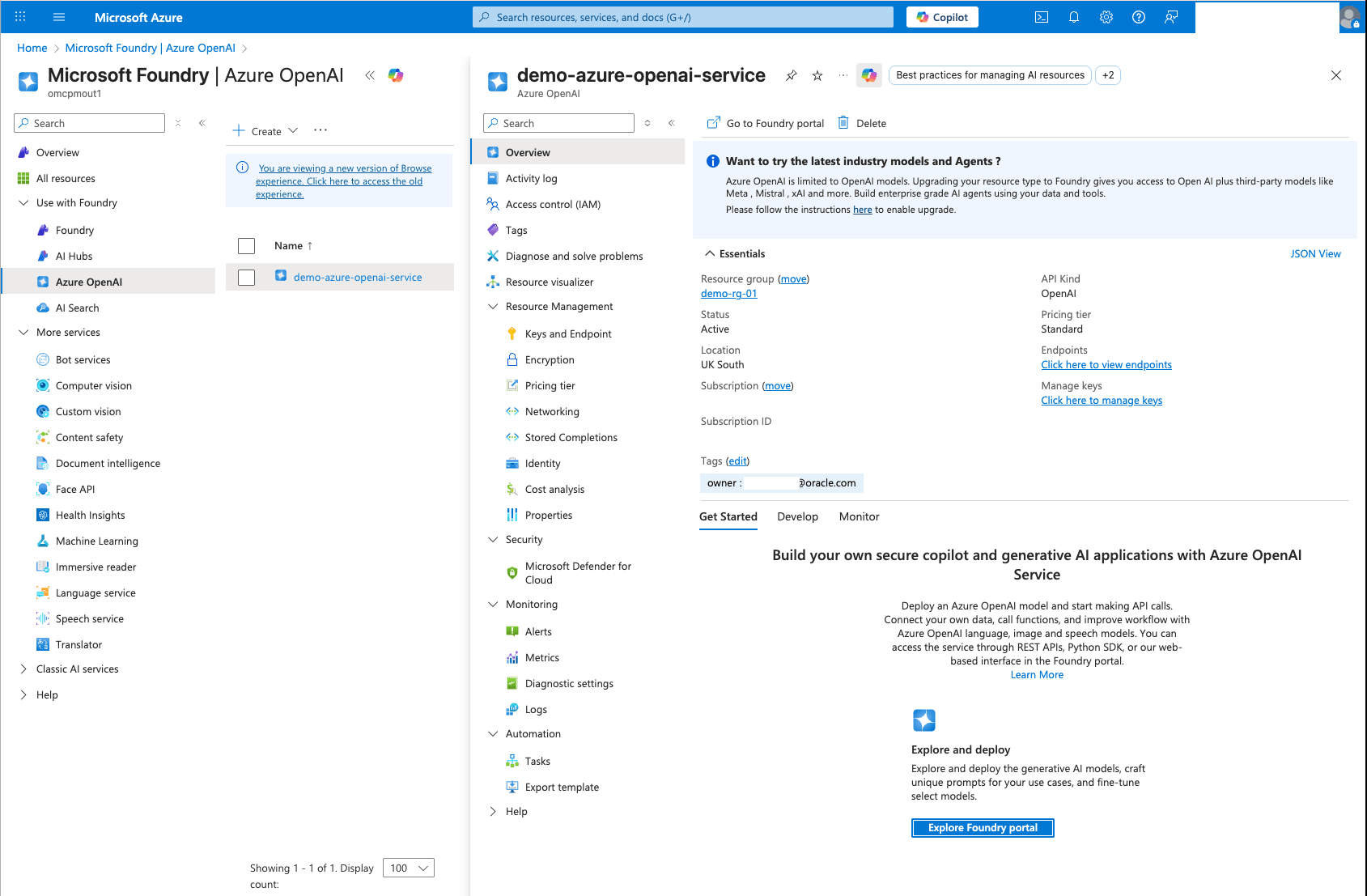
- Navigate to the newly created Azure OpenAI resource from Microsoft Foundry > Use with Foundry > Azure OpenAI. Then, in Azure OpenAI > Overview, select Explore Foundry portal to deploy the text embedding model.
Deploy Text Embedding Model
- In the Azure AI Foundry portal, navigate to the Playgrounds section, and then select Chat.
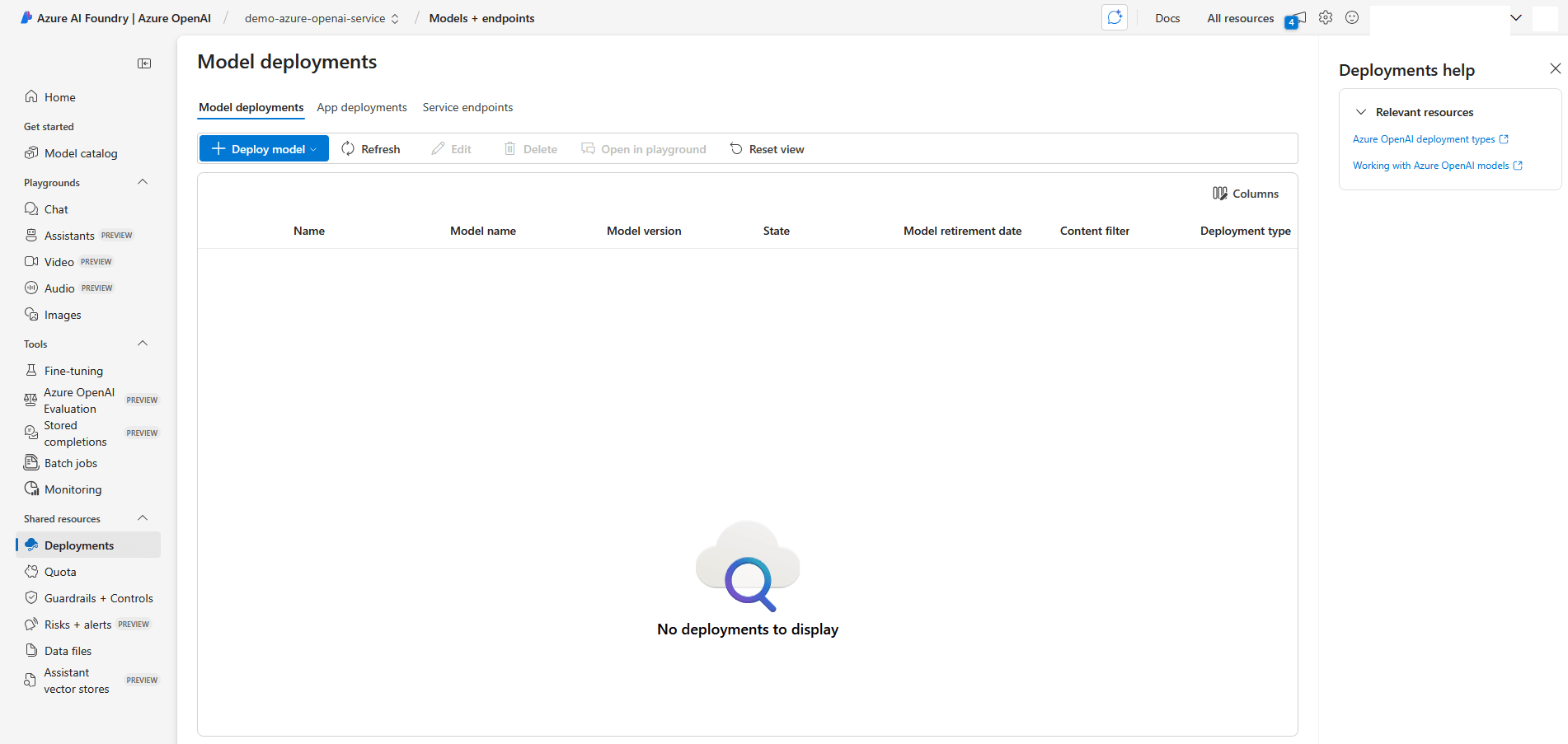
- Select the + Create a deployment button.
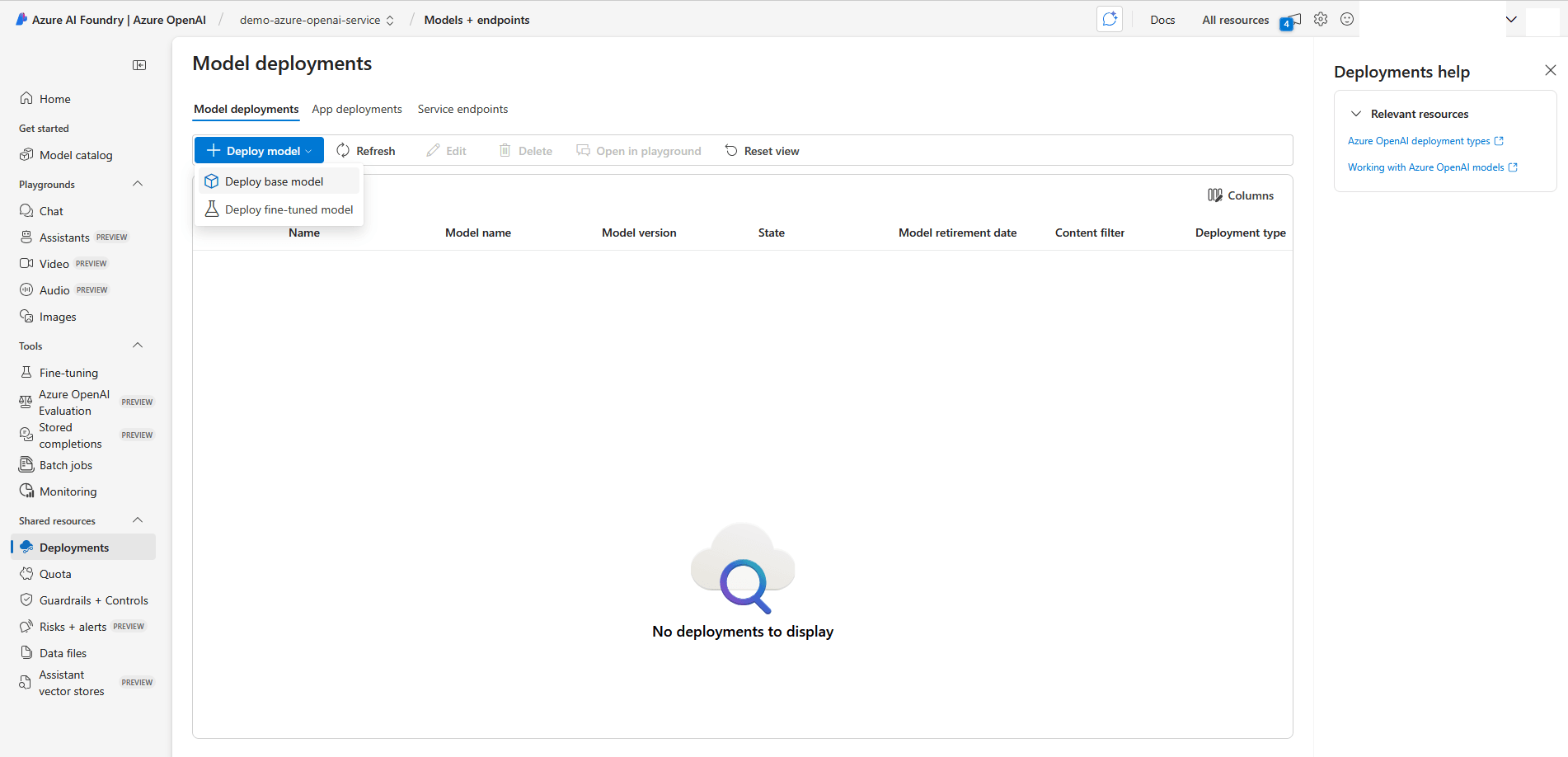
- Select the + Deploy model button to view the deployment options. Select the Deploy base model option.
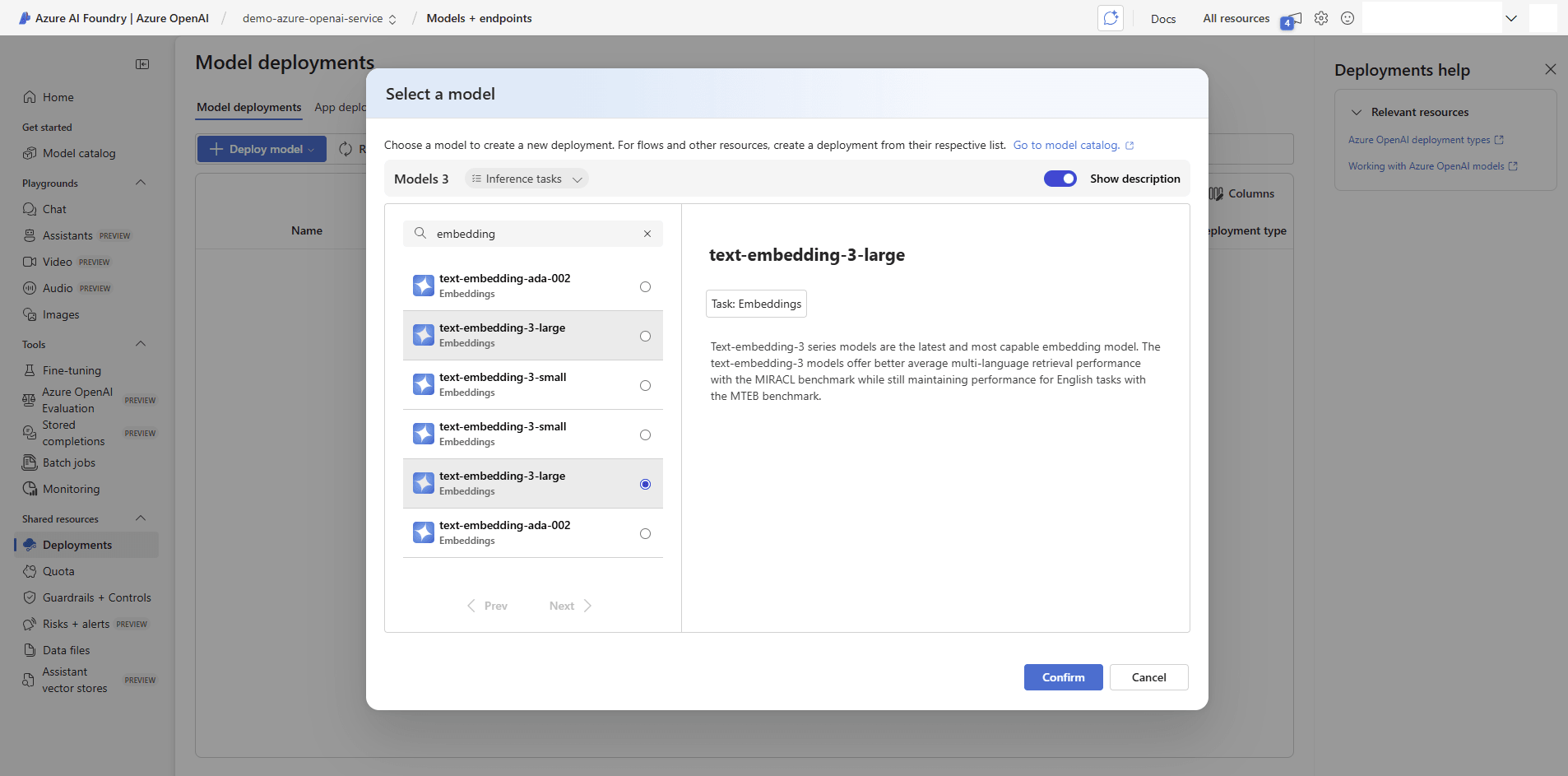
- From the list of models, select text-embedding-3-large.
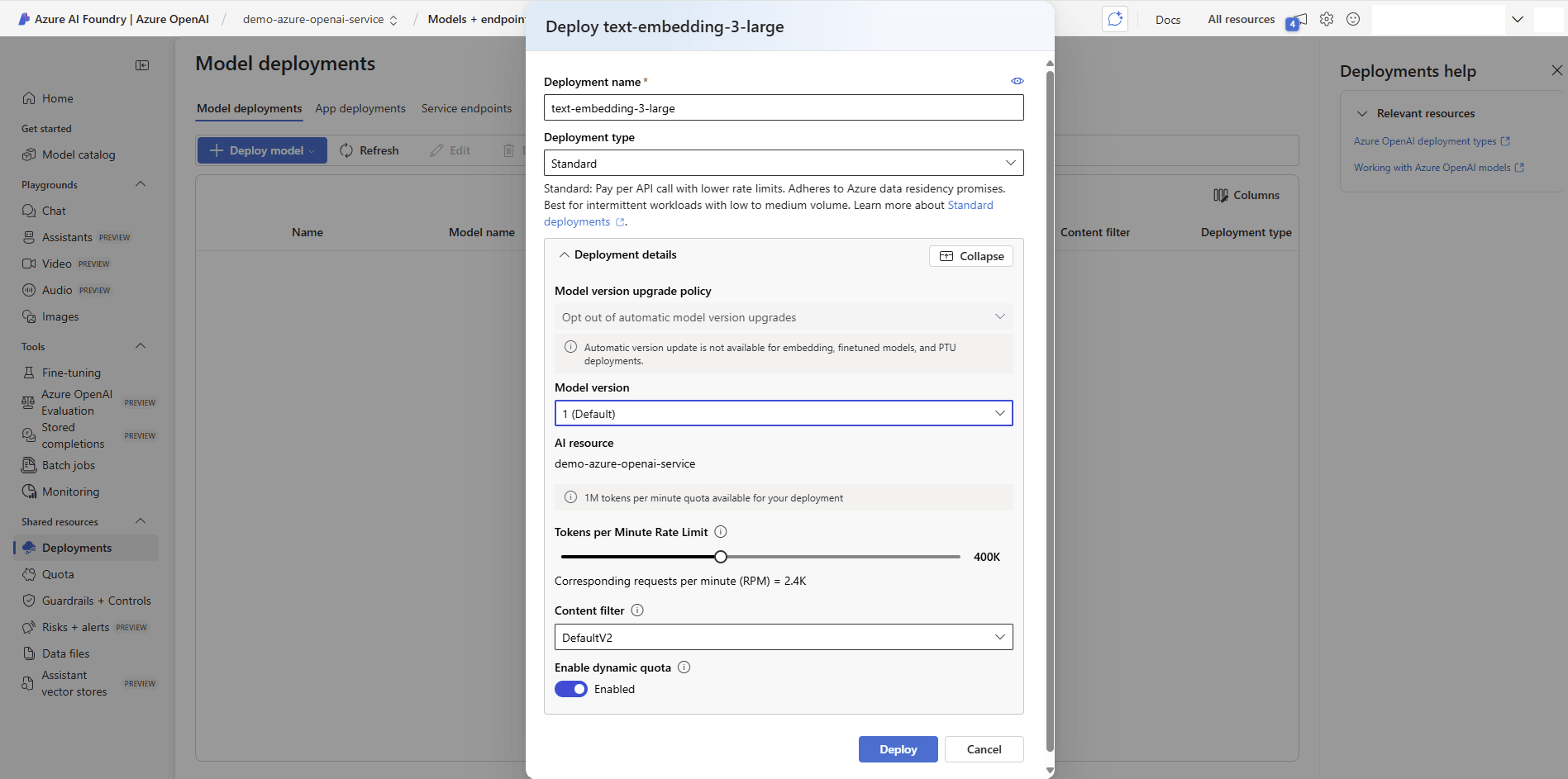
- From the Deploy text-embedding-3-large page, enter the following information:
- Enter a descriptive and unique Deployment name for the model.
- Select the Deployment type as Standard to allow other configurations
- Model version, AI resource and Content filter are set to default.
- Set the Tokens per Minute Rate Limit for this deployment based on your requirements. For example, it is set 400K.
- Enable dynamic quota.
- Select Deploy to create the deployment with the selected settings.
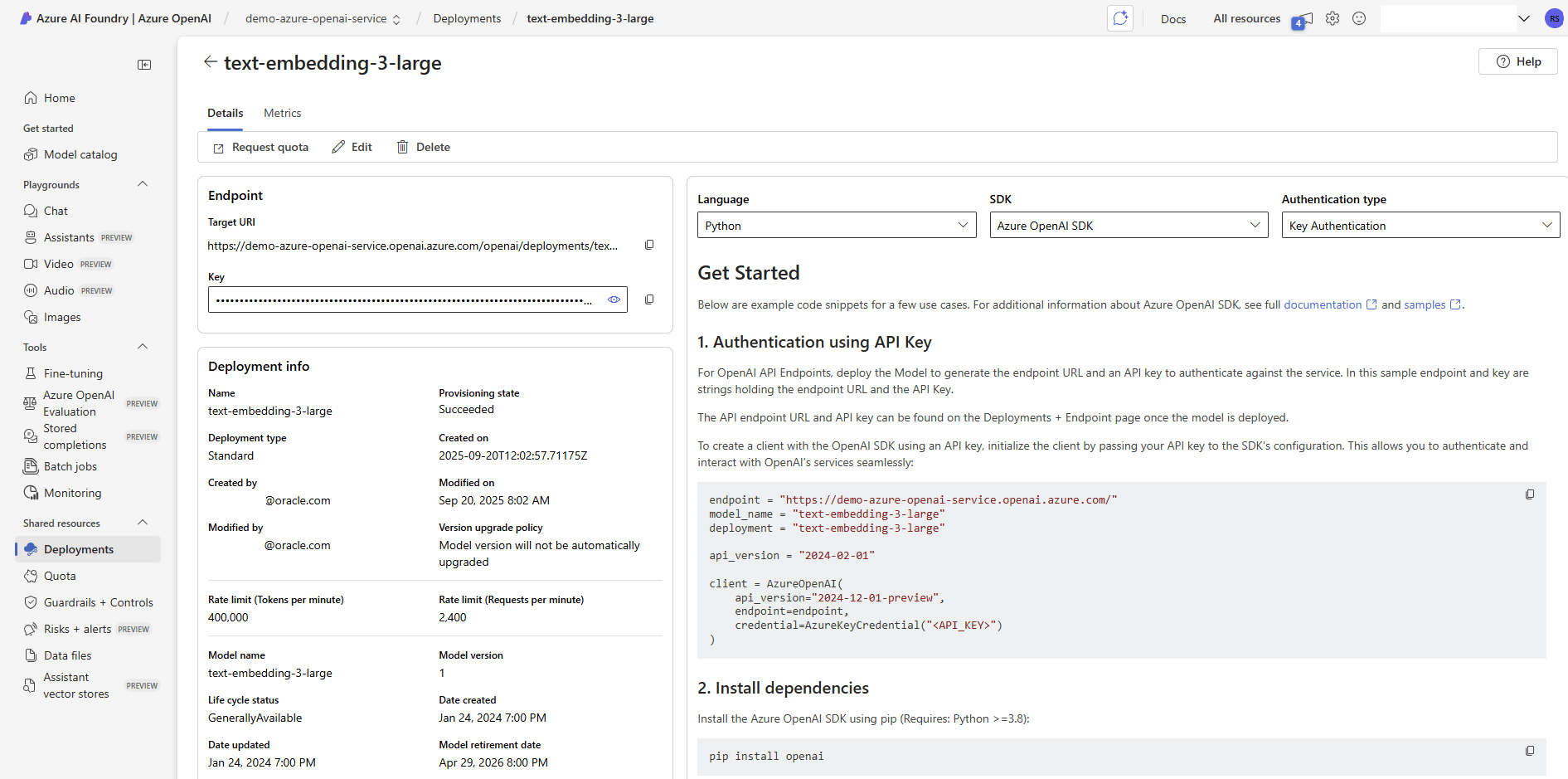
- Navigate to Shared resources, and then select Deployments. Select the recently deployed text embedding model to get the configuration information for later integration with the notebook.
- Endpoint information, including the Target URI and Key, is required for further integration.
Next Steps: Switch to Azure Machine Learning tab and follow the step-by-step instructions.
- From the Azure portal, navigate to Azure OpenAI.
Create Azure Machine Learning
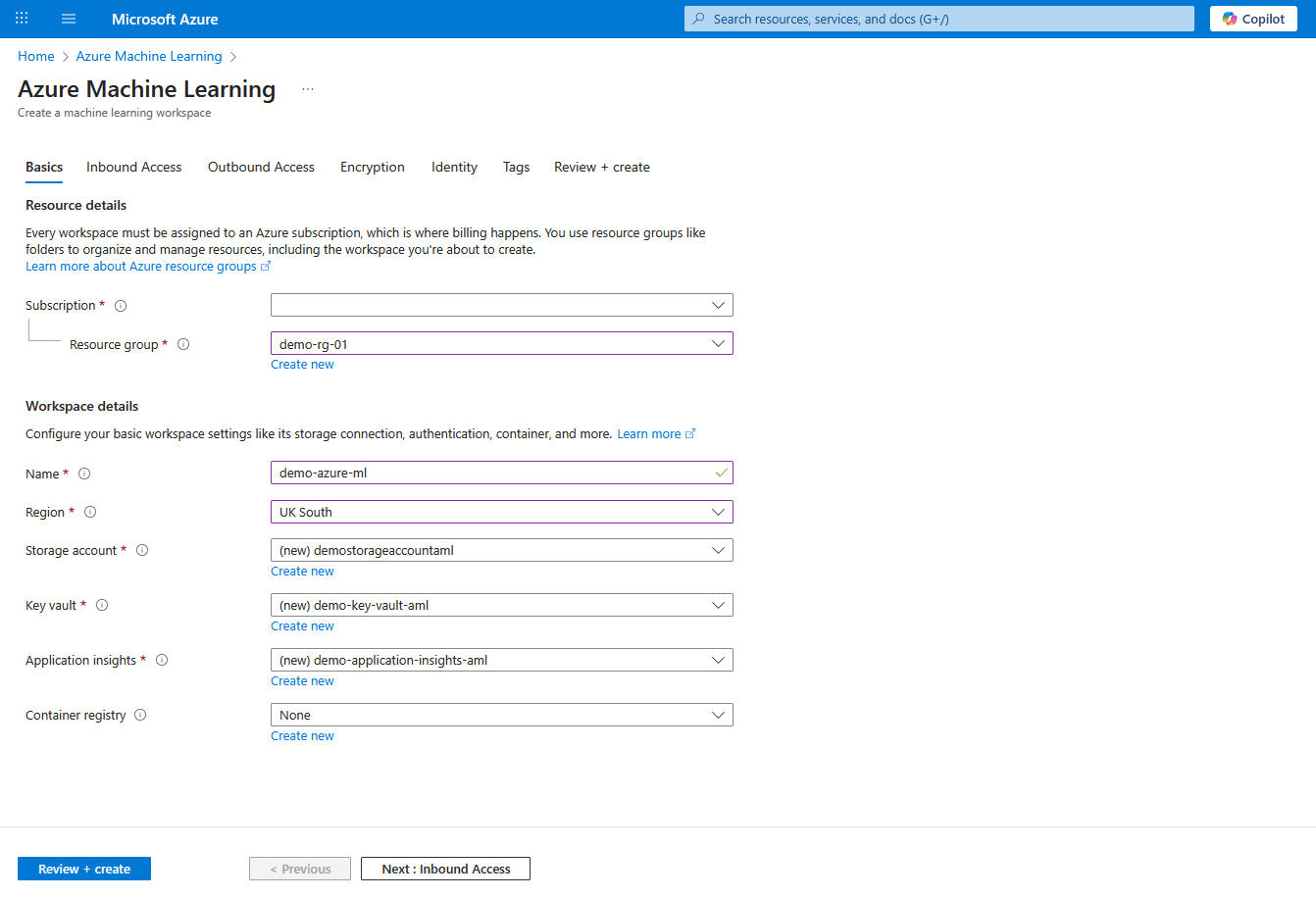
- From the Azure portal, navigate to Azure Machine Learning.
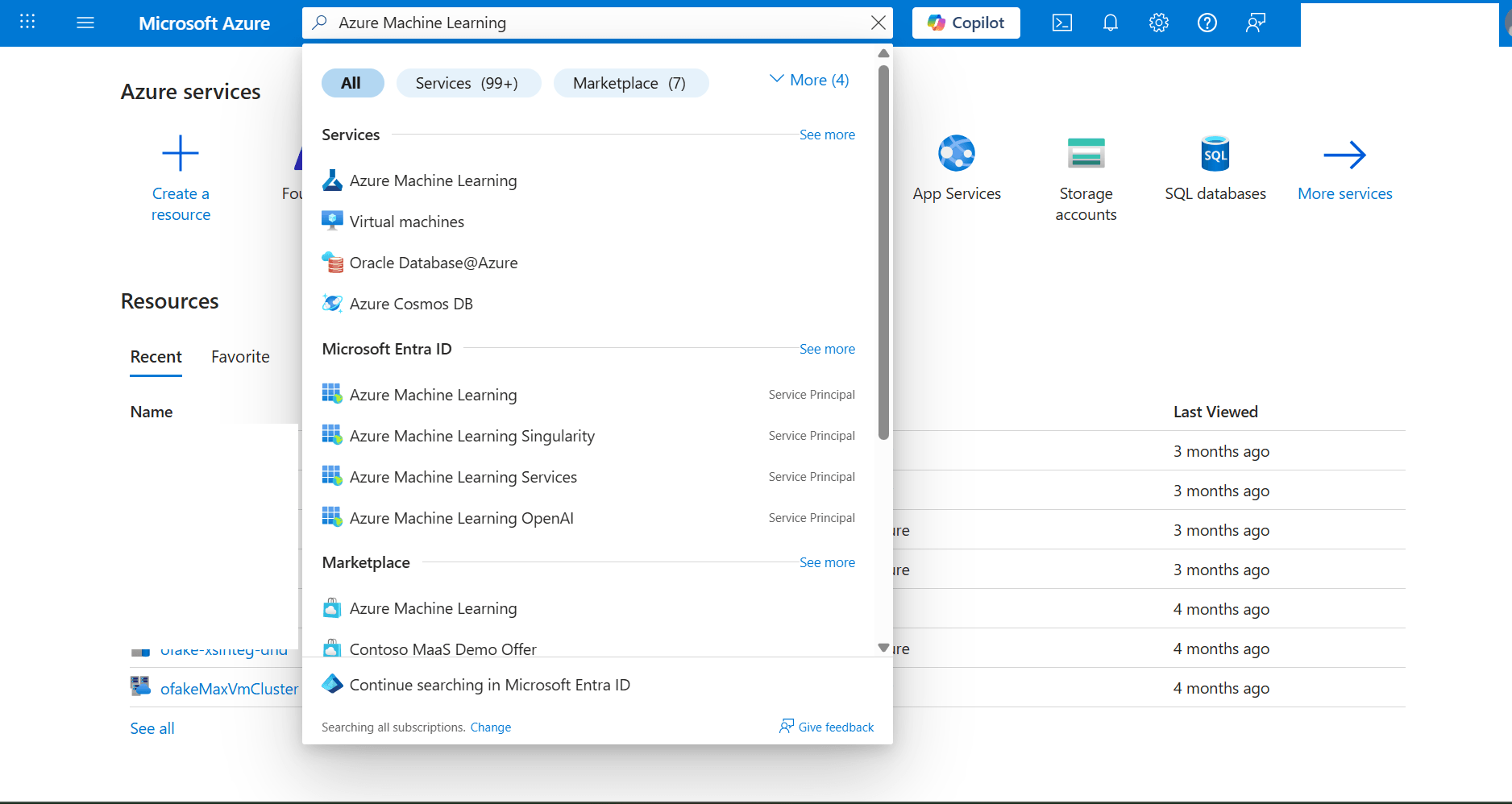
- Select the + Create button, and then select the New workspace option from the dropdown list.
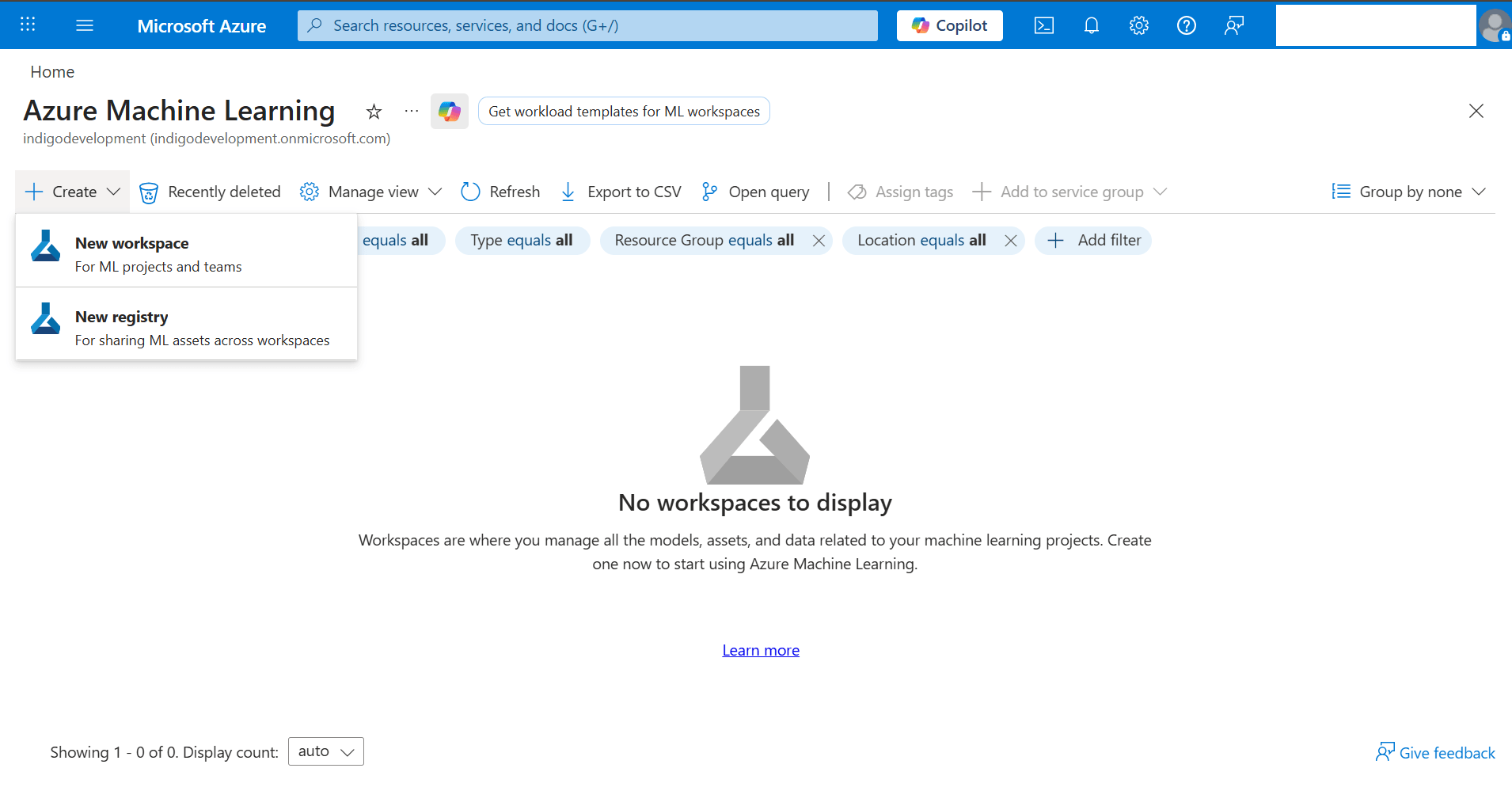
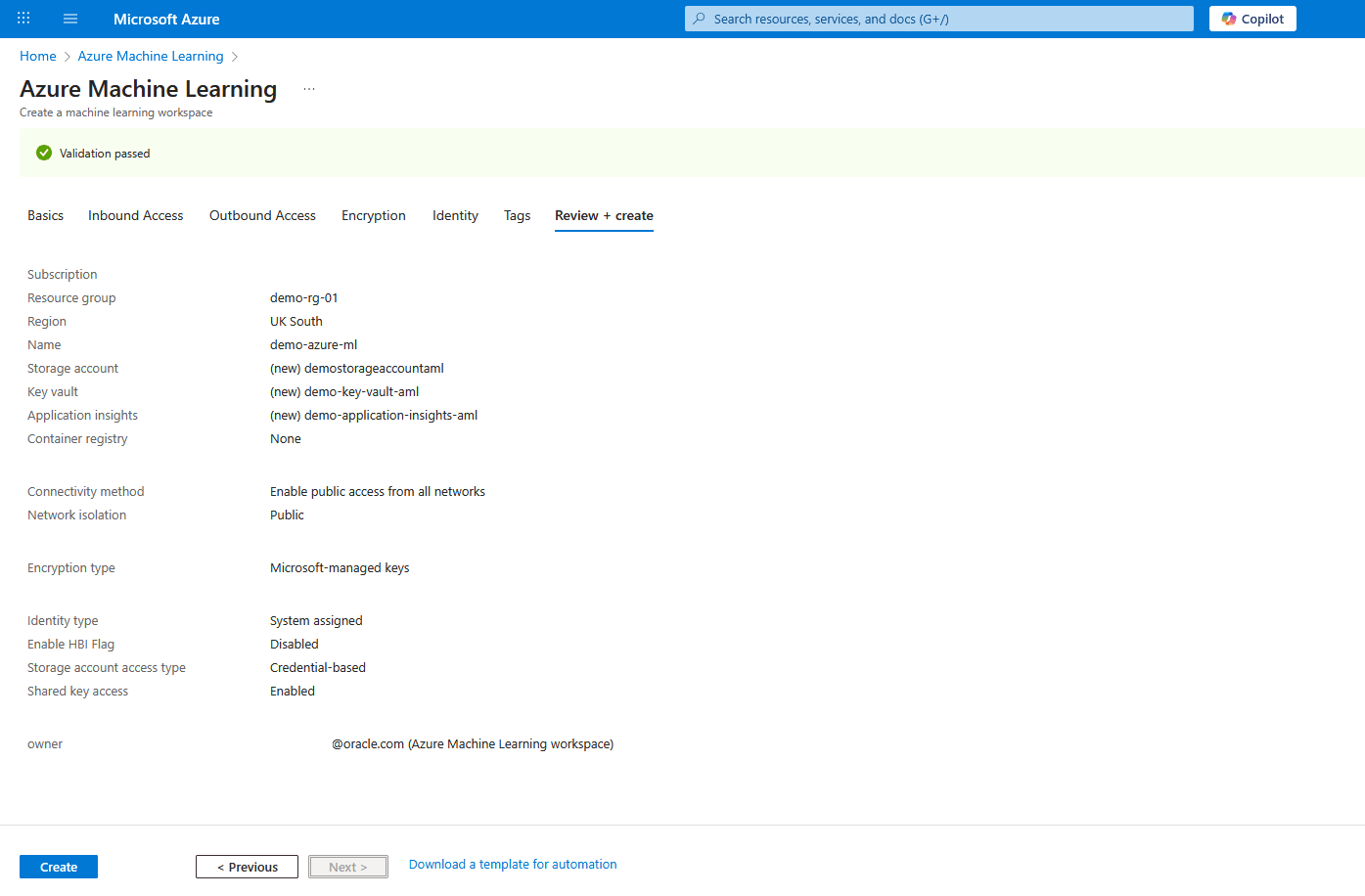
- From the Basics tab of the Azure Machine Learning workflow, enter the following information:
- From the Subscription dropdown list, select your Azure subscription.
- Select an existing Resource group or select Create new to create one.
- Enter a Name for the workspace. The Name must be between 3 and 33 characters long. Its first character has to be alphanumeric, and the rest may contain hyphens and underscores. No whitespace is allowed.
- Select Region to specify the physical location where the workspace is deployed.
- Create a new Storage account or select an existing one in your subscription. A Storage account is used as the default datastore for the workspace.
- Create a new Azure Key vault resource or select an existing one in your subscription. A Key vault stores sensitive information that the workspace needs.
- Create a new Azure Application insights resource or select an existing one in your subscription. The workspace uses Azure Application insights to store monitoring information about your deployed models.
- Optionally, create the Container registry resource or select an existing one in your subscription. A container registry stores Docker images that you use for training and deployments. To minimize costs, Azure creates a new Azure Container Registry resource only after you build your first image.
- Select the Next : Inbound Access button to proceed.
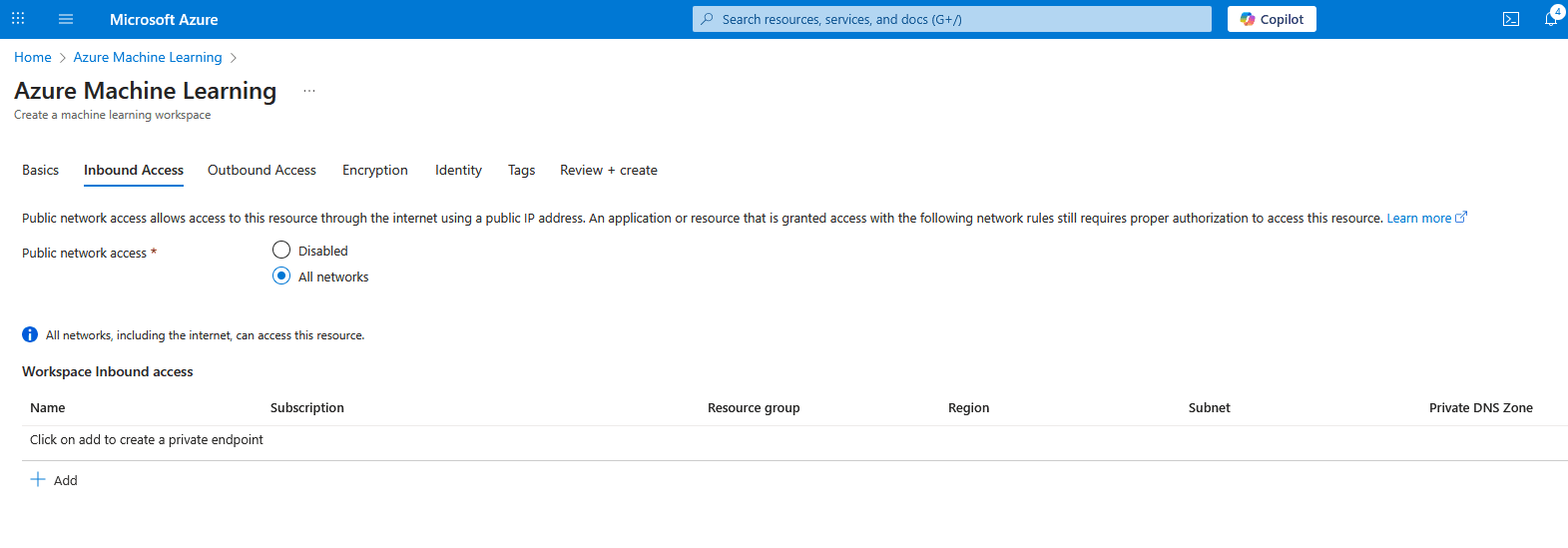
- From the Inbound Access tab of the Azure Machine Learning workflow, enter the following information:
- Choose the All networks options as Public network access.
- Select the Next : Outbound Access button to proceed.
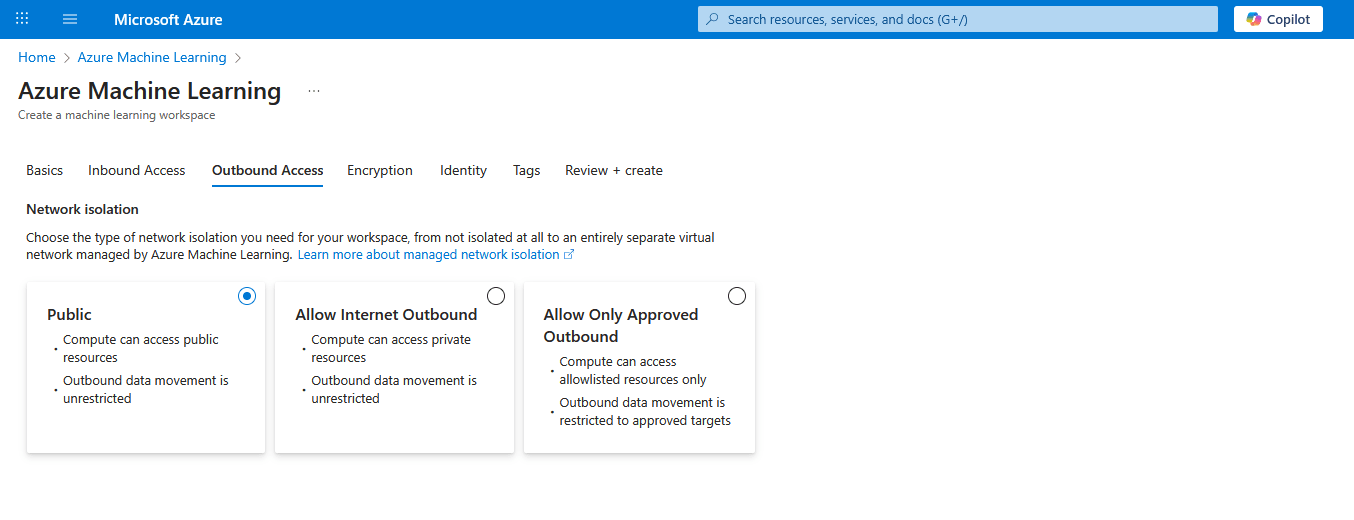
- From the Outbound Access tab of the Azure Machine Learning workflow, enter the following information:
- Choose the Public options as Network isolation. With this option, Compute can access public resources and outbound data movement is unrestricted.
- Select the Next : Encryption button to proceed.
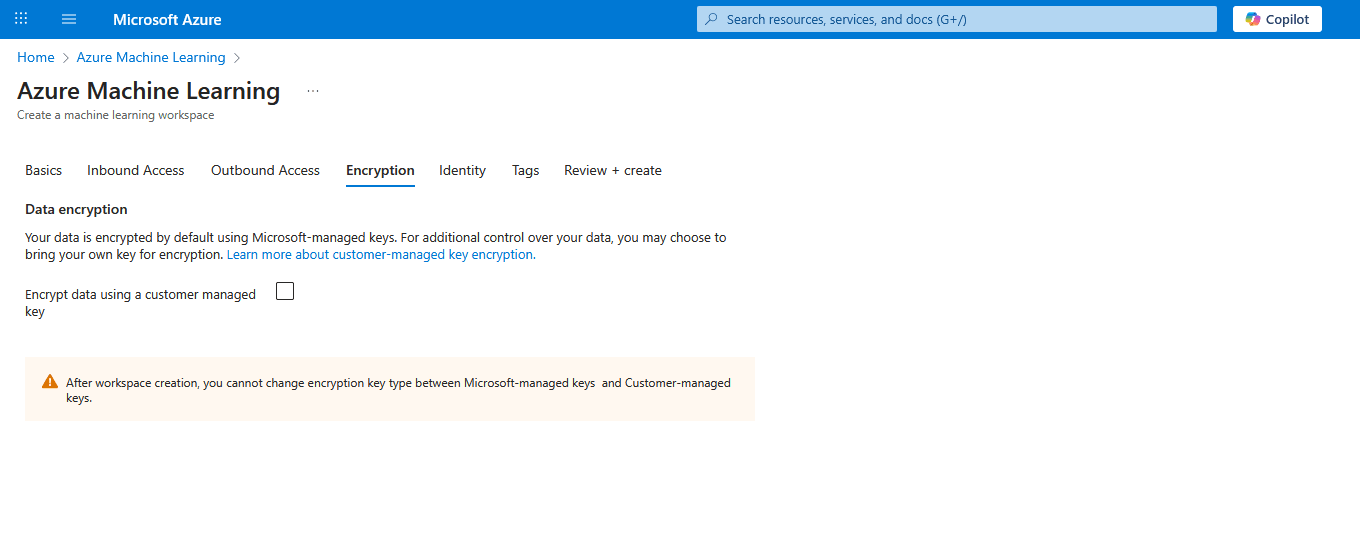
- From the Encryption tab of the Azure Machine Learning workflow, enter the following information:
- Leave the Encrypt data using a customer managed key checkbox unselected.
- Select the Next : Identity button to proceed.
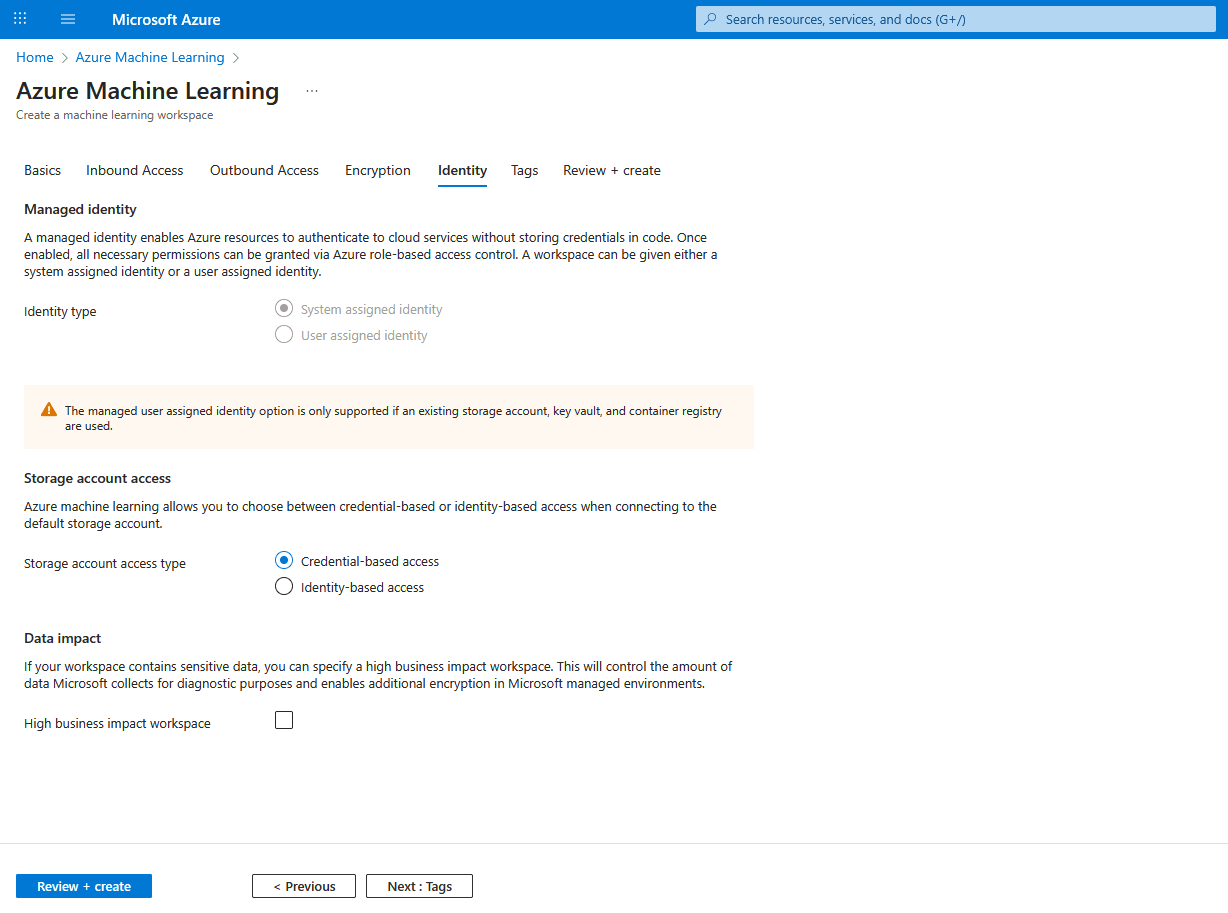
- From the Identity tab of the Azure Machine Learning workflow, enter the following information:
- Scroll down to Storage account access section, and then select the Credential-based access option as Storage account access type.
- Leave the High business impact workspace checkbox unselected.
- Select the Next : Tags button to proceed.
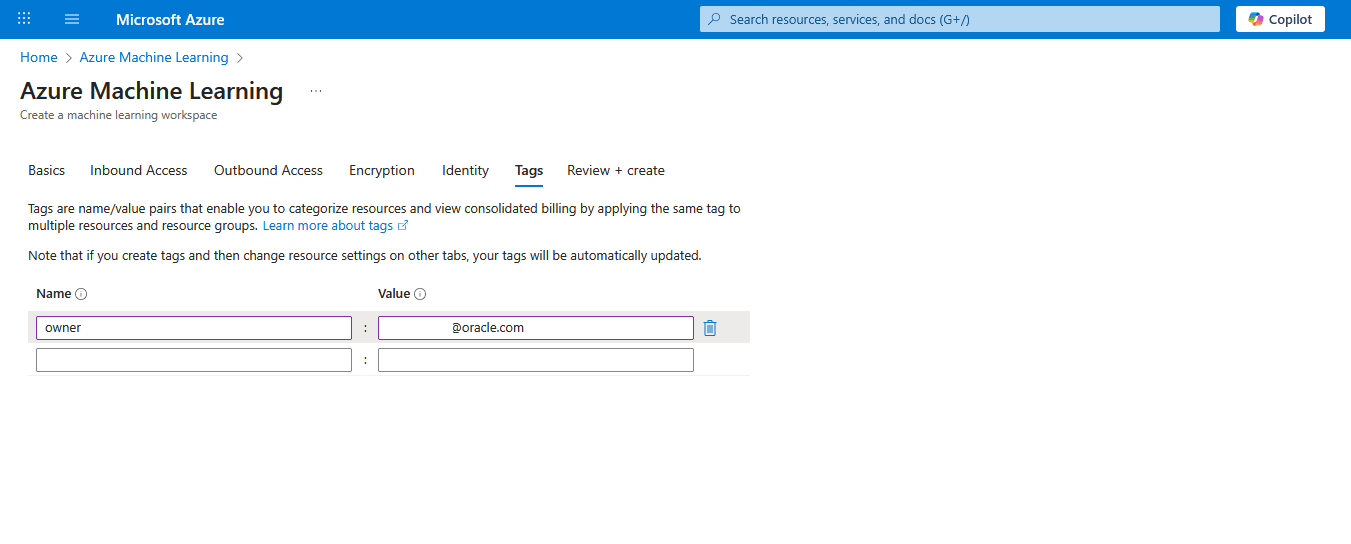
- From the Tags tab of the Azure Machine Learning workflow, enter the following information:
- Add Name and Value for tags. You can add multiple tags.
- Select the Next : Review + create button to proceed.
- From the Review + submit tab of the Azure Machine Learning workflow, review your information. Select the Create button to create a machine learning workspace or select the < Previous to make the required changes.
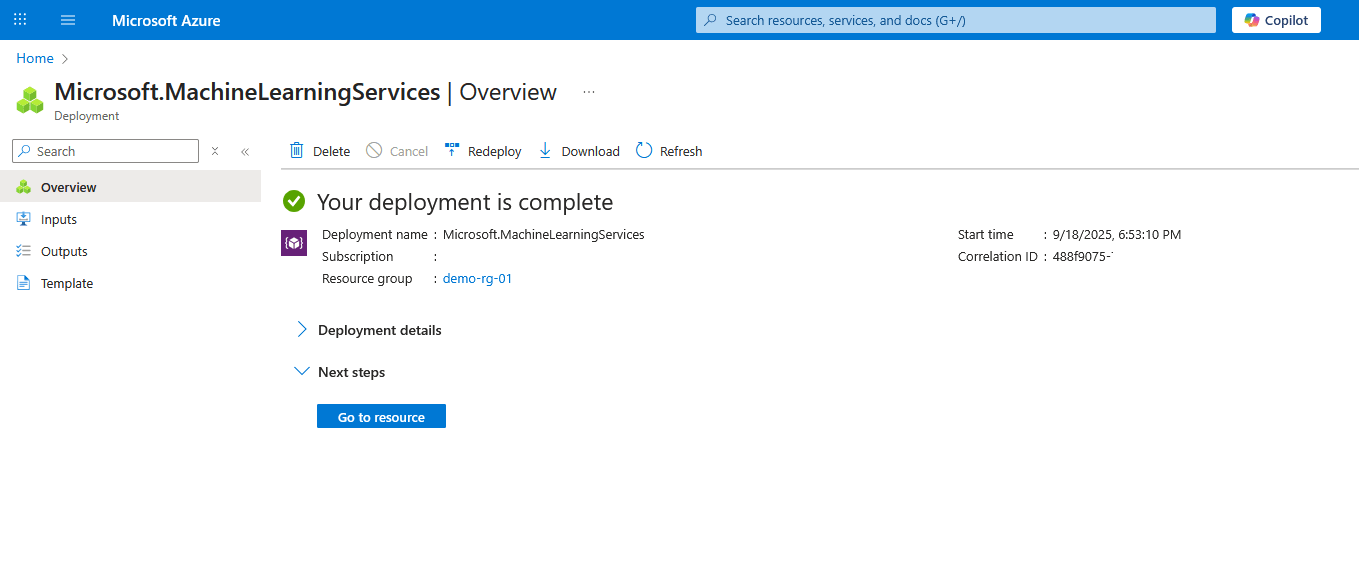
- Once the workspace is created, select the Go to resource button.
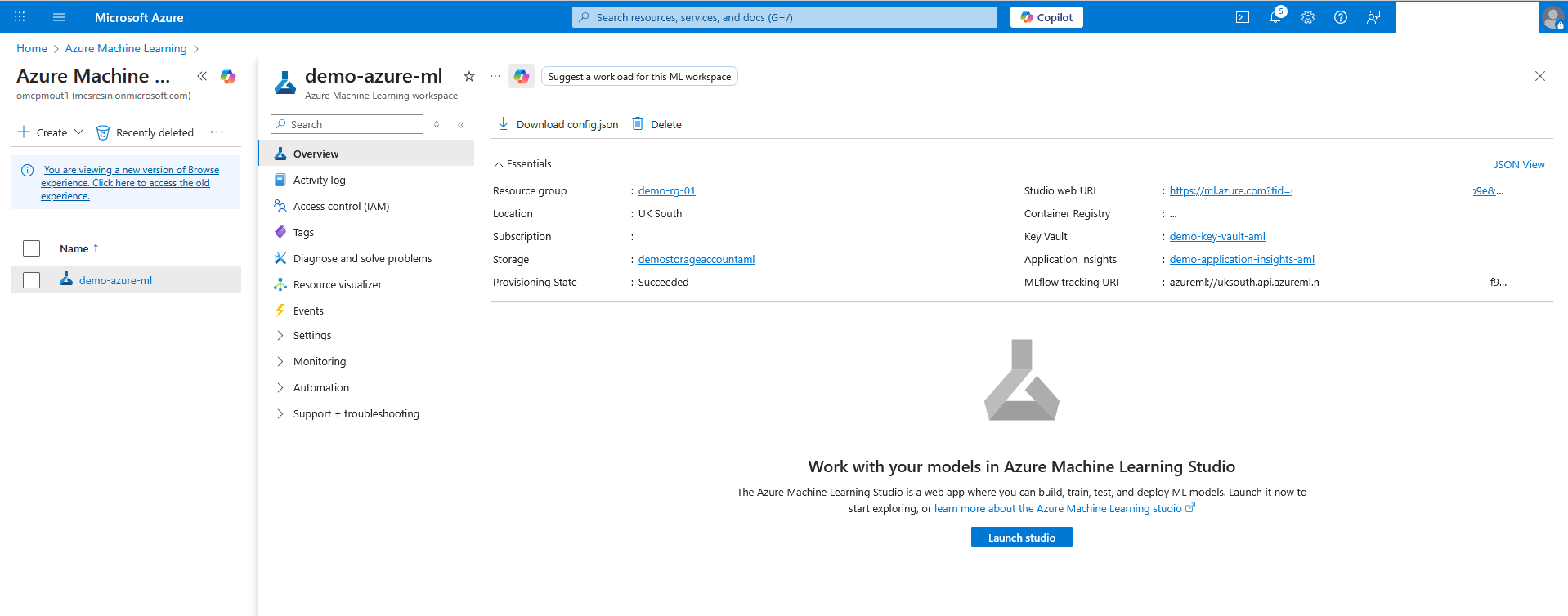
- On the Azure Machine Learning workspace, select Overview and then select the Launch studio button to open Azure Machine Learning Studio.
Azure Machine Learning Studio
- From the Machine Learning Studio page, navigate to Manage section. Form the left menu, select Compute.
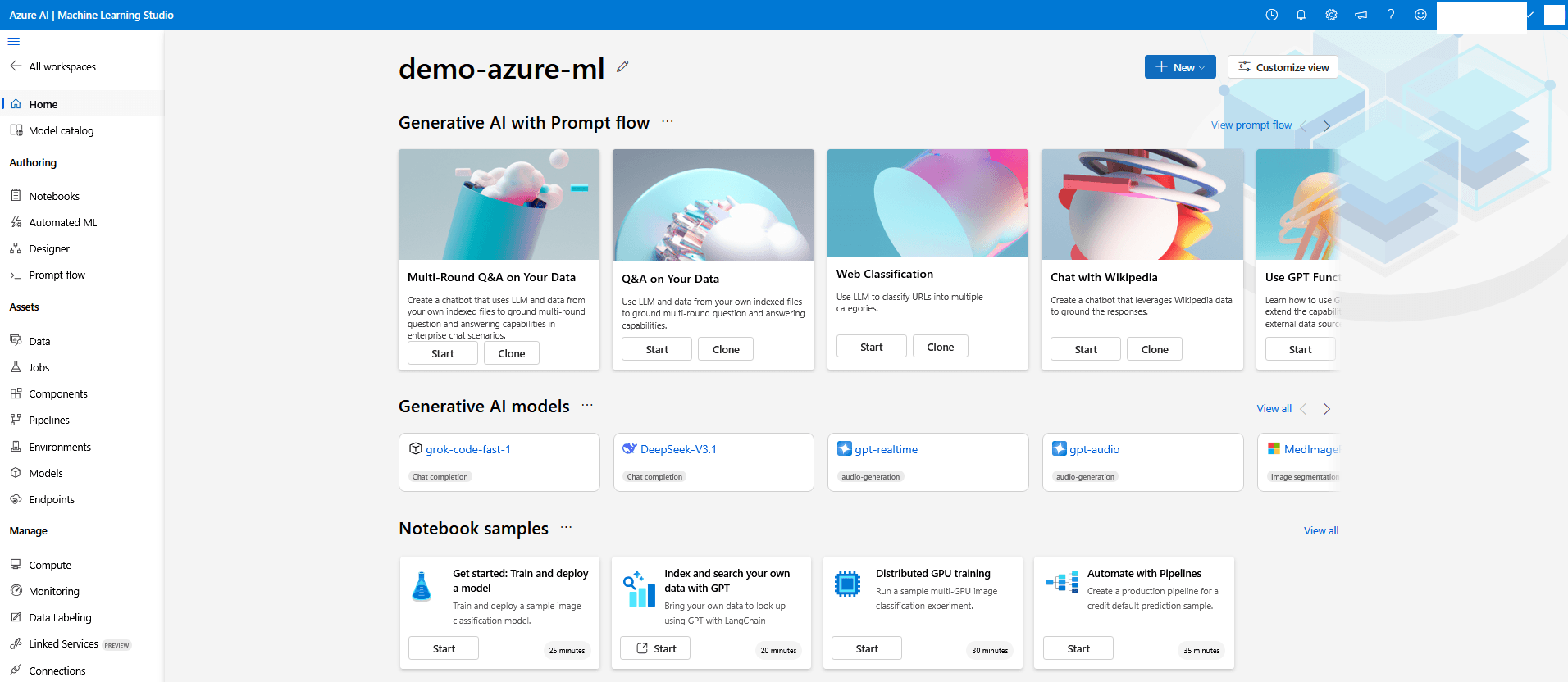
- Select the + New button create a compute instance.
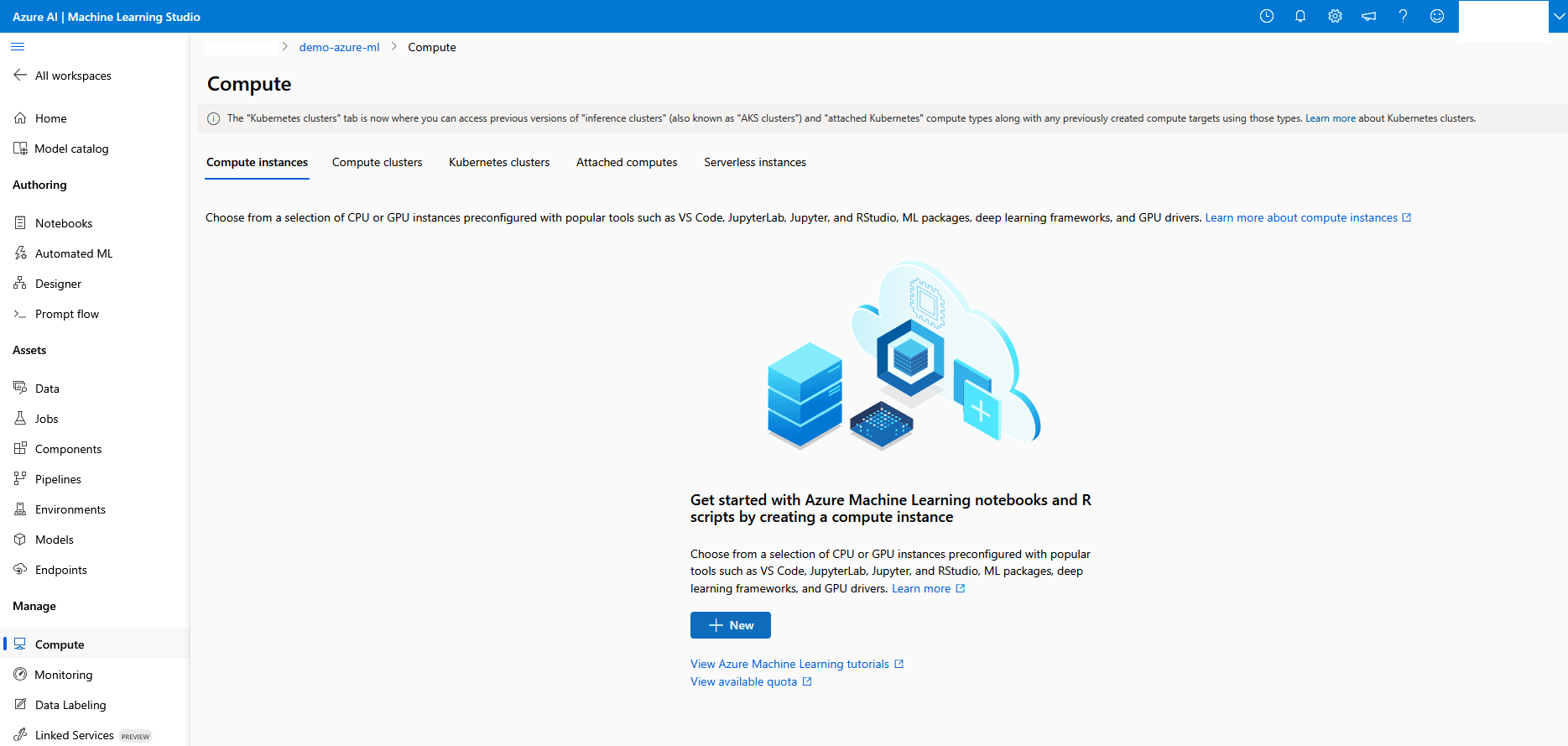
- From the Required settings section of the Create compute instance workflow, enter the following information:
- Enter an unique name in the Compute name field for your compute instance.
- It is a required field and the Compute name must be between 3 and 24 characters long.
- Valid characters are capital and lower case letters, digits, and hyphens.
- Compute name must start with a letter.
- Compute name must be unique across all existing computes within an Azure region.
- If a hyphen is used, it must be followed by at least one letter later in the name.
- Choose CPU as Virtual machine type for CPU intensive operations.
- Choose Standard_E4ds_v4 as Virtual machine size or choose a similar size that is suitable for data manipulation and training on medium to large datasets.
- Select the Next button to proceed.
- Enter an unique name in the Compute name field for your compute instance.
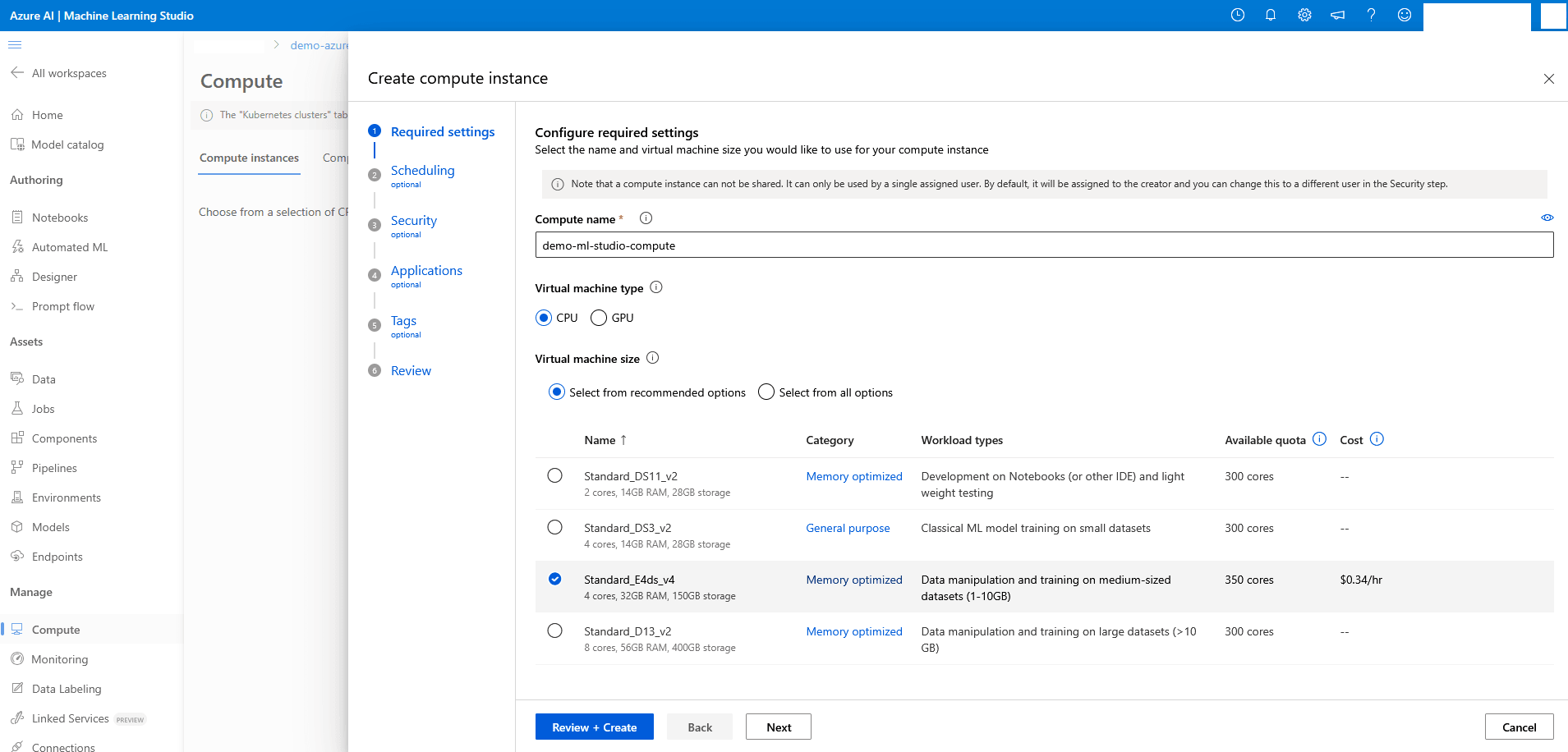
- From the Scheduling section of the Create compute instance workflow, enter the following information:
- Enable the Auto shut down toggle after idle timeout.
- Set Shutdown after to 60 Minutes.
- Select the Next button to proceed.
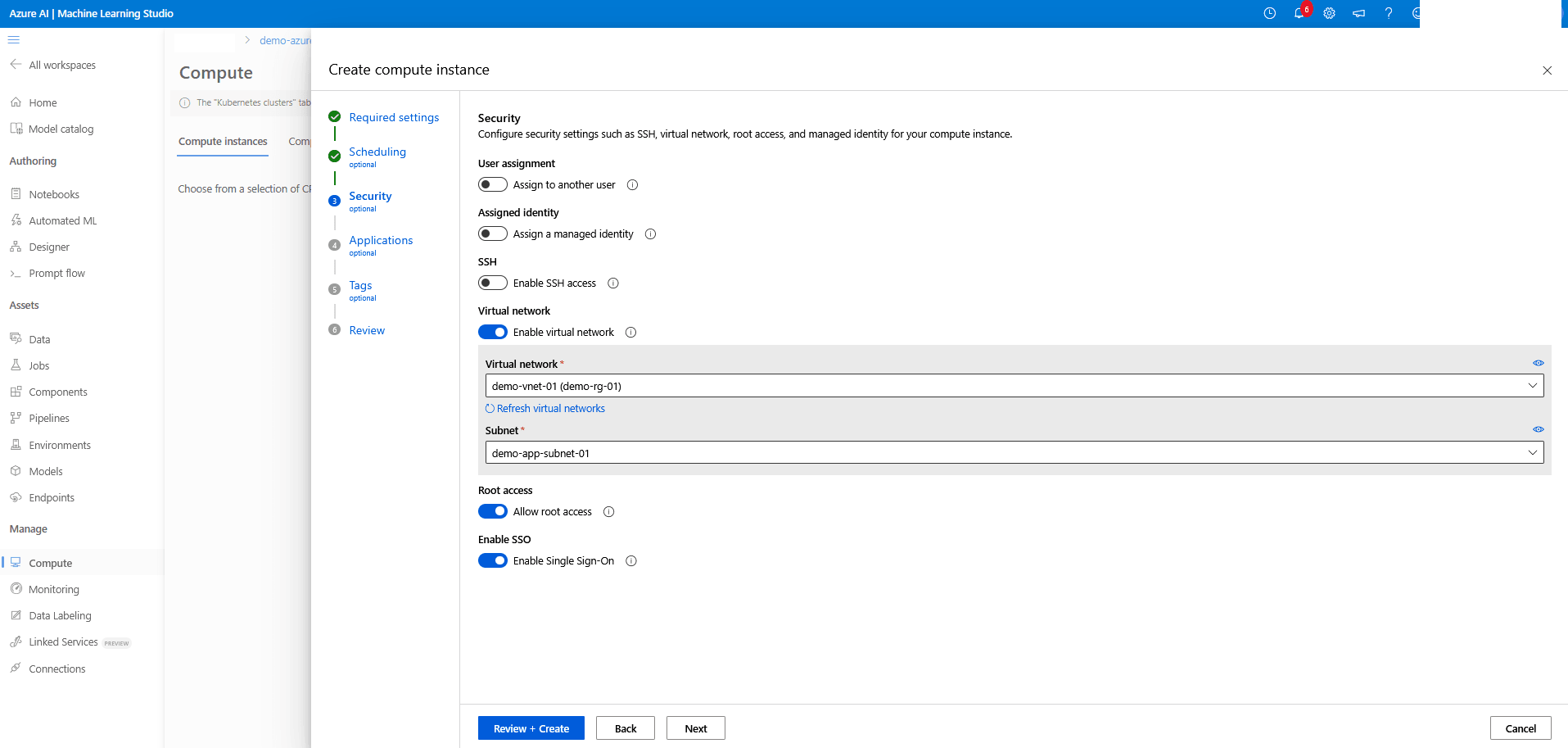
- From the Security section of the Create compute instance workflow, enter the following information:
- The User assignment, Assigned identity and SSH are disabled by default.
- Enable the Virtual network toggle, and then from the dropdown list, select your Virtual network and Subnet to configure this compute instance connection where access to Oracle Database is configured.
- Enable the Root access and SSO.
- Select the Next button to proceed.
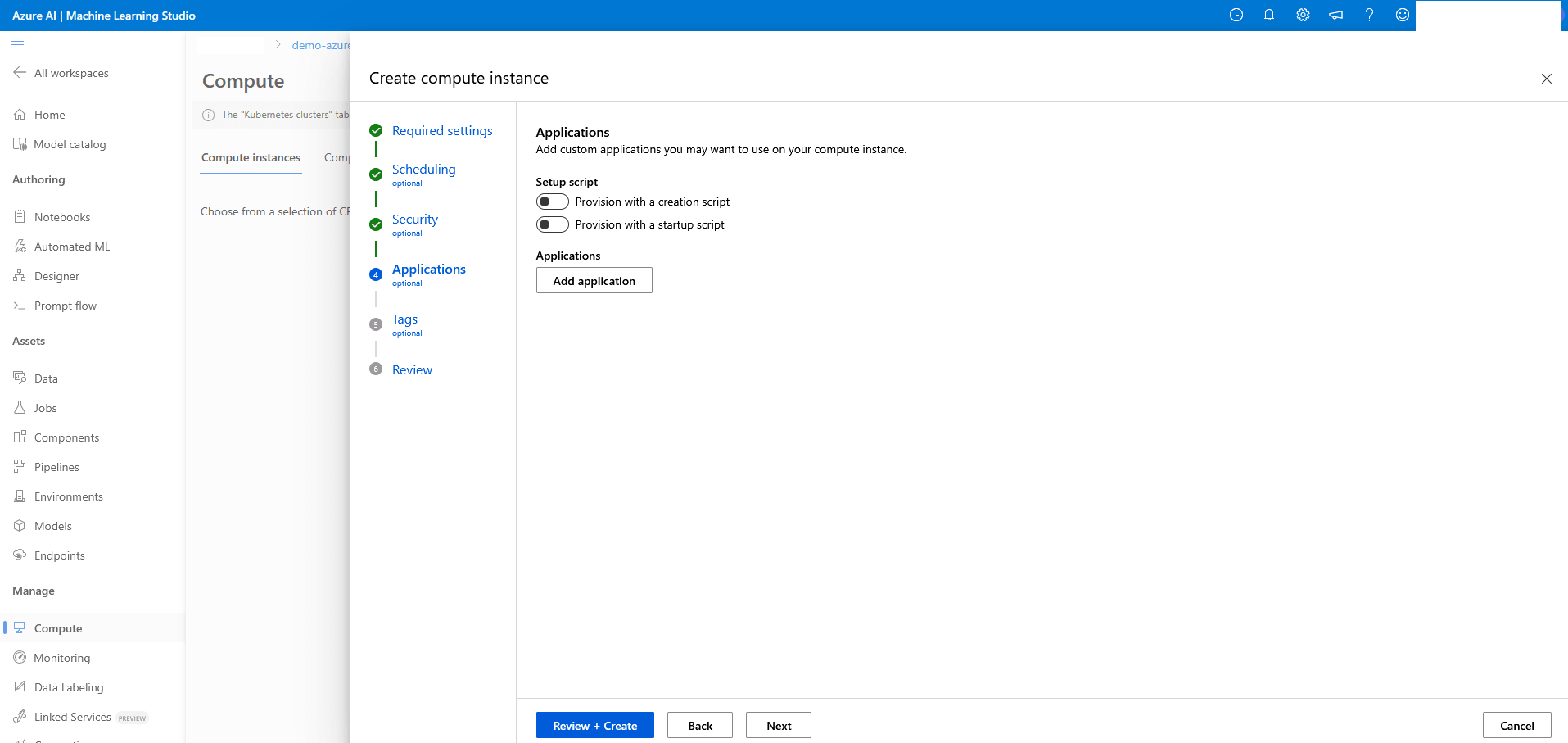
- From the Applications section of the Create compute instance workflow, no change is required. Select the Next button to proceed.
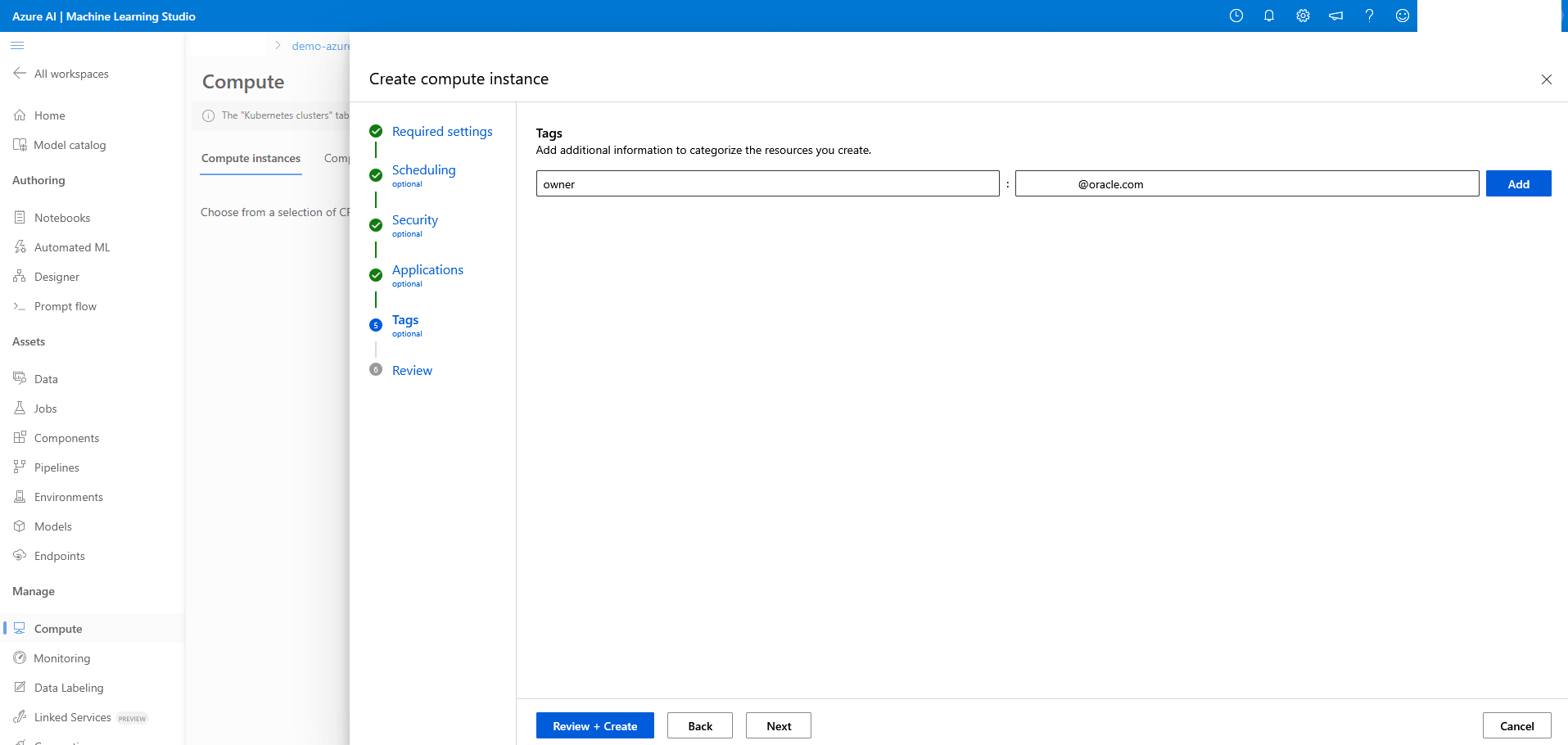
- From the Tags section of the Create compute instance workflow, enter tags as Key and Value pair strings. You can add multiple tags. Select the Next button to proceed.
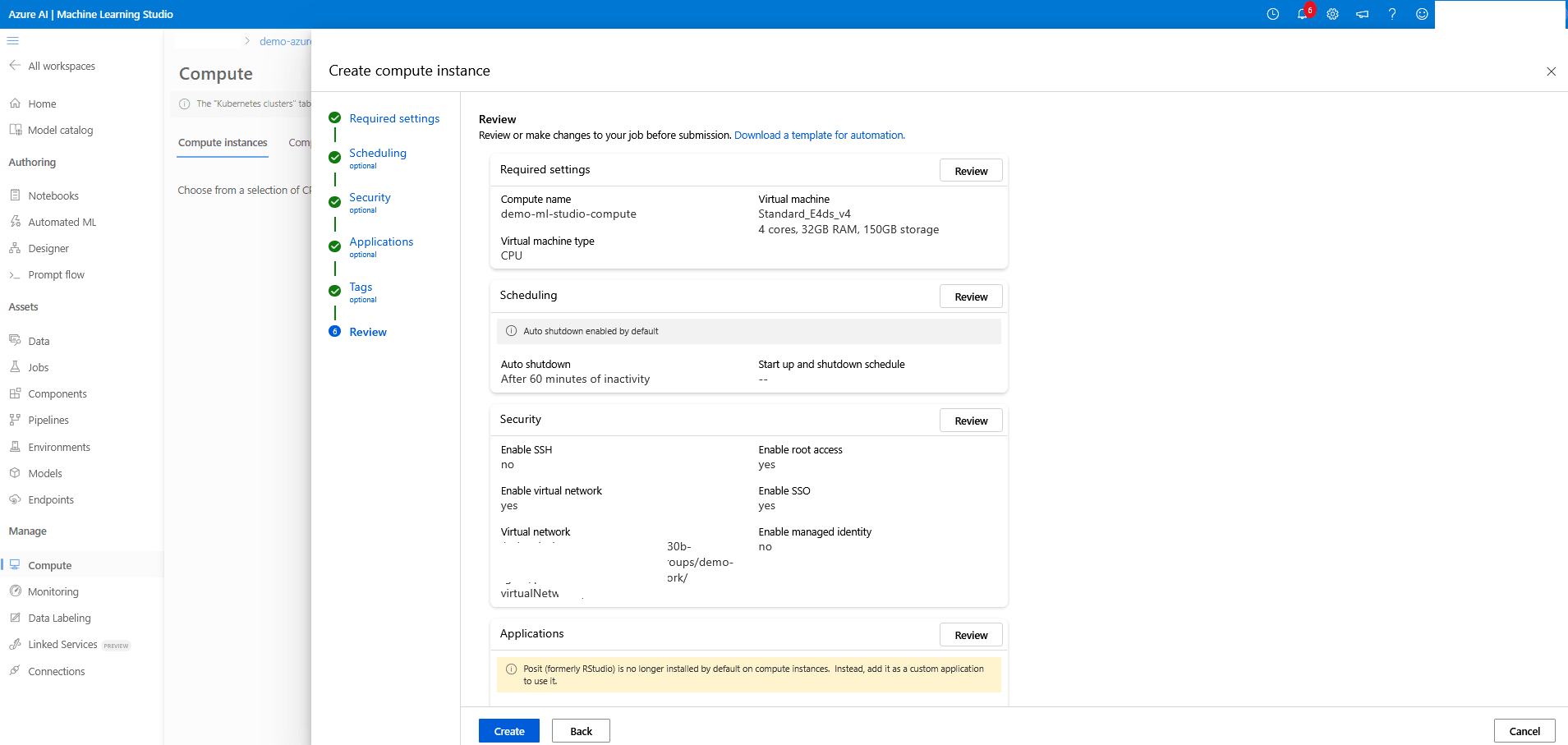
- From the Review section of the Create compute instance workflow, review your information. Select the Create button to create a a compute instance or select the Back button to make the required changes.
- Once your compute instance is created, navigate to Compute on the Machine Learning Studio page and then select the Name link to view details and configurations.
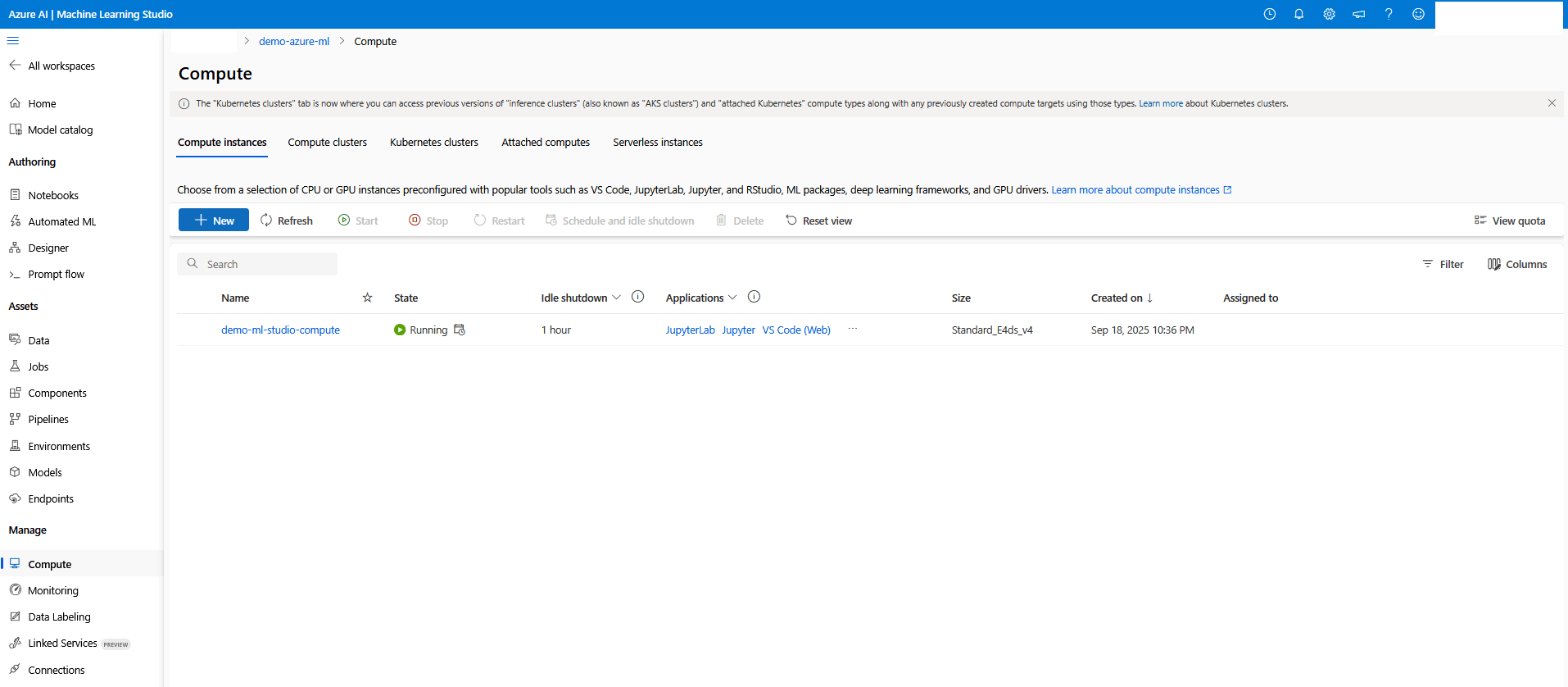
- Next step: Create an Azure Machine Learning Compute - Notebook.
Azure Machine Learning Studio Compute - Notebook
- From the Machine Learning Studio page, navigate to Authoring section. Select Notebooks from the left menu.
- From the Notebooks page, select the Files tab and then selec the three dots (...) next to your name under Users. Then, select the Create new file option from the dropdown list.
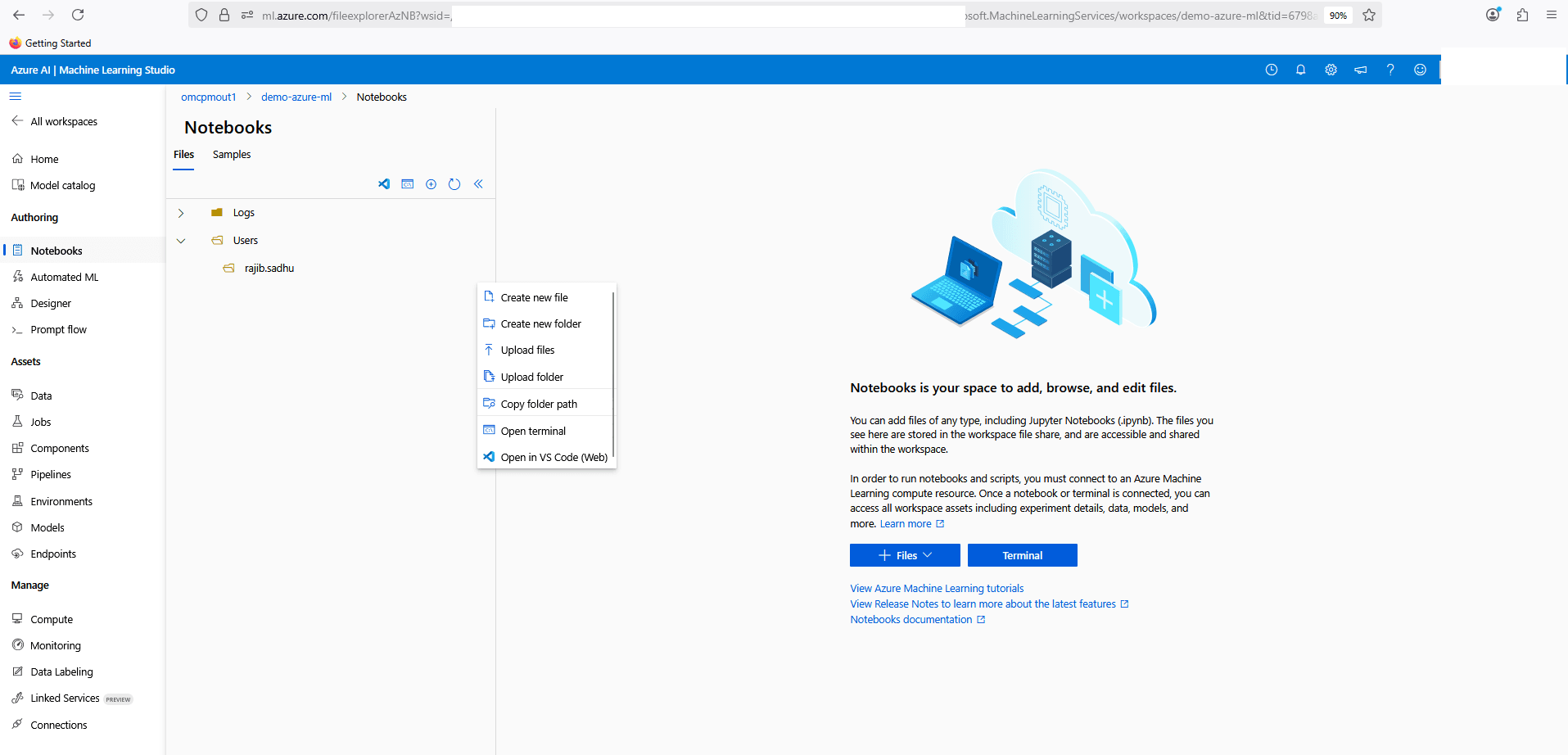
- Enter
01_Load_Data.ipynbin the File name field, and then select the File type as Notebook (*ipynb). Select the Create button.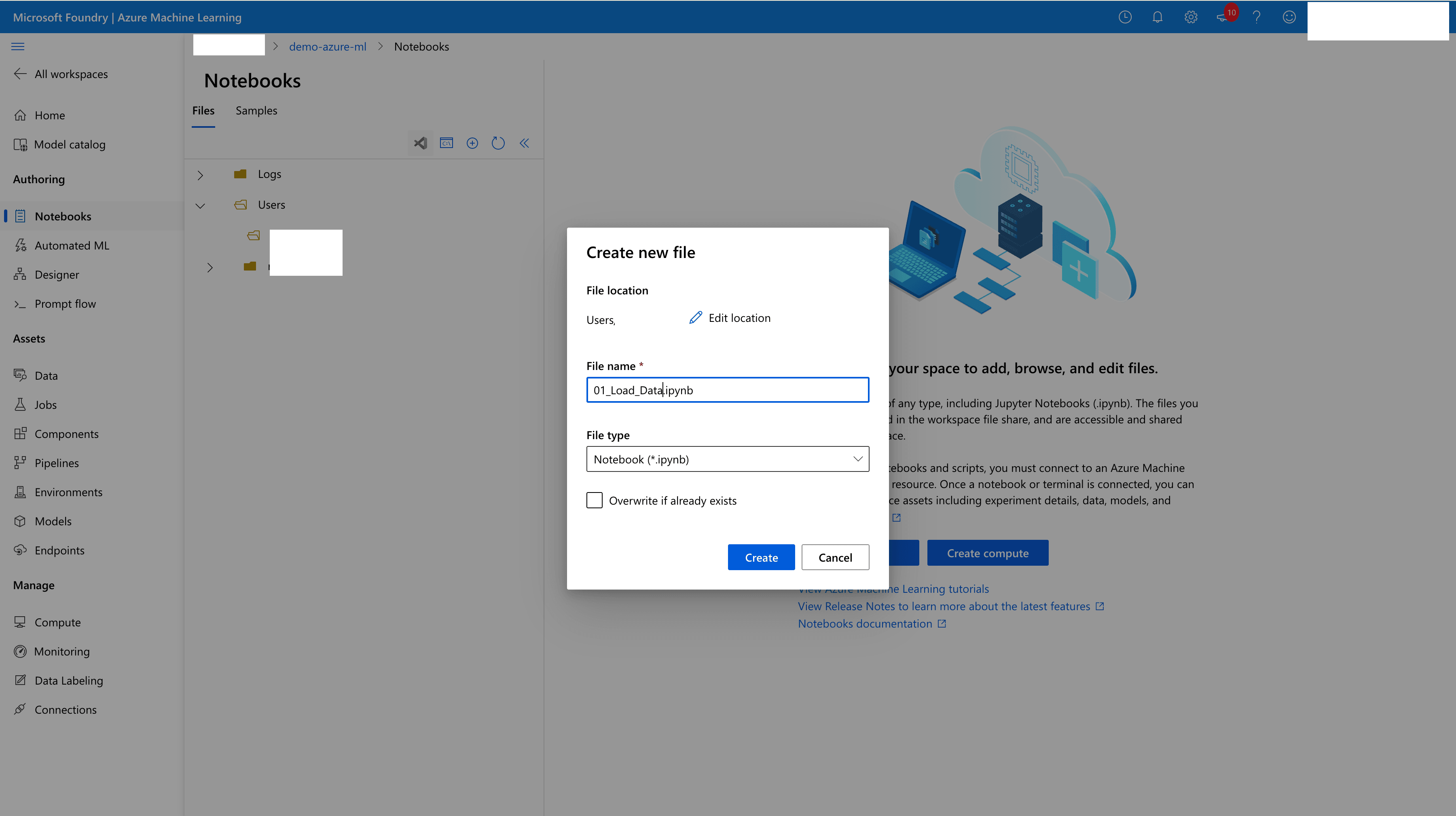
- Edit Python notebook, and then add the following Code blocks to your notebook. Additionally, you can add Markdown sections for inline content and documentation.
- Update the Connection value for Oracle Database connection string.
Run the following code to install required Python libraries:
%pip install -U oracledb %pip install datasets==3.6.0Run the following code to setup the environment with all required libraries:
import json from datasets
import load_dataset
import getpass
import oracledb
Run the following code to test the database connectivity:
userpwd = getpass.getpass("Enter password: ")
connection = oracledb.connect(user="DEMO_USER", password=demo****password,
                              host="vm-*****-scan.ocidemoclients.ocidemovnet01.oraclevcn.com", port=1521, service_name="DEMOCDB1_DEMOPDB01.paas.oracle.com")
print("Successfully connected to Oracle Database")
Run the following code to load the
McAuley-Lab/Amazon-Reviews-2023 meta_Clothing_Shoes_and_Jewelrydata into Oracle Database using this approach:dataset = load_dataset("McAuley-Lab/Amazon-Reviews-2023", "raw_meta_Amazon_Fashion", split="full", trust_remote_code=True) # print(dataset[0]) userpwd = getpass.getpass("Enter password: ") connection = oracledb.connect(user="DEMO_USER", password=demo****password, host="vm-****-scan.ocidemoclients.ocidemovnet01.oraclevcn.com", port=1521, service_name="DEMOCDB1_DEMOPDB01.paas.oracle.com") print("Successfully connected to Oracle Database") cursor = connection.cursor() insert_query = """ INSERT INTO product (main_category, title, average_rating, rating_number, features, description, price, images, videos, store, categories, details, parent_asin, bought_together) VALUES (:main_category, :title, :average_rating, :rating_number, :features, :description, :price, :images, :videos, :store, :categories, :details, :parent_asin, :bought_together) """ for record in dataset: cursor.execute(insert_query, main_category=record['main_category'], title=record['title'], average_rating=record['average_rating'], rating_number=record['rating_number'], features=json.dumps(record.get('features', [])), description=json.dumps(record.get('description', [])), price=record['price'], images=json.dumps(record.get('images', {})), videos=json.dumps(record.get('videos', {})), store=record['store'], categories=json.dumps(record.get('categories', [])), details=json.dumps(record.get('details', {})), parent_asin=record['parent_asin'], bought_together=record['bought_together'] ) connection.commit() cursor.close() connection.close() - Update the Connection value for Oracle Database connection string.
- The notebook should look similar to the following example.
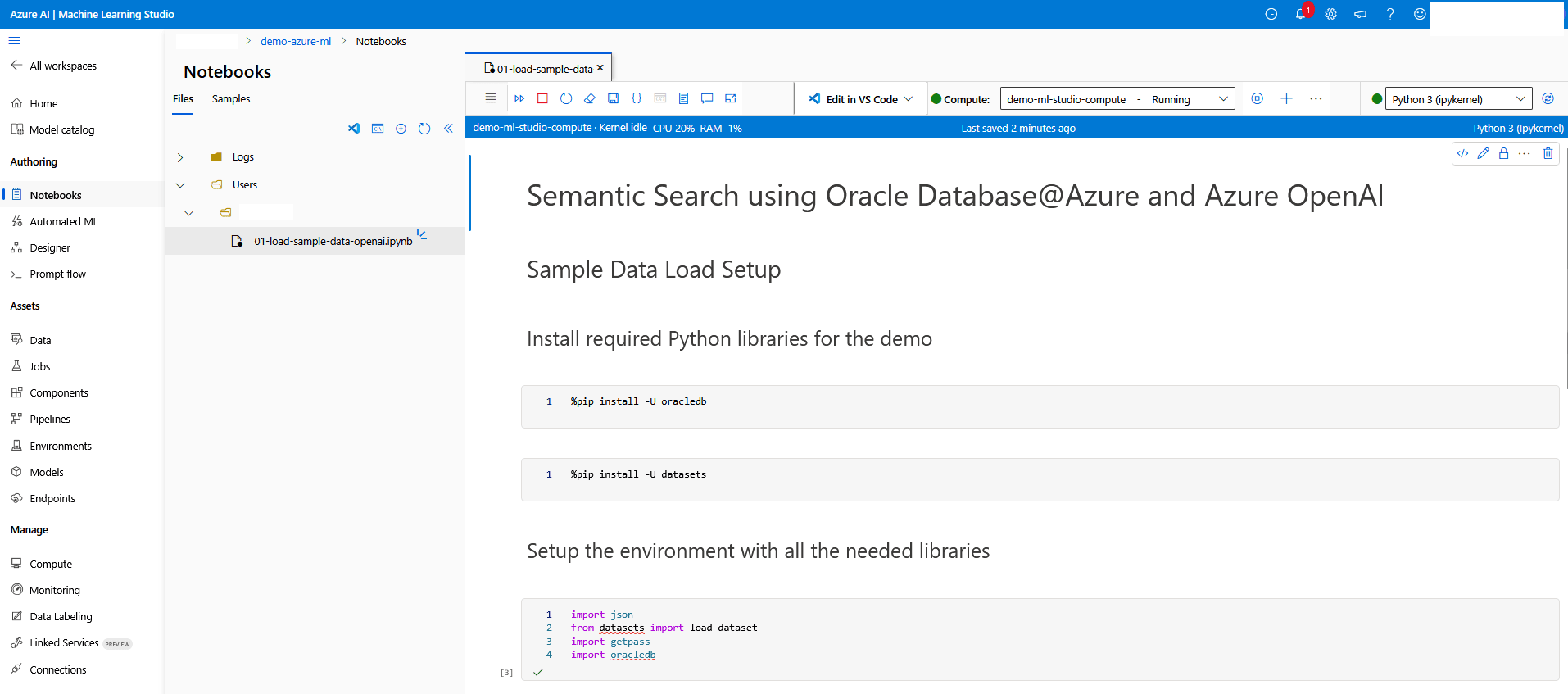
- Follow the preceding steps to create another notebook named 02_Generate_Vector_Embedding.ipynb, and then add the following code snippets.
- Update api_key and azure_endpoint values with the actual values from the Text embedding model details.
- Update the Connection value for Oracle Database connection string.
Note
Generating vector embedding incurs compute costs based on data volume. Limit the number of records in Product table to reduce compute costs.Run the following code to install required libraries:%pip install openai --upgrade %pip install oracledb --upgradeRun the following code to setup Azure OpenAI and generate embedding:import pandas as pd import json import os import getpass import oracledb import openai import array import time # Set your OpenAI API Key api_type = "azure" api_key = "Adw3Y1QIG5ueN6TPUD7**************************w3AAABACOGiX0G" azure_endpoint = "https://demo-azure-openai-service.openai.azure.com/" api_version = "2024-02-01" client = openai.AzureOpenAI( azure_endpoint=azure_endpoint, api_key=api_key, api_version=api_version ) # Function to Generate the Embeddings deployment = "text-embedding-3-large" def generate_embeddings(text): response = client.embeddings.create( input=text, model=deployment ) return response.data[0].embedding # Batch Size batch_size = 100 record_count = 826108 start_id = 824101 end_id = 0 # Load your dataset userpwd = getpass.getpass("Enter password: ") connection = oracledb.connect(user="DEMO_USER", password=demo****password, host="vm-*****-scan.ocidemoclients.ocidemovnet01.oraclevcn.com", port=1521, service_name="DEMOCDB1_DEMOPDB01.paas.oracle.com") print("Successfully connected to Oracle Database") cursor = connection.cursor() select_query = """select product_id, title from product where product_id between :startid and :endid""" for i in range(start_id, record_count, batch_size): start_id = i end_id = i + batch_size # Generate embeddings for each row in the "title" column binds = [] for product_id, title in cursor.execute(select_query, startid=start_id, endid=end_id): response = generate_embeddings(title) vec = array.array("f", response) binds.append([vec, product_id]) print("Embedding completed for " + str(end_id)) connection.autocommit = True # Update the database with Vector Embeddings cursor.executemany( """update product set title_embedding = :1 where product_id = :2""", binds, ) time.sleep(2) # Close the connection connection.commit() cursor.close() connection.close()
- Follow the preceding steps to add the final Python notebook file, 03_Semantic_Search.ipynb, and then add the following code sections.
- Update api_key and azure_endpoint values with the actual values from the Text embedding model details.
- Update the Connection value for Oracle Database connection string.
Run the following code to install required libraries:
%pip install openai --upgrade
%pip install oracledb --upgrade
Run the following code to generate embedding on the input and perform the database search:
import os
import sys
import getpass
import array
import oracledb
import openai
from skimage import io
import matplotlib.pyplot as plt
import requests


# Set your OpenAI API Key
api_type = "azure"
api_key = "Adw3Y1QIG5ueN6TPUD7**************************w3AAABACOGiX0G"
azure_endpoint = "https://demo-azure-openai-service.openai.azure.com/"
api_version = "2024-02-01"

client = openai.AzureOpenAI(
        azure_endpoint=azure_endpoint,
        api_key=api_key,
        api_version=api_version
    )


# Function to Generate the Embeddings
deployment = "text-embedding-3-large"

def generate_embeddings(text):
    response = client.embeddings.create(
        input=text,
        model=deployment
    )
    return response.data[0].embedding


# Create a connection to the database
userpwd = getpass.getpass("Enter password: ")
connection = oracledb.connect(user="DEMO_USER", password=demo****password,
                              host="vm-*****-scan.ocidemoclients.ocidemovnet01.oraclevcn.com", port=1521, service_name="DEMOCDB1_DEMOPDB01.paas.oracle.com")
print("Successfully connected to Oracle Database")


cursor = connection.cursor()

search_query = """select product_id,
                  json_value(images, '$.hi_res[0]') as image_url,
                  title
                  from product
                  where json_value(images, '$.hi_res[0]') is not null
                  order by vector_distance(title_embedding, :1, EUCLIDEAN)
                  fetch first 5 rows only"""


while True:
    # Get the input text to vectorize

    text = input("\Enter a phrase. Type quit to exit : ")

    if (text == "quit") or (text == "exit"):
        break

    if text == "":
        continue

    sentence = [text]
    response = generate_embeddings(sentence)

    vec = array.array("f", response)

    print("vector embedding generated")

    cursor.execute(search_query, [vec])

    result = cursor.fetchall()

    image_urls = []
    plt.rcParams["figure.figsize"] = [7.50, 3.50]
    plt.rcParams["figure.autolayout"] = True

    for record in result:
        image_url = record[1]
        urldata = requests.get(image_url).content
        print("Product Id: " + str(record[0]))
        a = io.imread(image_url)
        plt.imshow(a)
        plt.axis('off')
        plt.show()


# Close the connection
connection.commit()
cursor.close()
connection.close()
- Run the code in each notebook in the following sequence.
01_Load_Data: Pull retail store catalog sample data from public data set and insert into Oracle Database.02_Generate_Vector_Embeeding: Generate vector data for product title and update it into product vector column.03_Semantic_Search: Generate vector embedding for user search text and select records from Product table with distance algorithm and display in output for matching result.
- From the Azure portal, navigate to Azure Machine Learning.