Base Database - Automatic
Learn how to back up a Base Database using the Automatic Backup option.
There is currently no content for this page. Oracle AI Database@Google Cloud team intends to add content here, and this placeholder text is provided until that text is added. The Oracle AI Database@Google Cloud team is excited about future new features, enhancements, and fixes to this product and this accompanying documentation. We strongly recommend you watch this page for those updates.
Automatic Backup
Oracle recommends to use Oracle-managed automatic backup for your databases.
Oracle AI Database@Google Cloud provides the following two (2) choices as the Backup destination for Oracle Base Database Service in the OCI console.
-
Object Storage
-
Autonomous Recovery Service
To use the automatic backup option, you need to select one of the choices described above after creating Based Database from OCI.
Note
Note: Your Base Database Backup retention period and Backup schedule will vary based on the selected Backup destination.Object Storage
-
Select Object Storage from the Backup destination list.
-
Enter your Backup retention period between 7 and 60 days. You can modify the retention period after the database has been provisioned.
-
From the Scheduled time for daily backup (UTC) drop-down, select the time window when the daily backup starts.
-
From the Scheduled time for incremental backup (UTC) drop-down, select the time window when the incremental backups start.
-
If you want to take your first backup immediately after your Oracle Base Database is created, select the Take the first backup immediately button.
Automatic Backup from the OCI Console
-
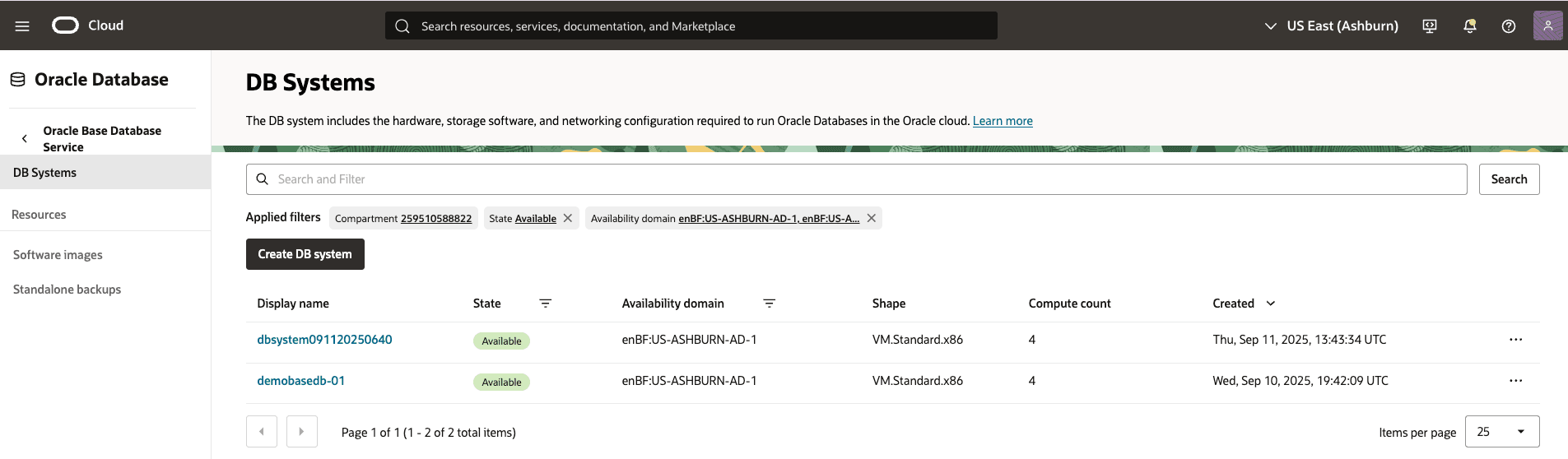
From the OCI console, select Oracle Base Database Service and then select the DB System that you are using, and then select the Databases tab. Optionally, select the compartment from applied filters.
-
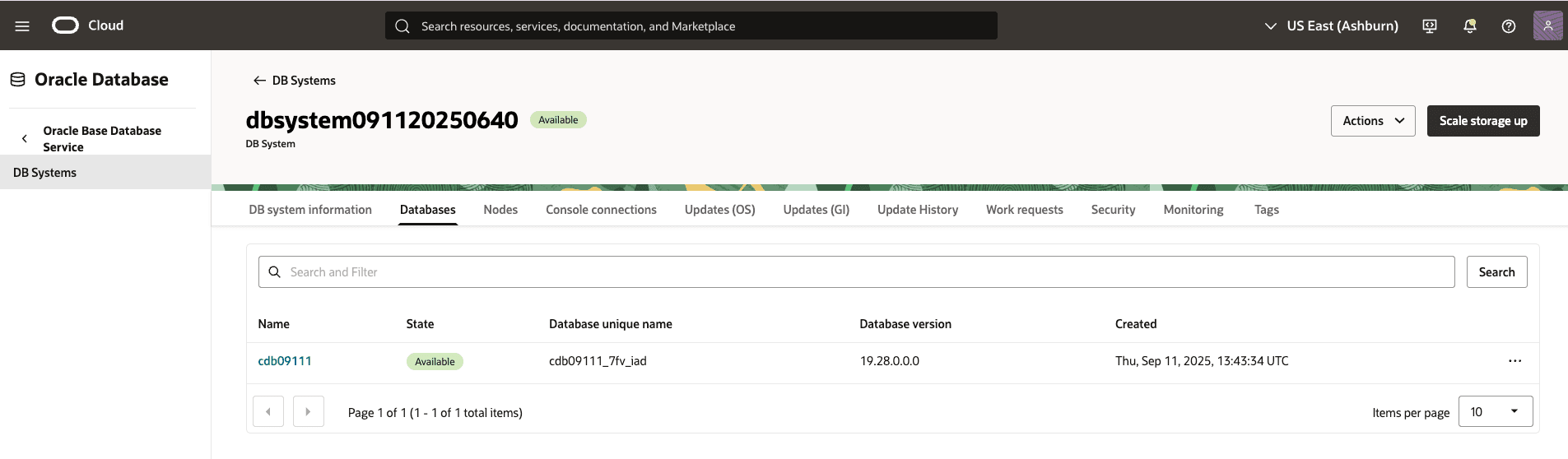
From the Databases tab, select the database that you are using.
-
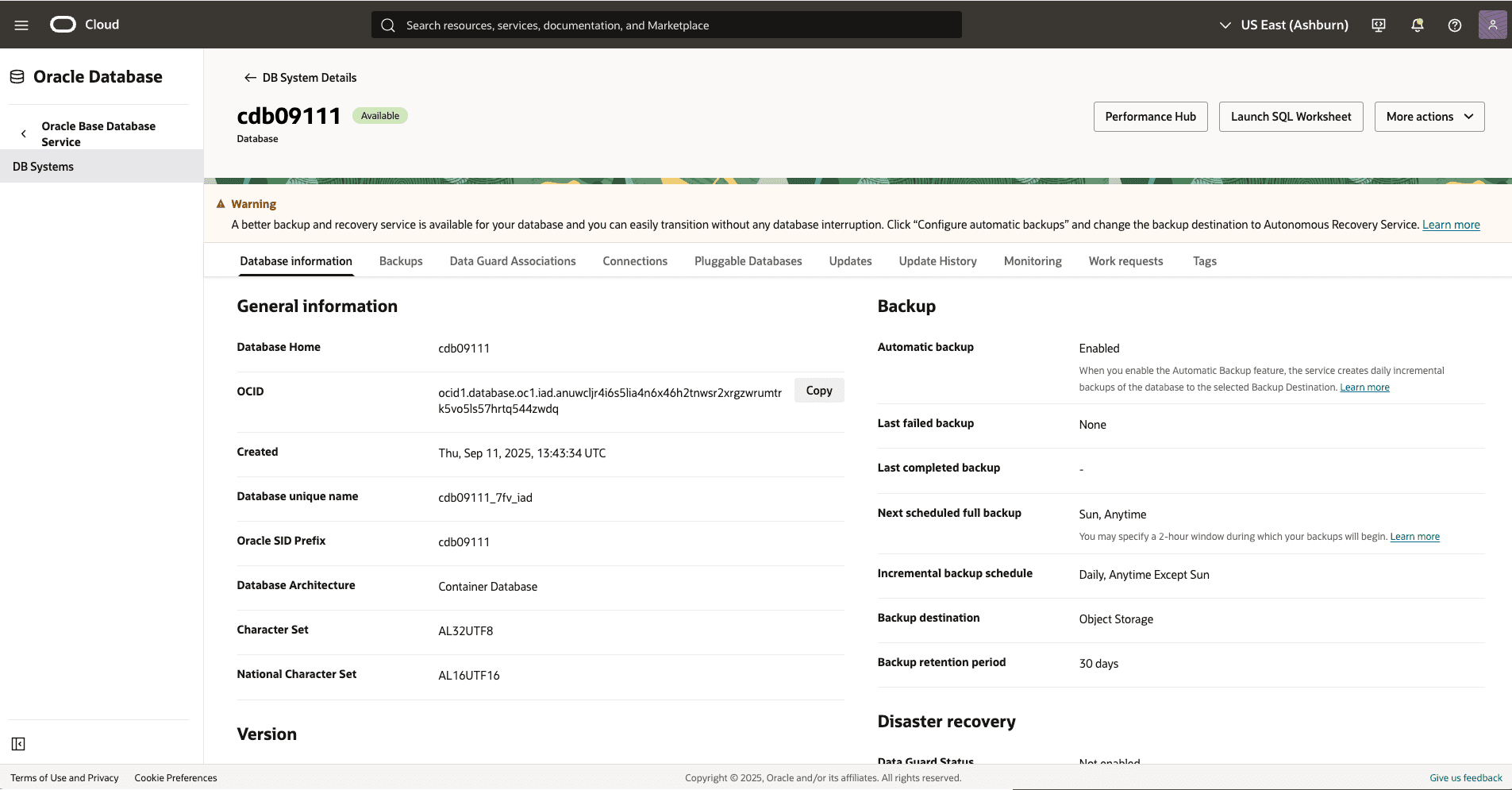
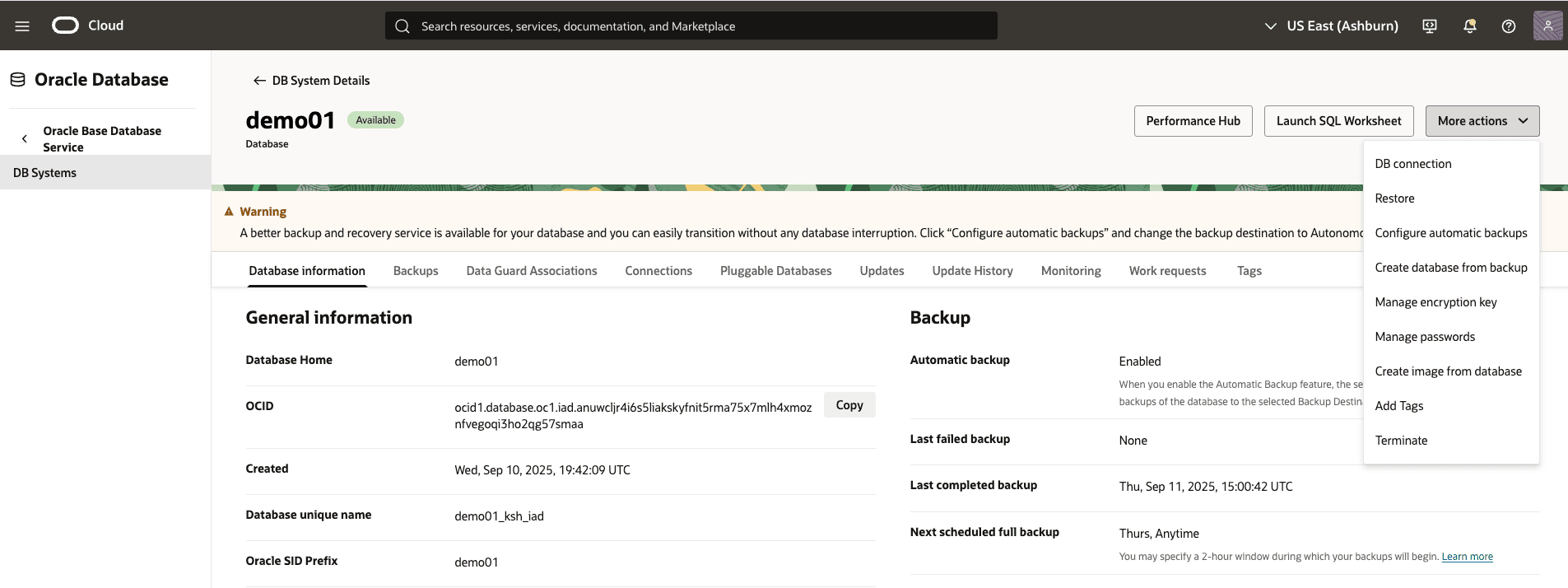
From the Backup section of the Database Information tab, you can view the details of your automatic backup settings, such as Incremental backup schedule, Backup destination and Backup retention period.
-
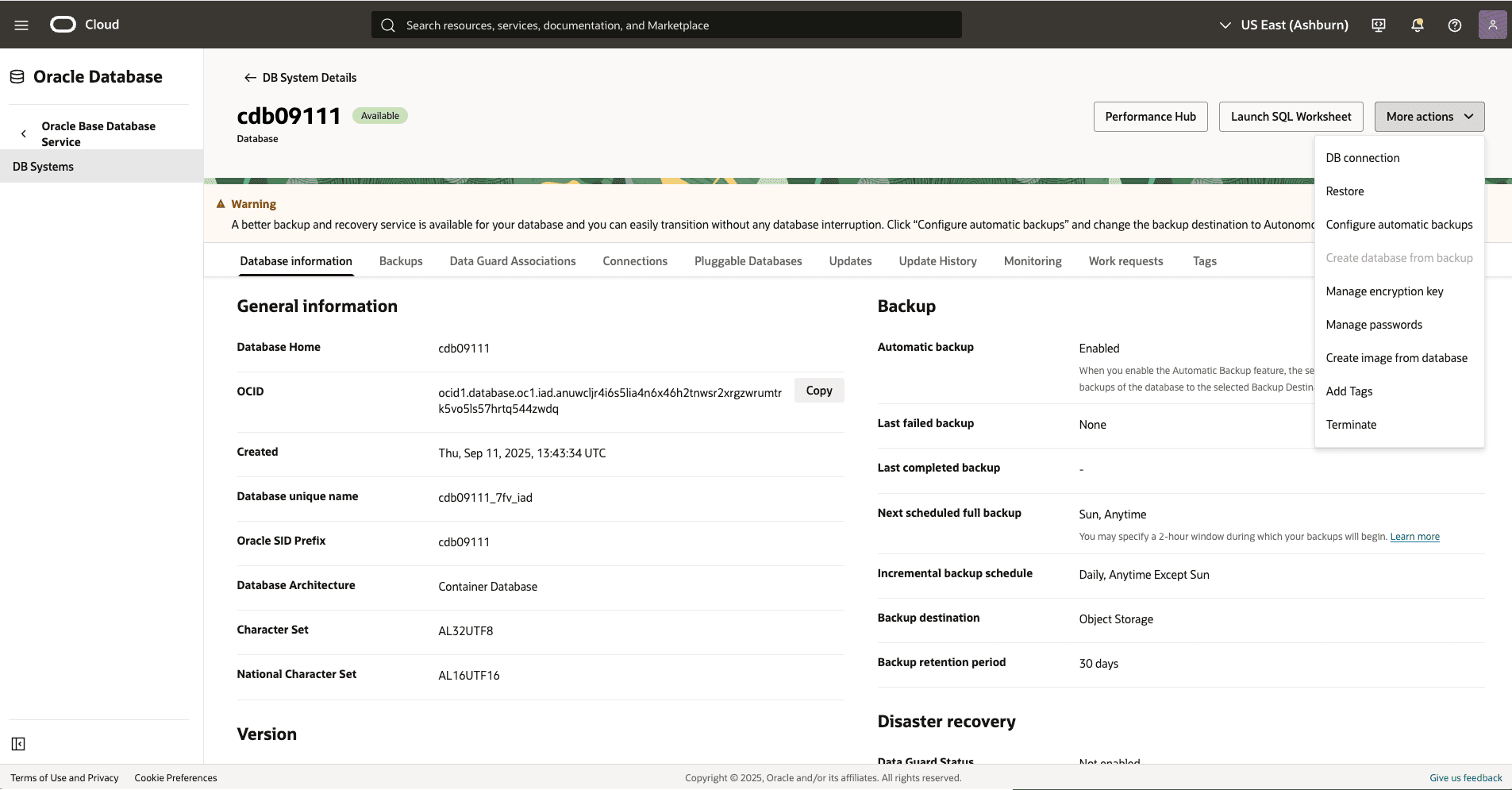
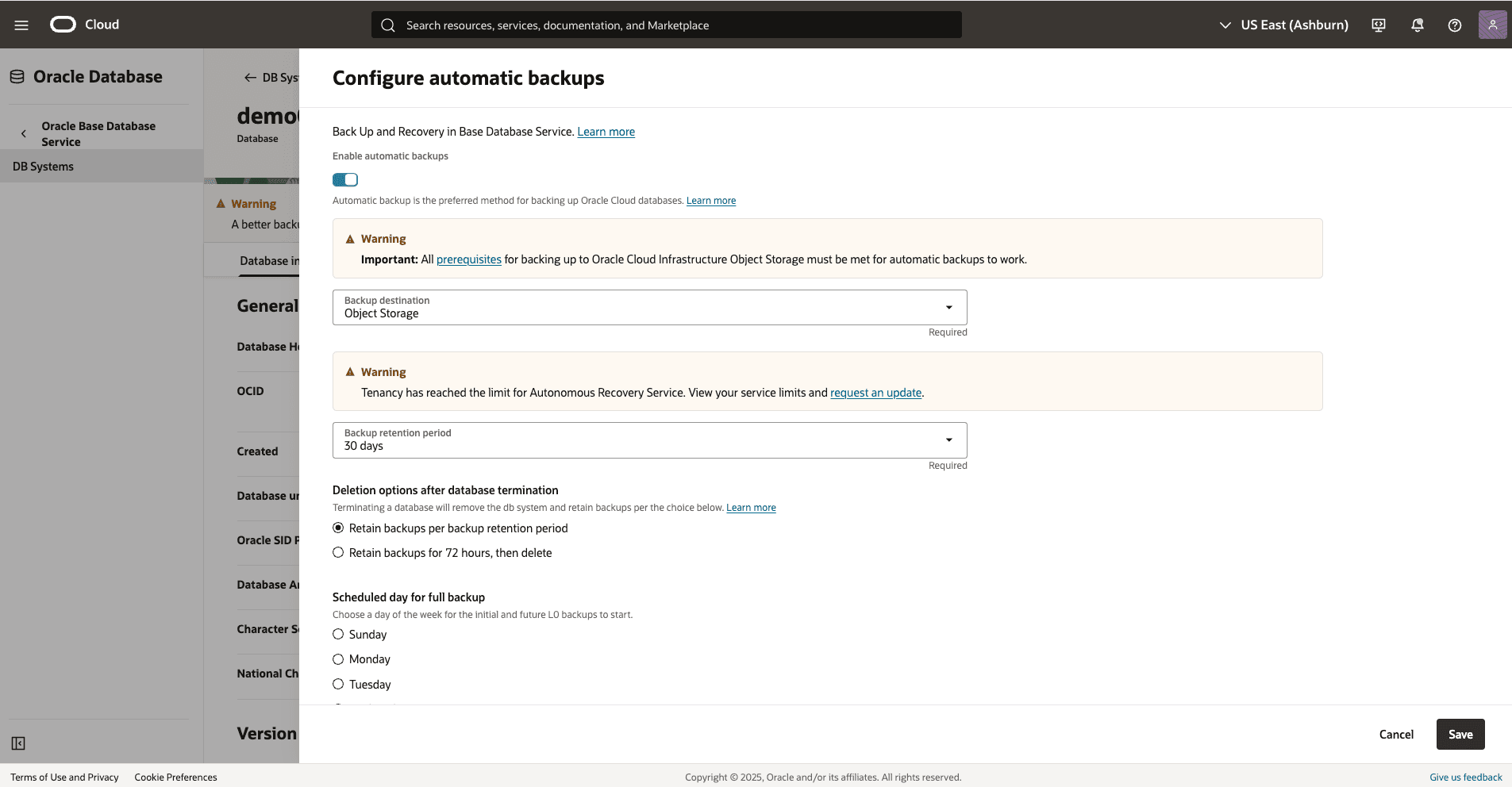
From the More actions drop-down on Database Information tab, you can select Configure automatic backups option and turn on toggle for Enable automatic backups.
-
Adjust the configuration of automatic backups, then select the Save button to confirm.
-
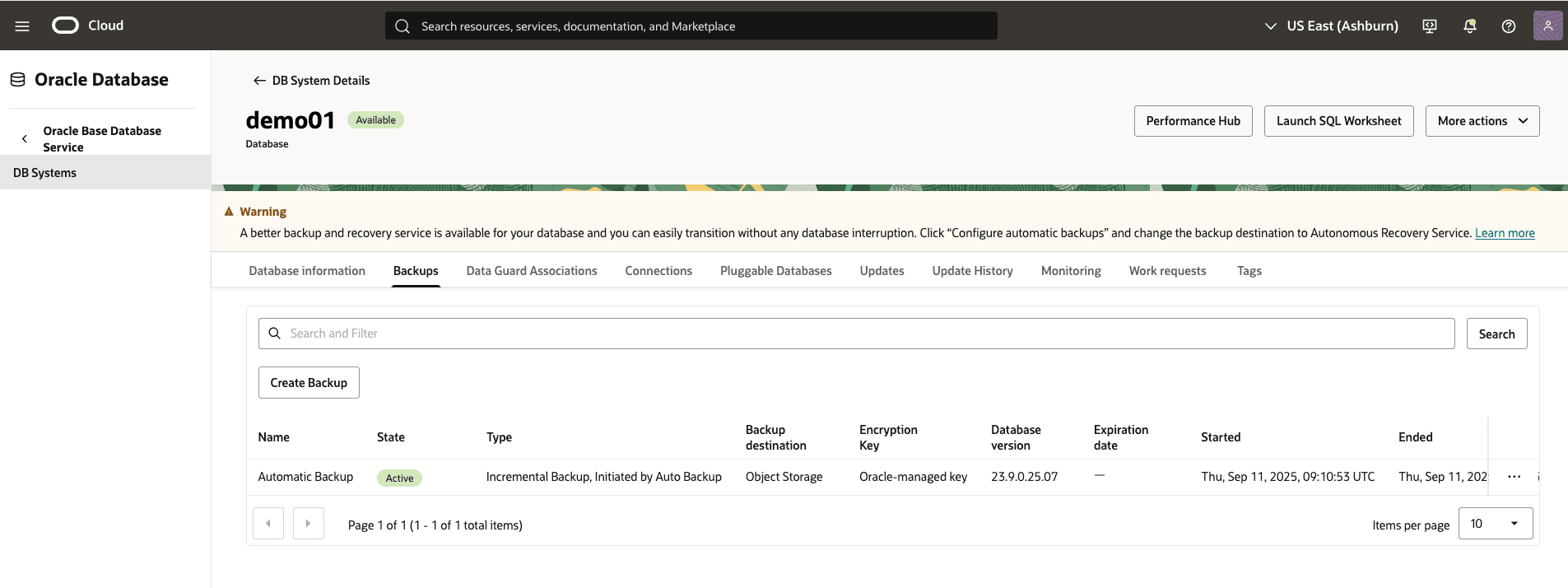
From the Backups tab, you can view details of your backup such as State, Type, Backup destination, Encryption Key, Database version, Started and Ended.
-
You can also modify the automatic backups configuration by selecting the Actions button, then Configure automatic backups.
-
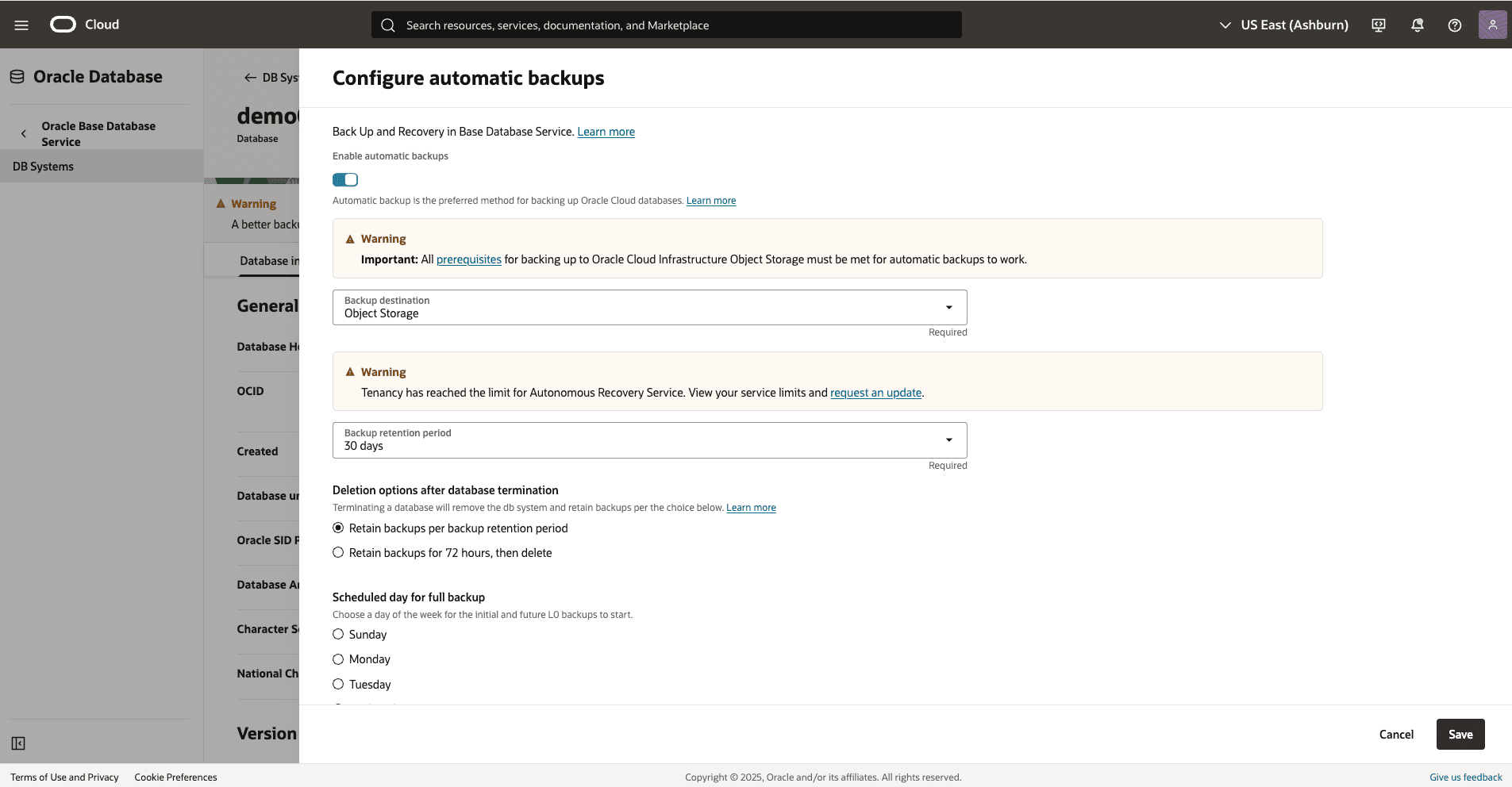
Adjust the configuration of automatic backups, then select the Save button to confirm.
-
There is currently no content for this page. Oracle AI Database@Google Cloud team intends to add content here, and this placeholder text is provided until that text is added. The Oracle AI Database@Google Cloud team is excited about future new features, enhancements, and fixes to this product and this accompanying documentation. We strongly recommend you watch this page for those updates.
There is currently no content for this page. Oracle AI Database@Google Cloud team intends to add content here, and this placeholder text is provided until that text is added. The Oracle AI Database@Google Cloud team is excited about future new features, enhancements, and fixes to this product and this accompanying documentation. We strongly recommend you watch this page for those updates.
There is currently no content for this page. Oracle AI Database@Google Cloud team intends to add content here, and this placeholder text is provided until that text is added. The Oracle AI Database@Google Cloud team is excited about future new features, enhancements, and fixes to this product and this accompanying documentation. We strongly recommend you watch this page for those updates.