Base Database
To modify an existing Base Database, follow these steps.
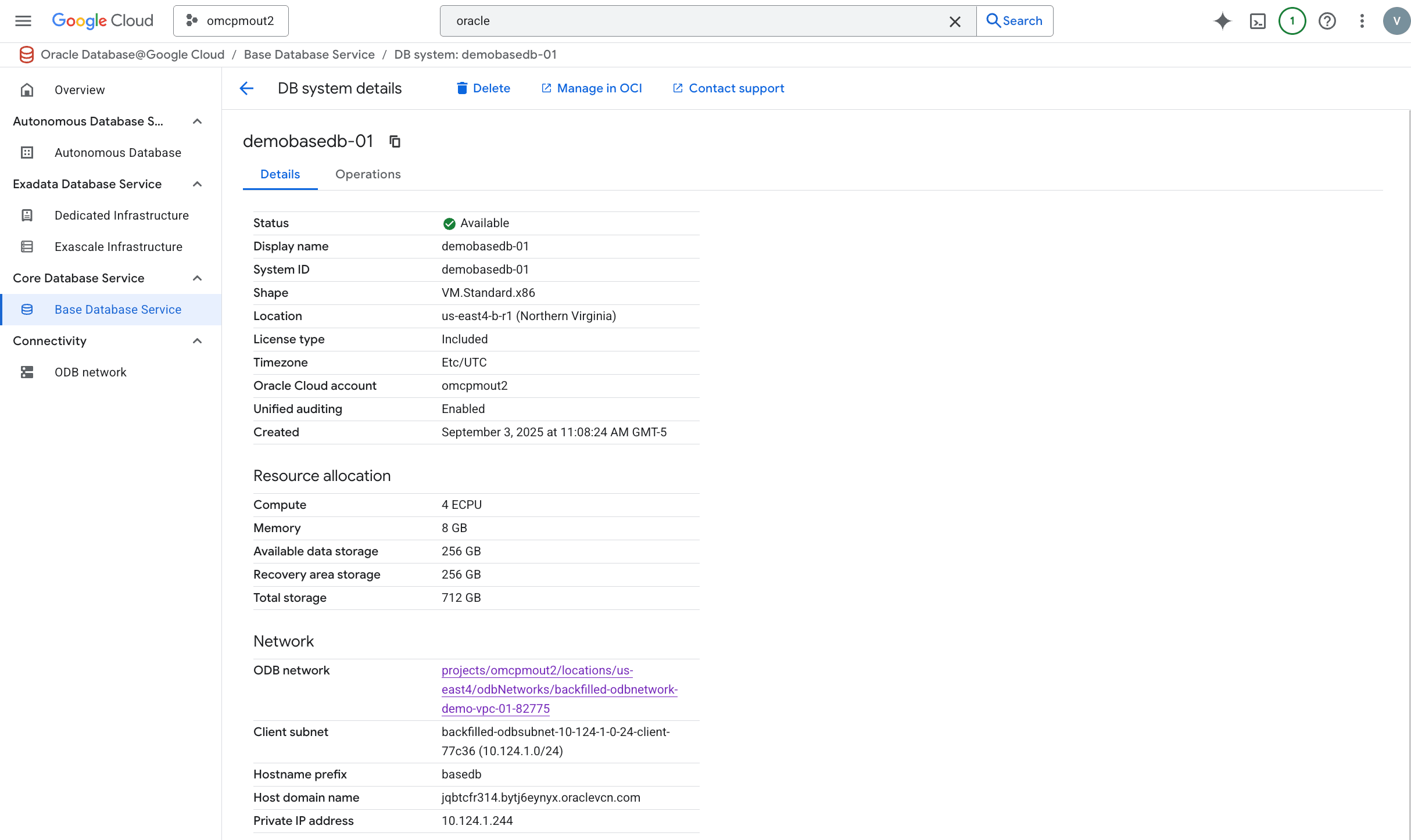
- From the Oracle AI Database@Google Cloud dashboard , select Core Database Service > Base Database Service from the left-menu.
- Select the Base Database from the DB systems list.
- Select the Manage in OCI link.
- To perform a management operation, in the OCI console for the selected Base Database, select the Actions button and then the management action from the list.
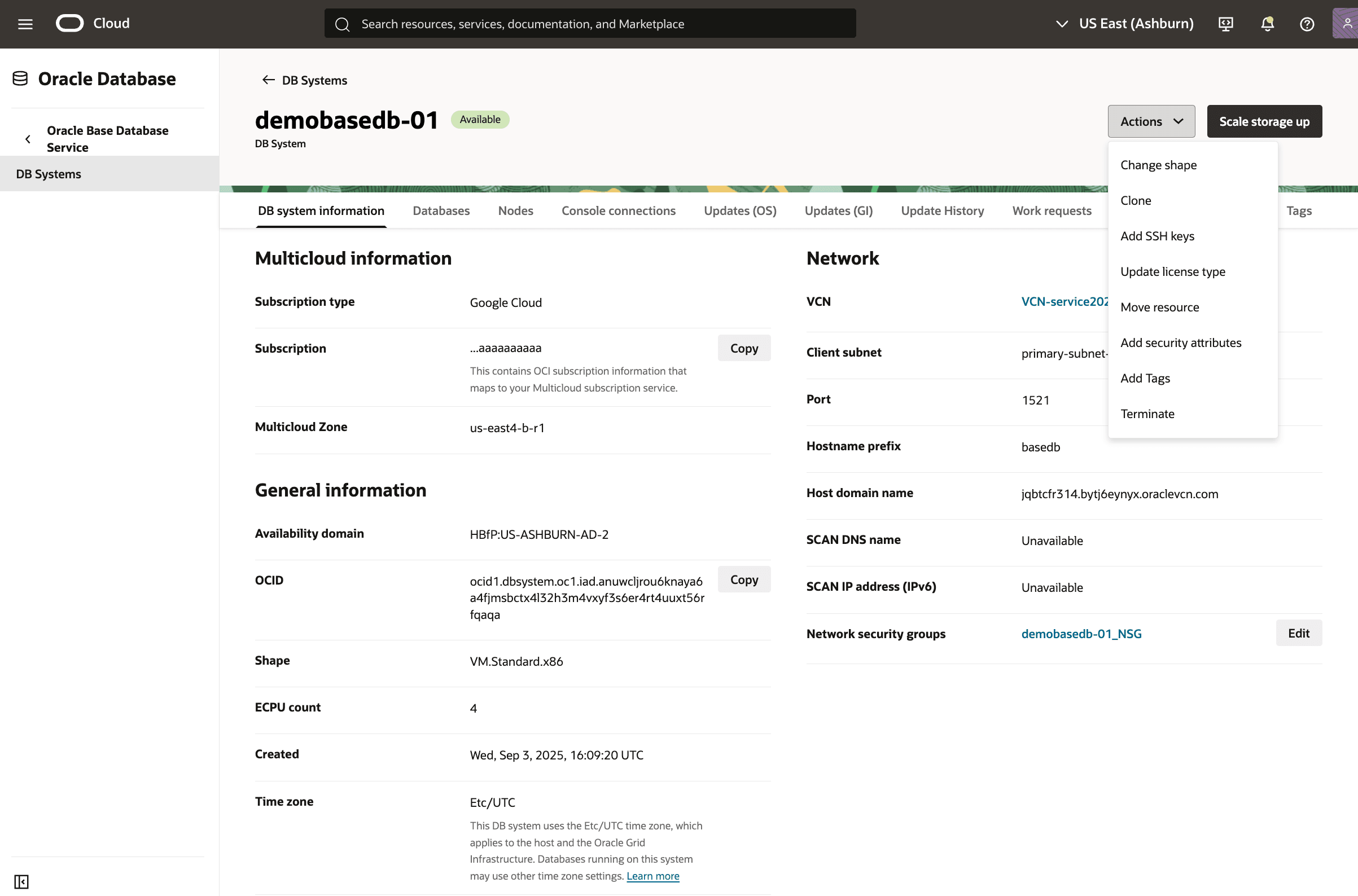
Operation Description Scale storage up For more information, see Scale the DB System Add SSH keys For more information, see Add SSH Keys to a DB System Update license type For more information, see Manage Licenses on a DB System and Oracle Bring Your Own License (BYOL). Add Tags Add tags to organize your resources. For more information, see What can I do with tagging? - To manage the Base Database and its associated Pluggable Database (PDB), select Databases tab from the DB Systems page. To modify the Pluggable Database, select the Pluggable databases tab. Select the PDB from the Database Details page select the More actions button and then select the desired operation from the list.
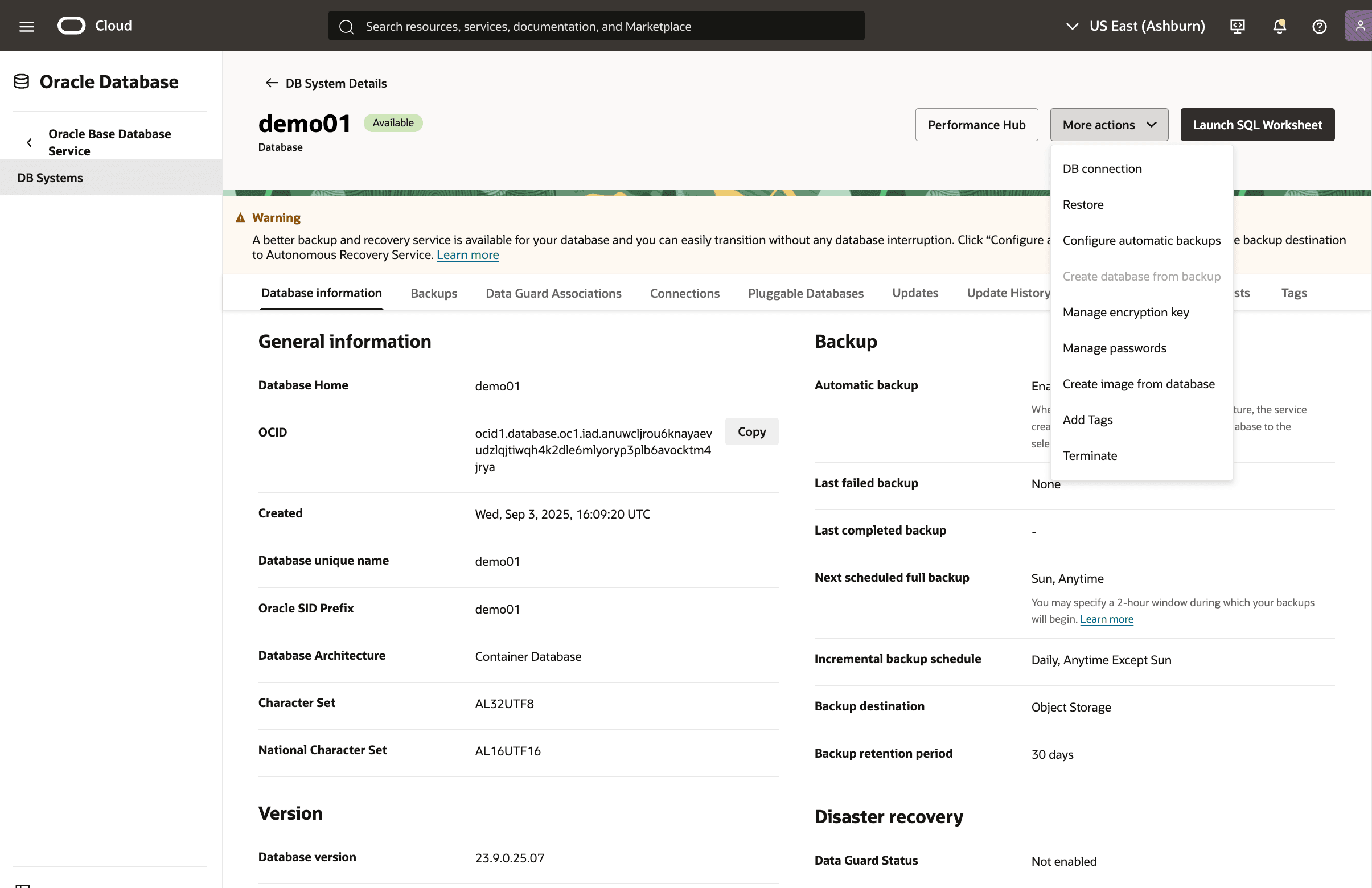

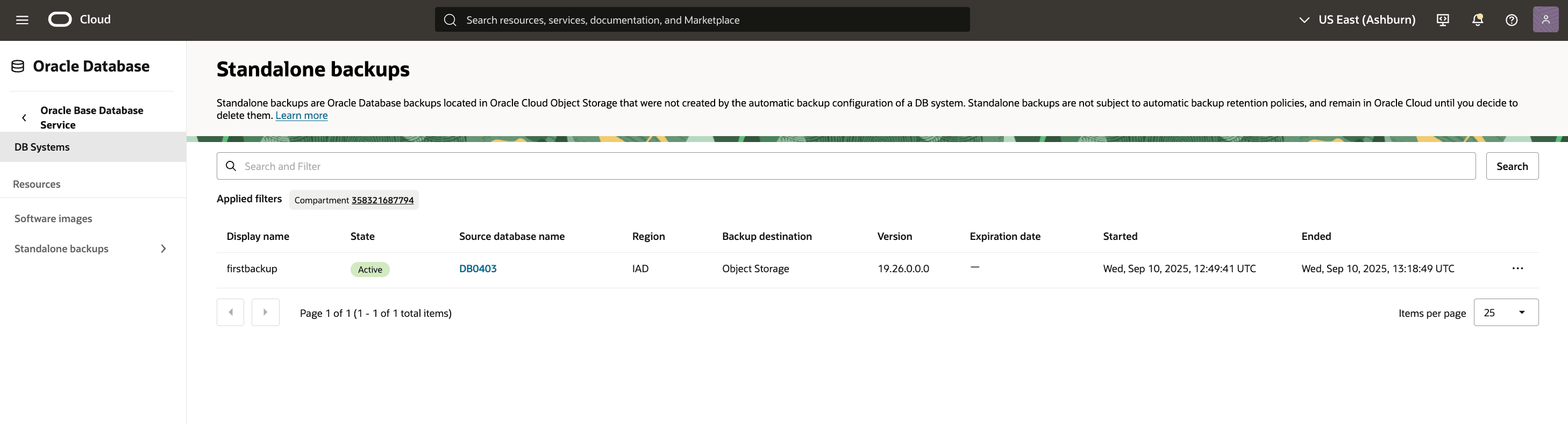
Operation Description Standalone backups This is accessed from the left-menu. For more information, see Back Up and Recovery in Base Database Service PDB connection Obtain the connection information for your PDB. For more information, see Overview of Connecting to a DB System. Clone For more information, see Clone a Pluggable Database . Start For more information, see Start a Pluggable Database. Manage encryption key For more information, see Manage Encryption Keys. Stop For more information, see Stop a Pluggable Database. Relocate For more information, see Relocate a Pluggable Database. Restore For more information, see Restore a Pluggable Database. Add Tags For more information, see Manage Tags for the DB System. Delete For more information, see Delete a Pluggable Database.
- To perform a management operation, in the OCI console for the selected Base Database, select the Actions button and then the management action from the list.
There is currently no content for this page. Oracle AI Database@Google Cloud team intends to add content here, and this placeholder text is provided until that text is added. The Oracle AI Database@Google Cloud team is excited about future new features, enhancements, and fixes to this product and this accompanying documentation. We strongly recommend you watch this page for those updates.
There is currently no content for this page. Oracle AI Database@Google Cloud team intends to add content here, and this placeholder text is provided until that text is added. The Oracle AI Database@Google Cloud team is excited about future new features, enhancements, and fixes to this product and this accompanying documentation. We strongly recommend you watch this page for those updates.
You can modify a Base Database in Google Cloud using OCI Terraform provider.
Prerequisites
- Terraform or OpenTofu installed
- OCI credentials configured
- HashiCorp OCI provider version >= 8.0
- Base Database is created using Terraform
To modify a Base Database, perform the following steps:- Create a Modify configuration file and add the import block with the Base Database id. The id value can be found at the Create Base Database output block.
Sample Terraform Configuration using OCI Terraform Provider
# Set OCI Provider source and version terraform { required_providers { # OCI Provider oci = { source = "oracle/oci" version = "8.12.0" } } } # Configure the OCI Provider provider "oci" { tenancy_ocid = "ocid1.tenancy.oc1..aaaaaaaa2pg53mzroh6r2ub72r5mxxxxxxxxxxxxxpylciiqdihofe3dq" user_ocid = "ocid1.user.oc1..aaaaaaaaa6wyl3kzbgogsqpsixxxxxxxxxxxxxxxxuwzkemcrgue5q" private_key_path = "C:\\OCI-Terraform\\private-key.pem" # This example is for Windows OS fingerprint = "6c:c7:a7:60:f2:99:62:b9:8e:01:fc:e8:9b:eb:61:61" region = "us-desmoines-1" } # Import OCI Base Database Configuration import { to = oci_database_db_system.oci_basedb id = "ocid1.dbsystem.oc1.xxx.anuwcljtou6knayxxxxxxxxxxxxxjzq3qy44hvumx4gn4itquu2vqq" } - Run the following commands in the Terminal window:
terraform initterraform validateterraform plan -generate-config-out="C:\GoogleCloud-Terraform\Working-Directory\generated_basedb.tf" # An example on Windows OS - Open the
generated_basedb.tffile in a text editor and copy the content. - Append the
generated_basedb.tfcontent in the Modify configuration file. Remove the import block. - Run the following command in the Terminal window:
terraform import oci_database_exadb_vm_cluster.oci_exascale_vm_cluster "ocid1.exadbvmcluster.oc1.xxx.anuwcljtou6knayanpsxxxxxxxxxxxxxxxj74msrv4t53fkgrrspyxm3ona" # Replace the OCID value - Run the following command in the Terminal window to confirm the imported state file and the generated configuration file resources are in sync:
terraform plan - Update the properties/values in the Modify configuration file as required.
NoteSample Terraform Configuration using OCI Terraform Provider
Modifying the configuration of Base Database using OCI Terraform provider will make the Create configuration file out of sync. To avoid out of sync Force replacement / Destroy issue, add the following lifecycle block in the Create configuration file.lifecycle { ignore_changes = [ properties[0].compute_count, properties[0].data_storage_size_gb ] }# __generated__ by Terraform # Please review these resources and move them into your main configuration files. # __generated__ by Terraform resource "oci_database_db_system" "oci_basedb" { availability_domain = "HBfP:US-ASHBURN-AD-3" backup_network_nsg_ids = null cluster_placement_group_id = "ocid1.clusterplacementgroup.oc1.xxx.anuwcljterkvpzxxxxxxxxxguxdgjppmv6rrkdhxq53dqm2a" compartment_id = "ocid1.compartment.oc1..aaaaaaaaqn5kip2ivclikxxxxxxxxxxxxzc5rykq3wfkrdoa" compute_count = 8 compute_model = "ECPU" cpu_core_count = 1 data_storage_percentage = 80 data_storage_size_in_gb = 256 database_edition = "STANDARD_EDITION" defined_tags = { "Oracle-Tags.CreatedBy" = "ocid1.multicloudlink.oc1.xxx.amaaaaaaou6knayafyn3zgqe4xxxxxxxxxln3zdhyypbtq" "Oracle-Tags.CreatedOn" = "2026-05-05T04:04:25.380Z" } disk_redundancy = "HIGH" display_name = "demo-db-system-tf" domain = "dqytvbomck.v34a03280.oraclevcn.com" fault_domains = ["FAULT-DOMAIN-3"] freeform_tags = {} hostname = "vm" kms_key_id = null kms_key_version_id = null license_model = "LICENSE_INCLUDED" node_count = 1 nsg_ids = ["ocid1.networksecuritygroup.oc1.xxx.aaaaaaaagttps3vbagp55ez7oog6xxxxxxxxx7bq24dvxpjvzmq"] os_patch_action = null os_patch_db_node_id = null os_patch_trigger = null reco_storage_size_in_gb = 256 security_attributes = {} shape = "VM.Standard.x86" source = "NONE" ssh_public_keys = ["ssh-rsa AAAAB3NzaC1yc2EAAAADAQABAAABpBuD2Gh1Aoxxxxxxxxxxxxxxxx4SBNZhR1lYHr543yhB1Va7tjJNZz7 first.last@email.com"] storage_volume_performance_mode = "HIGH_PERFORMANCE" subnet_id = "ocid1.subnet.oc1.xxx.aaaaaaaa4dc76m7nsgp6ax2j3dwxxxxxxxxxxmetya57sstyyqyl4q" time_zone = "UTC" data_collection_options { is_diagnostics_events_enabled = false is_health_monitoring_enabled = false is_incident_logs_enabled = false } db_home { create_async = false db_version = "19.30.0.0.0" defined_tags = {} display_name = "dbhome20260505040425" freeform_tags = {} is_unified_auditing_enabled = false database { admin_password = "******************" # sensitive character_set = "AL32UTF8" database_defined_tags = {} database_freeform_tags = {} db_name = "demodbtf" db_unique_name = "demodbtf" db_workload = "OLTP" defined_tags = { "Oracle-Tags.CreatedBy" = "ocid1.multicloudlink.oc1.xxx.amaaaaaaou6knayafyn3zgqexxxxxxxxxxx3zdhyypbtq" "Oracle-Tags.CreatedOn" = "2026-05-05T04:04:25.744Z" } freeform_tags = {} is_active_data_guard_enabled = false ncharacter_set = "AL16UTF16" pluggable_databases = [] } } db_system_options { storage_management = "LVM" } } - Run the following command in the Terminal window:
terraform apply