Exadata Database
To modify an existing Exadata Database, follow these steps.
- From the Oracle Database@Google Cloud dashboard , select Exadata Database Service > Dedicated infrastructure from the left-menu.
- Select the Exadata VM Cluster tab from the Exadata Database Service list.
- Select the Exadata VM Cluster from the list.
- Select the Manage in OCI link.

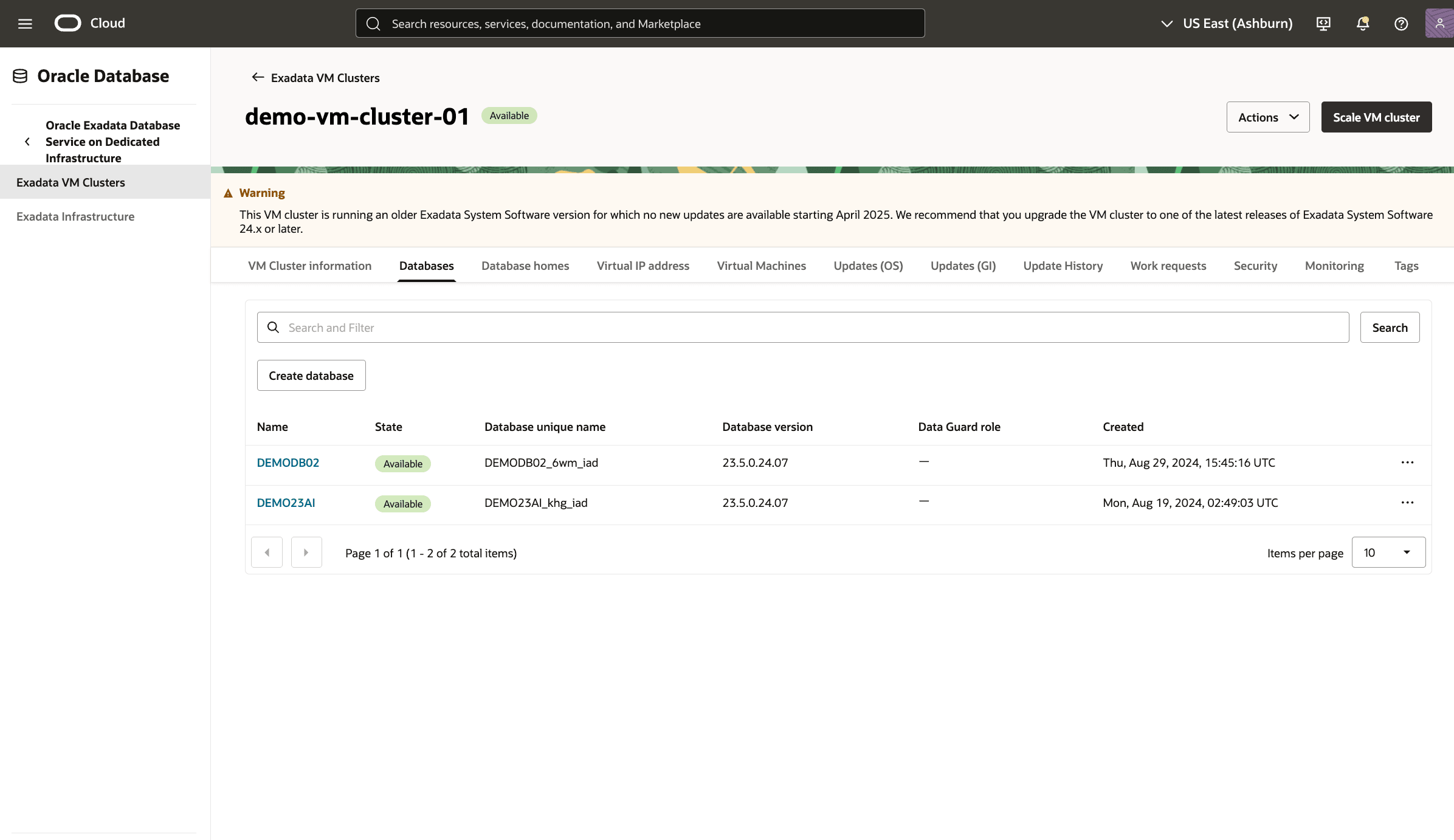
- For more information on how-to manage container databases (CDBs), see Provisioning and Managing Exadata Databases.
- For more information on how-to manage pluggable databases (PDBs), see Create and Manage Exadata Pluggable Databases.
There is currently no content for this page. Oracle Database@Google Cloud team intends to add content here, and this placeholder text is provided until that text is added. The Oracle Database@Google Cloud team is excited about future new features, enhancements, and fixes to this product and this accompanying documentation. We strongly recommend you watch this page for those updates.
There is currently no content for this page. Oracle Database@Google Cloud team intends to add content here, and this placeholder text is provided until that text is added. The Oracle Database@Google Cloud team is excited about future new features, enhancements, and fixes to this product and this accompanying documentation. We strongly recommend you watch this page for those updates.
You can modify an Exadata Database in Google Cloud using OCI Terraform provider.
Prerequisites- Terraform or OpenTofu installed
- OCI credentials configured
- HashiCorp OCI provider version >=7.0 (For more information, see the Create ODB Network Terraform page)
- Exadata Database is created using Terraform
Sample Terraform Configuration using OCI Terraform Provider# Modify Database Home resource "oci_database_db_home" "db_home" { vm_cluster_id = google_oracle_database_cloud_vm_cluster.exadata_vm_cluster.properties[0].ocid source = "VM_CLUSTER_NEW" display_name = "dbhome-26ai" db_version = "23.26.0.0.0" freeform_tags = { "env" = "dev" "lob" = "sales" } } # Modify Container and Pluggable Database resource "oci_database_database" "exa_database" { db_home_id = oci_database_db_home.db_home.id source = "NONE" database { db_name = "democdb" # db_unique_name = var.database_database_db_unique_name pdb_name = "demopdb" # database_software_image_id = oci_database_database_software_image.test_database_software_image.id admin_password = "********************" # Enter a strong password db_backup_config { auto_backup_enabled = true auto_backup_window = "SLOT_TWO" auto_full_backup_day = "TUESDAY" auto_full_backup_window = "SLOT_TWO" backup_deletion_policy = "DELETE_IMMEDIATELY" # Possible values: DELETE_IMMEDIATELY, DELETE_AFTER_RETENTION_PERIOD backup_destination_details { type = "OBJECT_STORE" # Possible values: OBJECT_STORE, RECOVERY_APPLIANCE } recovery_window_in_days = 7 run_immediate_full_backup = true } tde_wallet_password = "********************" # Enter a strong password # sid_prefix = var.database_database_sid_prefix character_set = "AL32UTF8" ncharacter_set = "AL16UTF16" freeform_tags = { "env" = "dev" } } }