Exadata Exascale Storage Vault
To modify an existing Exascale Storage Vault, follow these steps.
Scale Exascale Storage Vault
- From the Oracle AI Database@Google Cloud dashboard , select Exascale Infrastructure.
- Select the Exascale Storage Vaults tab, and then select the Exascale Storage Vault you want to scale.
- Select the Manage in OCI link.
- Subsequent steps are performed through the OCI Console.
Scale Exascale Storage Vault
- From the OCI Console, select Oracle AI Database, and then select Oracle Exadata Database Service on Exascale Infrastructure.
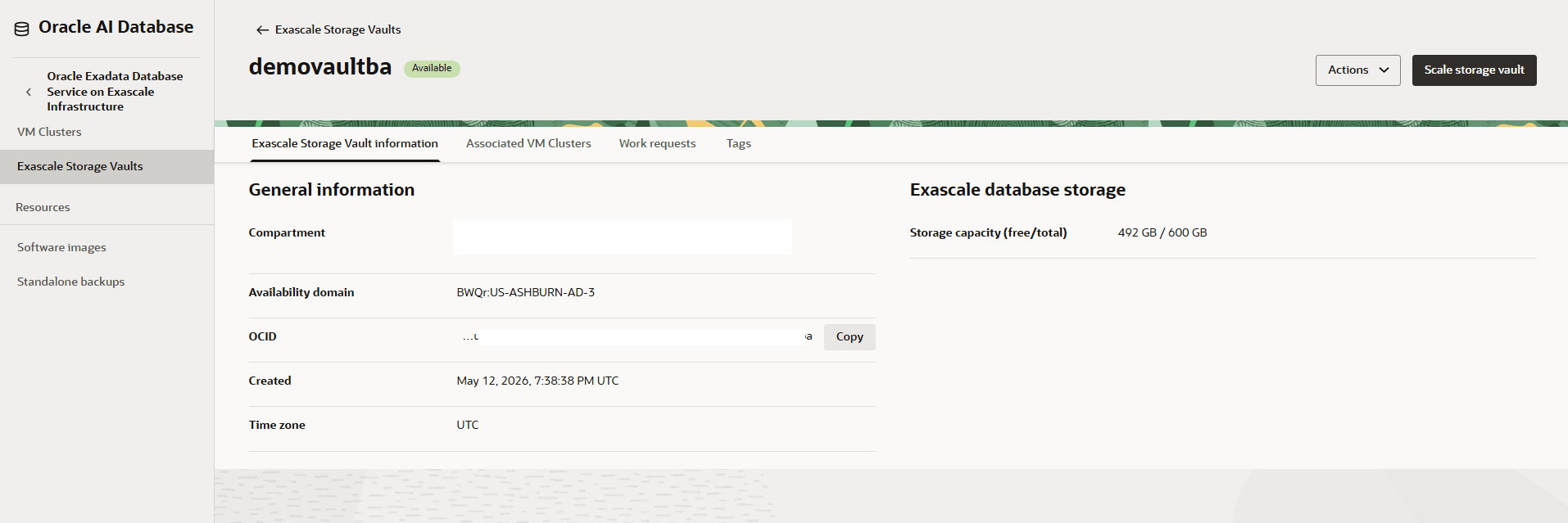
- From the left menu, select Exascale Storage Vaults and then select your Exascale Storage Vault that you want to scale.
- Select the Scale storage vault button.
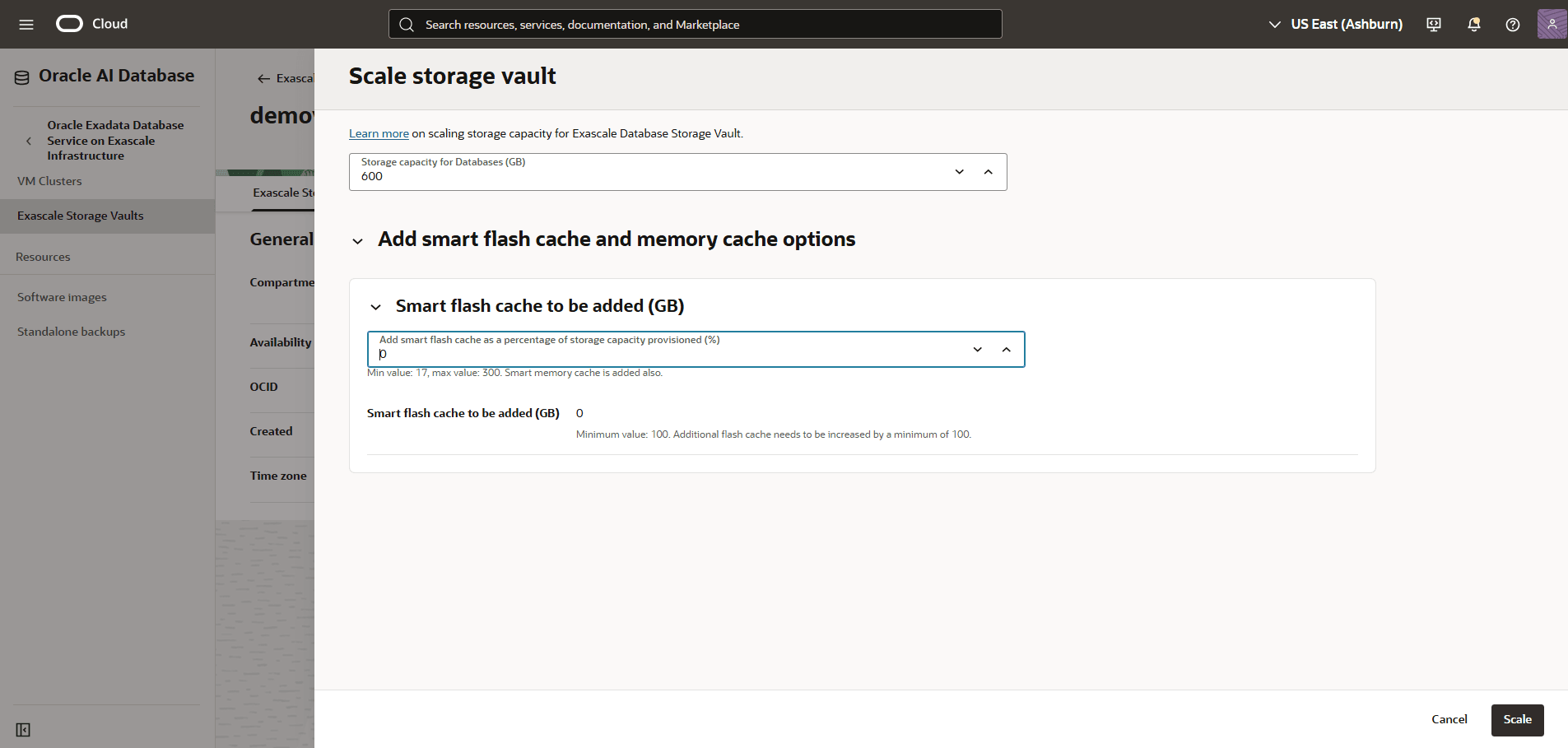
- From the Scale storage vault page, enter the following information.
- Enter a value between 300 and 100000 in the Storage capacity for Databases (GB) field.
- Expand the Add smart flash cache and memory cache options section, and then enter a value for Smart flash cache to be added (GB) in the Add smart flash cache as a percentage of storage capacity provisioned (%) field.
- Review your information and then select the Scale button.
You can modify an Exascale Storage Vault through the OCI Console.
You can modify an Exascale Storage Vault through the OCI Console.
You can modify an Exascale Storage Vault through the OCI Console.