Billing
Learn how to view cost and usage reports for Oracle AI Database@Google Cloud.
You can perform resource metering using both the Google CloudConsole and the OCI Console.
You can use Google Cloud and OCI Cost Management for comprehensive cost analysis of cloud resources. To ensure effective financial management and operational monitoring, it is important to understand the distinct types of information each console provides.
- The Google Cloud Console provides insight into billing and spending for services acquired through Google Cloud Marketplace. The information you can access depends on your licensing model:
- Private Offers:
- In the Google Cloud Console, you can view the committed yearly or multi-year cost charged to your billing account for these offers.
- The Google Cloud Console does not provide detailed consumption metrics for resources covered by private offers. Only the aggregated commitment amount is visible.
- Pay As You Go (Public):
- For public offerings, the Google Cloud Console provides a detailed breakdown of actual spending, viewable on a daily, weekly, or monthly basis.
- Cost visibility is based on consumption, allowing you to track spending trends over time and optimize usage accordingly.
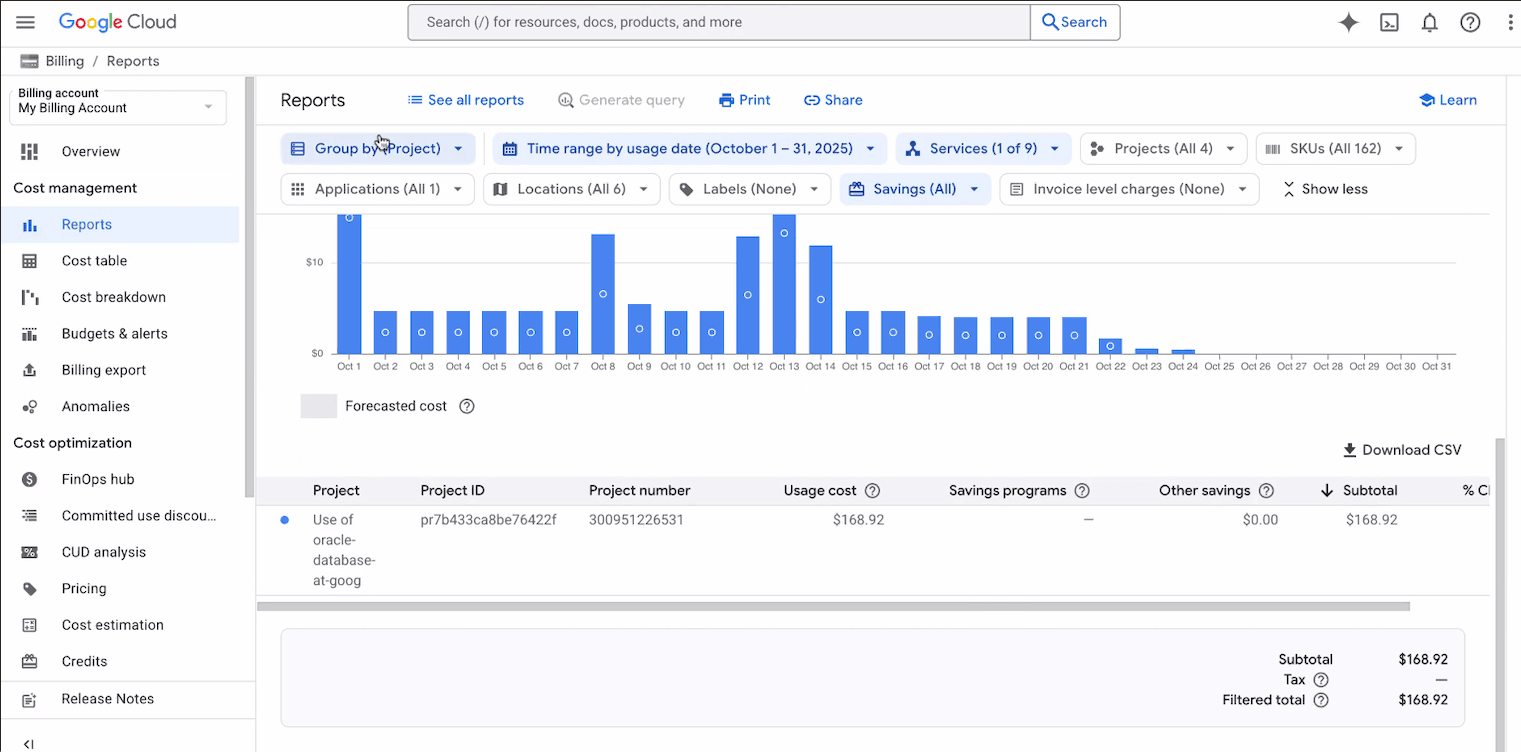
The Google Cloud Cost Management console enables you to view and analyze your Google Cloud usage costs and cost trends using a variety of configurable settings and filters. The Reports page displays a chart that plots usage costs for a Cloud Billing account, including costs for all projects linked to the billing account. To help you view cost trends that are important to you, you can select a date range, specify a time range, configure chart filters, and group your data by options such as project, service, SKU, or location.
Prerequisites- Ensure you have permissions to access the target Google Cloud project.
These are the steps to monitor resource metering in the Google Cloud Console.- Sign in to the Google Cloud Console using your account credentials.
- In the console dashboard, select the project for which you want to view cost reports.
Note
If you have project-level permissions but do not have permissions on the Cloud Billing account, you must select your project before navigating to the Billing section - In the Google CloudConsole, open the Navigation menu.
- Select Billing.
- If prompted to choose a billing account, click Go to linked billing account to view the billing account associated with your selected project.
The Billing Overview page opens for the selected billing account.
- Access cost reports
- In the Billing navigation menu, locate the Cost management section.
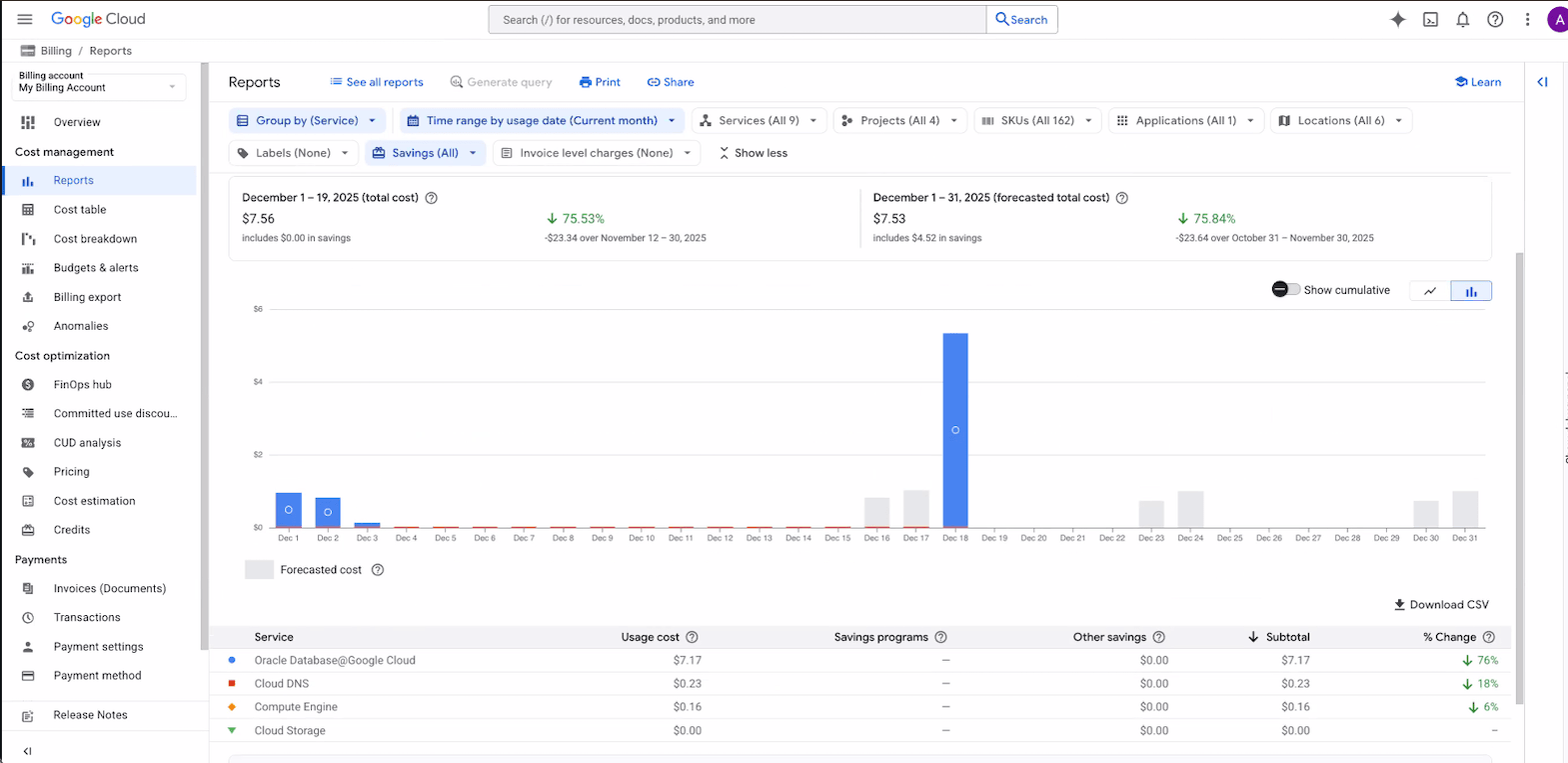
- Select Reports. The Reports page opens and displays all costs for the current month, grouped by service.
- Review report access and features
- If you have billing-account-level permissions, you can view costs for all projects linked to the billing account.
- If you have project-level permissions, you can access cost reports for a single project only (the project you selected before entering the Billing section).
- Examine the report chart
- Analyze daily usage-specific costs for the month, grouped by service (stacked bar chart).
- Forecast costs appear in light gray for easy trend comparison.
- Each stack represents a service, ranked from highest to lowest subtotal.
- Check the report table
- Find cost totals and savings for each service in the report table below the chart.
- Rows are sorted by subtotal in descending order.
- Private Offers:
- The OCI Console, specifically OCI Cost Management, serves as the primary tool for monitoring and analyzing resource consumption across all OCI services, regardless of procurement model.
- You have access to consumption details at a granular (resource) level.
- Whether the account is associated with a private offer or public offering, detailed consumption metrics are available in OCI Cost Management.
These are the steps to monitor resource metering in the OCI Console.Note
- To view cost and usage reports in OCI, you must have a Billing and Cost Management IAM policy configured. For more information, see Required IAM Policy.
- It can take up to 8 hours for billing data to appear in OCI.
- From the OCI console, navigate to Billing & Cost Management, and then select Cost Management.
- From the left menu, select Cost analysis.
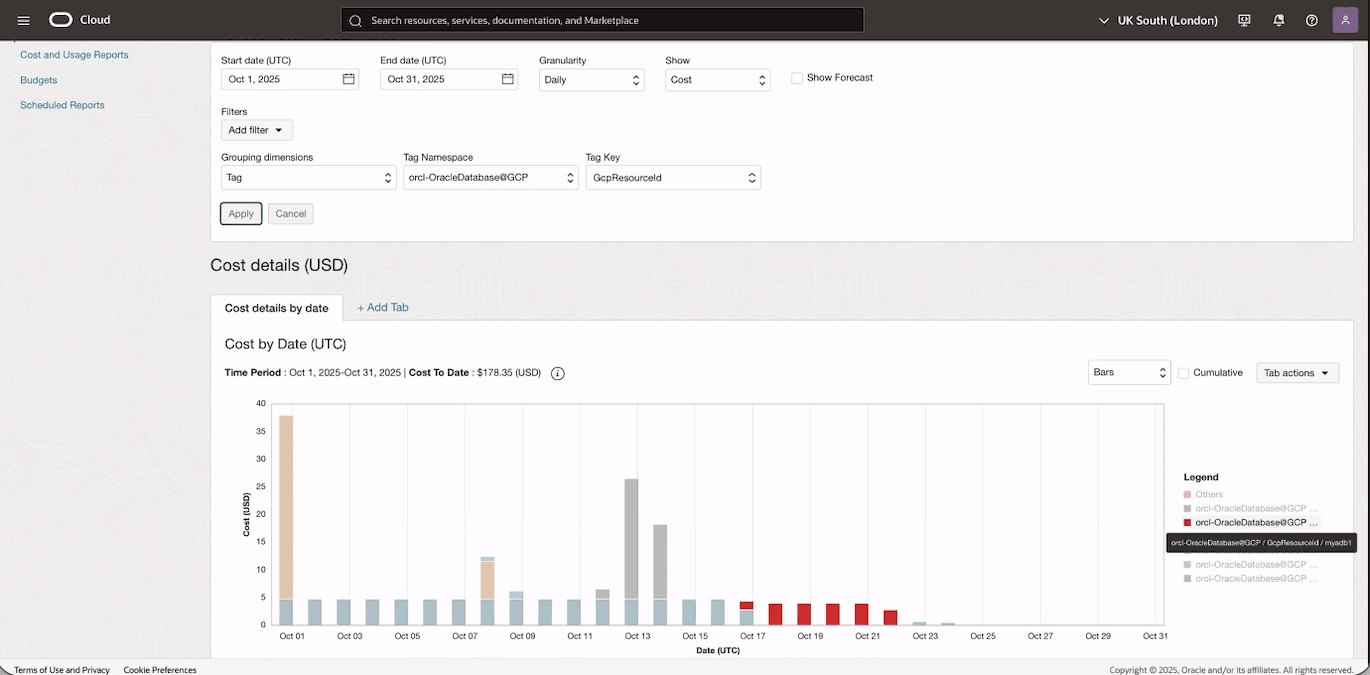
- Select your Start date (UTC) and End date (UTC).
- Select the Add filter button to add a tag-based filter to focus on resources having specific Google Cloud attribute including Subscription ID, Location and Resource Group.
- If you want to group or filter resources based on specific Google Cloud attributes, including Subscription ID, Location, and Resource Group, select Tags from the Grouping dimensions dropdown list. Then, select the orcl-OracleDatabase@GCP option from the Tag Namespace dropdown list, and ResourceAnchorId from the Tag Key dropdown list. Once you make your selections, select the Apply button.
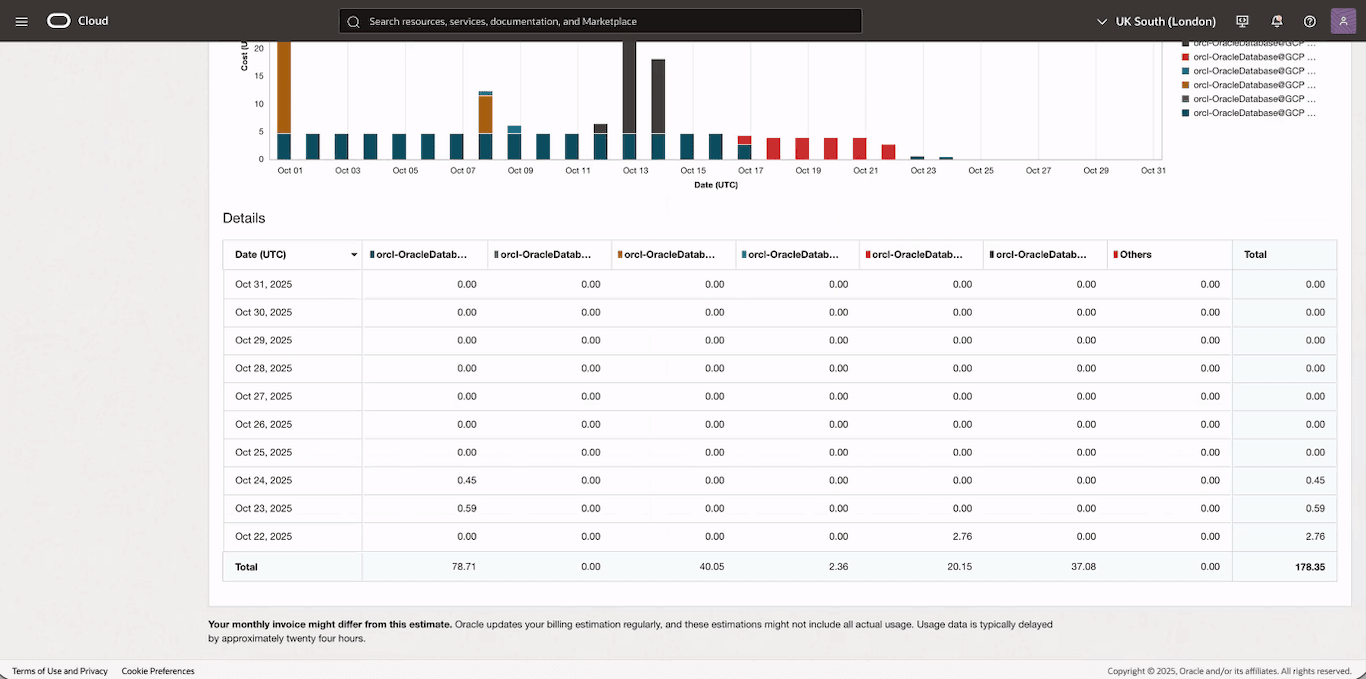
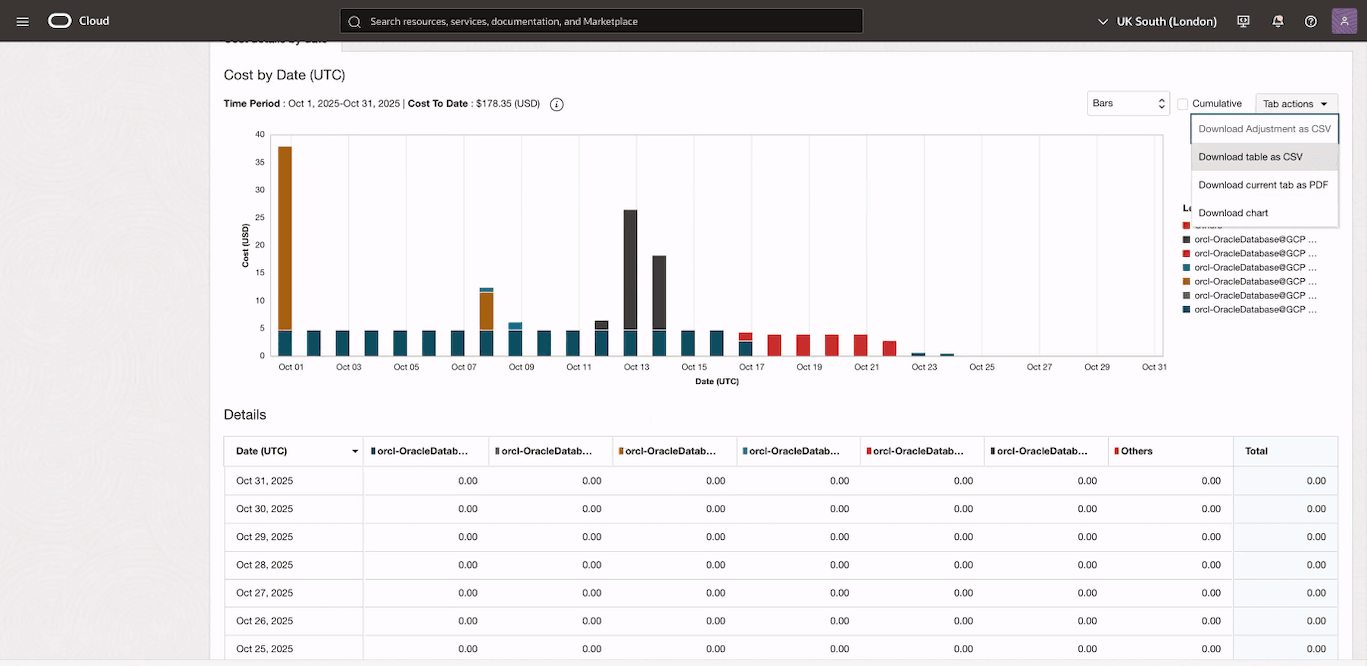
- From the Tab actions button, you can download the data as CSV, chart and PDF.