Google Cloud Audit Logs
Google Cloud Logging automatically generates audit logs that record administrative activities and access events within Google Cloud resources. Audit logs provide visibility into who performed what action, on which resource, where, and when, enabling customers to achieve the level of transparency expected in traditional on-premises environments. Audit logs are useful for security monitoring, auditing, and regulatory compliance, allowing organizations to detect misconfiguration, investigate incidents, and monitor for potential data misuse across their Google Cloud environments.
- Audit logs (who performed which action, on which resource, where, and when)
- Resource logs (actions taken by the Oracle AI Database service)
These logs enable you to meet security, auditing, compliance, and operational monitoring requirements by using native Google Cloud tools.
Relevance of Database Operations in Oracle AI Database@Google Cloud
- Track the creation and deletion of networks, VM clusters, Exadata Infrastructure, and peering connections.
- Retrieve configuration information for clusters, database nodes, and ODB networks.
- List Autonomous VM Clusters, VM clusters, database nodes, database servers, and related resources.
Monitoring Oracle AI Database@Google Cloud Resource Logs in Google Cloud Logging
This section explains how to view Oracle AI Database@Google Cloud resource logs in Google Cloud Logging using the Google Cloud Console.
- From the Google Cloud Console, navigate to Logs Explorer.
- At the top of the page, select the Google Cloud project that contains your Oracle AI Database@Google Cloud resources.
- In the query builder, select All resources.
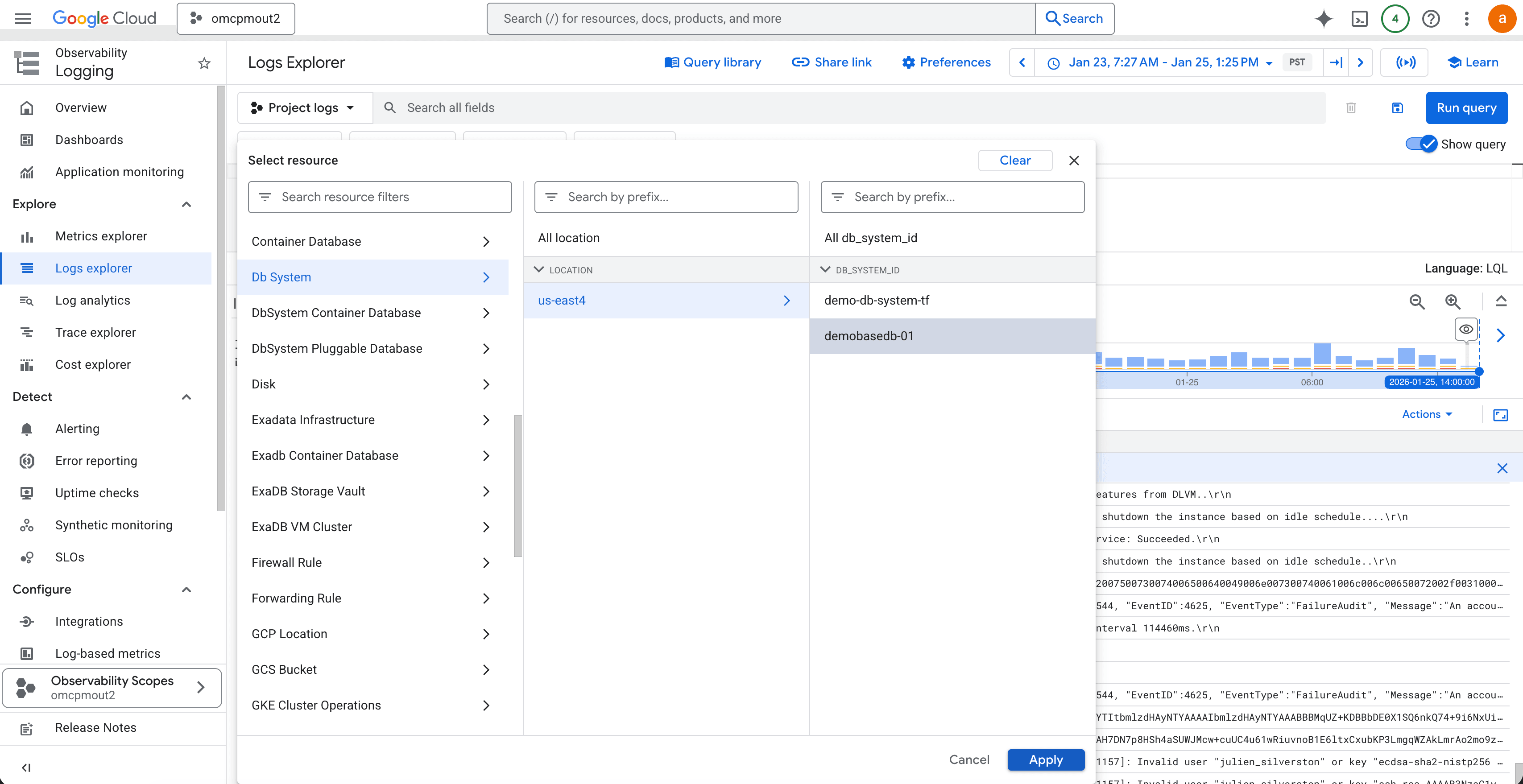
- From the dropdown list, select one of the following resource types, depending on the resource you want to monitor:
-
- Exadata Infrastructure
- Cloud VM Cluster
- Autonomous AI Database
- Db System
- DbSystem Container Database
- DbSystem Pluggable Database
- Exadb Container Database
- ExaDB Storage Vault
- ExaDB VM Cluster
-
- In the selection dialog, select the specific location and resource and then select the Apply button.
- Select the All log names option to open the log name selector. Select one or more of the following Oracle AI Database@Google Cloud log files, as required and then select the Apply.
oracledatabase.googleapis.com/autonomous_database_logs oracledatabase.googleapis.com/container_database_logs oracledatabase.googleapis.com/db_system_container_database_logs oracledatabase.googleapis.com/db_system_logs oracledatabase.googleapis.com/db_system_pluggable_database_logs oracledatabase.googleapis.com/exadata_infrastructure_logs oracledatabase.googleapis.com/exadb_container_database_logs oracledatabase.googleapis.com/pluggable_database_logs oracledatabase.googleapis.com/vm_cluster_logs oracledatabase.googleapis.com/exascale_db_storage_vault_logs oracledatabase.googleapis.com/exadb_vm_cluster_logs - You can Filter by Severity. This step is optional but it is recommended when you want to troubleshoot or investigate issues.
- Select the All severities option.
- Select the desired log severity level. For example: INFO, WARNING, ERROR.
- To set the time range, select a preset time range, or create a custom time range to narrow the log results to a specific window.
- The Logs Explorer displays the selected Oracle AI Database@Google Cloud resource logs based on the chosen resource, log name, severity, and time range. You can further refine results using text search or advanced query filters.
Monitoring the Logs
Logs Explorer in the Google Cloud Console provides a centralized interface to retrieve, view, and analyze log entries stored in Google Cloud log buckets. It enables operators to examine individual log entries as well as sequences of logs to troubleshoot issues and improve overall observability.
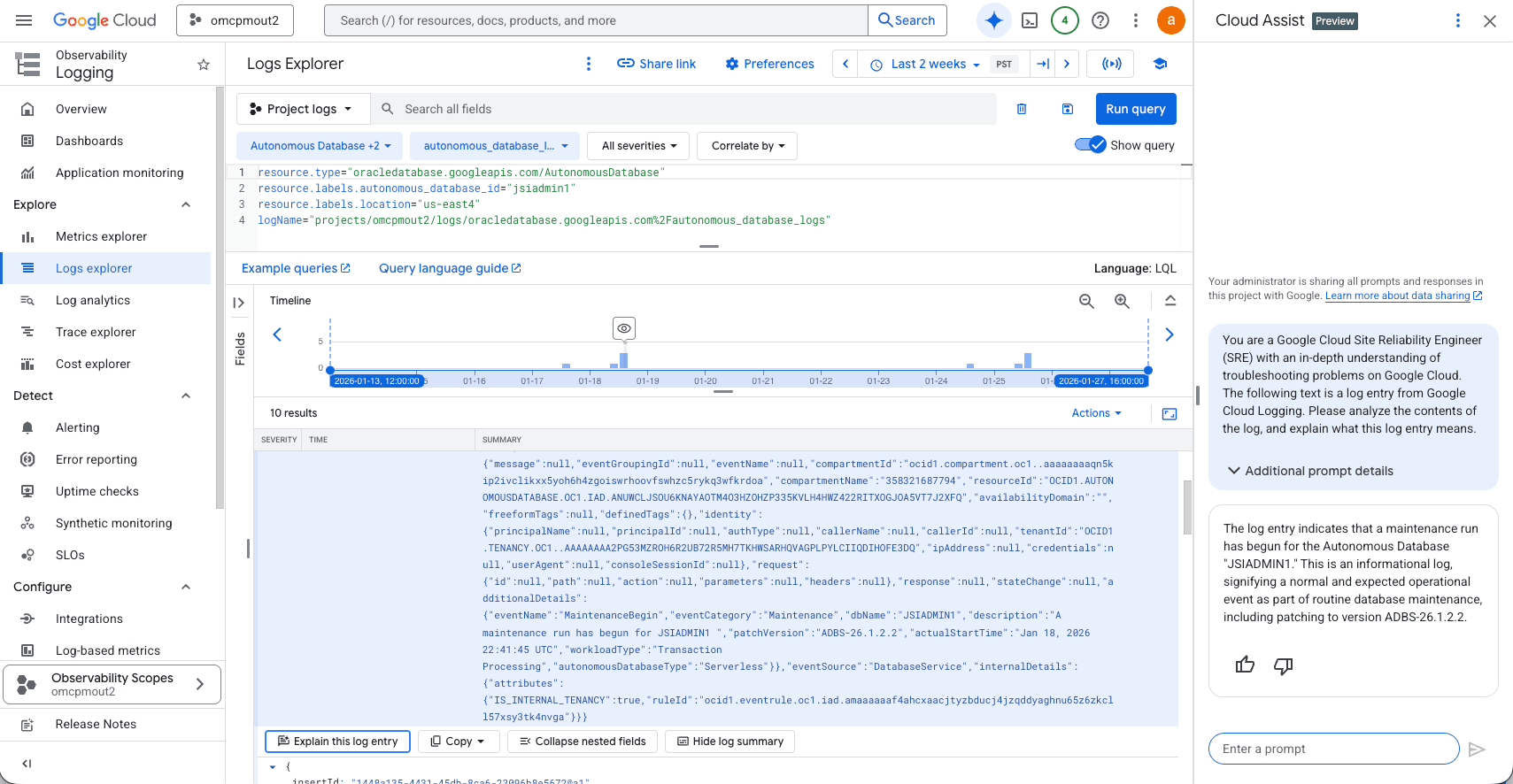
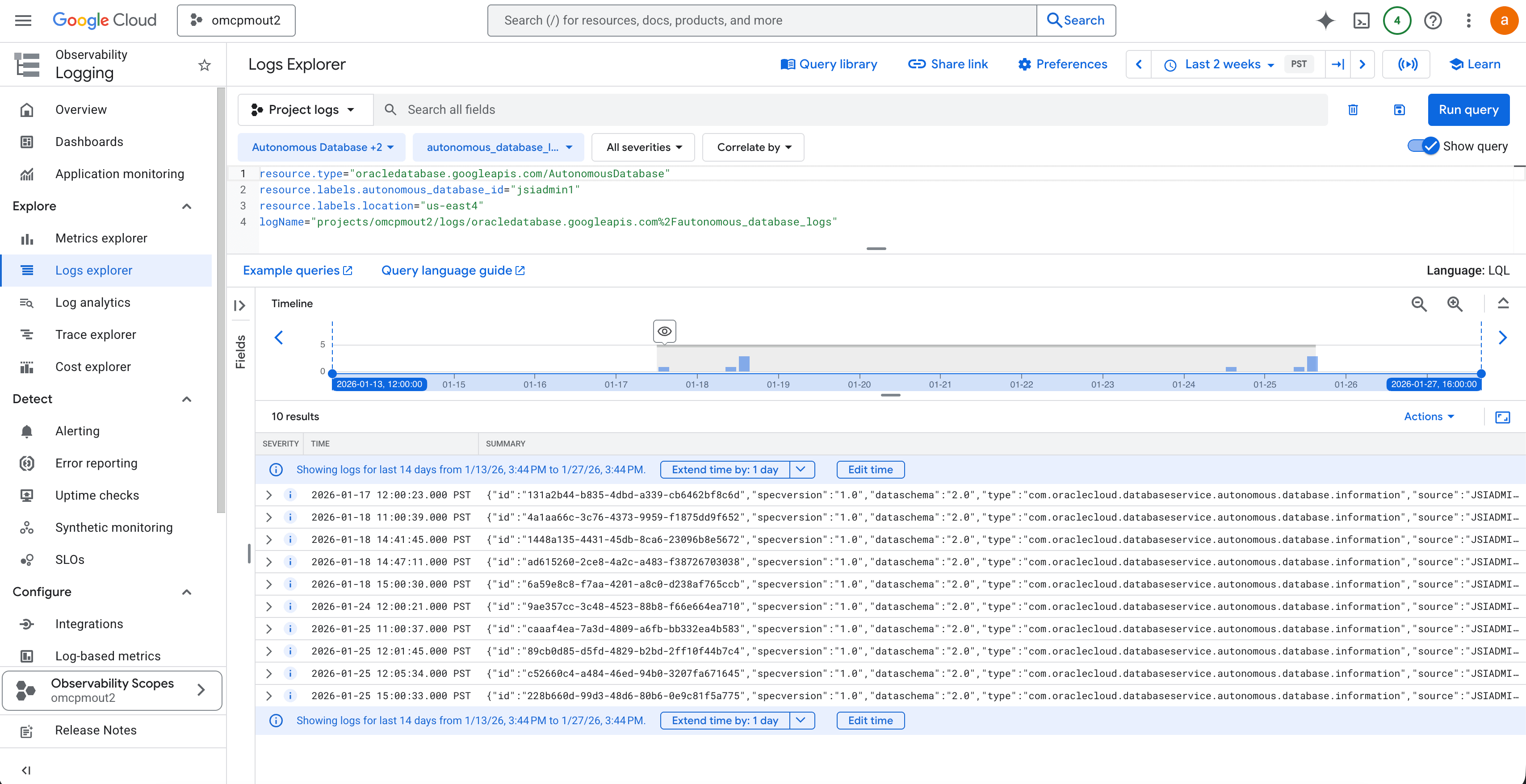
Below is an example of Autonomous AI Database audit logs for the database_ID as jsiadmin1 located in the us-east-4 region for the last 14 days.
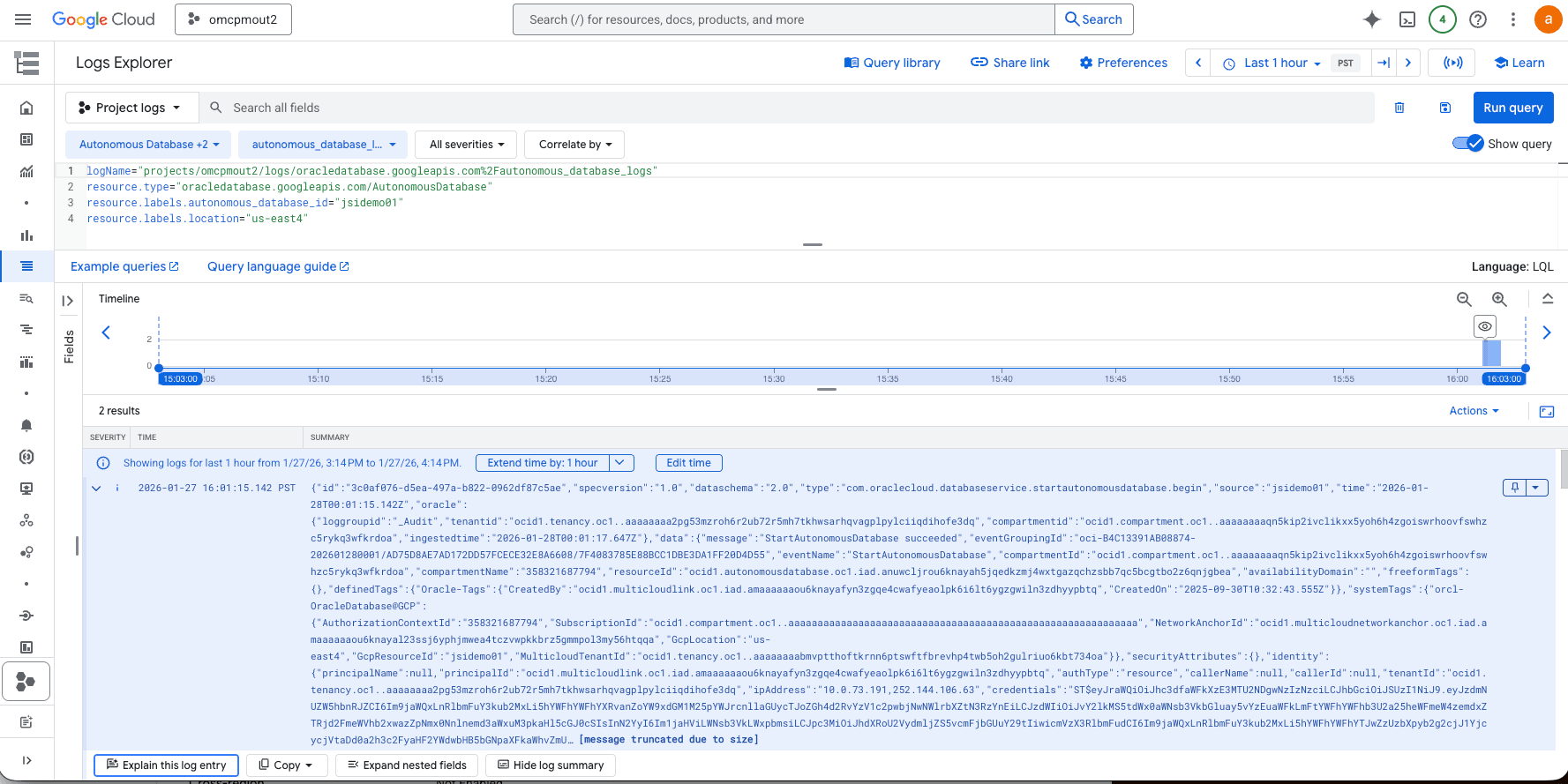
In the following example, the log entry shows an API call to start Autonomous AI Database, along with the corresponding timestamp and the originating IP address.
Additionally, to create alert policies and filter logs, you must use the Logging query language. For more information, see Unified Maintenance log schema which details the fields in the Unified Maintenance resource ResourceMaintenance. Use these fields to write query operations for Unified Maintenance resources.
This step is optional.
- Expand the log entries.
- Select Explain this log entry. This provides a brief explanation of the particular log message.