OCI
OCI Observability services provide a consistent way to monitor performance, strengthen governance, and streamline troubleshooting across the Oracle AI Database@Google Cloud and their supporting components.
- OCI Monitoring helps track key metrics like availability, latency, CPU/memory where applicable, storage/I/O, and service health signals and drives proactive alerting for SLOs and incident response.
- OCI Logging centralizes collection and retention of operational logs (service logs and custom logs) so teams can correlate events across layers and reduce the time to isolate failures.
- OCI Log Analytics adds additional capabilities by indexing and analyzing large log volumes, applying patterns and insights for anomaly detection, root-cause analysis, and dashboards enabling faster diagnosis of database incidents and better operational visibility when Oracle Database runs in Google Cloud but is managed with OCI-aligned controls and tooling.
- OCI Dashboard enables you to build performance monitoring, diagnosis, and data analysis solutions for Oracle AI Database@Google Cloud resources.
- OCI Alarms enables you to automatically detect when a metric crosses a defined threshold and trigger an action.
- OCI Monitoring
- OCI Logging
- OCI Logging Analytics
- OCI Logging Analytics - Logan AI
- OCI Dashboard
- OCI Alarms
OCI Monitoring
You can use the Oracle Cloud Infrastructure Monitoring service to actively and passively monitor Oracle AI Database@Google Cloud resources using the Metrics and Alarms features. This section explains how the OCI Monitoring service works.
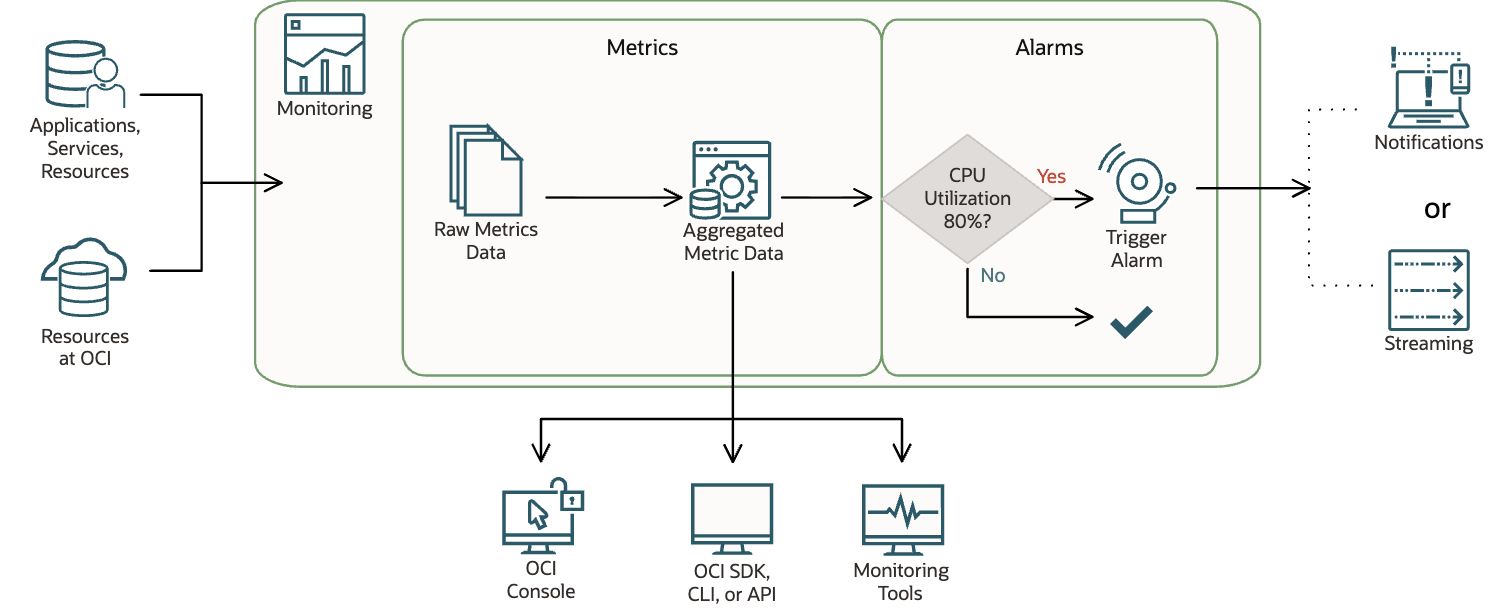
OCI Monitoring uses metrics to track resource behavior and alarms to notify you when metric values meet defined trigger conditions. Metrics are published as timestamped data points with associated dimensions and metadata, and can come from the Oracle AI Database@Google Cloud service or custom metrics sent via the Monitoring API. Metric data is only available to you and to OCI features you enable.
When you query metrics, the service returns aggregated results based on your selected time range, statistic, and interval. You can use dimensions to filter results, and you can control the query resolution programmatically through the API. In the OCI Console, metrics are visualized as charts for selected resources through API. Responses include attributes such as metric name, namespace, and compartment OCID which makes it straightforward to integrate with third-party dashboards or tools, subject to Oracle security and compliance guidelines.
Key Limits:- Retention: 90 days for metric definitions and alarm history.
- Query Results: Up to 100,000 data points per request; maximum query time ranges vary based on the resolution/aggregation interval selected.
Viewing Metrics for Oracle AI Database@Google Cloud
Oracle Exadata Database Service on Dedicated Infrastructure
Exadata VM Cluster Metrics- From the OCI Console, open the navigation menu.
- Select Observability & Management and then select Service Metrics located under the Monitoring section.
- From the top navigation bar, select the region that contains the metric data you want to view.
- From the Service Metrics page, select the Compartment that contains your Exadata VM Cluster resources you want to monitor.
- From the Metric namespace dropdown list, select oci_database_cluster for the Exadata VM Cluster resource type.
- Select the Add link located next to Dimensions.
- From the Edit Dimensions page, select resourceName as Dimension name.
- From the Dimension value dropdown list, select the name of Exadata VM Cluster.
- Select the Save button to save your changes.
- You can also adjust both Start time and End time. This step is optional.
- Select the Calendar icon to choose your Start time and End time.
- From the Quick selects field, you can select the option based on your requirements.
The Service Metrics page shows all default metric charts for the selected VM cluster resource in the selected region and compartment that publishes metrics to the selected metric namespace.
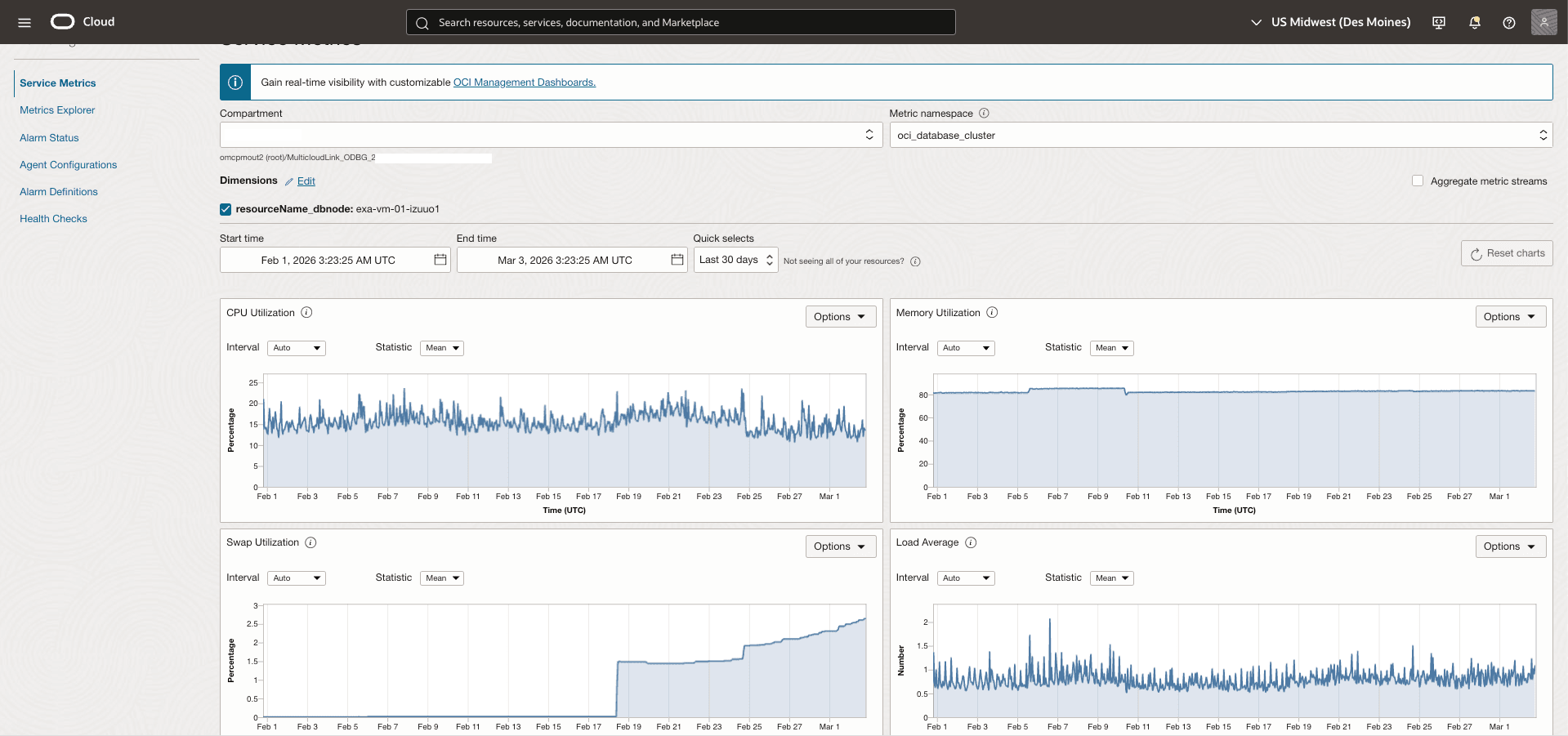 Observability Metrics for Exadata VM Cluster
Name Description Unit ASM Diskgroup Utilization Percentage of usable space used in a Disk Group. Usable space is the space available for growth. DATA disk group stores our Oracle database files. RECO disk group contains database files for recovery such as archives and flashback logs. percentage CPU Utilization Percent CPU utilization of CloudVmCluster. percentage Filesystem Utilization Percent utilization of provisioned filesystem. percentage Load Average System load average over 5 minutes. Integer Memory Utilization Percentage of memory available for starting new applications, without swapping. percentage Node Status Indicates whether the host is reachable. Integer OCPU Allocated The number of OCPUs allocated. Integer Swap Utilization Percent utilization of total swap space. percentage Exadata Container Database Metrics
- From the OCI Console, open the navigation menu.
- Select Observability & Management and then select Service Metrics located under the Monitoring section.
- From the top navigation bar, select the region that contains the metric data you want to view.
- From the Service Metrics page, select the Compartment that contains your Exadata Container Database resources you want to monitor.
- From the Metric namespace dropdown list, select oci_database for the Exadata Container Database resource type.
- Select the Add link located next to Dimensions.
- From the Edit Dimensions page, select resourceName_database as Dimension name.
- From the Dimension value dropdown list, select the name of Exadata Container Database.
- Select the Save button to save your changes.
- You can also adjust both Start time and End time. This step is optional.
- Select the Calendar icon to choose your Start time and End time.
- From the Quick selects field, you can select the option based on your requirements.
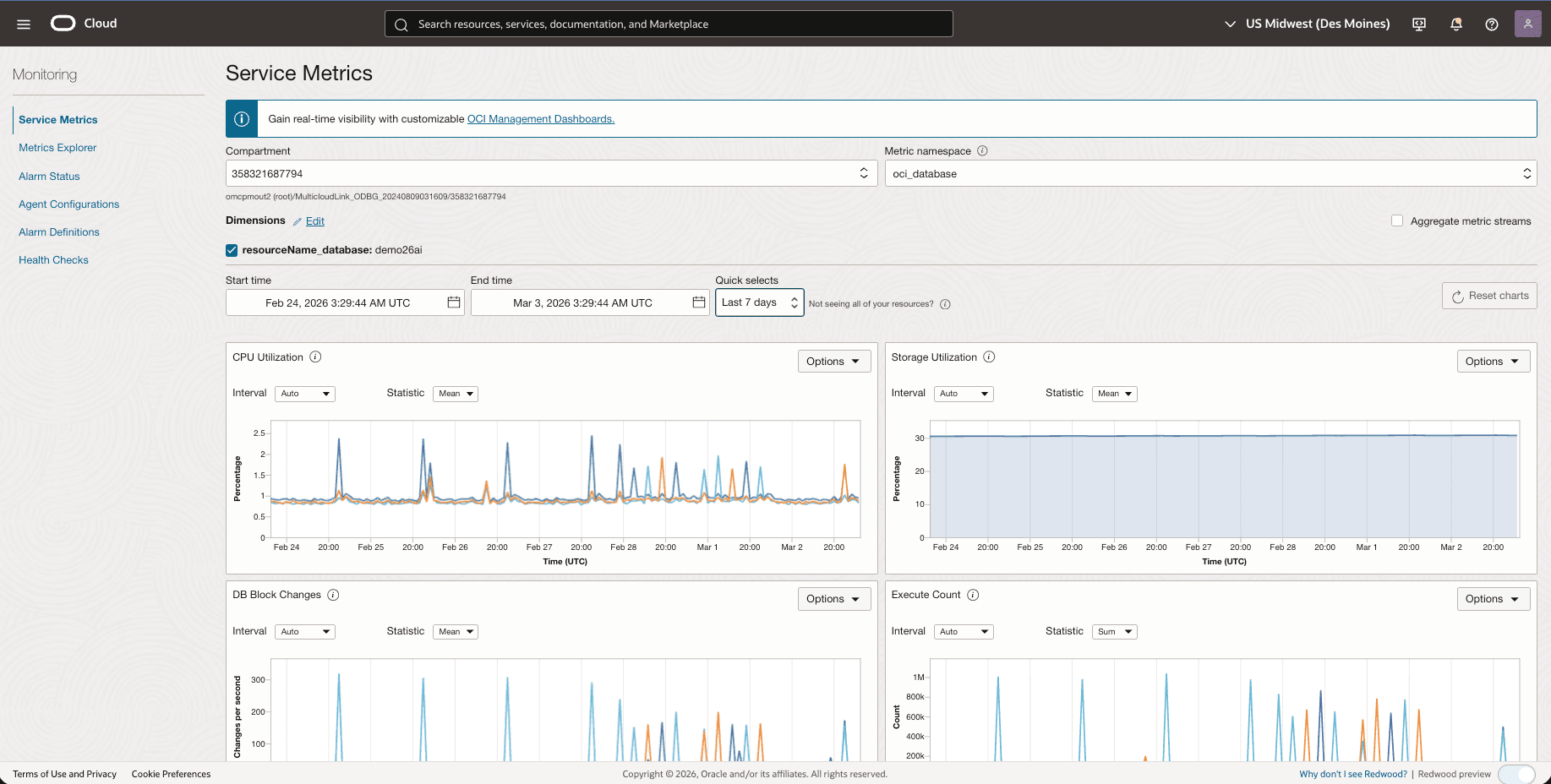
Observability Metrics for Exadata Container Databases
Name Description Unit Allocated Storage Space By Tablespace Total amount of storage space allocated to the tablespace at the collection time. In case of container database, this metric provides root container tablespaces. GB CPU Utilization Percent CPU utilization of container database. percentage Current Logons The number of successful logons during the selected interval. Count DB Block Changes Changes per second. Changes/sec Execute Count The number of user and recursive calls that executed SQL statements during the selected interval. Count Parse Count The number of hard and soft parses during the selected interval. Count Storage Space Allocated Total amount of storage space allocated to the database at the collection time. GB Storage Space Used Total amount of storage space used by the database at the collection time. GB Storage Space Used By Tablespace Total amount of storage space used by tablespace at the collection time. In case of container database, this metric provides root container tablespaces. GB Storage Space Utilization By Tablespace This indicates the percentage of storage space utilized by the tablespace at the collection time. In case of container database, this metric provides root container tablespaces. GB Storage Utilization The percentage of provisioned storage capacity currently in use. Represents the total allocated space for all tablespaces. percentage Transaction Count The combined number of user commits and user rollbacks during the selected interval. Count User Calls The combined number of logons, parses, and execute calls during the selected interval. Count Pluggable Database Metrics
To gain additional OCI-based observability, you can enable the Database Management (Diagnostics & Management) in the OCI Console. For more information, see Enable Database Management for a Pluggable Database.
Metrics Explorer
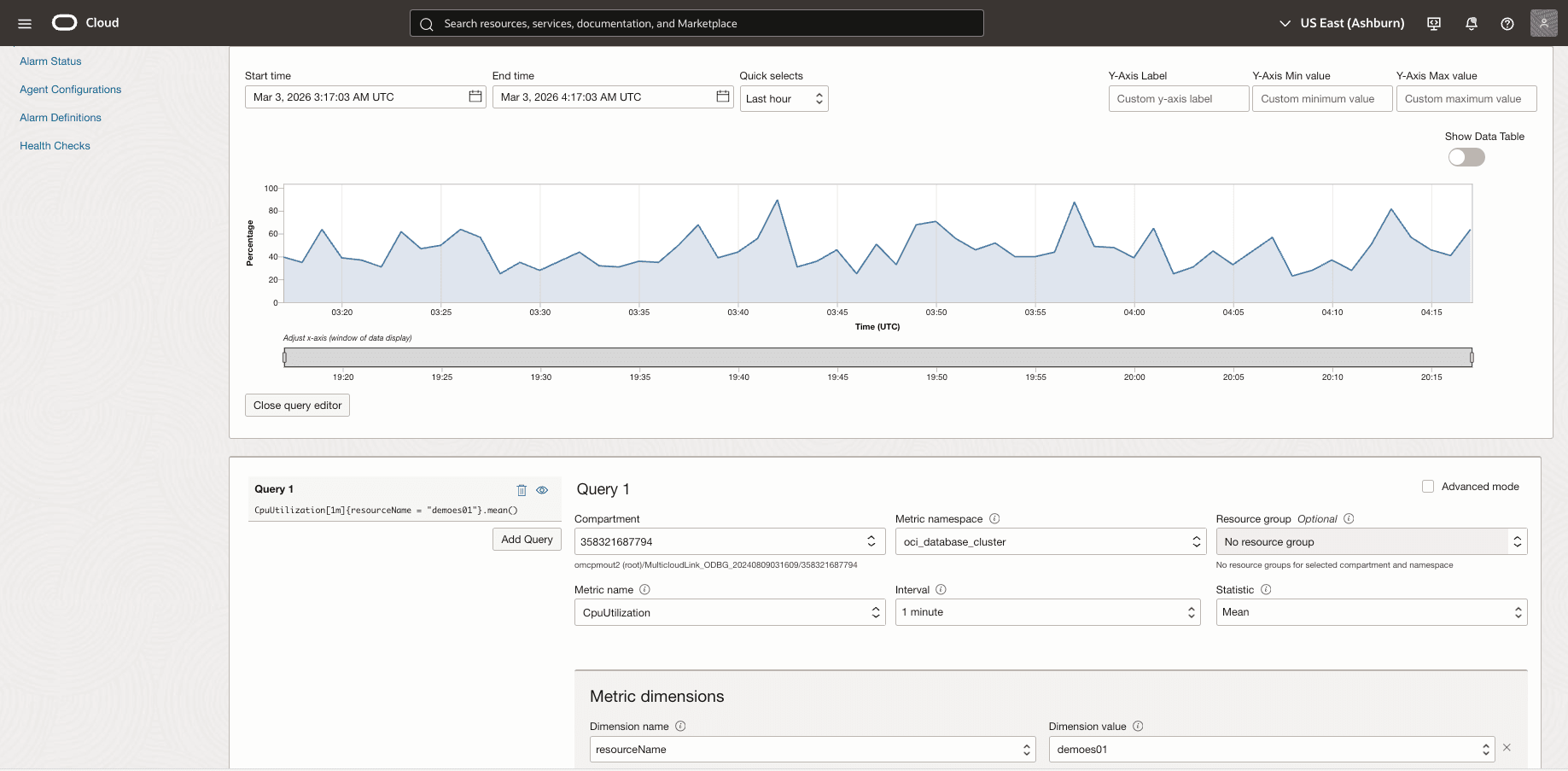
You can use Metrics Explorer to create a query and retrieve data from Monitoring. These steps describe how to build a query in Metrics Explorer using Basic mode.Note
For Advanced/MQL queries, use the MQL editor.- From the OCI Console, open the navigation menu.
- Select Observability & Management and then select Metrics Explorer located under the Monitoring section. The page opens with an empty chart and query builder fields.
- From the top navigation bar, select the region that contains the metric data you want to query.
- Scroll down to Query section. From the Compartment dropdown list, choose the compartment that contains the metric.
- From the Metric namespace dropdown list, select the namespace where the metric is published. For example:
oci_database_clusterfor VM Cluster.oci_databasefor Container Database.
- From the Metric name dropdown list, select the a value that you want to create a chart.
- Based on you requirements, adjust the Interval and the Statistic fields.
- You can filter the results from the Metric dimensions section. This step is optional.
- From the Dimension name dropdown list, select a value. For example:
resourceId. - From the Dimension value dropdown list, select a value. For example: the OCID of the target resource.
- You can use the + Additional dimension button to add more name and value as filters. This step is optional.
- You can select the Aggregate metric streams checkbox to combine multiple metric streams into a single result. This step is optional.
- From the Dimension name dropdown list, select a value. For example:
- Once you review your information, select the Update Chart button to display the metric data.
- You can enable the Show Data Table toggle to view the same results in a table format instead of a chart. This step is optional.
Autonomous AI Database Metrics
- From the OCI Console, open the navigation menu.
- Select Observability & Management and then select Service Metrics located under the Monitoring section.
- From the top navigation bar, select the region that contains the metric data you want to view.
- From the Service Metrics page, select the Compartment that contains the resources you want to monitor.
- From the Metric namespace dropdown list, select oci_autonomous_database for the Autonomous AI Database resource type.
- Select the Add link located next to Dimensions.
- From the Edit Dimensions page, select deploymentType as Dedicated and select resourceName as Dimension name.
- From the Dimension value dropdown list, select the name of Autonomous AI Database.
- Select the Save button to save your changes.
- You can also adjust both Start time and End time. This step is optional.
- Select the Calendar icon to choose your Start time and End time.
- From the Quick selects field, you can select the option based on your requirements.
The Service Metrics page shows all default metric charts for all resources in the selected region and compartment that publishes metrics to the selected metric namespace.
Observability Metrics for Autonomous AI Database
Name Description Unit Active APEX Applications Displays the number of active APEX applications over the time interval. count APEX Page Events Displays the number of page events over time. count APEX Page Load Time Average APEX page execution time over the time interval. seconds APEX Workspace Count Displays the number of APEX workspaces over the time interval. count Average Active Sessions The average number of sessions that are actively executing or waiting for resources. count Blocking Sessions The number of current blocking sessions. count Bytes Received via SQL*Net from Client The number of bytes received from the client over Oracle Net Services, during the selected time interval. count Bytes Received via SQL*Net from DBLink The number of bytes received from a database link over Oracle Net Services, during the selected time interval. count Bytes Sent via SQL*Net to Client The number of bytes sent to the client from the foreground processes, during the selected time interval. count Bytes Sent via SQL*Net to DBLink The number of bytes sent over a database link, during the selected time interval. count Connection Latency The time taken to connect to an Oracle Autonomous Database Serverless instance in each region from a Compute service virtual machine in the same region. Milliseconds Connections Dropped By Client The number of connections dropped by the client count Connections Dropped By Server The number of connections dropped by the server. count CPU Time Average rate of accumulation of CPU time by foreground sessions in the database over the time interval. seconds per second CPU Utilization The CPU usage expressed as a percentage, aggregated across all consumer groups. The utilization percentage is reported with respect to the number of CPUs the database is allowed to use. percent CPUs Allocated The actual number of ECPUs billed by the service during the selected interval of time. count Current Logons The number of successful logons during the selected interval. count Database Availability The database is available for connections in the given minute, with possible values. 1 = DB Available, 0 = DB Unavailable. count DB Block Changes The number of changes that were part of an update or delete operation that were made to all blocks in the SGA. Such changes generate redo log entries and thus become permanent changes to the database if the transaction is committed. This approximates total database work. This statistic indicates the rate at which buffers are being dirtied, during the selected time interval. count DB Time The amount of time database user sessions spend executing database code (CPU Time + WaitTime). DB Time is used to infer database call latency, because DB Time increases in direct proportion to both database call latency (response time) and call volume. It is calculated as the average rate of accumulation of database time by foreground sessions in the database over the time interval. seconds per second Execute Count The number of user and recursive calls that executed SQL statements during the selected interval. count Failed Connections The number of failed database connections. count Failed Logons The number of log ons that failed because of an invalid user name and/or password, during the selected interval. count IO Throughput The average throughput in MB per second. MB per second IOPS The average number of Input-Output Operations per second. count Logical Reads The Average number of logical block reads ("db block gets" plus "consistent gets") per second. Includes buffered and direct I/O. count Maximum Storage Space Maximum amount of storage reserved for the database during the interval. GB Parse Count (Failures) The number of parse failures during the selected time interval. count Parse Count (Hard) The number of parse calls (real parses) during the selected time interval. A hard parse is an expensive operation in terms of memory use, because it requires Oracle to allocate a workheap and other memory structures and then build a parse tree. count Parse Count (Total) The number of hard and soft parses during the selected interval. count Parses By Type The number of hard or soft parses per second. count Peer Lag The total time in seconds by which the Disaster Recovery peer lags behind its Primary database. Seconds PGA Utilization The percentage of maximum PGA Memeory available utilized, aggregated across all consumer groups. percentage Physical Read Total Bytes The size in bytes of disk reads by all database instance activity including application reads, backup and recovery, and other utilities, during the selected time interval. count Physical Writes The number of data blocks written to disk, during the selected time interval. count Query Latency The time taken to display the results of a simple query on the user's screen. Milliseconds Queued Statements The number of queued SQL statements, aggregated across all consumer groups, during the selected interval. count Redo Generated Amount of redo generated in bytes, during the selected time interval. count Redo Size Amount of redo generated in bytes, during the selected time interval. GB Running Statements The number of running SQL statements, aggregated across all consumer groups, during the selected interval. count Session Logical Reads The sum of "db block gets" plus "consistent gets", during the selected time interval. This includes logical reads of database blocks from either the buffer cache or process private memory. count Session Utilization The maximum session utilization expressed as a percentage, aggregated across all consumer groups. percentage Sessions The number of sessions in the database. count SGA Utilization The percentage of maximum SGA Memeory available utilized, aggregated across all consumer groups. percentage Storage Space Allocated Amount of space allocated to the database for all tablespaces, during the interval. GB Storage Space Used Maximum amount of space used during the interval. GB Storage Utilization The percentage of the reserved maximum storage currently allocated for all database tablespaces. Represents the total reserved space for all tablespaces. percentage Transaction Count The combined number of user commits and user rollbacks during the selected interval. count Transactions By Status The number of committed or rolled back transactions per second. count User Calls The combined number of logons, parses, and execute calls during the selected interval. count User Commits The number of user commits during the selected time interval. When a user commits a transaction, the generated redo that reflects the changes made to database blocks must be written to disk. Commits often represent the closest thing to a user transaction rate. count User Rollbacks Number of times users manually issue the ROLLBACK statement or an error occurs during a user's transactions, during the selected time interval. count Wait Time Average rate of accumulation of non-idle wait time by foreground sessions in the database over the time interval. seconds per second Metrics Explorer
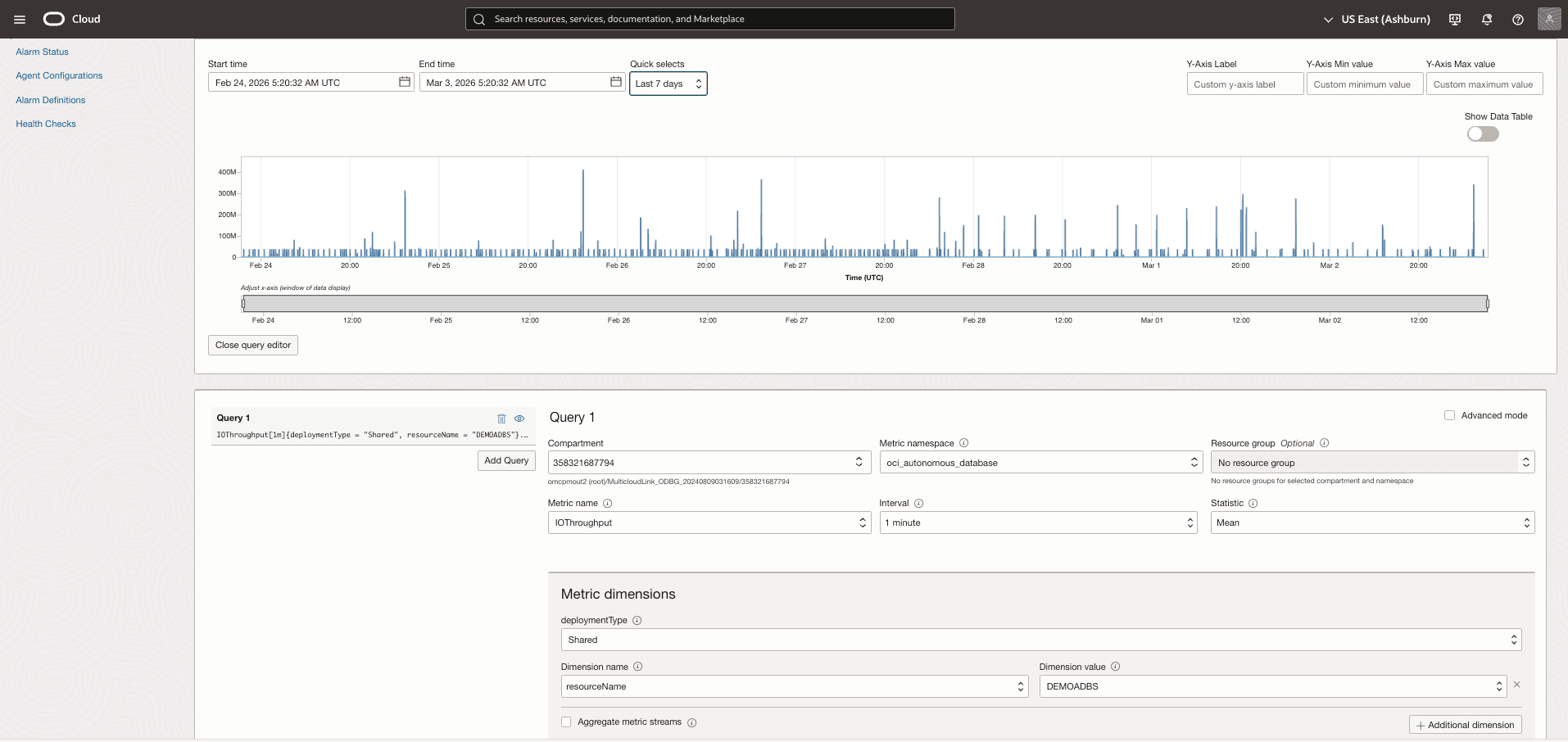
You can use the Metrics Explorer service to create a query and retrieve data from the OCI Monitoring service. These steps describe how to build a query in Metrics Explorer using the Basic mode.Note
For Advanced/MQL queries, you can use the MQL editor.- From the OCI Console, open the navigation menu.
- Select Observability & Management. Under Monitoring, select Metrics Explorer. The page opens with an empty chart and query builder fields.
- From the top navigation bar, select the region that contains the metric data you want to query.
- Scroll down to Query section. From the Compartment dropdown list, choose the compartment that contains the metric.
- From the Metric namespace dropdown list, select the namespace where the metric is published. For example:
oci_autonomous_databasefor Autonomous AI Database.
- From the Metric name dropdown list, select the a value that you want to create a chart.
- Based on you requirements, adjust the Interval and the Statistic fields.
- You can filter the results from the Metric dimensions section. This step is optional.
- Select Dedicated as deploymentType.
- From the Dimension name dropdown list, select a value. For example:
resourceId. - From the Dimension value dropdown list, select a value. For example: the OCID of the target resource.
- You can use the + Additional dimension button to add more name and value as filters. This step is optional.
- You can select the Aggregate metric streams checkbox to combine multiple metric streams into a single result. This step is optional.
- Once you review your information, select the Update Chart button to display the metric data.
- You can enable the Show Data Table toggle to view the same results in a table format instead of a chart. This step is optional.
Oracle Exadata Database Service on Exascale Infrastructure
Exascale VM Cluster Metrics- From the OCI Console, open the navigation menu.
- Select Observability & Management and then select Service Metrics located under the Monitoring section.
- From the top navigation bar, select the region that contains the metric data you want to view.
- From the Service Metrics page, select the Compartment that contains your Exascale VM Cluster resources you want to monitor.
- From the Metric namespace dropdown list, select oci_database_cluster for the Exascale VM Cluster resource type.
- Select the Add link located next to Dimensions.
- From the Edit Dimensions page, select resourceName as Dimension name.
- From the Dimension value dropdown list, select the name of Exascale VM Cluster.
- Select the Save button to save your changes.
- You can also adjust both Start time and End time. This step is optional.
- Select the Calendar icon to choose your Start time and End time.
- From the Quick selects field, you can select the option based on your requirements.
The Service Metrics page shows all default metric charts for the selected VM cluster resource in the selected region and compartment that publishes metrics to the selected metric namespace.
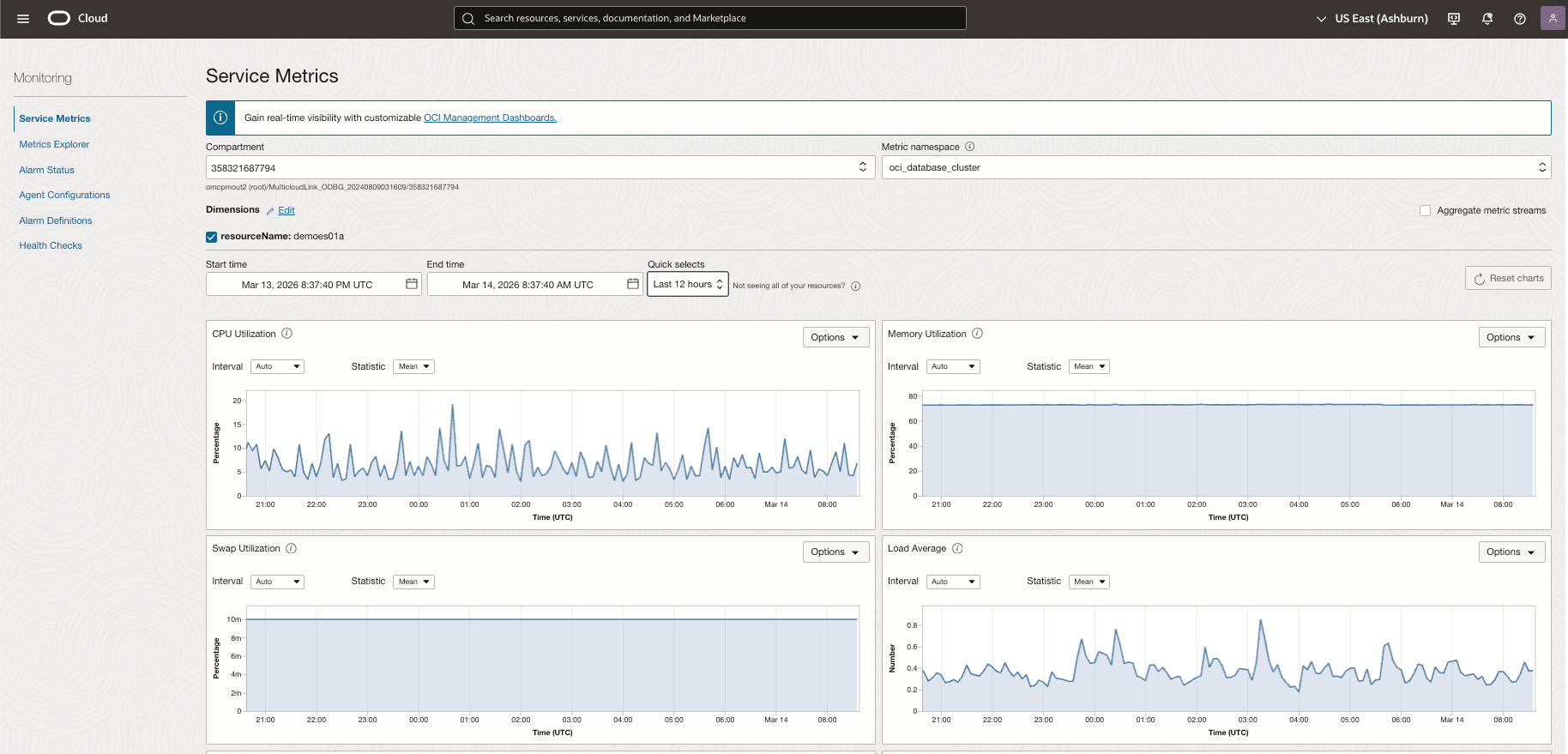
Name Description Unit CPU Utilization Percent CPU utilization of ExaDB VM Cluster. percentage Filesystem Utilization Percent utilization of provisioned filesystem. percentage Load Average System load average over 5 minutes. integer Memory Utilization Percentage of memory available for starting new applications, without swapping. percentage Node Status Indicates whether the host is reachable. integer Swap Utilization Percent utilization of total swap space. percentage ECPU Allocated The number of ECPUs allocated. count Exascale Vault Utilization Percentage of usable space used in a Disk Group. integer Exascale Container Database Metrics
- From the OCI Console, open the navigation menu.
- Select Observability & Management and then select Service Metrics located under the Monitoring section.
- From the top navigation bar, select the region that contains the metric data you want to view.
- From the Service Metrics page, select the Compartment that contains your Exascale Container Database resources you want to monitor.
- From the Metric namespace dropdown list, select oci_database for the Exascale Container Database resource type.
- Select the Add link located next to Dimensions.
- From the Edit Dimensions page, select resourceName_database as Dimension name.
- From the Dimension value dropdown list, select the name of Exascale Container Database.
- Select the Save button to save your changes.
- You can also adjust both Start time and End time. This step is optional.
- Select the Calendar icon to choose your Start time and End time.
- From the Quick selects field, you can select the option based on your requirements.
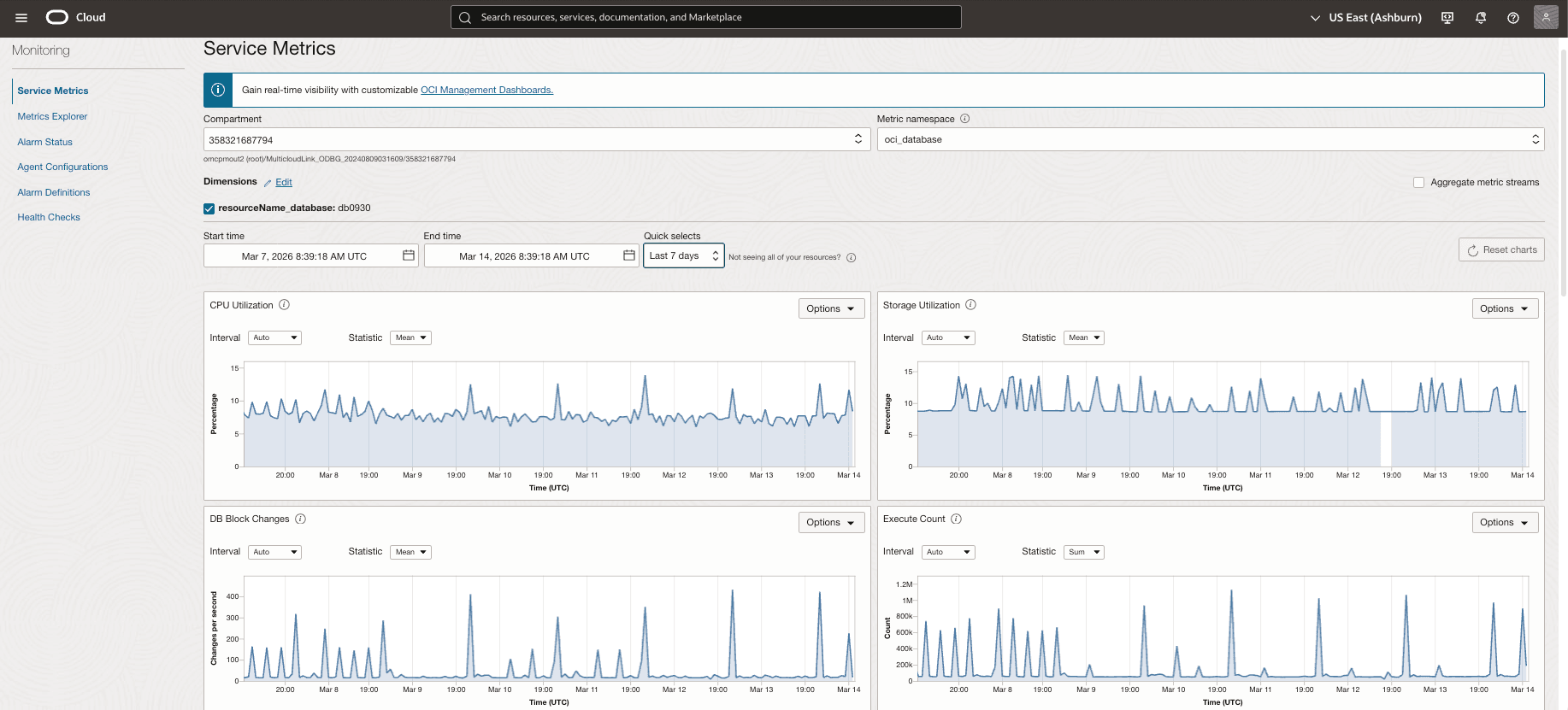
Observability Metrics for Exascale Container Databases
Name Description Unit CPU Utilization The CPU utilization expressed as a percentage, aggregated across all consumer groups. Utilization is based on allowed CPUs. percentage Storage Utilization The percentage of provisioned storage capacity currently in use; total allocated space for all tablespaces. percentage DB Block Changes Average number of DB blocks changed per second. Changes/sec Execute Count The number of user and recursive calls that executed SQL statements during the interval. Count Current Logons Number of successful logons during the selected interval. Count Transaction Count The combined number of user commits and user rollbacks during the interval. Count User Calls Combined number of logons, parses, and execute calls during the interval. Count Parse Count Number of hard and soft parses during the interval. Count Storage Space Used Total amount of storage space used by the database at the collection time. GB Storage Space Allocated Total storage allocated to the database at the collection time. GB Storage Space Used By Tablespace Storage space used by tablespace at collection time (root container for container DB). GB Allocated Storage Space By Tablespace Storage space allocated to tablespace at collection time (root container for container DB). GB Storage Space Utilization By Tablespace Percentage of storage space utilized by tablespace at collection time (root container for container DB). percentage Pluggable Database Metrics
To gain additional OCI-based observability, you can enable the Database Management (Diagnostics & Management) in the OCI Console. For more information, see Enable Database Management for a Pluggable Database.
Metrics Explorer
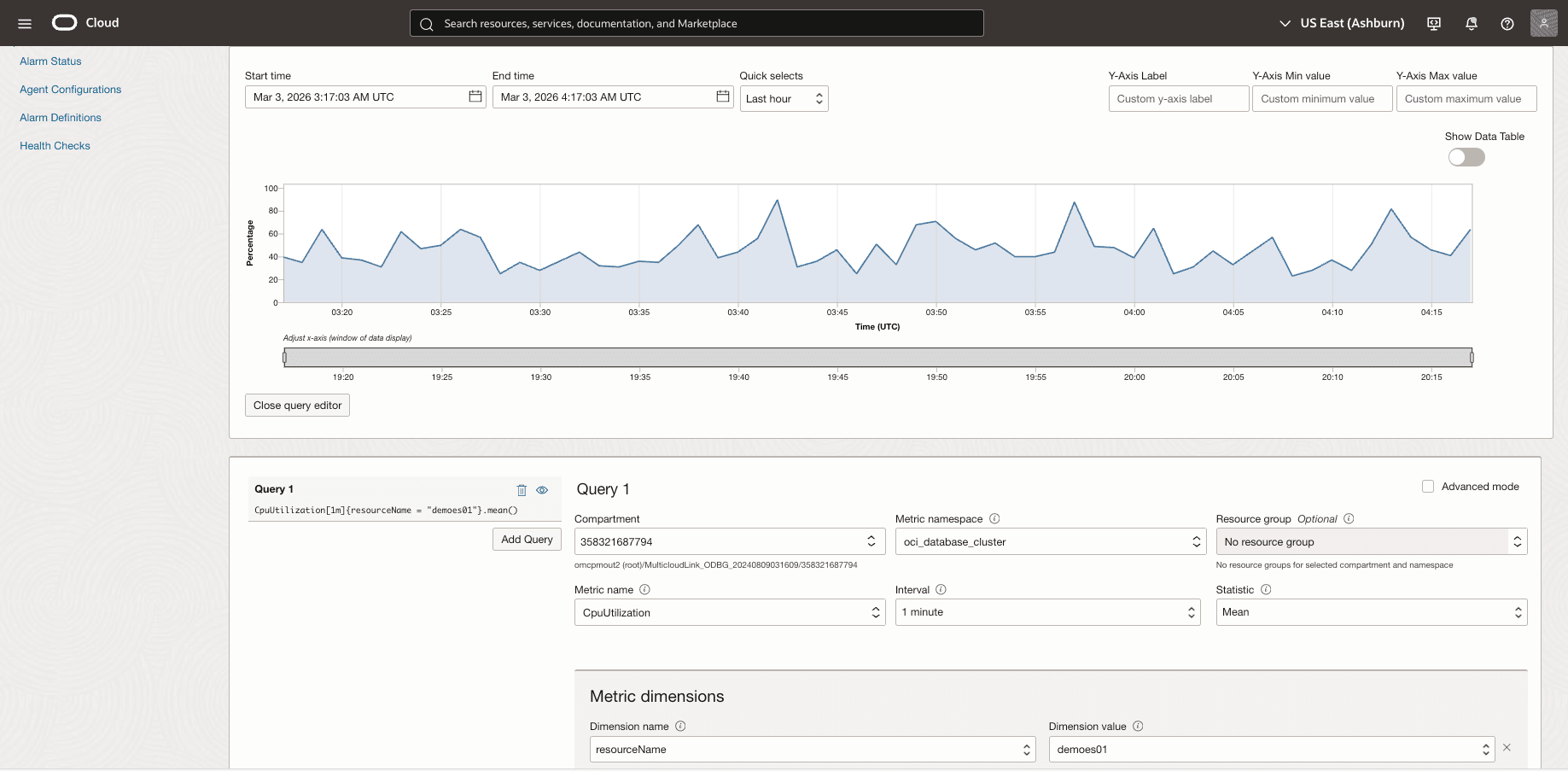
You can use Metrics Explorer to create a query and retrieve data from Monitoring. These steps describe how to build a query in Metrics Explorer using Basic mode.Note
For Advanced/MQL queries, use the MQL editor.- From the OCI Console, open the navigation menu.
- Select Observability & Management and then select Metrics Explorer located under the Monitoring section. The page opens with an empty chart and query builder fields.
- From the top navigation bar, select the region that contains the metric data you want to query.
- Scroll down to Query section. From the Compartment dropdown list, choose the compartment that contains the metric.
- From the Metric namespace dropdown list, select the namespace where the metric is published. For example:
oci_database_clusterfor VM Cluster.oci_databasefor Container Database.
- From the Metric name dropdown list, select the a value that you want to create a chart.
- Based on you requirements, adjust the Interval and the Statistic fields.
- You can filter the results from the Metric dimensions section. This step is optional.
- From the Dimension name dropdown list, select a value. For example:
resourceId. - From the Dimension value dropdown list, select a value. For example: the OCID of the target resource.
- You can use the + Additional dimension button to add more name and value as filters. This step is optional.
- You can select the Aggregate metric streams checkbox to combine multiple metric streams into a single result. This step is optional.
- From the Dimension name dropdown list, select a value. For example:
- Once you review your information, select the Update Chart button to display the metric data.
- You can enable the Show Data Table toggle to view the same results in a table format instead of a chart. This step is optional.
Oracle Base Database Service
Base Database System
- From the OCI Console, open the navigation menu.
- Select Observability & Management and then select Service Metrics located under the Monitoring section.
- From the top navigation bar, select the region that contains the metric data you want to view.
- From the Service Metrics page, select the Compartment that contains your Base Database System resources you want to monitor.
- From the Metric namespace dropdown list, select oci_database_cluster for the Base Database System resource type.
- Select the Add link located next to Dimensions.
- From the Edit Dimensions page, select resourceName as Dimension name.
- From the Dimension value dropdown list, select the name of Base Database System .
- Select the Save button to save your changes.
- You can also adjust both Start time and End time. This step is optional.
- Select the Calendar icon to choose your Start time and End time.
- From the Quick selects field, you can select the option based on your requirements.
The Service Metrics page shows all default metric charts for the selected VM cluster resource in the selected region and compartment that publishes metrics to the selected metric namespace.
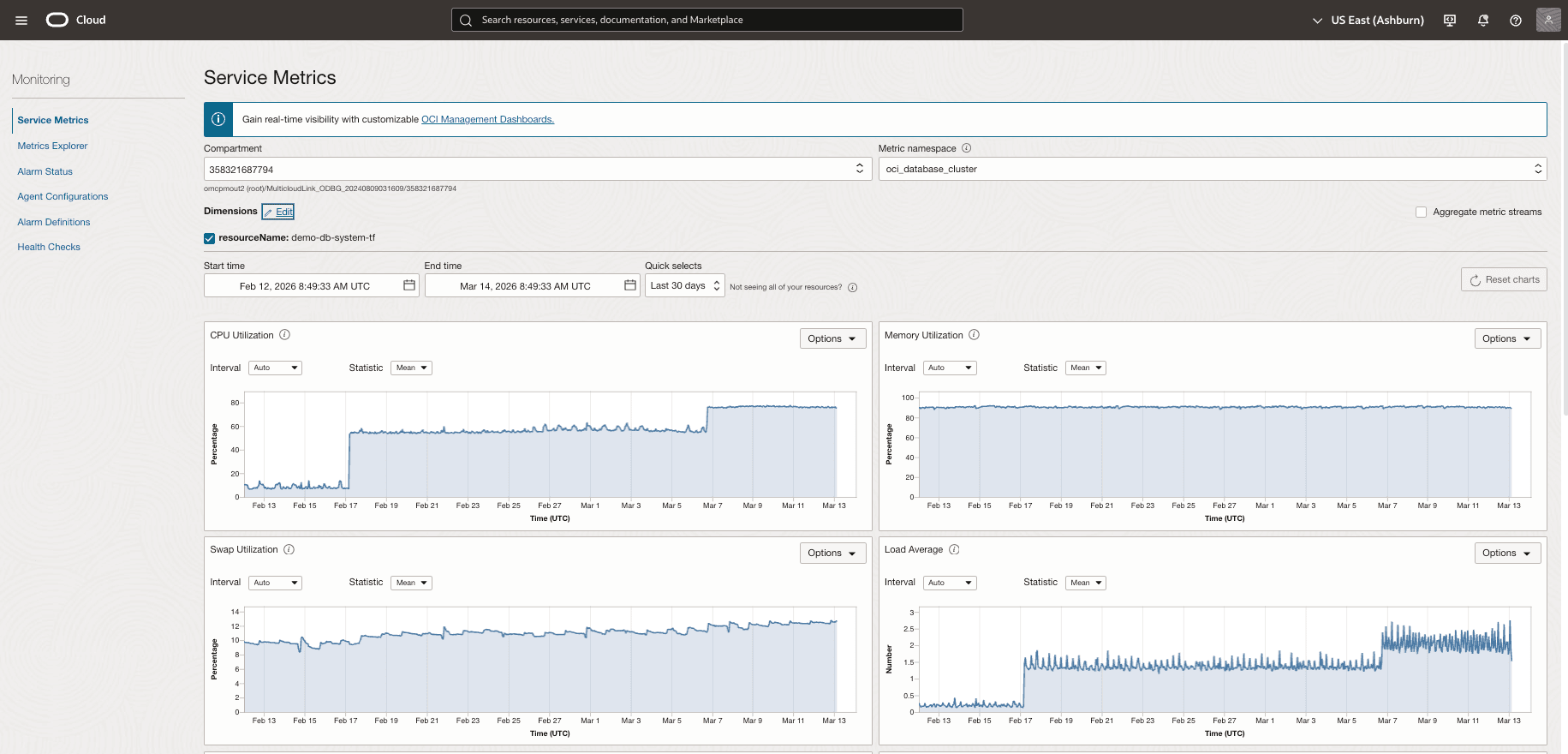
Observability Metrics for Base Database System
Name Description Unit CPU Utilization Percent CPU utilization. percentage Filesystem Utilization Percent utilization of provisioned filesystem. percentage Load Average System load average over 5 minutes. integer Memory Utilization Percentage of memory available for starting new applications, without swapping. percentage Node Status Indicates whether the host is reachable. integer OCPUs Allocated The number of OCPUs allocated. integer Swap Utilization Percent utilization of total swap space. percentage Base Database Metrics
- From the OCI Console, open the navigation menu.
- Select Observability & Management and then select Service Metrics located under the Monitoring section.
- From the top navigation bar, select the region that contains the metric data you want to view.
- From the Service Metrics page, select the Compartment that contains your Base Database resources you want to monitor.
- From the Metric namespace dropdown list, select oci_database_cluster for the Base Database resource type.
- Select the Add link located next to Dimensions.
- From the Edit Dimensions page, select resourceName as Dimension name.
- From the Dimension value dropdown list, select the name of Base Database.
- Select the Save button to save your changes.
- You can also adjust both Start time and End time. This step is optional.
- Select the Calendar icon to choose your Start time and End time.
- From the Quick selects field, you can select the option based on your requirements.
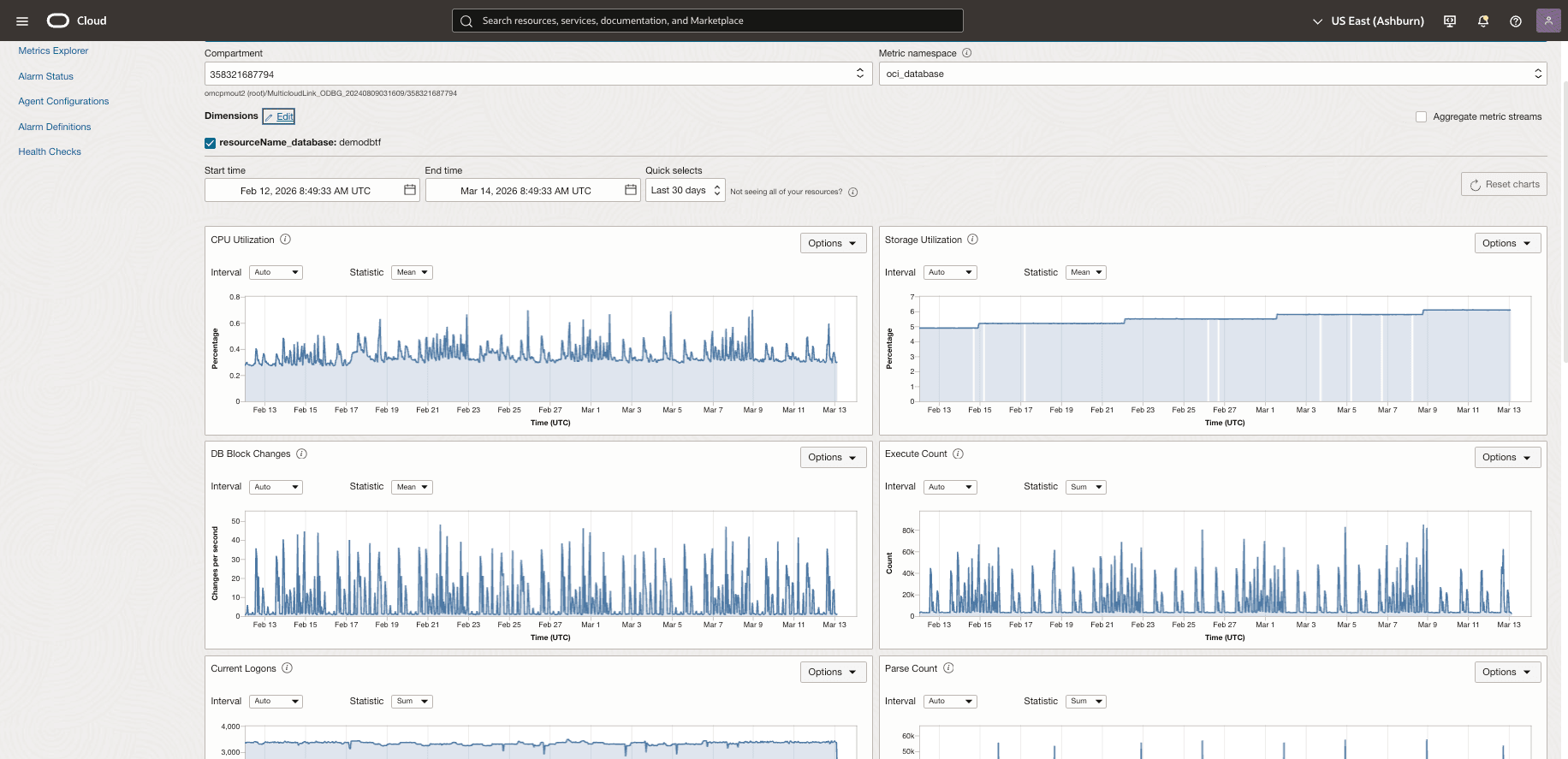
Observability Metrics for Base Database
Name Description Unit Allocated Storage Space By Tablespace Total amount of storage space allocated to the tablespace at the collection time. In case of container database, this metric provides root container tablespaces. GB CPU Utilization The CPU utilization expressed as a percentage, aggregated across all consumer groups. The utilization percentage is reported with respect to the number of CPUs the database is allowed to use, which is two times the number of OCPUs. percentage DB Block Changes The Average number of blocks changed per second. Changes per second Execute Count The number of user and recursive calls that executed SQL statements during the selected interval. Count Parse Count The number of hard and soft parses during the selected interval. Count Storage Space Allocated Total amount of storage space allocated to the database at the collection time. GB Storage Space Used Total amount of storage space used by the database at the collection time. GB Storage Used By Tablespace Total amount of storage space used by tablespace at the collection time. In case of container database, this metric provides root container tablespaces. GB Storage Utilization The percentage of provisioned storage capacity currently in use. Represents the total allocated space for all tablespaces. percentage Storage Utilization By Tablespace This indicates the percentage of storage space utilized by the tablespace at the collection time. In case of container database, this metric provides root container tablespaces. percentage Transaction Count The combined number of user commits and user rollbacks during the selected interval. Count User Calls The combined number of logons, parses, and execute calls during the selected interval. Count Metrics Explorer
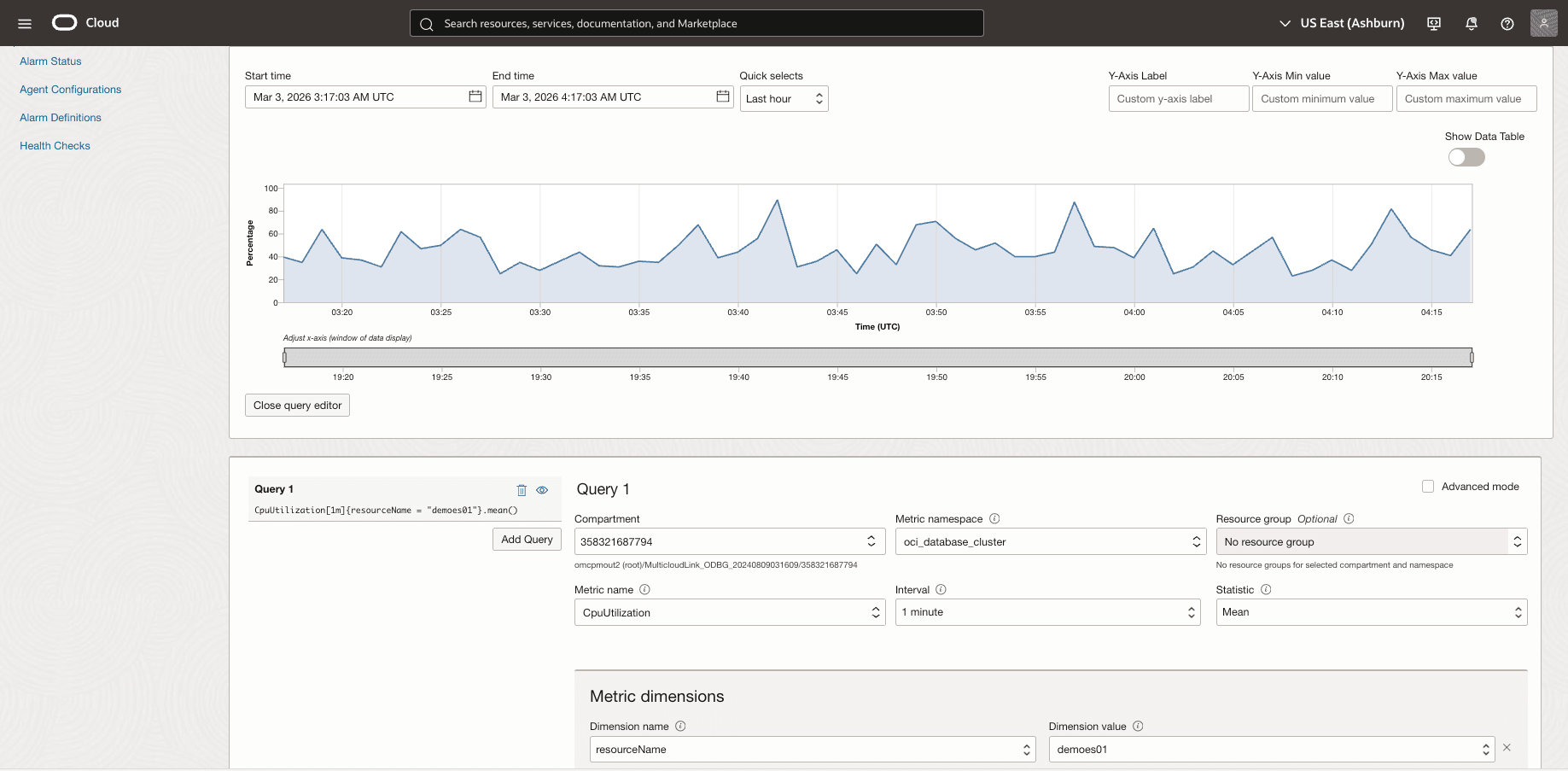
You can use Metrics Explorer to create a query and retrieve data from Monitoring. These steps describe how to build a query in Metrics Explorer using Basic mode.Note
For Advanced/MQL queries, use the MQL editor.- From the OCI Console, open the navigation menu.
- Select Observability & Management and then select Metrics Explorer located under the Monitoring section. The page opens with an empty chart and query builder fields.
- From the top navigation bar, select the region that contains the metric data you want to query.
- Scroll down to Query section. From the Compartment dropdown list, choose the compartment that contains the metric.
- From the Metric namespace dropdown list, select the namespace where the metric is published. For example:
oci_database_clusterfor VM Cluster.oci_databasefor Container Database.
- From the Metric name dropdown list, select the a value that you want to create a chart.
- Based on you requirements, adjust the Interval and the Statistic fields.
- You can filter the results from the Metric dimensions section. This step is optional.
- From the Dimension name dropdown list, select a value. For example:
resourceId. - From the Dimension value dropdown list, select a value. For example: the OCID of the target resource.
- You can use the + Additional dimension button to add more name and value as filters. This step is optional.
- You can select the Aggregate metric streams checkbox to combine multiple metric streams into a single result. This step is optional.
- From the Dimension name dropdown list, select a value. For example:
- Once you review your information, select the Update Chart button to display the metric data.
- You can enable the Show Data Table toggle to view the same results in a table format instead of a chart. This step is optional.
OCI Logging
Oracle Cloud Infrastructure (OCI) Logging is a fully managed, highly scalable service that centralizes log collection and access across your tenancy. It provides a single, consistent view of logs generated by OCI resources, capturing critical diagnostic and operational details about resource performance and access activity to support monitoring, troubleshooting, and security investigations.
How OCI Logging Works for Oracle AI Database@Google Cloud Resources
You can use OCI Logging to enable, manage, and search logs related to your Oracle AI Database@Google Cloud deployment and the supporting OCI-managed components. You can work with these log types:- Audit Logs: Events emitted by the OCI Audit service that record administrative and API activity (who did what, when, and where). Audit events can be viewed on the Logging > Audit page and are also searchable alongside other logs.
- Service Logs: Logs generated by supported OCI services and integrations used with Oracle AI Database@Google Cloud (for example, VCN Flow Logs for network visibility, and other OCI service logs where applicable). These services expose predefined log categories that you can enable or disable per resource to capture operational and access details.
Audit Logs
For Oracle AI Database@Google Cloud, the OCI Audit service automatically captures calls to supported OCI public API endpoints as audit log events, providing a reliable record of administrative and operational activity in the OCI layer that supports your deployment.
Audit logging applies across OCI services (with Object Storage logging focused on bucket-related events rather than individual object events) and includes actions initiated through the OCI Console, CLI, SDKs, custom clients, or other OCI services. Each audit event records details such as the time of the activity, the source that initiated it, the target resource, the action performed, and the response returned, along with identifiers, timestamps, and request/response parameters. You can access OCI Audit events through the OCI Console or via API/SDK, and use them for troubleshooting, usage tracking, compliance reporting, and security investigations.
On the Audit page, you can explore audit logs. Audit logs are also searchable on the Search page, and you can view Audit logs in every compartment by selecting the /_Audit log group on the Search page.
Audit logs are retained for 365 days. You can view the log retention period in the tenancy details page. For more information, see Viewing Tenancy Details. Retention period is a tenancy-level setting. The value of the retention period setting affects all regions and all compartments. The retention period cannot be changed.
Viewing the Audit Logs
- From the OCI Console, open the navigation menu.
- Select Observability & Management. Under Logging, select Audit. The list of audit log events for the current compartment is displayed.
- Select the Compartment that you have a permission to view.
- Under User, add user filters. You can select multiple users.
- Under Resource, add one or more resource filters. You can select multiple resources.
- Under Request action types, choose one or more API operations to filter on the following:
- GET
- POST
- PUT
- PATCH
- DELETE
- Under Event type, you can select one or more event type filters.
- Under Custom filters, start typing to see matching filter fields and operators, then select (or continue typing) the filter you want. This action functions the same as this field on the Logging Search page.
Note
If you want to find log events with a specific status code, put the code in quotes ("). For example:"404"to avoid partial matches. - Under Filter by time, you can select a preset range.
- Past 5 minutes (the default)
- Past 15 minutes
- Past hour
- Past 3 hours
- Today
- Custom (choose your own using the Start Date and End Date fields)
Note
Custom time ranges are limited to 14 days. - Select the Apply button to run the search and refresh results.
Note
The page refreshes as you adjust filters, but if time passes and new events arrive, select the Apply button again to reload results.
Additional options:- Convert to search: This option opens the same results in Logging > Search and populates the query so that you can refine it and correlate it with other logs.
- View query syntax: This option shows the query generated by your filters, including how multiple values are combined by using
AND/ORlogic.
Exploring the Details of Events
On the Explore events tab, audit log entries are listed with key fields such as Event time, User, Resource, ActionType, and Status. Select an entry to expand it and view the full event payload in a JSON view (similar to the Logging > Search experience), where you can expand and collapse nodes and use the copy icon to copy the JSON to your clipboard. To export results, select Export log data (JSON) to download the displayed audit log data as a JSON file.
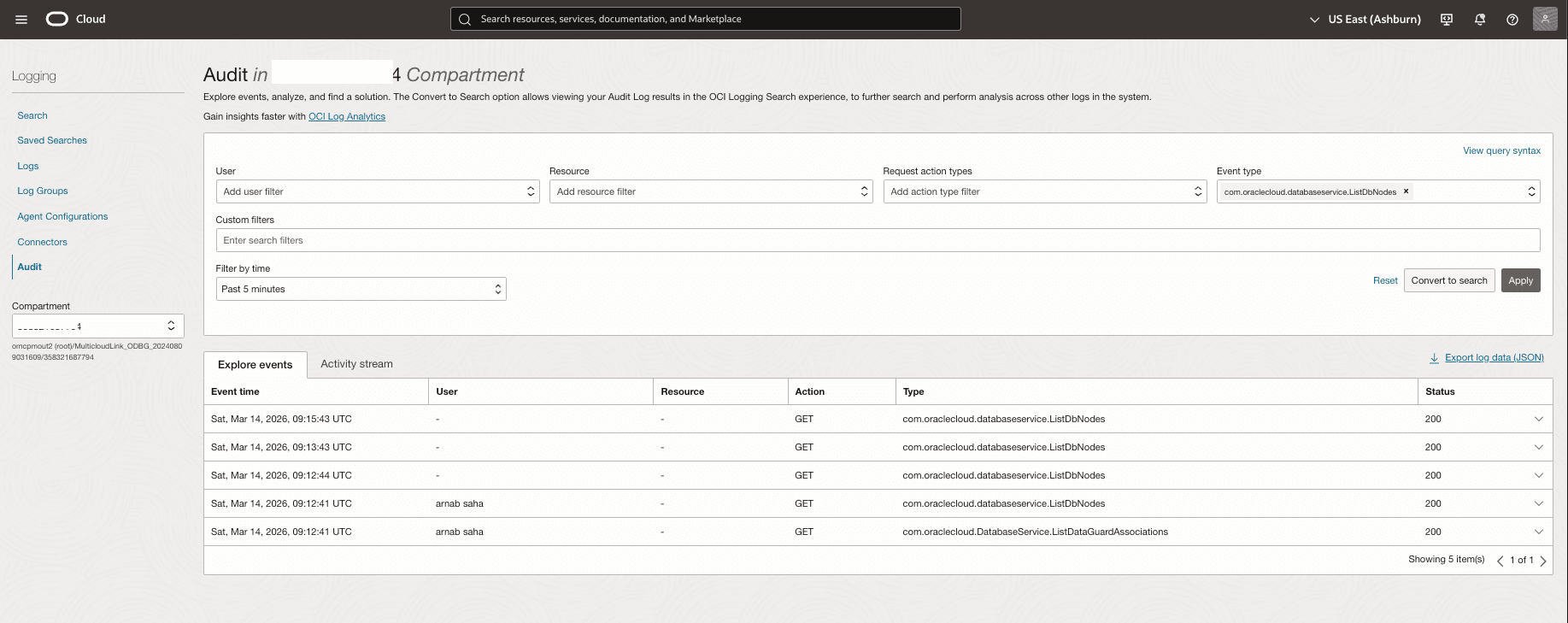
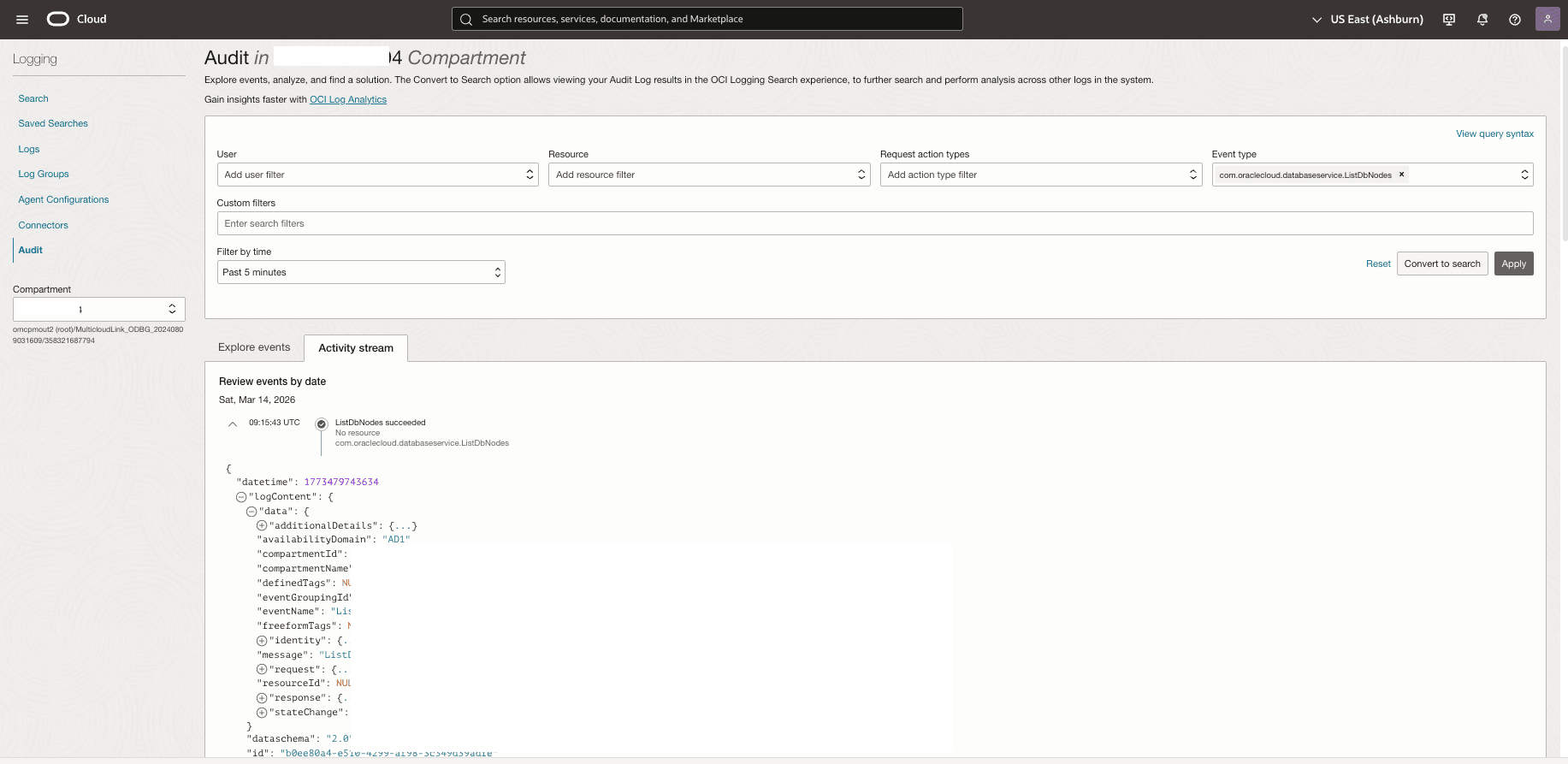
Viewing the Activity Stream
Use the Activity stream tab to view audit events in a chronological, visual list (newest to oldest). Select an event to expand and review the JSON details, and use the copy icon to copy the event content to the clipboard.
Service Logs
In Oracle AI Database@Google Cloud, a service log is an OCI Logging resource used to collect and store log events for a specific context in your environment. For example, if you enable VCN Flow Logs for a subnet that supports database connectivity, OCI creates a dedicated log for that flow-log source. Each log has a unique OCID and is stored within a log group. A log group is a logical collection of logs created in a specific compartment, helping you organize logs by application, environment (development, test, and production) or operational function. Logs and log groups are searchable and can be used for analysis and operational actions. To get started, you enable logging on a resource associated with your Oracle AI Database@Google Cloud deployment (for example, enabling a supported service log category such as VCN Flow Logs). OCI services expose predefined log categories that represent the types of events they can emit, and these categories are specific to each service (categories in one service don’t map to another).
Enable Logging
- From the OCI Console, open the navigation menu.
- Select Observability & Management. Under Logging, select Logs.
- Select the compartment you have permission to work in.
- Under Actions, select the Enable service log option. The Enable resource log panel opens.
- The Resource compartment field populates with a value.
- From the Service dropdown list, select a service that you want to enable logging for.
- From the Resource dropdown list, select a resource that you want to enable logging for.
- From the Configure log section, choose the Log category and enter a descriptive name in the Log name field.
- If you want, you can enable the Enable auto archiving to object storage (legacy) toggle.
- From the Advanced options section, you can manage Log location, Log retention, and Tags.
- Review your information and then select the Enable button to enable resource log.
Details for Autonomous AI Database on Dedicated Exadata Infrastructure Logs
Resources:- Autonomous Container Database
- Autonomous AI Database
Log Categories
For more information, see Details for Autonomous AI Database on Dedicated Exadata Infrastructure.API Value (ID) Console (Display Name) Description ACD Database logs Database logs Contains content from log files:
- Attention logs:
$ORACLE_BASE/diag/rdbms/<ORACLE_UNQNAME>/$ORACLE_SID/log/attention.log - Alert logs:
$ORACLE_BASE/diag/rdbms/<ORACLE_UNQNAME>/$ORACLE_SID/trace/alert_$ORACLE_SID.log
ADB Migration logs Migration logs Contains content from log files:
/u02/data/dbfs/<CDB_NAME>/<PDBGUID>/import*.log/u02/data/dbfs/<CDB_NAME>/<PDBGUID>/export*.log
Details for VCN Flow Logs
Resources:- Virtual Cloud Network (VCN)
- Subnet
- VNIC
Log Categories
For more information, see Details for VCN Flow Logs.API Value (ID) Console (Display Name) Description all Flow Logs (All records) Traffic is logged for existing and future VNICs in the subnet. vcn Flow Logs - vcn records Traffic is logged for existing and future VNICs in all subnets in the VCN. subnet Flow Logs - subnet records Traffic is logged for existing and future VNICs in the subnet. Similar to the all category, which is logged for existing and future VNICs in the subnet. vnic Flow Logs - vnic records Traffic is logged for specific VNICs in a VCN Check Logs
- From the OCI Console, open the navigation menu.
- Select Observability & Management. Under Logging, select Logs.
- Select the compartment that contains the log group that you want to check for logs.
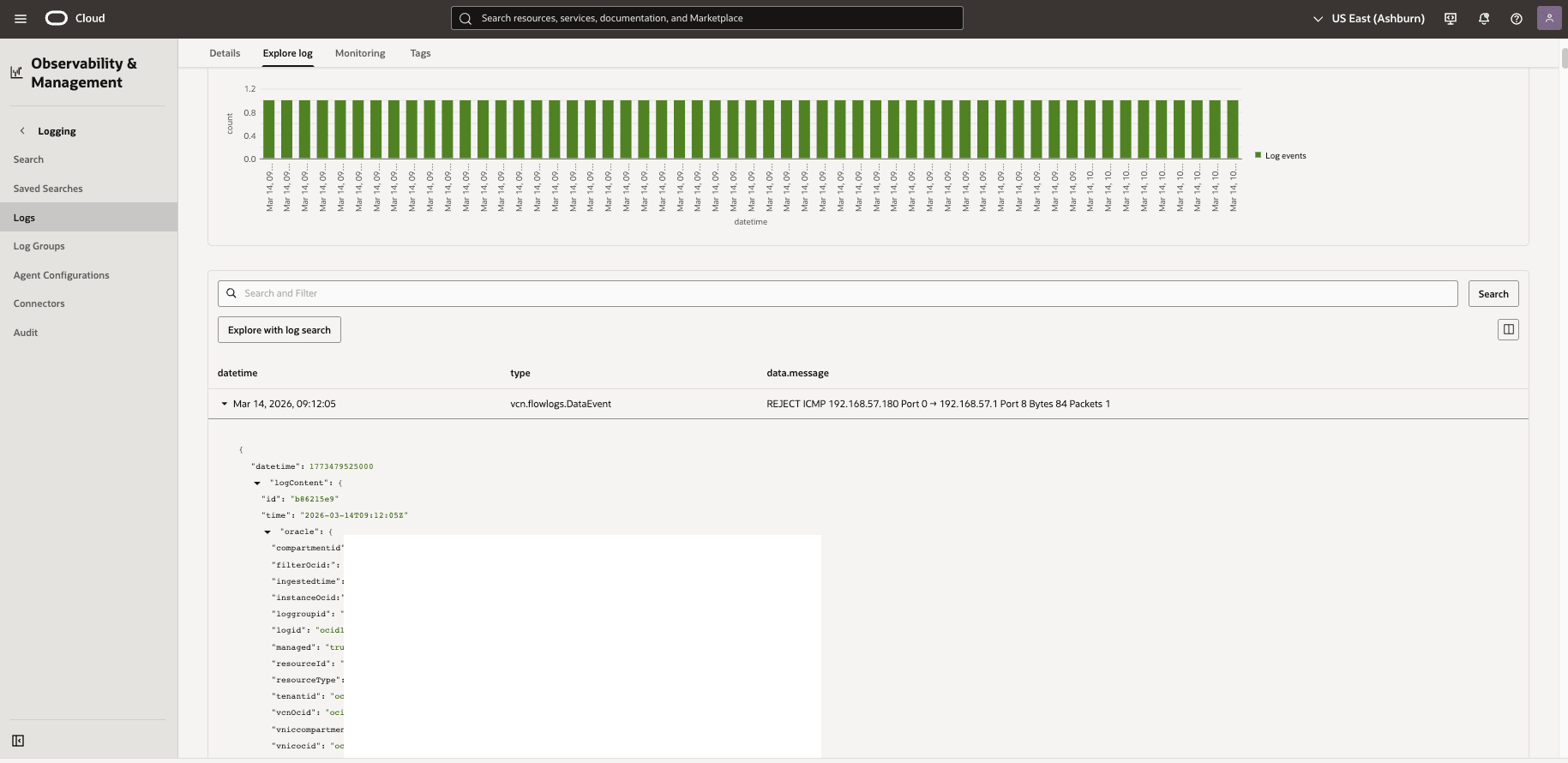
- Select the Log you want to view.
- Select the Explore log tab to see the log entries.
- You can set the Time range field and add filters to narrow results.
Oracle Log Analytics for Oracle AI Database@Google Cloud provides a cloud-based capability in Oracle Cloud Infrastructure (OCI) to centralize and use log data across a multicloud deployment. It enables you to ingest and index logs from database-adjacent components and supporting infrastructure (in Google Cloud, OCI), then enrich, aggregate, search, and correlate events to accelerate troubleshooting and root-cause analysis. With built-in tools to visualize and monitor log trends and anomalies, Oracle Log Analytics helps improve operational visibility, performance monitoring, and security investigations for Oracle AI Database@Google Cloud.
Oracle Log Analytics provides multiple ways to gain operational insights from logs in Oracle AI Database@Google Cloud. You can:- Use the log explorer UI to search, filter, and investigate log events.
- Aggregate and visualize log data using dashboards for ongoing monitoring and trend analysis.
- Use the APIs to ingest log data and automate analysis workflows.
- Integrate with other OCI services to correlate log insights with metrics, events, and notifications for end-to-end observability.
Enable Log Analytics
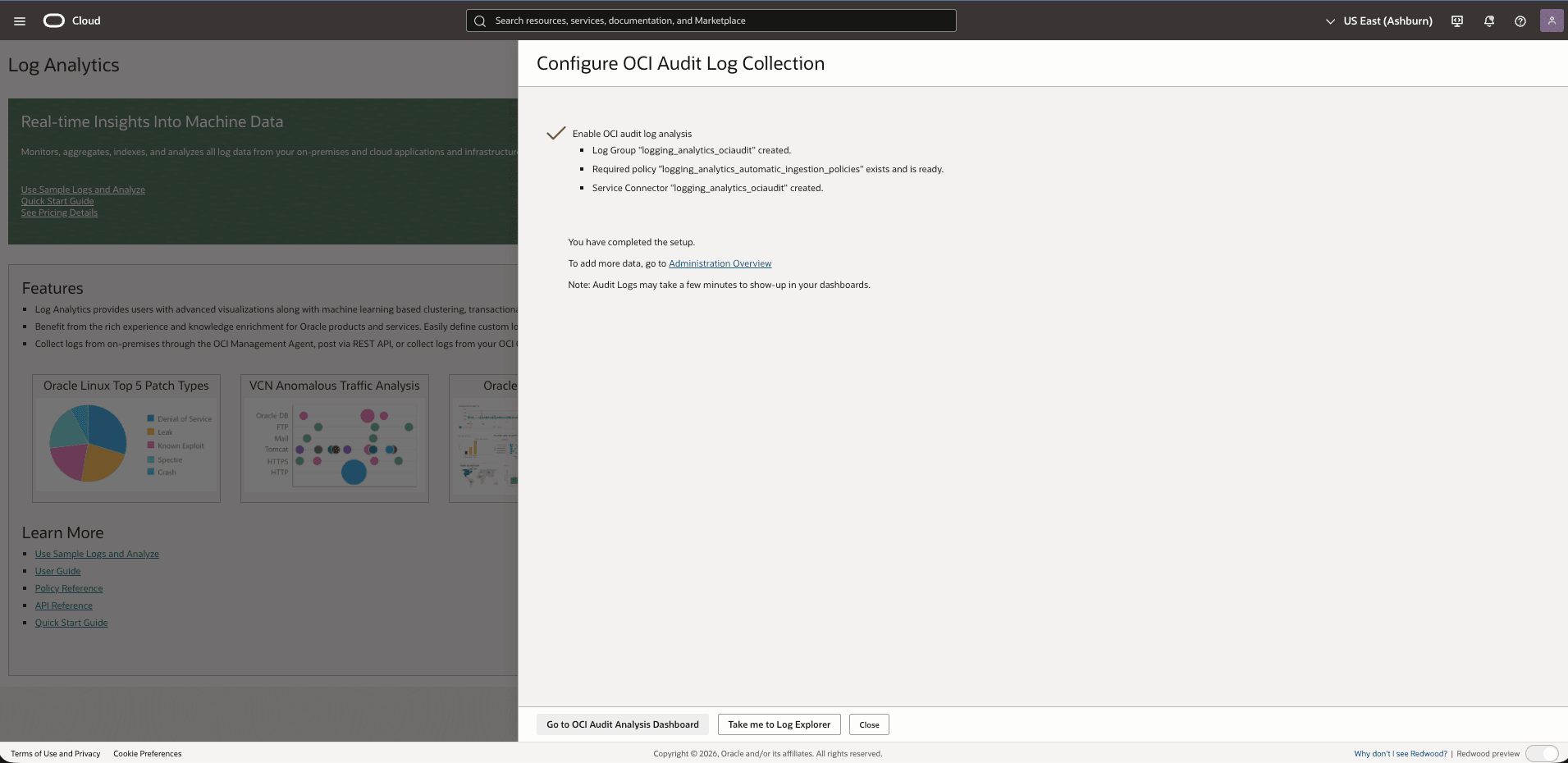
- If this is your first time using Log Analytics in the selected region, the onboarding page is displayed. Select Start Using Log Analytics.
- The Enable Log Analytics dialog appears and creates the minimum required policies and a log group if they don’t already exist.
- From the navigation menu, select Observability & Management, and then select Log Analytics.
- Include Audit in subcompartments is enabled by default; clear it if you don’t want to collect audit logs from subcompartments.
- Select the Next button to continue.
- Select the Next button to configure OCI Audit Log collection.
- When the onboarding process is complete, select Take me to Log Explorer.
- You can now use Log Explorer to search and analyze collected logs for your Oracle AI Database@Google Cloud.
Create Log Groups to Store Your Logs
You can create at least one Log Group to store the logs you collect in Oracle Log Analytics. Log groups live in a specific compartment, which is how you control user access to the logs within that group. Access is managed at the compartment level, users with access to a compartment can generally access all log groups in that compartment so place log groups in compartments that align with your segregation-of-duties requirements. If those requirements change, you can move a log group to a different compartment.
- From the OCI Console, open the navigation menu.
- Select Observability & Management and then select Log Analytics .
- From the left menu, select Administration and then select Log Groups.
- Select the Compartment where you want to create the log group.
- Select the Create Log Group button. Enter the following information:
- The Compartment field is read-only.
- Enter a descriptive name in the Name field to avoid confusion across compartments.
- Enter a description to help you identify it. For example: environment/app-based.
- Expand the Show Advanced Options section to use Tags. This step is optional.
- Select the Create button to create the log group.
Setup OCI Service Connector Import Service Logs to the Log Group in Oracle Log Analytics
- From the OCI Console, open the navigation menu.
- Select Observability & Management, and then select Connectors that is located under Logging.
- Select the Create connector button to create a service connector to route logs from OCI Logging to Oracle Log Analytics.
- You can create the connector either from Logging or from Service Connector Hub.
- From Logging: Navigate to Logging, Service Connectors and then select Create Connector.
- From Service Connector Hub: Navigate to Service Connector Hub, and then select Create Service Connector.
- On the Create Service Connector page:
- Enter a Name and (optional) Description for the connector.
- Select the Compartment where the connector resource will be created.
- Under Configure Service Connector, set:
- Source to Logging
- Target to Logging Analytics (Oracle Log Analytics)
- Under Configure Source Connection, select the logs you want to ingest, for example Alert logs:
- Select the Compartment
- Select the Log group (Depending on your use-case select custom Log group created earlier or Audit log)
- Select the Log (the specific log you enabled/created earlier)
- To ingest additional logs with the same connector, select Another Log and repeat the log selection step. This step is optional.
- Under Configure Task, add filters to limit what gets sent to Log Analytics. This step is optional.
- Configure Target and select the Log group name that you created previously.
- Select the Create Connector to create the connector.
- After the connector is created, verify that the selected logs are available in Oracle Log Analytics . For example, in Log Explorer, verify that new events are being ingested.
View Logs in Oracle Log Analytics for Oracle AI Database@Google Cloud
- From the OCI Console, open the navigation menu.
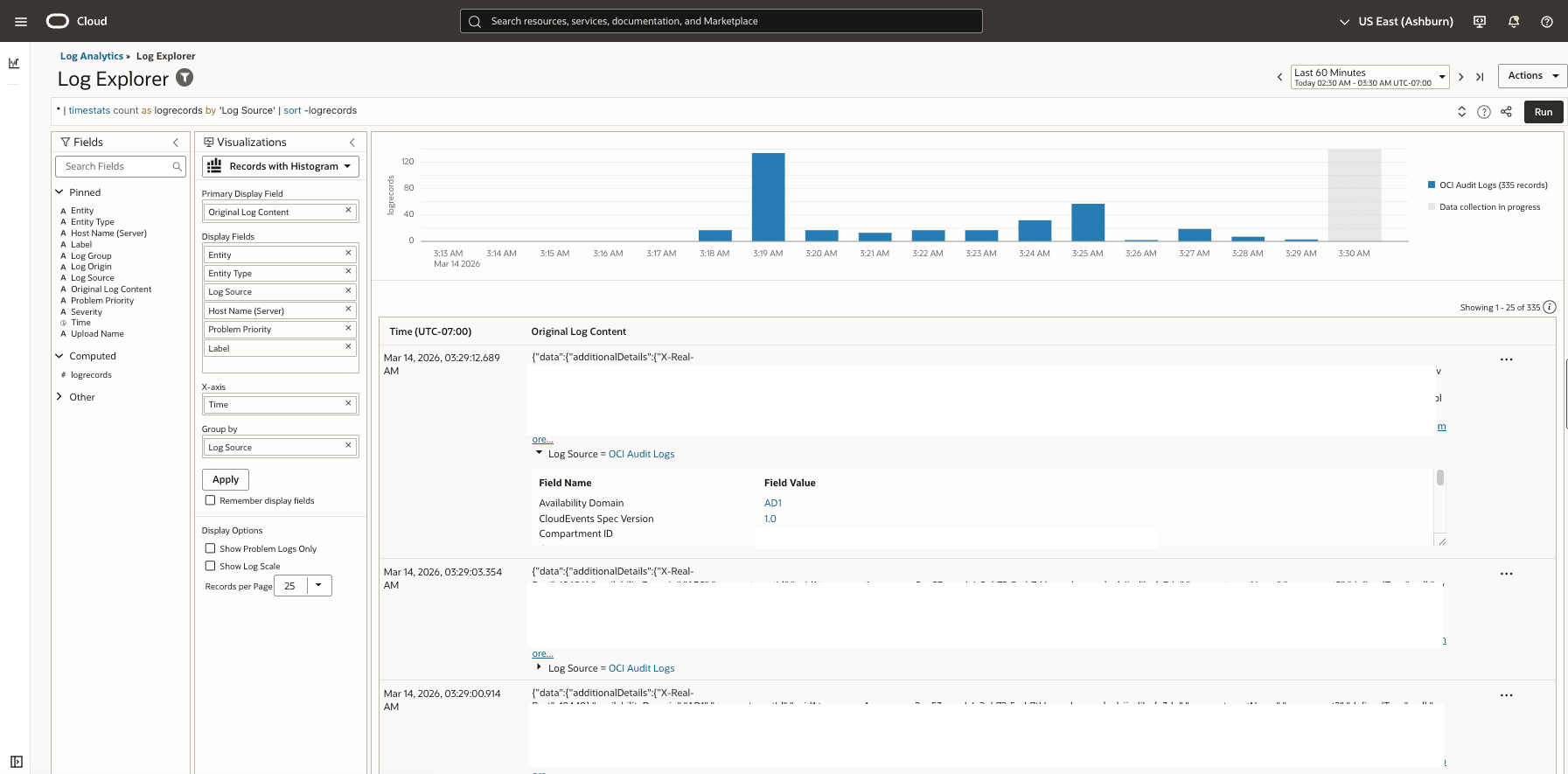
- Select Observability & Management, and then select Log Explorer that is located under Log Analytics.
- Choose the Time range.
- Last 15 minutes
- Last 24 hours
- Custom
- Use one of these ways to view data:
- Search and Query: Enter the keywords or field-based filters and then run the search.
- Source Selection: Filter by specific log sources and Add to search. For example, Audit, VCN Flow Logs, or custom ingested sources.
- From the Visualizations field, select Records with Histogram.
- Select a result row to open the event details and expand fields to view the full context.
Note
If you don’t see any results, confirm:- Log Analytics is enabled in the region.
- Logs are being ingested (sources/agents configured).
- You are searching the correct compartment/log group and time range.
Use LoganAI in Oracle Log Analytics.
LoganAI is the artificial intelligence capability in Oracle Log Analytics that helps you analyze logs and log-derived data using AI. It can also pull OCI Monitoring metrics by using MQL and combine them with log data to support richer, context-aware analysis.
LoganAI uses meta-llama or cohere model based on the selected region and availability of the model in that region. The exact regions in which LoganAI is currently available are listed in the menu when you enable LoganAI through the Configure LoganAI settings dialog box. For the regions in which Oracle Generative AI service is available, see regions.
LoganAI supports Log Analytics users by providing:- AI-powered log summarization: Generates concise summaries and interpretations for individual logs, groups of logs, clusters, and charts, helping you understand large volumes of data quickly.
- Actionable follow-up questions: Suggests relevant, context-aware next questions to guide deeper investigation and speed troubleshooting.
- User-friendly explanations: Converts complex log entries and chart behavior into clear explanations that help connect technical signals to operational impact.
- Seamless workflow integration: Makes AI features available directly in the Oracle Log Analytics UI, reducing tool switching and streamlining investigations.
- Improved productivity: Automates time-consuming interpretation tasks so engineers and support teams can focus on remediation and higher-value work.
Enable LoganAI
- From the OCI Console, open the navigation menu.
- Select Observability & Management, and then select Log Analytics.
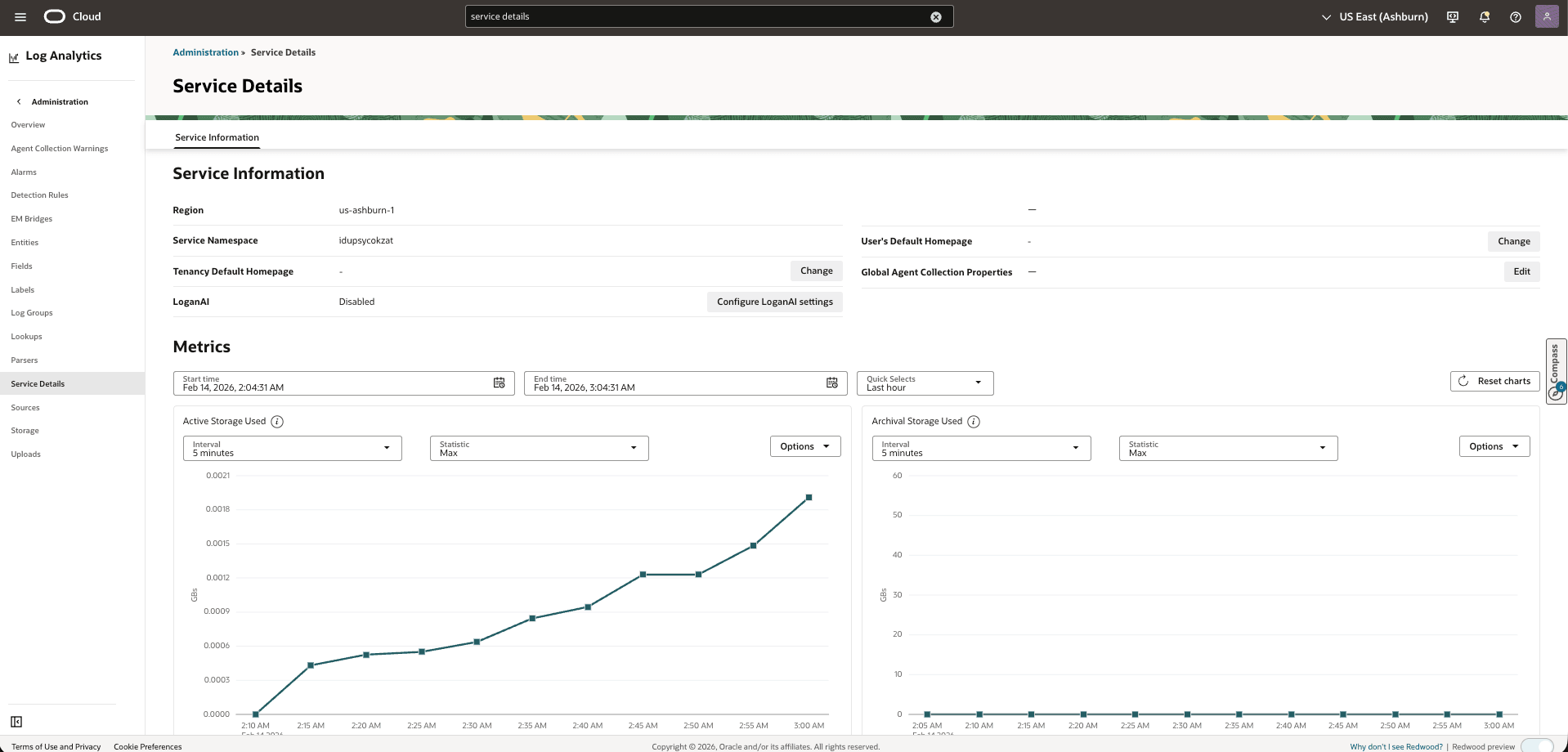
- From the left menu, select Administration, and then select Service Details.
- Scroll down to the LoganAI field to view the status.
- To enable LoganAI, select the Configure LoganAI settings button.
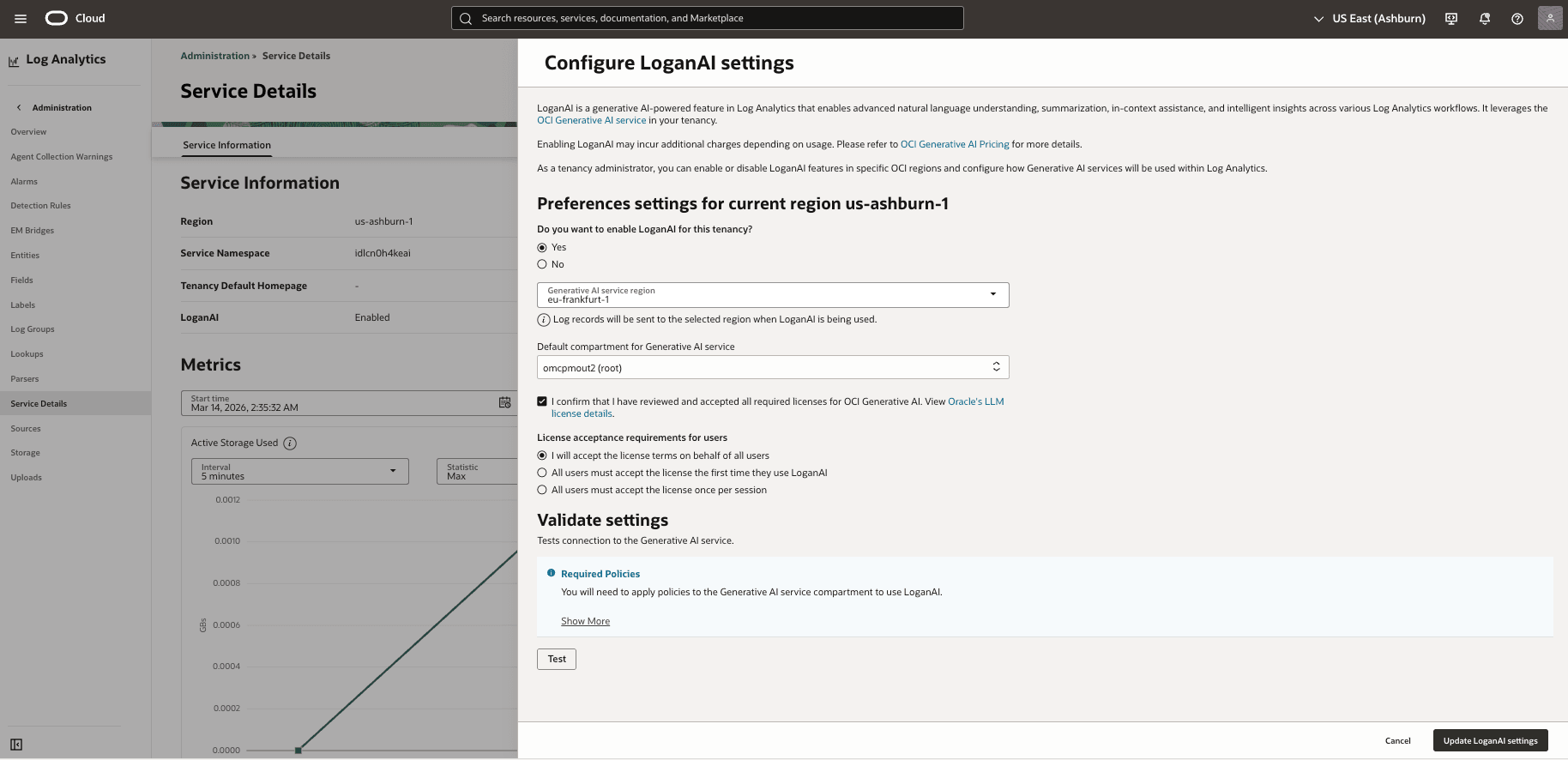
- In the dialog, under Do you want to enable LoganAI for this tenancy?, choose the Yes option.
- Select the Generative AI Service region you want to use. LoganAI sends log data from your current region to the selected Generative AI region for processing.
- Under Default compartment for Generative AI Service, select the compartment used to access the Generative AI service. This must match the compartment referenced in the IAM policies for LoganAI, and users must have Generative AI access in this compartment.
- Accept the licenses: Review and accept any required model licenses, then select the I confirm that I have reviewed and accepted all required licenses for OCI Generative AI checkbox.
Note
Model and license requirements can vary by region. - Under License acceptance requirements for users, choose how license acceptance is handled for other LoganAI users:
- I will accept the license terms on behalf of all users, or
- All users must accept the license the first time they use LoganAI, or
- All users must accept the license once per session
- Under Validate Settings, select the Test button to confirm connectivity to the Generative AI Service. If the test fails, resolve the issue and retest. For more information, see Troubleshoot LoganAI Issues.
- Select the Update LoganAI settings to save and apply the configuration.
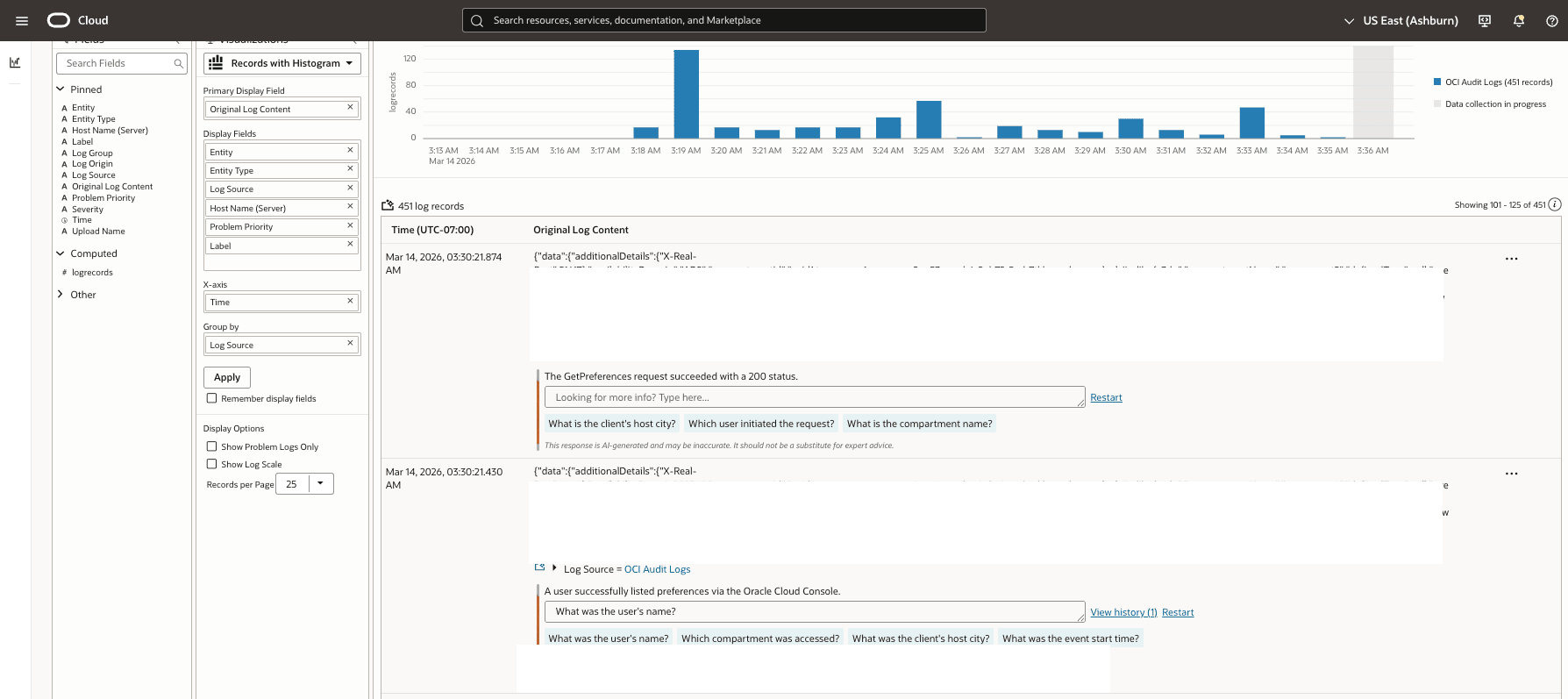
The Explain feature in LoganAI uses artificial intelligence to summarize and interpret log messages and certain charts in Log Explorer. To use it, select the AI icon wherever it appears in Log Explorer visualizations that display or tabulate log records.
LoganAI Explain is available in these modes:
- Single Log Explain: Select the AI icon on an individual log record to get an explanation of that record and ask follow-up questions.
- Multi-log Explain: Select the AI icon above the log records list to generate an explanation across the current set of log messages.
- Cluster Explain: In the Cluster visualization, select the AI icon on a cluster tab to analyze and summarize cluster patterns.
- Chart Explain: For AI-enabled charts, select the AI icon below the chart to get an explanation of what the chart indicates.
- OCI Dashboard
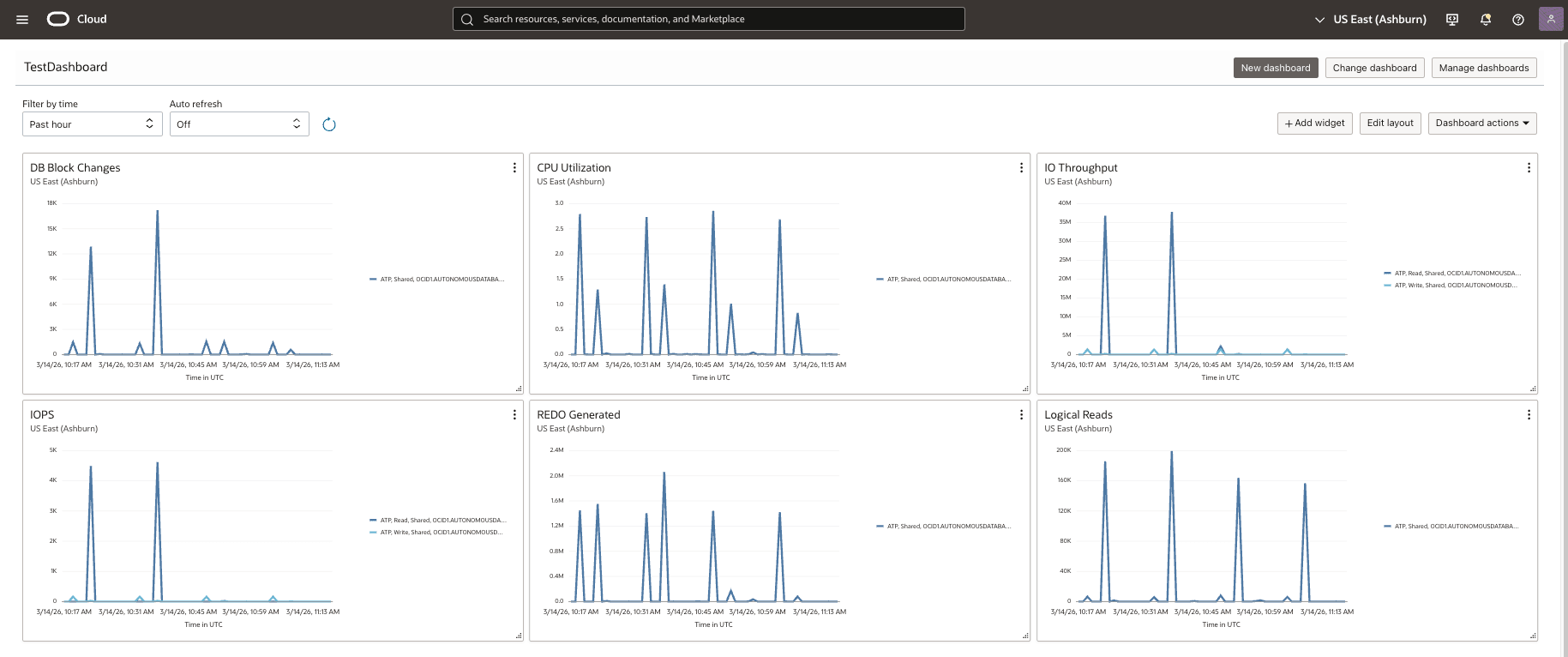
Management Dashboard lets you build performance monitoring, diagnosis, and data analysis solutions for Oracle AI Database@Google Cloud resources, using powerful visualization options to gather real-time and historical data and display it in widgets. It provides Oracle-defined dashboards, widgets, and filters for common monitoring scenarios, as well as the ability to create custom dashboards and widgets to meet specific needs.
Create a Dashboard
- From the OCI Console, open the navigation menu.
- Navigate to Dashboards located under Home.
- Select the New dashboard button.
- Choose how to create it:
- Start from a template: This option enables you choose from a collection of dashboards and templates are populated with preconfigured widgets that you can modify as needed.
- Build from scratch: This option enables you start with an empty dashboard which you must choose which widgets to add and configure.
- In the Create new dashboard panel, enter the following information:
- Enter a name in the Dashboard name field. The name can be up to 100 characters. It must not include the following characters:
<>()=/'"&\ - The Description is optional field.
- Select the Compartment where the dashboard resides in.
- Select an existing group or create a new one for Dashboard group.
- Select Show additional options to add tags. This step is optional.
- Select the Create button.
- Enter a name in the Dashboard name field. The name can be up to 100 characters. It must not include the following characters:
- Once the creation of a blank dashboard is complete, select the + Add widget button.
- In the Add new widget window , choose the Monitoring widget.
- In the dashboard widget, select Configure to open the Configure Monitoring widget dialog.
- Under Set visualization parameters, configure the following:
- Enter a Name for the widget.
- Enter a Description. This step is optional.
- Chart type: Select Line Chart.
- Interval: Select the interval for how often the chart refreshes.
- Filter by time: Select the time window shown in the chart.
- Under Configure metric query, specify the following:
- Select the Region.
- Select Change Compartment to use a different compartment. This step is optional.
- Select the Namespace. You can select the service or application creating the metric.
- Select the Metric Name . Select one metric per widget as options depend on compartment or namespace.
- Select the Statistic. It is an aggregation function for the metric data.
- In Metric Settings, you can filter using dimensions. This step is optional.
- Dimension Name. For example,
resourceName. - Dimension Value. For example, the OCID or resource identifier
- Use + Additional Dimension to add filters. You can use Remove (x) to delete one.
- Dimension Name. For example,
- Select the Configure button to save your changes.
- Under Set visualization parameters, configure the following:
- Repeat step 7 and 8 to add more widgets. You can add as many as metrics you want.
- Click on Save.
Managing Alarms in OCI Monitoring
OCI alarms let you automatically detect when a metric crosses a defined threshold and trigger an action (for example, send a notification, run an automation, or open an incident workflow). Effective alarm management includes creating alarms for critical metrics, keeping alarm rules up to date as systems change, suppressing alarms during planned maintenance to reduce noise, and deleting alarms that are no longer relevant.
Create a threshold alarm in OCI Monitoring to send a notification when a metric crosses a specified threshold. For example, the following alarm triggers when average CPU utilization over a 1‑minute interval exceeds 80%:
CpuUtilization[1m].mean() > 80On the Create Alarm page, the metric chart displays a dashed red line representing the threshold (80%). When a data point exceeds that line, the alarm transitions to a firing state and sends the configured notification.
- From the OCI Console, open the navigation menu.
- Select Observability & Management, and then select Alarm Definitions located under the Monitoring.
- Choose the Compartment.
- Select the Create Alarm button. The Create Alarm page opens in Basic Mode.
- Enter an Alarm name.
- Enter an Alarm summary. This step is optional. You can use dynamic variables.
For example: {{severity}} alarm triggered because threshold got breached due to {{metricValues}} at {{timestamp}}.
- In Metric description, define which metric the alarm evaluates:
- Compartment: Where the target resources and the alarm will be stored.
- Metric namespace: Service/application emitting the metric. For example,
oci_autonomous_database. - Resource group: Custom metrics only (not used for service metrics).
- Metric name: The metric to evaluate.
- Interval: It is an aggregation window that you can specify a custom interval if needed.
- Statistic: Aggregation function (for example, Mean, Rate, Sum, Max, Min, Count, P50, P90, P95, P99)
- (Optional) In Metric dimensions, filter the metric data evaluated by the alarm:
- Dimension name: For example,
resourcename. - Dimension value: Select the dimension value.
- Additional dimension: Add more filters as needed.
- Aggregate metric streams: Combine multiple streams into one value.
- Dimension name: For example,
- In Trigger rule, define when the alarm fires:
- Operator: For example, >, <, between, outside
- Value: Enter threshold value(s).
- Trigger delay minutes: How long the condition must persist before firing
- Alarm severity: For example: Critical, Error, Warning, Info.
- Alarm body: Human-readable message (include runbook guidance/links if helpful).
- Additional trigger rule: Add more conditions if needed. This step is optional.
Note
The chart in this section updates dynamically to show recent metric data based on your selections.
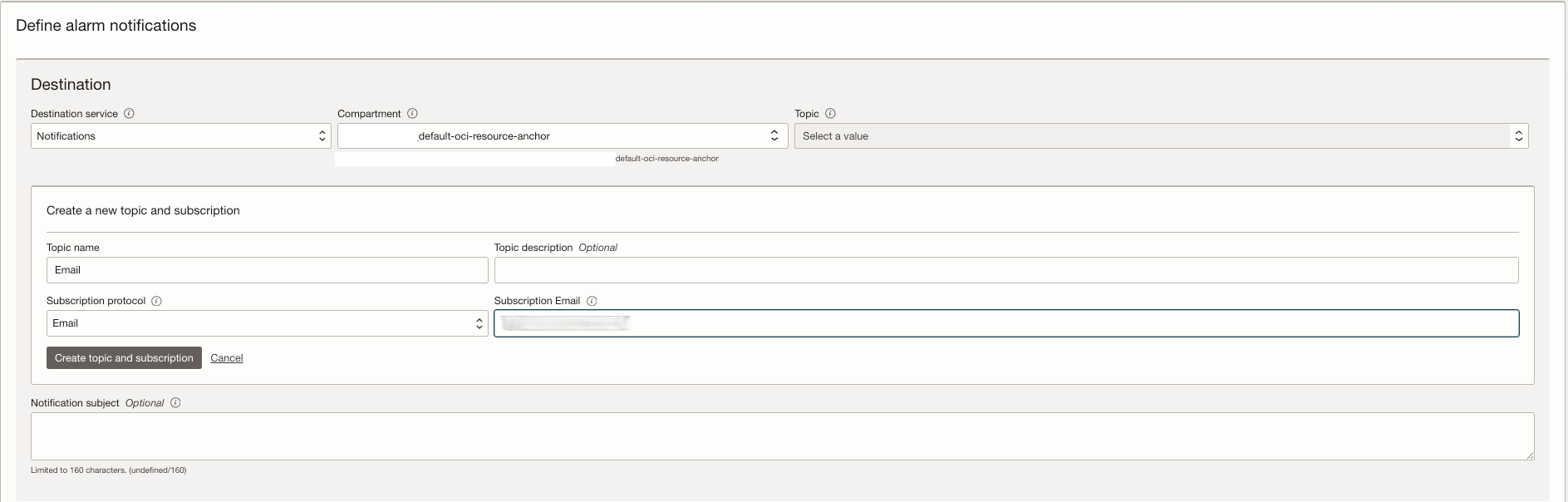
- Under Define alarm notifications (Destination), select where to send notifications:
- Destination service:
- Notifications: Send to an ONS topic (each subscription receives the message)
- Streaming: Send alarm messages to a stream (recommended for higher message rates)
- Compartment: Where the destination topic/stream exists
- Topic (for Notifications) or Stream (for Streaming)
- (Optional, Notifications only) Notification subject: Custom title (supports dynamic variables)
- (Optional) Create a topic: Create a new topic and subscription (for example, Email, HTTPS, PagerDuty, Slack, SMS, etc.)
- Destination service:
- For Message grouping, choose one:
- Group notifications across metric streams, or
- Split notifications per metric stream
- For Message format (Notifications only), choose one:
- Send formatted messages
- Send Pretty JSON messages
- Send raw messages
- (Optional) Enable Repeat notification to resend alerts at a set interval while the alarm is firing.
- (Optional) Enable Suppress notifications to mute evaluations/notifications during a maintenance window (set start time, end time, and an optional description).
- (Optional) Clear Enable this alarm? to create the alarm without starting evaluation immediately.
- (Optional) Add tags under Show advanced options (free-form tags require create permission; defined tags require tag-namespace permissions).
- Select Create alarm.
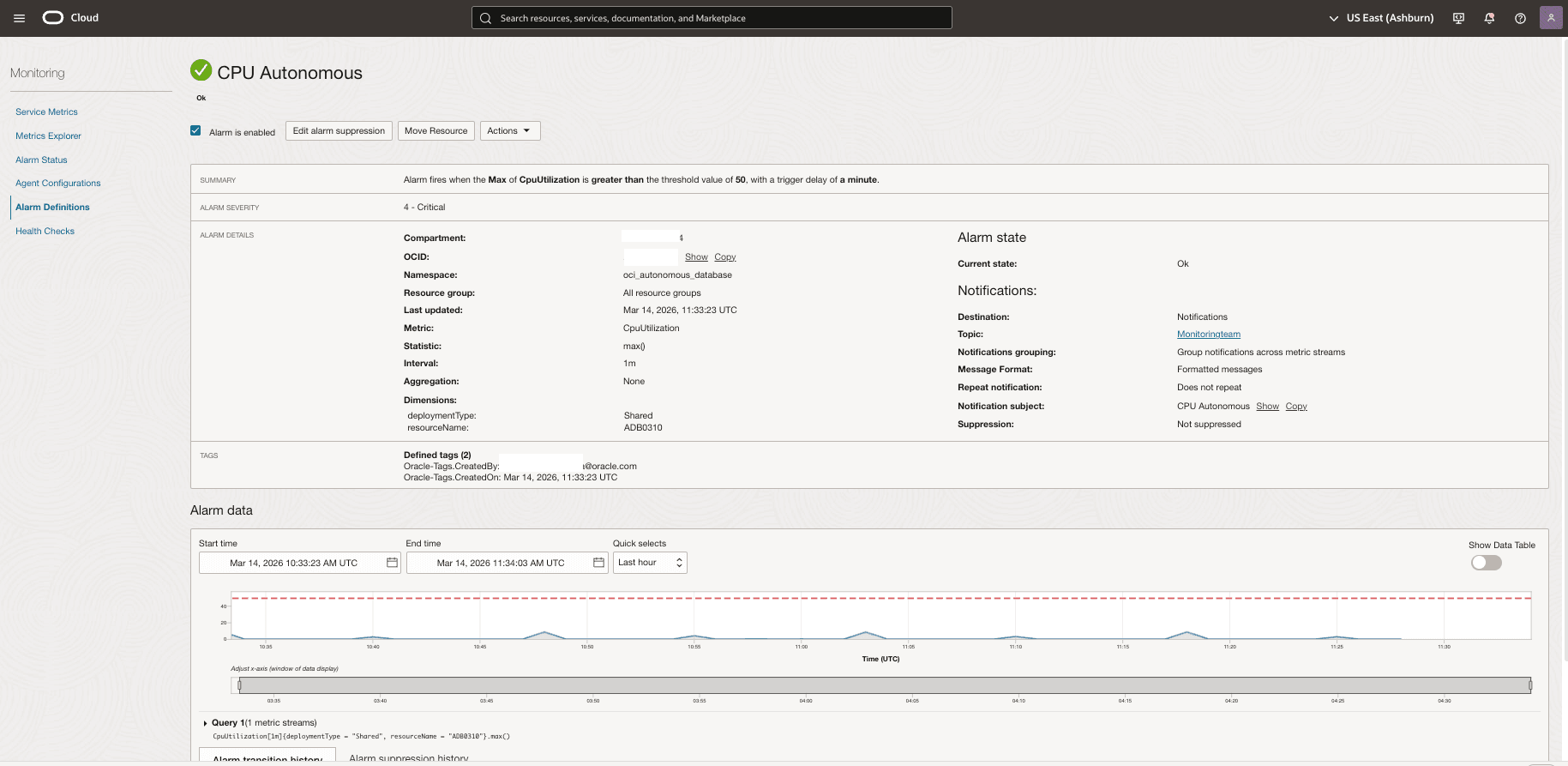
The new alarm appears on the Alarm Definitions page. If enabled, Monitoring begins evaluating the metric and sends notifications when the trigger conditions are met.
For more information, see Best Practices for Your Alarms.