Migrate to Exadata Database
Oracle Zero Downtime Migration (ZDM) can be used to simplify and automate complex database migrations while adhering to the highest standards of the Oracle Maximum Availability Architecture (MAA). This topic explains how ZDM can be used to migrate to Oracle Exadata Database Service on Dedicated Infrastructure, which is an important option for organizations that need a secure and reliable multicloud environment.
By using Oracle Zero Downtime Migration, you can :- Minimize business disruption and achieve near-zero downtime.
- Migrate databases between various versions and hardware platforms.
- Leverage complete automation and orchestration for reduced risk and complexity.
Target Environment: Oracle Exadata Database Service on Dedicated Infrastructure
Oracle Exadata Database Service on Dedicated Infrastructure integrates the high performance, availability, and scalability of Oracle Exadata Database and Oracle Real Application Clusters (RAC) directly within Google Cloud. This integration ensures that the migrated database maintains a fast, low-latency connection to all associated applications running on Google Cloud.
Key Benefits of Using Oracle Zero Downtime Migration for Exadata Database Migrations
Feature Description Minimal/Zero Downtime Oracle Zero Downtime Migration uses advanced Oracle technologies such as Oracle Data Guard and Oracle GoldenGate to maintain source and target synchronization, ensuring availability throughout the migration process. Automated Orchestration The utility provides a simplified, one-button experience by automating pre-validation checks, the data transfer, and the final cut-over, therefore significantly reducing manual effort and potential human error. Platform Flexibility Oracle Zero Downtime Migration supports migrations between identical or differing database platforms and versions, allowing for simultaneous modernization as part of the move. Cost Efficiency Oracle Zero Downtime Migration is available free of charge, helping organizations realize substantial cost savings on their overall migration project. Risk Reduction By adhering to proven MAA best practices and leveraging automated validation, Oracle Zero Downtime Migration ensures a robust and reliable migration path. Supported Migration Workflows
Oracle Zero Downtime Migration supports four workflows, giving you flexibility to choose the best option based on your availability needs and the compatibility of your source and target environments.
- Physical Online Migration
- Downtime Profile: Minimal (Near Zero).
- Compatibility: Requires the same database version and platform between source and target.
- Process: This workflow uses Oracle Data Guard for continuous, physical synchronization. The target database is created using a restore from service method, which allows for direct data transfer and explicitly avoids backing up the source database to an intermediate storage location. This is the fastest online option for same-platform migrations.
- Logical Online Migration
- Downtime Profile: Minimal (Near Zero).
- Compatibility: Supports migrations between the same or different database versions and platforms.
- Process: This method uses Oracle Data Pump export and import to create the target database. Google Cloud Managed NFS Server provides an NFS file share to store the Data Pump dump files. Oracle GoldenGate keeps the source and target databases in sync to achieve a minimal downtime migration.
- Physical Offline Migration
- Downtime Profile: Offline (Requires application downtime).
- Compatibility: It requires the same database version and platform.
- Process: It creates the target database using Oracle Recovery Manager (RMAN) backup and restore. Google Cloud Managed NFS Server provides an NFS file share to store the RMAN backup files.
- Logical Offline Migration
- Downtime Profile: Offline (Requires application downtime).
- Compatibility: Supports migrations between the same or different database versions and platforms.
- Process: This uses Oracle Data Pump export and import to create the target database. Google Cloud Managed NFS Server provides an NFS file share to store the Oracle Data Pump dump files.
For more information on Oracle Zero Downtime Migration, see the following resources:In multicloud setups, you need to transfer data between different cloud providers or maintain it in one environment while querying or accessing it from another. Oracle Database's DBMS_CLOUD PL/SQL package simplifies this by enabling direct access to object storage services such as Oracle Cloud Infrastructure (OCI) Object Storage and Google Cloud Storage and allowing data to be queried via external tables or loaded directly into database tables.
This document provides a step-by-step guide on accessing and importing data from Google Cloud Storage into an Oracle Database.
Solution Overview
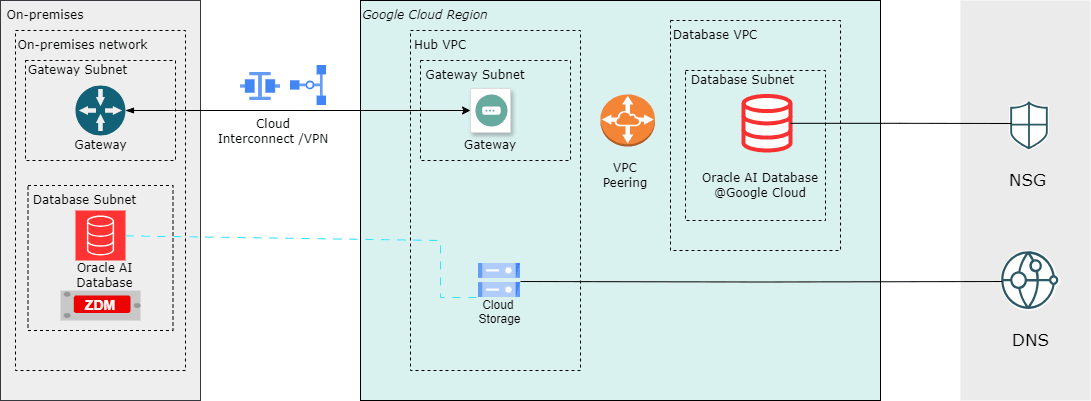
This solution demonstrates how a Google Cloud Storage (GCS) can be used as a landing zone for backups and files.
The Oracle DBMS_CLOUD package lets you query data directly from Google Cloud Storage buckets (Parquet, CSV, JSON, etc.) as external tables without moving it, join it in real time with Oracle tables for unified analytics, bulk import files into Oracle Database efficiently with parallel loading, minimize data duplication and costs in multicloud setups, and support hybrid scenarios like blending ERP data with GCS-stored logs, IoT streams, or ML features for faster insights and reporting. The architecture illustrates a workflow in which the source is an Oracle Database running on Linux or Oracle Exadata Database, and the target is an Oracle Database environment running on Google Cloud infrastructure. Google Cloud Storage is used by both the source and target database systems, enabling RMAN backups or export dumps to be written once and restored directly, without additional file transfer steps.
By leveraging Google Cloud Storage as shared storage, migration workflows benefit from a managed service that supports movement of data with ease.
Prerequisites
- Oracle Database Environment
Source : Oracle Database platform, such as Oracle Exadata Database, Oracle RAC, or a standalone Oracle Database instance on Linux.
Target : Oracle Exadata Database running on Oracle AI Database@Google Cloud.
- Google Cloud Storage Bucket
- A bucket containing the data file(s) such Oracle Data Pump dump file.
- Network Connectivity
- For Oracle Database, internet connectivity or private link using Oracle Interconnect for Google Cloud is supported.
- For Oracle AI Database@Google Cloud, internal connectivity within the same cloud region is supported by default.
- Credentials
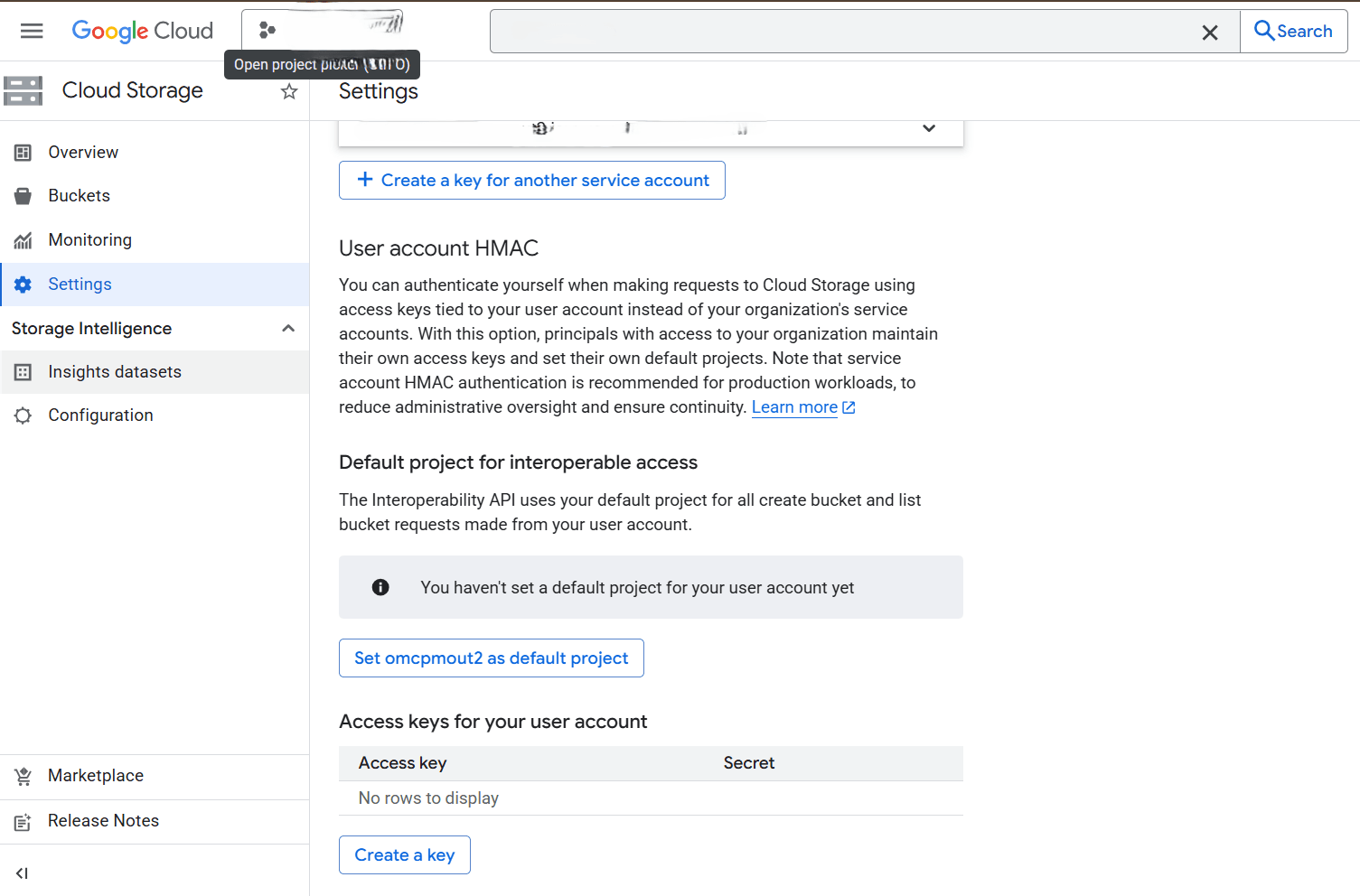
- A Google Cloud Access Key and Secret (HMAC key) with bucket access permissions.
- Configuration
- Create Google Cloud Storage Access Credentials
- In the Google Cloud Console, navigate to Cloud Storage.
- Select Settings from the left menu, and then select the Interoperability tab.
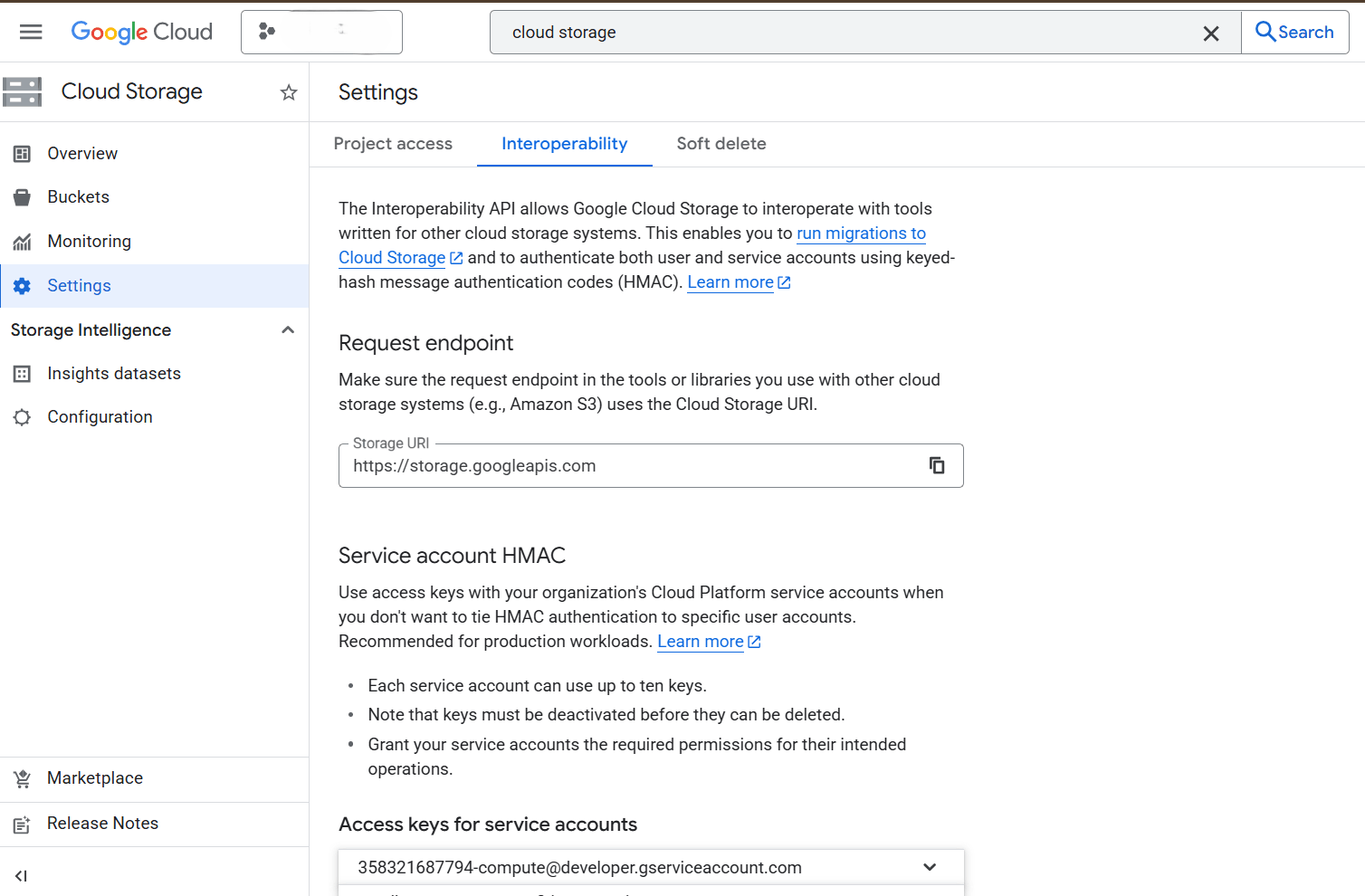
- Scroll down to the Access keys for your user account section, select the Create a key button to generate an Access key and Secret. Take note of the Access key and Secret as these are required to authenticate Oracle Database access.
- Determine Object URL
- In the Google Cloud Console, navigate to Cloud Storage.
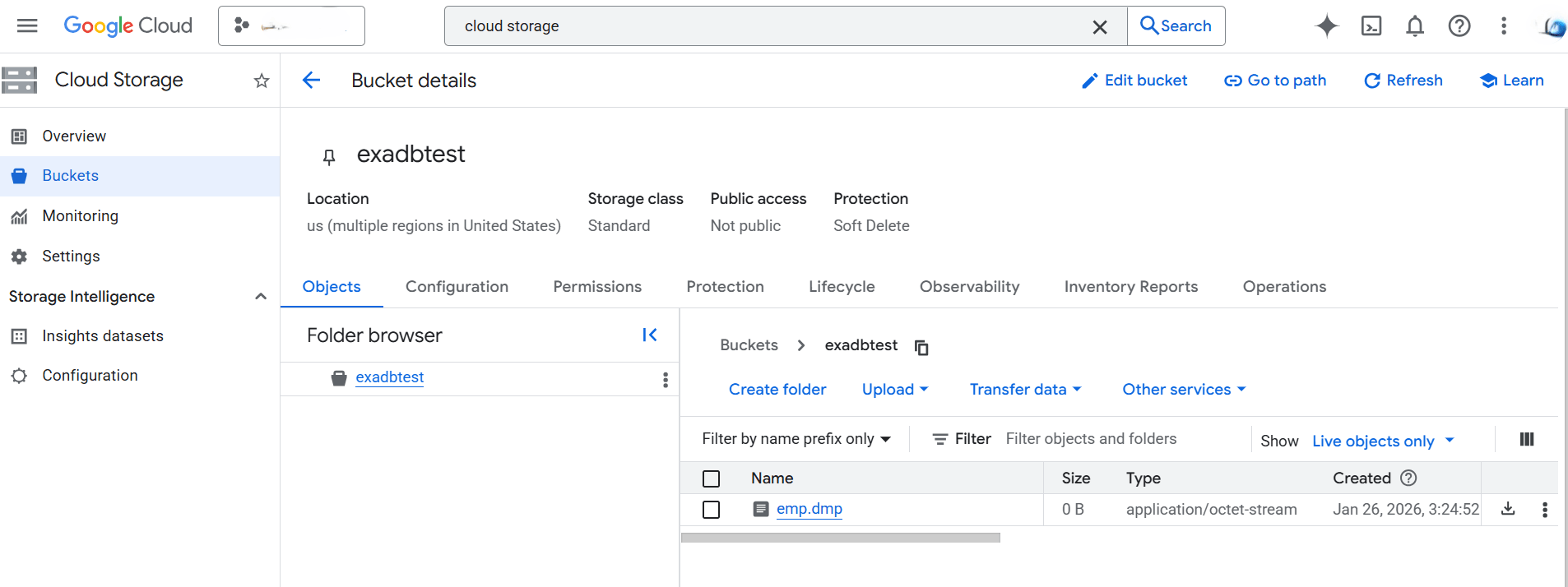
- From the left menu, select Buckets, and then select the target bucket that you are using.
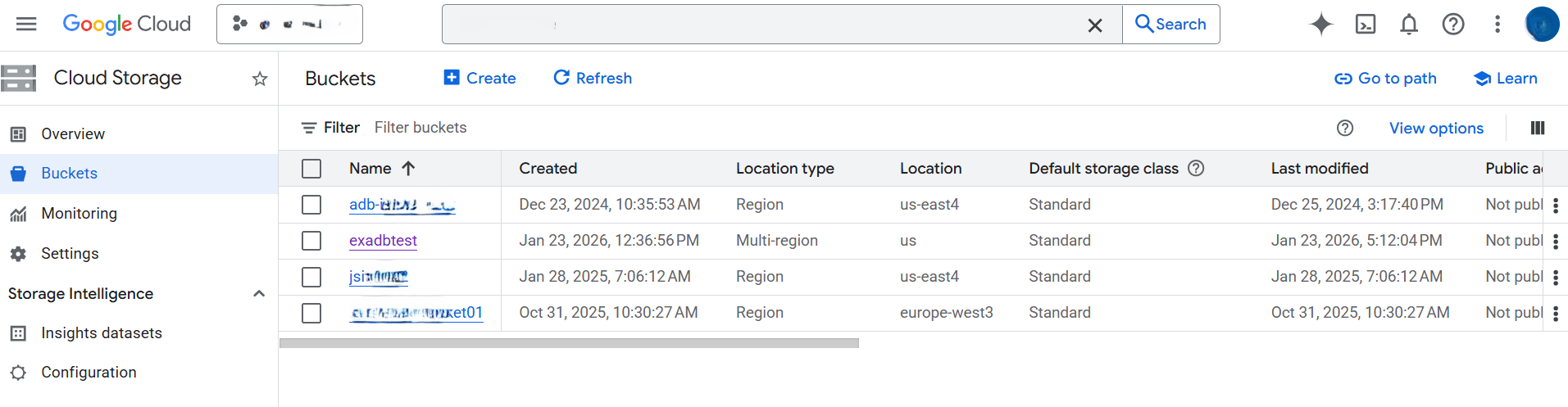
- From the Bucket details page, locate the object. For example, Oracle Data Pump export file which you want to import.
- Construct the public object URL in the form.
https://<bucket_name>.storage.googleapis.com/<object_name>For example:
- Bucket name:
exadbtest - Object name:
emp.dmp - Object URL:
https://exadbtest.storage.googleapis.com/emp.dmp
- Bucket name:
- Create Google Cloud Storage Access Credentials
- Oracle Database Setup
- Create Oracle Credential
- Using the DBMS_CLOUD.CREATE_CREDENTIAL PL/SQL procedure, create a credential in the database that stores your GCS access key and secret:
BEGIN DBMS_CLOUD.CREATE_CREDENTIAL( credential_name => '<Credential_Name>', username => '<GCS_Access_Key>', password => '<GCS_Secret>' ); END; /For example:
BEGIN DBMS_CLOUD.CREATE_CREDENTIAL( credential_name => 'GCP_CRED', username => 'GOOGXXXXXXXXXXXX', password => 'xs9njBZ+hykXXXXXXXXXXXXXXXXXXXXXXXXXXXXX' ); END; / - After running the PL/SQL procedure, the credential is stored and ready for use by DBMS_CLOUD. For more information about the parameters, see CREATE_CREDENTIAL Procedure.
- Using the DBMS_CLOUD.CREATE_CREDENTIAL PL/SQL procedure, create a credential in the database that stores your GCS access key and secret:
- Verify Access to Google Cloud Storage
- To ensure that the database can reach your Google Cloud Storage bucket, run the following:
SELECT object_name FROM dbms_cloud.list_objects( credential_name => 'GCP_CRED', uri => 'https://exadbtest.storage.googleapis.com' ); - The output should list the object(s), confirming successful access. For example:
OBJECT_NAME
--------------------------------------------------------------------------------
emp.dmp
employee.csv
- To ensure that the database can reach your Google Cloud Storage bucket, run the following:
- Create Oracle Credential
- Loading Data
After creating the necessary credential for Google Cloud Storage, you can load or access data into Oracle Database using any of the following methods: DBMS_CLOUD.COPY_DATA procedure, Oracle Data Pump Import (impdp), DBMS_CLOUD.CREATE_EXTERNAL_TABLE, DBMS_CLOUD.CREATE_EXTERNAL_PART_TABLE, the Data Studio Load tool (UI in Exadata Database), or DBMS_CLOUD.CREATE_HYBRID_PART_TABLE for hybrid partitioned tables.
This step demonstrates DBMS_CLOUD.COPY_DATA as well as Oracle Data Pump Import (impdp).
- Using DBMS_CLOUD.COPY_DATA Procedure
- Create a table in your database where you want to load the data.
CREATE TABLE emp (id NUMBER, name VARCHAR2(64)); - Import data from the Google Cloud Storage bucket to your Exadata Database.
- Specify the table name and the GCP credential name followed by the Google Cloud Storage object URL.
- Use the DBMS_CLOUD.COPY_DATA procedure to load data from your Google Cloud Storage bucket into a table. The
file_uri_listparameter specifies the path to your files in Google Cloud Storage.BEGIN DBMS_CLOUD.COPY_DATA( table_name => 'YOUR_TARGET_TABLE', credential_name => 'GOOGLE_CLOUD_CRED', file_uri_list => 'https://exadbtest.storage.googleapis.com/employee.csv', -- Or a list of files format => json_object('type' value 'CSV', 'skipheaders' value '1') -- Specify file format options ); END; /For more information about the parameters, see COPY_DATA Procedure.
- Once you have successfully imported data from Google Cloud Storage to your Exadata Database, you can run this statement and verify the data in your table.
SELECT * FROM emp;
- Create a table in your database where you want to load the data.
- Import Data Using Data Pump
The import command can be executed either on the VM cluster or on an external virtual machine with authorized SQL*Plus access to the target database.
- Create a parameter file
imp_gcp.parwith the following contents:directory=DATA_PUMP_DIR credential=GCP_CRED schemas=emp remap_tablespace=USERS:DATA dumpfile=https://exadbtest.storage.googleapis.com/emp.dmp - Run the import from Exadata VM Cluster or Client. Ensure that Oracle client is installed and you can connect to the Exadata Database:
impdp userid=ADMIN@demo_db parfile=imp_gcp.par - A successful run loads the data into your Oracle Database. Example of a successful completion message:
Job "SYSTEM"."SYS_IMPORT_SCHEMA_01" successfully completed.
- Create a parameter file
- Using DBMS_CLOUD.COPY_DATA Procedure
This native integration enables enterprises to run high-performance Oracle workloads alongside Google Cloud-native services using Oracle Exadata Database Service on Oracle AI Database@Google Cloud.
For more information, see the following resources:- Oracle Database Environment
In multicloud environments, while using resources from multiple cloud vendors, you deal with migrating data across the environments or keeping it in one cloud environment while accessing it from another. The Oracle Database DBMS_CLOUD PL/SQL package allows you to attach and access data on Google Cloud Filestore file shares or import it into an Oracle Database. This topic provides a step-by-step guide on accessing and importing data from Google Cloud Filestore file shares into an Oracle Database.
Key Advantages for Migration and Shared Filesystem Use Cases
- Scalability and Managed Service: Predefined performance tiers and capacity scaling (up to 100 TiB) eliminate the need to deploy and manage custom NFS servers.
- Oracle Database Integration: Supports NFSv3 and NFSv4.1, enabling direct read/write access for Oracle Data Pump, RMAN backups, and database file staging.
- Cost Efficiency: Pay-only-for-provisioned-capacity model is suitable for temporary migration workloads and avoids self-managed infrastructure overhead.
- High Availability and Reliability: Fully managed with zonal or regional redundancy (up to 99.99% regional SLA in Filestore Regional), offloading patching, failover, and maintenance.
- Security: Encryption at rest and in transit, VPC-based access controls, firewall rules, and export policies protect data during migration.
Solution Overview
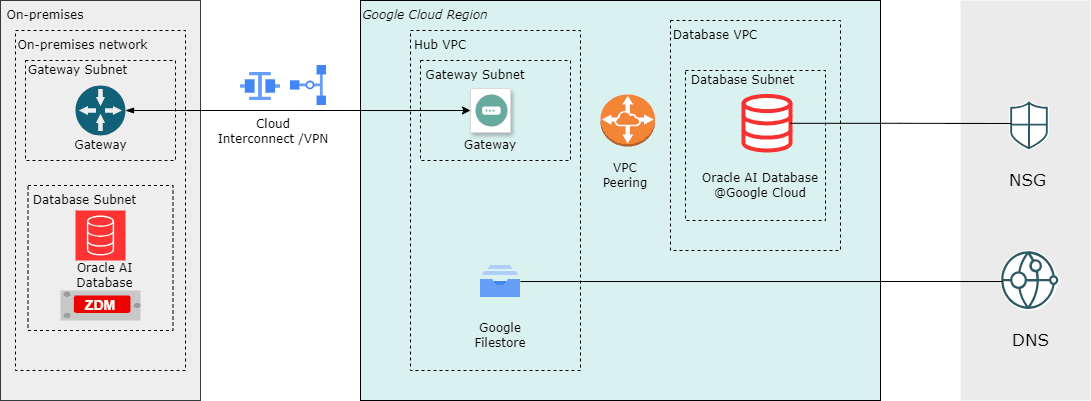
This solution demonstrates how a Google Cloud Filestore file share can be used as a landing zone for RMAN backups, simplifying and standardizing the Oracle Database migration process.
The architecture illustrates a workflow in which the source is an Oracle Database running on Linux or Oracle Exadata Database, and the target is an Oracle Database environment running on Google Cloud infrastructure. The Filestore NFS file share is mounted and used by both the source and target database systems, enabling RMANbackups to be written once and restored directly, without additional file transfer steps. By leveraging Google Filestore as shared storage, migration workflows benefit from a managed NFS service that supports RMAN backup, restore, and recovery operations across environments.
Prerequisites
The following prerequisites are required to complete this solution:- Source database running on a supported Oracle Database platform, such as Oracle Exadata Database, Oracle Real Application Clusters, or a standalone Oracle Database instance on Linux.
- Target Oracle Exadata Database running on Oracle AI Database@Google Cloud
- Google Cloud Filestore file share created and available, with a mounted NFS export on the source and target database hosts.
- Network connectivity established between the source environment and Google Cloud, with appropriate routing and firewall rules to allow NFS and database traffic.
Setting Up Google Cloud Filestore
- From Google Cloud console, navigate to Filestore.
- From the left menu, select Instances.
- Select the Create Instance button and then complete the following substeps:
- Enter a unique name in the Instance ID field for the Google Cloud Filestore instance. The ID must contain lowercase letters, numbers, and hyphens. It must start with a letter.
- The Description field is optional.
- From the Configure service tier section, select an appropriate service tier based on your migration workload requirements. From the Instance type section, choose your instance type. Instance type affects capacity, performance, scalability, durability, and cost.
- Choose your Storage type based on your requirements.
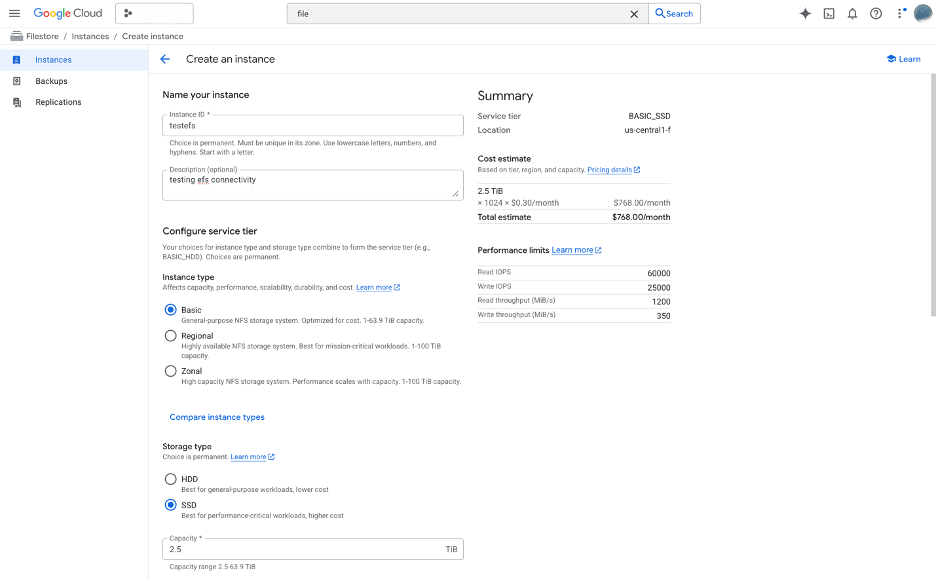
- After choosing your storage type, enter the capacity value in the Capacity field.
For better performance and lower networking cost, place your instance in the same region as the VMs that will connect to it. Choice is permanent.
- Select the Capacity range that suits your file system.
- Configure your performance based on your workload and scale.
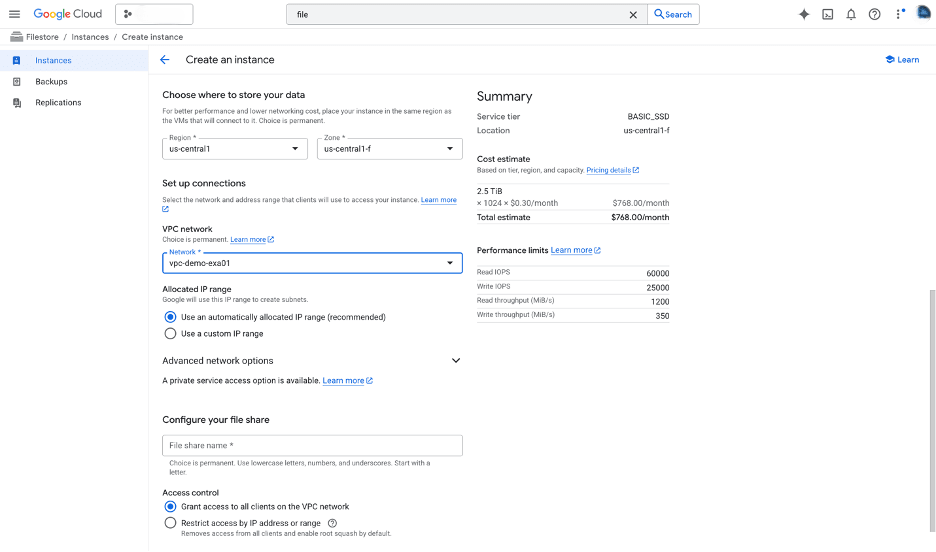
- Select the Region and Zone where the Google Cloud Filestore instance will be created. This must align with the network location of the database hosts that will access the file share.
- From the Set up connections section, select the network and address range that clients will use to access your instance.
- From the VPC network dropdown list, select your VPC.
- From the Allocated IP range section, choose the Use an automatically allocated IP range (recommended) option. This IP range will be used to create subnets.
- From the Configure your file share section, enter your file share name in the field. Choice is permanent. You can use lowercase letters, numbers, and underscores. The file share name must start with a letter. Choose your Access control.
- The Create labels, Tags sections are optional.
- Review your information, and select the Create button.
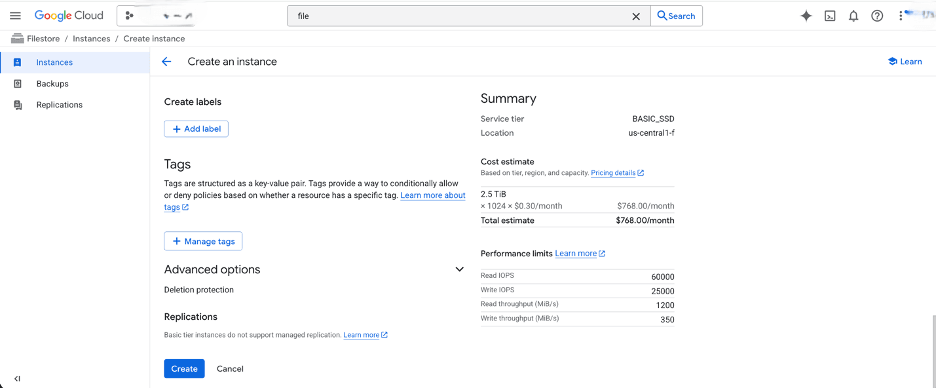
- Once the creation is complete, you can review it from the Instances list.
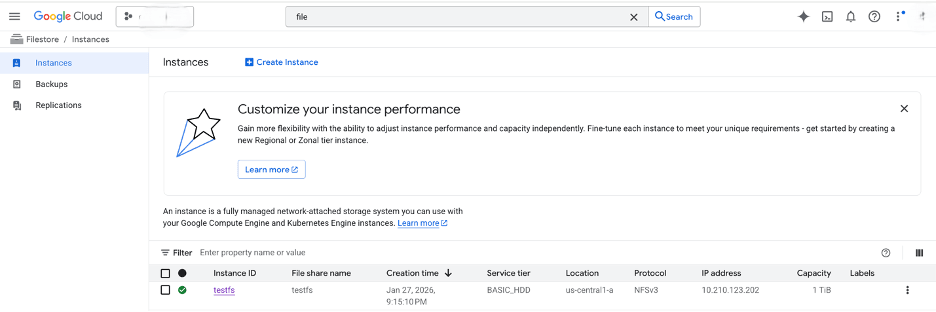
- After the Google Cloud Filestore instance is created, the NFS file share can be mounted on the source and target Oracle Database hosts and used as a shared landing zone for migration artifacts such as RMAN backups, Oracle Data Pump exports, and transportable tablespace files.
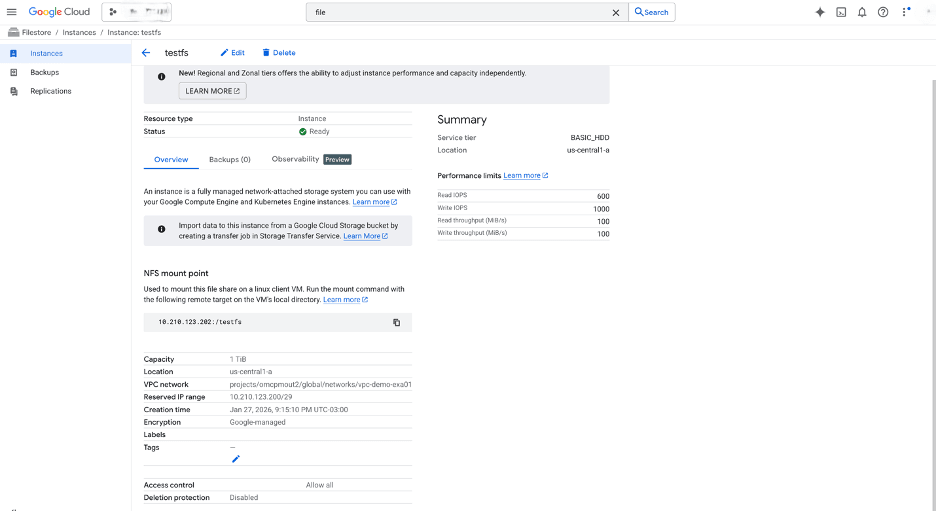
- From Google Cloud console, navigate to Filestore and select the instance you created previously.
- Select the Overview tab and then scroll down to NFS mount point section. This provides the mount command that is required to mount the Google Cloud Filestore on the Linux Client VM.
Mounting a Google Cloud Filestore File Share on a Compute Engine VM Instance
- Install NFS Client Software
- To install NFS utilities before mounting, run the following command:
# RHEL / CentOS
sudo yum update && sudo yum install nfs-utils
- To install NFS utilities before mounting, run the following command:
- Create a Local Mount Directory
- Create a directory on the client where the Filestore share will be mounted:
sudo mkdir -p /mnt/filestore-share
- Create a directory on the client where the Filestore share will be mounted:
- Mount the File Share Using Mount
To mount an NFS file share, use the
mountcommand. ReplaceFQDN or IP Address of FileshareandMount Pathwith your values. In the following example, values are used from the NFS mount point section of thetestfsGoogle Cloud Filestore file share.If you have configured a Fully Qualified Domain Name (FQDN), you can use it instead of the IP address. See the Migrate to Autonomous AI Database section for guidance on creating an FQDN and setting up DNS resolution.
- Run the following command after updating with your values:
sudo mount -o rw <FQDN or IP Address of Fileshare> <Mount Path>For example:sudo mount -o rw 10.210.123.202:/testfs /mnt/filestore-share
Recommended NFS Mount OptionsOption Purpose hard Retries NFS requests indefinitely for reliability. nconnect Improves performance with multiple parallel NFS connections. Note
Filestore shares are unmounted when the VM reboots unless you configure automatic mounting. - Run the following command after updating with your values:
- Verify the Mount and mount sub-directories of Google Cloud Filestore File Share
- To check that the Filestore share is mounted, run the following command:
df -h --type=nfs - After mounting the base share, you can create and mount sub-directories:
sudo mkdir -p /mnt/filestore-share/subdir sudo mount IP_ADDRESS:/share_name/subdir /mnt/filestore-share/subdir - To enable automatic mounting, add the mount entry to
/etc/fstab. For dynamic mounting, useautofs. For more information on all mounting options, see the Mounting Filestore file share documentation.
- To check that the Filestore share is mounted, run the following command:
Running Impdp Using Filestore
Once you have successfully mounted the Google Cloud Filestore share (or a sub-directory of it) on your VM client in the Oracle AI Database@Google Cloud, you can gain access to a high-performance, fully managed NFS file system. This setup is important because Oracle Exadata Infrastructure is native to the same Google Cloud regions as Google Cloud Filestore, delivering low-latency, high-throughput file access without cross-cloud data movement.
The following example shows how to run an import job using dump files stored on the fileshare.
- Staging Area for Data Pump Exports/Imports (Migrations and Bulk Loads)
- Use the mounted Filestore as a shared staging location for Oracle Data Pump dump files (.dmp).
- Place large export files from on-premises or other environments directly on the Filestore share. For example:
/mnt/filestore-share/datapump/ - Run
impdpfrom your Exadata Database nodes or client VMs, referencing the local mount path instead of Google Cloud Storage URLs. - Example command from a mounted client or Oracle Exadata VM Cluster.
impdp system/password@exadata_pdb \
  directory=DATA_PUMP_DIR \
  dumpfile=/mnt/filestore-share/datapump/sales_export.dmp \
  logfile=import.log \
  schemas=SALES_APP \
  parallel=8
- Benefits: It is faster than pulling from Google Cloud Storage for very large files; supports parallel operations; easy sharing across multiple migration tools or teams. This approach is commonly used in Oracle Zero Downtime Migration setups to Oracle AI Database@Google Cloud.
Other use cases include:- Shared file repository for application binaries and configuration
- External tables and directory objects for file-based data access
- Backup and staging for RMAN or custom scripts
- Shared logging, auditing, and diagnostic files
Best Practices for Your Setup- Use automatic mounting in
/etc/fstabwith_netdevand appropriate NFS options such asrsize=32768,wsize=32768, andnconnect=8for performance. - For dynamic mounting, configure
autofsto mount on demand. - Monitor Filestore performance via the Google Cloud Console (IOPS, throughput), and choose the appropriate tier. For example:
- Zonal for low latency
- Regional for high availability
- Ensure security: Use VPC peering if needed, IAM for Filestore access controls, and Oracle OS-level permissions on mount points.
- Test failover and high availability. Filestore regional instances replicate across zones.
Conclusion
Google Cloud Filestore offers managed, scalable NFS file shares that can be mounted on Compute Engine VMs (Linux and Windows) using standard NFS mount options. This workflow provides shared filesystem semantics similar to NFS shares used in other cloud environments, with integration into Google Cloud networking and security.
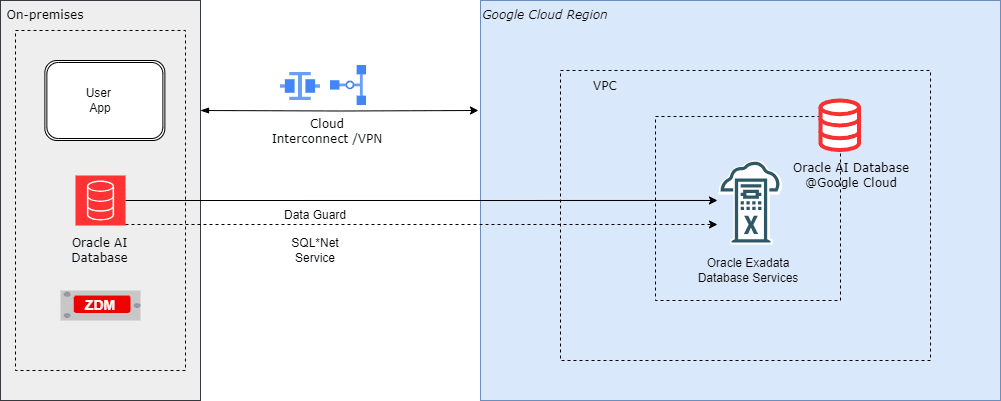
For more information, see the following resources:Oracle Data Guard supports high availability and disaster recovery by maintaining a synchronized standby database. For migration, you can set up a physical standby database in the target environment, such as new hardware, cloud infrastructure, or a different database version for an upgrade. Synchronize the standby database with the primary database, and then perform a switchover so that the standby database becomes the new primary database. This approach reduces downtime to seconds during the switchover.
This guide describes a physical standby configuration for migration based on standard practices. It assumes a single-instance configuration for simplicity. For Oracle Real Application Clusters (RAC) configurations, adjust the steps accordingly. For upgrades, such as from 12c to 19c, the standby database runs a higher database version by using mixed-version support, available from 11.2.0.1 and later. If applicable, use Zero Downtime Migration (ZDM) to automate cloud migrations.
Assumptions:
- The source (primary) server and the target (standby) server have compatible operating systems and sufficient resources.
- Oracle Database Enterprise Edition (Oracle Data Guard is included).
- Basic networking such as firewalls allow port 1521 for the listener and port 22 for SSH.
Solution Architecture
Prerequisites
Before you start, ensure the following prerequisites:
- Source Database:
- Run the database in
ARCHIVELOGmode.SELECT log_mode FROM v$database;The query returnsARCHIVELOG. If the database does not run inARCHIVELOGmode, enableARCHIVELOGmode. This change requires downtime:SHUTDOWN IMMEDIATE; STARTUP MOUNT; ALTER DATABASE ARCHIVELOG; ALTER DATABASE OPEN; - Enable
FORCE LOGGING.ALTER DATABASE FORCE LOGGING; - Add standby redo logs (one more group than online redo logs, same size). Query
v$logfor sizes, then add standby redo logs for each thread:ALTER DATABASE ADD STANDBY LOGFILE GROUP <n> ('<path>') SIZE <size>; - Configure
tnsnames.oraentries for the primary database and the standby database. - Configure RMAN control file autobackup:
CONFIGURE CONTROLFILE AUTOBACKUP ON; - For upgrades, ensure that the source and target database versions are compatible per Oracle support guidance, for example, Doc ID 785347.1.
- Run the database in
- Target Server
- Install Oracle binaries. Use the same database version, or a higher database version for an upgrade.
- Create directories that match the source environment, for example:
/u01/oradata,/u01/frafor the Fast Recovery Area. - Configure SSH key-based access from the source to the target and from the target to the source for users such as
oracle. - Start the listener and configure
tnsnames.oraentries for the primary database and the standby database. - For Zero Downtime Migration (optional automation), install the ZDM software on a separate host and configure the response file.
- Networking
- Set up Google Cloud Interconnect (Dedicated or Partner) or Site-to-Site VPN to provide a private, high-performance path for redo transport to the GCP standby.
- Ensure the SQL*Net connectivity. Test
tnspingbetween hosts. - Configure time synchronization. Use NTP.
- Backup Storage
If you use ZDM or external backups.
- Ensure access to Object Storage, NFS, or ZDLRA.
- Tools (Optional)
- Use Oracle AutoUpgrade for upgrades.
- Use ZDM for cloud migrations. ZDM uses Oracle Data Guard automatically.
Use the following table to configure key initialization parameters on the primary database and propagate these parameter settings to the standby database.Parameter Value Example Purpose DB_NAME'orcl'Same on primary and standby. DB_UNIQUE_NAME'orcl_primary' (primary), 'orcl_standby' (standby)Unique identifier for Data Guard. LOG_ARCHIVE_CONFIG'DG_CONFIG=(orcl_primary,orcl_standby)'Enables sending/receiving logs. STANDBY_FILE_MANAGEMENT'AUTO'Auto-creates files on standby. FAL_SERVER'standby_tns'Fetch Archive Log server for gap resolution. LOG_ARCHIVE_DEST_2'SERVICE=standby_tns ASYNC VALID_FOR=(ONLINE_LOGFILES,PRIMARY_ROLE) DB_UNIQUE_NAME=orcl_standby'Remote archive destination. - Prepare the Primary Database
- Enable the required features as SYS:
ALTER DATABASE FORCE LOGGING; ALTER SYSTEM SET LOG_ARCHIVE_CONFIG='DG_CONFIG=(<primary_unique_name>,<standby_unique_name>)' SCOPE=BOTH; ALTER SYSTEM SET STANDBY_FILE_MANAGEMENT=AUTO SCOPE=BOTH; - Add standby redo logs (example for 3 online groups, add 4 standby groups).
ALTER DATABASE ADD STANDBY LOGFILE THREAD 1 GROUP 4 ('/u01/oradata/standby_redo04.log') SIZE 100M; -- Repeat for additional groups. - Create a backup of the primary database using RMAN (include archivelogs for synchronization):
CONNECT TARGET / BACKUP DATABASE FORMAT '/backup/db_%U' PLUS ARCHIVELOG FORMAT '/backup/arc_%U'; BACKUP CURRENT CONTROLFILE FOR STANDBY FORMAT '/backup/standby_ctl.ctl'; - Copy the backup files, password file (
orapw<sid>), and parameter file (init.oraorspfile) to the target server.
- Enable the required features as SYS:
- Prepare the Standby Database Server
- Install Oracle software (match or higher version for upgrade).
- Create necessary directories:
mkdir -p /u01/oradata/<db_name>mkdir -p /u01/fra/<DB_UNIQUE_NAME_upper>mkdir -p /u01/app/oracle/admin/<db_name>/adump - Edit the copied parameter file on standby:
- Set
DB_UNIQUE_NAMEto the standby value. - Set
FAL_SERVERto the primary TNS name. - Adjust paths if needed. For example,
CONTROL_FILES, DB_RECOVERY_FILE_DEST.
- Set
- Start the standby instance in
NOMOUNT:CREATE SPFILE FROM PFILE='/path/to/init.ora';STARTUP NOMOUNT;
- Create the Standby Database
- Use RMAN to duplicate the database from the active database :
CONNECT TARGET sys/<password>@primary_tns CONNECT AUXILIARY sys/<password>@standby_tns
          DUPLICATE TARGET DATABASE FOR STANDBY FROM ACTIVE DATABASE DORECOVER
          NOFILENAMECHECK;
Alternative: If you use backup files, duplicate the database for standby from a backup location:DUPLICATE DATABASE FOR STANDBY BACKUP LOCATION '/backup' NOFILENAMECHECK; - On standby, start managed recovery:
ALTER DATABASE RECOVER MANAGED STANDBY DATABASE USING CURRENT LOGFILE;
- Use RMAN to duplicate the database from the active database :
- Configure Data Guard
- On primary, set remote logging:
ALTER SYSTEM SET LOG_ARCHIVE_DEST_2='SERVICE=<standby_tns> ASYNC VALID_FOR=(ONLINE_LOGFILES,PRIMARY_ROLE) DB_UNIQUE_NAME=<standby_unique_name>' SCOPE=BOTH;ALTER SYSTEM SET LOG_ARCHIVE_DEST_STATE_2=ENABLE SCOPE=BOTH;ALTER SYSTEM SET FAL_SERVER='<standby_tns>' SCOPE=BOTH; - On standby:
ALTER SYSTEM SET FAL_SERVER='<primary_tns>' SCOPE=BOTH; - (Optional) Enable Data Guard Broker for easier management:
- Set
DG_BROKER_START=TRUEon both. - Create the configuration:
DGMGRL> CREATE CONFIGURATION dg_config AS PRIMARY DATABASE IS <primary_unique_name> CONNECT IDENTIFIER IS <primary_tns>; - Add standby:
DGMGRL> ADD DATABASE <standby_unique_name> AS CONNECT IDENTIFIER IS <standby_tns>; - Enable the configuration:
DGMGRL> ENABLE CONFIGURATION;
- Set
- On primary, set remote logging:
- Verify Synchronization
- On primary, force log switches:
ALTER SYSTEM SWITCH LOGFILE; - On standby, check apply status:
SELECT PROCESS, STATUS, THREAD#, SEQUENCE# FROM v$managed_standby;Look for
MRP0applying logs. - Check for gaps:
SELECT * FROM v$archive_gap;The output should return no rows.
- Monitor lag:
SELECT NAME, VALUE FROM v$dataguard_stats WHERE NAME = 'apply lag';
Allow time for full sync before migration.
- On primary, force log switches:
- Perform Switchover (Migration Cutover)
- Stop applications connected to primary (minimal downtime starts here).
- Verify no gaps and stop recovery on standby:
ALTER DATABASE RECOVER MANAGED STANDBY DATABASE CANCEL; - Using Broker (recommended):
DGMGRL> SWITCHOVER TO <standby_unique_name>;- Manual alternative:
- On primary:
ALTER DATABASE COMMIT TO SWITCHOVER TO PHYSICAL STANDBY WITH SESSION SHUTDOWN; - On old primary (now standby):
STARTUP MOUNT; ALTER DATABASE RECOVER MANAGED STANDBY DATABASE DISCONNECT; - On new primary (old standby):
ALTER DATABASE COMMIT TO SWITCHOVER TO PHYSICAL PRIMARY WITH SESSION SHUTDOWN; ALTER DATABASE OPEN;
- On primary:
- Manual alternative:
- Verify roles:
SELECT DATABASE_ROLE FROM v$database;New primary should be
PRIMARY. - Redirect applications to new primary.
- (Optional) Decommission old primary or keep as new standby.
Optional: Upgrading During Migration
If you migrate to a later database version:
- Install the later-version Oracle Database binaries on the target server.
- After the step 3, activate the standby database for the upgrade:
ALTER DATABASE ACTIVATE STANDBY DATABASE; - Start the database in upgrade mode:
STARTUP UPGRADE; - Use AutoUpgrade:
- Create the configuration file.
- Run the following command.
java -jar autoupgrade.jar -config <file> -mode upgrade
- After the upgrade:
- Run the following command.
datapatch - Open the database.
- Continue with the database as the new primary database.
- Run the following command.
Using Zero Downtime Migration (ZDM) for Automation
For cloud migrations, for example, to Oracle Cloud Infrastructure (OCI):
- Install ZDM on a dedicated host.
- Create a response file with parameters such as
MIGRATION_METHOD=ONLINE_PHYSICAL,DATA_TRANSFER_MEDIUM=OSS, andTGT_DB_UNIQUE_NAME. - Run the following with an evaluation run first, and then run the full migration. Pause after the Data Guard configuration step for verification.
zdmcli migrate database -rsp <file> -sourcesid <sid> ... - ZDM automates the backup, standby database creation, and switchover.
Troubleshooting Tips
- Common errors:
- ORA-01110 (file mismatch): Check file paths.
- Apply lag:
- Verify the network connection and increase available bandwidth.
- For additional details:
- Review the alert log and Oracle Data Guard dynamic performance views, such as
v$dataguard_status
- Review the alert log and Oracle Data Guard dynamic performance views, such as
- Test the procedure in a non-production environment first.
- Refer to Oracle documentation for version-specific differences.
This process supports a near-zero-downtime migration.