Base Database - Clone
-
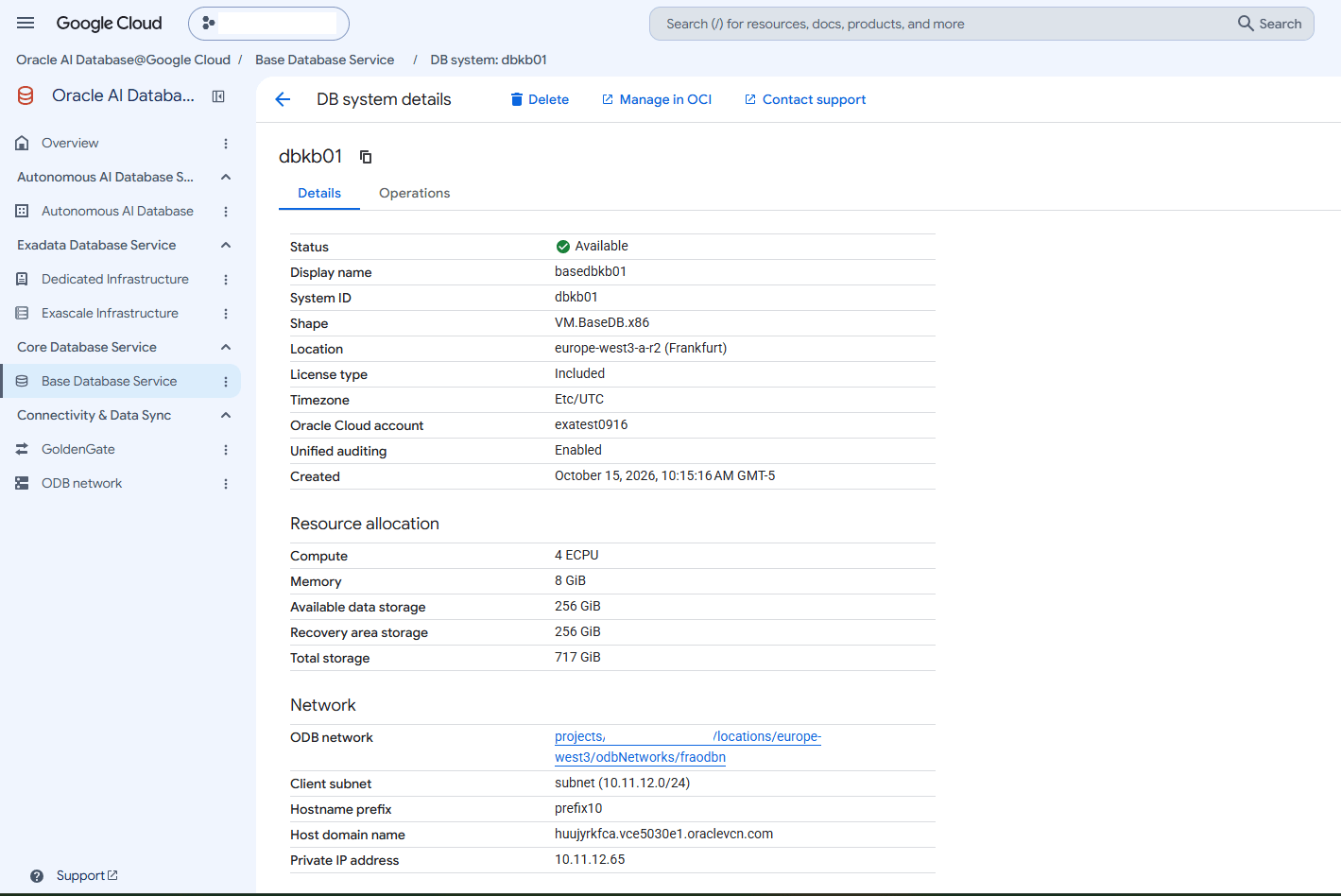
From the Oracle AI Database@Google Cloud dashboard, select Core Database Service, and then select Base Database Service from the left menu.
-
From the DB systems list, select the Base Database that you are using.
-
Select the Manage in OCI link.
-
Note
Note: If you use an identity provider such as Okta or Ping instead of Google Cloud Identity, complete the Federation step before proceeding.Clone a DB System
-
From the OCI console, select Oracle Base Database Service.
-
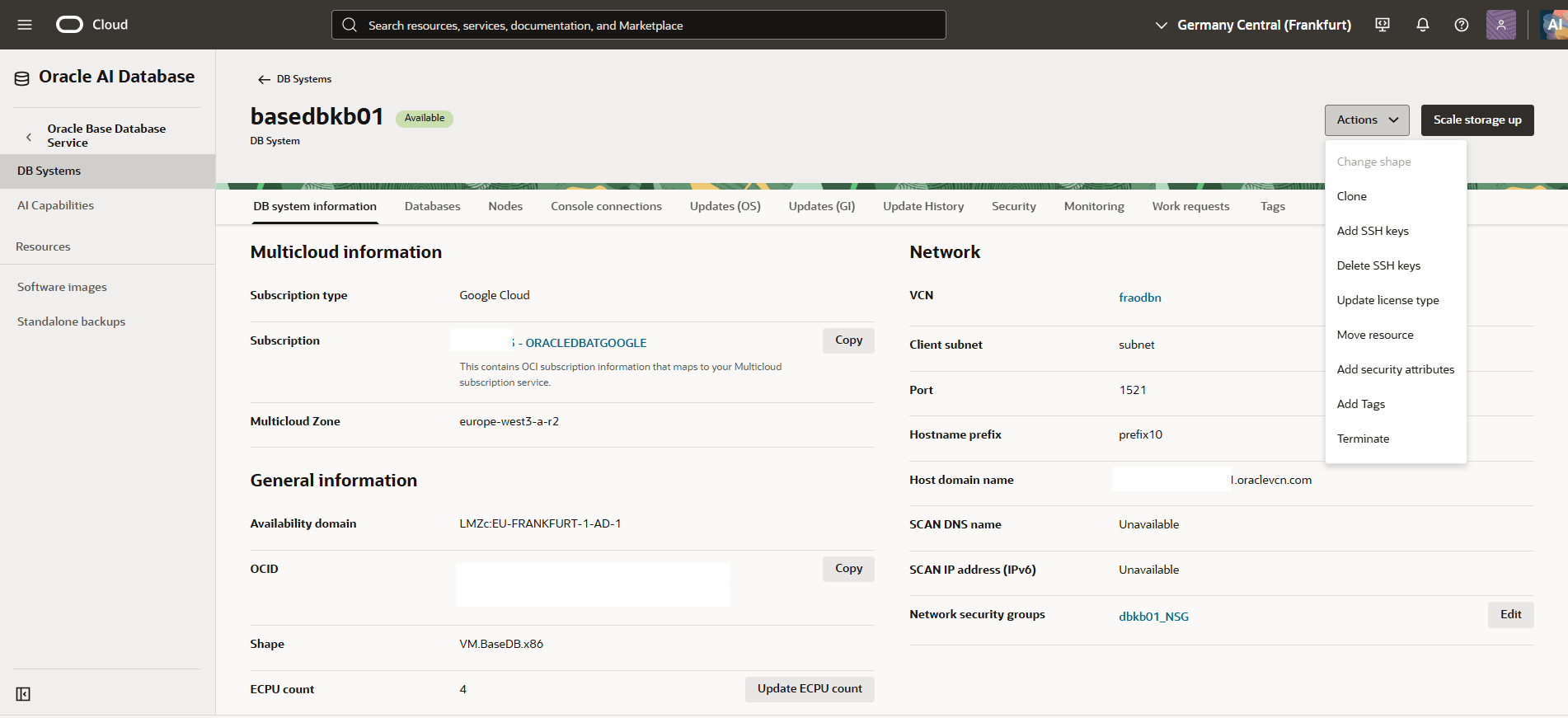
From the left menu, select DB Systems, and then select the Base Database that you want to clone.
-
Select the Actions button and then select Clone.
-
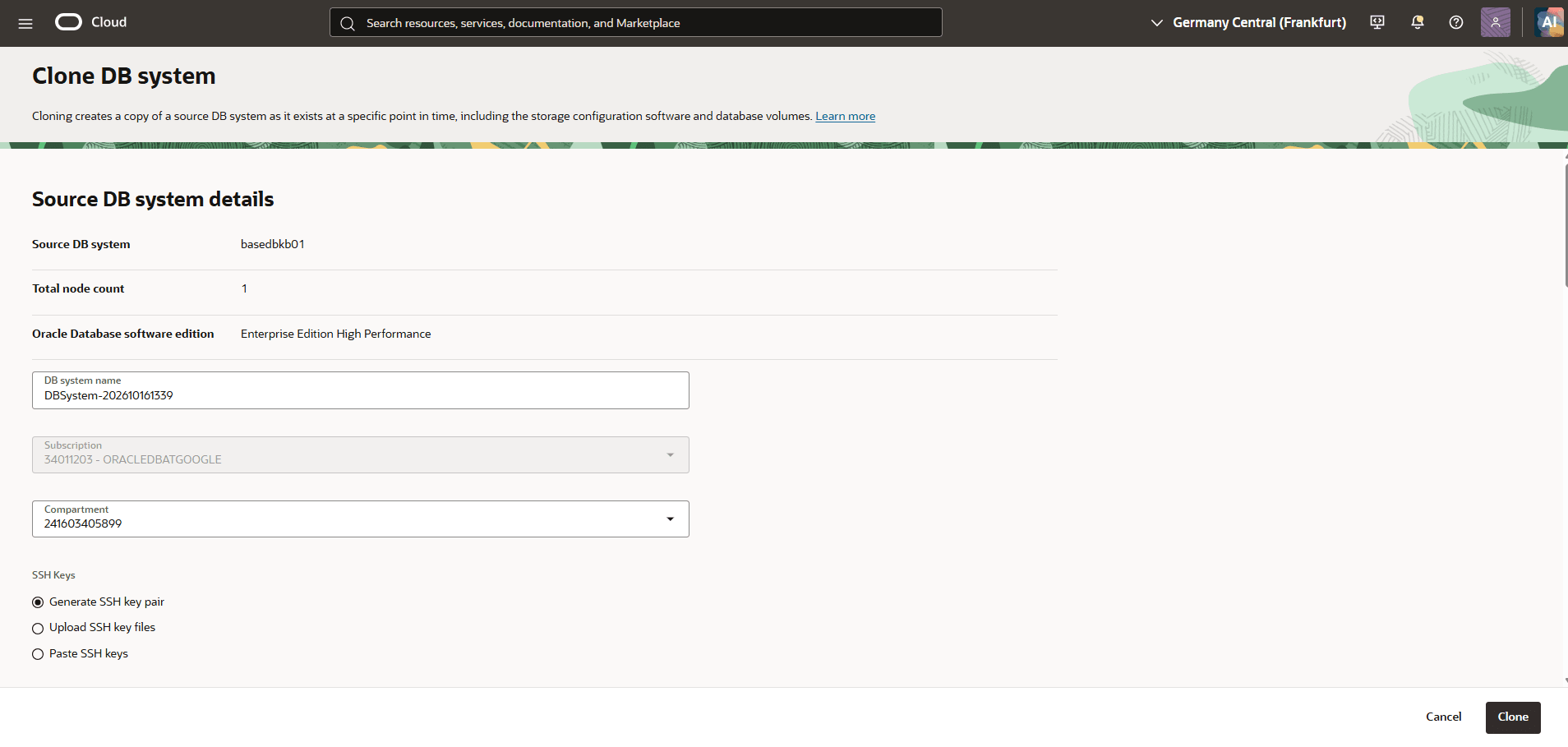
On the Clone DB system page, configure the settings to create a clone of the source DB system. Cloning creates a copy of the source DB system at a specific point in time, including the storage configuration, software, and database volumes.
- In the Source DB system details section, review the source DB system information and configure the settings for the cloned DB system
-
Source DB system: Review the name of the source DB system to be cloned.
-
Total node count: Review the total number of nodes in the source DB system.
-
Oracle Database software edition: Review the Oracle AI Database software edition associated with the source DB system.
-
DB system name: Enter a name for the cloned DB system or retain the prepopulated name. The Display name must be 1 to 255 characters, of letters, numbers, underscores () and hyphens (-). Display name must start with a letter or underscore() and cannot contain two successive hyphens(-).
-
Subscription: Review the selected subscription. This field is read-only.
-
Compartment: Select the compartment in which to create the cloned DB system from the dropdown list.
-
- In the SSH Keys section, configure the SSH keys for accessing the cloned DB system. Select one of the following options:
-
Generate SSH key pair: Select this option to generate a new SSH key pair. This option is selected by default.
-
Upload SSH key files: Select this option to upload existing SSH public key files.
-
Paste SSH keys: Select this option to paste existing SSH public keys.
-
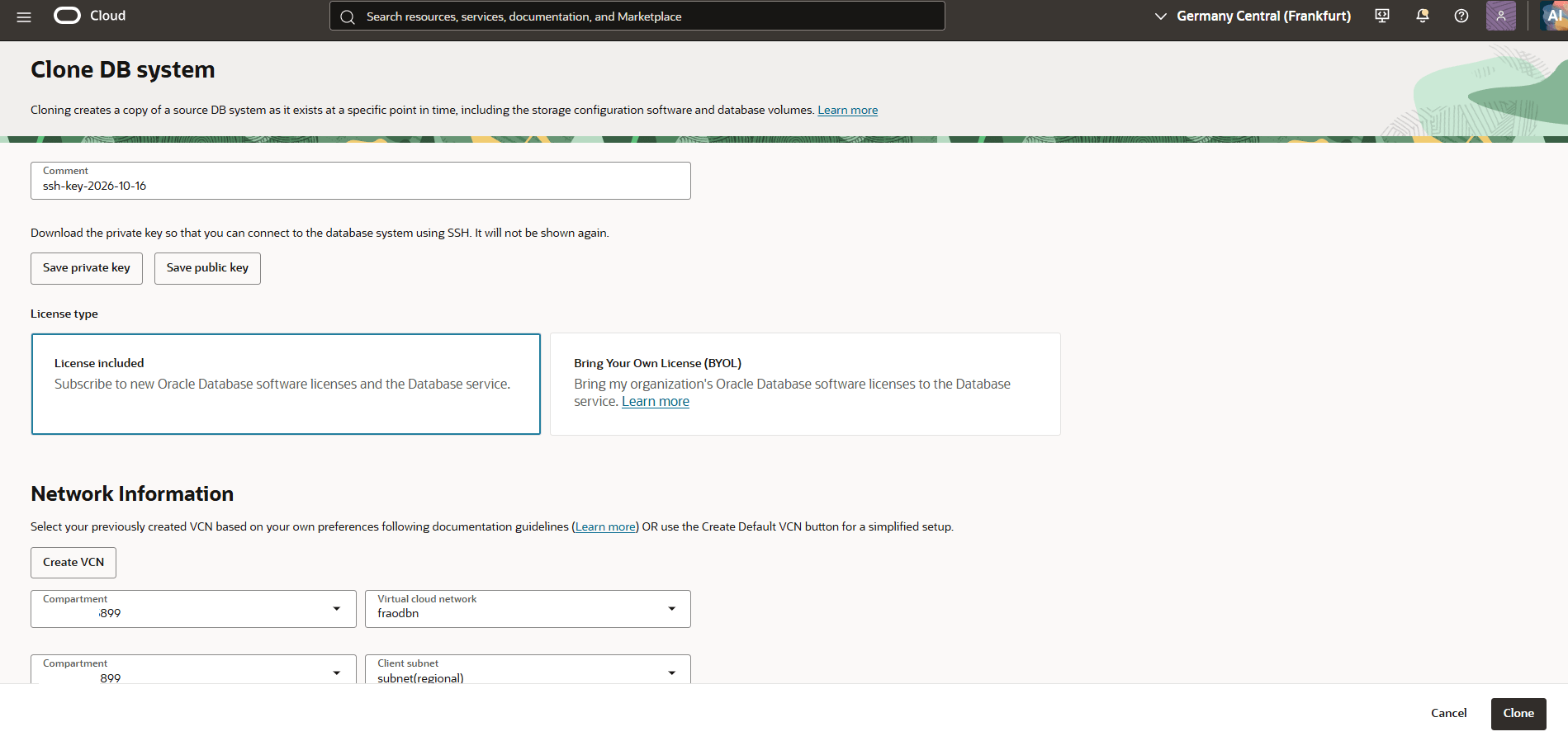
Comment: Enter a comment to identify the generated SSH key pair.
-
Save private key: Select Save private key to download the generated private key. Store the private key securely because it will not be displayed again. The private key is required to connect to the DB system using SSH.
-
Save public key: Select Save public key to download the generated public key.
-
- In the License type section, select the Oracle AI Database software licensing option for the cloned DB system. Select one of the following options:
-
License included: Select this option to subscribe to new Oracle AI Database software licenses and the Database service. This option is selected in the screenshot.
-
Bring Your Own License (BYOL): Select this option to use your organization’s existing Oracle AI Database software licenses with the Database service.
-
- In the Network Information section, configure the network settings for the cloned DB system.
-
Create VCN: Select Create VCN to create a new virtual cloud network (VCN).
-
Compartment: Select the compartment containing the VCN from the dropdown list.
-
Virtual cloud network: Select the VCN from the dropdown list.
-
Compartment: Select the compartment containing the client subnet from the dropdown list.
-
Client subnet: Select the client subnet from the dropdown list.
-
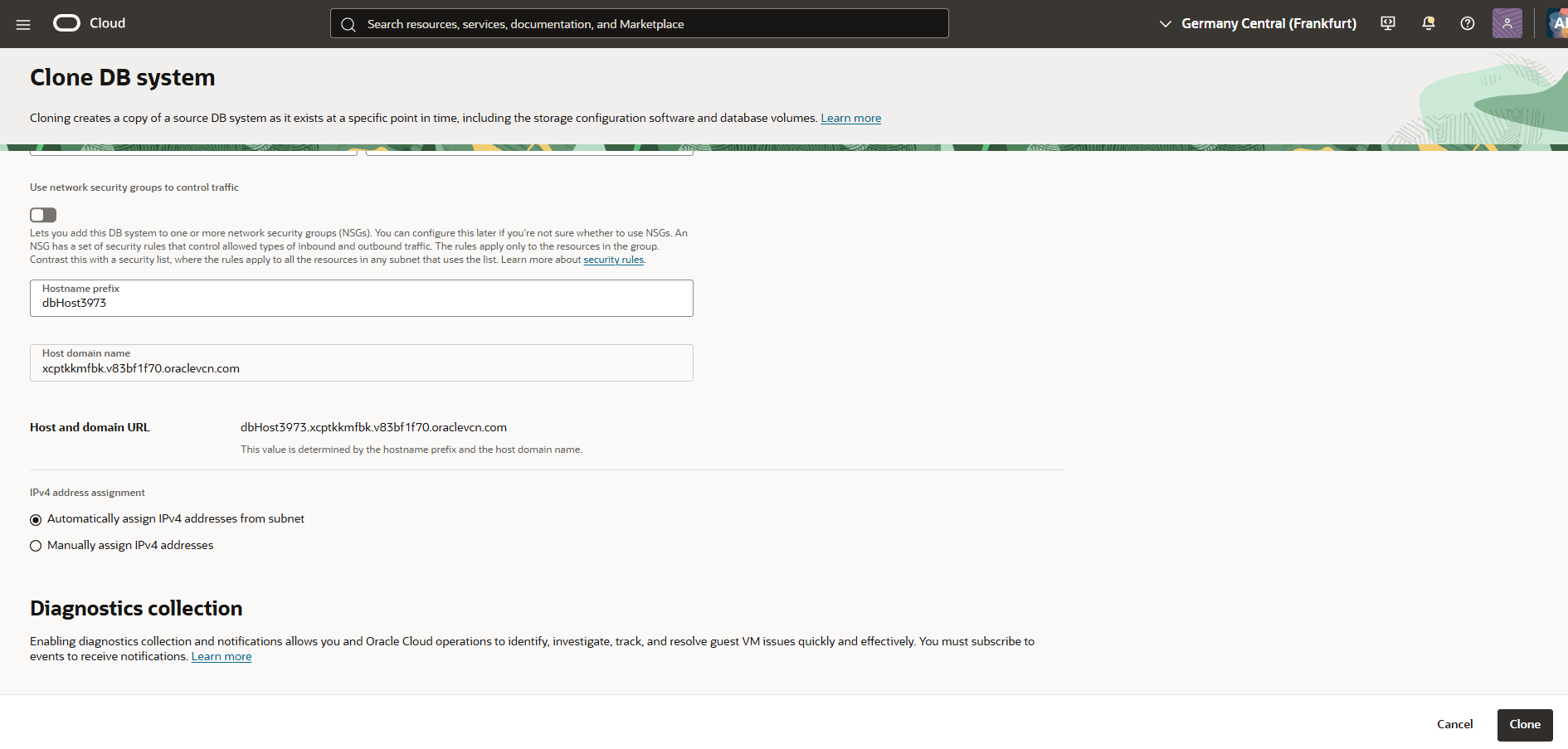
Use network security groups to control traffic: Enable the option if you want to add the DB system to one or more network security groups (NSGs) that control inbound and outbound traffic. You can configure NSGs later if needed.
-
Hostname prefix: Enter a hostname prefix for the cloned DB system or retain the prepopulated value.
-
Host domain name: Review the host domain name displayed for the selected network.
-
Host and domain URL: Review the generated host and domain URL. This value is determined by the hostname prefix and host domain name.
-
Select one of the following options as IPv4 address assignment:
-
Automatically assign IPv4 addresses from subnet: Select this option to automatically assign IPv4 addresses from the selected subnet. This option is selected in the screenshot.
-
Manually assign IPv4 addresses: Select this option to manually assign IPv4 addresses.
-
-
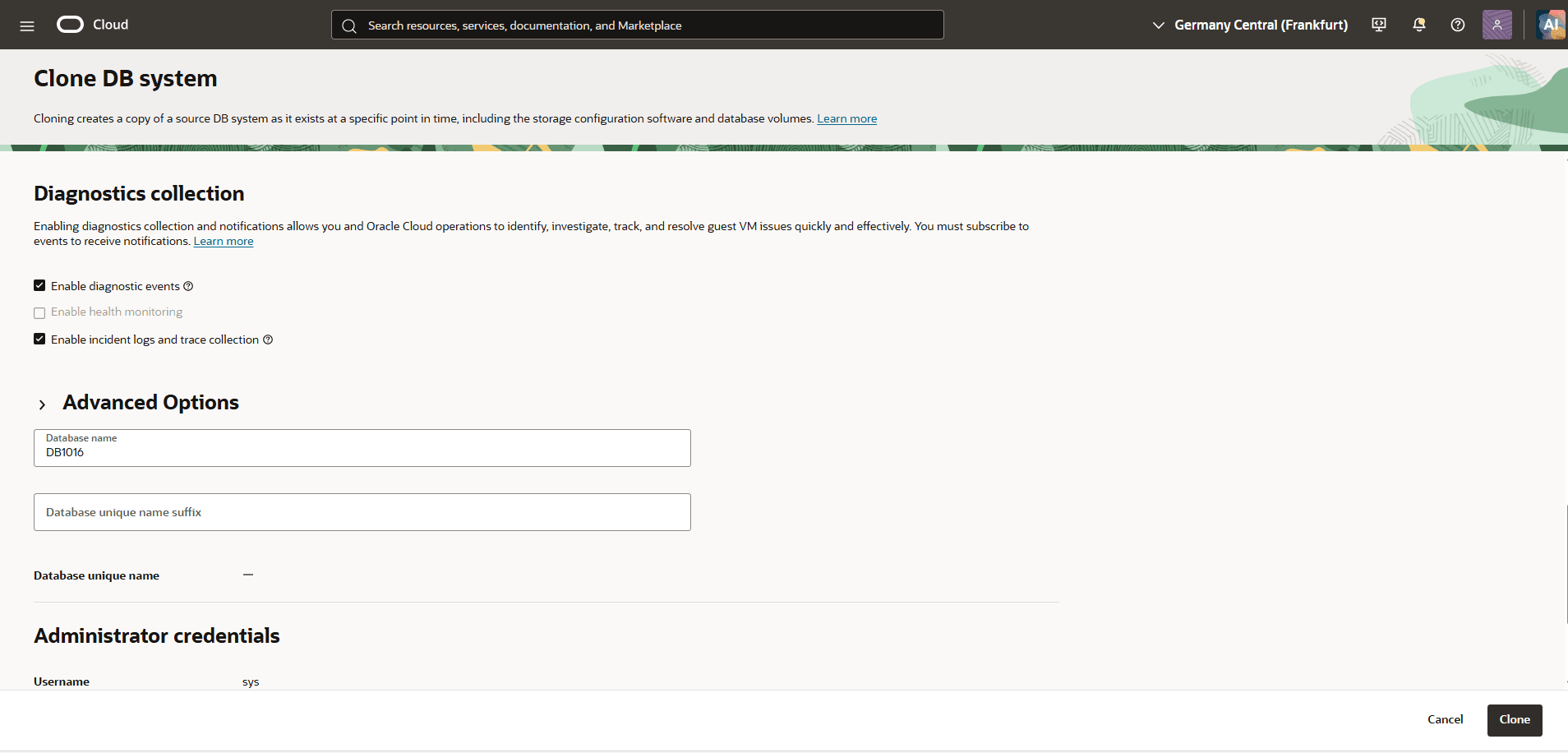
- In the Diagnostics collection section, review the information about diagnostics collection and notifications for the cloned DB system. Enable diagnostics collection and notifications to help you and Oracle Cloud Operations identify, investigate, track, and resolve guest VM issues quickly and effectively. You must subscribe to events to receive notifications.
-
Enable diagnostic events: Select this checkbox to enable diagnostic event collection.
-
Enable health monitoring: This option is unavailable.
-
Enable incident logs and trace collection: Select this checkbox to enable incident logs and trace collection.
-
-
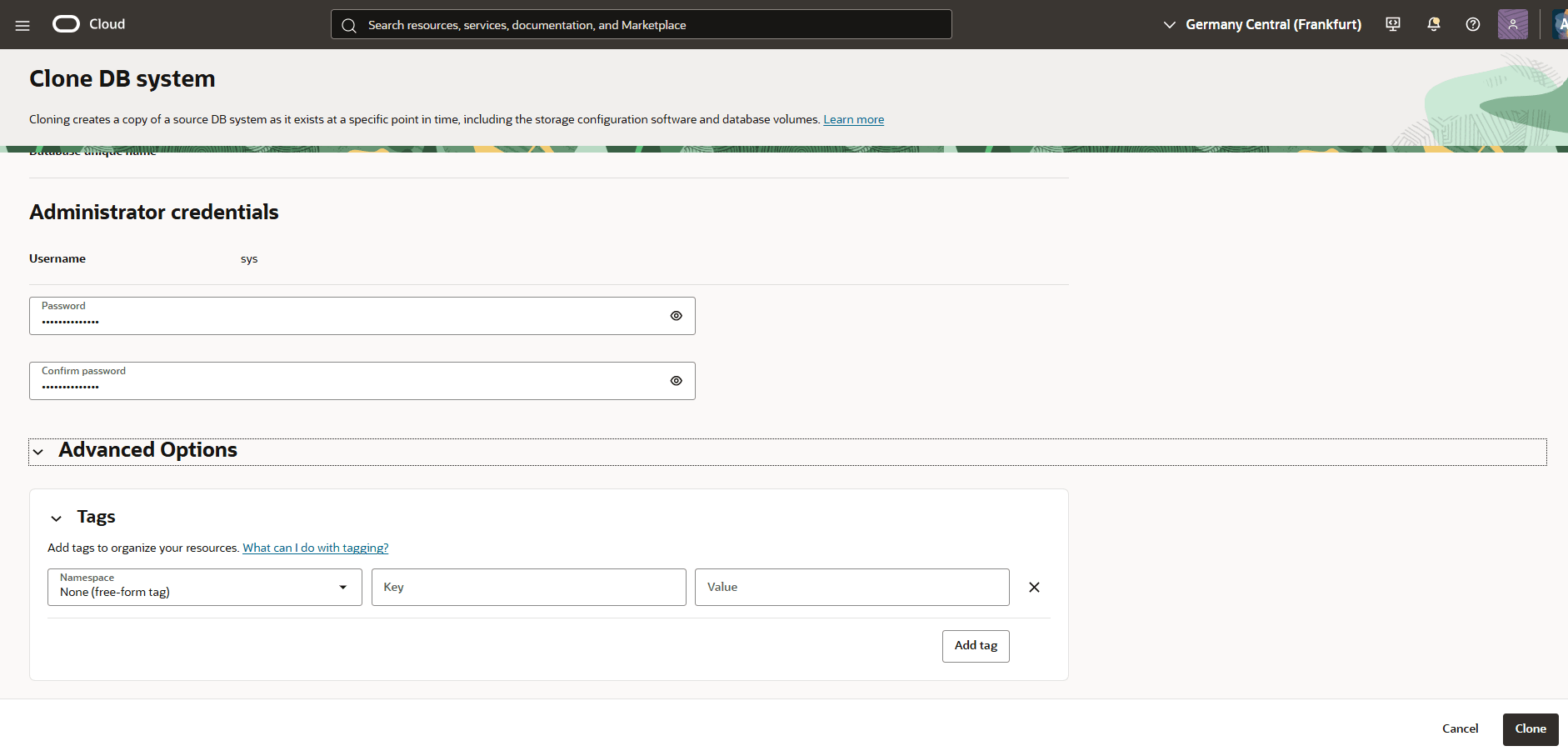
Expand the Advanced Options section to manage Security and Tags. From the Security section, you can add a security attribute to control access for your resources using Zero Trust Packet Routing (ZPR) policy. From the Tags section, you can add tags to organize your resources. These are optional steps.
- Configure the database details for the cloned DB system.
-
Database name: Enter a name for the database or retain the prepopulated value.
-
Database unique name suffix: Enter a suffix for the database unique name.
-
Database unique name: Review the database unique name displayed in this field.
-
- In the Administrator credentials section, configure the administrator credentials for the cloned database.
-
Username: Review the displayed database administrator username.
-
Password: Enter the password for the database administrator. The Password must be 9 to 30 characters and contain at least 2 uppercase, 2 lowercase, 2 special, and 2 numeric characters. The special characters must be _, #, or -.
-
Confirm password: Re-enter the password to confirm it matches the value entered in the Password field.
-
-
Select the Clone button to initiate the DB system cloning operation.
- In the Source DB system details section, review the source DB system information and configure the settings for the cloned DB system
Clone a Pluggable Database
-
From the OCI console, select Oracle Base Database Service.
-
From the left menu, select DB Systems, and then select the Base Database that you are using.
-
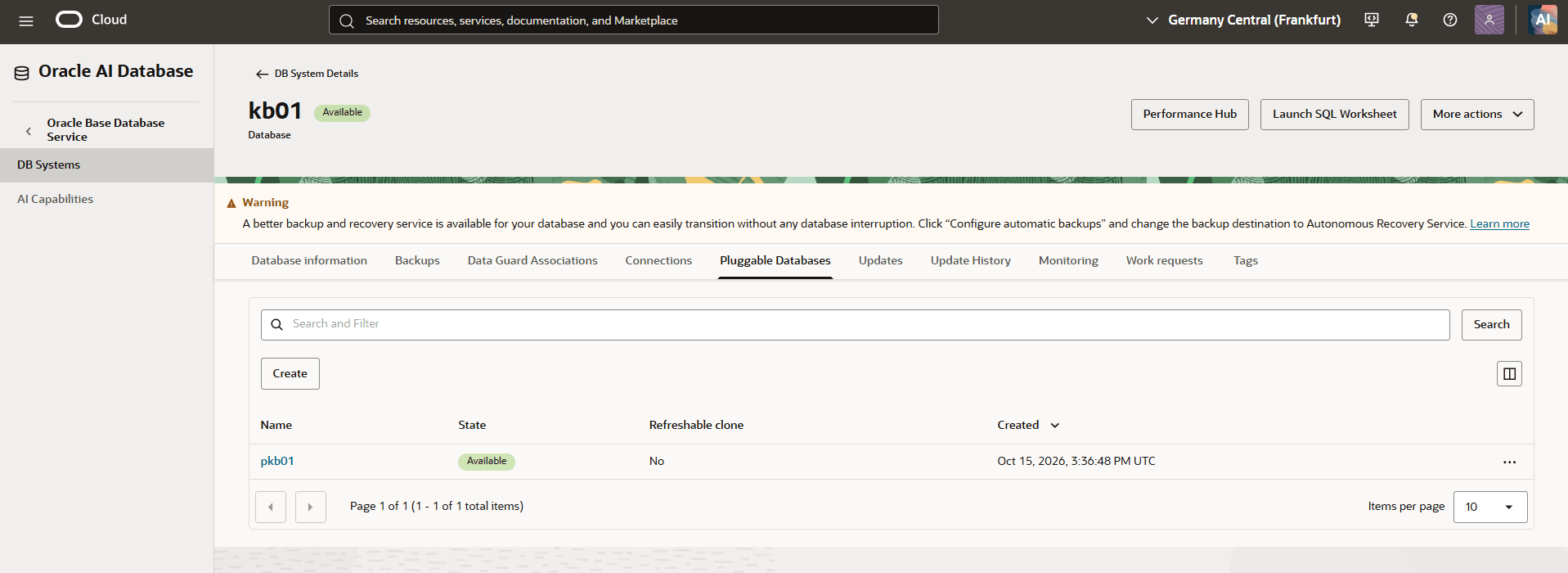
Select the Databases tab, and then select the Container Database (CDB) that you are using.
-
Select the Pluggable Databases tab, and then select the Pluggable Database (PDB) that you want to clone.
-
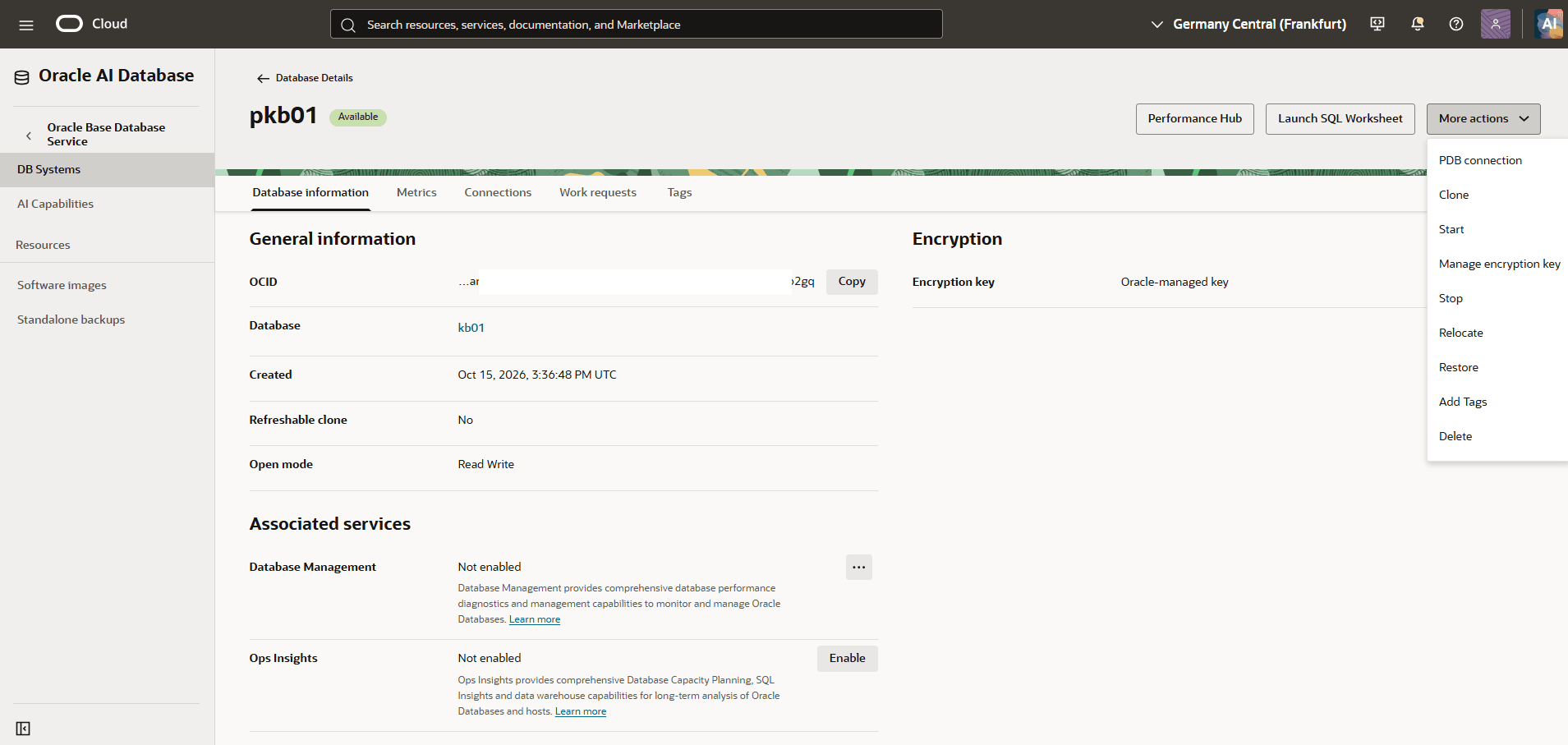
Select More actions in the upper-right corner of the Pluggable Database Details page and then select the Clone.
-
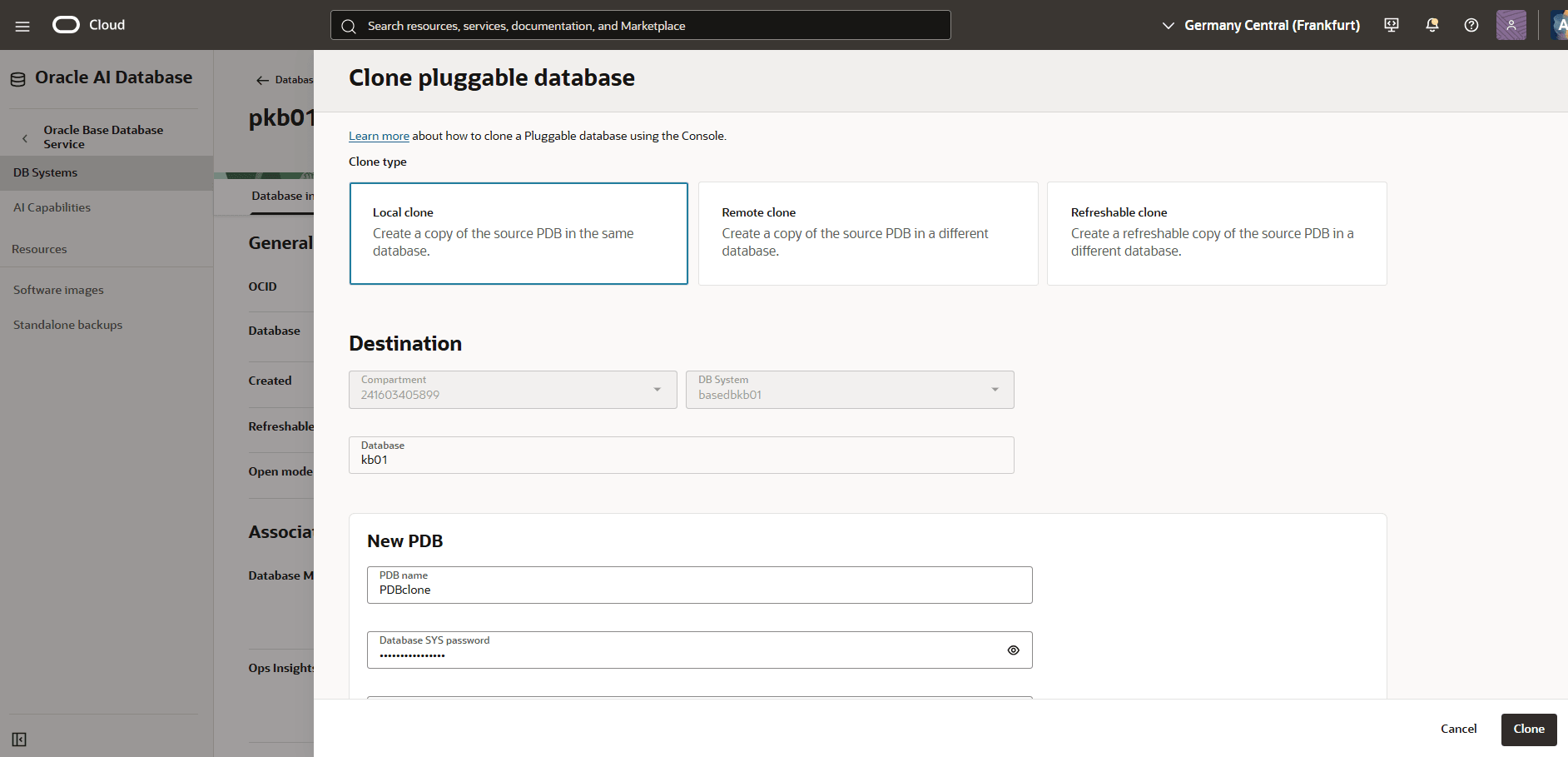
In the Clone pluggable database panel, configure the settings to create a clone of the selected pluggable database (PDB).
- Select a Clone type according to your requirements from one of the following options:
-
Local clone: Creates a copy of the source PDB in the same container database.
-
Remote clone: Creates a copy of the source PDB in a different container database.
-
Refreshable clone: Creates a copy of the source pluggable database on a different container database and be able to refresh the cloned DPB.
-
- In the Destination section, review the destination details for the cloned PDB.
-
Compartment: Review the compartment displayed for the destination. This field is read-only.
-
DB System: Review the destination DB system which the pluggable database will be cloned. This field is read-only.
-
Database: Select the destination database to which the pluggable database must be cloned.
-
- In the New PDB section, configure the details for the cloned pluggable database.
-
PDB name: Enter a name for the cloned pluggable database. The name must begin with an alphabetic character and can contain a maximum of 30 alphanumeric characters.
-
Database SYS password: Enter the SYS password for the database.
-
Database TDE wallet password: Enter the database Transparent Data Encryption (TDE) wallet password.
-
Unlock the PDB admin account: This option is optional. Enable this option if you want to provide a PDB administrator password and unlock the PDB administrator account.
-
Take a backup of the PDB immediately after cloning it: This option is unavailable, as shown in the screenshot. A PDB backup cannot be created if a backup of the container database has not been created previously.
-
-
Expand the Advanced options section to manage Tags for the cloned PDB. This is an optional step.
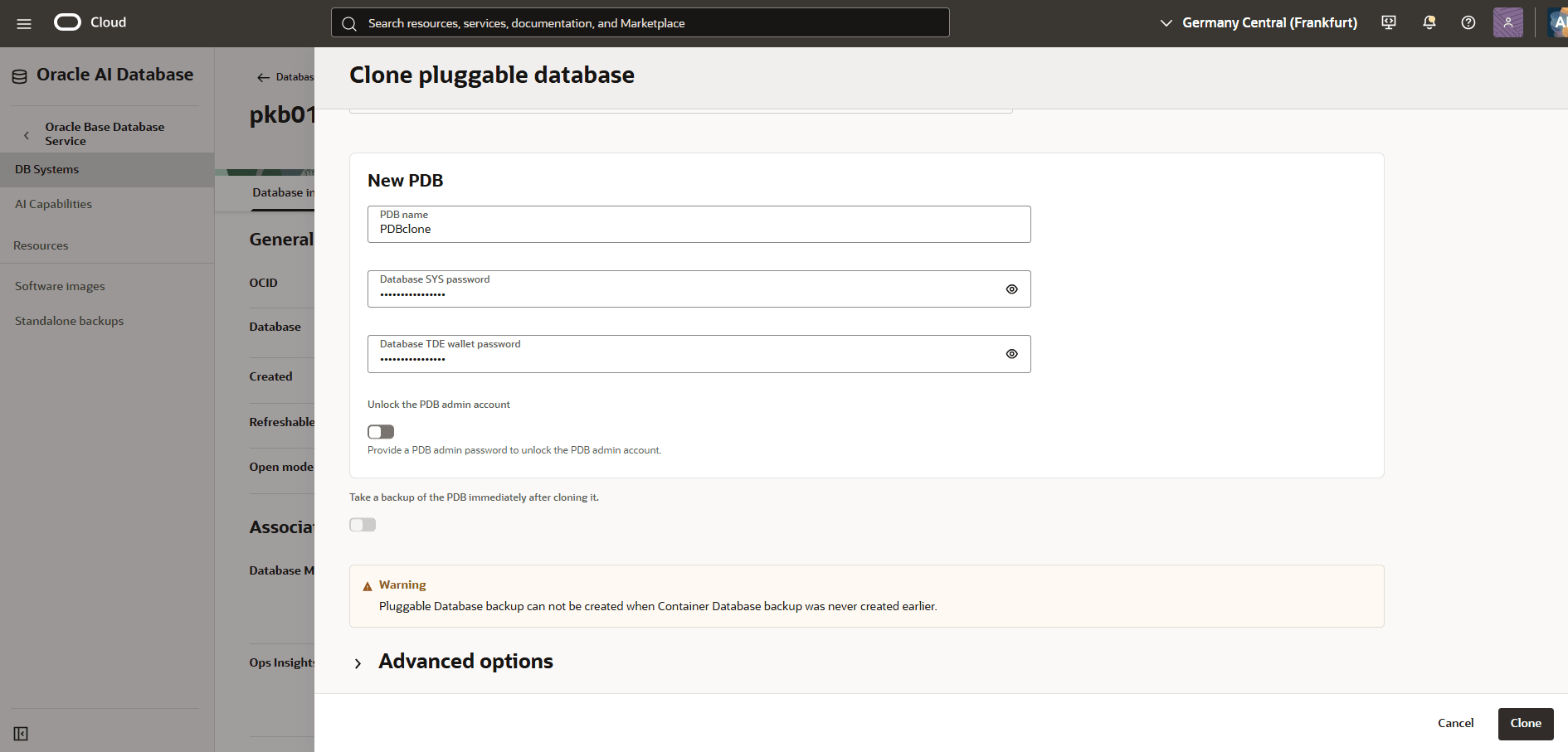
- Select Clone to initiate the PDB cloning operation.
- Select a Clone type according to your requirements from one of the following options:
-
You can clone a DB system using the OCI Console.
You can clone a DB system using the OCI Console.
There is currently no content for this page. Oracle AI Database@Google Cloud team intends to add content here, and this placeholder text is provided until that text is added. The Oracle AI Database@Google Cloud team is excited about future new features, enhancements, and fixes to this product and this accompanying documentation. We strongly recommend you watch this page for those updates.