Exascale Database - PITR
Learn how to perform a point-in-time restore for your Exascale Database.
There is currently no content for this page. Oracle AI Database@Google Cloud team intends to add content here, and this placeholder text is provided until that text is added. The Oracle AI Database@Google Cloud team is excited about future new features, enhancements, and fixes to this product and this accompanying documentation. We strongly recommend you watch this page for those updates.
Container Database (CDB) Point-in-Time Restores
- From the OCI console, select the VM Clusters.
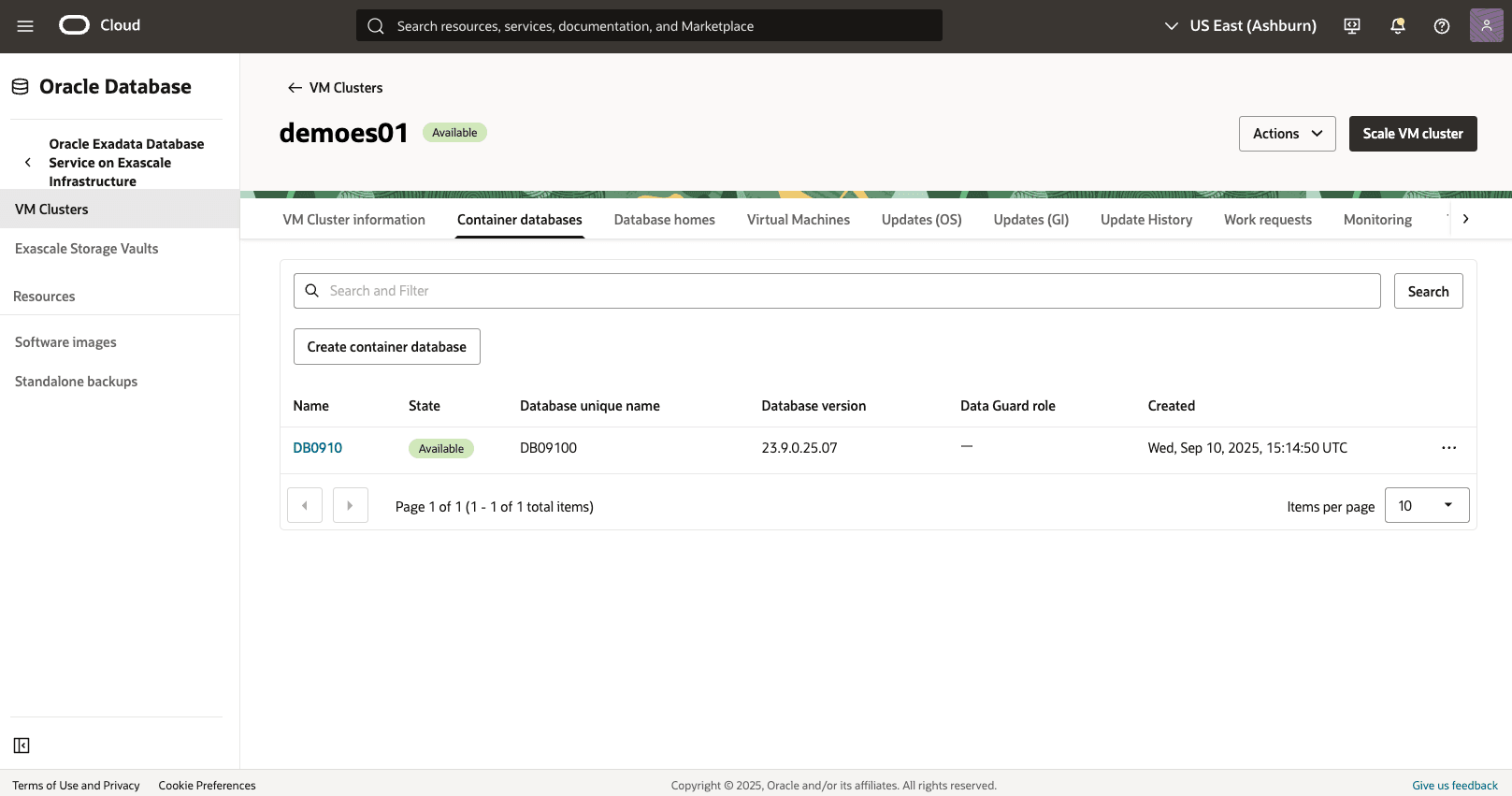
- Select Container Databases tab, and select the database that you are using.
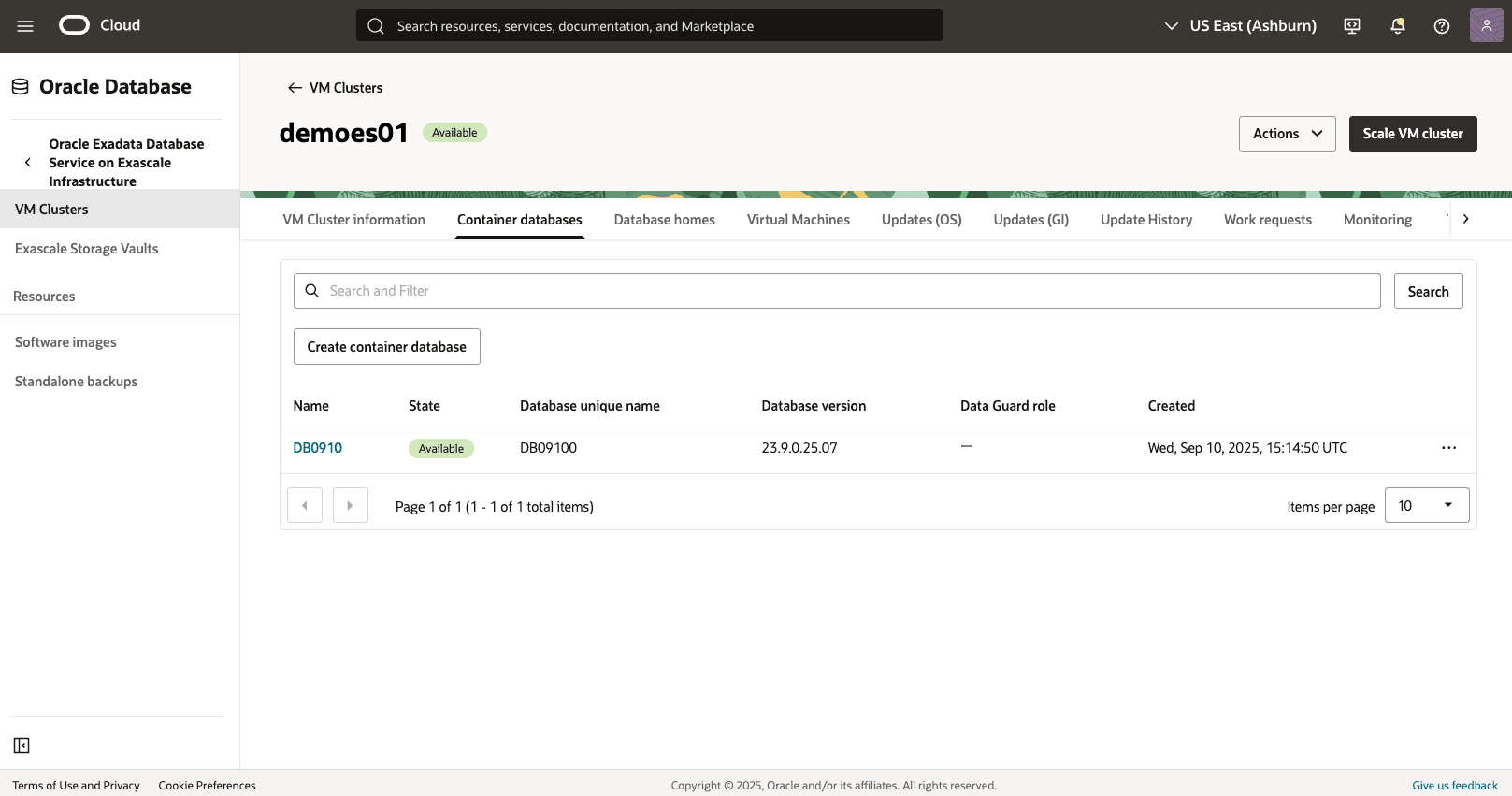
- Select the More actions button, and then select the Restore from the menu.
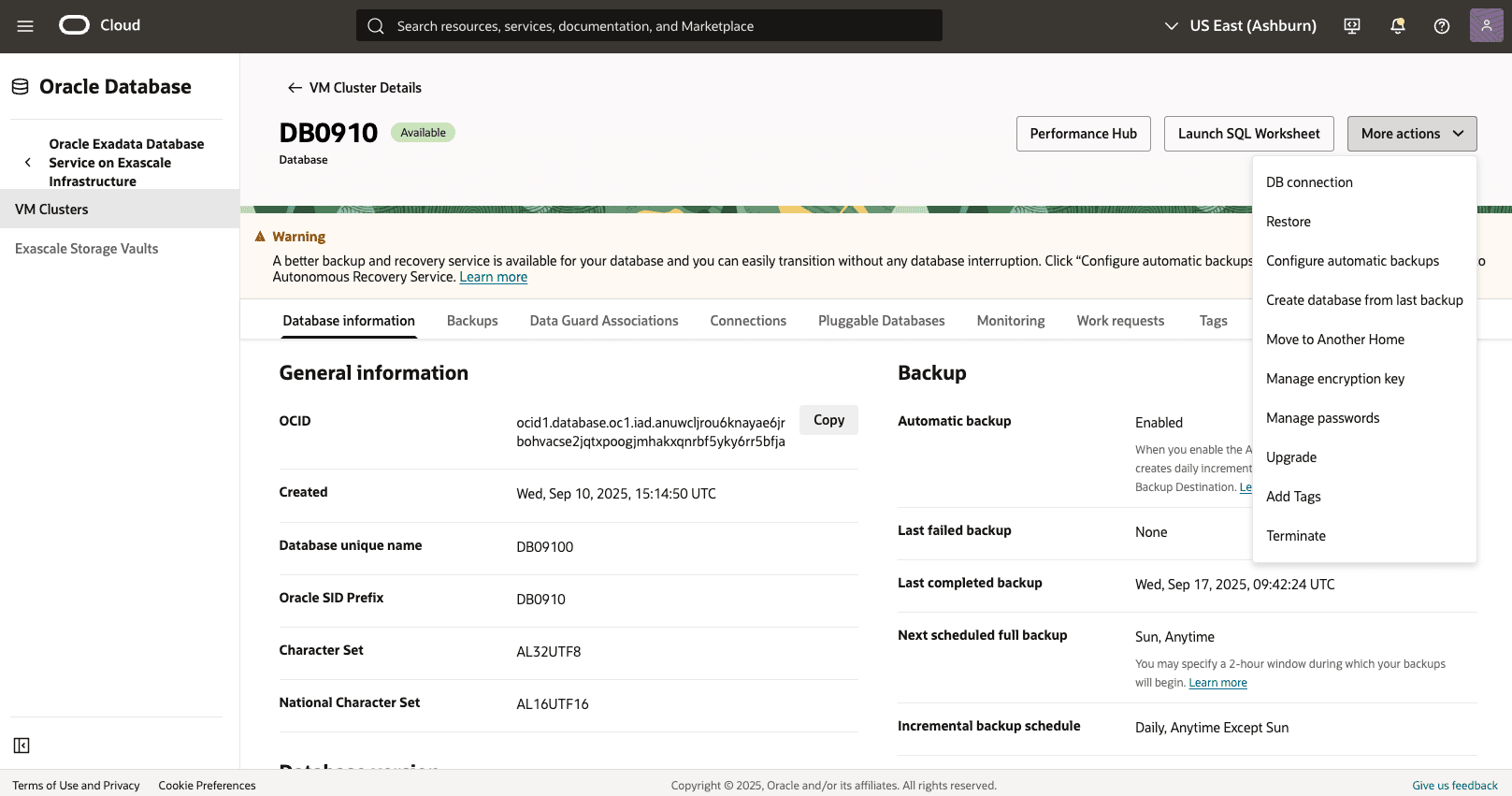
- From the Restore page, select Restore to a timestamp as your Restore type.
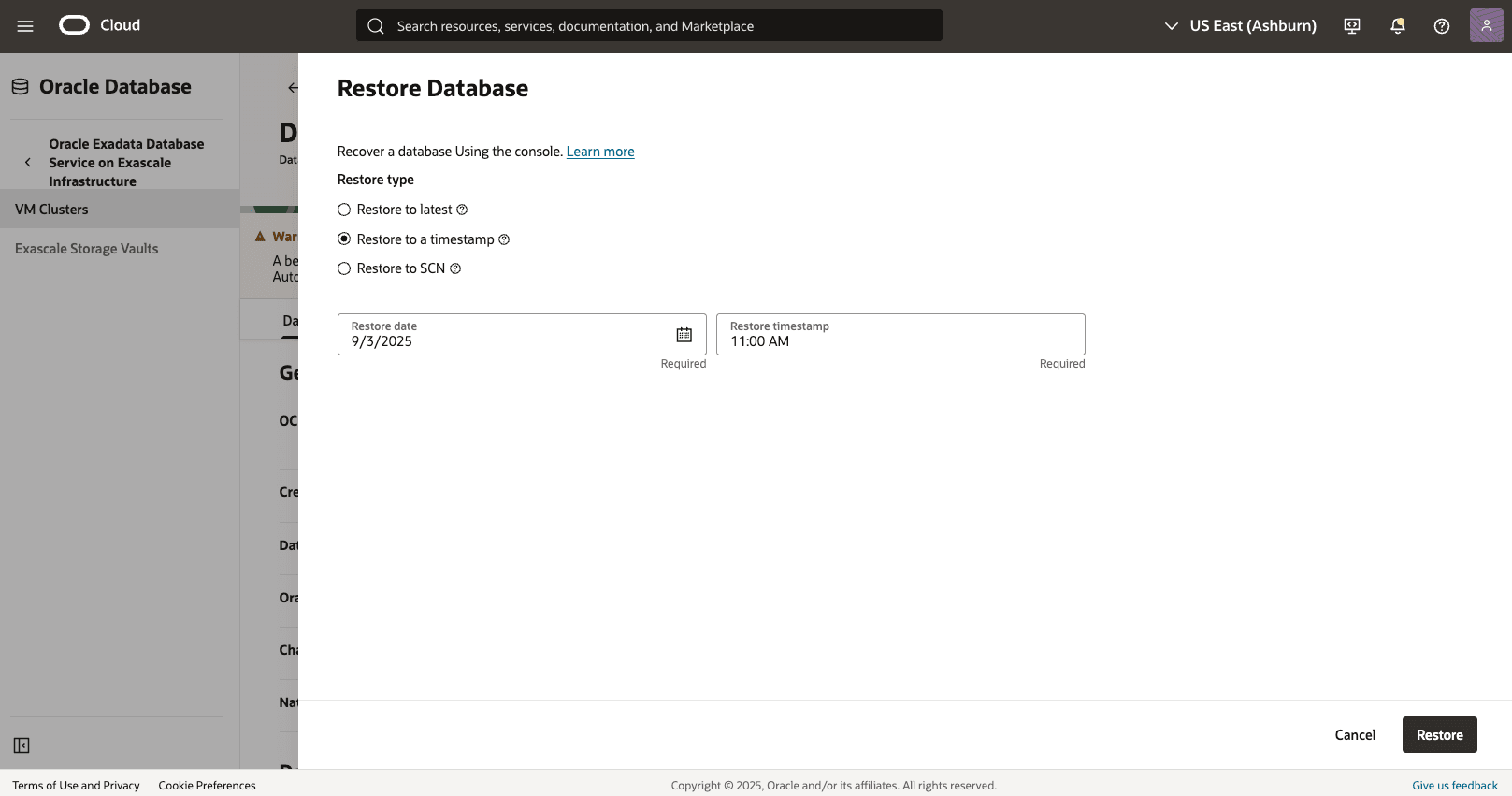
- Specify your Restore date and Restore timestamp, then select the Restore button.
- Return to the Container Database (CDB) page and select the Work requests tab to view the State of your restore process.
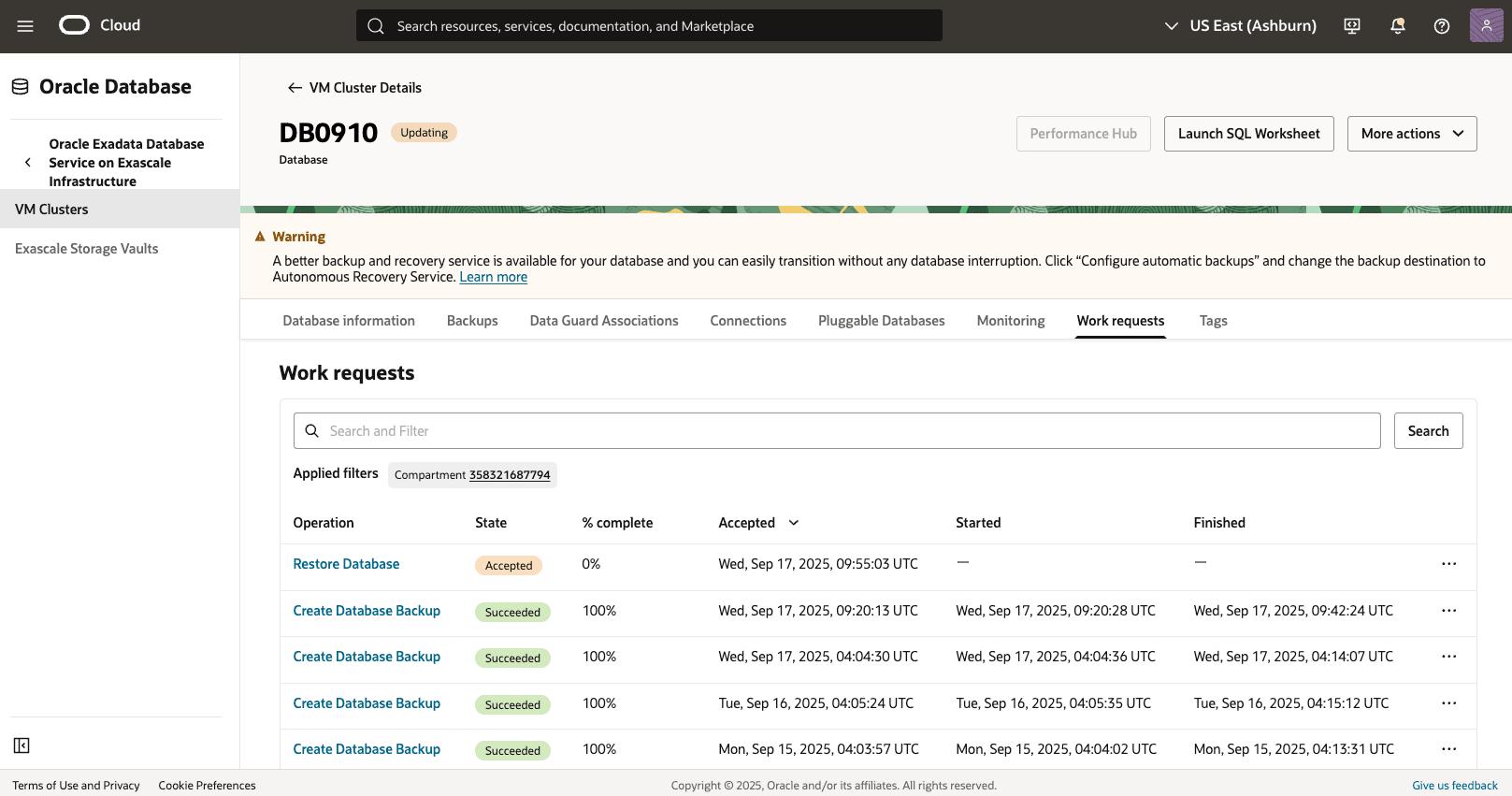
- Select the Restore Database operation for more details.

Pluggable Database (PDB) Point-in-Time Restores
- From the OCI console, select VM Clusters.
- Select the Container Database (CDB), and then select the database that you are using.
- Select Pluggable Database (PDB), and select the database that you are using.
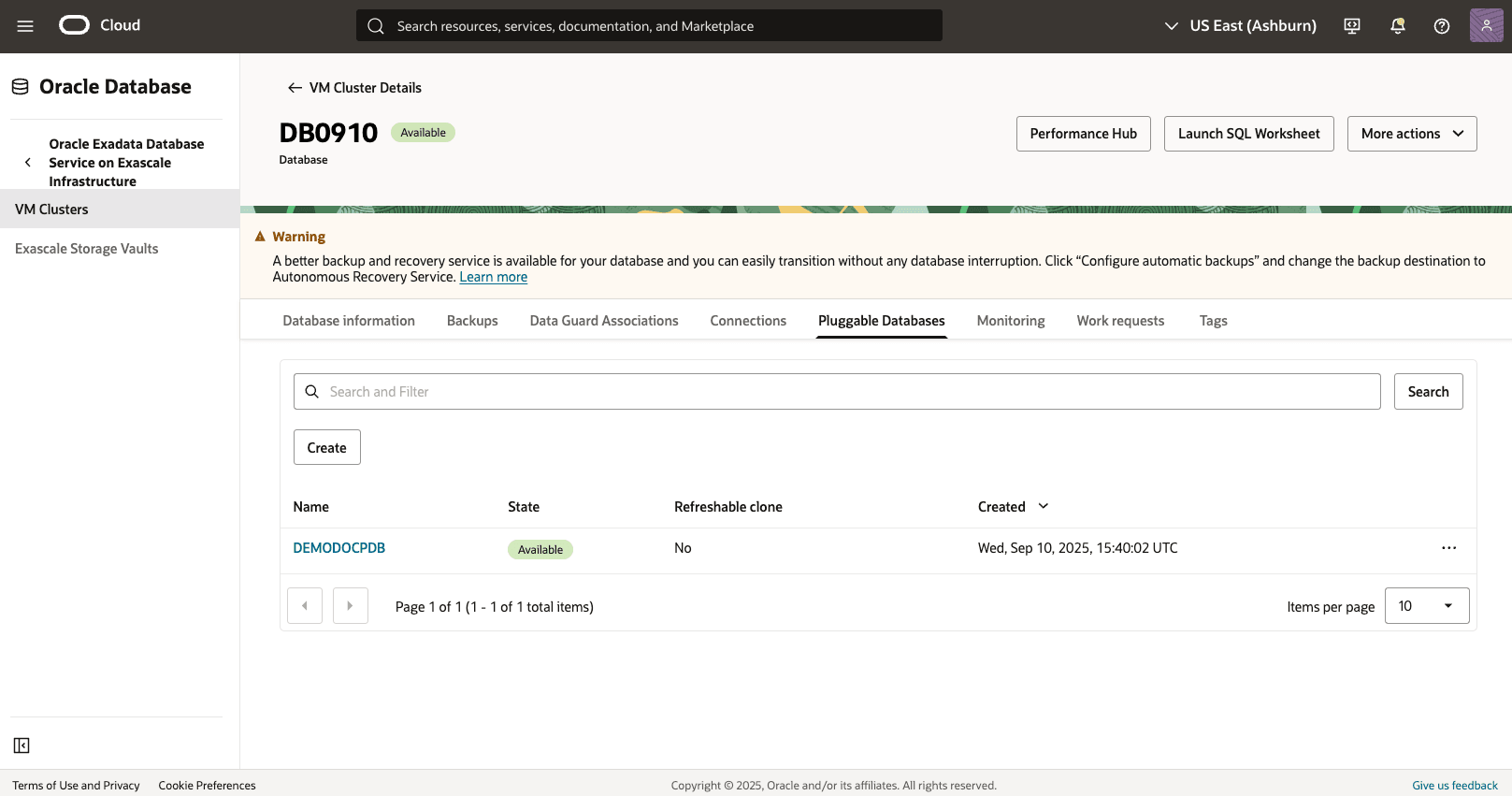
- Select the More actions button, and then select the Restore from the menu.

- From the Restore page, select Restore to a timestamp as your Restore type.
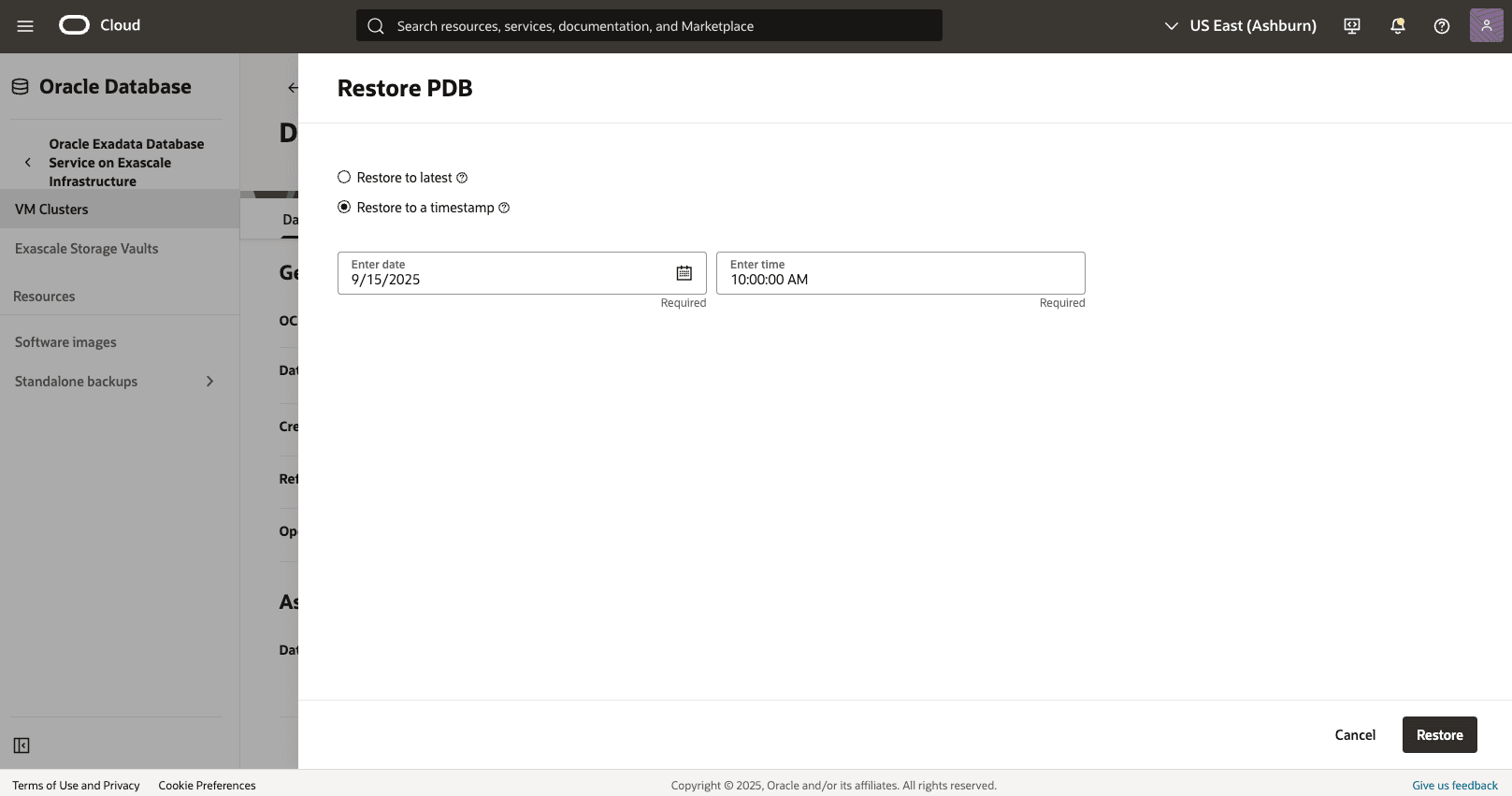
- Specify your Date and Time.
- Select the Restore button.
- Return to the Exadata Database (PDB) page to view the State of your restore process.
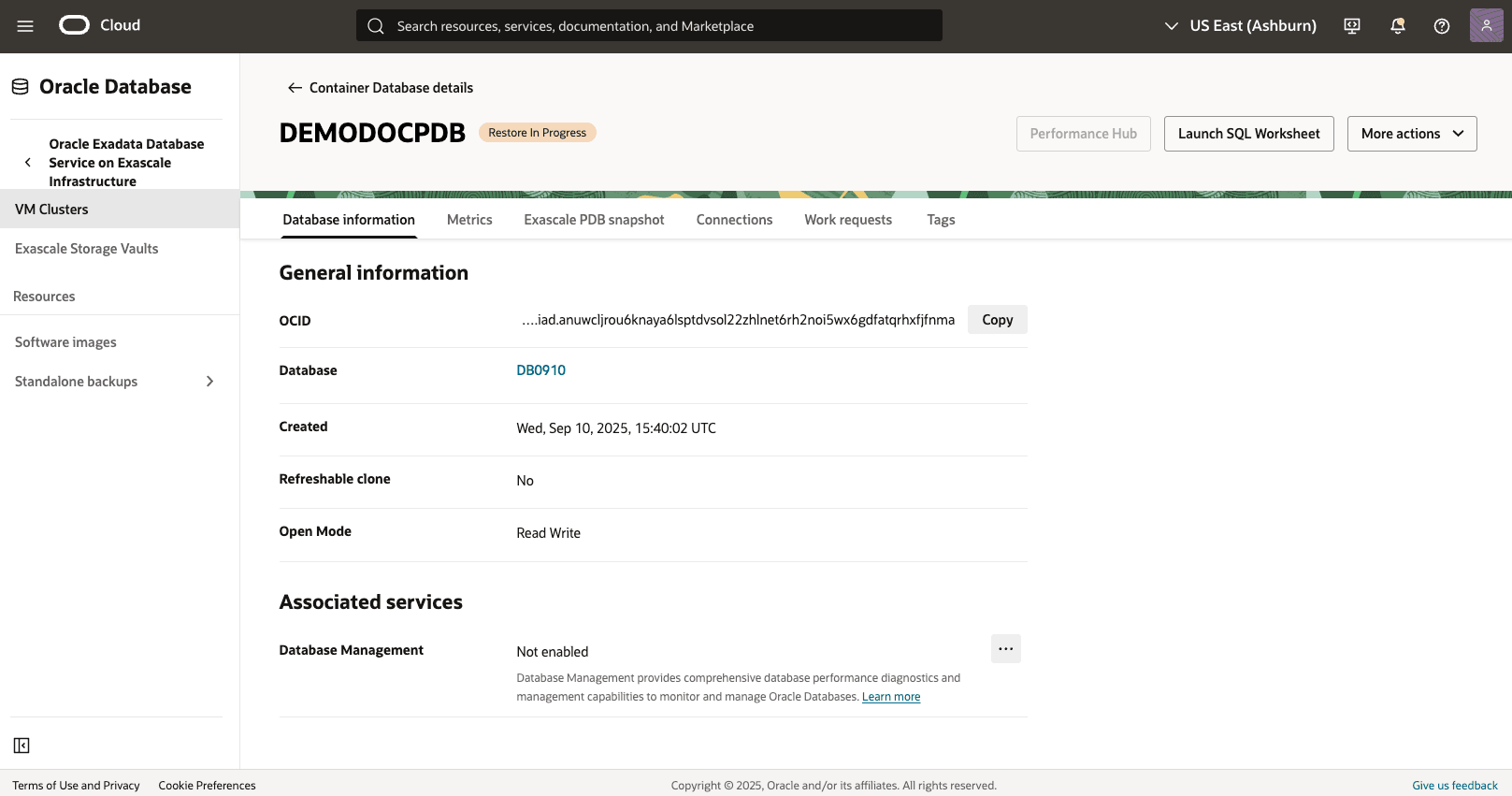
- From the OCI console, select the VM Clusters.
There is currently no content for this page. Oracle AI Database@Google Cloud team intends to add content here, and this placeholder text is provided until that text is added. The Oracle AI Database@Google Cloud team is excited about future new features, enhancements, and fixes to this product and this accompanying documentation. We strongly recommend you watch this page for those updates.
There is currently no content for this page. Oracle AI Database@Google Cloud team intends to add content here, and this placeholder text is provided until that text is added. The Oracle AI Database@Google Cloud team is excited about future new features, enhancements, and fixes to this product and this accompanying documentation. We strongly recommend you watch this page for those updates.
There is currently no content for this page. Oracle AI Database@Google Cloud team intends to add content here, and this placeholder text is provided until that text is added. The Oracle AI Database@Google Cloud team is excited about future new features, enhancements, and fixes to this product and this accompanying documentation. We strongly recommend you watch this page for those updates.