Protect Autonomous AI Database
Learn about various data protection methods available for Autonomous AI Database on Oracle AI Database@Google Cloud.
Data in Transit Encryption
Autonomous AI Database is protected with encryption of data in transit by default. This ensures that data moving between application and the database is secured from unauthorized interception or tampering
Encryption in transit is implemented using Transport Layer Security (TLS) and mutual TLS (mTLS) for database connections. These protocols provide secure communication channels between database clients and servers, protecting authentication credentials and query data.
Connection Options
- TLS: Encrypts traffic between the client and the database using standard X.509 certificates.
- mTLS: Provides two-way authentication, where both the client and the database present valid certificates before a connection is established. This option offers stronger identity assurance for enterprise workloads.
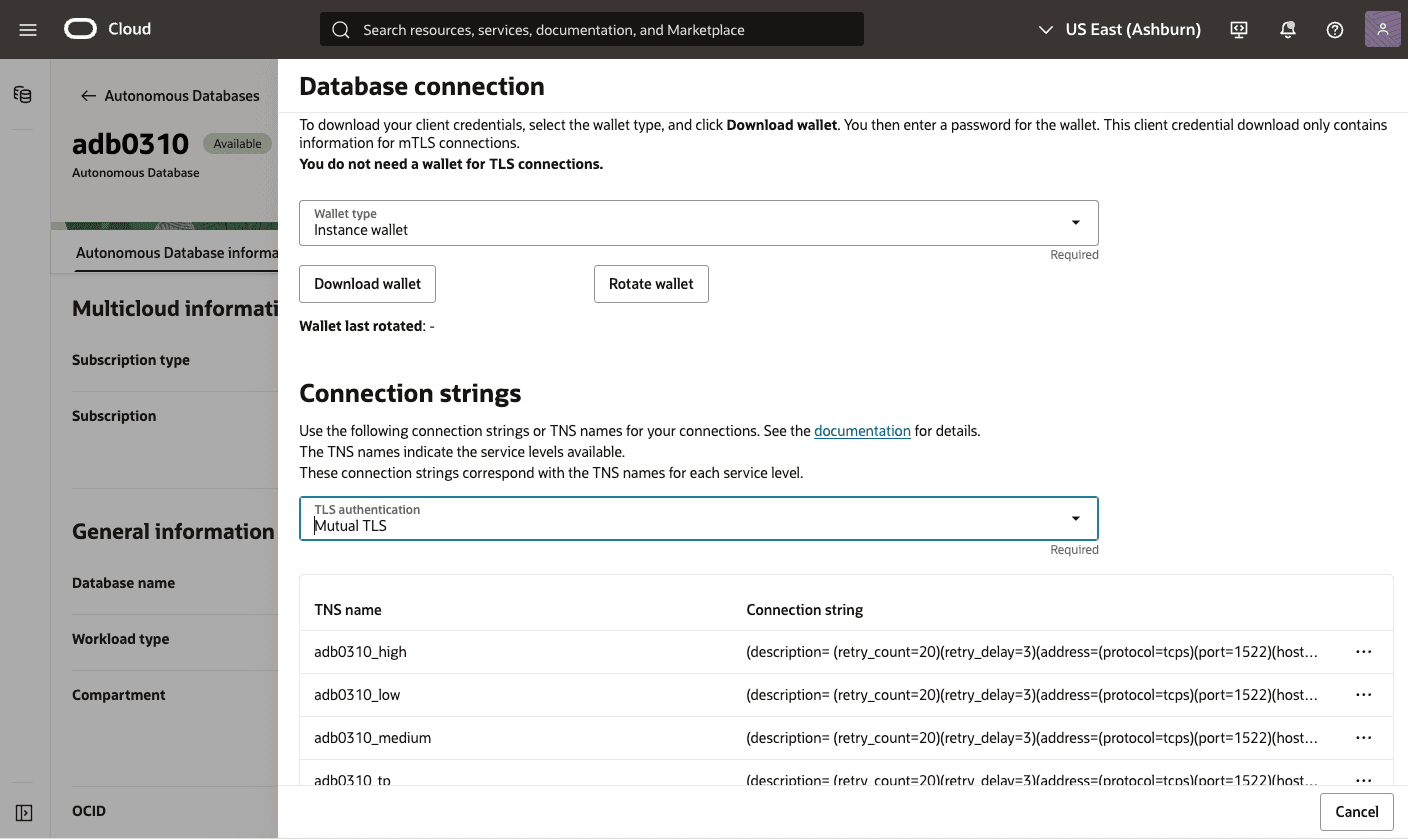
Connections on Autonomous AI Database
- You are using JDBC Thin Client (version 12.2.0.1 or higher) with JDK 8(u163+) or higher.
- You are using the Python python-oracledb driver.
- You are using ODP.NET version 19.14 (or higher), or 21.5 (or higher).
- You are using an Oracle Call Interface based driver with Oracle Client libraries version 19.14 (or higher), or 21.5 (or higher).
Encryption at Rest for Oracle AI Database@Google Cloud
Oracle AI Database@Google Cloud supports encryption at rest to safeguard sensitive data residing in database files, backups, and configuration files. This protection is enabled by Transparent Data Encryption (TDE), which ensures that data is encrypted whenever it is written to persistent storage and transparently decrypted when accessed by authorized Oracle processes with no customer configuration is required. The master key encrypts tablespace keys, which in turn encrypt the data.
Transparent Data Encryption (TDE)
Encryption at rest is provided through TDE, a feature included in Oracle Advanced Security. TDE automatically encrypts tablespaces, redo logs, and undo logs, ensuring that all database data is written to disk in encrypted form and transparently decrypted for authorized users and applications. Database backups created using Oracle Recovery Manager (RMAN) or managed backup solutions adopt these encryption settings, protecting all database copies stored on persistent media.
Key Management
- Oracle-managed keys: The master encryption key is automatically generated and stored in an Oracle Wallet, which is secured within the database environment. Oracle handles all key lifecycle tasks, including backups and restores.
- Customer-managed keys: You can integrate with services like OCI Vault to generate and store the master encryption key outside the database, enabling centralized key control, lifecycle management, rotation, and auditing of key usage events. With customer-managed keys, you control the encryption keys used to protect your data. You can enable customer-managed keys when creating databases, switch from Oracle-managed to customer-managed keys, and rotate keys to meet security and compliance requirements.
- Oracle-managed Key (OMK)
- Oracle Wallet
- Customer-managed Key (CMK)
- OCI Vault
- Oracle Key Vault (OKV)
- Google Cloud Key Management Service (Cloud KMS)
Oracle-managed Key (OMK) is the default method for securing data encryption in Oracle Database@Google Cloud. In Oracle Database, data encryption at rest is powered by TDE. When you choose OMK, the database system automatically handles all key management, including key generation, secure storage, and rotation required by TDE. There are no prerequisites or additional configuration steps required to use Oracle-managed Key on Oracle Database@Google Cloud.
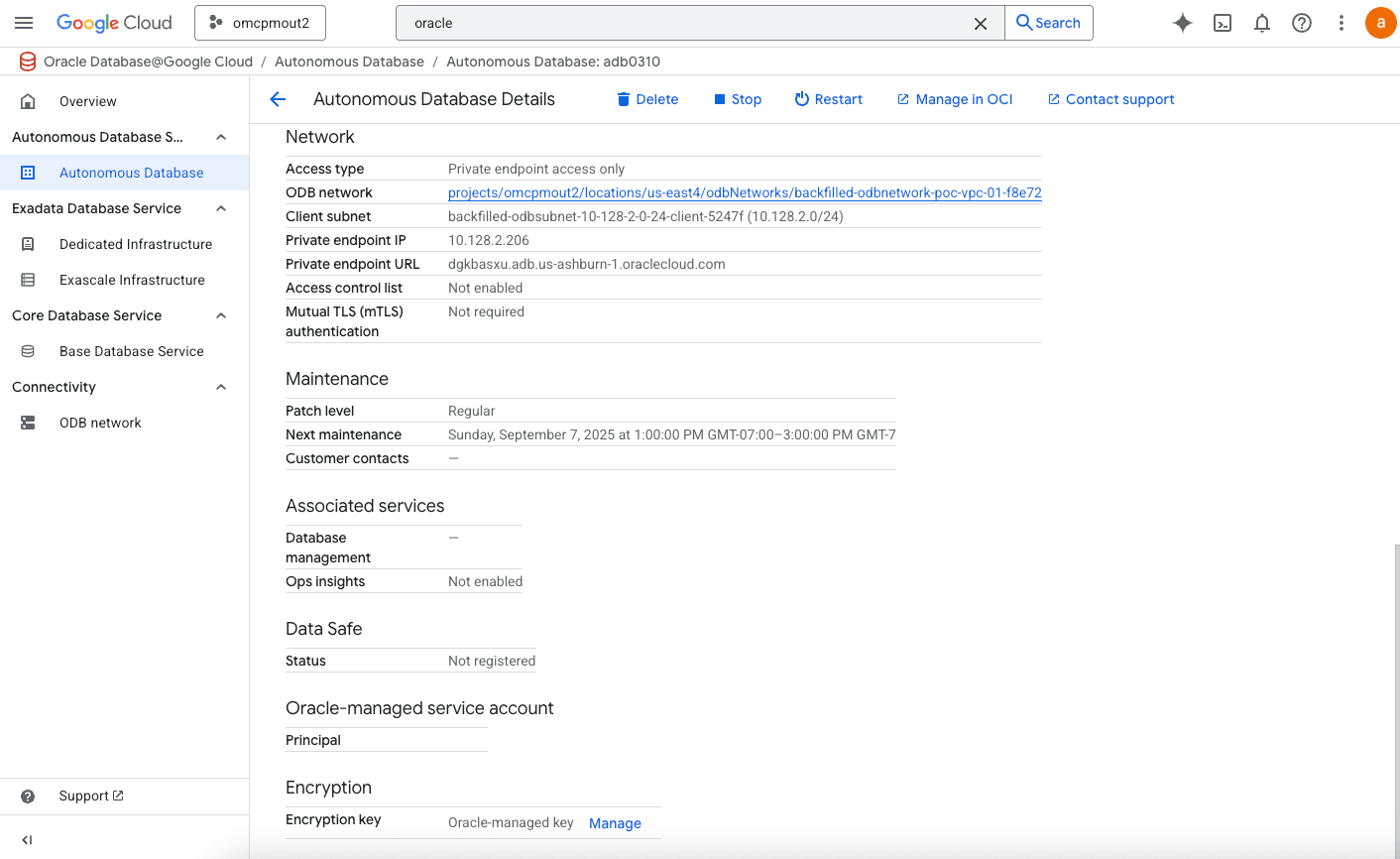
View Encryption Details
- Navigate to the Oracle AI Database@Google Cloud console.
- From the left menu, select Autonomous AI Database from Autonomous AI Database Service.
- .From the list, select the Display Nameof your Autonomous AI Database to open its details page.
- From the Details tab, navigate to the Encryption section to view the Encryption key details. By default, it is set to Oracle-managed key.
There is currently no content for this page. The Oracle AI Database@Google Cloud team intends to add content here, and this placeholder text is provided until that text is added.
The Oracle AI Database@Google Cloud team is excited about future new features, enhancements, and fixes to this product and this accompanying documentation. We strongly recommend you watch this page for those updates.
There is currently no content for this page. The Oracle AI Database@Google Cloud team intends to add content here, and this placeholder text is provided until that text is added.
The Oracle AI Database@Google Cloud team is excited about future new features, enhancements, and fixes to this product and this accompanying documentation. We strongly recommend you watch this page for those updates.
Autonomous AI Database Service now supports integration with Google Cloud's Key Management Service (KMS). This capability allows you to manage Transparent Data Encryption (TDE) master encryption keys (MEKs) using GCP Customer-Managed Keys (CMKs). Previously, TDE master encryption keys can only be stored in a file-based Oracle Wallet, Oracle Cloud Infrastructure (OCI) Vault, or Oracle Key Vault (OKV).
With this update, users can now store and manage MEKs directly in GCP KMS, providing key lifecycle control and alignment with organization-specific security policies.
To configure GCP KMS and encrypt your database, complete the following steps:Note
Customer-managed encryption key option is not available during the Autonomous AI Database instance creation. This option is available after your Autonomous AI Database instance is created.
- Obtain the Autonomous AI Database Account Identifier
- From the Google Cloud Console, select Oracle AI Database@Google Cloud.
- From the left menu, select Autonomous AI Database, and then select the Display Name link of your Autonomous AI Database to open the details tab.
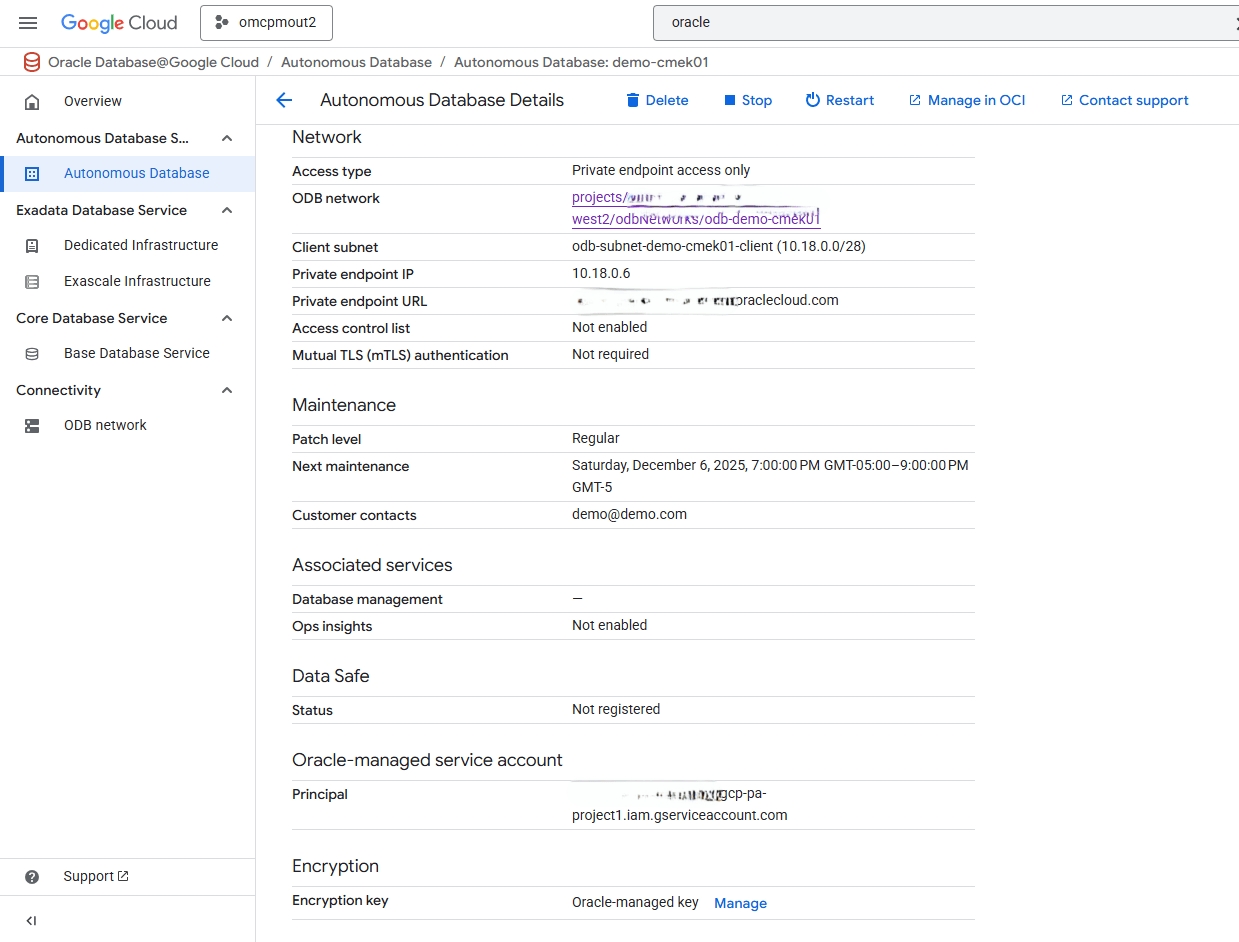
- From the Details tab, scroll down to the Oracle-managed service account section, and note the Principal value.
- Create a Key Ring in Google Cloud KMS
- To use GCP KMS for data-at-rest encryption, you need to create a Key Ring to store your encryption keys . To learn more on how to create a key ring, see Prerequisites.
- Create a Key in Google Cloud KMS
- From the Google Cloud Console, select Key Management.
- From the Key rings list, select the key ring name created in the previous step.
- Select the + Create key button.
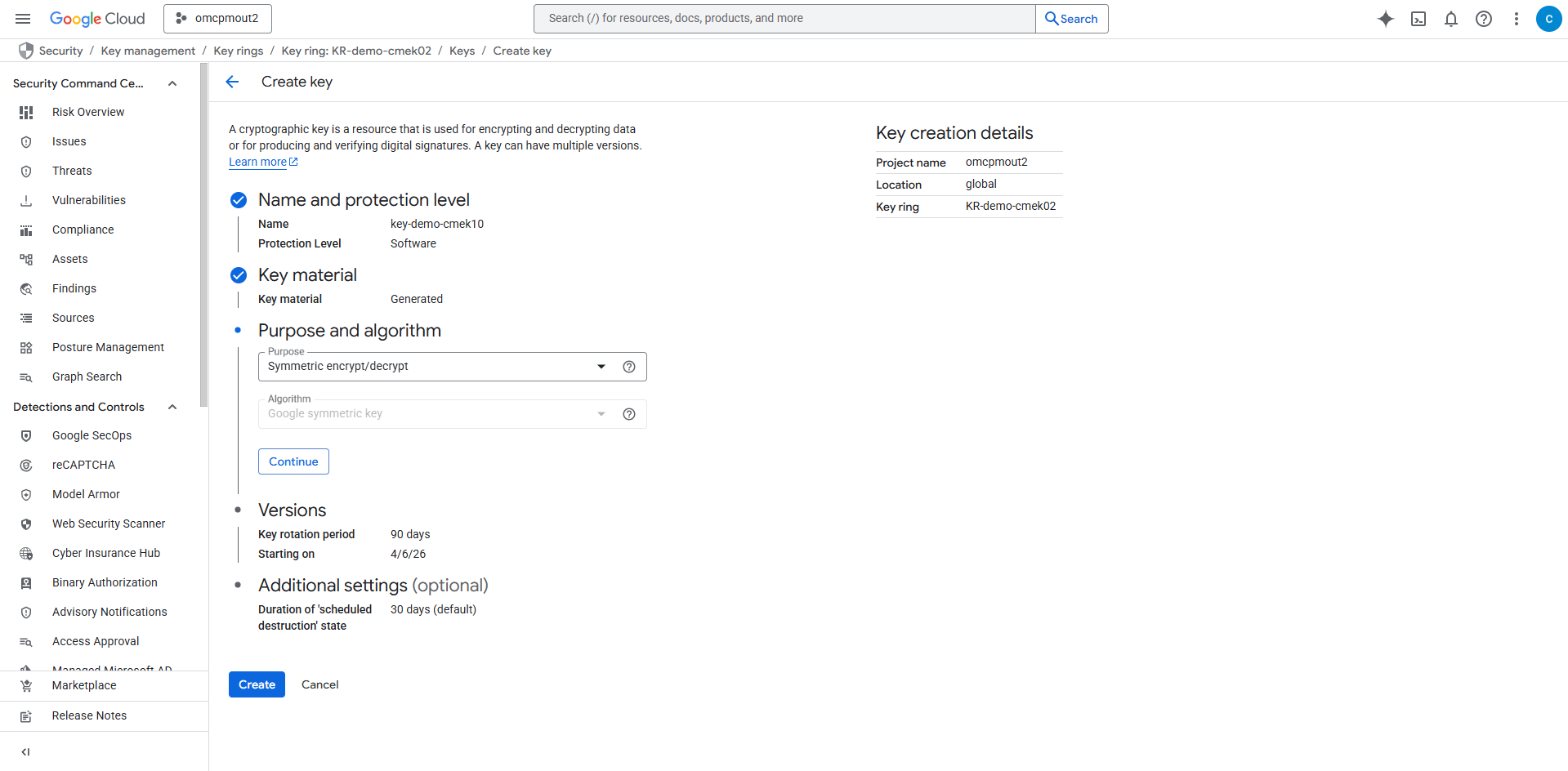
- In the Create key page, enter the following information:
- Key name: Enter a descriptive name for your key. Names can only contain letters, numbers, underscores (_), and hyphens (-)
- Protection level: Choose either the Software or HSM (Hardware Security Module) option.
Note
The protection level of a key can't be changed after the key is created. For more information, see Protection levels. - Select the Continue button.
- Key material: Select Generated key or Imported key, and then select the Continue button.
- Purpose and Algorithm: Select the Purpose as Symmetric encrypt/decrypt and then select the Continue button.
- Versions: Based on your requirements, select your Key rotation period and Starting on. Select the Continue button.
- Additional settings: This section is optional. By default, Duration of 'scheduled destruction' state is set to 30 days.
- Select the Create button to create a key.
Note
Google Cloud KMS is not supported in cross-region Autonomous Data Guard standby. - Grant Permissions to the Key
- From the Google Cloud Console, select Key Management.
- From the Keys list, select the key that you created at previous step.
- Select the Permissions tab, and then select the Grant access button.
- In the New principals field, enter the principal information you obtained in step 1c.
- In the Assign Roles section, add the following two roles:
- KMS CryptoKey Encrypter/Decrypter
- KMS Viewer
- Select the Save button.
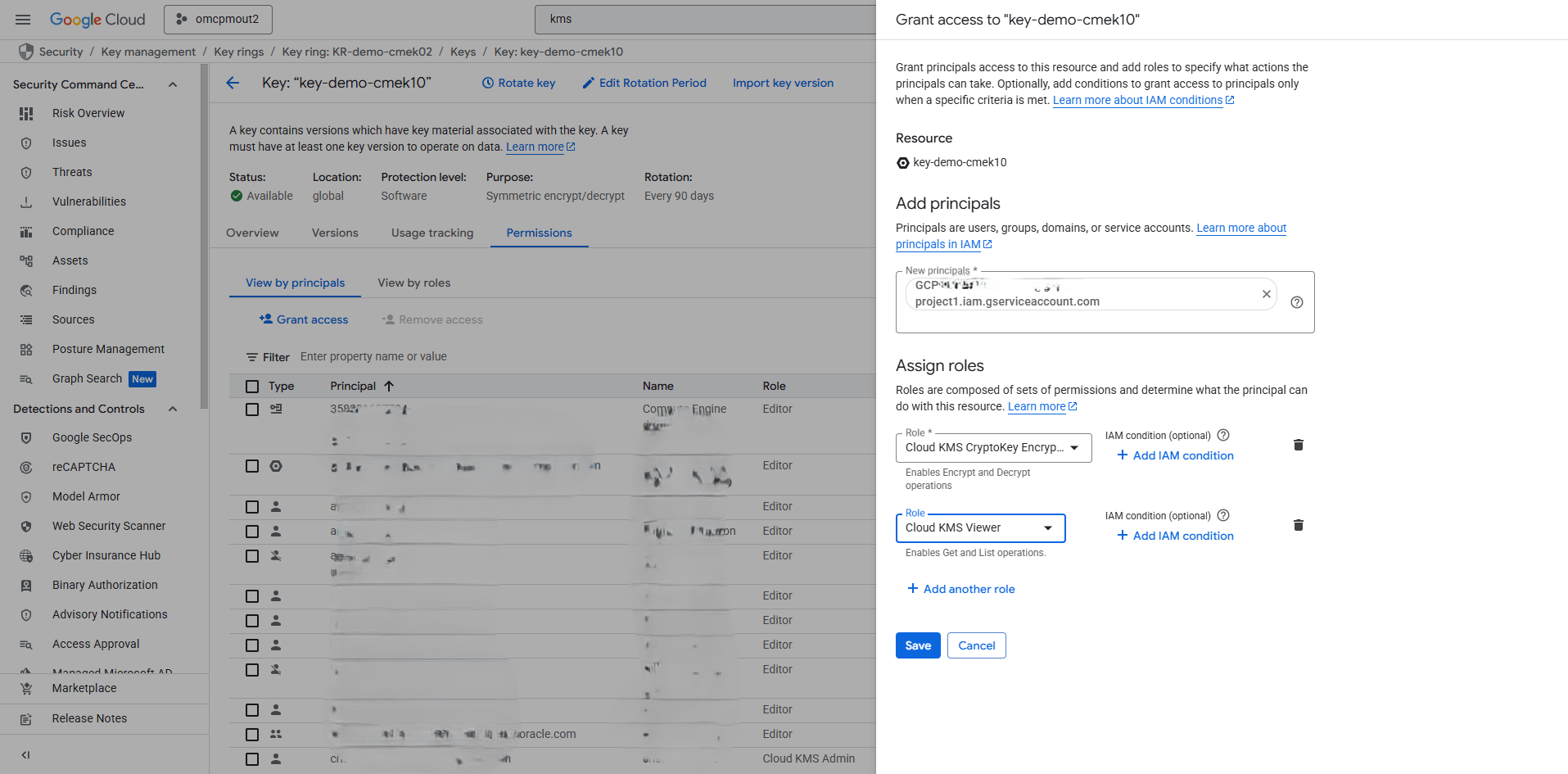
Note
Google Cloud VPCs include default routes to the services listed below. Ensure that no firewall egress rules block access to these endpoints.- https://iamcredentials.googleapis.com/
- https://sts.googleapis.com/
- https://cloudkms.googleapis.com/
- Update Autonomous AI Database
- From the Google Cloud Console, select Oracle AI Database@Google Cloud, and then select your Autonomous AI Database.
- From the list, select the Display Name link of your Autonomous AI Database that you want to change the encryption key.
- From the Details tab, navigate to the Encryption section, and then and select the Manage button.
- Select the Google Cloud customer-managed key option.
- From the dropdown list, select a Cloud KMS key to encrypt your Autonomous AI Database.
- Select the Save button.
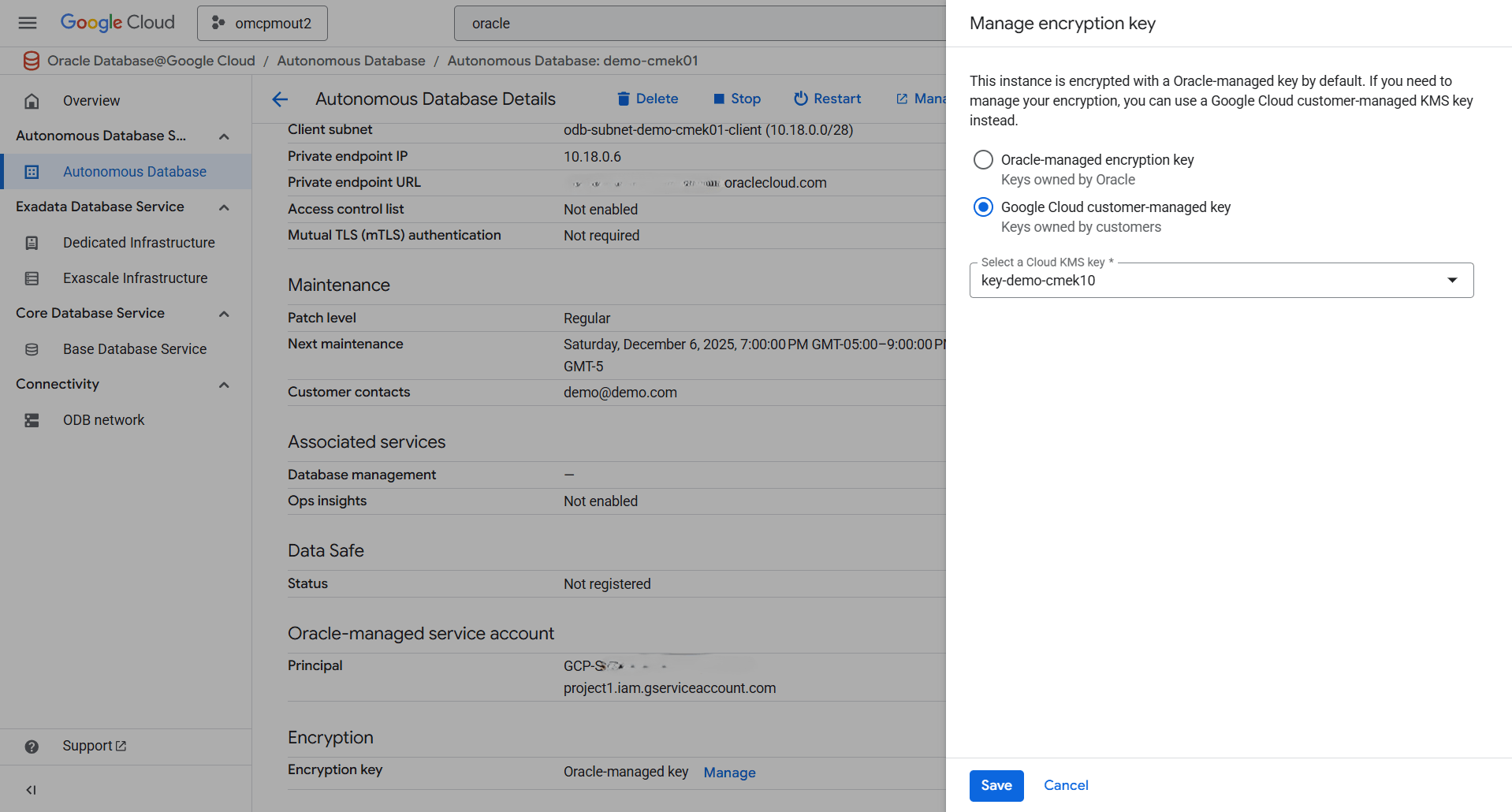
- Select the Operations tab to view the operations details.
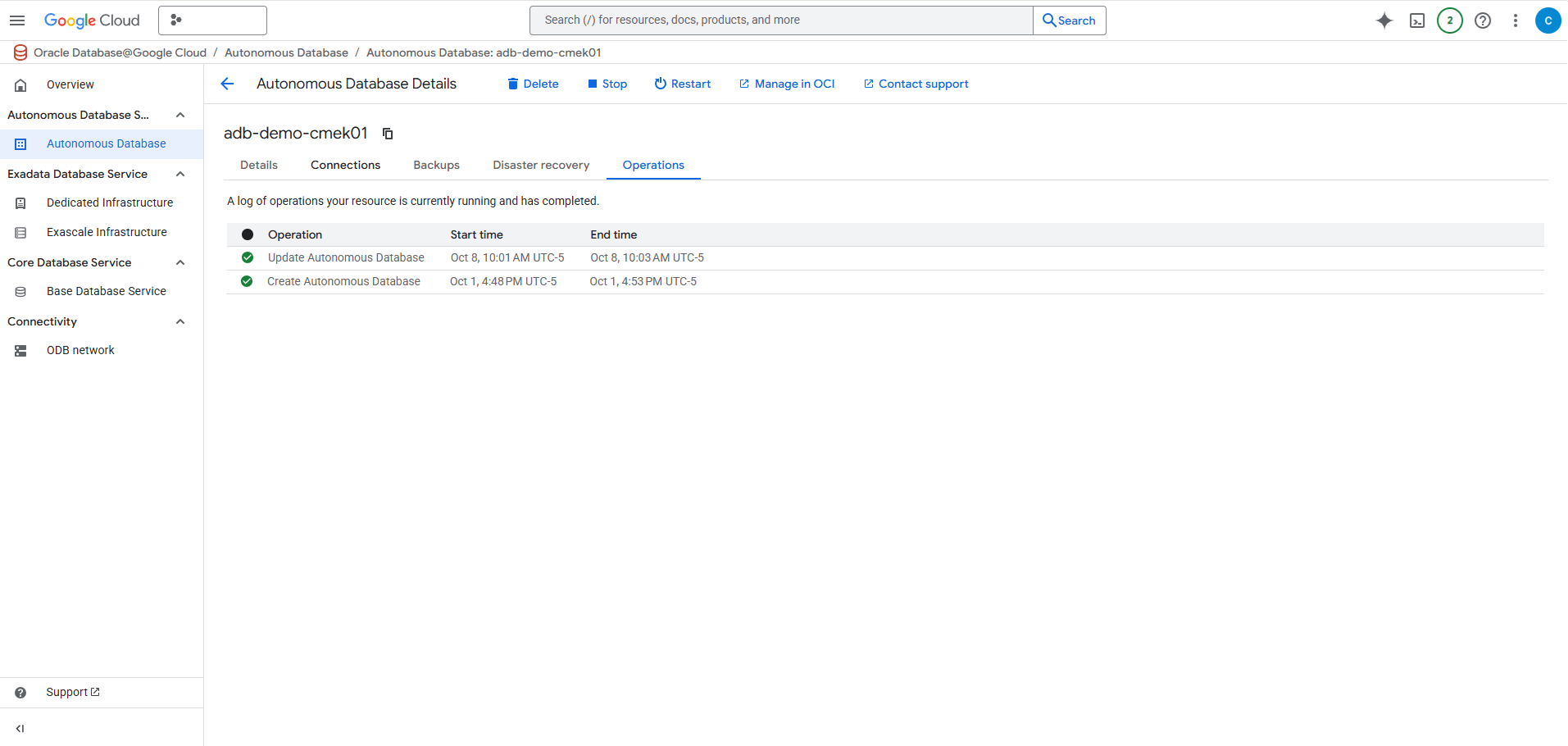
- Verify the Encryption Changes
- From the Google Cloud Console, select Oracle AI Database@Google Cloud, and then select your Autonomous AI Database.
- From the list, select the Display Name link of your Autonomous AI Database that you want to verify the encryption method.
- From the Details tab, navigate to the Encryption section to view the Encryption key details which was set to Google Cloud customer-managed in the previous step.
Note
You can switch to a different customer-managed key a maximum of two times in a 24-hour period.
Change from Customer-managed Keys to Oracle-managed Encryption Keys
These are the steps to change from Customer-managed keys to Oracle-managed encryption keys:- From the Google Cloud Console, select Oracle AI Database@Google Cloud, and then select your Autonomous AI Database.
- From the list, select the Display Name link of your Autonomous AI Database that you want to change the encryption method.
- From the Details tab, navigate to the Encryption section, and then and select the Manage button.
- Select the Oracle-managed encryption key option.
- From the dropdown list, select a Cloud KMS key to encrypt your Autonomous AI Database.
- Select the Save button.
- Obtain the Autonomous AI Database Account Identifier