Protect Base Database
Learn about various data protection methods available for Oracle Base Database Service on Oracle AI Database@Google Cloud.
Data in Transit Encryption
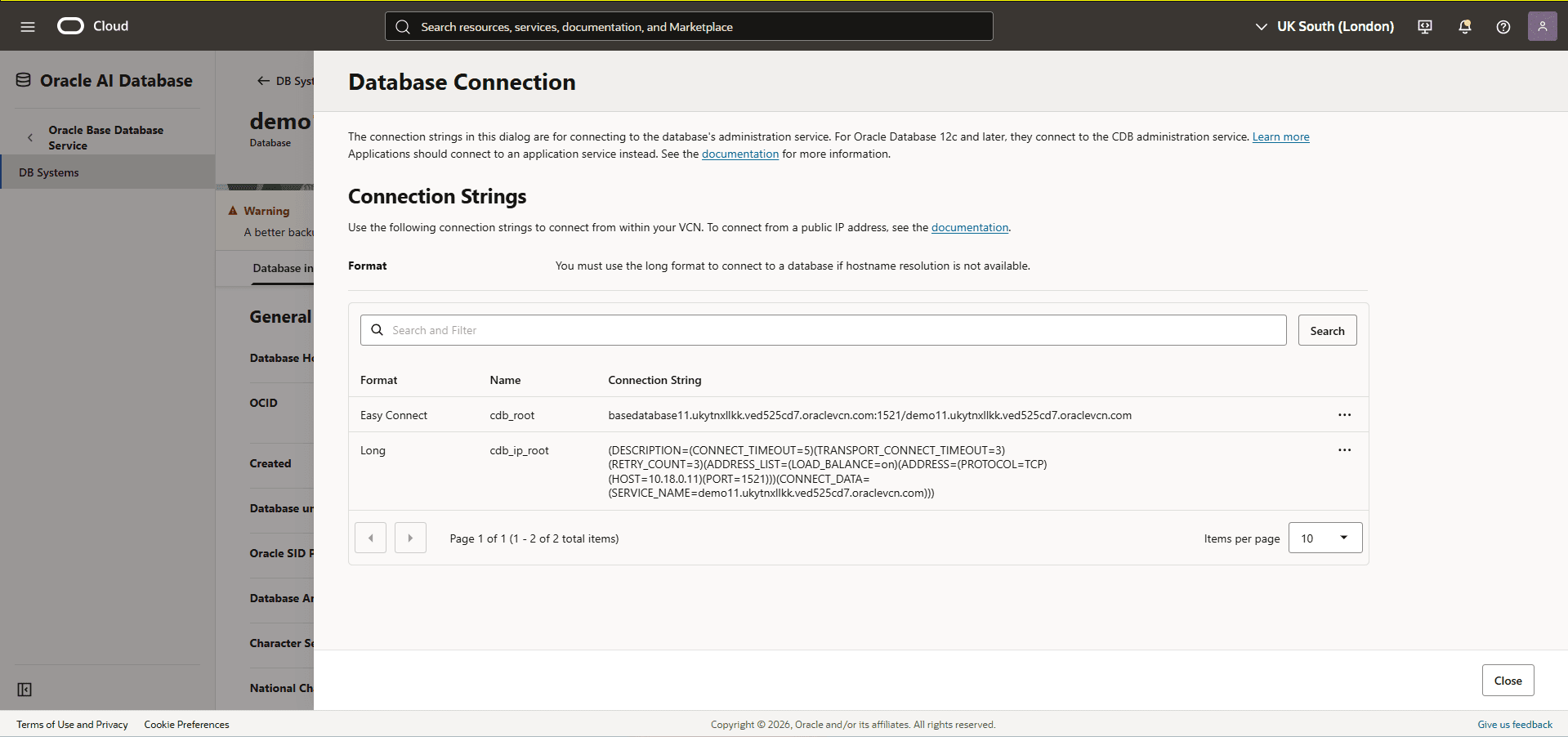
Oracle Base Database Service is protected with encryption of data in transit by default. This ensures that data moving between application and the database is secured from unauthorized interception or tampering. Oracle Net Services supports multiple industry-standard encryption algorithms including AES, DES, 3DES, and RC4 for securing data in transit. It also offers MD5, SHA-1, and SHA-2 hashing algorithms to verify data integrity.
All communication between clients and the database is encrypted using Oracle Net Services (SQL*Net). Two types of connection services are supported:
-
TCPS (Secure TCP) Connections
-
Uses TLS 1.2 or TLS 1.3
-
Requires a downloadable connection wallet
-
Ensures symmetric encryption via secure handshake using the wallet
-
TLS 1.3 support is available starting with Oracle AI Database 26ai.
-
-
TCP Connections with Native Network Encryption
-
Uses Oracle’s built-in encryption protocol
-
Negotiates encryption during connection (AES-256, AES-192, AES-128)
-
No wallet needed, but connection details (e.g., tnsnames.ora) must be known
-
By default, Oracle Base Database Service is configured to enable native Oracle Net Services encryption and integrity. Additionally, Oracle Net Services clients are configured to enable native encryption and integrity when connecting to an appropriately configured server. If your Oracle Net Services client is explicitly configured to reject the use of native encryption and integrity, connection attempts will fail. Native SQL*Net encryption is enabled for all network connections. The following sqlnet.ora parameters are set by default in Oracle Base Database Service.
-
ENCRYPTION_TYPES_SERVER = (AES256, AES192, AES128)
-
ENCRYPTION_SERVER = requested
-
CRYPTO_CHECKSUM_SERVER = accepted
-
CRYPTO_CHECKSUM_TYPES_SERVER = (SHA256, SHA384, SHA512)
The TCPS protocol is offered for network connections to the database on port 2484 with the wallet configured at /var/opt/oracle/dbaas_acfs/grid/tcps_wallets. The following sqlnet.ora parameters are set by default in Oracle Base Database Service.
-
SSL_CIPHER_SUITES = (SSL_ECDHE_ECDSA_WITH_AES_128_GCM_SHA256,
-
SSL_ECDHE_ECDSA_WITH_AES_256_GCM_SHA384,
-
SSL_ECDHE_RSA_WITH_AES_128_GCM_SHA256,
-
SSL_ECDHE_RSA_WITH_AES_256_GCM_SHA384)
Encryption at Rest for Oracle AI Database@Google Cloud
Oracle AI Database@Google Cloud supports encryption at rest to safeguard sensitive data residing in database files, backups, and configuration files. This protection is enabled by Transparent Data Encryption (TDE), which ensures that data is encrypted whenever it is written to persistent storage and transparently decrypted when accessed by authorized Oracle processes with no customer configuration is required. The master key encrypts tablespace keys, which in turn encrypt the data.
Transparent Data Encryption (TDE)
Encryption at rest is provided through TDE, a feature included in Oracle Advanced Security. TDE automatically encrypts tablespaces, redo logs, and undo logs, ensuring that all database data is written to disk in encrypted form and transparently decrypted for authorized users and applications. Database backups created using Oracle Recovery Manager (RMAN) or managed backup solutions adopt these encryption settings, protecting all database copies stored on persistent media.
Key Management
TDE uses a master encryption key to protect your tablespaces and columns. For Oracle AI Database@Google Cloud, there are two key management options:
-
Oracle-managed keys: The master encryption key is automatically generated and stored in an Oracle Wallet, which is secured within the database environment. Oracle handles all key lifecycle tasks, including backups and restores.
-
Customer-managed keys: You can integrate Oracle Base Database Service with services like OCI Vault to generate and store the master encryption key outside the database, enabling centralized key control, lifecycle management, rotation, and auditing of key usage events. With customer-managed keys, you control the encryption keys used to protect your data. You can enable customer-managed keys when creating databases, switch from Oracle-managed to customer-managed keys, and rotate keys to meet security and compliance requirements.
Oracle Base Database Service on Oracle AI Database@Google Cloud offers the following data at rest encryption methods:
-
Oracle-managed Key (OMK)
- Oracle Wallet
-
Customer-managed Key (CMK)
-
OCI Vault
-
Oracle Key Vault (OKV)
-
Google Cloud Key Management Service (Cloud KMS)
-
Oracle-managed Key (OMK) is the default method for securing data encryption in Oracle AI Database@Google Cloud. In Oracle AI Database, data encryption at rest is powered by TDE. When you choose OMK, the database system automatically handles all key management, including key generation, secure storage, and rotation required by TDE. There are no prerequisites or additional configuration steps required to use Oracle-managed Key on Oracle AI Database@Google Cloud.
View Encryption Details
-
From the Oracle AI Database@Google Cloud console, select Base Database Service.
-
From the left menu, select DB Systems, and then select the name of your Base Database.
-
Select the Manage in OCI button, which redirects you to the OCI console.
-
In the OCI console, select the Databases tab, and then select the database that you want to check the key management.
-
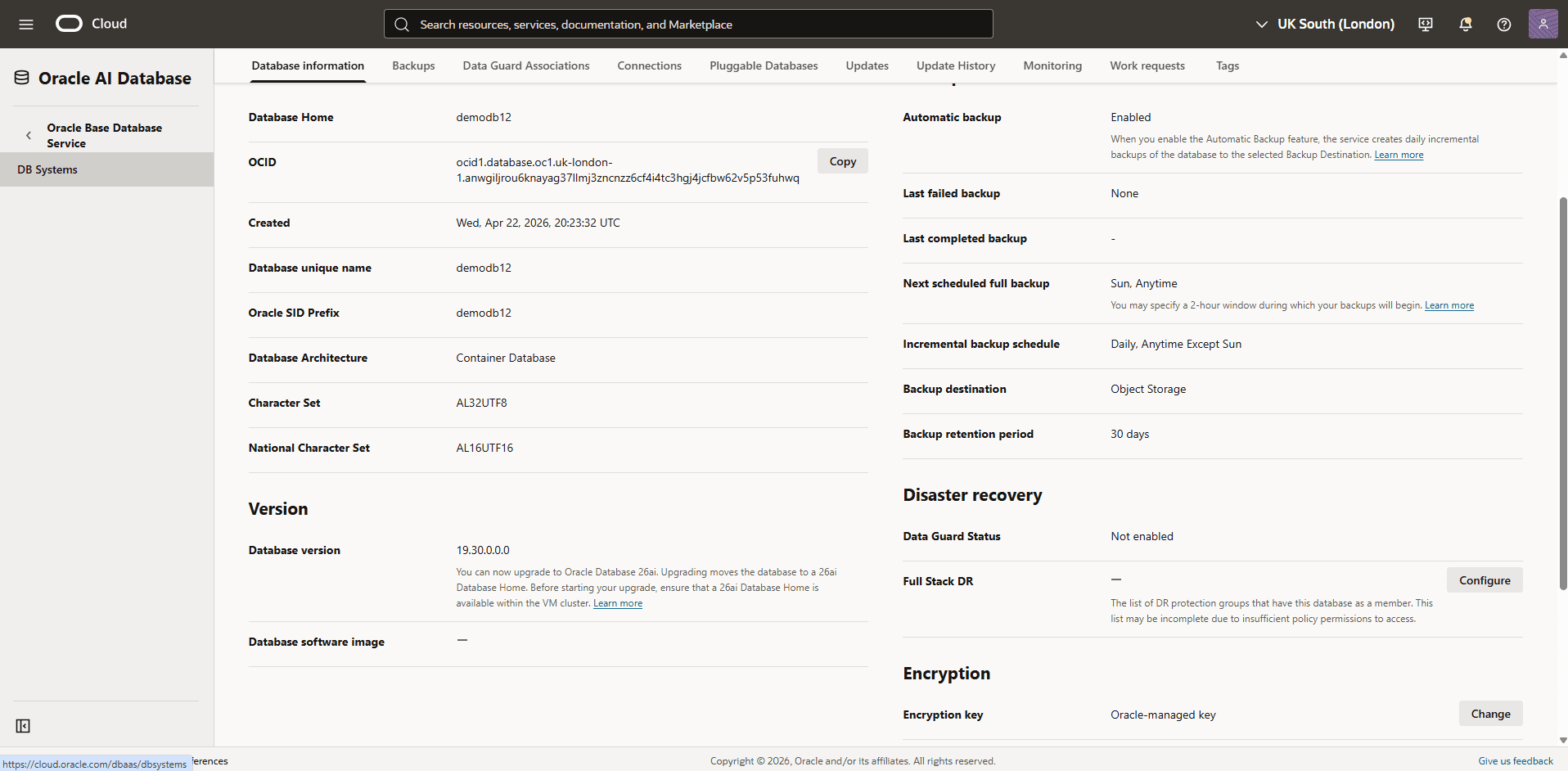
From the Database information tab, navigate to the Encryption section to view the Encryption key details. By default, the Encryption key is set to Oracle-managed key.
-
Oracle Base Database Service in Oracle AI Database@Google Cloud integrates with OCI Vault to provide data encryption using a customer-managed key (CMK). This integration centralizes key storage and management, significantly simplifying your overall key lifecycle.
-
Create an Oracle Cloud Infrastructure Vault (OCI Vault)
For more information, see Create an Oracle Cloud Infrastructure Vault.
-
Create a Master Encryption Key in the Vault
For more information, see Create a Master Encryption Key in the Vault.
-
Create an OCI Dynamic Group
-
From the OCI console, select Oracle AI Database, and then select Oracle Base Database Service.
-
From the left menu, select DB Systems, and then select the name of the Base Database.
-
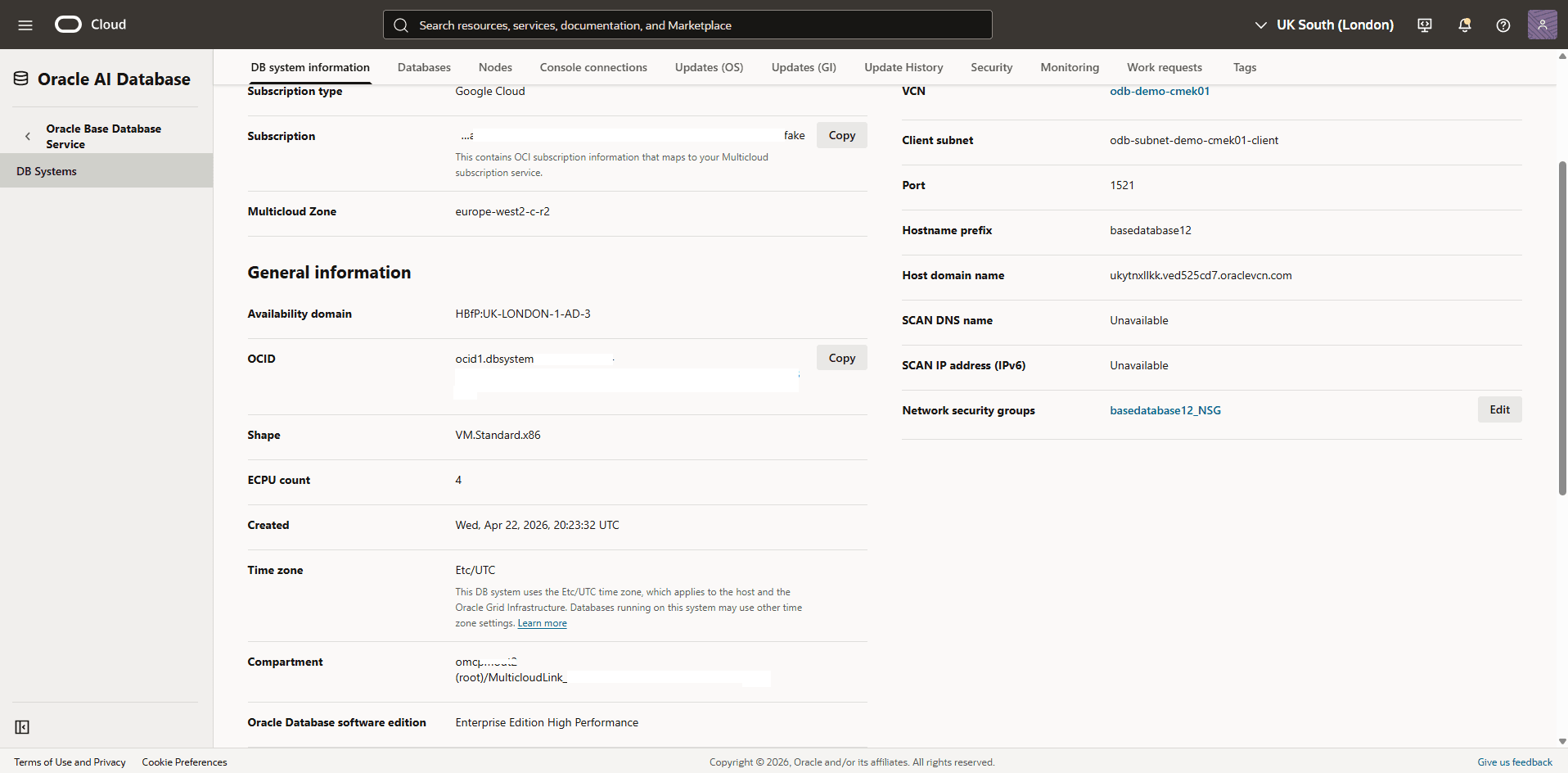
Select the DB system information tab, scroll down to the General information section. Take note of your Base Database Compartment information.
-
From the navigation menu, select Identity & Security, and then select Compartments.
-
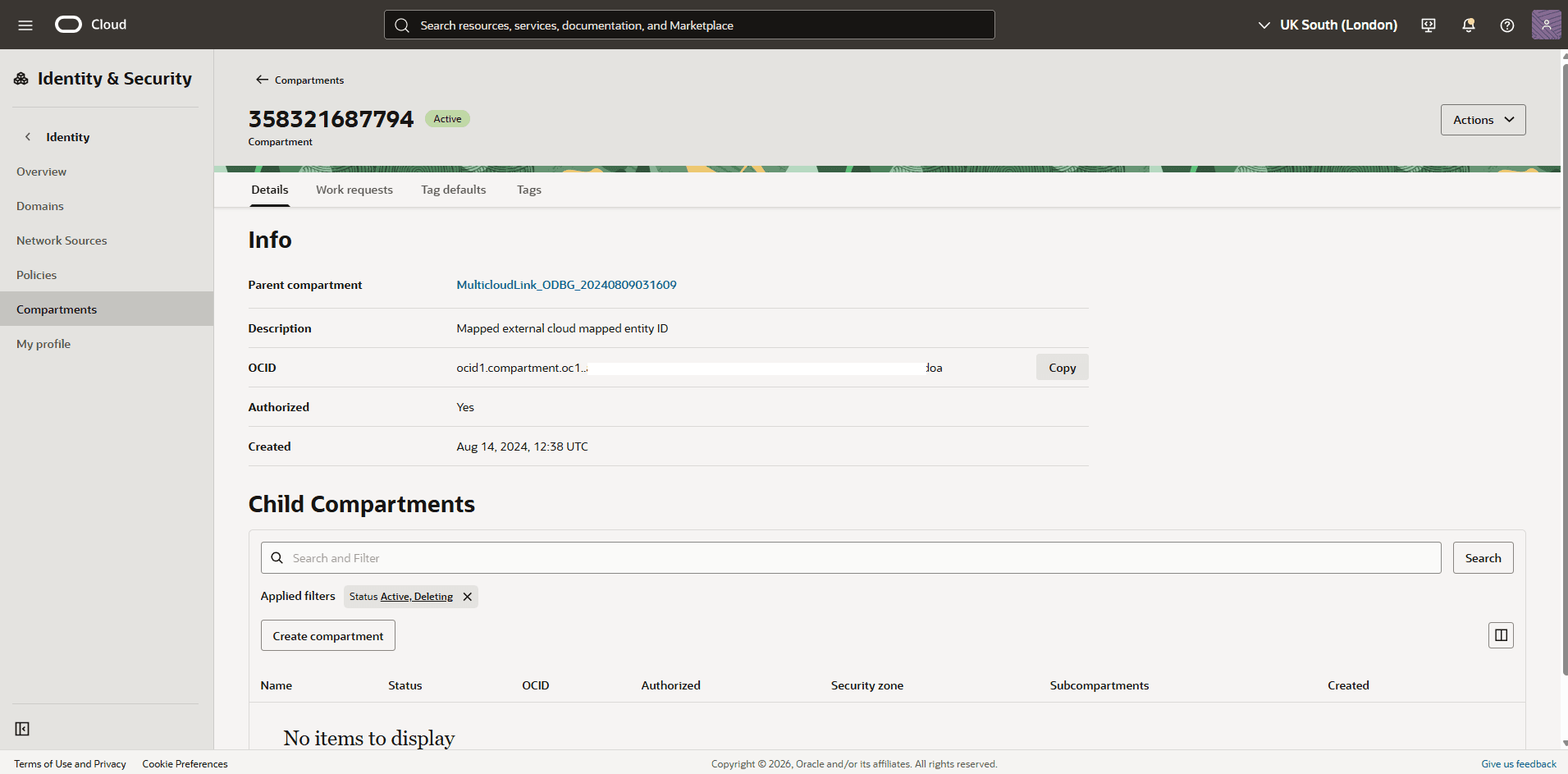
From the Compartments list, navigate to your compartment which you previously created and copy the OCID information.
-
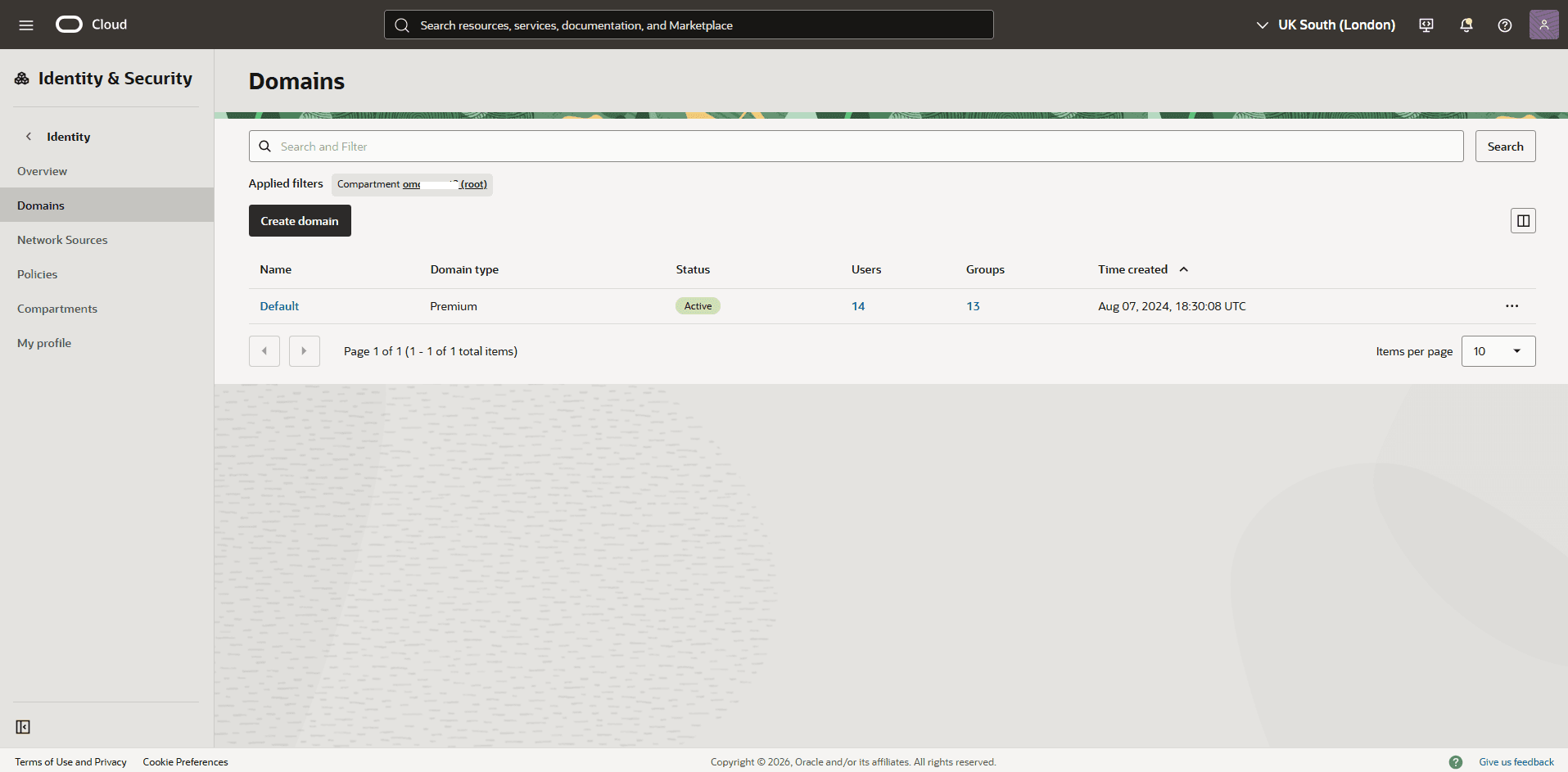
From the navigation menu, select Identity & Security, and then select Domains.
-
From the Applied filters section, select the Root Compartment and then choose the name of you domain.
-
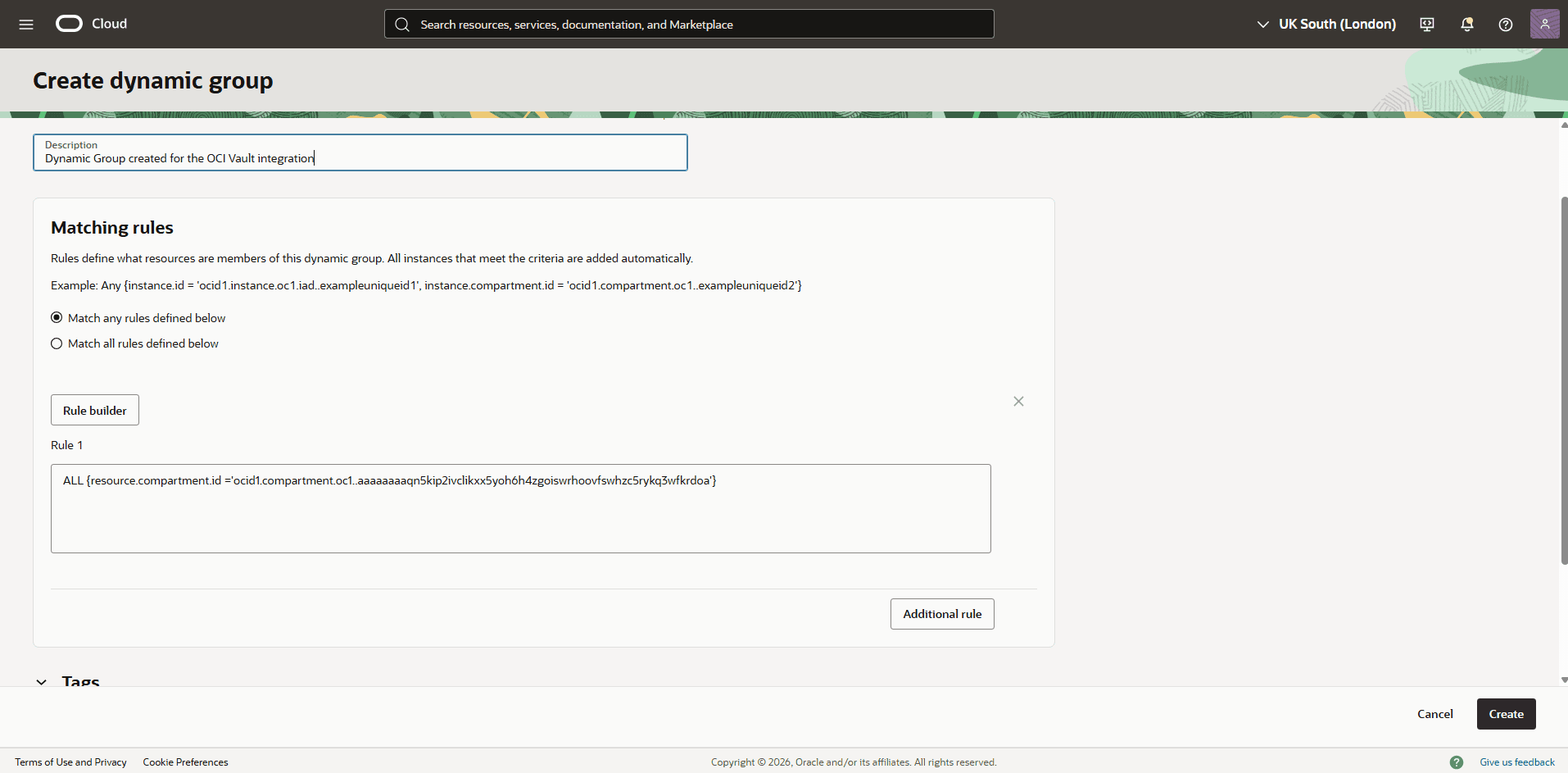
Select the Dynamic groups tab, and then select the Create dynamic group button.
-
Name: Enter a descriptive name for the group.
-
Description: Provide a brief description of the dynamic group’s purpose.
-
Matching Rules: Enter the following statement, replacing
<your_Compartment_OCID>with the compartment OCID you noted in the previous step:ALL {resource.compartment.id = '<your_Compartment_OCID>'} -
Review your information, and then select the Create button.
-
-
-
Create an OCI Policy
-
From the navigation menu, select Identity & Security, and then select Policies.
-
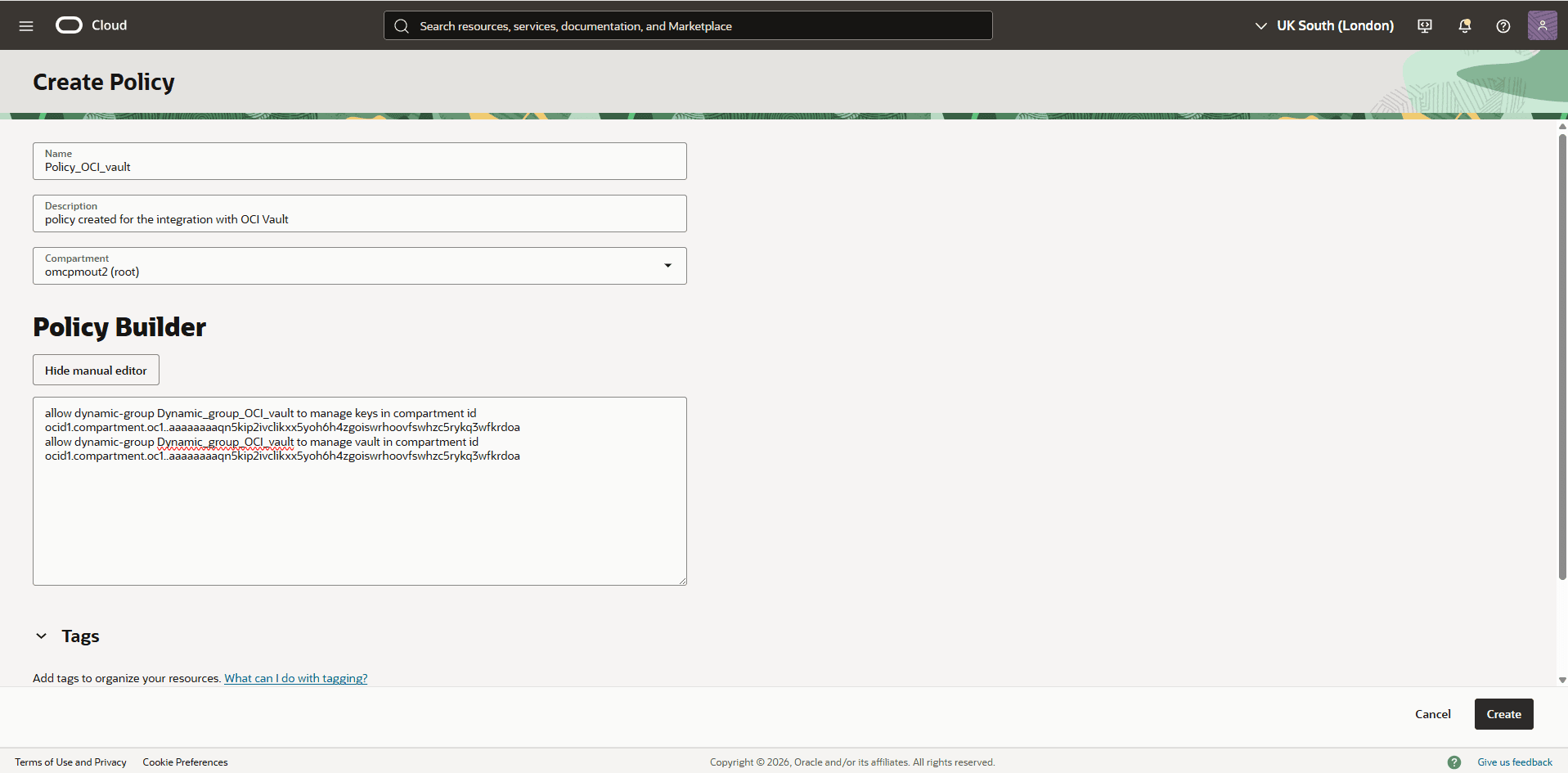
In the Applied Filter section, select the Root Compartment, and then select the Create Policy button.
-
Name: Enter a descriptive name for the group.
-
Description: Provide a brief description of the dynamic group’s purpose.
-
Enable the Show manual editor button, and then enter the following statements. Replace
<dynamic-group-name>with the name of the dynamic group created in the previous step, and<your_Compartment_OCID>with your specific compartment OCID:Allow dynamic-group <dynamic-group-name> to manage vaults in compartment id <your_Compartment_OCID> Allow dynamic-group <dynamic-group-name> to manage keys in compartment id <your_Compartment_OCID> -
Review your information and then select the Create button.
-
-
-
Create a Base Database from Google Cloud Console
See Create Base Database for step-by-step instructions.
-
Modify the Key Management from Oracle Wallet to OCI Vault
To update key management from Oracle Wallet to OCI Vault, complete the following steps:
-
From the OCI console, select Oracle AI Database, and then select Oracle Base Database Service.
-
From the left menu, select DB Systems, and then select the name of the Base Database that you wish to modify.
-
From your Base Database system, navigate to Databases tab, and then select the name field of the database you wish to modify.
-
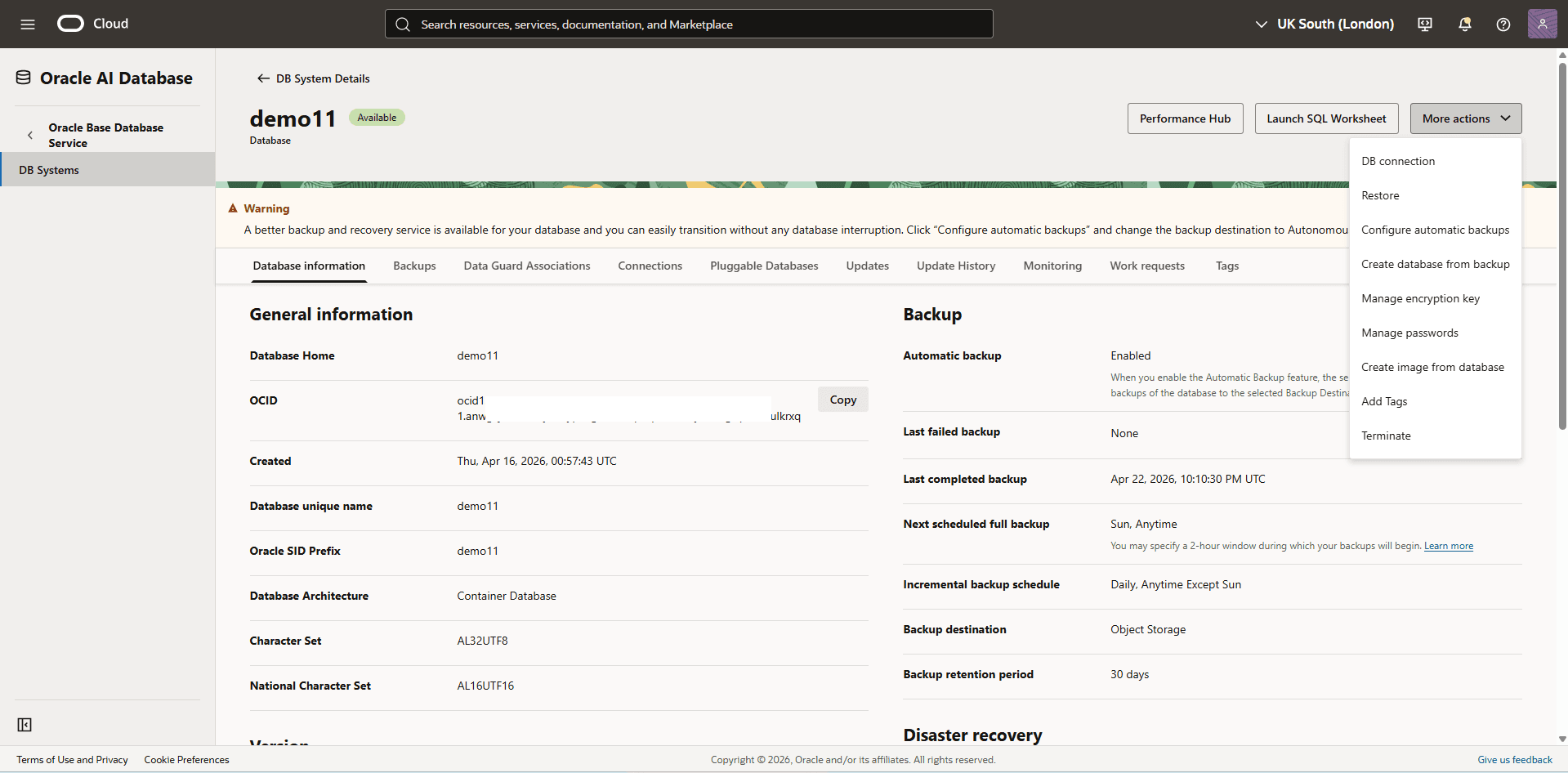
Select the More actions button and then choose the Manage encryption key option.
-
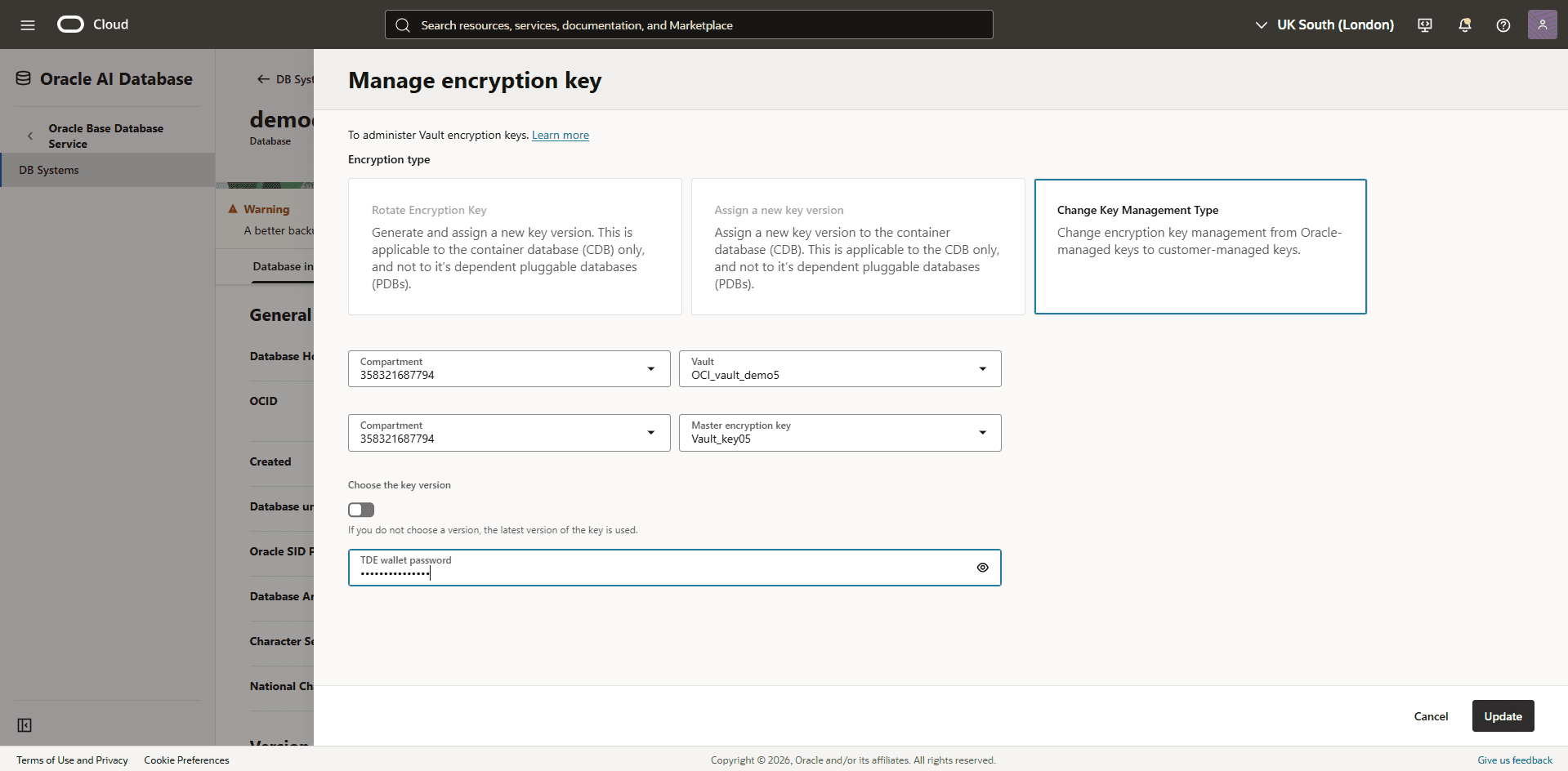
From the Manage encryption key page, enter the following information.
-
Choose the Oracle Key Management Type as Encryption type.
-
Select the Compartment where you created your OCI Vault, and then select the OCI Vault from the Vault dropdown list.
-
Select the Compartment where you created your OCI key, and then select the OCI key from the Master encryption key dropdown list.
-
The Choose the key version toggle is optional. if you do not choose a version, the latest version of the key will be used.
-
Enter your TDE wallet password.
-
Select the Update button to save your changes.
-
-
-
Verify the Database Encryption Method
-
From the OCI console, select Oracle AI Database, and then select Oracle Base Database Service.
-
From the left menu, select DB Systems, and then select the name of the Base Database.
-
Select the Databases tab, and then select the name of the database that you wish to validate.
-
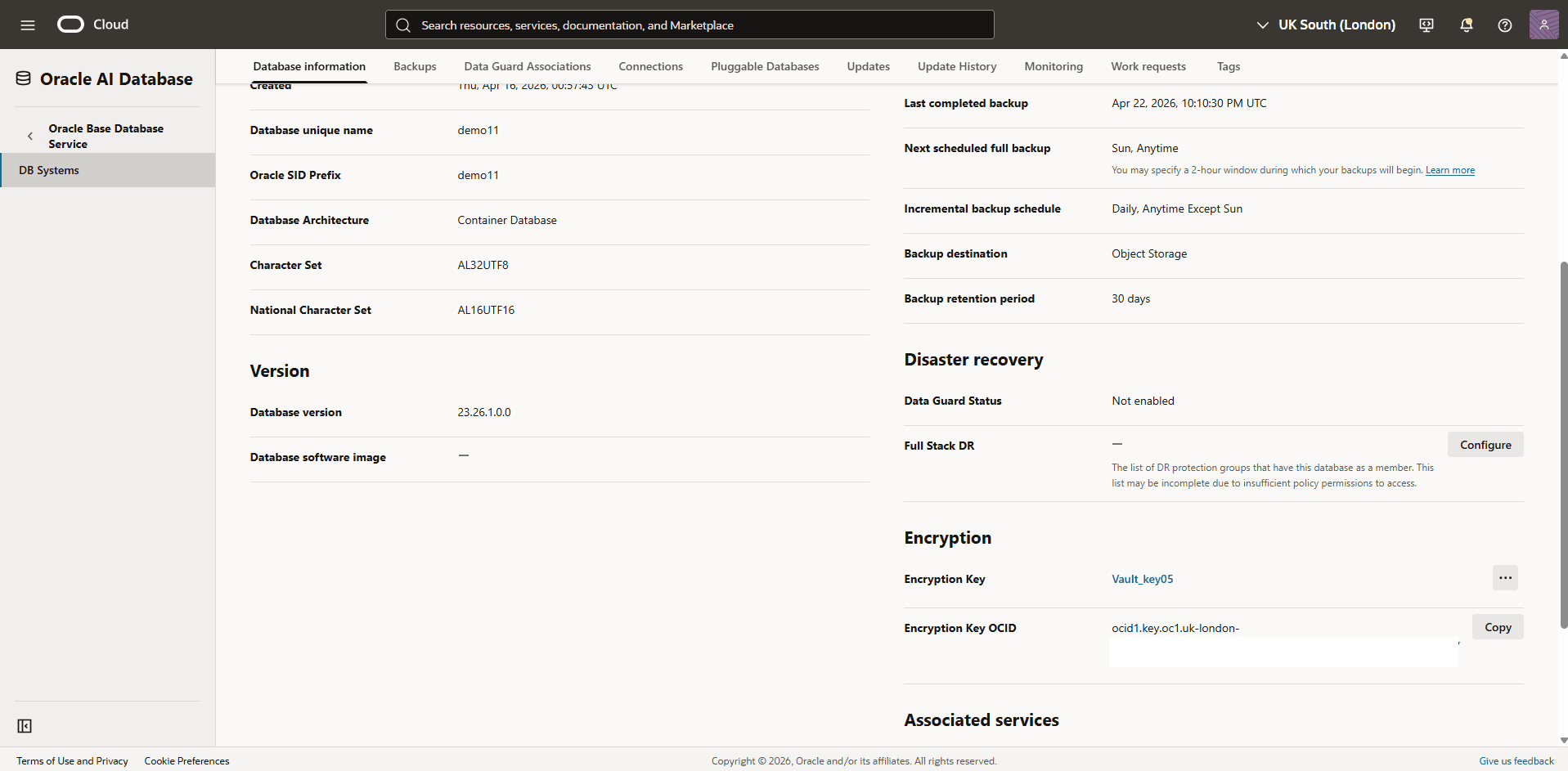
Scroll down to the Encryption section. In this section, you can view the Encryption Key and Encryption Key OCID details of the OCI key in use.
-
Rotate the OCI Vault Key for a Container Database (CDB)
-
From the OCI console, select Oracle AI Database, and then select Oracle Base Database Service.
-
From the left menu, select DB Systems, and then select the name of the Base Database.
-
Select the Databases tab, and then select the name of the database that you want to rotate encryption keys.
-
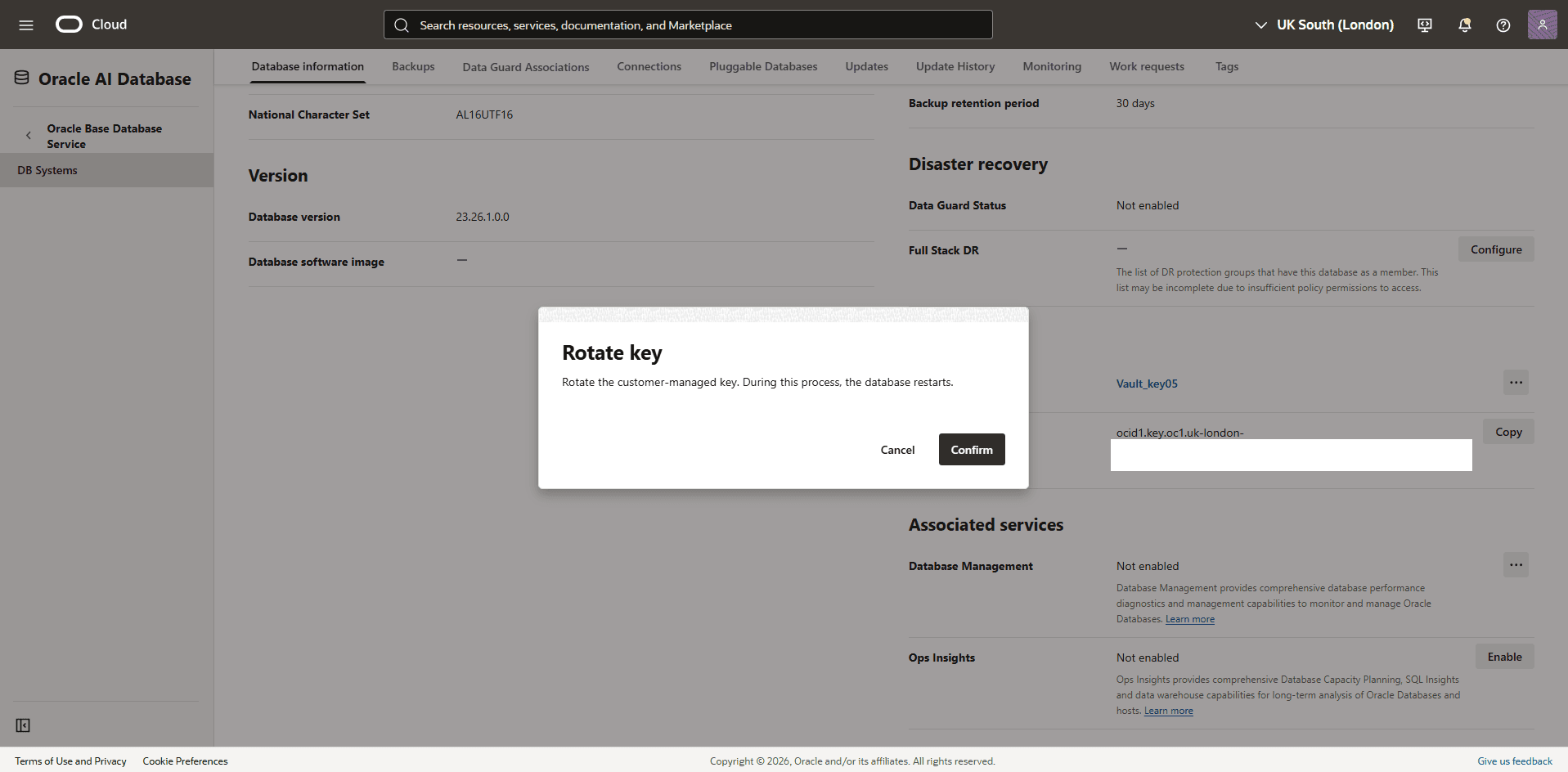
Select the Action menu ( three dots) and then select the Rotate option.
-
Select the Confirm button to save the changes.
Rotate the OCI Vault Key for a Pluggable Database (PDB)
-
From the OCI console, select Oracle AI Database, and then select Oracle Base Database Service.
-
From the left menu, select DB Systems, and then select the name of the Base Database.
-
Select the Database tab and then select your database.
-
Select the Pluggable Databases tab, and then select your Pluggable Database that you want to want to rotate encryption keys.
-
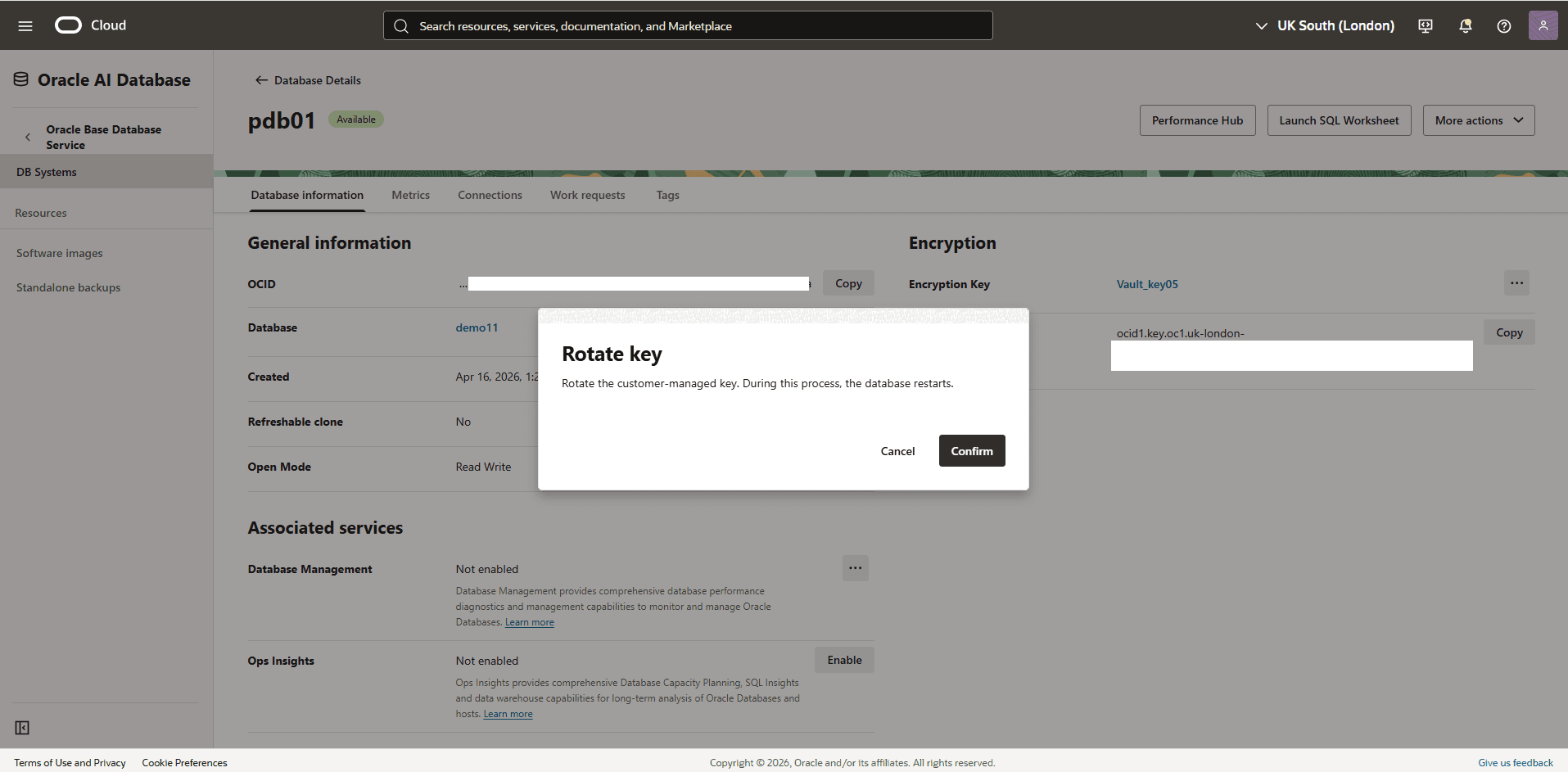
The Encryption section displays the Encryption Key details.
-
Select the Action menu ( three dots) and then select the Rotate option.
-
Select the Confirm button to save the changes.
-
There is currently no content for this page. The Oracle AI Database@Google Cloud team intends to add content here, and this placeholder text is provided until that text is added.
The Oracle AI Database@Google Cloud team is excited about future new features, enhancements, and fixes to this product and this accompanying documentation. We strongly recommend you watch this page for those updates.
Oracle Base Database Service integration with Google Cloud Key Management Service (KMS) is currently not supported. Once this capability becomes available, the Oracle AI Database@Google Cloud team will update this section with the guidance.