Viewing Insights for Multicloud Subscriptions (Listing)
View activated Multicloud subscriptions in the tenancy using Oracle Multicloud Hub in the Console. In addition to financial and operational insights, details listed for each Multicloud subscription include subscription ID, partner cloud (name and account identifier), linked date, payment plan, commitment, and end date.
Insights include the following information for each subscription.
- Private Offer (PO) balance and contractual timelines.
- Summary of Cloud Guard alerts that apply to the subscription.
- Links to list views and pages with more details, such as operational events leading to a compartment-filtered view of announcements.
The API for this task is ListMulticloudSubscriptions.
- Open the navigation menu and select Hybrid & Multicloud. Under Multicloud Hub, select Insights.
The Insights page opens, with a tab for each available cloud service provider.
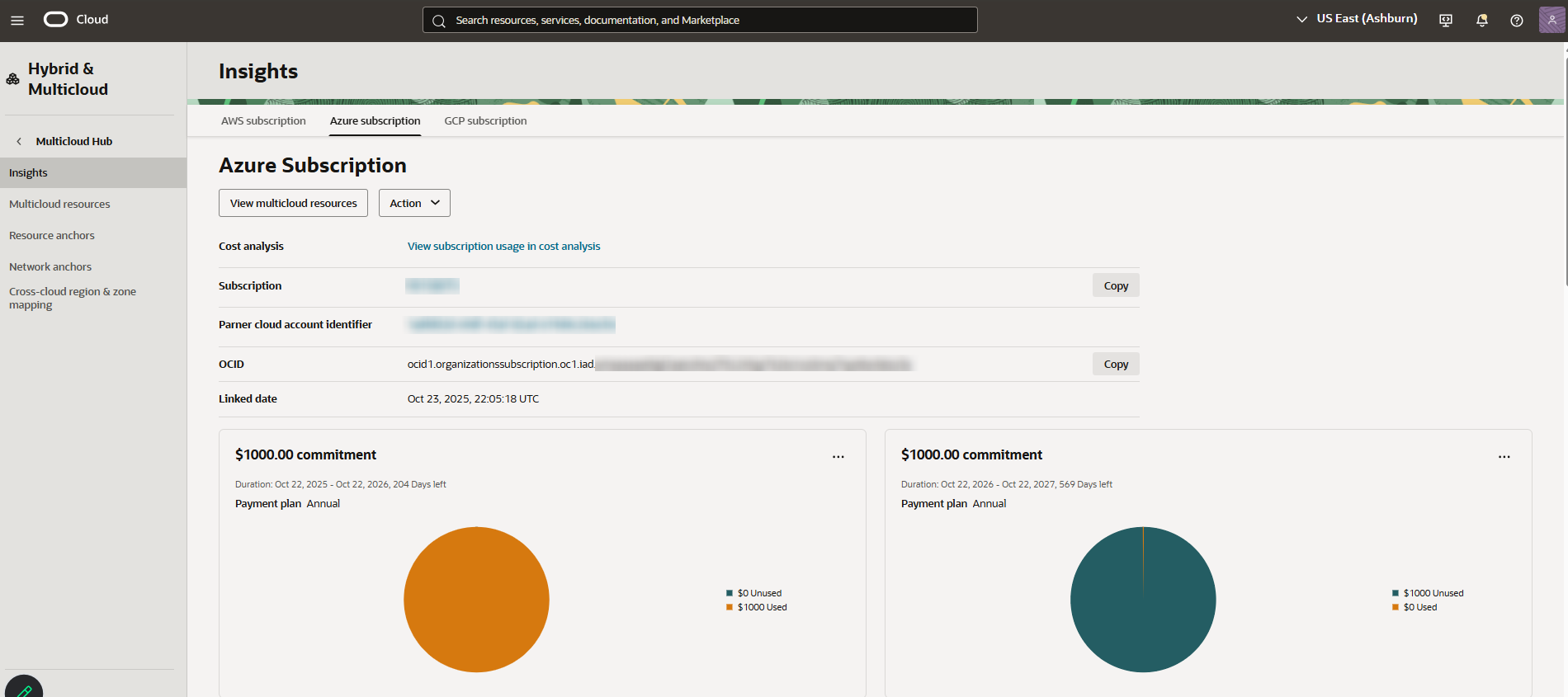
Each provider-specific tab includes the following information and options.
- Subscription metadata:
- View multicloud resources:
- Action:
- View resource anchor list
- View network anchor list
- Cost analysis: View subscription usage in cost analysis
- Subscription:
- Partner cloud account identifier:
- OCID:
- Linked date:
- Cloud guard alerts: Review potential problems related to your Multicloud subscription and its resources. Select an alert to open its details page, then decide the next course of action based on the criticality of the alert.
To enable Cloud Guard alerts, see Enabling Cloud Guard.
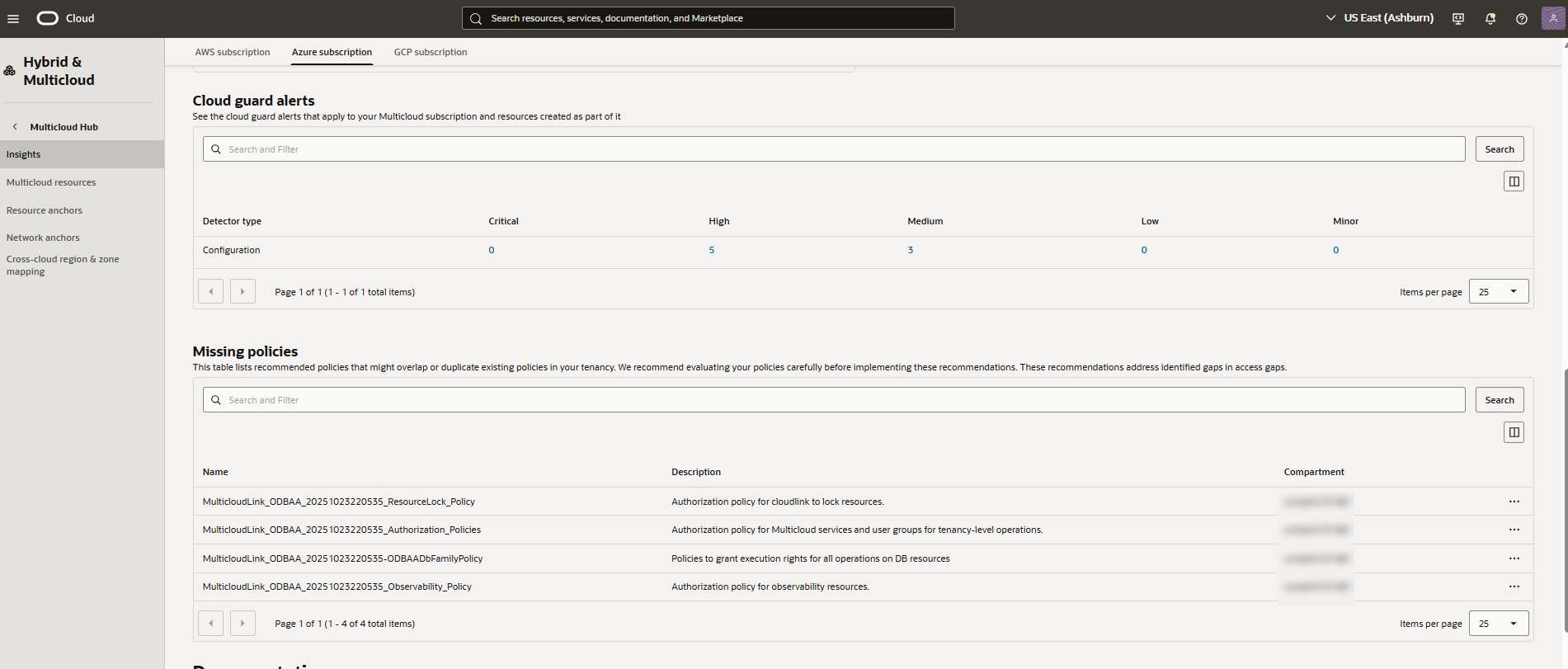
Filtering list results: Use filters to limit the alerts in the list.
From the Search and Filter box above the list table, select one or more filters and specify the values that you want to use to narrow the list. In general, the filters correspond to the columns shown in the list table, although some filters represent attributes that aren't shown in the table. The Compartment filter is always displayed next to Applied filters.
Change the order of the items in the list table by using the sort icons next to the column names.
For information about searching for resources and managing the columns in the list table, see Listing Resources.
- Missing policies: Review recommended policies to address possible gaps in access. These recommended policies might overlap or duplicate existing policies in your tenancy. Note
We recommend evaluating your policies carefully before implementing these recommendations.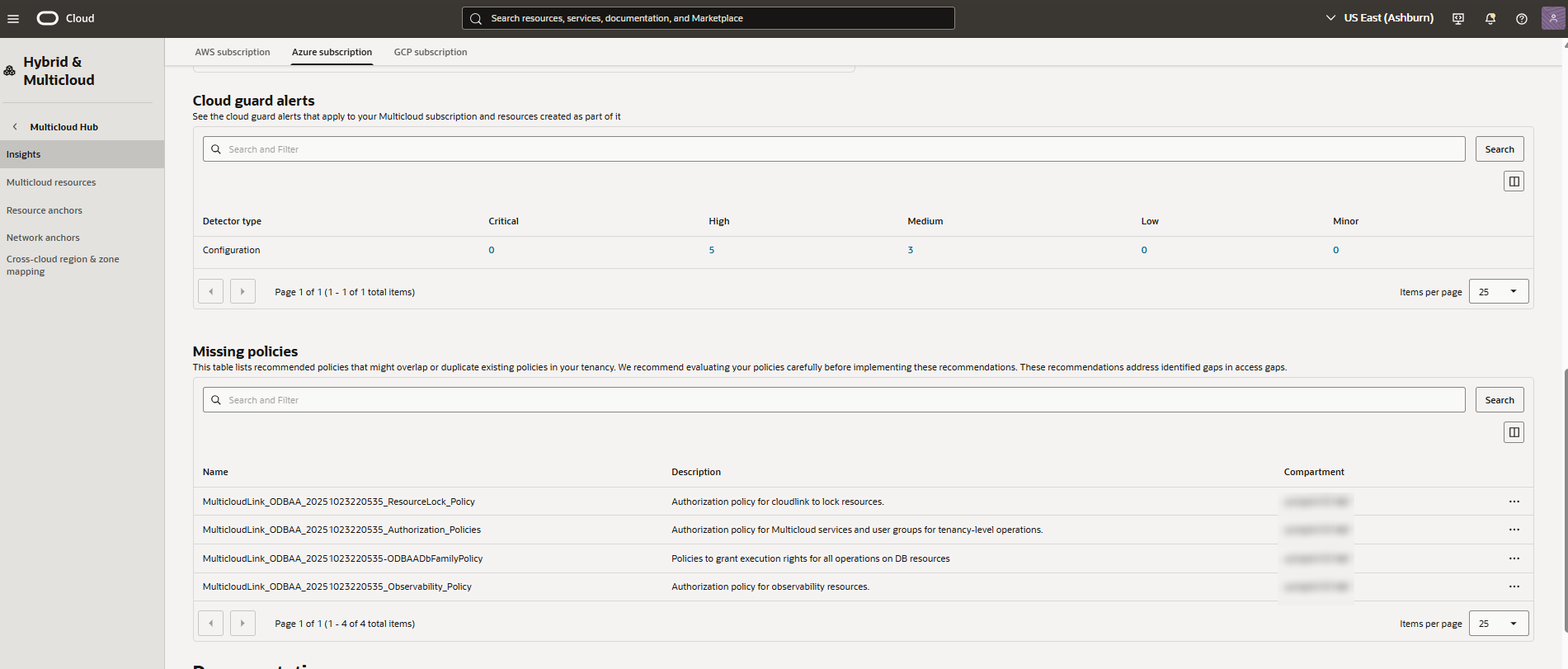
Filtering list results: Use filters to limit the missing policies in the list.
From the Search and Filter box above the list table, select one or more filters and specify the values that you want to use to narrow the list. In general, the filters correspond to the columns shown in the list table, although some filters represent attributes that aren't shown in the table. The Compartment filter is always displayed next to Applied filters.
Change the order of the items in the list table by using the sort icons next to the column names.
For information about searching for resources and managing the columns in the list table, see Listing Resources.
Actions: To create a recommended policy, select Create Policy from the in the row for that missing policy.
- Documentation: Review linked documentation to learn more about Oracle Multicloud Hub.
- Subscription metadata:
This task can't be performed with the OCI CLI.
What's Next
- Listing Multicloud Metadata for a Subscription
- Getting Details for Multicloud Metadata
- Use Billing and Cost Management to view usage for a Multicloud subscription. See Subscriptions and Cost Analysis Overview.