Purchase
Learn about the steps and best practices around Oracle Multicloud Universal Credits (MUC) purchase and onboarding.
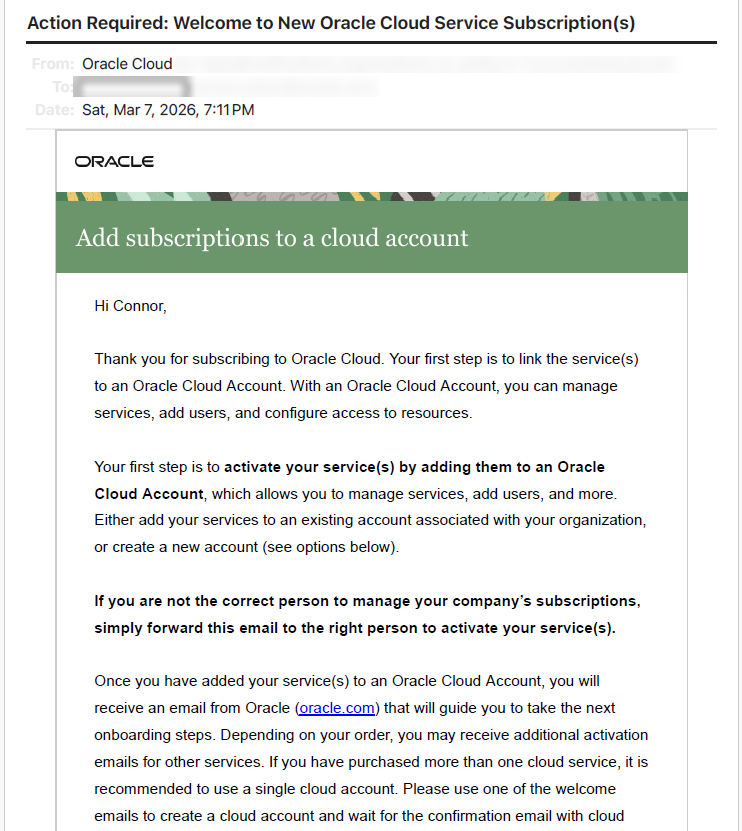
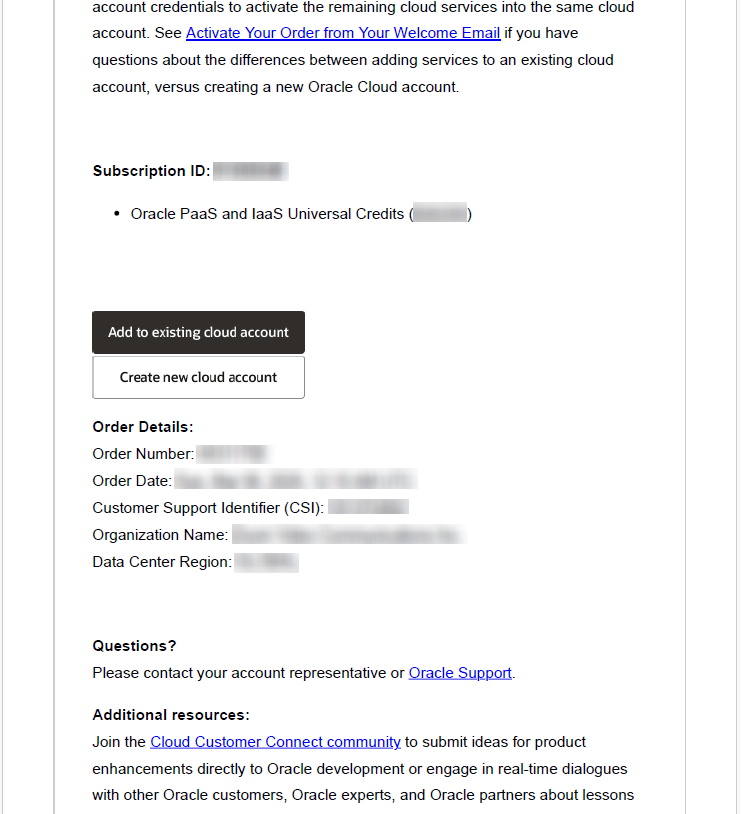
As part of the Multicloud Universal Credits purchase you must select OCI and one or more partner hyperscalers (AWS, Azure, and Google Cloud). After you sign the Oracle Multicloud Universal Credits contract, you receive three (3) or more emails from Oracle on adding the subscriptions to a cloud account (OCI). We recommend you use one of the following supported models while completing the purchase:
The MUC subscription, also known as Primary subscription, contains your commitment balance and can be used to view and manage spend against your commitment. The MUC subscription is not intended to be used for consuming Oracle Cloud services.
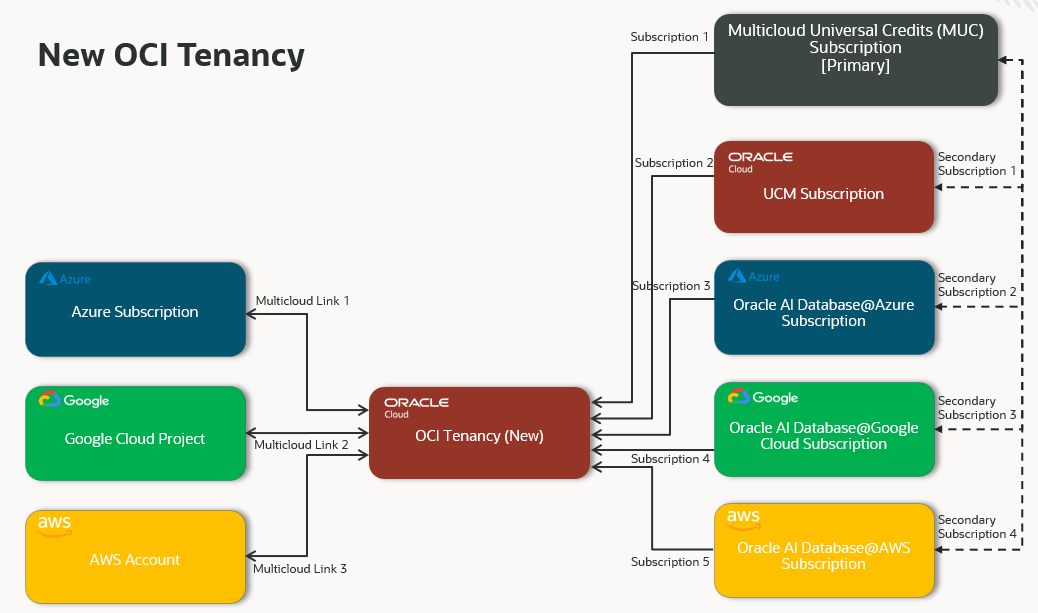
Multicloud (Oracle AI Database@) subscriptions cannot be shared across OCI tenancies and must be activated on the tenancy where your Multicloud workloads will be hosted.
New Tenancy
-
Depending on your MUC construct, you receive 1 (one) email per partner hyperscalers. Follow the steps to complete the association of Azure, Google Cloud, and AWS subscriptions to the newly created OCI tenancy.
- Oracle PaaS and IaaS Universal Credits - Azure Multicloud
If you plan to use Oracle AI Database@Azure and have added it in the Multicloud Universal Credits contract, Oracle sends you an email to complete the purchase and Multicloud linking at the Azure Portal. Follow the steps as outlined at Accept a Private Offer and Purchase a Private Offer to complete the purchase. After the purchase is complete, follow the steps as outlined at Link an Existing OCI Account to Oracle AI Database@Azure (Private Offer Only). On this Multicloud linking step, you use the newly created OCI tenancy at the earlier step.
- Oracle PaaS and IaaS Universal Credits - Google Multicloud
If you plan to use Oracle AI Database@Google Cloud and have added it in the Multicloud Universal Credits contract, Oracle sends you an email to complete the purchase and Multicloud linking at the Google Cloud Console. Follow the steps as outlined at Purchase a Private Offer to complete the purchase. After the purchase is complete, follow the steps as outlined at Link an existing OCI account to Oracle AI Database@Google Cloud. On this Multicloud linking step, you use the newly created OCI tenancy at the earlier step.
- Oracle PaaS and IaaS Universal Credits - AWS Multicloud
If you plan to use Oracle AI Database@AWS and have added it in the Multicloud Universal Credits contract, Oracle sends you an email to complete the purchase and Multicloud linking at the AWS Console. Follow the steps as outlined at Purchase a Private Offer to complete the purchase. After the purchase is complete, follow the steps as outlined at Link (for linking an existing OCI account to Oracle AI Database@AWS). On this Multicloud linking step, you use the newly created OCI tenancy at the earlier step.
- Oracle PaaS and IaaS Universal Credits - Azure Multicloud
Existing Tenancy
-
You receive up to 3 more emails depending on your MUC construct. Follow the steps to complete the association of Azure, Google Cloud, and AWS subscriptions to the existing OCI tenancy.
- Oracle PaaS and IaaS Universal Credits - Azure Multicloud
If you plan to use Oracle AI Database@Azure and have added it in the Multicloud Universal Credits contract, Oracle sends you an email to complete the purchase and Multicloud linking at the Azure Portal. Follow the steps as outlined at Accept a Private Offer and Purchase a Private Offer to complete the purchase. After the purchase is complete, follow the steps as outlined at Link an Existing OCI Account to Oracle AI Database@Azure (Private Offer Only). On this Multicloud linking step, you select the same existing OCI tenancy used at the earlier step.
- Oracle PaaS and IaaS Universal Credits - Google Multicloud
If you plan to use Oracle AI Database@Google Cloud and have added it in the Multicloud Universal Credits contract, Oracle sends you an email to complete the purchase and Multicloud linking at the Google Cloud Console. Follow the steps as outlined at Purchase a Private Offer to complete the purchase. After the purchase is complete, follow the steps as outlined at Link an existing OCI account to Oracle AI Database@Google Cloud. On this Multicloud linking step, you select the same existing OCI tenancy used at the earlier step.
- Oracle PaaS and IaaS Universal Credits - AWS Multicloud
If you plan to use Oracle AI Database@AWS and have added it in the Multicloud Universal Credits contract, Oracle sends you an email to complete the purchase and Multicloud linking at the AWS Console. Follow the steps as outlined at Purchase a Private Offer to complete the purchase. After the purchase is complete, follow the steps as outlined at Link (for linking an existing OCI account to Oracle AI Database@AWS). On this Multicloud linking step, you select the same existing OCI tenancy used at the earlier step.
Warning
You cannot map multiple subscriptions of the same type to a tenancy.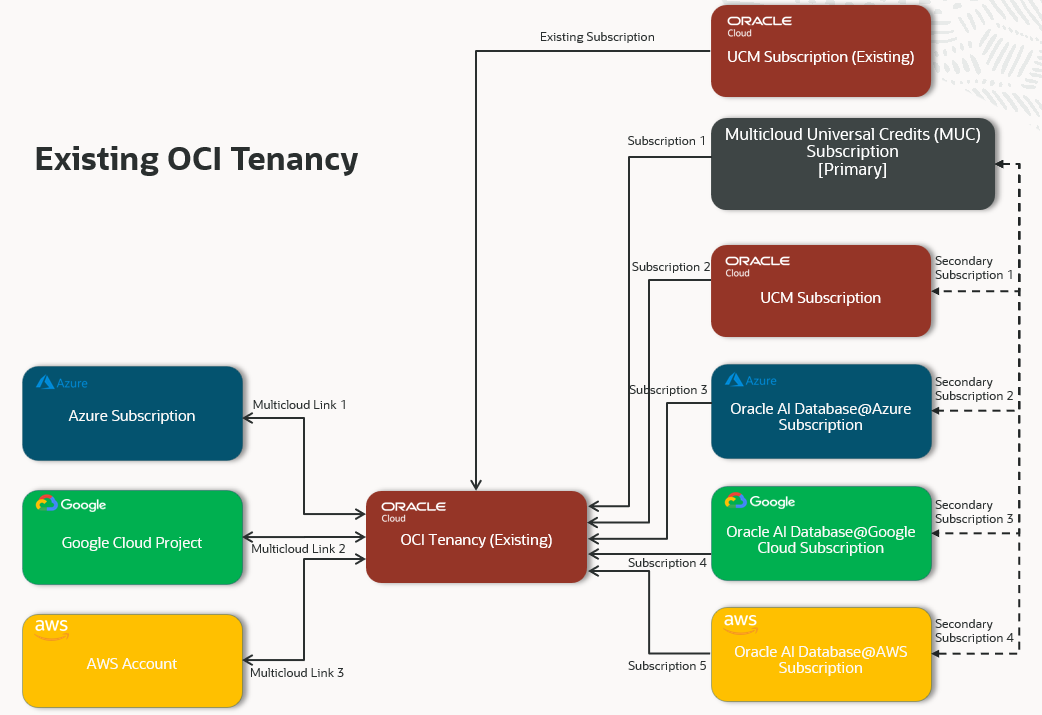
- Oracle PaaS and IaaS Universal Credits - Azure Multicloud
OCI Parent-Child Tenancy
-
You receive up to 3 more emails depending on your MUC construct. Follow the steps to complete the association of Azure, Google Cloud, and AWS subscriptions to their respective existing OCI Child tenancies.
- Oracle PaaS and IaaS Universal Credits - Azure Multicloud
If you plan to use Oracle AI Database@Azure and have added it in the Multicloud Universal Credits contract, Oracle sends you an email to complete the purchase and Multicloud linking at the Azure Portal. Follow the steps as outlined at Accept a Private Offer and Purchase a Private Offer to complete the purchase. After the purchase is complete, follow the steps as outlined at Link an Existing OCI Account to Oracle AI Database@Azure (Private Offer Only). On this Multicloud linking step, you select an OCI Child tenancy designated for this hyperscaler subscription association.
- Oracle PaaS and IaaS Universal Credits - Google Multicloud
If you plan to use Oracle AI Database@Google Cloud and have added it in the Multicloud Universal Credits contract, Oracle sends you an email to complete the purchase and Multicloud linking at the Google Cloud Console. Follow the steps as outlined at Purchase a Private Offer to complete the purchase. After the purchase is complete, follow the steps as outlined at Link an existing OCI account to Oracle AI Database@Google Cloud. On this Multicloud linking step, you select an OCI Child tenancy designated for this hyperscaler subscription association.
- Oracle PaaS and IaaS Universal Credits - AWS Multicloud
If you plan to use Oracle AI Database@AWS and have added it in the Multicloud Universal Credits contract, Oracle sends you an email to complete the purchase and Multicloud linking at the AWS Console. Follow the steps as outlined at Purchase a Private Offer to complete the purchase. After the purchase is complete, follow the steps as outlined at Link (for linking an existing OCI account to Oracle AI Database@AWS). On this Multicloud linking step, you select an OCI Child tenancy designated for this hyperscaler subscription association.
Warning
You cannot map multiple subscriptions of the same type to a tenancy.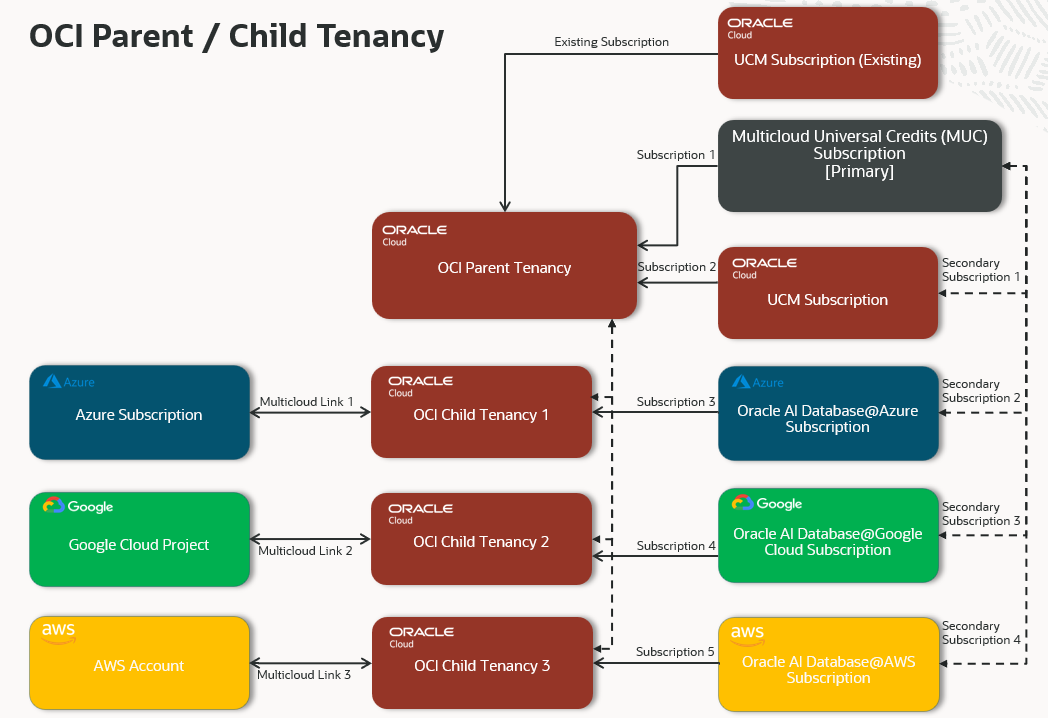
- Oracle PaaS and IaaS Universal Credits - Azure Multicloud
Sample MUC Email
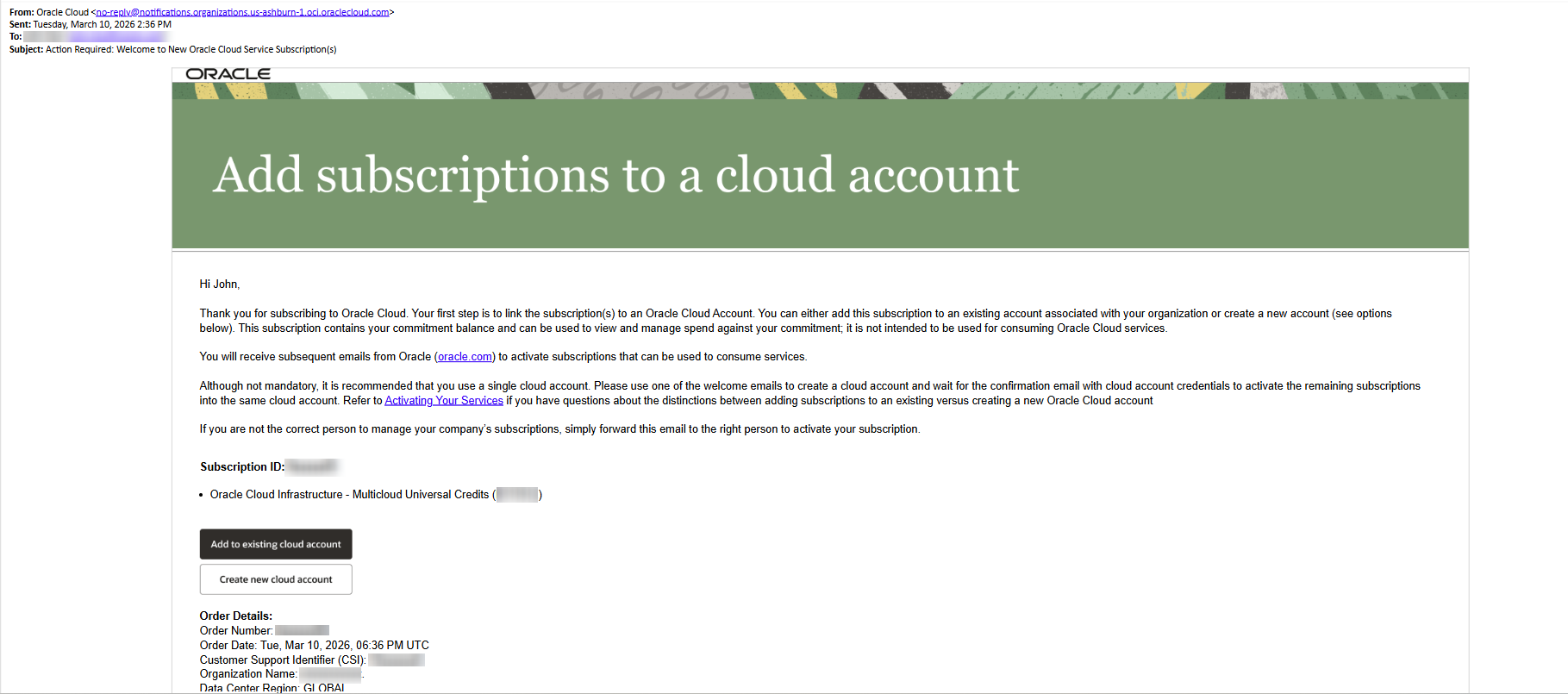
Sample UCM Email