Manage Egress Access Rules for a Public Endpoint using the Console
If you deployed Oracle Analytics Cloud with a public internet accessible endpoint and you have private data sources that Oracle Analytics Cloud connects to over a private access channel, you can use egress rules that you define in network security groups to restrict outgoing traffic through the channel. You can add up to five network security groups.
Any network security groups that you want to use must be in the same VCN as the private access channel.
- In Oracle Cloud
Infrastructure Console, click
 in the top left corner.
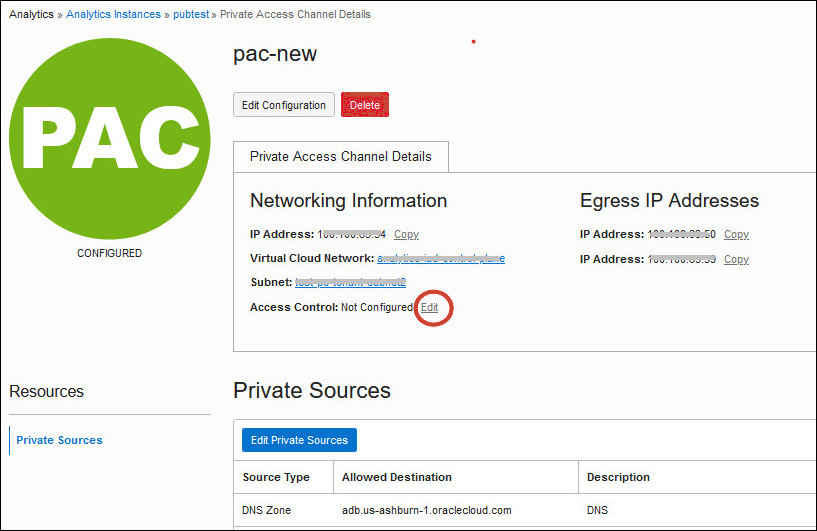
 - Under General Information, click the
Edit link next to Access
Control.
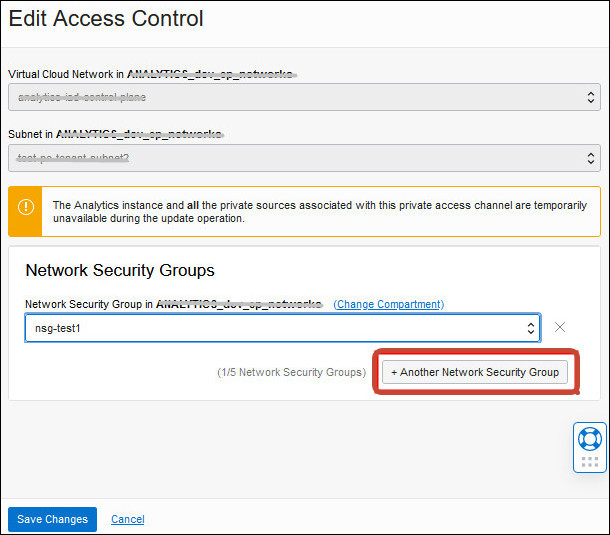
- Click Add Network Security Group, and then select the
name of the network security group you want to give access to.
Click Virtual Cloud Network Compartment or Subnet Compartment if the network security group you're looking for is located in a different compartment.