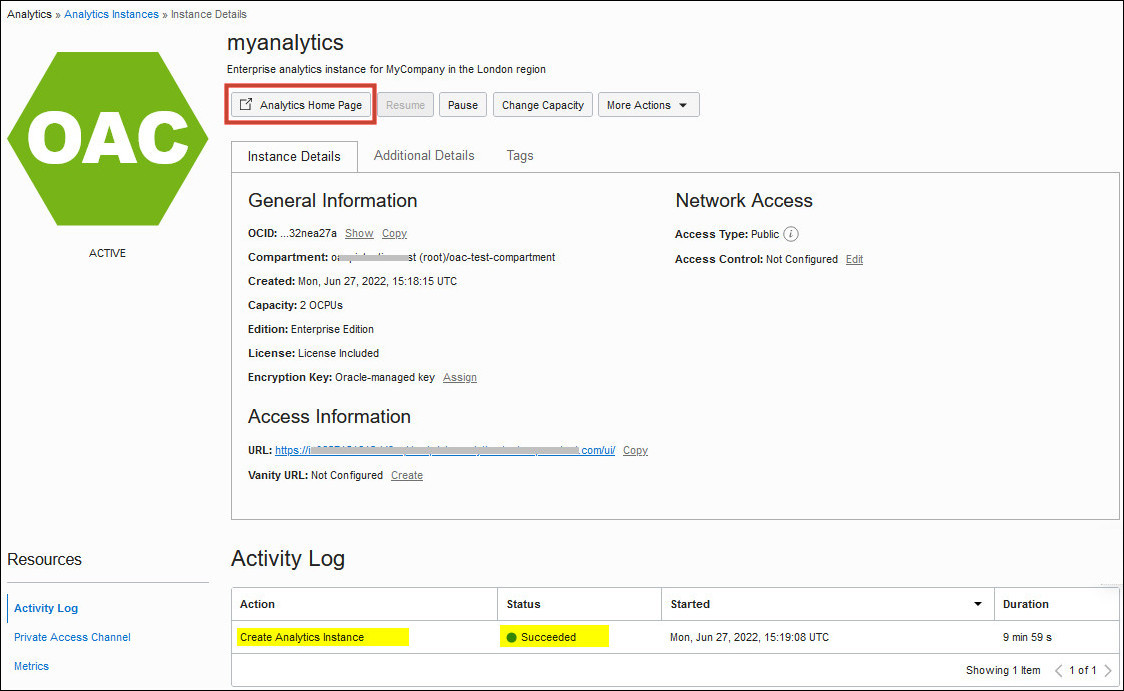
Oracle sends an email to the designated email address when your Oracle
Analytics Cloud service is ready. Navigate to your service in Oracle Cloud
Infrastructure Console, click the Analytics Home Page button, and then sign in to
verify your Oracle
Analytics Cloud service is up and running.
- In Console, click
 in the top left corner.
- Click Analytics & AI. Under AI Data
Platform, click Analytics Cloud.
- Select the compartment in which you created the instance.
- Click the name of the new instance.
- Take some time to familiarize yourself with the information and actions
available for your instance.
- Actions button: Instance-level
actions that enable you to pause, resume, change capacity (scale) and
change the feature set (edition). You can also change the license type,
edit the description, move your instance to a different compartment, and
delete your service.
- Instance Details tab: Information
such as OCID, compartment, current capacity, edition deployed, license
used, update cycle, public or private access, and identity provider (the
Identity and Access Management (IAM) domain or Oracle Identity Cloud
Service instance (stripe). Access to encryption key configuration,
access control rules for public endpoints, VCN and subnet configuration
for private endpoints, the service URL, and vanity URL
configuration.
- Monitoring tab: Access to key usage
metrics.
- Networking tab: Network configuration information
such as your service's host name, IP address, and gateway IP address.
Access to private access channel configuration.
- Work Requests tab: Status and activity logs.
Drill down for detailed information, log messages, error messages, and
associated resources.
- Tags:
- Verify and explore your service.
- Click Analytics Home Page.
- Sign into Oracle
Analytics Cloud service with your administrator credentials.