Install the add-in on Mac
The Oracle Database for Excel is supported on Mac OS running Microsoft Office 365.
To install the Oracle Database for Excel, run the installer script file from your database instance by following the steps below:
-
Open the Database Actions Launchpad.
- On the Downloads tab of the Database Actions
page, click the Download Microsoft Excel/Google Sheets Add-in
pane.
- Click Download.
- Click the Microsoft Excel tab and select the Download Add-in button to download the oracleplugin.zip file.
- You can now view the zip file in the Downloads folder.
- Create a new folder named Add-in on your system.
- Extract the contents of the zip file in the Add-in folder.
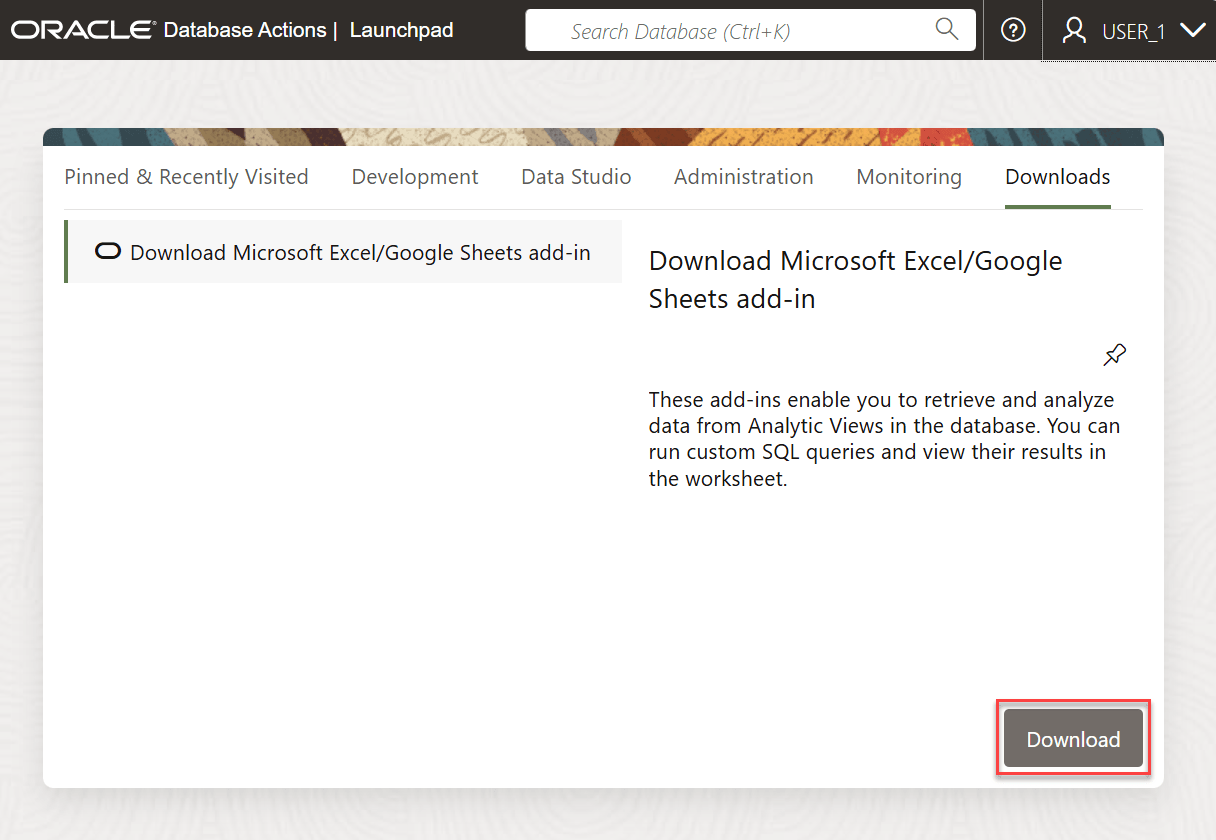
Follow these steps to install the add-in.
- Quit Excel before you run the installer.
- Navigate to the install.sh file in the Add-in folder.
- Right-click install.sh and select the following options as shown : Open With -> Other… -> Enable: All Applications ->Utilities->Terminal
- On completion, close the Terminal window.
- Start Excel and open a new or existing workbook.
- From the Insert menu in the Excel ribbon, select
the drop-down menu of My Add-ins.
A new Oracle Database entry appears under the Developer Add-Ins dialog box.
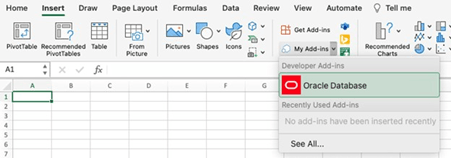
Description of the illustration developer-addin.png - Select Oracle Database.
A new Oracle Database ribbon tab appears in MS Excel.

Parent topic: Install the add-in from Database Actions