Connect to the MCP Server Using a Personal Access Token
Generate a Personal Access Token
-
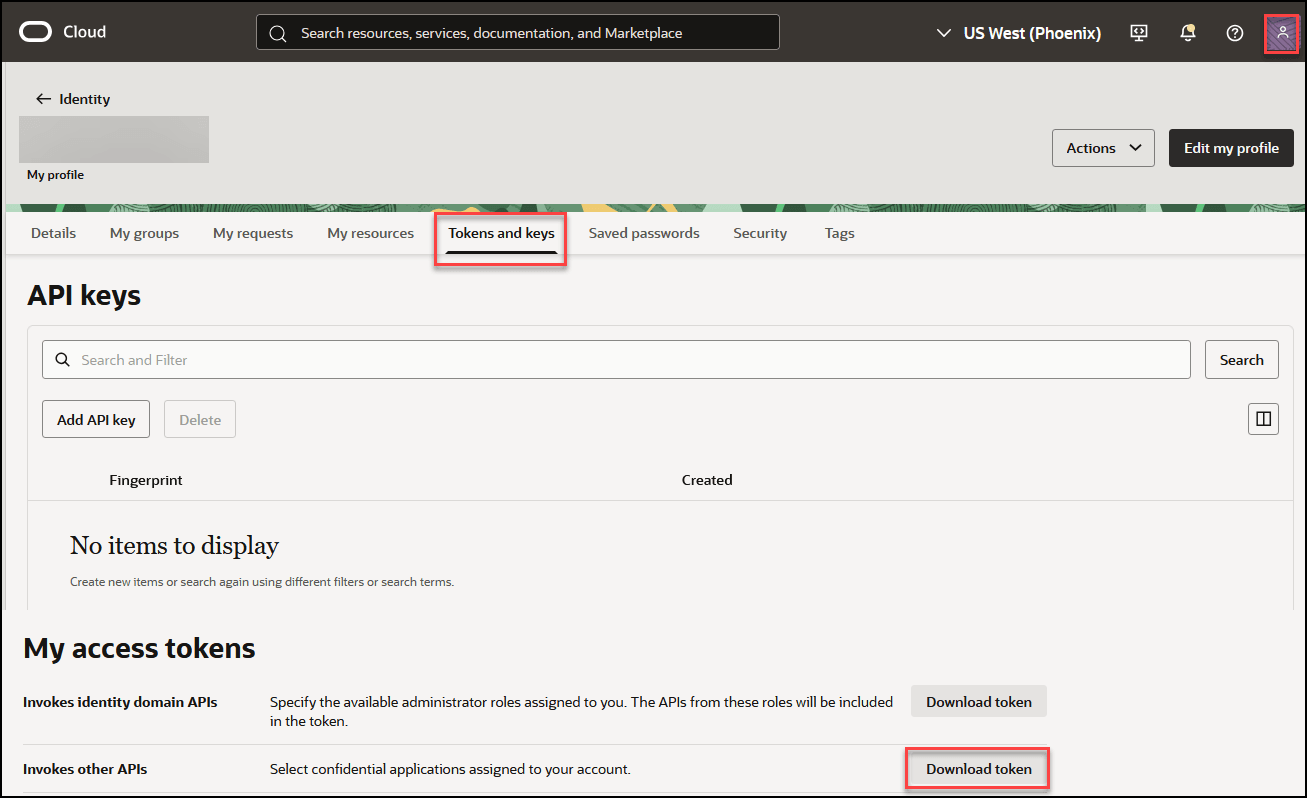
Click the Profile icon and select <user email id>.
- Select the Tokens and keys tab.
-
In the My access tokens section, for Invokes other APIs, click Download Token.
-
In the Generate personal access token page:
- Select the MCP server for which you want to generate a token.
- In Token expires in mins, select the token expiry
duration in minutes (For example, 10080 minutes is equivalent to one
week).
Note
The Access Token Expiration setting for the MCP server is superseded by the duration that is specified for the MCP server Token Expires in mins setting. Go to the MCP server Details page to see the Access Token Expiration setting. See Connecting to an MCP Server to know where to find the Access Token Expiration setting. - Click Download Token.
Configure the MCP Client to Connect to the MCP Server
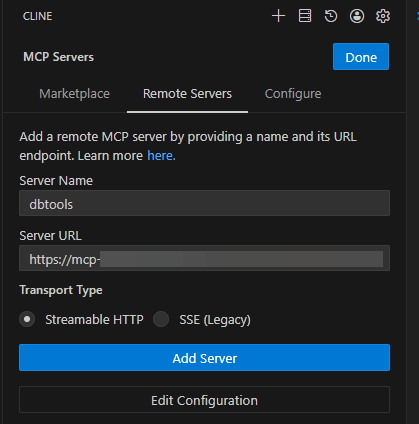
- In the Cline extension for Visual Studio Code, select the MCP Servers icon, then select the Remote Servers tab.
- Enter a name for the server and the Server URL. The Server URL is
available on the MCP server's Details page as follows:
https://example.oraclecloud.com/../actions/invoke - In Transport Type, select Streamable HTTP.
-
Click Add Server.
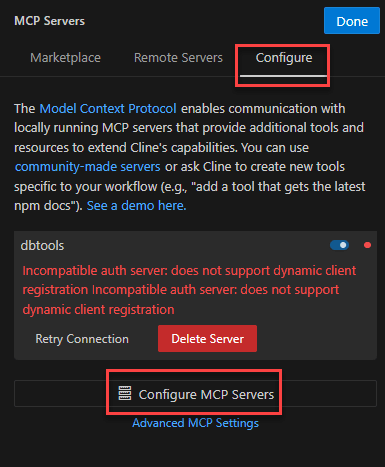
The Configure tab is selected and the server is displayed with an error.
-
Click Configure MCP Servers.
The contents of the
cline_mcp_setting jsonfile are displayed in the right pane.Update the file as follows:
{ "mcpServers": { "dbtools-mcp-server": { "disabled": false, "timeout": 60, "type": "streamableHttp", "url": "https://mcp.../x.xxxxx/actions/invoke", "headers": { "Authorization": "Bearer {Add downloaded token}" } } } } -
Save the file.
The error message is resolved. This is indicated by a green indicator that appears in the same row as the server name.
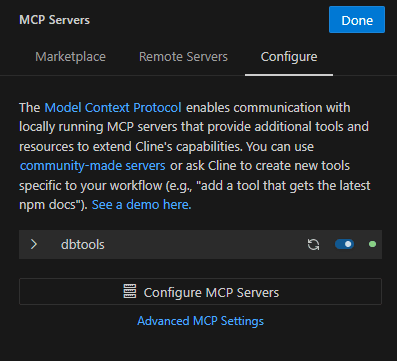
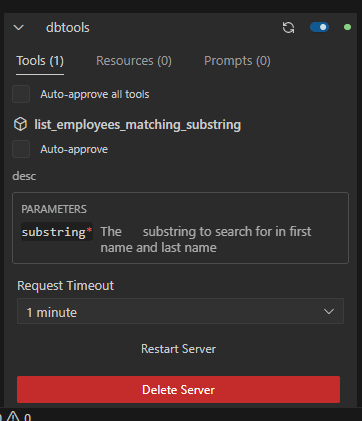
Expand the server name to see the available Tools, Resources and Prompts.