Production Scheduler Workbench HTML UI
In addition to the Oracle Forms-based Production Scheduler Workbench, you can also use the HTML-based Production Scheduler Workbench to schedule batches for individual plants. You can create batches and then use the Scheduler workbench to view details of the batches in the Gantt Chart. You can apply filters, view specific batches, and also reschedule batch dates in the Scheduler Workbench.
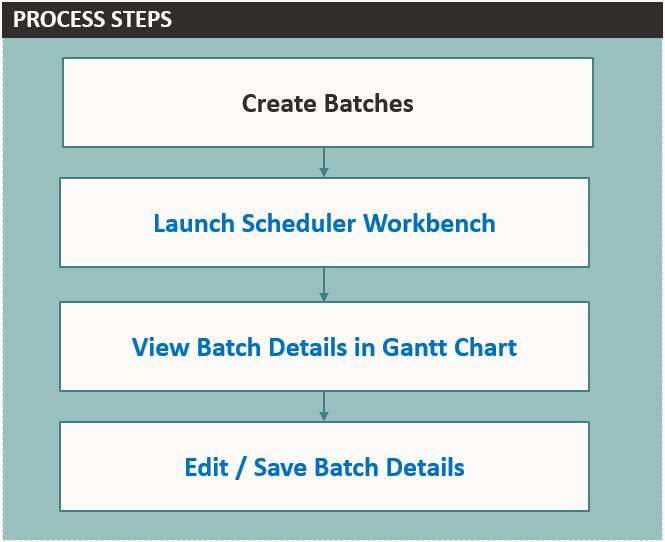
Use the following steps to use the HTML-based Production Scheduler Workbench:
- Navigate to the HTML-Based Production Scheduler Workbench. From the Home page, select the Production Supervisor responsibility and then Scheduler Workbench.
- In the Organization field, select an organization, then select Go.
- Notice the following batch search criteria:
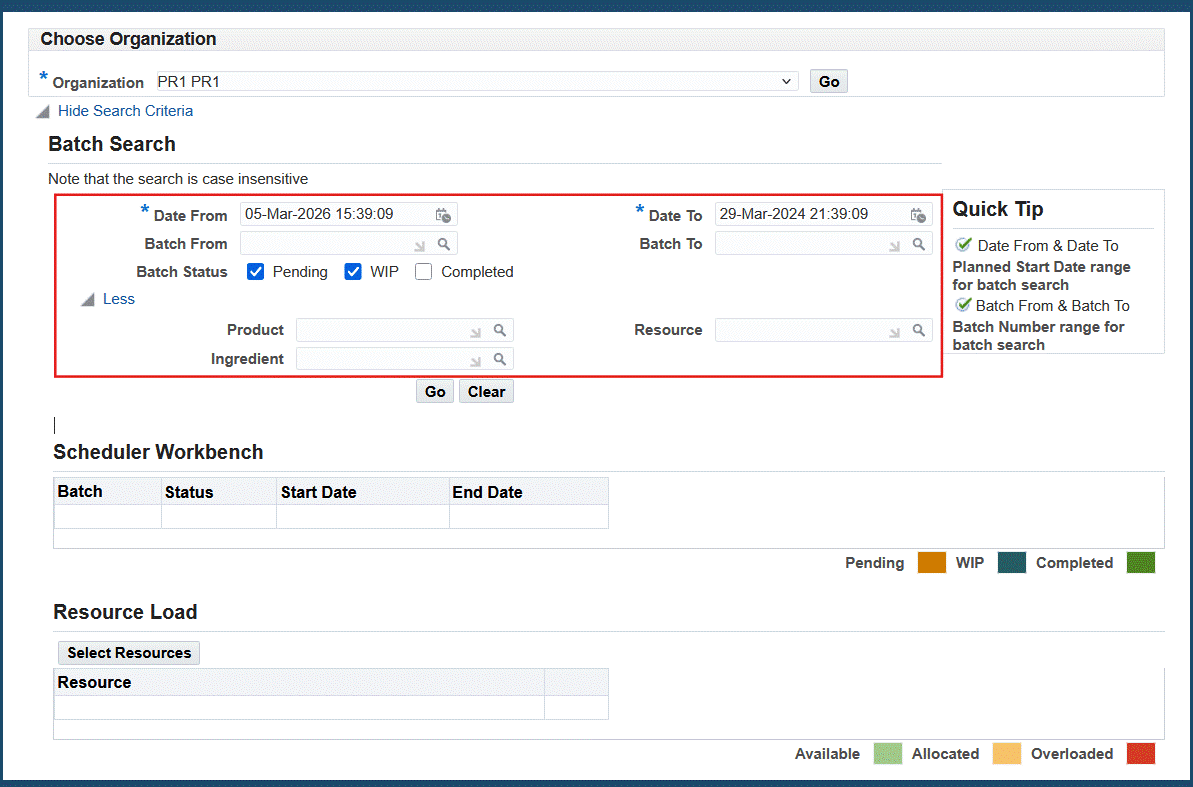
- Batch planned start date range (Date From and Date To).
- Batch number range (Batch From and Batch To).
- Batch status.
- Product, resource, and ingredient.
- The Scheduler Workbench displays the batches based on your search criteria.
- Expand a batch and batch step to see the activity performed and resources used within the step.
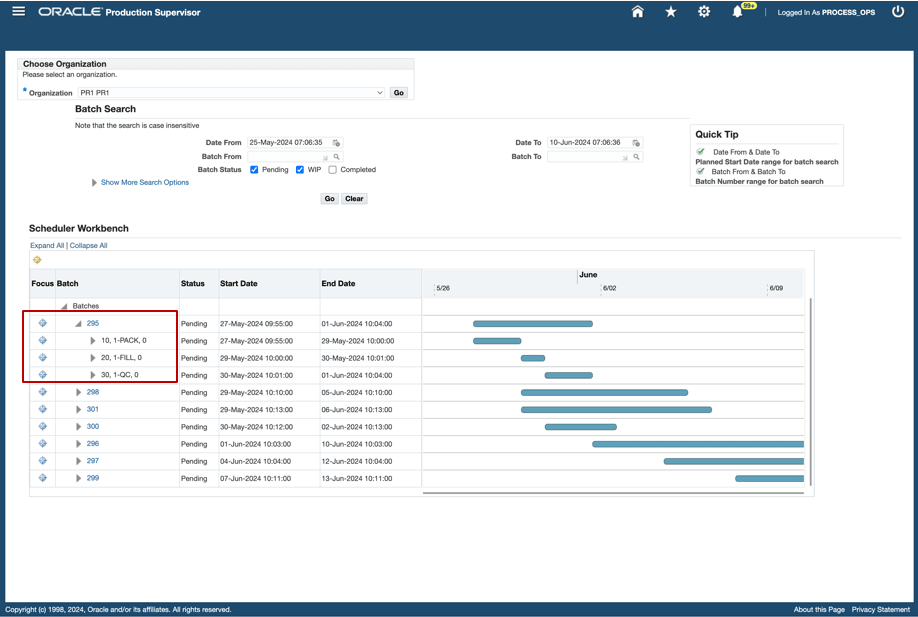
- Hover over the Gantt chart date range header. Zoom in and out of a date range. Zoom in and out between hours, days, weeks, months, quarters, and years.
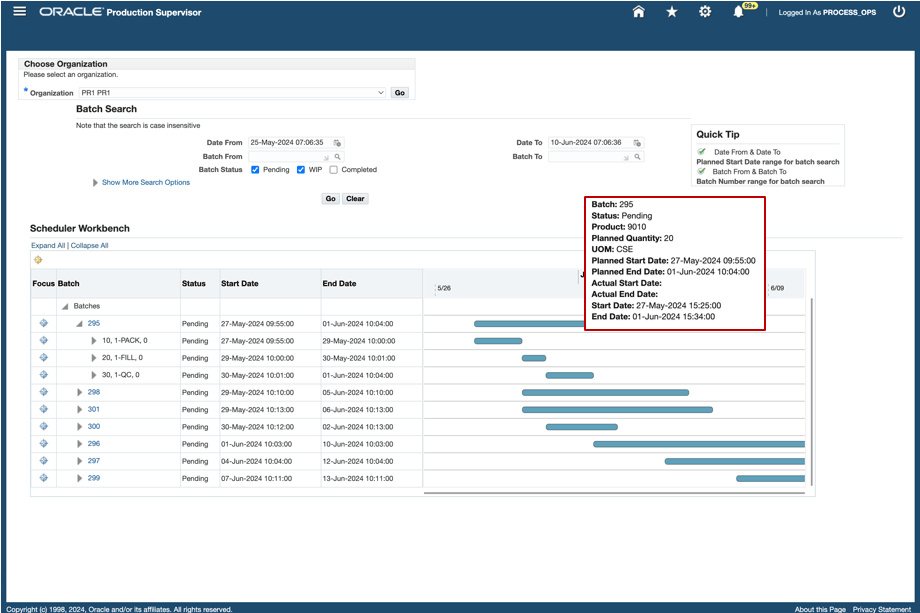
- Right-click a batch or operation bar on the Gantt Chart, and select Reschedule.
- Depending upon whether you select a batch or operation, use the Batch Reschedule or Operation Reschedule dialog box that opens to reschedule the batch or operation.
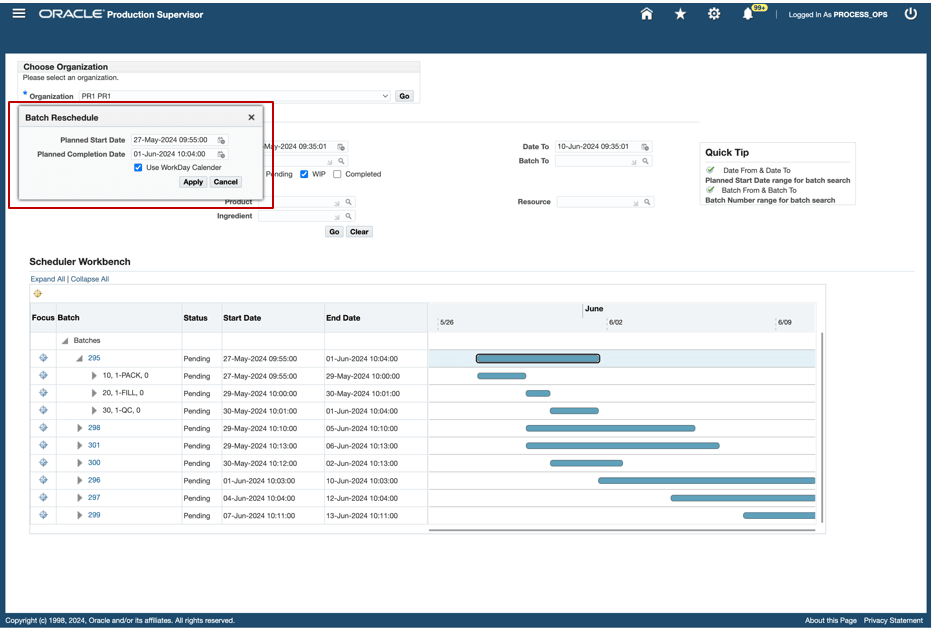
The HTML-based framework of the Scheduler Workbench provides a more modern and user-friendly interface. You can view and edit batch details in real-time, ensuring that the most up-to-date information is always available for decision-making.
Steps to enable and configure
You don't need to do anything to enable this feature.
Tips and considerations
- Apply the query criteria to filter and narrow down the batch details.
- Utilize the 'More Search Options' feature to reduce the number of batch details displayed in the Gantt chart.
- Use the “Zoom In/Out” feature to adjust the view of the batch schedule horizon.
- Use the “Focus in” option to view the relevant child entity of the batch.
Key resources
- Oracle Process Manufacturing Process Execution User's Guide:
- Chapter: Using the Oracle Forms-Based Production Scheduler Workbench
- Topic: Understanding the Production Scheduler Workbench
- Chapter: Using the Oracle Forms-Based Production Scheduler Workbench
- R12.2.14 TOI: Implement and Use Process Manufacturing Process Execution - Process Execution Enhancements