Dispatching
Your Notification Message
Dispatching
Your Notification Message Before You Begin
In this 10-minute Oracle-by-Example (OBE), you will learn how to dispatch the notification message.
What Do You Need?
To perform the steps in this OBE, you must have created a notification message as explained in the preceding OBE.
 Dispatching
Your Notification Message
Dispatching
Your Notification Message
- Sign in to the EnterpriseOne web client. You can do this
easily from Orchestrator Studio by clicking the Tools
menu, which is in the upper-right corner of most
pages, and choosing JD Edwards EnterpriseOne. EnterpriseOne
opens in a new web browser tab.
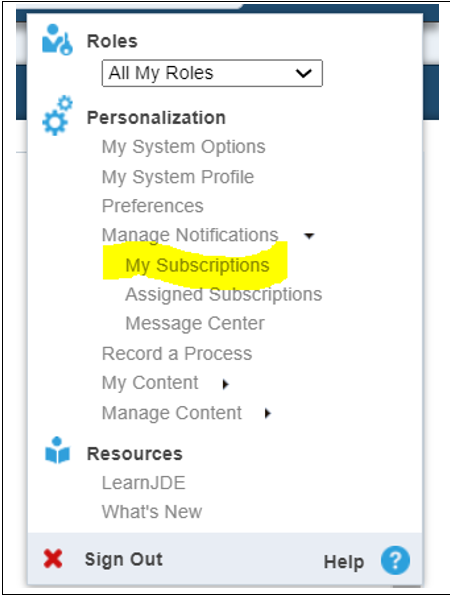
Leave Orchestrator Studio open in the first browser tab. - From the drop-down list at your user name in the upper-right corner of the EnterpriseOne Home page, select Manage Notifications, My Subscriptions. The My Subscriptions page appears.
- Click Add Subscription.
- Choose the notification name that you used to create the
notification in Orchestrator Studio:
“Incident Check-up Reminder”
Note: If your notification name does not appear in the list, you might have to sign out of EnterpriseOne and sign back in. - You can accept all the default values and click Save.
- Click Close to return to the EnterpriseOne Home page.
- Switch back to the Notification page in Orchestrator Studio.
- Click Test.
- Turn on the Dispatch Notifications option.
- Click Execute.
- Switch back to the EnterpriseOne web client and click Notification List (the bell icon) in the menu bar.
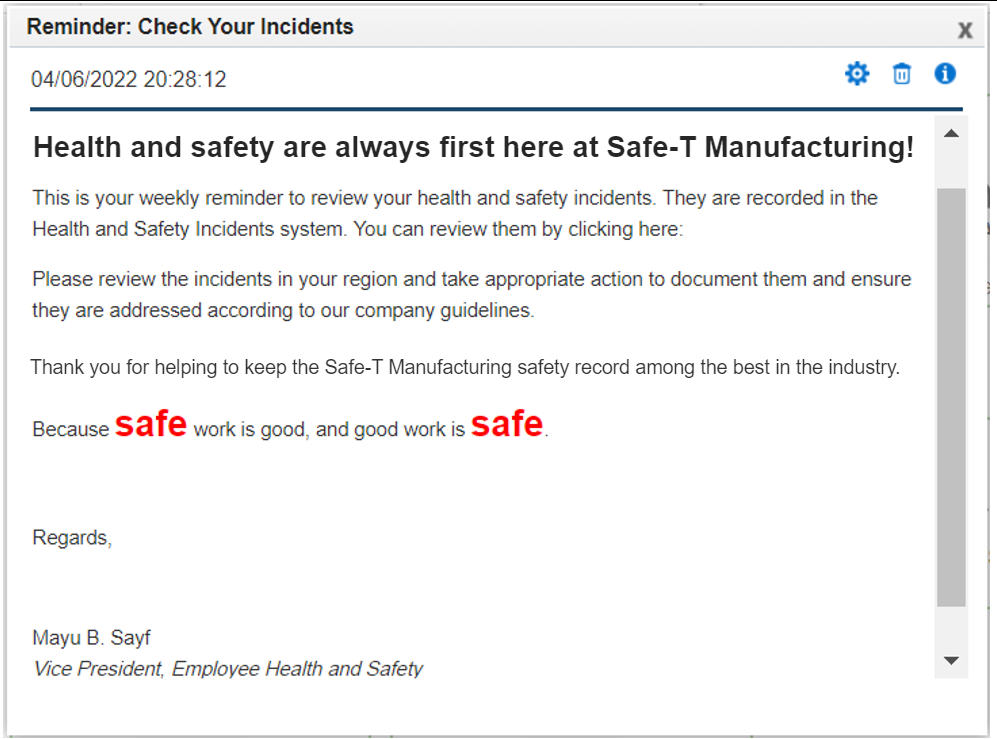
- Click to open your notification message. If you don’t see the message, click Refresh at the bottom left of the Notification List window.