This 10-minute tutorial shows you how to create a copy of an
object from a base object.
Creating
a Copy of an Object from a Base Object
To create a copy of an object:
Log in to EnterpriseOne with your credentials.
Access JD Edwards EnterpriseOne OMW.
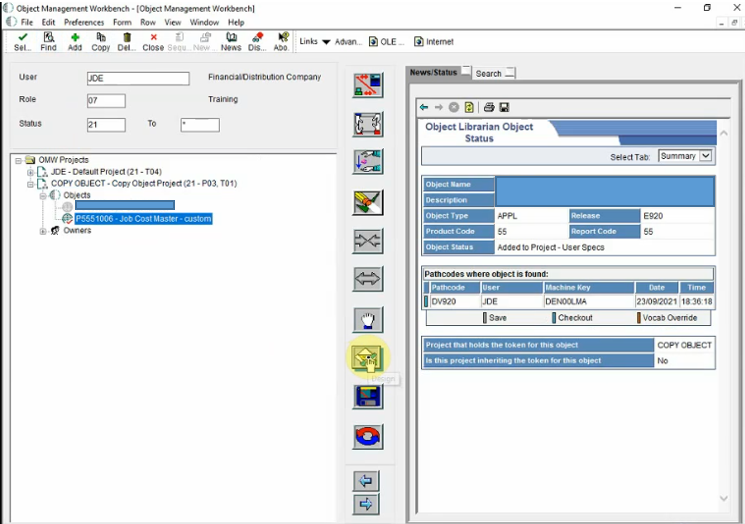
On the left pane, select the object that you want to copy.
Click the Copy button on the task bar.
OMW Task Bar
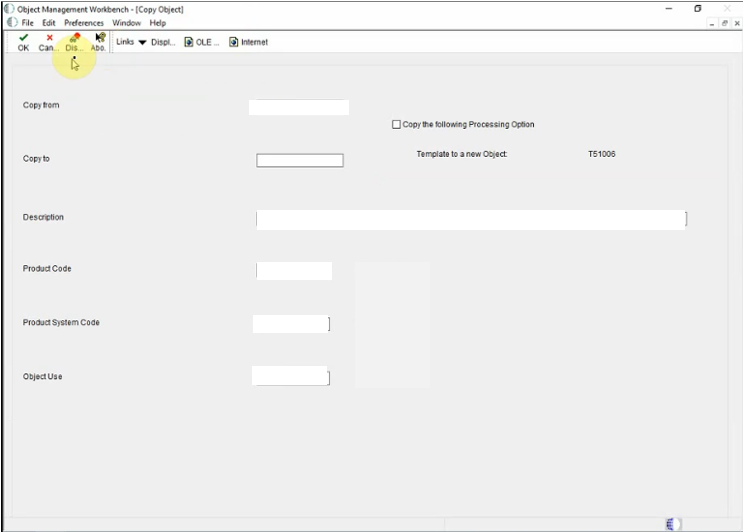
Enter the relevant values in the fields as shown below and
click OK. Copy Object Tab
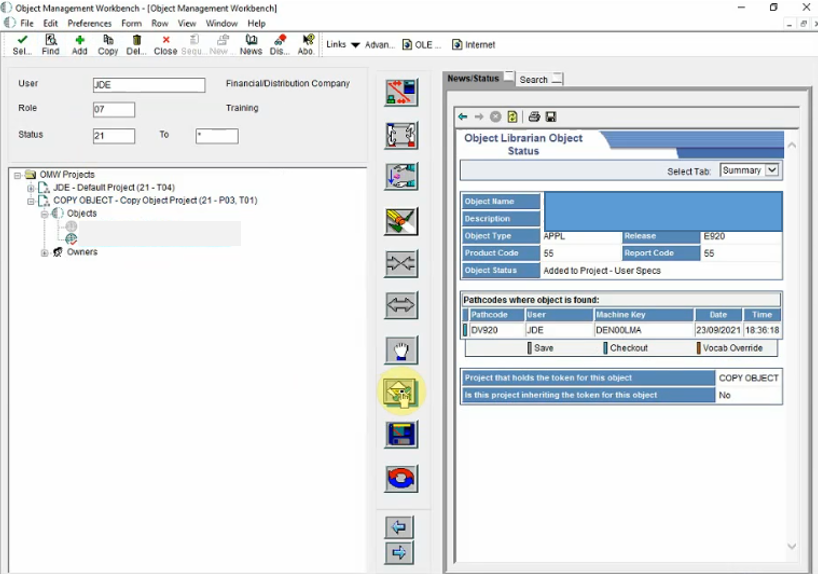
You will see the copied object on the Object Management
Workbench window under OMW projects under the Copy Object tab.
OMW Window
Select the copied object and click the Design mode on the
task panel on the left pane.
Copied Object
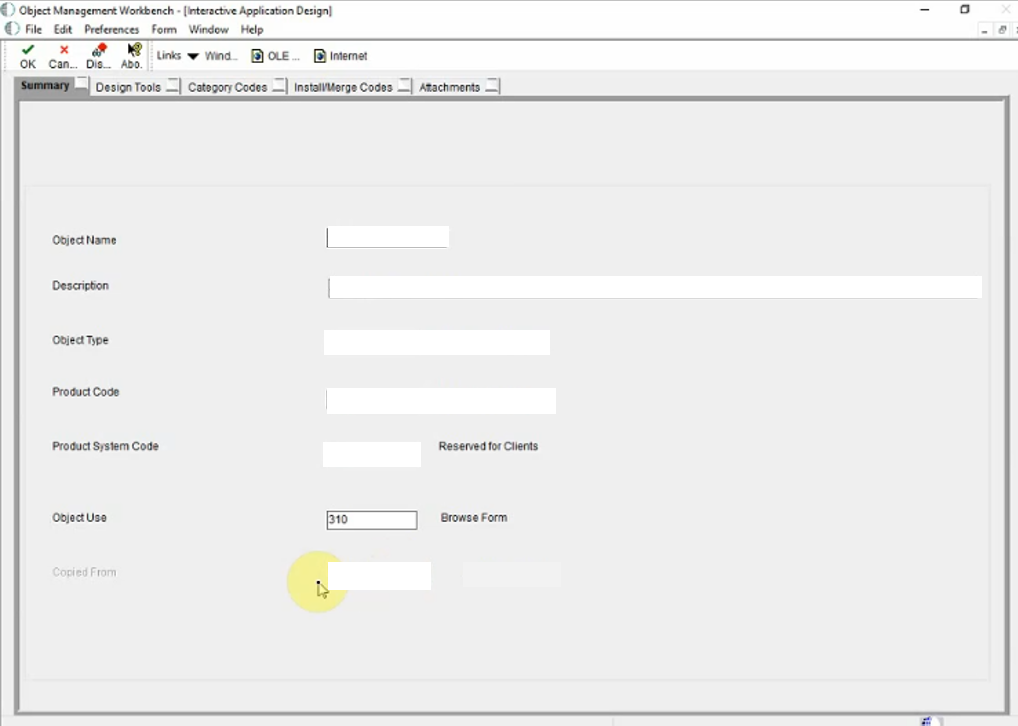
In the Summary tab, you will see the Copied From field which
gives you information about the base object.
Copied
From Field
Updating
the Object Librarian
To update the Object Librarian with the information of the
base objects from which the new customized objects are copied,
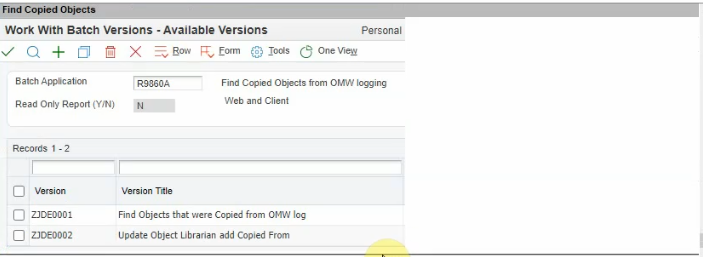
access the OMW Logging application (R9860A).
Enter BV (batch versions) on the fast path and enter R9860A
as the application number.
Access JD Edwards EnterpriseOne OMW.
Select the ZJE0002 version of the R9860A application to
update the Object Librarian with the information of the base
objects from which the new customized objects are copied.
Select the ZJDE001 version to run the Proof Mode of R9860A
and view the updates.
OMW Logging Application
You can view the impact of a software update on the copied
objects in the Comprehensive Analysis report in the Change
Assistant when you enable the Analyze Packages option for
the software update after you have updated the Object
Librarian with the base object information.

 Creating
a Copy of an Object from a Base Object
Creating
a Copy of an Object from a Base Object Before You Begin
 Creating
a Copy of an Object from a Base Object
Creating
a Copy of an Object from a Base Object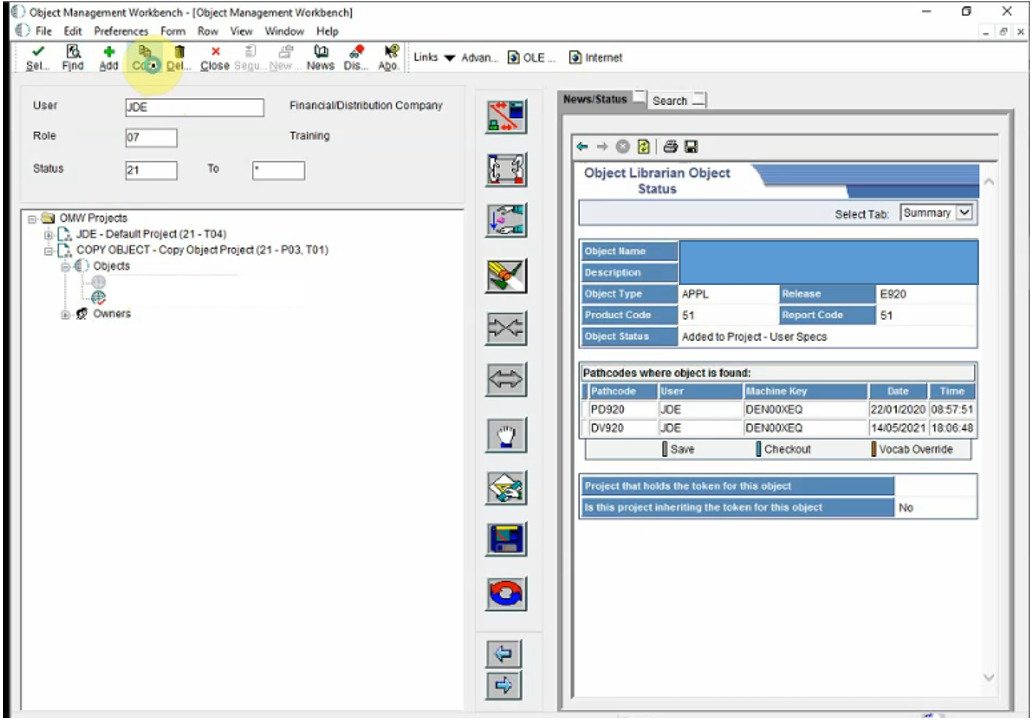
 Updating
the Object Librarian
Updating
the Object Librarian