Adding
Endpoints for JderestV3Orchestrator
Adding
Endpoints for JderestV3Orchestrator Before You Begin
This 20-minute tutorial shows you how to add endpoints for JderestV3Orchestrator.
Scenario
You must have completed these tasks:
- Created an orchestration that retrieves the information regarding customers
- Created a new flow customer_search_contact_customer under the customer_search flow
- Created a new blank or custom page under the customer_search_contact_customer
flow. Rename it as customer_search_contact_customer-search_customer
We will be using this page in this tutorial.
 Adding
Endpoints for JderestV3Orchestrator
Adding
Endpoints for JderestV3Orchestrator
To add endpoints for JderestV3Orchestrator:
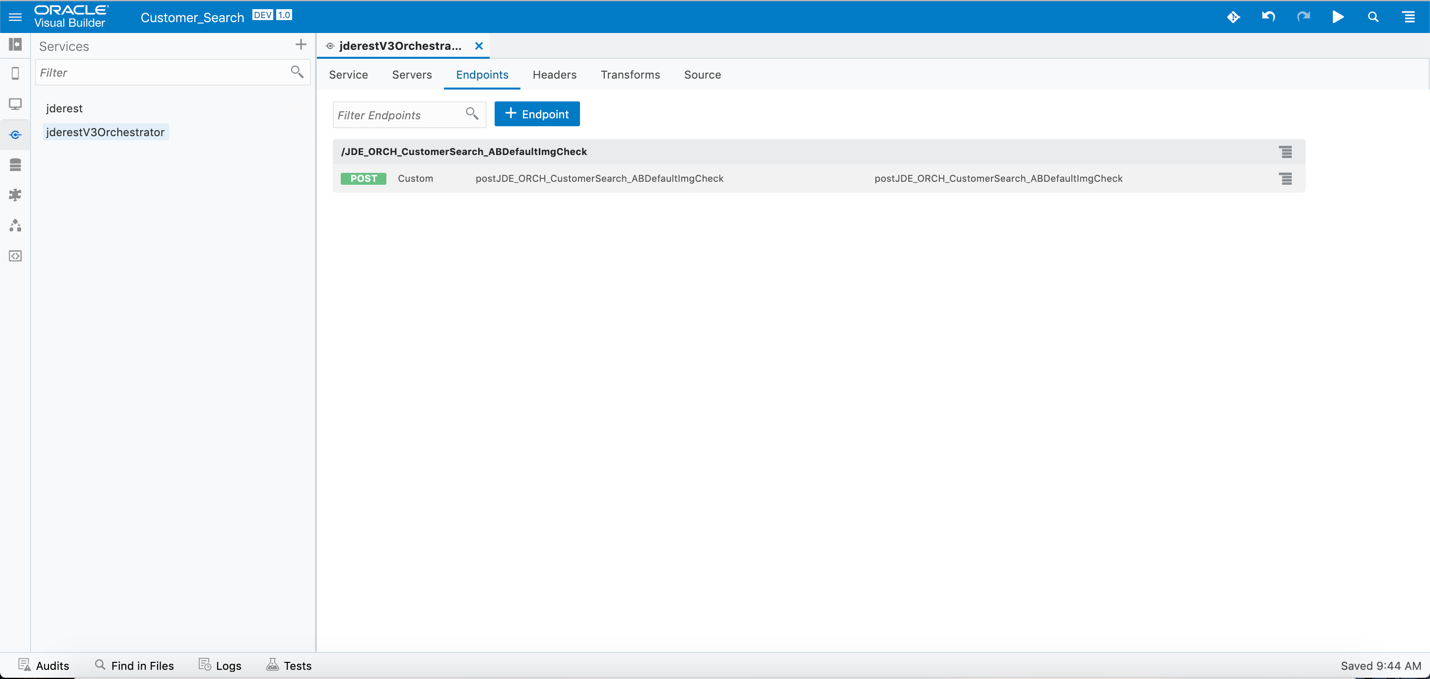
- Go to the service connection, jderestV3Orchestrator.
- On the Servers tab, select Basic from the Authentication drop-down menu.
- Click the Edit button next to Username.
- In the User Credentials dialog box, enter your JD Edwards environment credentials.
- To add endpoints for the JDE_ORCH_CustomerSearch_CustomerCheck orchestration, go to the Endpoints tab and click + Endpoint.
- In the Add Endpoint dialog box, complete these fields:
- Method = Post
- Path = /JDE_ORCH_CustomerSearch_CustomerCheck
- Action Hint = Custom
- Click Add.
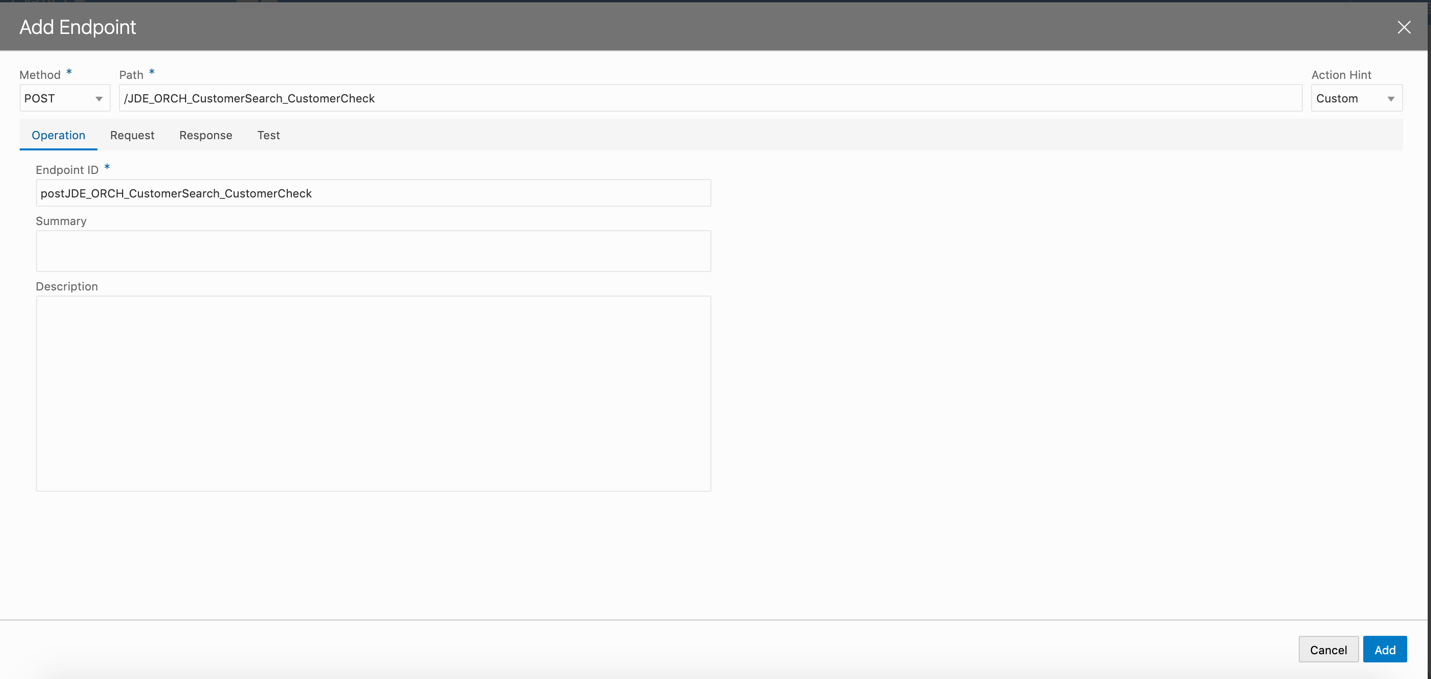
Add Endpoint - In the Endpoints tab, click the newly created endpoint postJDE_ORCH_CustomerSearch_CustomerCheck.
- Navigate to the Request tab, Body.
- Enter the following sample request of the orchestration in
the text area of the Body pane:
{

                    "Address Number 1": "*",

                    "Alpha Name 1": "*Vision*",

                    "Sch Typ 1": "C"

                    }
- Select application/json as the media type.
- Go to the Test tab, click Send. Wait for the status to be 200 OK. The response appears in the Body tab.
- Click Save as Example Response
in the Body pane of the Response section.
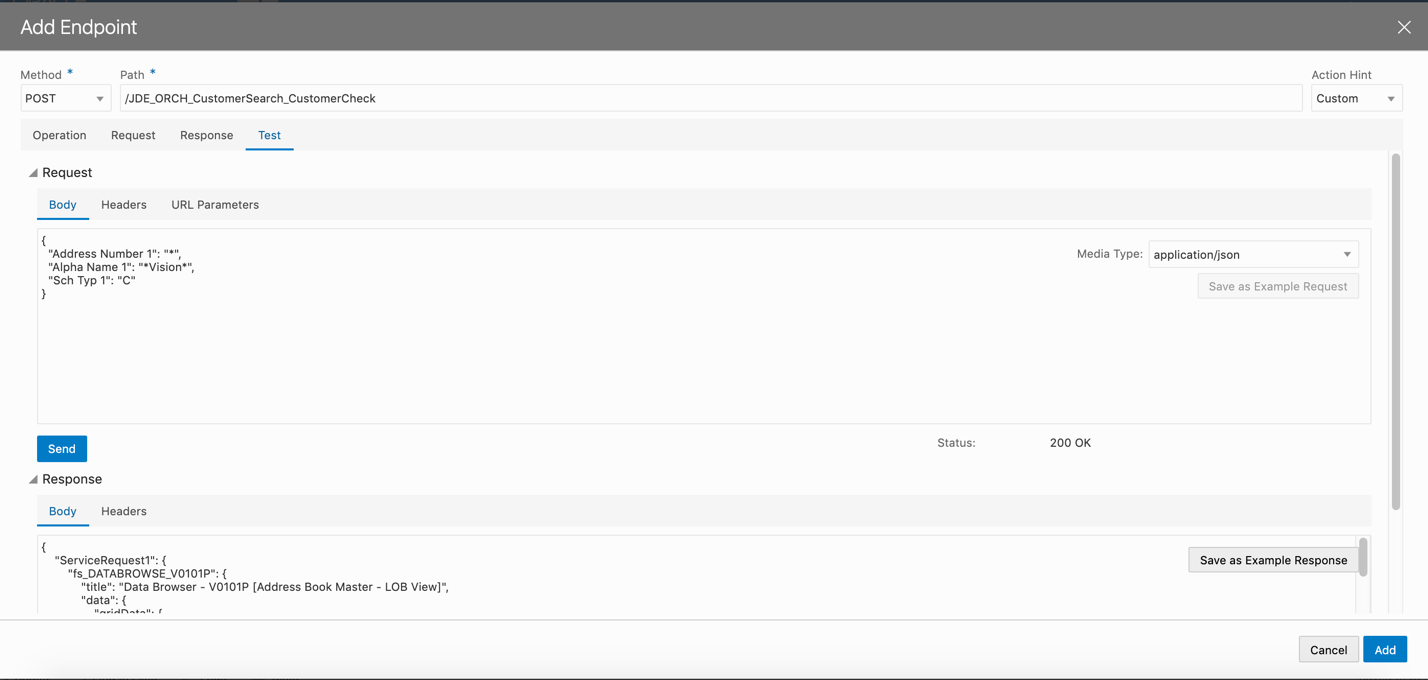
Sample Response - Go to the Endpoints tab, click + Endpoint to add an endpoint for the orchestration JDE_ORCH_CustomerSearch_CompanyAddress.
- In the Add Endpoint dialog box, complete these fields:
- Method = Post
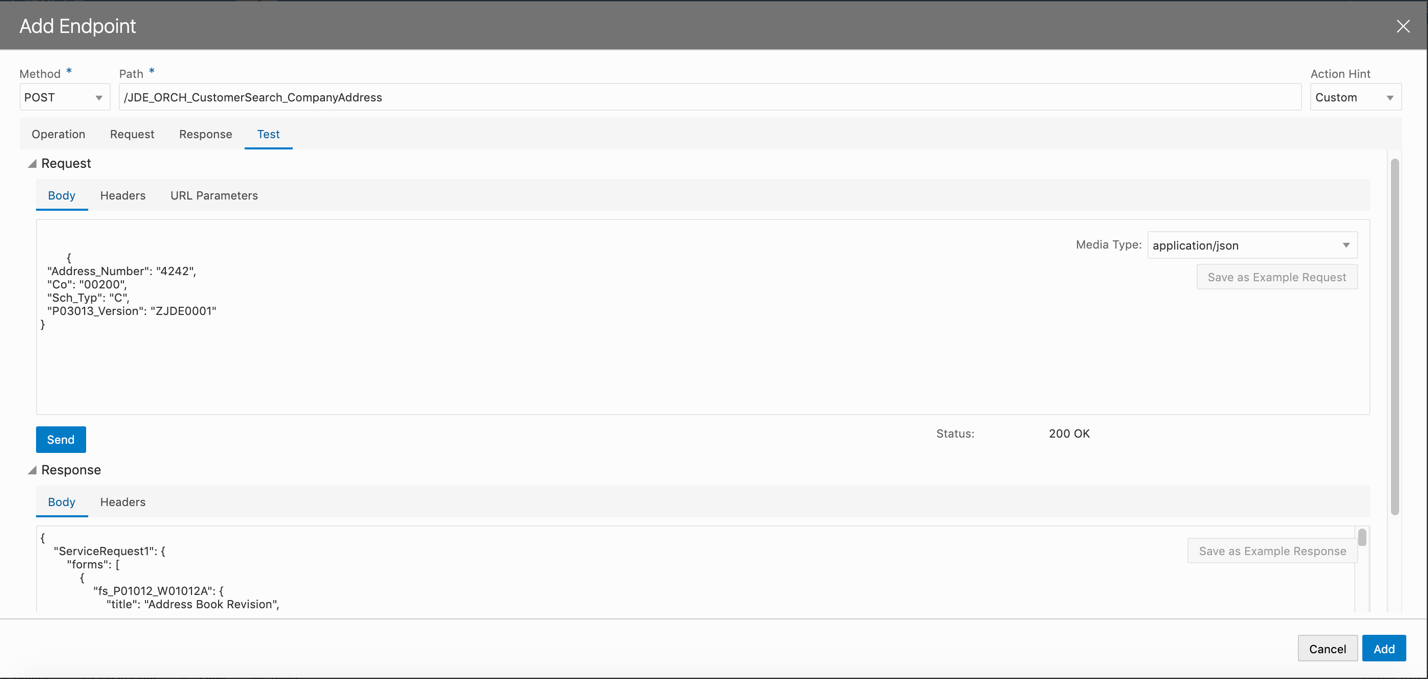
- Path = /JDE_ORCH_CustomerSearch_CompanyAddress
- Action Hint = Custom
- Click Add.
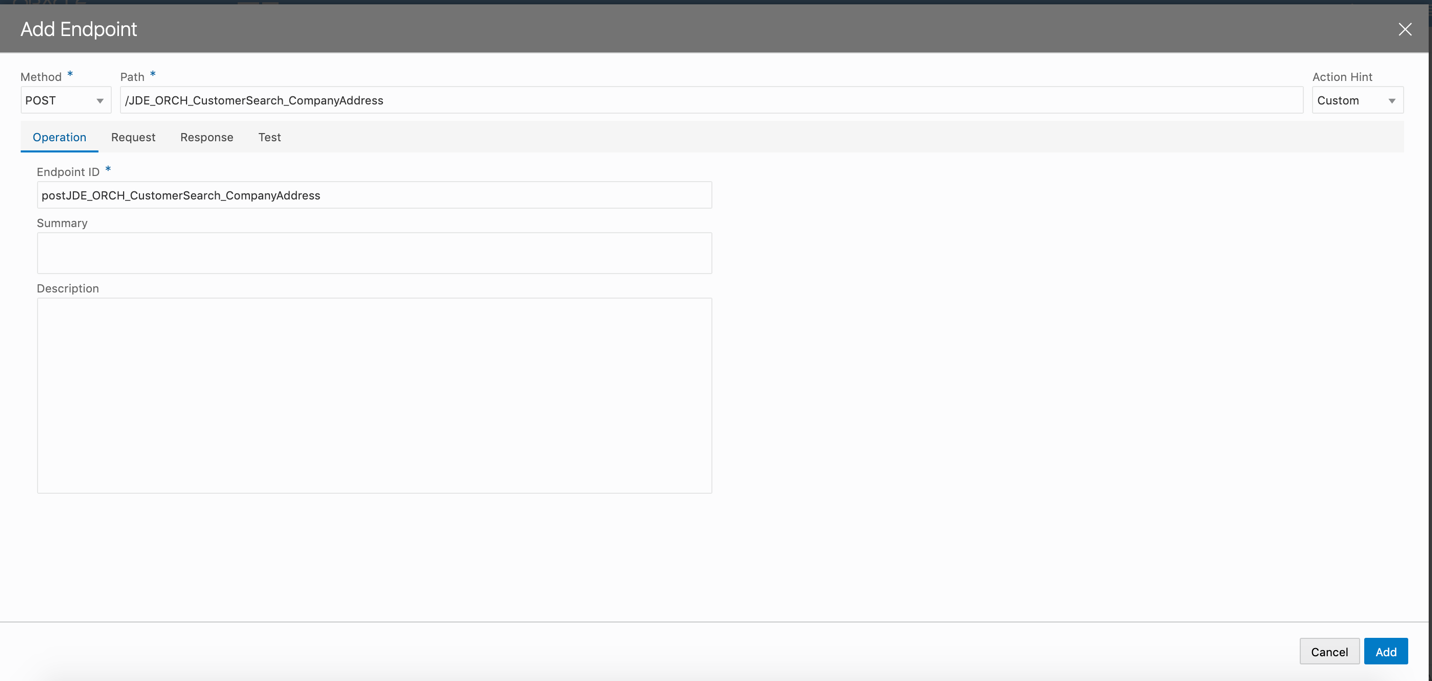
Add Endpoint - In the Endpoints tab, click the newly created endpoint postJDE_ORCH_CustomerSearch_CompanyAddress.
- Navigate to the Request tab, Body.
- Enter the following sample request of the orchestration in
the text area of the Body pane.
{

                      "Address_Number": "4242",

                      "Co": "00200",

                      "Sch_Typ": "C",

                      "P03013_Version": "ZJDE0001"

                    }
- Select application/json as the media type.
- Go to the Test tab, click Send. Wait for the status to be 200 OK. The response appears in the Body tab.
- Click Save as Example Response
in the Body pane of the Response section.
Sample Response - Go to the Endpoints tab, click + Endpoint to add an endpoint for the JDE_ORCH_CustomerSearch_CustomerContactInfo orchestration.
- In the Add Endpoint dialog box, complete these fields:
- Method = Post
- Path = /JDE_ORCH_CustomerSearch_CustomerContactInfo
- Action Hint = Custom
- Click Add.
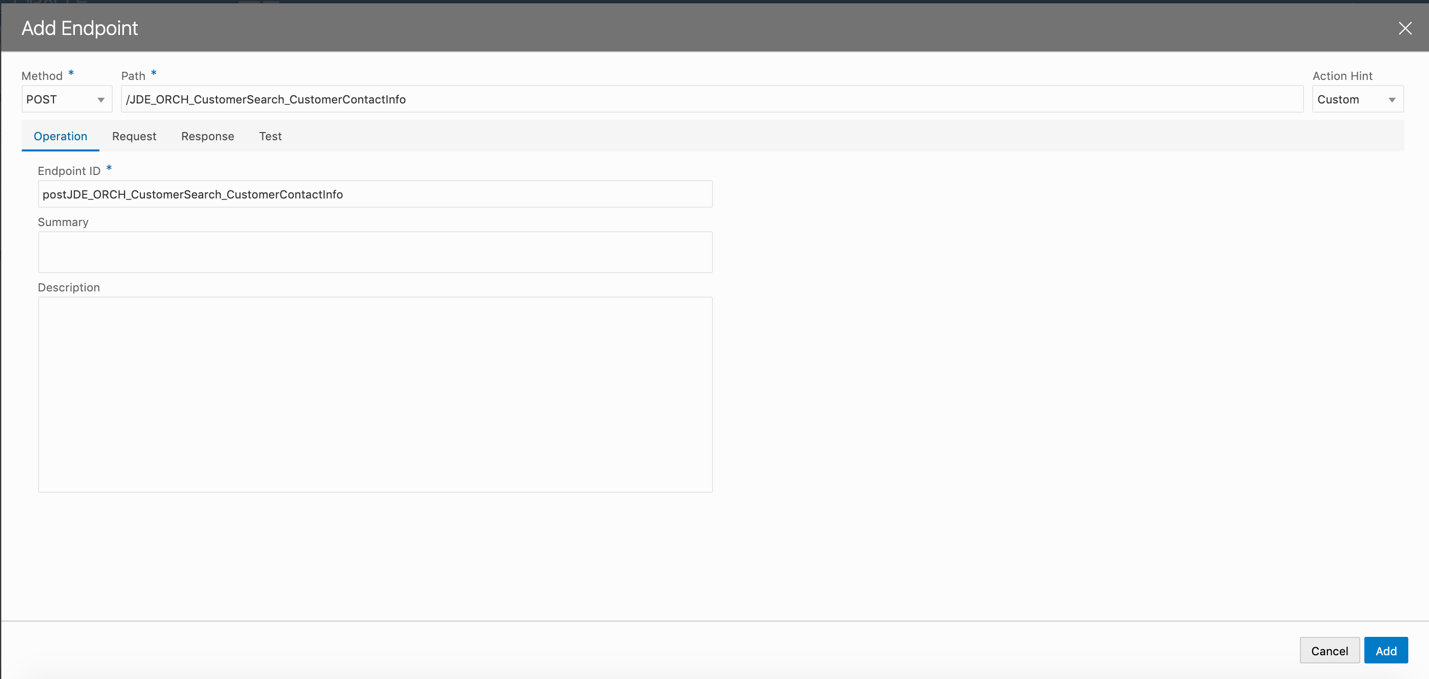
Add Endpoint - In the Endpoints tab, click the newly created endpoint postJDE_ORCH_CustomerSearch_CustomerContactInfo.
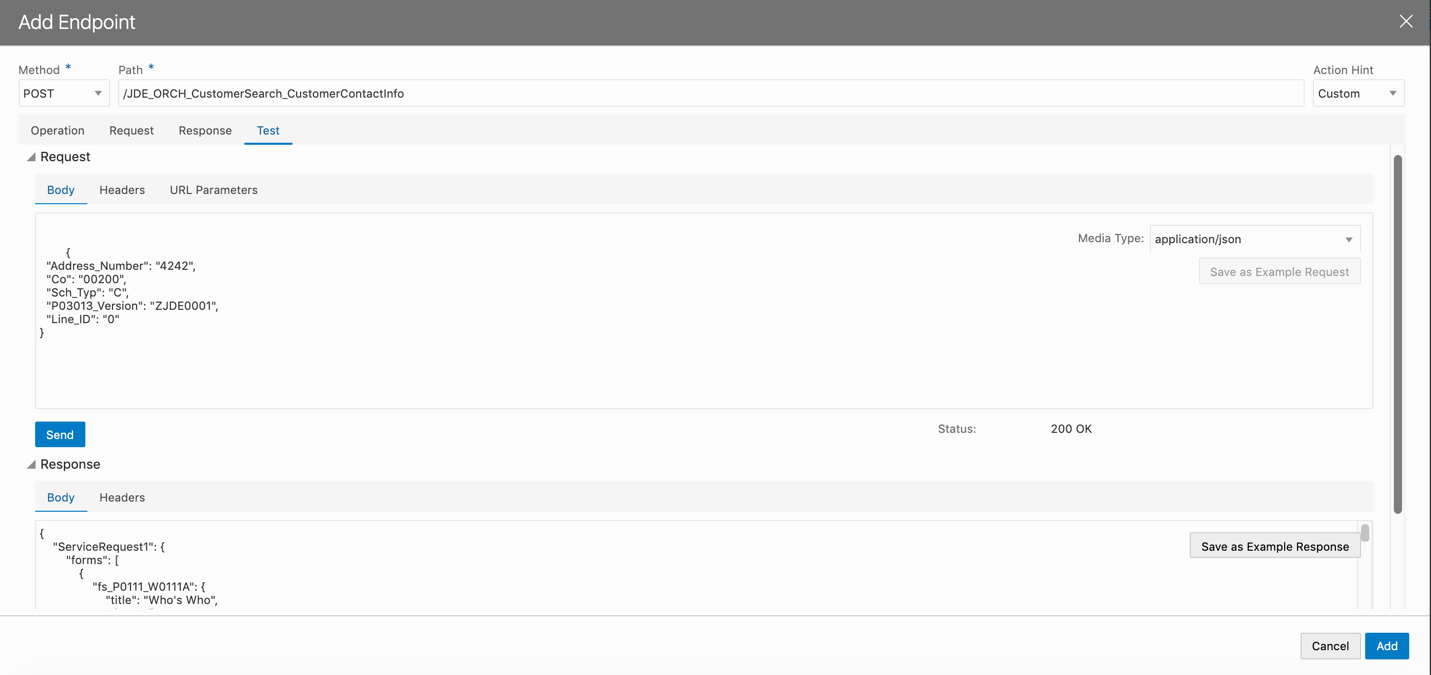
- Navigate to the Request tab, Body.
- Enter the following sample request of the orchestration in
the text area of the Body pane:
{

                      "Address_Number": "4242",

                      "Co": "00200",

                      "Sch_Typ": "C",

                      "P03013_Version": "ZJDE0001",

                      "Line_ID": "0"

                    }
- Select application/json as the media type.
- Go to the Test tab, click Send. Wait for the status to be 200 OK. The response appears in the Body tab.
- Click Save as Example Response in the Body
pane under the Response section.
Sample Response - Go to the Endpoints tab, click + Endpoint to add the endpoint for the orchestration JDE_ORCH_CustomerSearch_CustomerContacts.
- In the Add Endpoint dialog box, complete these fields:
- Method = Post
- Path = /JDE_ORCH_CustomerSearch_CustomerContacts
- Action Hint = Custom
- Click Add.
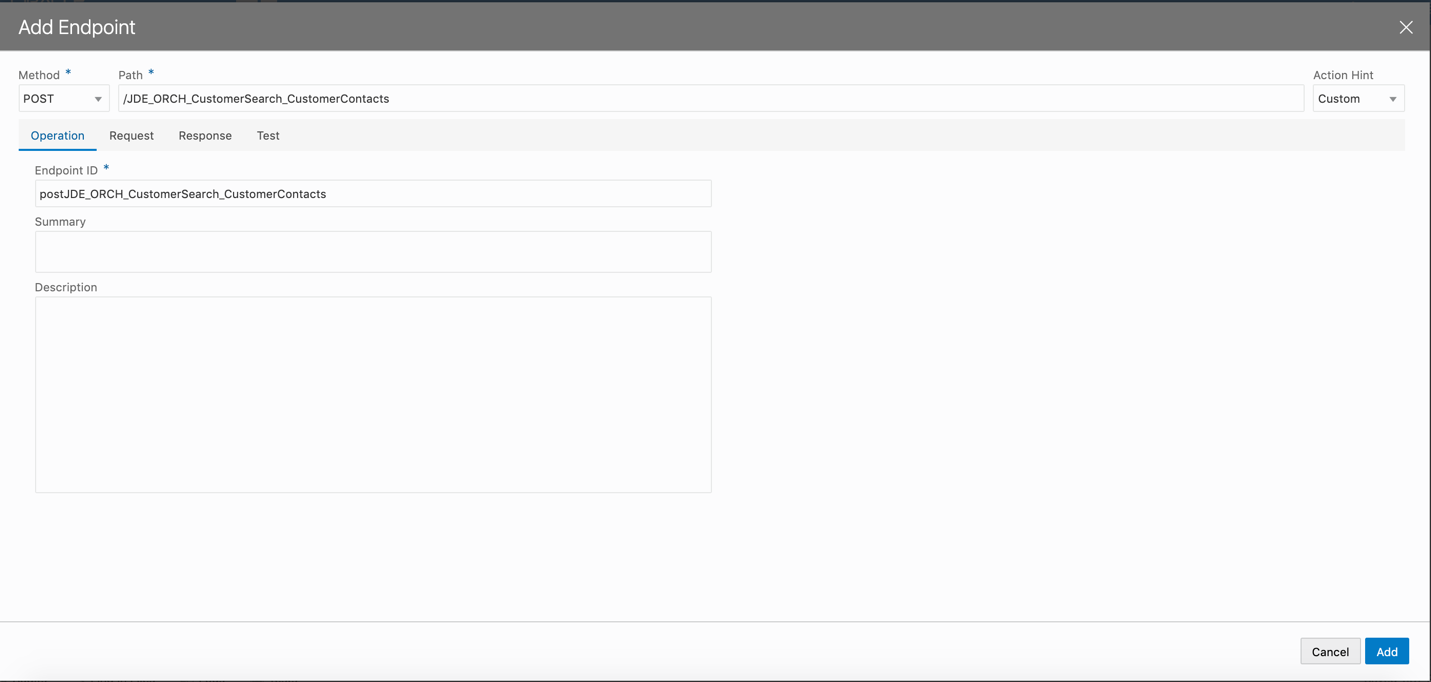
Add Endpoint - In the Endpoints tab, click the newly created endpoint postJDE_ORCH_CustomerSearch_CustomerContacts.
- Navigate to the Request tab, Body.
- Enter the following sample request of the orchestration in
the text area of the Body pane:
{

                      "Address_Number": "4242",

                      "Co": "00200",

                      "Sch_Typ": "C",

                      "P03013_Version": "ZJDE0001"

                    }
- Select application/json as the media type.
- Go to the Test tab, click Send. Wait for the status to be 200 OK. The response appears in the Body tab.
- Click Store as Example Response
in the Body pane of the Response section.
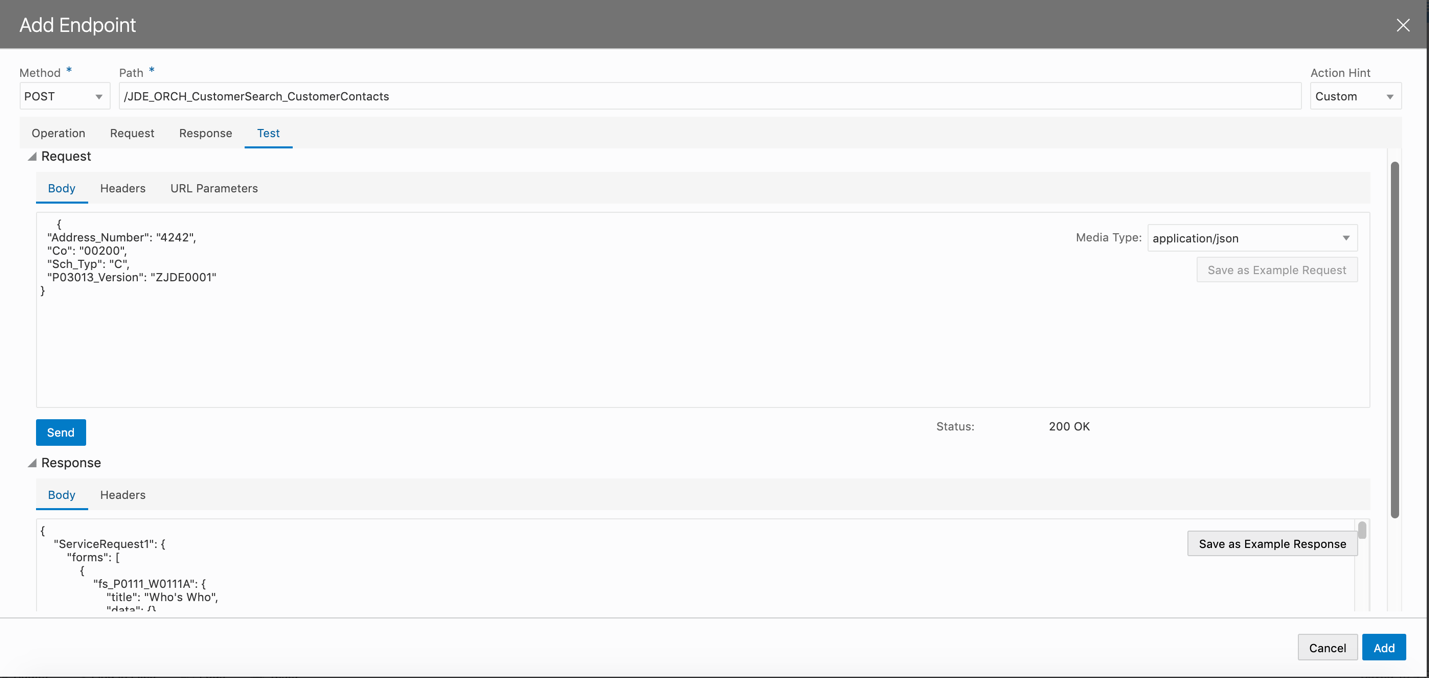
Sample Response - Go to the Endpoints tab, click + Endpoint to add an endpoint for the JDE_ORCH_CustomerSearch_CustomerEmail orchestration.
- In the Add Endpoint dialog box, complete these fields:
- Method = Post
- Path = /JDE_ORCH_CustomerSearch_CustomerEmail
- Action Hint = Custom
- Click Add.
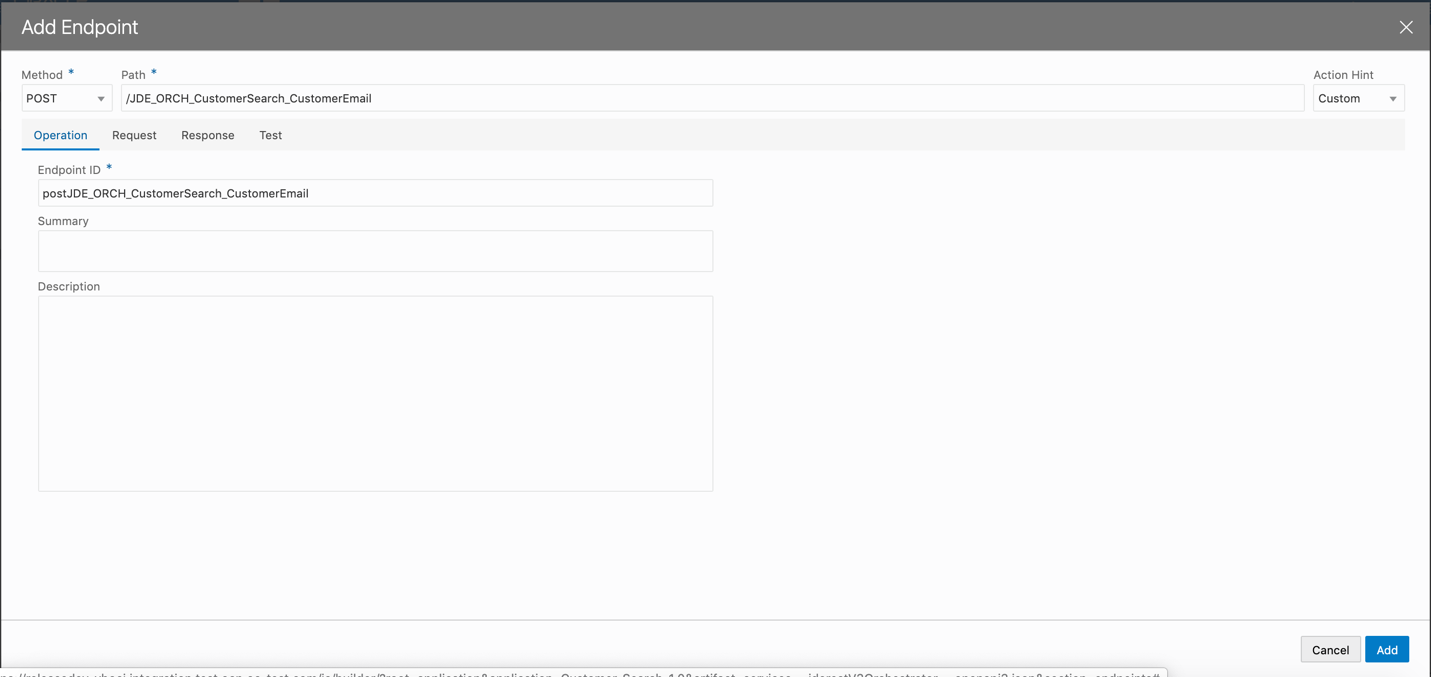
Add Endpoint - In the Endpoints tab, click the newly created endpoint postJDE_ORCH_CustomerSearch_CustomerEmail.
- Navigate to the Request tab, Body.
- Enter the following sample request of the orchestration in
the text area of the Body pane:
{

                      "Address_Number": "4242",

                      "Co": "00200",

                      "Sch_Typ": "C",

                      "P03013_Version": "ZJDE0001",

                      "Line_ID": "0"

                    }
- Select application/json as the media type.
- Go to the Test tab, click Send. Wait for the status to be 200 OK. The response appears in the Body tab.
- Click Save as Example Response in the Body
pane of the Response section.
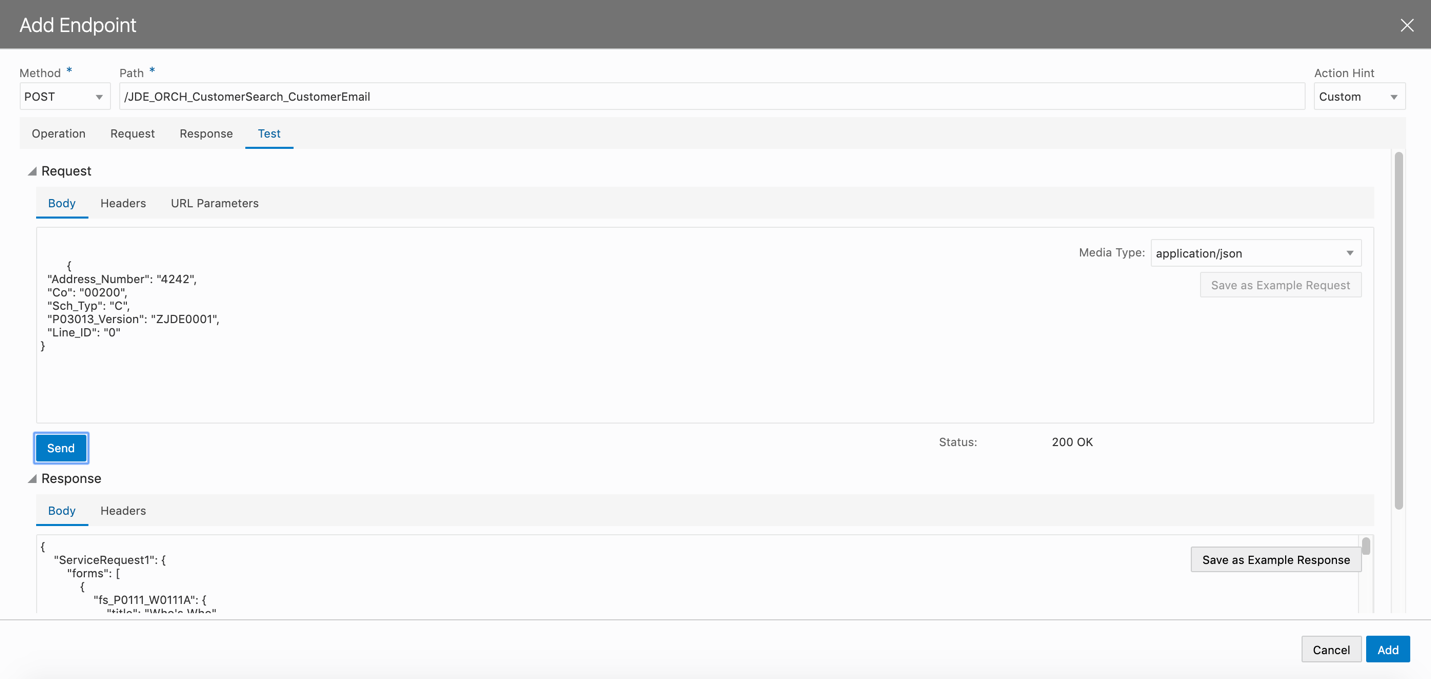
Sample Response - Go to the Endpoints tab, click + Endpoint to add an endpoint for the JDE_ORCH_CustomerSearch_CustomerPhoneNum orchestration.
- In the Add Endpoint dialog box, complete these fields:
- Method = Post
- Path = /JDE_ORCH_CustomerSearch_CustomerPhoneNum
- Action Hint = Custom
- Click Add.
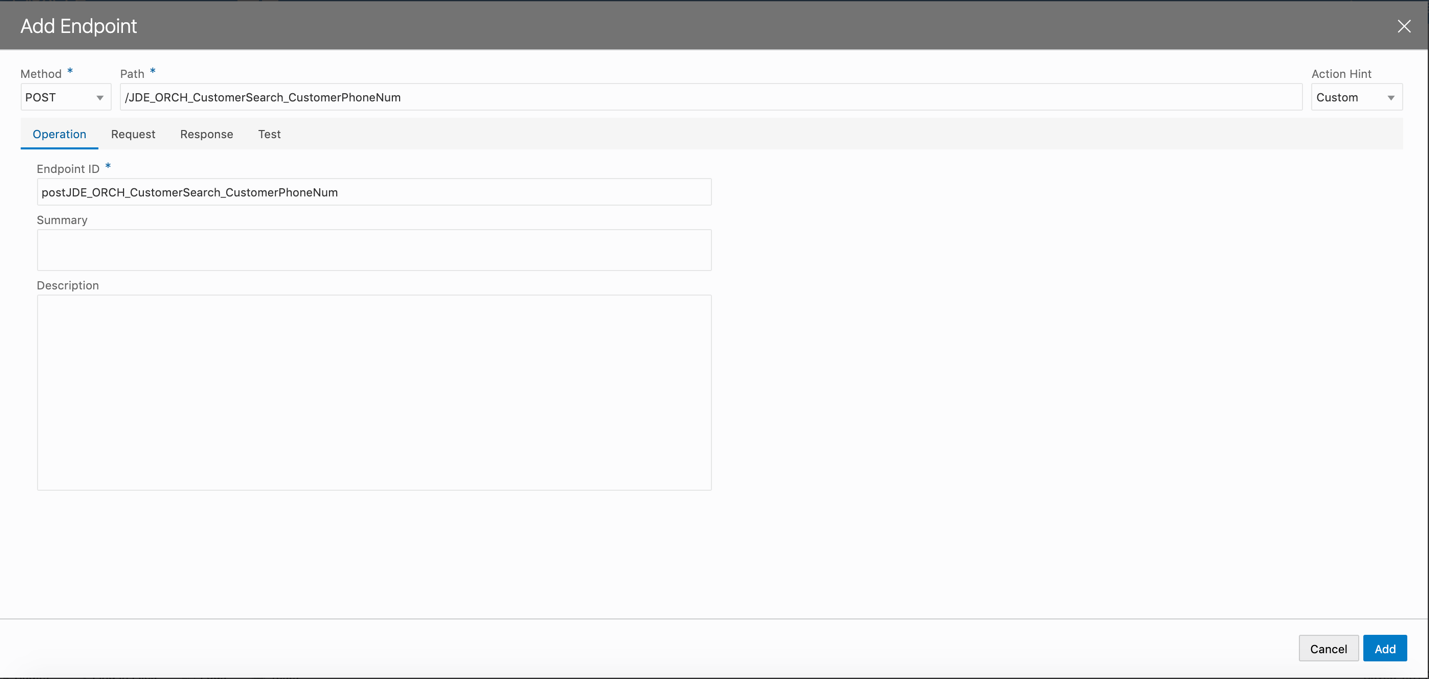
Add Endpoint - In the Endpoints tab, click the newly created endpoint postJDE_ORCH_CustomerSearch_CustomerPhoneNum.
- Navigate to the Request tab, Body.
- Enter the following sample request of the orchestration in
the text area of the Body pane:
{

                      "Address_Number": "4242",

                      "Co": "00200",

                      "Sch_Typ": "C",

                      "P03013_Version": "ZJDE0001",

                      "Line_ID": "0"

                    }
- Select application/json as the media type.
- Go to the Test tab, click Send. Wait for the status to be 200 OK. The response appears in the Body tab.
- Click Save as Example Response in the Body
pane of the Response section.
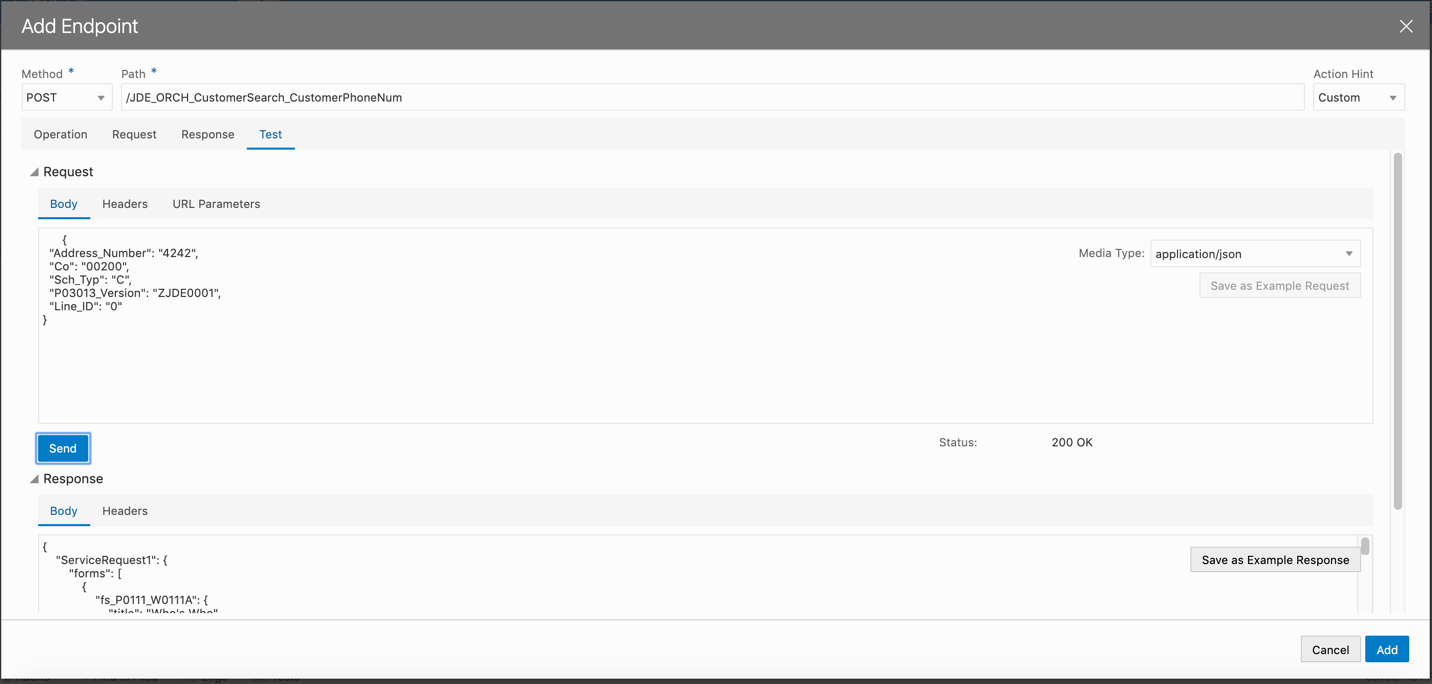
Sample Response - Click the Servers tab and click Edit to update the AIS server details.
- Update the value in the Authentication field to None.