
 Creating
Versions
Creating
Versions Before You Begin
This 15-minute OBE shows you how to create application and report versions required for running the invoice processing.
What Do You Need?
To perform the steps in this OBE, you must have extracted the values from the document understanding JSON output as explained in the preceding OBE.
 Creating
Application Versions
Creating
Application Versions
- Log in to the JD Edwards EnterpriseOne environment where you want to run the test.
- Navigate to G04318, select Store and Forward Batch Voucher Revision and right-click to Versions.
- In the Work With Versions window that opens, select Versions List from the Row menu.
- In the Work With Interactive Versions, click Add to
add a new version or copy the version ZJDE0003.
- Version: Enter
AITEST. - Enter a Version Title if desired.
- Click OK to save the new version.
- On the Interactive Versions screen, search for and select the version that you just created for Voucher Entry.
- From the Row menu, select Processing Options.
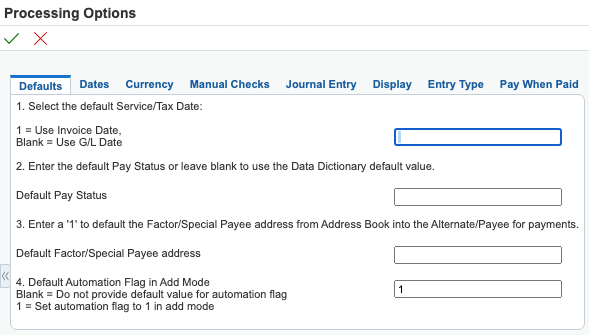
- On the Defaults
tab, set the Default Automation Flag in Add Mode
processing option to 1.
You may leave the other processing options as blank.
- Click OK to save the processing options.
- Version: Enter
 Creating
Report Versions
Creating
Report Versions
- Log in to the JD Edwards EnterpriseOne environment where you want to run the test.
- Enter BV in the Fast Path to access the Batch Versions program.
- In the Work With Batch Versions window that opens, enter the
Batch Application as R4304016 Voucher Match Automation
UBE for Automation Rule 01. Click Add to add a new
version or copy the version XJDE0002.
- Version -
Enter
AITEST. - Enter a Version Title if desired.
- Click OK to save the new version.
- On the Batch
Versions screen, search for and select the version that
you just created for the Voucher Match Automation UBE for
Rule 01.
- From the Row menu,
select Processing Options.
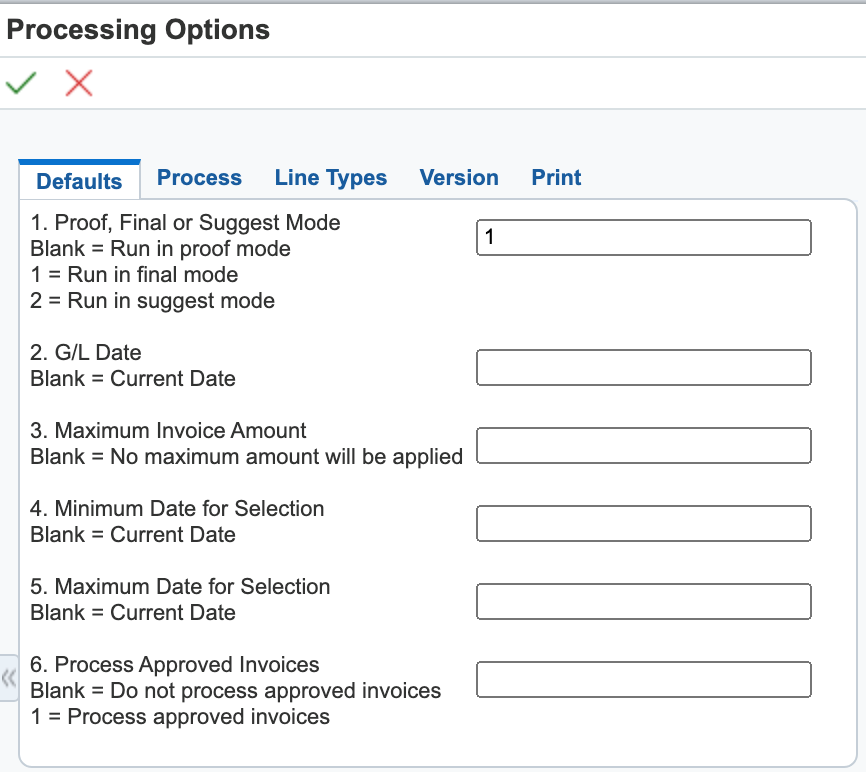
- On the Defaults
tab, set the Proof, Final or Suggested Mode
processing option to 1 to run the report in Final mode.
- On the Process
tab, set the Match Process for Single Voucher Per
Invoice processing option to
1to match for single voucher per invoice.
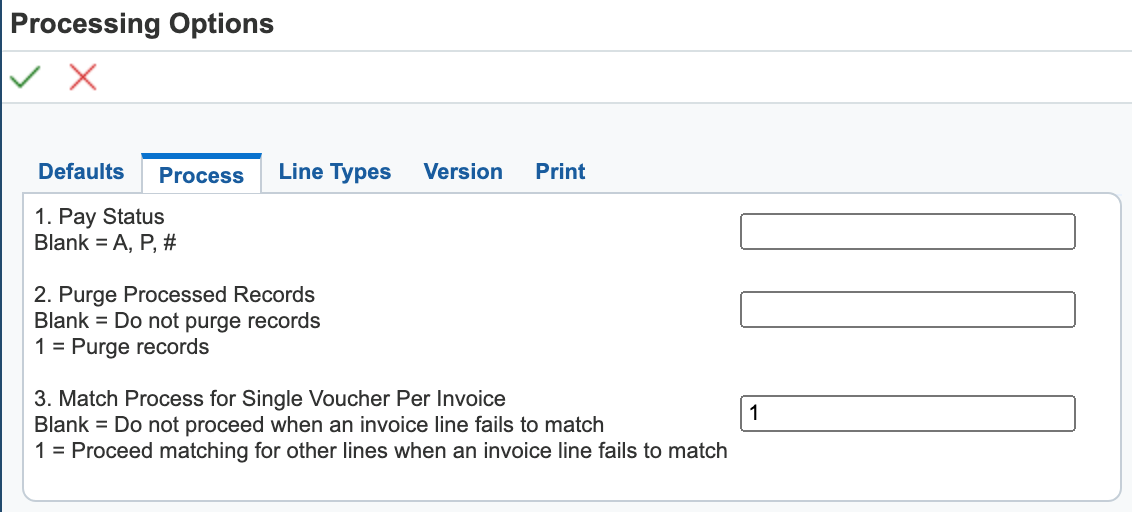
You may leave the other processing options as blank.
- Click OK to
save the processing options.
- Version -
Enter
- Navigate to G43B15, select Automation Voucher Match
Process – Non logged voucher and right-click to Versions.
- In the Work With Batch Versions window that opens, click Add
to add a new version or copy the version XJDE0001.
- Version -
Enter
AITEST(same as the version for the previous report). - Enter a Version Title if desired.
- Click OK to save the new version.
- On the Batch Versions screen, search for and select the Version that you just created for the Voucher Match Automation Driver UBE.
- From the Row menu, select Processing Options.
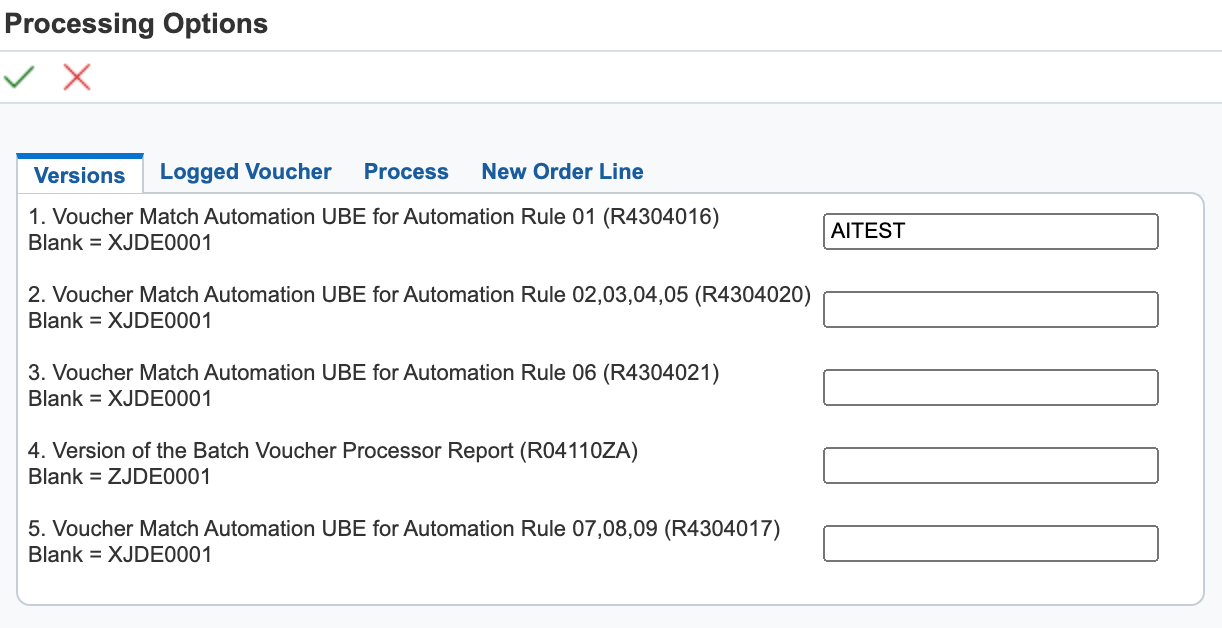
- On the Versions
tab, set the Voucher Match Automation UBE for
Automation Rule 01 (R4304016) processing option to
AITEST.
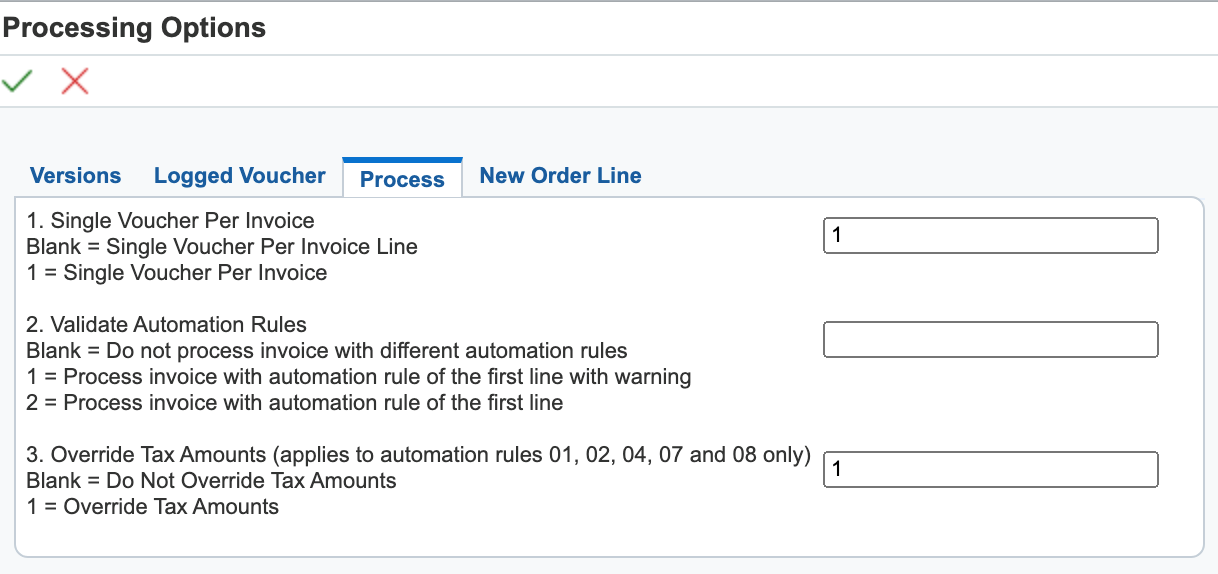
- On the Process
tab, set the Single Voucher Per Invoice
processing option to 1 to create single voucher per
invoice. Then, set the Override Tax Amounts (applies
to automation rules 01, 02, 04, 07 and 08 only)
processing option to 1 to override tax amounts.
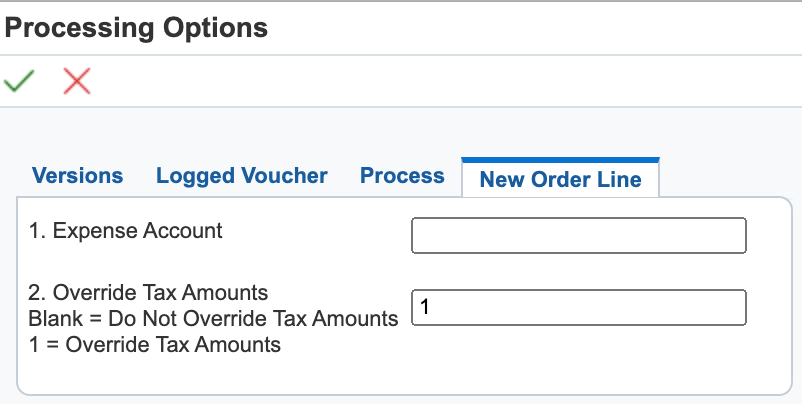
- On the New
Order Line tab, set the Override Tax Amounts
processing option to 1 to override tax amounts.
You may leave the other processing options as blank.
- Click OK to save the processing options.
- Version -
Enter