Accessing the HTML Server and AIS Server Through the Bastion Host
This section shows you how to access the HTML Server and the AIS Server through the Bastion host. This procedure includes two separate subtasks:
- Accessing the HTML Server Without Using the Load Balancer
- Accessing the HTML Server Using the Load Balancer
Prerequisite
- You must have installed PuTTY on your Microsoft Windows machine. By default, this installation includes the requisite software component called Pageant (Putty Authentication Agent). The program provides a Secure Shell (SSH) tunneling method for connecting to Unix or Linux machines through PuTTY.
Accessing the HTML and AIS Server
This procedure describes how to connect from a Microsoft Windows machine to the JD Edwards EnterpriseOne HTML or AIS Server in a private network in Oracle Cloud Infrastructure through the Bastion host that has been deployed using JD Edwards EnterpriseOne Infrastructure Provisioning.
- On your Microsoft Windows machine, search for the Pageant application (pageant.exe).
Note: As mentioned in the section "prerequisite" this program is a standard component of PuTTY for Microsoft Windows.
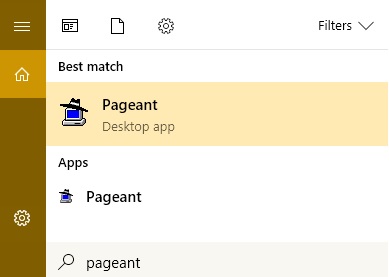
Start the Pageant application for the Pageant Key List window to be displayed.
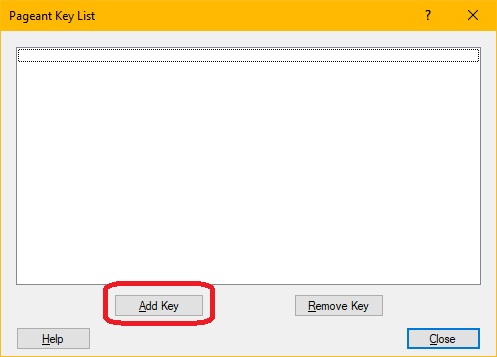
- Click Add Key and browse to the private key you provided to the
Infrastructure Provisioning Console, which is used to create Compute instances in
Oracle Cloud Infrastructure. For example:
OCI_Instance.ppk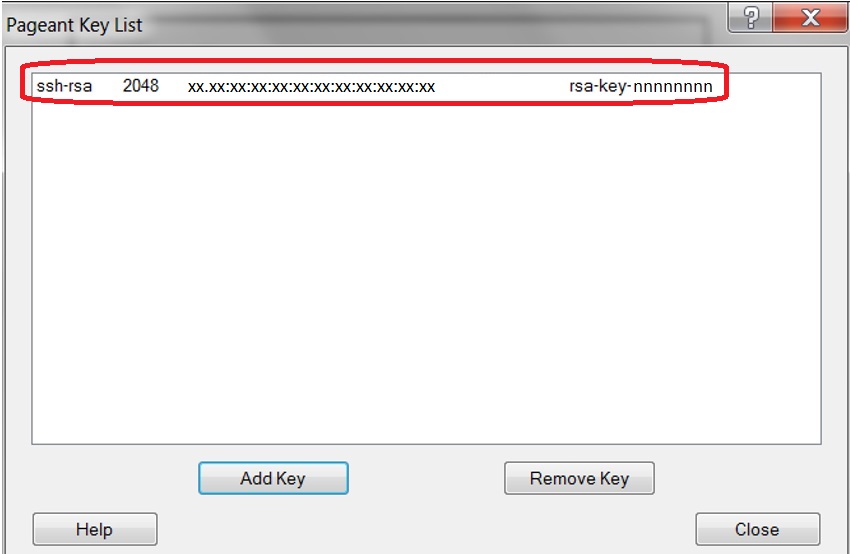
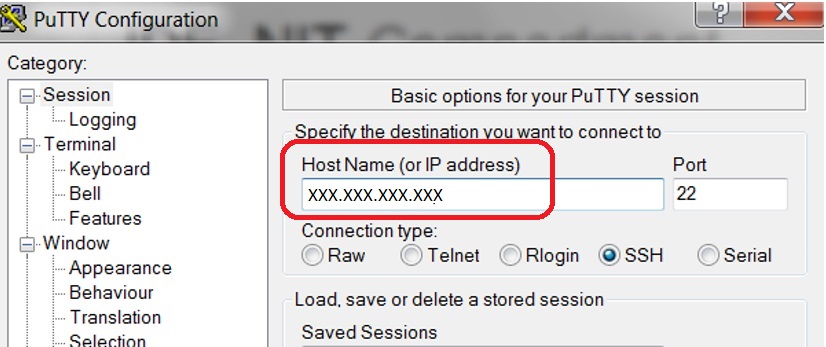
- Open PuTTY and in the Host Name field, enter the public IP address of the Bastion server
(also includes the NAT server and Server Manager Console). Note: As a best practice, you can save this PuTTY session for future use when logging in to machines in the private network known to this Bastion Host.
- To create an SSH tunnel to the local host, in the Category section, expand the Connections node, expand the SSH node, and click Tunnels.
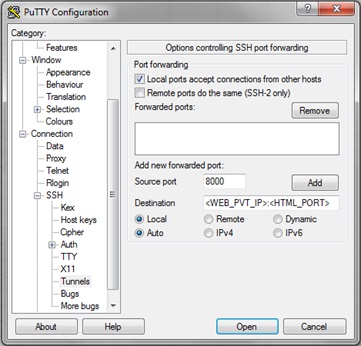
- On the window for the Options controlling SSH port forwarding, enter the port number in the Source Port field. You can use any port that is free on your local machine.
- The subsequent procedure differs based on whether you want to access these servers using or without using a load balancer.
Accessing an HTML or AIS Server Without Using a Load Balancer
- On the PuTTY Configuration window, in the Destination field, enter the private IP address of the HTML or AIS Server and the port on which the JD Edwards EnterpriseOne HTML or AIS Server is listening.
- Click the Add button to add the port.
- Similarly, one by one you can add ports to as many HTML and AIS servers as
you need to access.
Accessing an HTML or AIS Server using Load Balancer
- In the Destination field, enter the private IP address of the
WebLogic load balancer and the port on which the load balancer is listening
for the JD Edwards EnterpriseOne HTML or AIS Server.
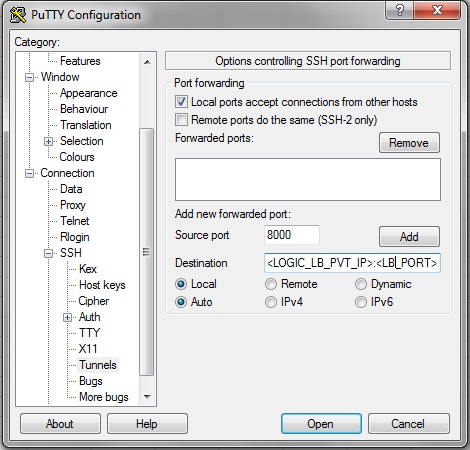
LOGIC_LB_PVT_IP
You can obtain this private IP address value from this file on the Infrastructure Staging machine:
<JDERefArch_InfraProvisioning>/E1InfraProvisionConsole/outputJson/infraOutput.jsonLB_PORT
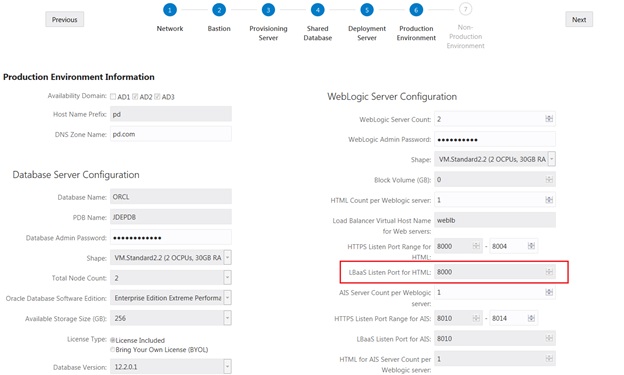
This value of this port was set when entered it in the Infrastructure Provisioning Console as the LBaaS Listen Port for HTML. You can obtain this port value from the Oracle Cloud Infrastructure user interface as shown below:
- On the PuTTY Configuration window, click the Add button to add the port (if you are not using the load balancer) or the IP address and the port (if you are using the load balancer).
- Similarly, one by one you can add ports to as many HTML and AIS Servers or load balancers as needed.
- Ensure that these options are selected:
- Local ports accept connections from other hosts
- Local
- Auto
- After adding all the entries, save these changes and open a new PuTTY session, which will be using the previously saved changes from the preceding steps.
- On your local machine, you can enter the following URL to open a Putty session.
For example, the below URL is for an HTML or AIS Server:
https://localhost:8000/jdeIn the above URL, 8000 is the source port that is configured in the PuTTY tunnel.