Generating Instance Key Pairs in openssh Format
This section shows you how to generate instance SSH key pairs in openssh format on your local system, which can be UNIX or Windows. Key pairs in this format are required if you need to connect directly to any Linux instance.
Multiple methods can be used to securely connect to Oracle Cloud Infrastructure for JD Edwards EnterpriseOne infrastructure provisioning. This connection is made using a key pair that consists of a public key and a private key. The following are the key pairs that are used for connecting to Oracle Cloud Infrastructure:
-
Instance Key Pair. Secure Shell (SSH), which provides an encrypted login method, is a more secure replacement for Telnet for logging on to Oracle Cloud Infrastructure. Before you can use Infrastructure Provisioning <infrastructure provisioning> to create instances, you must generate instance key pairs and upload the SSH public key to Oracle Cloud Infrastructure. This SSH public key is used for authentication for any Oracle Cloud Infrastructure instance except the Bastion Server.
- Bastion Host Key Pair. This key pair is similar to an instance key pair and is strongly recommended to be used as a best practice for ensuring the highest level of security. That is, you should the same procedure to create a different set of Bastion Host Key Pairs for public production access to the Bastion host, while keeping access to other host instances securely separated.
- Infrastructure Provisioning User Key Pair. Instead of SSH key format, this key pair must be generated in Privacy Enhanced Mail (PEM) container format. The public key of this key pair must be added to the account for the infrastructure provisioning user. When this public key is uploaded, the system automatically creates a fingerprint that is displayed in the console of Oracle Cloud Infrastructure and is required for input into the Infrastructure Provisioning Console. To enable provisioning in Oracle Cloud Infrastructure, the private key of this key pair is required as an input in the Infrastructure Provisioning Console.
- CA Certificates. You must generate CA certificates to support Load Balancing as a Service (LBaaS), which is a core functionality that is deployed and configured by JD Edwards EnterpriseOne Infrastructure Provisioning. These certificates are used to configure LBaaS with SSL. The procedure is described in the section "Generating CA Certificates for Load Balancing as a Service (LBaaS)" of this Learning Path.
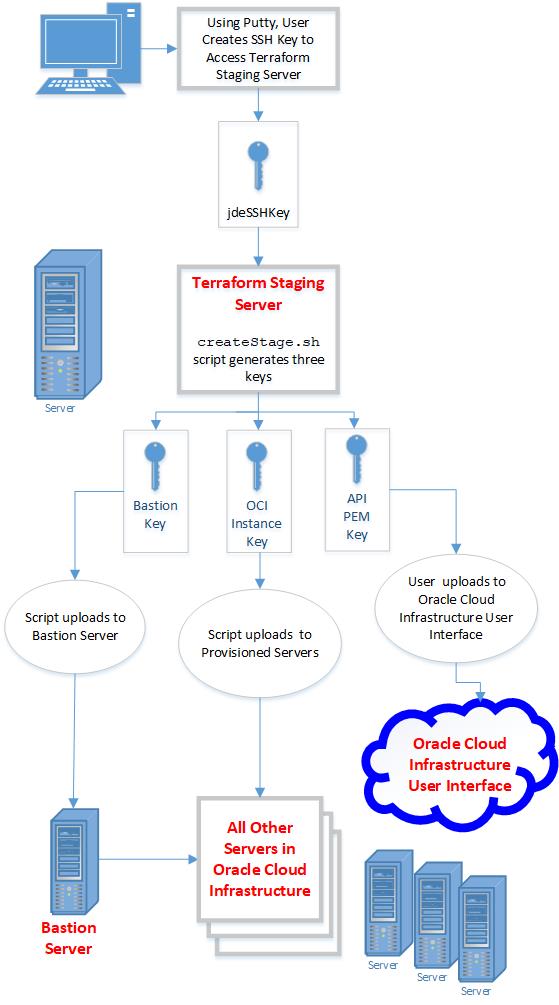
Generating Secure SHell (SSH) Key Pairs on Your Local System
Secure Shell (SSH), which provides an encrypted login method, is a more secure replacement for Telnet for logging on to Oracle Cloud Infrastructure. Before you create your Oracle Cloud Infrastructure instance, you must generate SSH key pairs and upload the SSH public keys to Oracle Cloud Infrastructure. These SSH public keys will be used for authentication when you log in to the instance. You must also create pairs of private keys, one pair for use by the One-Click Provisioning Server to create instances for JD Edwards EnterpriseOne servers and another pair to enable access to the instances. Below is a summary of the required SSH keys and their formats:
-
Private Key in .ppk Microsoft Windows Format
Required to connect from a Microsoft Windows machine to an Oracle Cloud Service instance including the Provisioning Server itself and also to connect to any provisioned server such as DBCS, Enterprise Server, and JCS servers (such as HTML and AIS servers).
See Step 3 in the following procedure.
- Public Key in .pub FormatSee Step 4 in the following procedure.
Use this procedure to generate a Secure SHell (SSH) key on your local system and save the key on a file for uploading to Oracle Cloud Infrastructure.
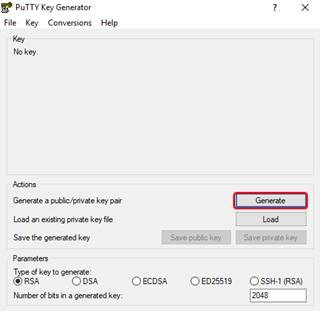
- Locate and run puttygen.exe in the PuTTY folder of your local Microsoft Windows computer.
- Generate the key using the following steps:
- On the PuTTY Key Generator window, accept the default key type, SSH-2 RSA, and in the Number of bits in a generated key: field, ensure that the value is set to 2048.
- Click the Generate button.
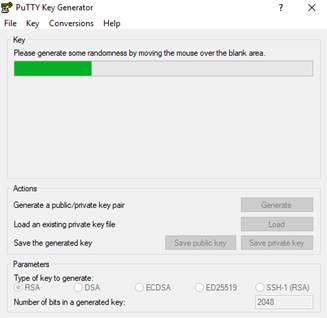
- After you click the Generate button, move your mouse around the blank
area to generate randomness for the SSH key pair you generate.
-
Use this step to create a private key in .ppk Microsoft Windows format.
- In the PuTTY Key Generator dialog box, click the Save private key button
to save your private key to the system.
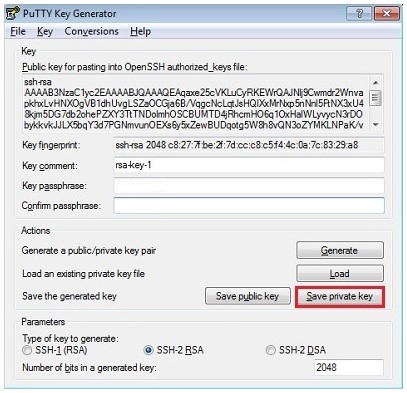
- On the PuTTYgen Warning dialog box, click the Yes button to confirm that
you want to create the private key without a passphrase.
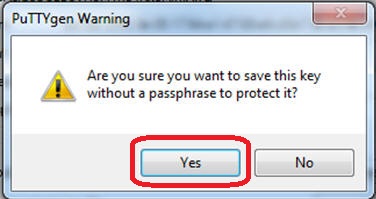 Important: When you save this key to the local file system, you should give it a significant name such as like
jdeSSHKey.ppk. It is also important that you ensure that this key has a.ppkextension.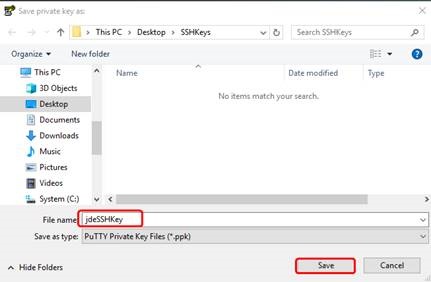
Note: Keep a record of the file name and location which you will need when you upload this key from a Microsoft Windows machine that is accessing the JD Edwards Reference Architecture Infrastructure Provisioning Server. - In the PuTTY Key Generator dialog box, click the Save private key button
to save your private key to the system.
-
Use this step to create a public key in .pub format.
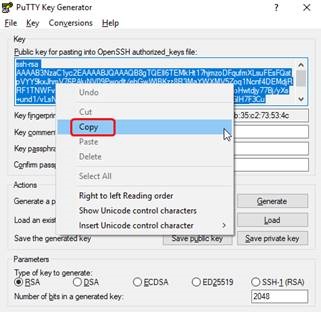
- On the PuTTY Key Generator dialog box, select all the characters in the
Public key for pasting into OpenSSH authorized_keys file field.Note: Be sure you select all the characters, not just the ones you can see in the narrow window. If a scroll bar appears next to the characters, scroll through the entire window to select all the characters.
- On the selected text, right-click to see the context menu and select
Copy.
- Open a plain text editor (such as vi on UNIX or Notepad on Microsoft Windows) and paste the characters you just copied. Ensure that you paste the text at the first character in the text editor, and do not insert any line breaks.
- Save the plain text file as a file name with a .pub extension and keep a
record of the file name.Tip: You should give this key a significant name such as jdeSSHKey.pub.
Important: You should not use the Putty Key Generator function to save the public key as a file, which is invoked by the Save Public Key button. Using this function introduces extraneous characters and strings to the key that are not compatible with Oracle Cloud Infrastructure.Attention: As a backup, in case the primary public key is lost or damaged, you should also generate a secondary key using this same procedure. Again you may use any file extension, but .pubbak is a useful convention to indicate that this file is a backup of the primary public key.Keep a record of the primary and secondary public key file names and their location. You will need to upload these public keys when you create an instance.
Important: You cannot access an instance in Oracle Cloud Infrastructure without a valid public key which you have successfully uploaded to Oracle Cloud Infrastructure during instance creation. Therefore you must upload the primary public key whenever you are creating an instance. Optionally, you can upload the backup secondary public key in the same step. - On the PuTTY Key Generator dialog box, select all the characters in the
Public key for pasting into OpenSSH authorized_keys file field.