Logging in to the Windows VM
This section shows you how to log in to the Microsoft Windows virtual machine (VM) in Oracle Cloud Infrastructure.
Prerequisite
You must have previously created a Microsoft Windows VM in Oracle Cloud Infrastructure as described in the previous module of this Learning Path entitled: Creating a Windows VM in Oracle Cloud Infrastructure.
Log in to the Windows VM
- Connect to the Microsoft Windows VM in Oracle Cloud Infrastructure with a Remote
Desktop Protocol (RDP) connection using this command in a Command
Window:
mstsc /f -
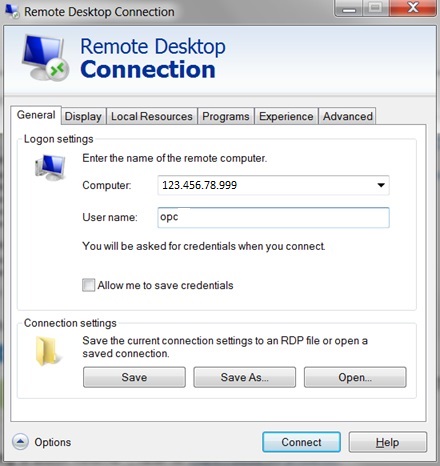
On Remote Desktop Connection, complete these fields:
- Computer
Enter the Public IP Address which can be derived from the Instance Details for the Microsoft Windows Instance for the Deployment Server in the Public IP Address field.
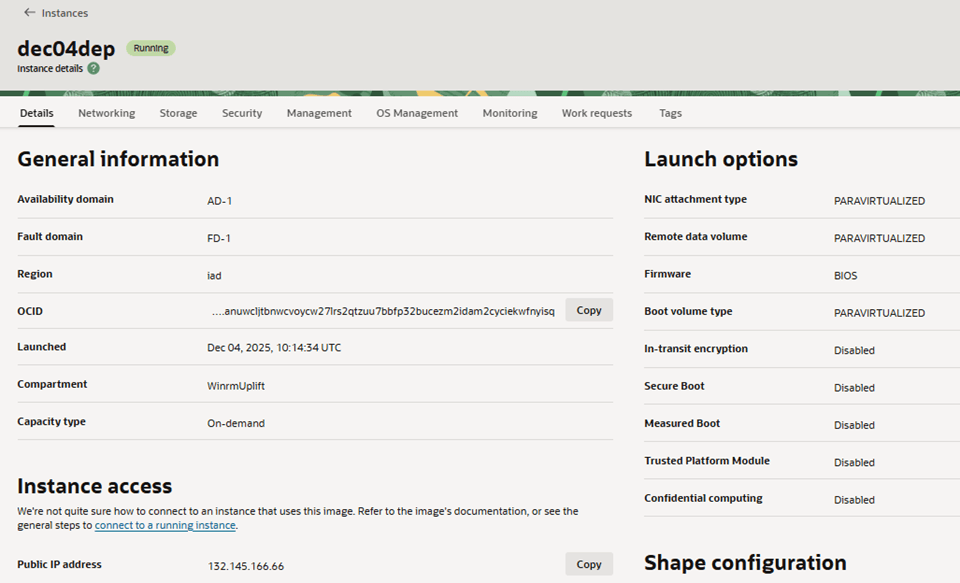
- User name
Enter the value opc.
- Computer
-
Click the Connect button.
-
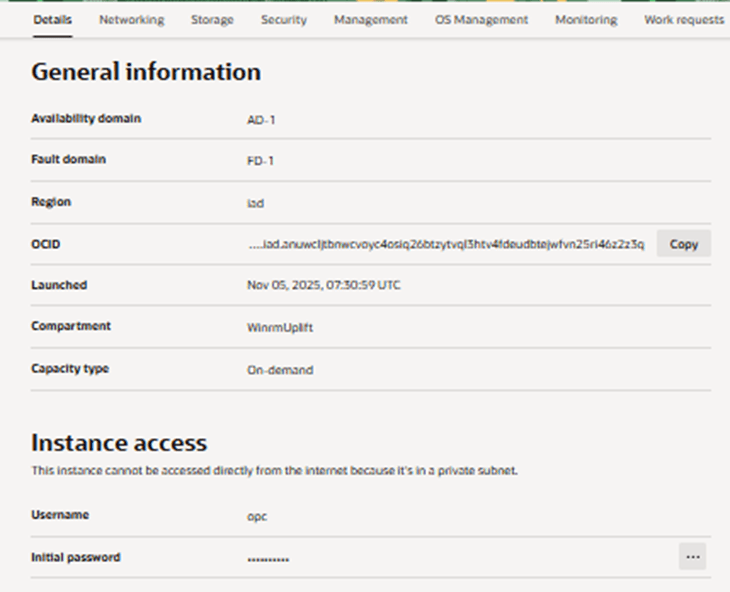
You are prompted to enter a password. This is the password that the system assigned upon creation of the Windows VM. On the Instance Details screen for the Windows VM that you created, locate the Initial password field.
-
In the Initial password field, click to expand more options and click the Copy option to copy the password.
-
On Remote Desktop Connection, enter
opcas the user and paste the copied password.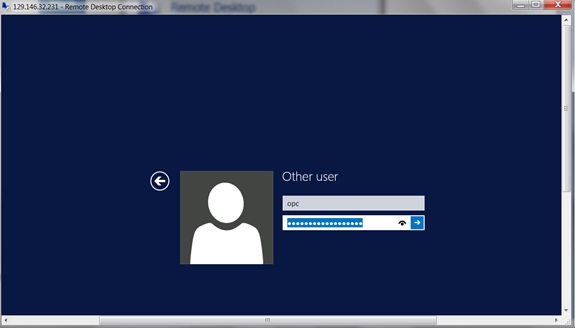
-
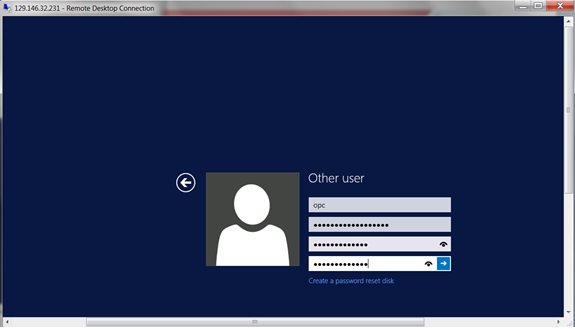
After you enter the credentials the first time you log in, you are prompted to change the password:
The user's password must be changed before signing in.
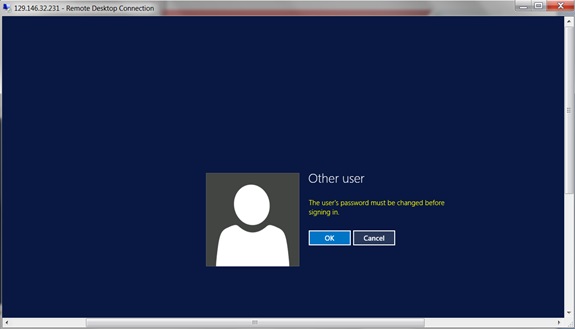
-
Change the password for the opc user following the Microsoft Windows policy for creating a user password.
Warning: The Password must contain at least 12 characters and must be comprised of at least one lower case letter, one upper case letter, one numeric digit, and one special character (for example; special characters could be _ @ ~ ! # % * +. Be sure and make a note of this password because you will need to use this same password later in the One-Click Provisioning Console.