
 Inserting
a Code Snippet for Login
Inserting
a Code Snippet for Login Before You Begin
This 20-minute tutorial shows you how to insert a code snippet for login.
 Inserting
a Code Snippet for Login
Inserting
a Code Snippet for Login
To insert a code snippet for login:
- Click customer_search from the navigator section.
- Select the Metadata/JSON icon for the
customer_search application.
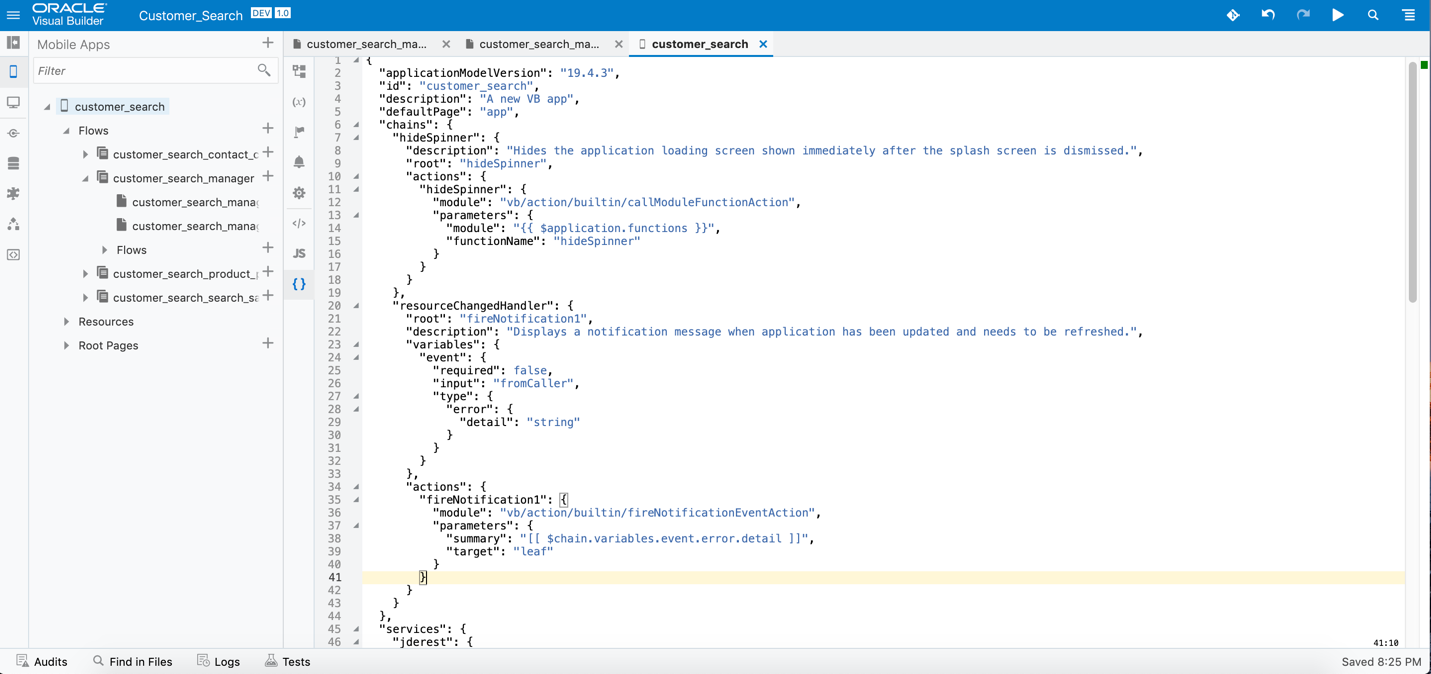
Metadata/JSON Section - Click here to copy and replace
the given code in the Metadata/JSON section.
- Click Root Pages,app in the navigator section.
- Select Code in the Designer
section for the app.
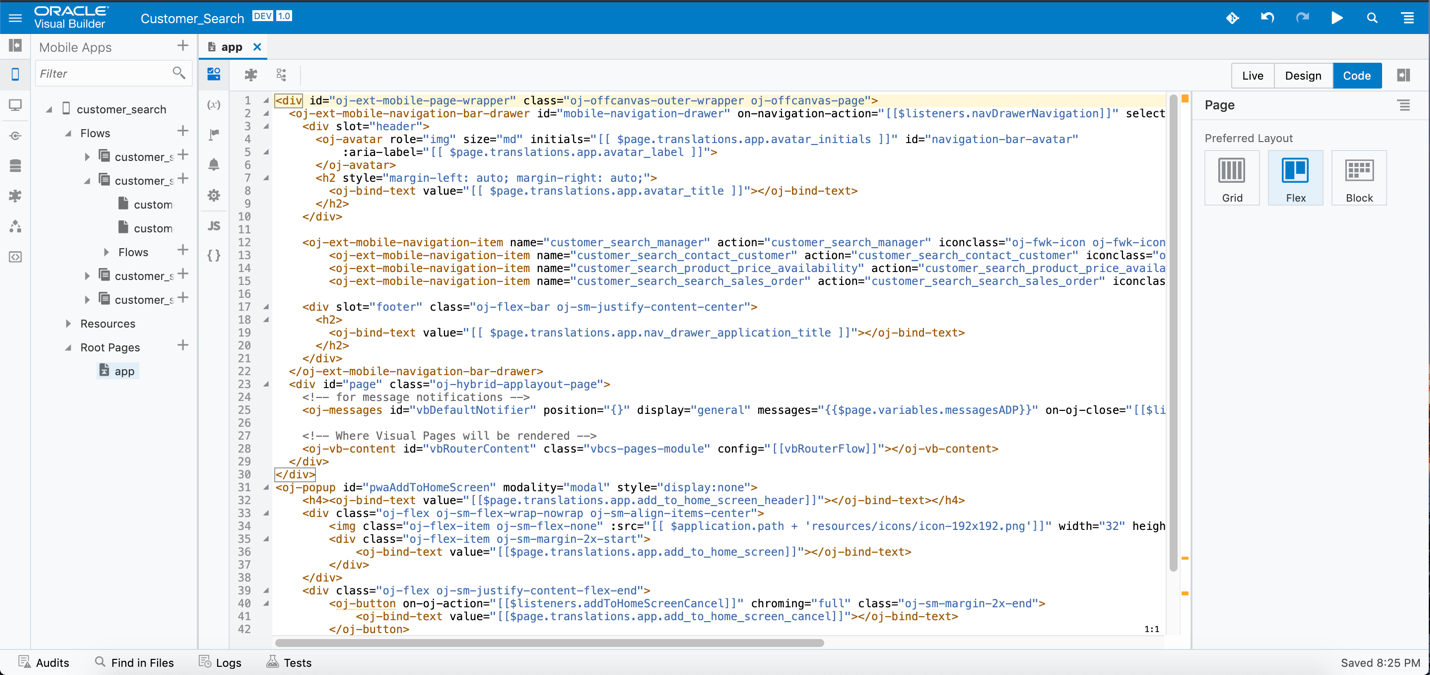
Code Section - Click here to copy and replace
the given code in the Code section.
- Select the JS or Javascript icon
for the application.
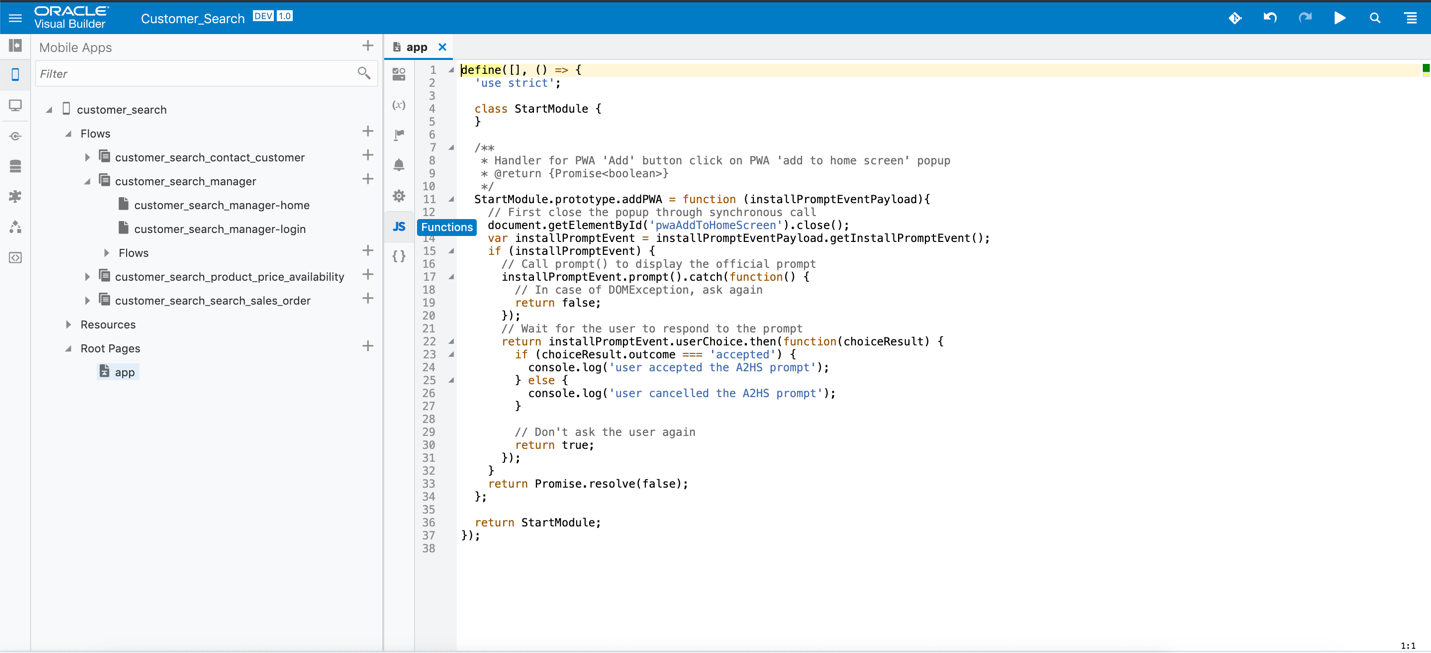
JS Section - Click here to copy and replace the given code in the JS section.
- Select the Metadata or JSON
icon for the mobile application.
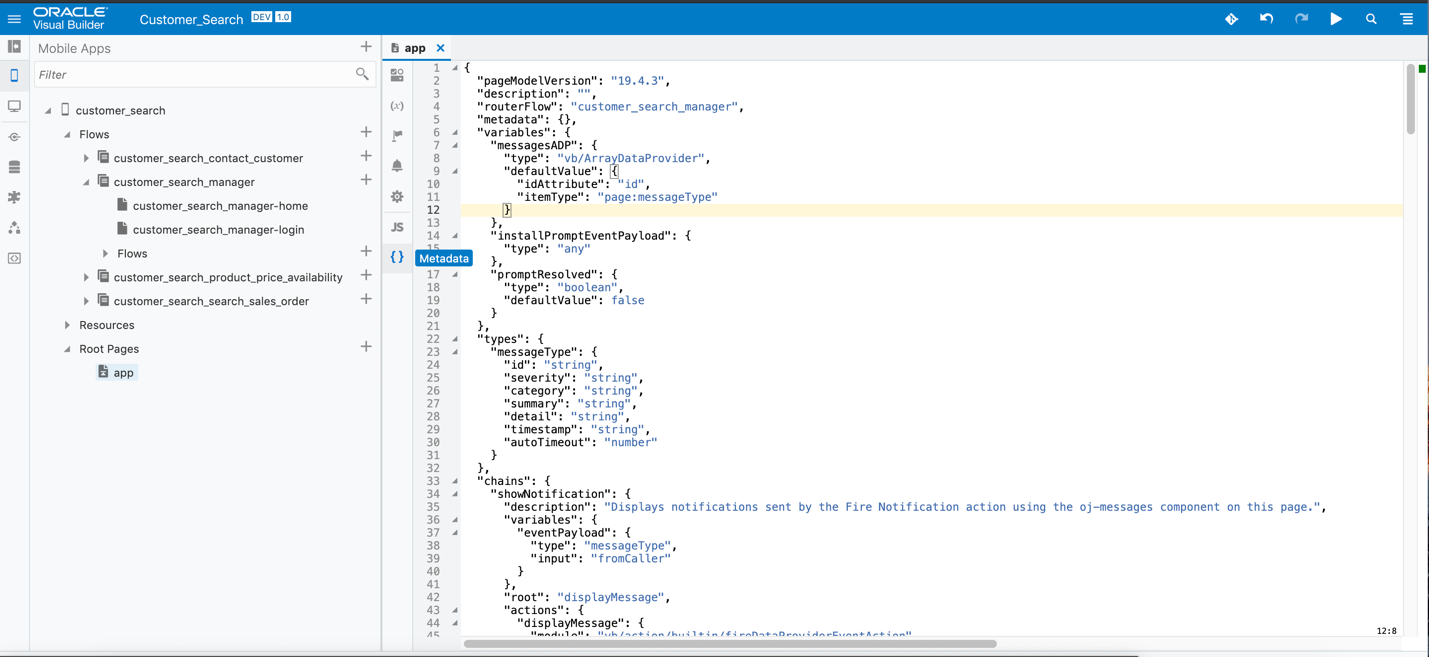
Metadata Section - Click here to copy and replace
the given code in the Metadata or JSON
section
- Click customer_search, Resources, css, app.css
in the navigator section.
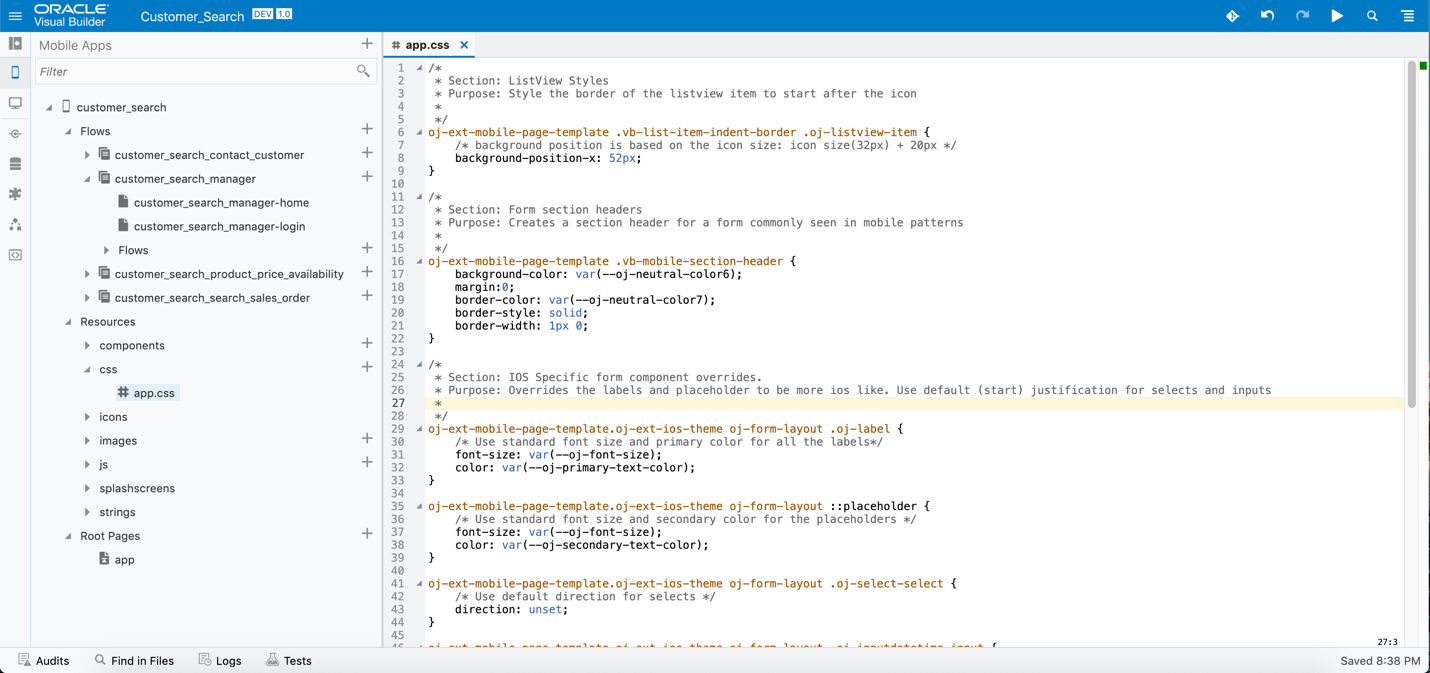
app.css Section - Click here to copy and replace
the given code in the app.css section.
- Click customer_search, customer_search_manager in the navigator section.
- Select the JS or Javascript
icon for the page customer_search_manager.
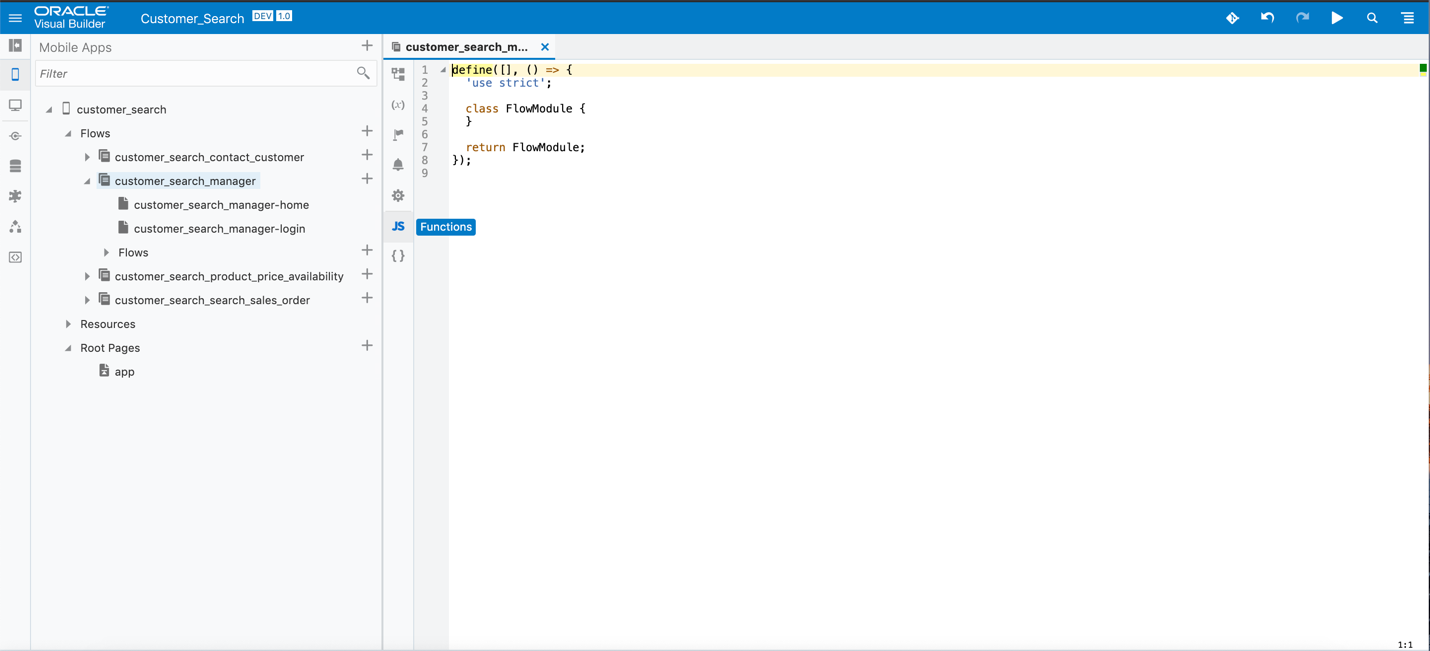
JS Section - Click here to copy and replace
the given code in the JS section.
- Select the Metadata or JSON
icon for the page customer_search_manager.
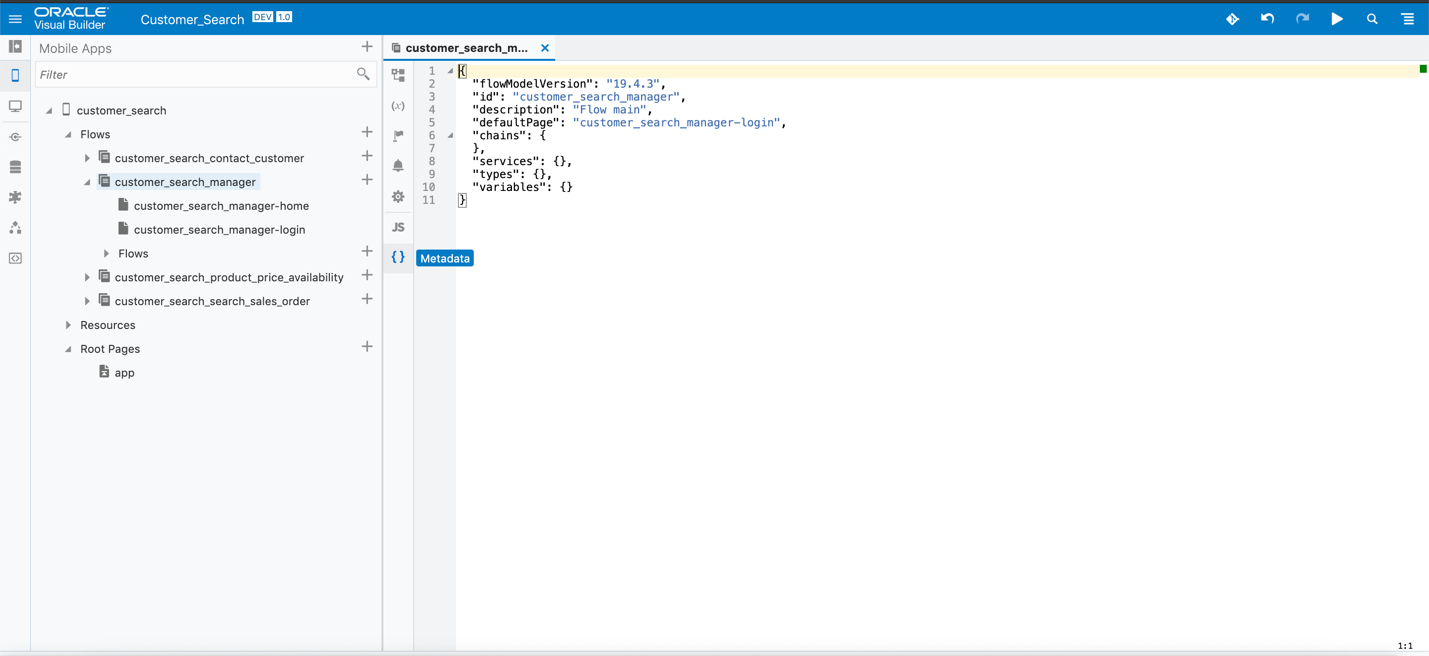
Metadata Section - Click here to copy and replace the given code in the Metadata section.
- Click customer_search, customer_search_manager, customer_search_manager-login in the navigator section.
- Select Code in the Designer section for
the customer_search_manager-login page.
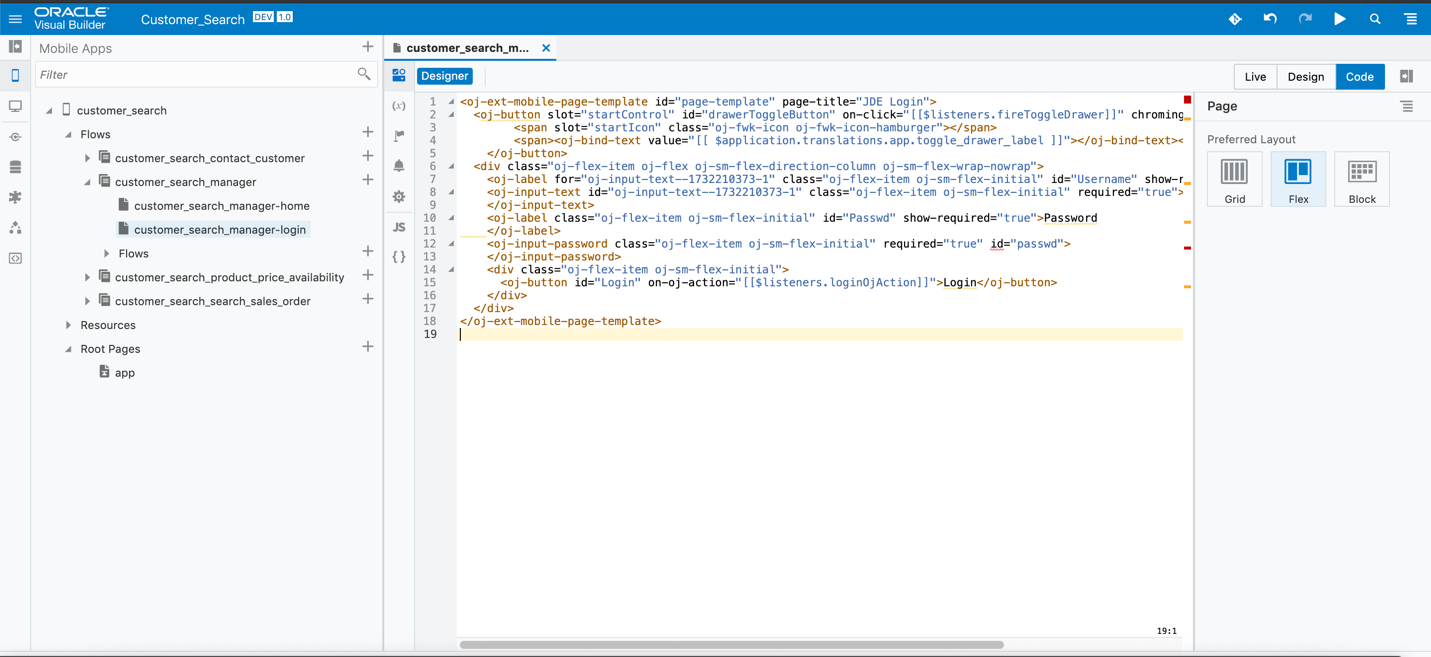
Code Section - Click here to copy and replace the given code in the Code section.
- Select the JS or Javascript icon
for the page customer_search_manager-login .
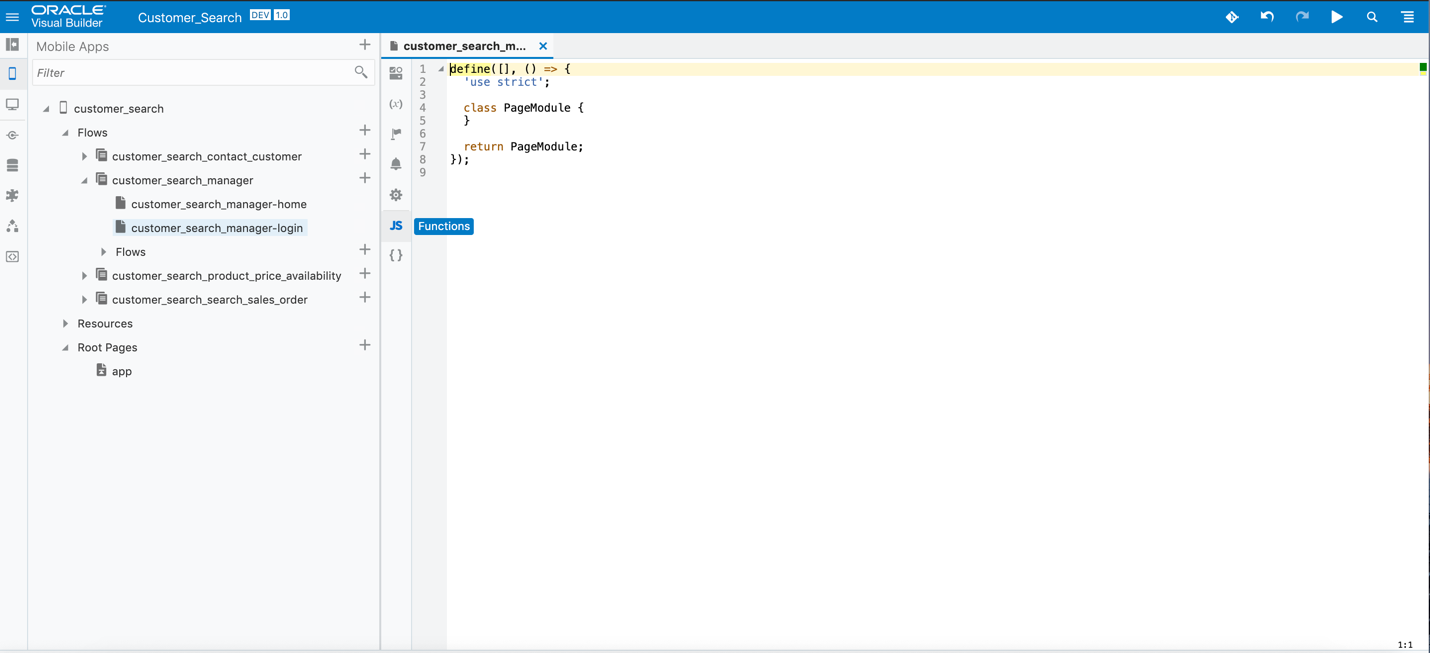
JS Section - Click here to copy and replace
the given code in the JS section.
- Select the Metadata or JSON
icon for the customer_search_manager-login page.
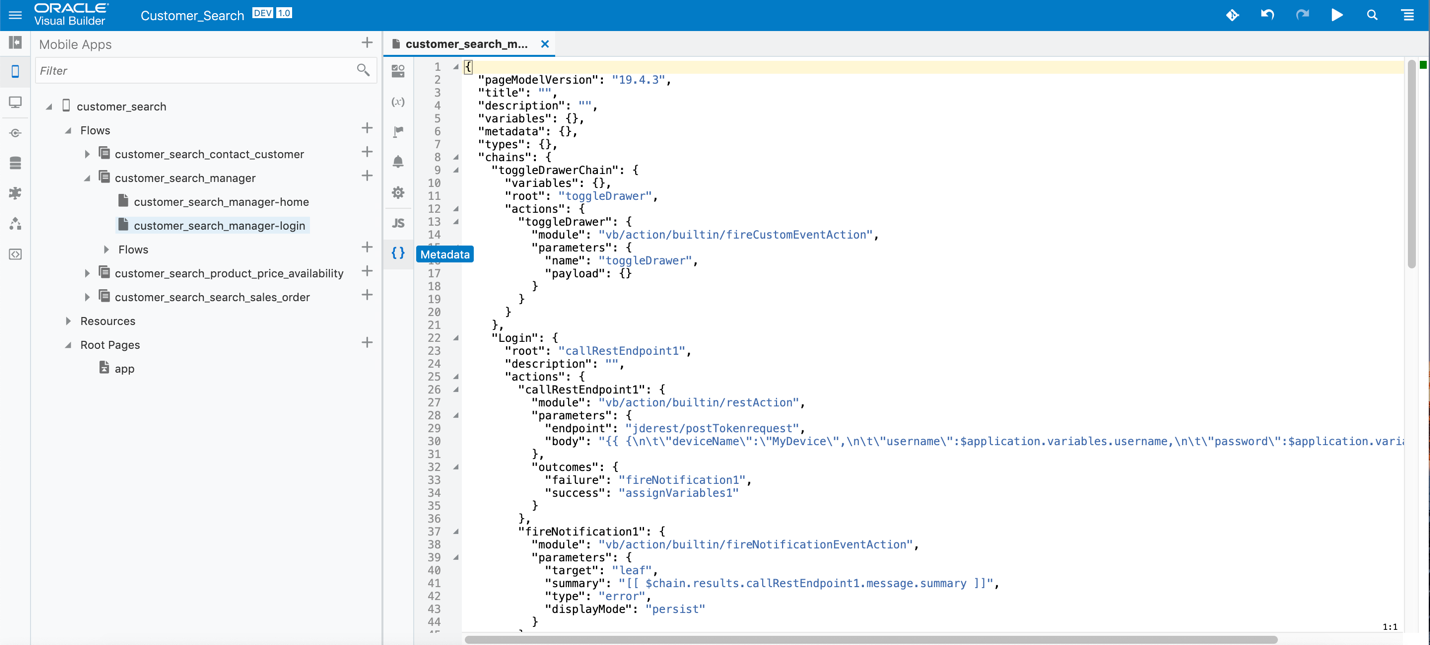
Metadata Section - Click here to copy and replace the given code in the Metadata or JSON section.