
 Creating
Microsoft Windows Instances as VMs in Oracle Cloud Infrastructure
Creating
Microsoft Windows Instances as VMs in Oracle Cloud Infrastructure Before You Begin
This tutorial describes how to create a Microsoft Windows instance in Oracle Cloud Infrastructure.
Background
Oracle Cloud Infrastructure Compute enables you to provision and manage compute hosts, known as instances.
Important: While Oracle Cloud Infrastructure offers both Bare Metal and Virtual Machine instances, the current version of One-Click Provisioning for Oracle Cloud Infrastructure only supports Virtual Machine instances.
For additional information, refer to Creating an Instance.
In preparation for JD Edwards EnterpriseOne One-Click Provisioning, you must create a Microsoft Windows VM instance in Oracle Cloud Infrastructure Compute for these JD Edwards EnterpriseOne core servers:
- Provisioning Server
Note: This server includes the Server Manager. This server also includes the archive file (in compressed and extracted forms) that will be used to provision all other machines deployed by One-Click Provisioning. - Compute Database Server
- Enterprise Server
- WebLogic Server
- Deployment Server
Note: For best performance, Oracle strongly recommends creating VMs for all JD Edwards components within the same Availability Domain (AD).
 Create
Microsoft Windows VMs on the Oracle Cloud Infrastructure
Create
Microsoft Windows VMs on the Oracle Cloud Infrastructure
Use this procedure to create a Microsoft Windows VM in Oracle Cloud Infrastructure.
- From the navigation menu in the upper left-hand corner, select Compute, then select Instances, and click the Create Instance button.
- In the left pane in the List Scope section, ensure that the currently selected Compartment, if any, is the Compartment in which you want to create the instance.
- On the Create Compute Instance page,
complete these fields:
- Name
Note: The system automatically populates this field. It is recommended that you change this name to a value that you might more easily recognize. You can change the name later. The name does not need to be unique because an Oracle Cloud Identifier (OCID) uniquely identifies the instance.
The name you enter here is the display name of the instance. This will be the host name of the JD Edwards EnterpriseOne JD Edwards EnterpriseOne One-Click Provisioning Server Image server.
For example, the One-Click Provisioning Server might be called jdeprov.
Important Special Naming Restrictions. Ensure that the host name of the JD Edwards EnterpriseOne JD Edwards EnterpriseOne One-Click Provisioning Server Image instance contains only alphanumeric values.
You cannot use special characters such as the dollar sign ($), exclamation point (!), underscore (_), vertical pipe (|), at sign (@), and so on, in the host name.
Machine names are limited to a maximum of 15 lower-case alphanumeric characters. This is the character count which is supported by the JD Edwards EnterpriseOne database table and application design.
Do not use a fully qualified domain name for host names. You should only specify the first node of the domain name.
If the existing hostname does not conform to these requirements, the runtime of JD Edwards EnterpriseOne will fail. If a host name does not conform to these requirements, you should permanently change the host name for your system. - Create in Compartment
Enter the name of the compartment in which you want to create the instance. By default, the currently selected Compartment is displayed.
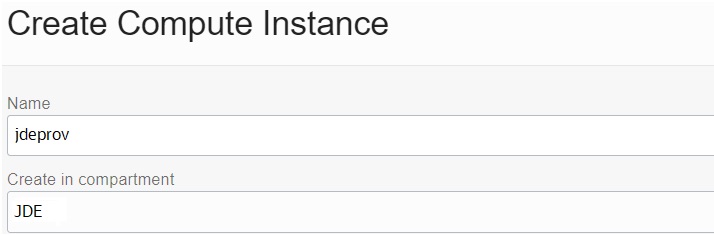
Create Compute Instance - Name Your Instance - Configure placement and hardware
Click on an availability domain (AD) to select it. You can only specify a single AD.

Create Compute Instance - Availability Domain
- On Create Compute Instance, in the Image
section, click the Change Image button.
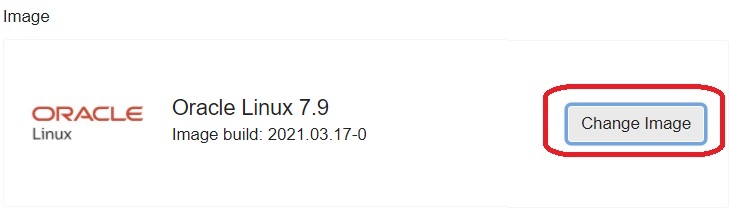
Create Compute Instance - Change Image - On Browse All Images:
- In the Image name column, click the Windows Server 2022 Standard checkbox.
- In the Image build column, use the pull-down to select the latest build. For example, 2023.10.10-0.
- Click the Select Image button.
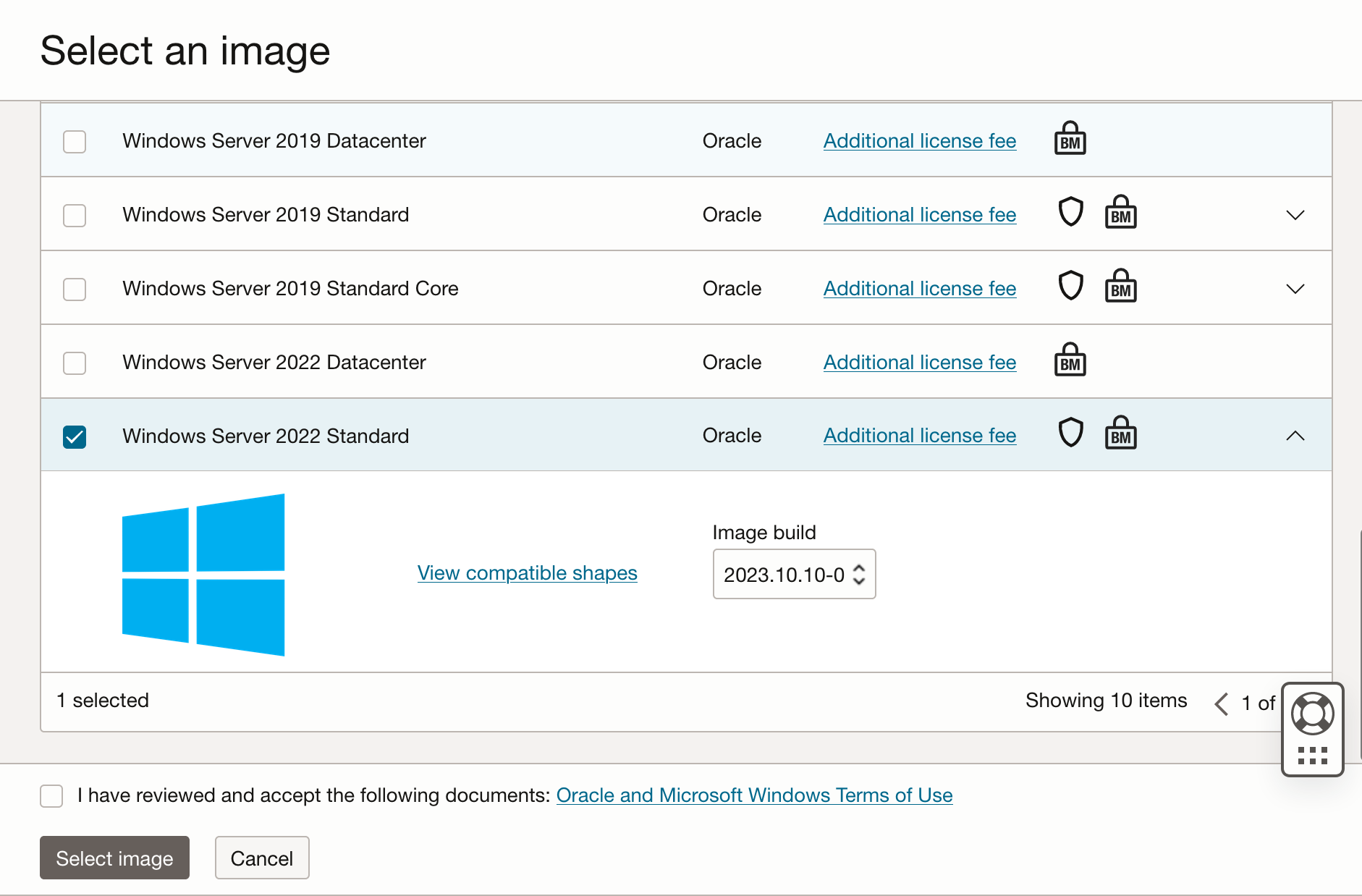
Select an Image - Windows Server 2022 Standard - Configure networking
Verify, and if necessary, set your network settings for the instance of JD Edwards EnterpriseOne JD Edwards EnterpriseOne One-Click Provisioning Server Image. These settings include:
- Network
- Subnet
- Subnet in <Compartment>
Important: Be sure to select this radio button: Assign a public IPV4 Address
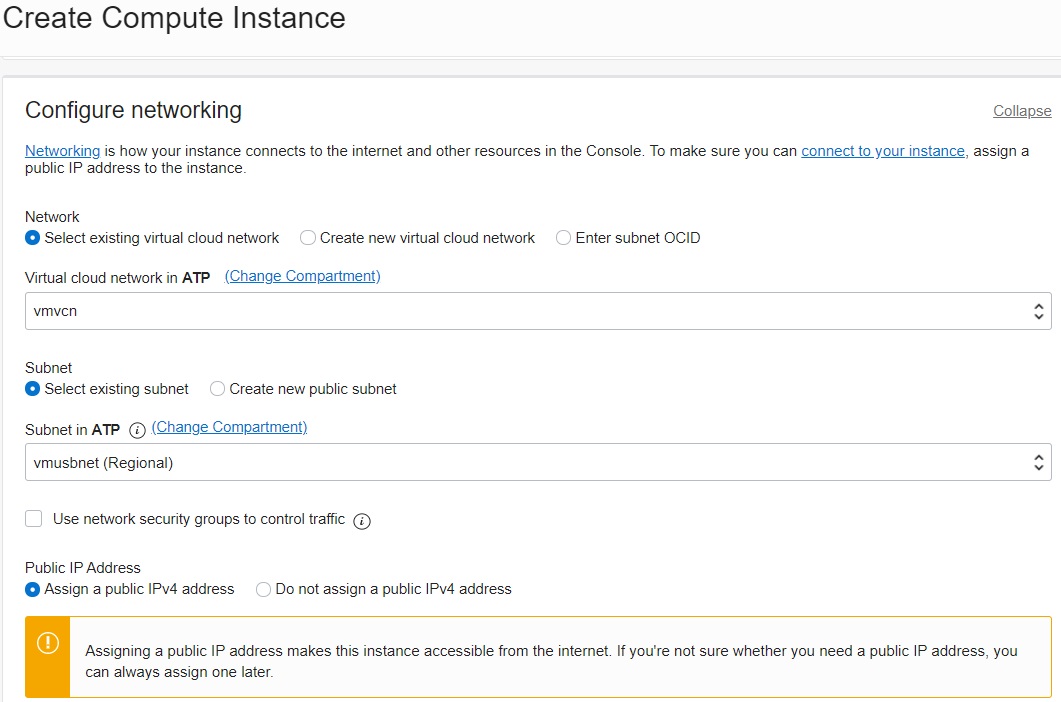
Configure Networking - Add SSH Keys
You must add the SSH keys that you previously created for use with JD Edwards EnterpriseOne JD One-Click Provisioning Server Image.
You can either click the Choose SSH key file option to select a file with your public (.pub) key from your computer, or choose the Paste SSH keys option to paste the key. - Configure boot
volume
To determine whether you want to implement block or boot volume storage, refer to the preceding module of this Learning Path entitled "Using Volume Storage". If you choose to use boot volume storage, at this point you must specify a minimum value of 256 GB. Further, you must enable this extended boot volume size as described below in the task Extending the System Partition on a Windows-Based Image.
- Show Advanced Options
You do not need to set any Advanced Options.
- Name
- Click the Create button to create the
Oracle Cloud Infrastructure instance for JD Edwards
EnterpriseOne JD Edwards EnterpriseOne One-Click Provisioning
Server Image.
Important: After the instance is created, the system assigns a Public IP address. Make a note of this address because you will need it to connect to the instance using the SSH keys in order to complete the first-time configuration of the One-Click Provisioning Server Image for JD Edwards EnterpriseOne as described in the following section.
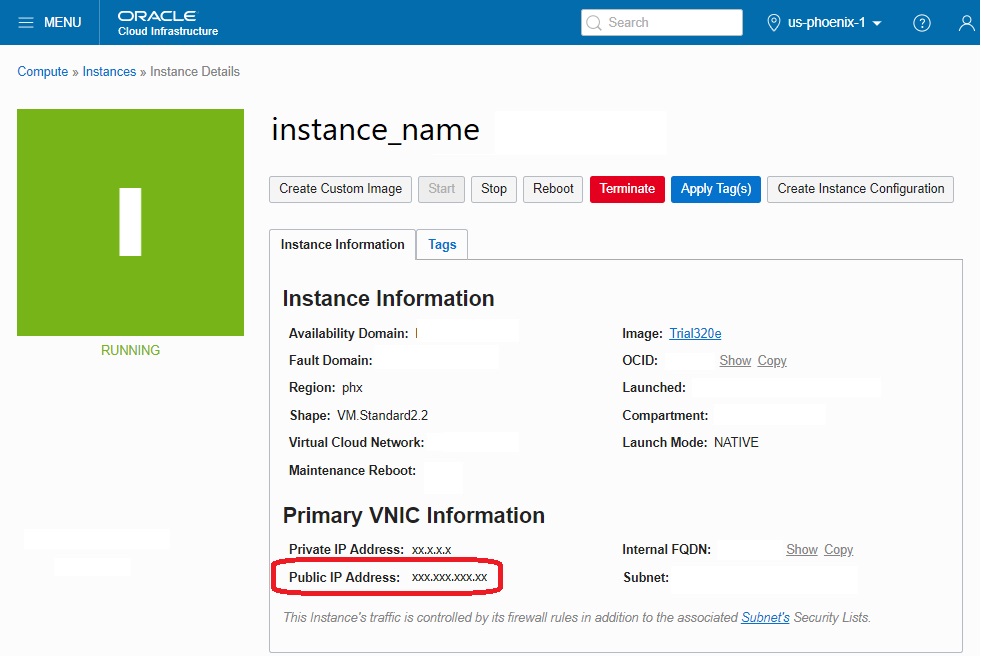
One-Click Provisioning Server Instance - Public IP Address
The above process creates a VM instance with a Microsoft Windows instance that will be provisioned OR that will be deployed by JD Edwards EnterpriseOne One-Click Provisioning.
You must repeat this process for each JD Edwards EnterpriseOne server on which the One-Click Provisioning Server will be deployed. At a minimum, you will need a Microsoft Windows VM instance for each of these servers:
- Provisioning Server -This includes the Provisioning Server and the Server Manager (for JD Edwards EnterpriseOne)
- Compute Oracle Database Server (Oracle or SQL Server)
- Enterprise Server
- WebLogic Server - Hosts the JD Edwards EnterpriseOne web servers such as the HTML Servers and AIS Servers (there can be one or many of each web server type)
- Deployment Server