
 Creating
a Mobile Application in VBCS
Creating
a Mobile Application in VBCS Before You Begin
This 5-minute tutorial shows you how to create an inventory availability mobile application in VBCS.
 Creating
a Mobile Application in VBCS
Creating
a Mobile Application in VBCS
To create an inventory availability application in VBCS, follow the steps:
- After logging in to Oracle Visual Builder, click the New button next to Visual Applications.
- Complete the Application Name field with
the value: Inventory_Availability. Click Finish.

Create Visual Application A new visual application is created successfully.
- Under Create Apps, click Mobile Apps to create a mobile application and then click + Mobile Application.
- In the Create Mobile Application dialog
box, complete the Application Name field
with the value: inventory_availability.
Select Vertical as the Navigation
Style. Delete Item 2 and Item 3 under Navigation
Items. Rename Item 1 as inventory_availability_manager.
Click Next.

Create Mobile Application - Select Custom as the Page Template and
click Create.

Page Template inventory_availability_manager flow and inventory_availability_manager-start page are created.
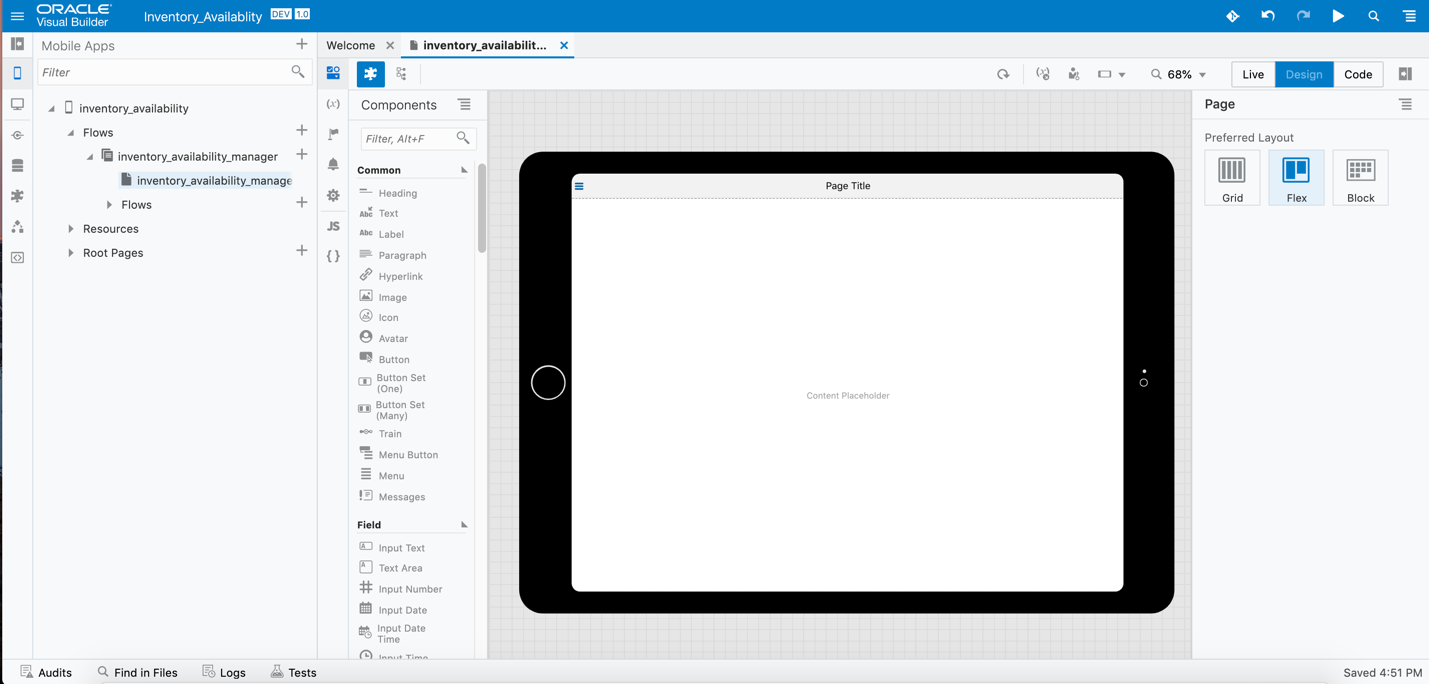
Mobile Application - Go to inventory_availability, click Settings
and select General Settings.

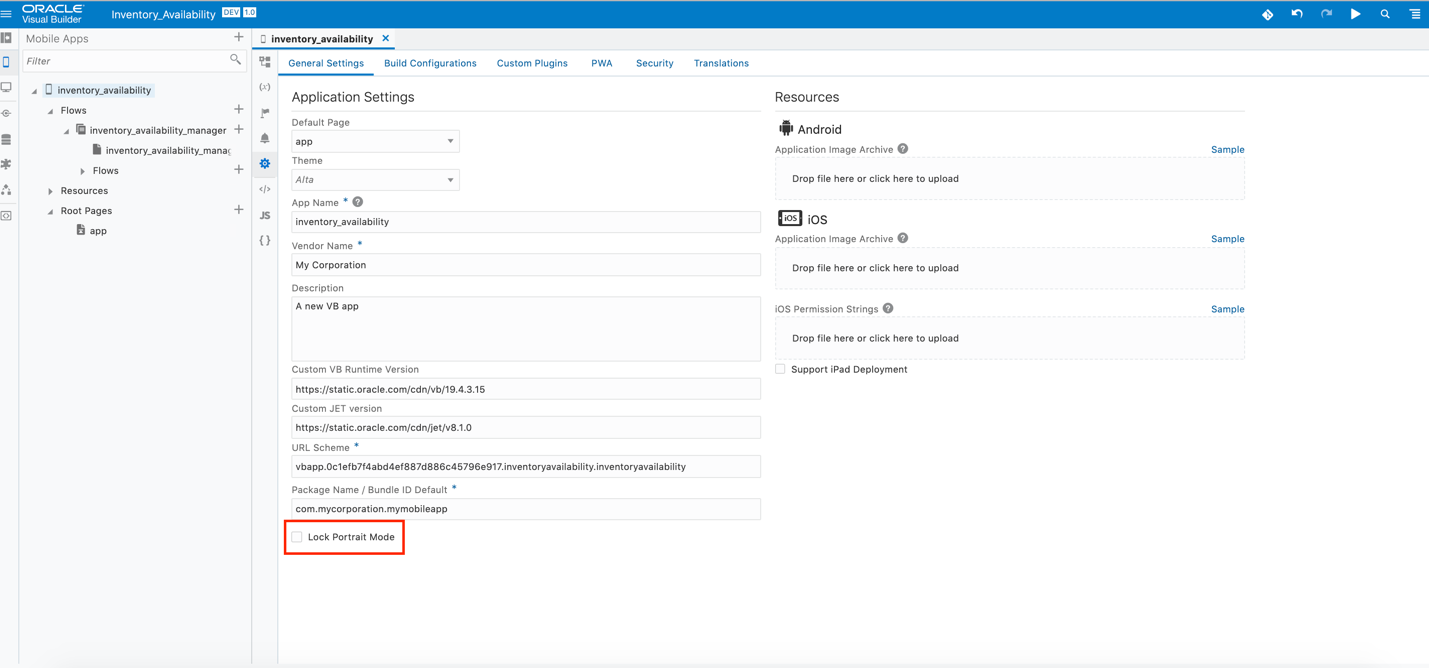
Application Settings - Deselect the Lock Portrait Mode checkbox
to enable Landscape Mode.
Enable Landscape Mode - In Settings, go to PWA.
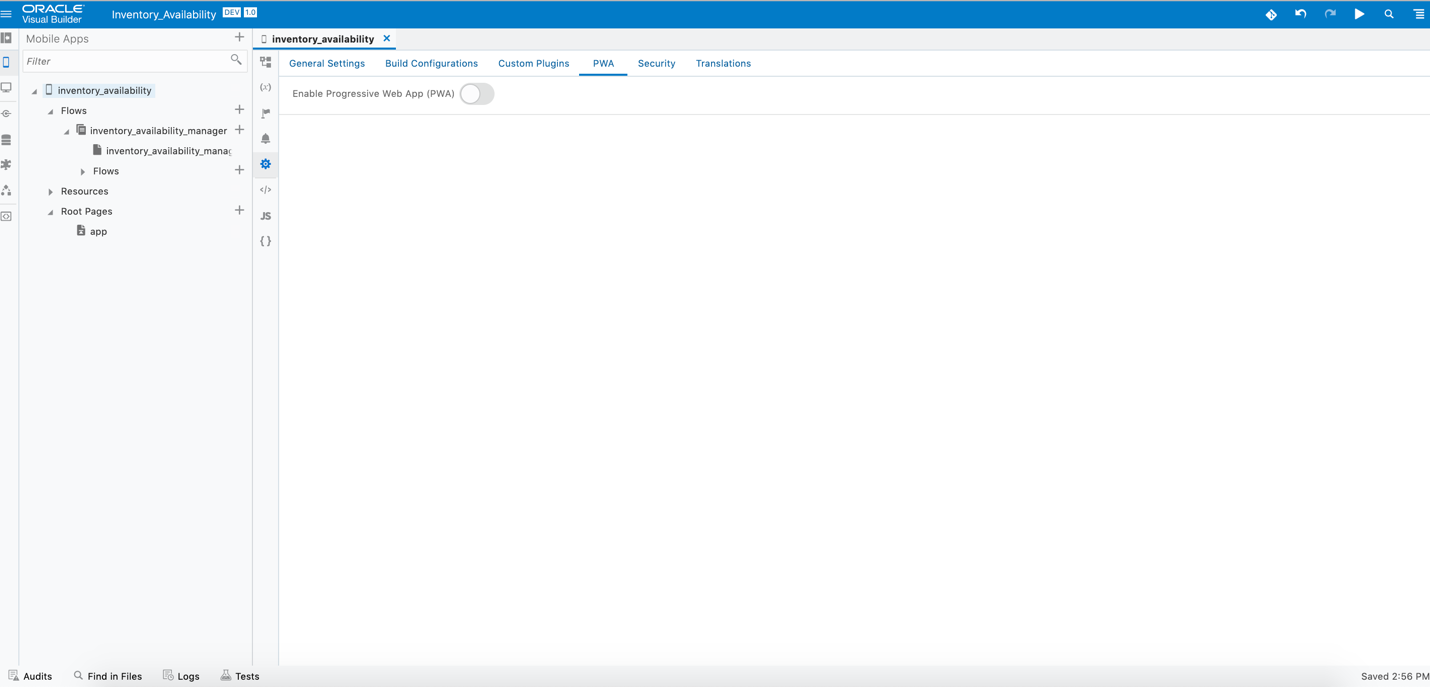
Progressive Web App - To enable PWA toggle on the switch Enable
Progressive Web App (PWA).
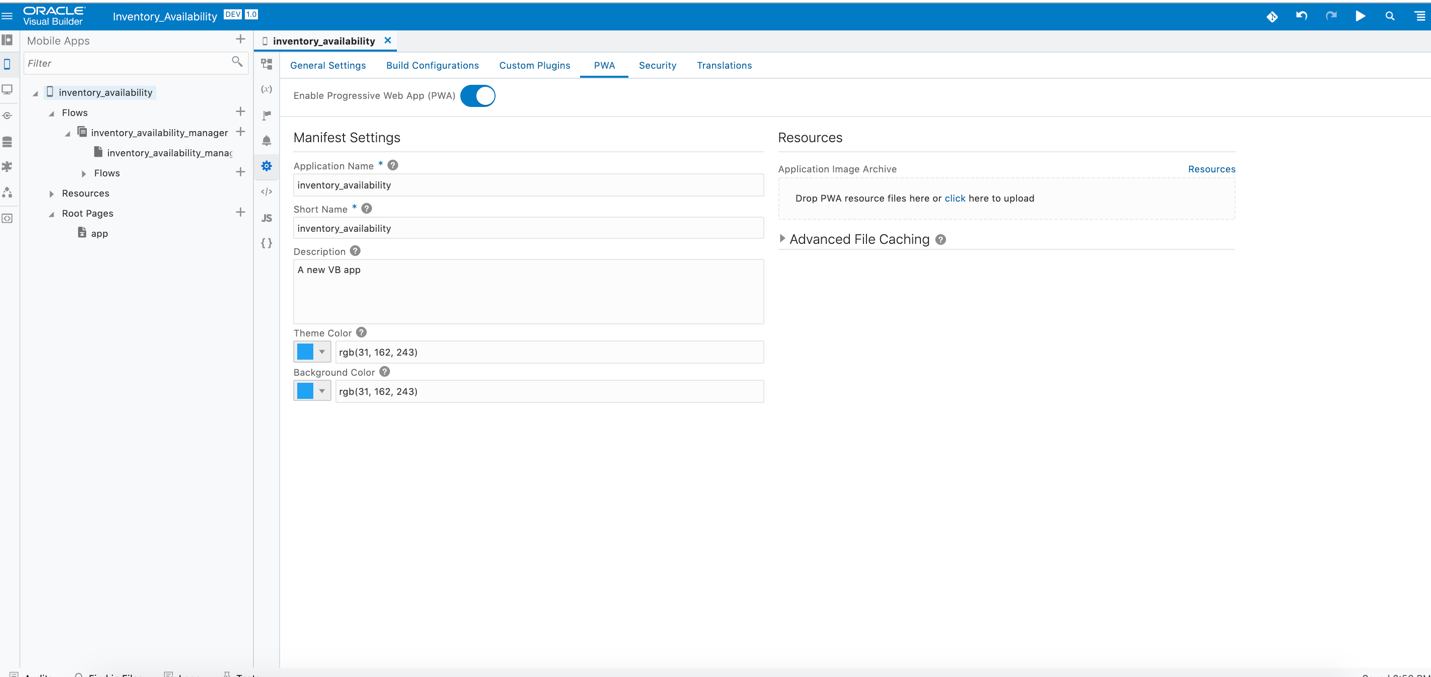
Enable PWA