Defining
a Joint Venture
Defining
a Joint Venture Before You Begin
This 20-minute tutorial shows you how to define a joint venture and review the joint venture hierarchy in a chart.
Scenario
To create the joint venture A-GREENACREHOLDINGS, you must first define the joint venture. Defining the joint venture involves setting up the participating business units, projects, and properties as business units in the system, establishing parent-child relationship for joint venture business units, and setting up the joint venture master record.
This joint venture will have four partners - three outsiders and one insider (managing partner). The joint venture structure will be defined by eleven business units.
What Do You Need?
You must have set up set up address book records for the partners and business units included in the joint venture.
 Setting
Up Business Units
Setting
Up Business Units
In this task, you will add the joint venture business units, managing business unit, projects, and properties participating in the joint venture A-GREENACREHOLDINGS to the JD Edwards EnterpriseOne system. You can add these entities by utilizing the standard programs within JD Edwards EnterpriseOne. For example, you can use the Real Estate system to add properties, Project Costing system to add projects, and the standard Business Unit Master program (P0006) to add business units.
For the purpose of this tutorial, the properties and projects will be added utilizing the standard Business Unit Master program (P0006).
- Set up business unit records for the business units,
projects, and properties listed in the table below using the
P0006 program.
Use the values in the Company, Business Unit Number, and Business Unit Description columns in the table below to set up the business unit records. You must also enter the address book numbers for the business units for which you have set up address book records.
Company Business Unit Number Business Unit Description Address Book Number Capital Cost Business Unit 00098 98 Green Acre Capital Assets 100207 Joint Venture Business Unit (Project) 00098 980000
Green Acre Construction 980001 Property 00098 981000
Recreation Ctrs & Open Space 100208
Project 00098 982000
Housing 100209 Project 00098 983000
Transportation Infrastructure 100210 Property 00098 981001
Single Family Subdivisions 100211 Property 00098 982002
Multi-Tenant Housing 100215 Property 00098 983003
Mass Transit 100212 Managing Business Unit 00980 981
Green Acre Holdings Share 981
Project 00098 984000
West Recreation Center 100400
Property 00098 984001
Green Acres Recreation Center 100401
Property 00098 984002
Green Acres Pool 100402
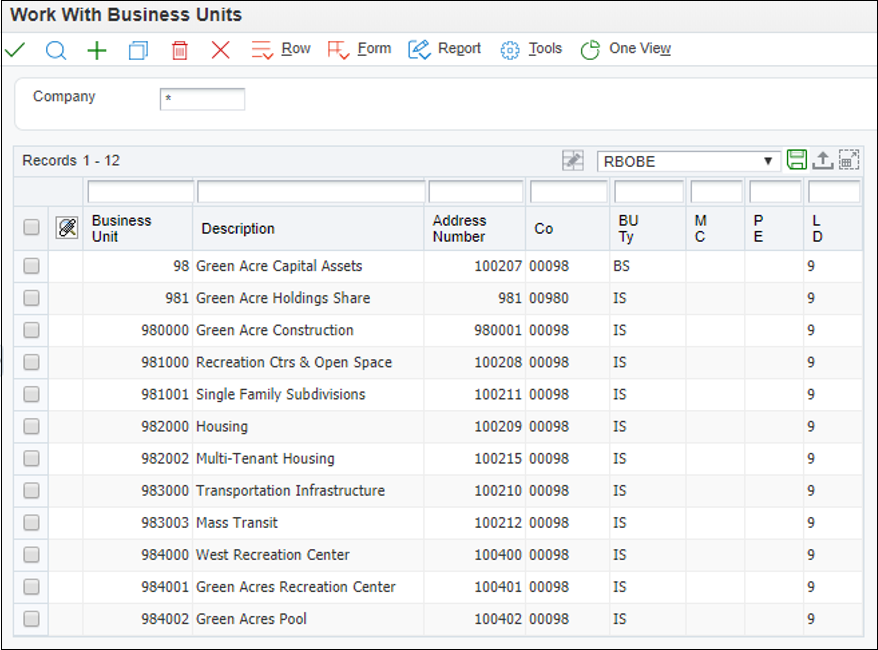
Your business unit records should look like this:
Note: The Address Number column in your result might vary from the graphic below depending on the address book records that you have set up and attached to the business unit records.
 Defining
the Joint Venture Structure
Defining
the Joint Venture Structure
To define the joint venture structure, use the Joint Venture Parent Business Unit field in the Business Unit Master program (P0006). When you define the joint venture in the system, you can set up only one joint venture business unit. The joint venture A-GREENACREHOLDINGS requires multiple business units for its definition. The joint venture parent business unit is used to group all the joint venture business units by creating a parent-child relationship.
- Navigate to EnterpriseOne Menus, Financials, Joint Venture Management (G09J), Joint Venture Setup, Business Unit Master (P0006).
- On the Work With Business Unit Master form, enter the value 981000 (Recreation Ctrs & Open Space) in the QBE grid field for Business Unit and click Find.
- Select the business unit and click Select.
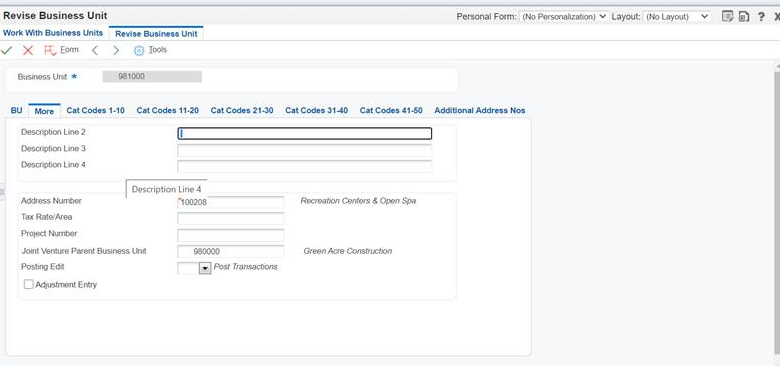
- On the Revise Business Unit Form, click the More tab.
- In the Joint Venture Parent Business Unit field, enter
980000.
Joint Venture Parent Business Unit defines the parent-child relationship for the joint venture business units participating in the joint venture.
- Click OK.
Your business unit record should look like this:
- Repeat steps 2 to 6 to define the joint venture structure
for the other business units used by the joint venture
A-GREENACREHOLDINGS.
Use the information in the table below to complete the task:
Business Unit Number Business Unit Description Joint Venture Parent Business Unit 98 Green Acre Capital Assets 980000 981000 Recreation Ctrs & Open Space 980000 982000 Housing 980000 983000 Transportation Infrastructure 980000 981001 Single Family Subdivisions 982000 982002 Multi-Tenant Housing 982000 983003 Mass Transit 983000 984000 West Recreation Center 980000 984001 Green Acres Recreation Center 984000 984002 Green Acres Pool 984000
 Setting
Up the Joint Venture
Setting
Up the Joint Venture
You have completed all of the tasks in the previous sections and now you have all of the components required to create a joint venture. In this task, you will create the joint venture GREENACREHOLDINGS using the joint venture business unit and the managing business unit.
- Navigate to EnterpriseOne Menus, Financials, Joint Venture Management (G09J), Joint Venture Setup, Joint Venture Master (P09J30).
- On the Work with Joint Ventures form, click Add to add a new joint venture.
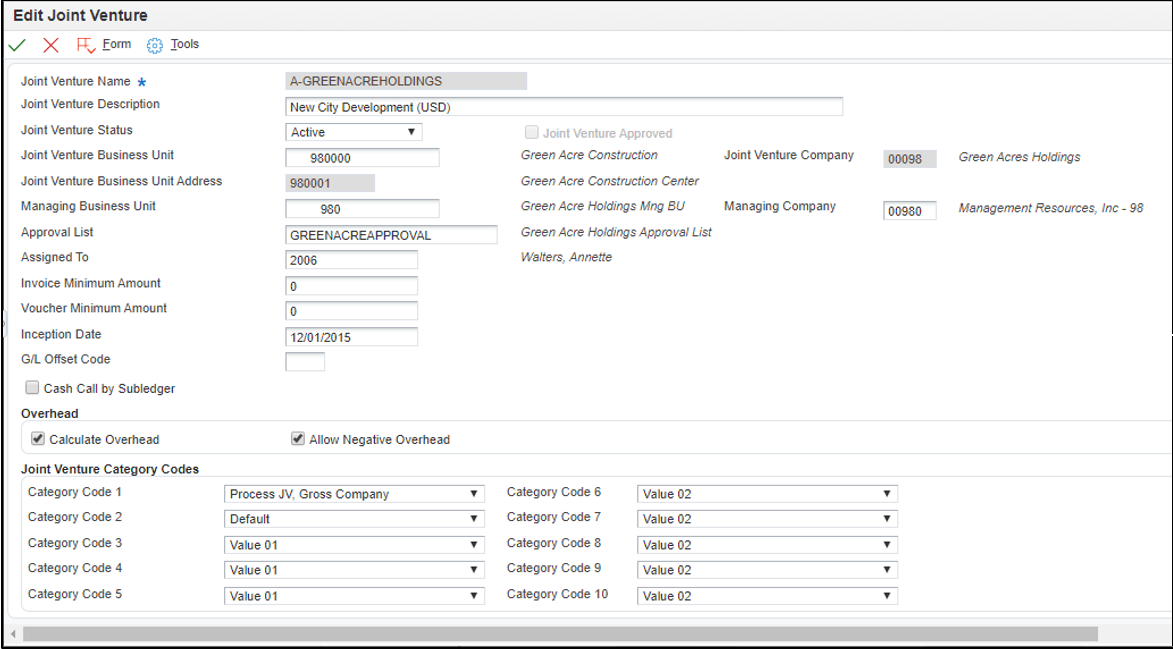
- On the Add Joint Venture form, complete the required Joint Venture Name field with this value: A-GREENACREHOLDINGS.
- Additionally, complete these fields:
- Joint venture Description: New City Development
- Joint Venture Status: Active This status is informational only and does not control any processing for the joint venture.
- Joint Venture Business Unit: 980000 When you enter a value in this field, the system automatically populates the Joint Venture Business Unit Address and Joint Venture Company fields.
- Managing Business Unit: 981 The managing business unit is responsible for the distribution of expenses and revenue of the insider partner’s share in the joint venture. In addition, the managing business unit can define the company responsible for the financial transactions of the joint venture. When you enter a value in this field, the system automatically populates the Managing Company field.
- Assigned To: 2006 This can be the person managing the joint venture.
- Inception Date: 12/01/2015 This date indicates when the joint venture becomes effective and it is used in overhead calculations.
- In the Overhead section of the form, select the Calculate Overhead check box. If you select this check box, the system calculates overhead.
- In the Joint Venture Category Codes section of the form, set up category codes as required. For this tutorial, select Construction Project from the drop-down menu of the Category Code 1 field.
- Click OK.
- On the Work with Joint Ventures form, enter the value A-GREENACREHOLDINGS in the QBE grid field for Joint Venture Name and click Find.
Your joint venture master record should look like this:
Reviewing
the Joint Venture Structure
As defined in the previous section, the joint venture A-GREENACREHOLDINGS has multiple business units associated with it. To easily review the hierarchy of the joint venture, use the Joint Venture Hierarchy program (P09J06X).
- Navigate to EnterpriseOne Menus, Financials, Joint Venture Management (G09J), Joint Venture Setup, Joint Venture Hierarchy (P09J06X).
- On the Joint Ventures Hierarchy form, complete the Joint Venture Name field with this value: A-GREENACREHOLDINGS.
- Click Refresh.
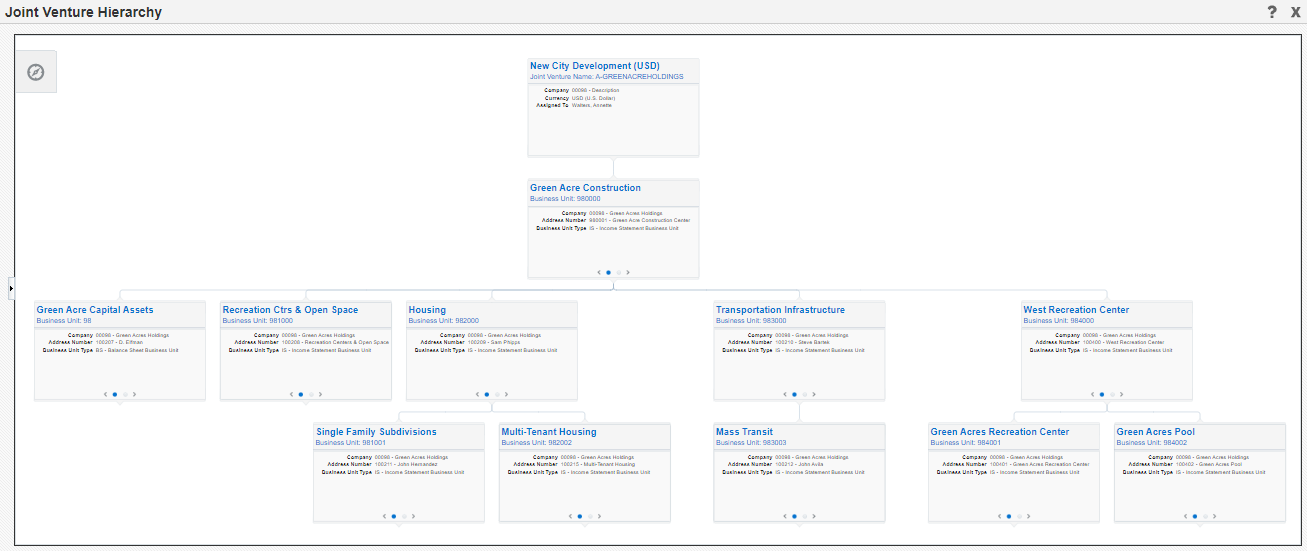
- The joint venture structure is displayed using a hierarchy
chart. The chart includes the following levels of information:
- The first level shows the joint venture information.
- The second level shows the joint venture business unit information.
- Subsequent levels show the additional business units used to define the joint venture structure (using the Project field from the Business Unit Master program).
Your joint venture structure should look like this: