
 Processing
Early Termination
Processing
Early Termination Before You Begin
This 30-minute OBE shows you how to process the early termination for the copier. The early termination process sets the early termination flag from the starting termination month through the end of the schedule and creates journal entries for terminating a lease early. You will review the changes to the schedules and the journal entries that are create. After reviewing the journal entries, you we will post the early termination batch.
Background
Many businesses lease office space and equipment from different suppliers. According to the new lease accounting standards, businesses must account for these leases and the leased asset on them on their balance sheets. The Lease Accounting functionality in JD Edwards provides the ability to comply with these standards.
Scenario Guidelines
In this series of OBEs, you will learn how to set up the system and perform the required actions for following lease scenario:
- You are leasing a copier from Electronics R Us.
- The lease is for two years and you expect to return the copier at the end of the lease.
- You will pay $2,500 quarterly in advance.
- You have to pay an up-front installation charge of $1,000 to secure the lease.
- At the beginning of the second quarter, you renegotiate the price of this lease based on an agreement to lease other equipment from the vendor and they agree to a price break on the existing lease. Your new quarterly payment will be $2,250 starting from the second quarter.
- At the end of the second quarter, the copier breaks down and the cost of repairs is greater than the replacement cost, so you negotiate with the vendor to terminate this lease and create a new one for a newer copier model.
What Do You Need?
- Changed the recurring billing and the borrowing rate (See the OBE “Update Recurring Billing for Early Termination”.)
 Terminating the Lease Early
- Navigate to EnterpriseOne Menus, Financials (G1), Lessee Accounting (G15202), Periodic Processing (G1520220), Amortization Schedules (P15171).
- On the Work with Amortization Schedules form, enter the lease number 20491 to find the lessee lease you created in the OBE “Creating a Lessee Lease”.
- Click Find.
- Verify that the Recalculate Lease Liability flag has the value of 2 (Terminate or Remeasure)
- Select Terminate Early from the Row menu.
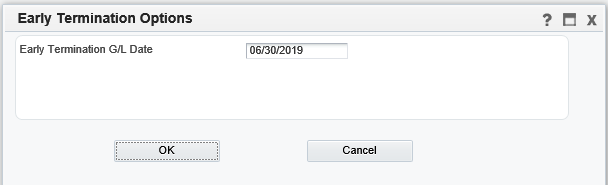
- In the Early Termination Options dialog box, enter 06/30/19 as the Early Termination G/L Date.
- Click OK to terminate the lease and create early termination journal entries.
- On the Work With form, you can see that:
- The Recalculate Lease Liability flag is now set to 0 (No Action Required)
- The Lease Liability Status has been updated to 55 (Schedules Terminated)
- Note that the Early Termination option is no longer available in the Row menu.
The Early Termination Options dialog box should look like this:
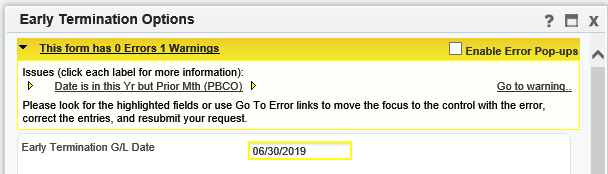
Note: A warning message is displayed after you click OK the first time because the current period is set to 11 and the beginning of the fiscal year is set to 01/01/19 in the company constants for this scenario.
 Reviewing Amortization Schedules
- Navigate to EnterpriseOne Menus, Financials (G1), Lessee Accounting (G15202), Periodic Processing (G1520220), Amortization Schedules (P15171).
- On the Work with Amortization Schedules form, enter the lease number 20491 to find the lessee lease you created in the OBE “Creating a Lessee Lease.”
- Click Find.
- From the Row menu, select Amortization Sched and then select
Lease Liability to review the schedule changes that occurred
as a result of the early termination at the end of the second
quarter.
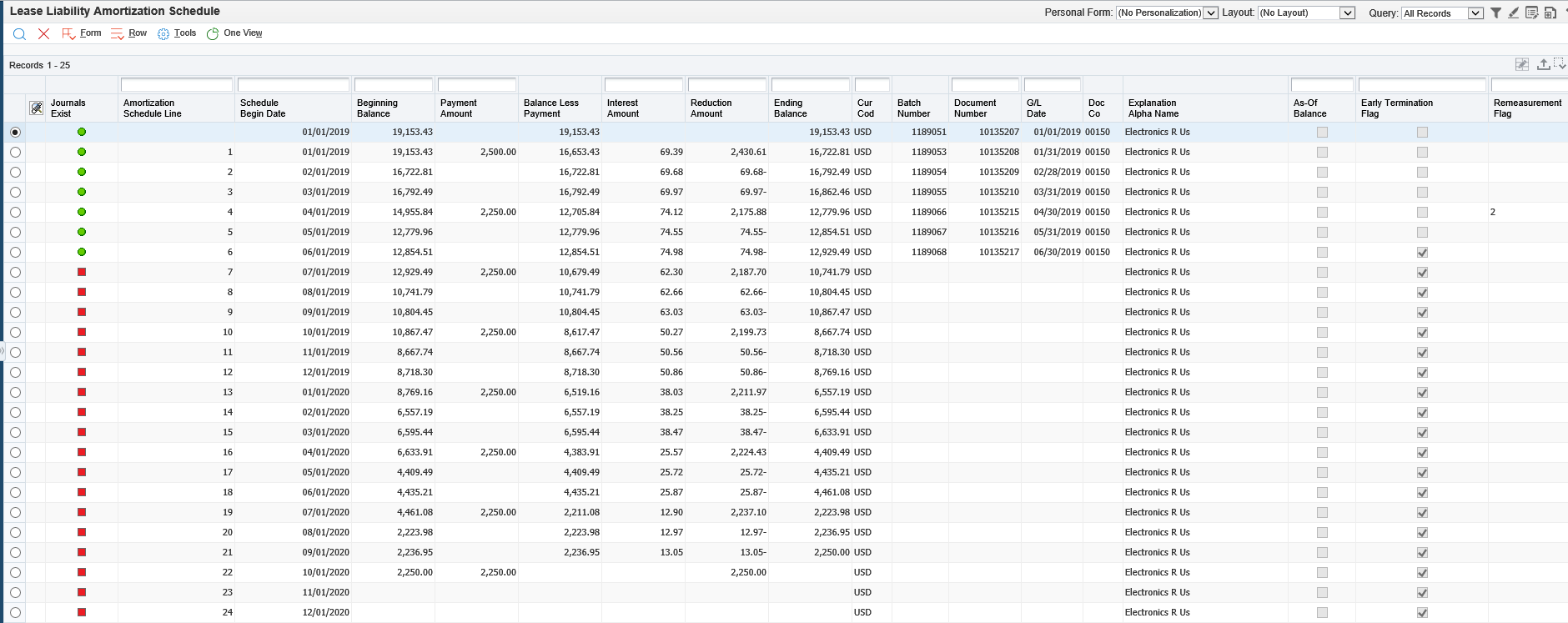
- Review the Lease Liability Amortization Schedule form.
- The Early Termination check boxes are selected from the starting termination month (06/01/19) through the end of the schedule.
- A red square is displayed to indicate the months included in the early termination.
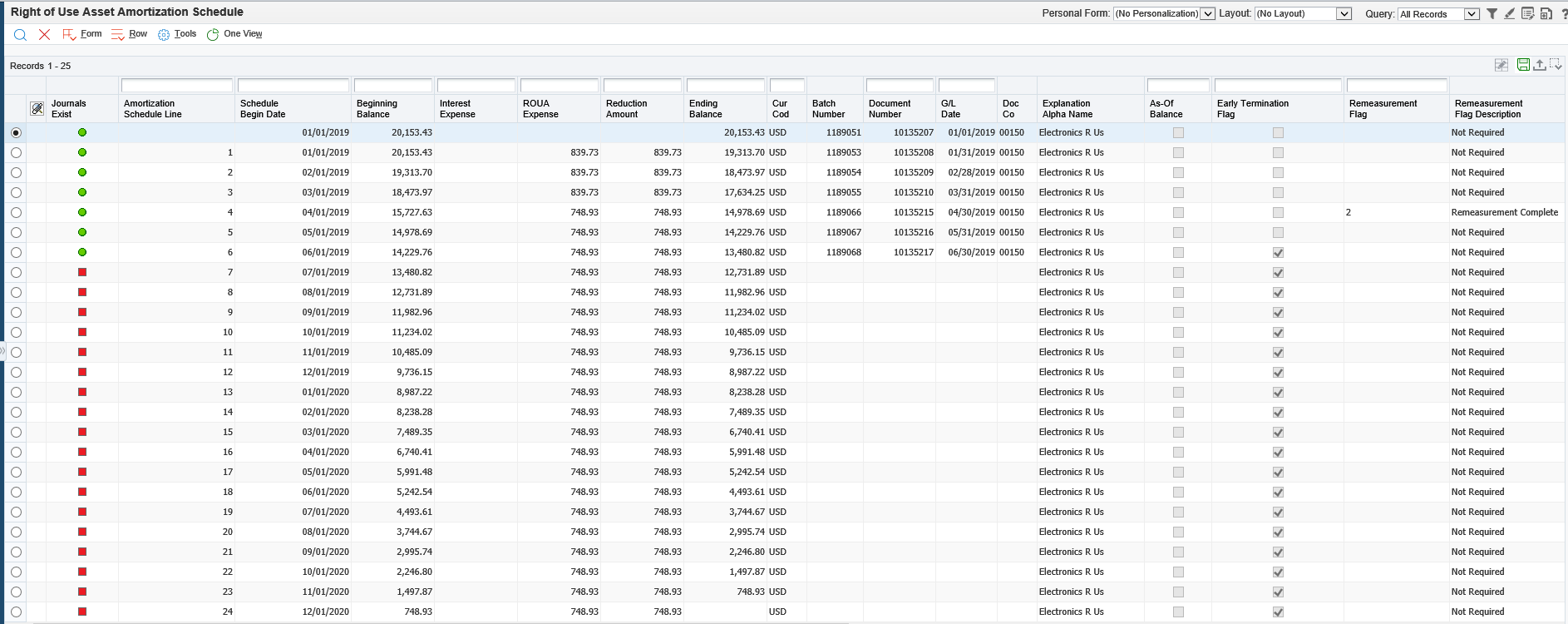
- Change the Schedule Type to Right of Use Asset to review
the ROUA schedule.
- The Early Termination checkboxes are selected from the starting termination month (06/01/19) through the end of the schedule.
- A red square is displayed to indicate the months included in the early termination.
This is how the Right of Use Asset Amortization Schedule should look after early termination:
ROUA Amortization Schedule
This is how the Lease Liability Amortization Schedule should look after early termination:
Lease Liability Amortization Schedule - Review the Lease Liability Amortization Schedule form.
 Reviewing Early Termination Journal Entries
- Navigate to EnterpriseOne Menus, Financials (G1), Lessee Accounting (G15202), Periodic Processing (G1520220), Balance Sheet Lessee Accounting Batch Review (P150911).
- From the Work with Lessee Accounting Batch Review form, find
the batch and select the grid row for the early termination
batch. Complete these fields
- Remark: Lessee Termination Journals
- Batch Status: A (Approved)
- From the Row menu, select JE Review.
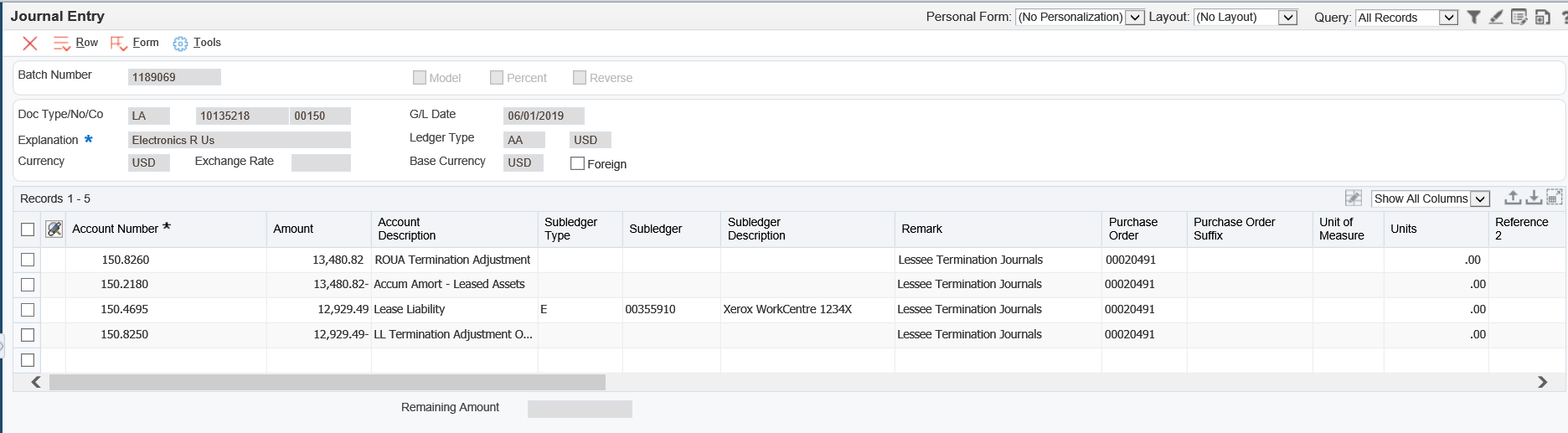
- Review the journal entries created for a Finance type lease:
- JE termination amount = lease liability beginning balance for the start termination month – (minus) lease liability prior month ending balance
- Debit to Lease Liability
- AAI = LL
- Lease liability ending balance – start termination month/year (6/19)
- Credit to LL Termination Adj Offset
- AAI = L7
- Lease liability ending balance – start termination month/year (6/19)
- Credit to Accumulated Amortization
- AAI = LC
- ROUA Ending Balance – start termination month/year (6/19)
- Debit to ROUA Termination Adj Offset
- AAI = L8
- ROUA Ending Balance – start termination month/year (6/19)
- Click Cancel to exit the Journal Entry form and return to the Work with Lessee Accounting Batch Review form.
This is how the early termination journal entries should look:
 Post
Early Termination Journal Entries
Post
Early Termination Journal Entries
- Navigate to EnterpriseOne Menus, Financials (G1), Lessee Accounting (G15202), Periodic Processing (G1520220), Balance Sheet Lessee Accounting Batch Review (P150911).
- From the Work with Lessee Accounting Batch Review form, find
the batch and select the grid row for the early termination
batch. Complete these fields
- Remark: Lessee Termination Journals
- Batch Status: A (Approved)
- From the Row menu, select Post by Batch.
- From the Printer Selection form, click OK to return to the Work With Lessee Accounting Batches form.
- From the Work with Lessee Accounting Batchesform, select Submitted Jobs from the Form menu.
- Find the batch job you just submitted: General Ledger Post – Lessee Accounting
- Click the View Output grid column and click Open when prompted.
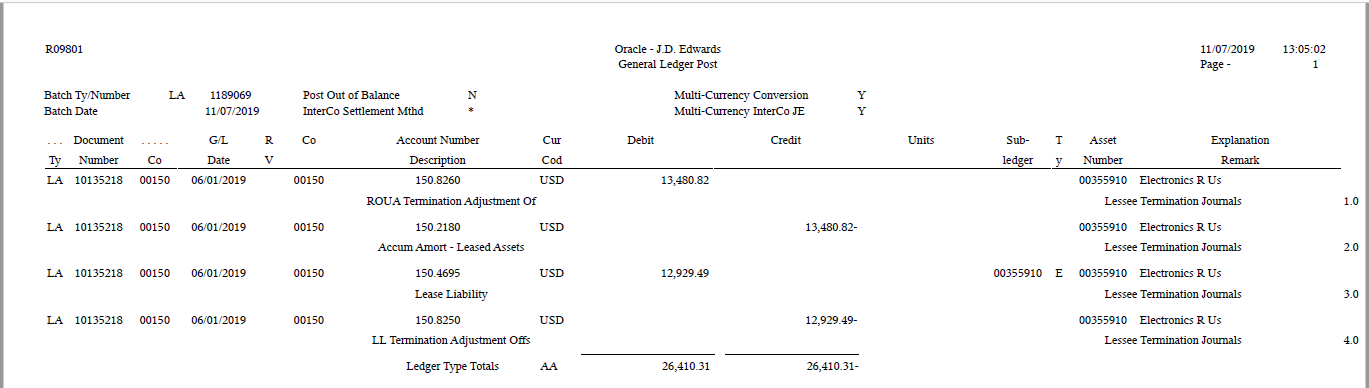
- Review the report.
- Click Close to return to the Work with Lease Accounting Batches form.
- Make sure that the option to display All Batches is selected and click Find.
- Note the Batch Status is D (Posted) for the early termination batch you just posted.
This is how the General Ledger Post report should look:
This is how your early termination batch record should look:
