
 Creating
an Orchestration to Retrieve Customer Credit Status
Creating
an Orchestration to Retrieve Customer Credit Status Before You Begin
This 10-minute tutorial shows you how to create an orchestration to retrieve a customer’s credit status from EnterpriseOne. You will use the following service requests created in the preceding tutorials to create the orchestration:
- Customer Credit Limit data request
- Unpaid Orders data request
- Percent Usage service request
 Creating
the “Customer Credit Status” Orchestration
Creating
the “Customer Credit Status” Orchestration
- Access the Orchestrator Studio and click the Orchestrations icon.
- On the Orchestrations page, click New Orchestration.
- On the Orchestration design page, complete the following
fields:
- Orchestration Name =
Customer Credit Status - Enter Short Description =
                        Compare the amount of credit being used by a customer to
                        their allowed credit limit
.
- Orchestration Name =
- Click the Product Code drop-down list and select 55 for a customer product code.
- Expand the Orchestration Input section, and for the input,
enter
customer_numberin the Input column and select Numeric in the Value Type column. - Save the orchestration.
- Add the Customer Credit Limit data request to the
orchestration:
- In the Orchestration Steps grid, click Add Step and select Service Request.
- At the end of the new step, click the drop-down arrow and select Customer Credit Limit.
- Map the orchestration input to the input in the Customer
Credit Limit data request:
- Select the data
request step.
Notice that the Orchestrator Studio displays the Address Number 1 input, the input to this data request, in the Transformations grid. - Next to the
Address Number 1 input, click the Additional
Values drop-down list and select customer_number.
This maps customer_number to Address Number 1.
- Select the data
request step.
- Add the Unpaid Orders data request to the orchestration:
- In the Orchestration Steps grid, click the Insert Step After button and select Service Request.
- At the end of the new step, click the drop-down arrow and select Unpaid Orders.
- Map the orchestration input to the input in the Unpaid
Orders data request:
- Make sure the Unpaid Orders step is selected.
- In the Transformations, click the Available Values drop-down list next to Address Number Sold and select the Customer_Number orchestration input.
- Add the Percent Usage service request to the orchestration:
- With the Unpaid Orders step highlighted, click the Insert Step After button and select Service Request.
- At the end of the new step, click the drop-down arrow and select Percent Usage.
- Map the orchestration input to the input in the Percent
Usage form request:
- Make sure the Percent Usage step is selected.
- In the Transformations area, map the credit_limit to CreditLimit and TotalOpenAmount to the UnpaidAmount.
- Save the orchestration, which should look like this when
complete:
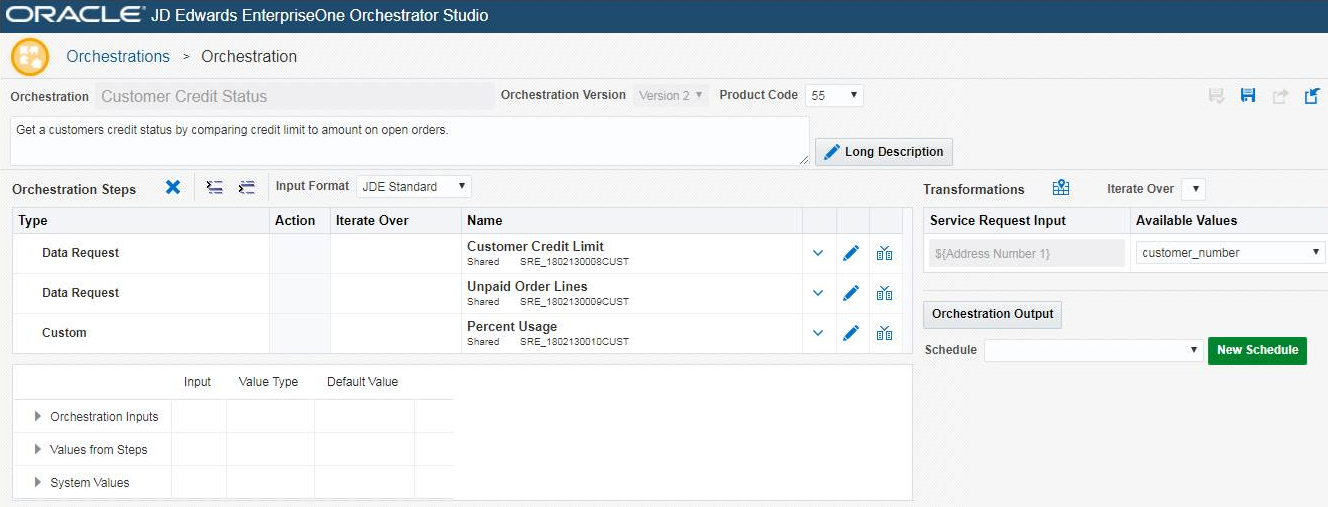
Customer Credit Status Orchestration