
 Third-party
Components
Third-party
Components Upgrading Third-party Components
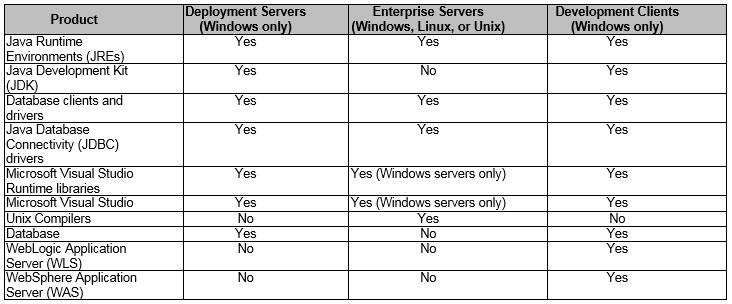
Implementing 64-bit with JD Edwards EnterpriseOne requires upgrading third-party components to the latest supported version. This must be performed on Deployment Servers, Enterprise Servers, and Development Clients. EnterpriseOne web servers are not affected. The following chart indicates the component that must be updated to the latest supported version on each platform.
 Java
Runtime Environment (JRE) and Java Development Kit (JDK)
Java
Runtime Environment (JRE) and Java Development Kit (JDK)
A JDK provides tools to compile Java source files and to generate jar files containing Java class files. Java-based programs run within a JRE. A JRE provides files that are neccessary at runtime such as Dynamic Linked Libraries (DLL) on Windows, shared libraries on UNIX platforms, and jar files that contain compiled Java class files. If a JDK is installed, a JRE does not need to be installed separately because a JDK already contains a JRE. A WLS application server requires a JDK to be installed prior to installation of WLS. A JDK is provided with a WAS installation.
The EnterpriseOne foundation included in a client package should contain a JRE that is used on the Development Client. The bitness of the JRE should match the bitness of the foundation. To include a new JRE in a package, replace the JRE in the Deployment Server’s system\jre folder before building the package; be sure that the package includes the proper foundation.
Downloading
- Click the following link to download: http://www.oracle.com/technetwork/java/javase/downloads/index.html
- Under Java Platform, Standard Edition, you can download the JDK or JRE, depending on the particular EnterpriseOne component (Server Manager Console or Agent, EnterpriseOne Development Client, EnterpriseOne Enterprise Server) for which the JDK or JRE is to be used. Each JDK includes a JRE. Some EnterpriseOne components require a JDK, but others require a JRE only. Do not use any non-supported version or edition of the Java JRE or JDK.
- Follow the navigation aids to download the JDK/JRE that is appropriate for your operating system.
- Follow the installation instructions that are provided with the JDK/JRE.
Verifying on UNIX
After installing the JDK/JRE, run the following test to verify the version of Java is recognized by the system:
- Access the command line of the operating system and enter:
- Verify the output shows the version that you downloaded.
cd
                    <JDK_or_JRE_install_dir>/bin
java -version Database
Client and Drivers
Database
Client and Drivers
The database client is used by EnterpriseOne on the Deployment Server, Enterprise Servers, and Development Clients to connect to databases. The database client must be at the same or lower release level as the database to which it is connecting. In addition, the database client must be of the same bitness as the EnterpriseOne foundation on the Deployment Server, Enterprise Server, or Development Client.
Download and install the database client of the proper bitness from the database vendor onto the proper EnterpriseOne platform.
If both 64-bit and 32-bit Oracle database clients exist on either a Deployment Server or Development Client, the Windows operating system will find the proper database client DLLs based on the bitness of the EnterpriseOne system/foundation that is running.
ODBC Data Source Drivers
The ODBC database driver (64-bit or 32-bit) is used to connect to databases from each of the database vendors that EnterpriseOne supports: Oracle, SQL Server, and UDB. If ODBC data sources are used, their drivers and definitions may need to be updated to allow EnterpriseOne Deployment Server and Development Clients to connect to databases. The main reason for updating the ODBC data sources after they have been created is to change the bitness of the EnterpriseOne software.
The Development Client installer automatically handles the task of setting up ODBC data sources when a package is installed.
Note: Before installing a 64-bit package on a Development Client, you must ensure that the 64-bit version of the database vendor’s ODBC driver exists (for example: C:\Windows\System32\cwbodbc.dll or C:\Windows\System32\sqlsrv32.dll).
JDBC Database Drivers
JDBC database drivers are copied to Development Clients when web clients (WLSH4A for WebLogic Server or WASH4A for WebSphere Application Servers) are installed on those Development Clients. These JDBC drivers must be updated to reflect the bitness of EnterpriseOne foundation on the target Development Client.
By default, the JDBC database drivers are copied from
<EnterpriseOne_dep_svr_install_directory>\OneWorld Client
Install\WebDevFeature\WLSH4A\JDBC or
<EnterpriseOne_dep_svr_install_directory>\OneWorld Client
Install\WebDevFeature\WASH4A\JDBC depending on the H4A installer
to be run.
 Windows
Development Tools and Libraries
Windows
Development Tools and Libraries
Either Microsoft’s Visual Studio (VS) or Microsoft’s Visual Studio Runtime libraries must be installed on each Windows platform. VS must be installed if EnterpriseOne business functions will be built (compiled and linked) on the Windows platform. If EnterpriseOne business functions will not be built on a given Windows platform, VS is not required; instead of VS, the Runtime libraries may be installed.
Microsoft Visual C Runtime libraries
Visual C++ Runtime libraries are Dynamic Link Libraries (DLLs) provided by Microsoft and are required by EnterpriseOne programs to run on Windows operating systems. The major release number of runtime libraries that are installed on a Windows computer must match the major release number with which the EnterpriseOne software was built. The EnterpriseOne system or foundation for 9.2.3.x was built with Visual C++ 2017 Runtime libraries. EnterpriseOne business functions were also built with the same Visual C++ 2017 Runtime libraries. Runtime libraries for 2017 must be installed on the computer system for EnterpriseOne to run.
In addition to matching the major release number of runtime libraries, the bitness of the runtime libraries must match the bitness of the EnterpriseOne software that is running. Even though a Windows operating system may be 64-bit, programs of both 64-bit and 32-bit can run on the computer. 64-bit and 32-bit executables and DLLs cannot be mixed in a single program’s running process space.
Windows operating systems come with certain releases of Visual C++ Runtime libraries (64-bit and 32-bit). If a given release of Windows does not include the Visual C++ Runtime libraries necessary by EnterpriseOne Deployment Server, Enterprise Server, or Development Client (either foundation or business functions), the proper Visual C++ Runtime libraries must be installed before installing EnterpriseOne.
The installers for the Visual C++ Runtime libraries are both
release and bitness specific. They can be downloaded from
Microsoft and installed on EnterpriseOne Deployment Servers,
Windows Enterprise Servers, and Development Clients.
The EnterpriseOne Development Client installer requires the same
release and bitness of Visual C++ Runtime libraries that the
EnterpriseOne foundation uses. The Visual C++ Runtime
libraries of the correct release and bitness must be installed
prior to running the Development Client installer.
However, because EnterpriseOne business functions may use a
different release, but the same bitness of Visual C++ Runtime
libraries, those Visual C++ Runtime libraries can be installed
by the Development Client installer. This can be
accomplished by adding a feature to the installable
EnterpriseOne package that runs the Visual C++ Runtime
installer.
Note: You can download and install the Microsoft Visual Studio C++ 2017 Redistributable Packages (x86 or x64) from the Microsoft Download Center.
Microsoft Visual C Runtime Libraries
Microsoft Visual Studio is used to build and/or debug EnterpriseOne business functions. Building can be performed on either a Deployment Server or Development Client. Debugging of business functions, however, is supported only on Development Clients.
To ensure that the proper instance of Visual Studio is used during an EnterpriseOne build or debugging session, follow these steps:
- Install the version of Visual Studio specified in Oracle Certification.
- Ensure that the following jde.ini setting indicates the proper version of Visual Studio:
[JDE_CG]

                    VisualStudioVersion=2017
NOTE: The jde.ini file referred to above is the one on the Deployment Server or Development Client in which the build or debugging will take place. It is in the C:\Windows directory on the machine in question.
 Unix/Linux
Development Tools and Libraries
Unix/Linux
Development Tools and Libraries
See: JD Edwards EnterpriseOne 9.2.X Platform and Compiler Support Statement (Doc ID 2059885.1)
 Application
Server
Application
Server
During development of an EnterpriseOne application, an
EnterpriseOne developer can run and test the application in a
web browser. An application server is used to produce the
EnterpriseOne application objects (forms, buttons, etc.) that
are displayed in the browser. The application server can
be either WLS (from Oracle) or WAS (from IBM); however, as a
best practice, all development clients installed from a given
deployment server should use the same type of application server
(WLS or WAS).
WebLogic Server
WebLogic Server is a Java Application Server produced by
Oracle. It can be installed on an EnterpriseOne
Development Client and used to process requests from a
Development Client’s web client. WebLogic Server needs to
be installed on a Deployment Server only if EnterpriseOne Server
Manager Console will be installed there as well.
Use Oracle Certification to determine which JDK to use for
WebLogic Server. Install that JDK before installing
WebLogic Server.
WebSphere Server
WebSphere Server is not used internally within EnterpriseOne
Development.
WebSphere Server is a Java Application Server produced by
IBM. It can be installed on an EnterpriseOne Development
Client and used to process requests from a Development Client’s
web client. WebSphere Server needs to be installed on a
Deployment Server only if EnterpriseOne Server Manager Console
will be installed there as well.
Use Oracle Certification to determine which JDK to use for
WebSphere Server. Install that JDK before installing
WebSphere Server.