Controlling the Deletion of Individual IDs
To control the deletion of individual IDs, use the ID Delete Control (ID_DEL_PRVNT_TABLE) component.
This section discusses how to define priority data to control the deletion of individuals IDs.
Page Used to Control the Deletion of Individual IDs
| Page Name | Definition Name | Navigation | Usage |
|---|---|---|---|
|
ID Delete Control |
ID_DEL_PRVNT_TABLE |
|
Define priority data to control the deletion of individual IDs from your database. |
Defining Priority Data
Access the ID Delete Control page ().
This example illustrates the fields and controls on the ID Delete Control page. You can find definitions for the fields and controls later on this page.
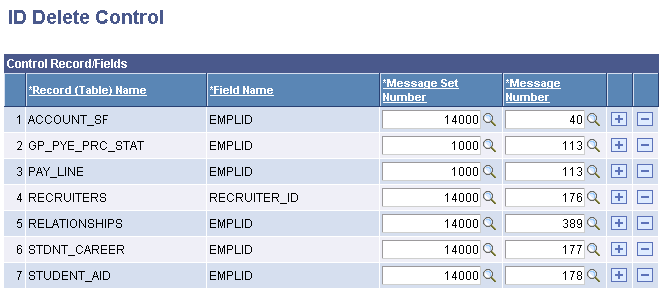
The ID on each of the following control records and the associated messages are delivered predefined as priority data:
-
ACCOUNT_SF
-
RECRUITERS
-
RELATIONSHIPS
-
STDNT_CAREER
-
STUDENT_AID
Note:
If you implement Campus Solutions and PeopleSoft Human Capital Management (HCM), the GP_PYE_PRC_STAT and PAY_LINE priority data are used in HCM.
Read the relevant documentation about CS-HCM Integration to understand the setup, functional, and technical implementation considerations. See:
Campus Solutions Application Fundamentals: Integrating Person Data
Campus Solutions Application Fundamentals: Integrating Setup Data
Campus Solutions Application Fundamentals: Monitoring Integrations Using the Integrity Utility
See Information Center: CS-HCM Integration for PeopleSoft Enterprise Campus Solutions in My Oracle Support (ID 2091799.2).
You should not delete any of the rows of predefined control records. Keep these as your base ID delete control records for individual IDs and define additional priority data as necessary.
To define an additional control record, or to add an additional field from the same record, click the Plus button at the level where you want to add it. The system enters a new row and renumbers the sequence of control records. Select the record name, field name, and message data. The new row is not added until you click Save.