How to Search
You can perform either an online or an automatic search using External Search/Match.
To perform an online search:
-
Access the Search/Match Integrated component.
-
Select a Search Type, Search Parameter, Search Result Code, and other search fields as appropriate; this step is the same as the existing Search/Match.
-
After populating some or all of these fields with search data, click the Search or Selective Search button.
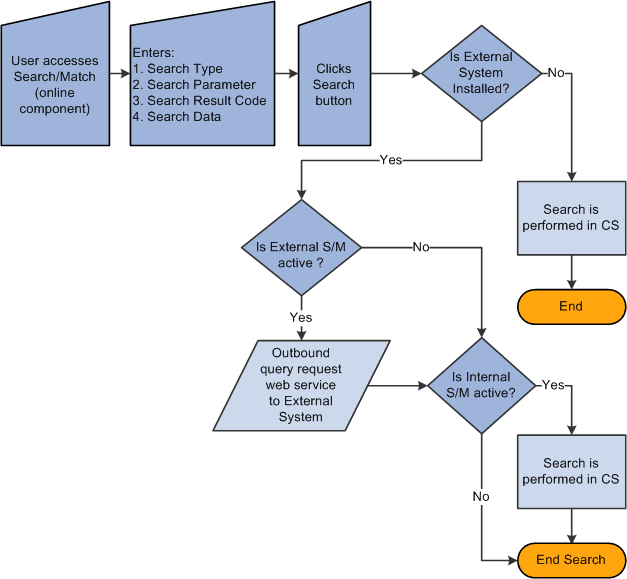
The system validates the external system data settings and determines whether the institution is configured for Search/Match, External Search/Match, or both. This determination causes the system to then perform the search inside the CS database and/or outside to an external system.
If the system determines that an external search should occur, then it generates the outbound search request (Match Request). That search request contains all information known about the search. The XML message might contain the search parameters used, the search fields and their values, and so on.
This diagram illustrates the Online External Search/Match process.
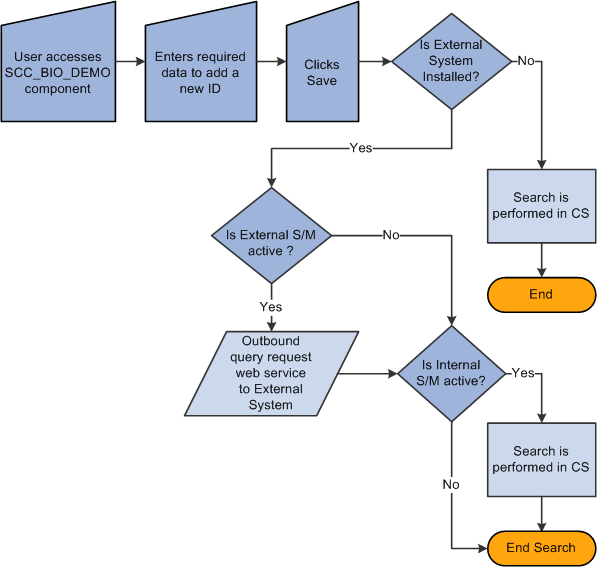
To perform an automatic search, all of the above information applies. When you enter data to create an EmplID on a CS page and then click the Save button, the system invokes additional logic to validate the external data integration settings and then triggers the Match Request.
This example illustrates an Automatic search process using the External Search/Match functionality.