Notification Framework Category Rules
Using delivered functions, you can create a notification in a specific channel. The Notification Rule can be called by other Rules. This makes it possible to send notifications conditionally based on an evaluation or calculation result for a specific selection of students in your database.
| Rule ID | Name | Description |
|---|---|---|
|
SCC_RULE_ID_20140203094013 |
Announcement Notification |
An Announcement Notification can be created for the channel Alert. (for example, an informational message that appears on a portal homepage). Note that an Announcement is an Alert created not for one Recipient but for all recipients. |
|
SCC_RULE_ID_20131219093336 |
Email Notification |
A notification can be created for the Email Channel. Use this Notification to send Emails to one or more persons using the TO, CC and BCC email options. Attachments can be included. |
|
SCC_RULE_ID_20140211033859 |
Push Notification |
A notification can be created for the channel Push. Push Notifications are created for mobile apps on iOS/Android. |
|
SCC_RULE_ID_20140211080755 |
SMS Notification |
A notification can be created for the channel SMS. |
|
SCC_RULE_ID_20140211033801 |
Worklist Notification |
A notification can be created for the channel Worklist. This Rule creates a Worklist Item on a Portal Homepage with actionable hyperlink. |
|
SCC_RULE_ID_20140211092724 |
Alert Notification |
A notification can be created for the channel Alert.(for example, Informational message that appears on a portal homepage). |
Using Notification Framework Rules
To use the Notification Rules, you must complete the Notification Framework setup. To facilitate usage of Notification Rules, Oracle delivers a Notification Consumer Setup.
Rules Engine Notification Consumer ID
The Consumer ID controls which consumers can send Notifications through the Notification Framework. Oracle delivers a Notification Consumer ID for Rules Engine.
| UID | Name | Long Description | Purpose |
|---|---|---|---|
|
SCC_NTF_CON_20131112191211 |
Rules Engine |
Notification Consumer for Rules Engine. Attached Templates are delivered as examples and can be used to send Rules Engine Notifications. |
The following Consumer ID is used to send Rules Engine Notifications. The Consumer ID is linked to active Notification Rules. |
Navigate to .
This example illustrates the fields and controls for the Notification Consumer Setup Page for Rules Engine Example.
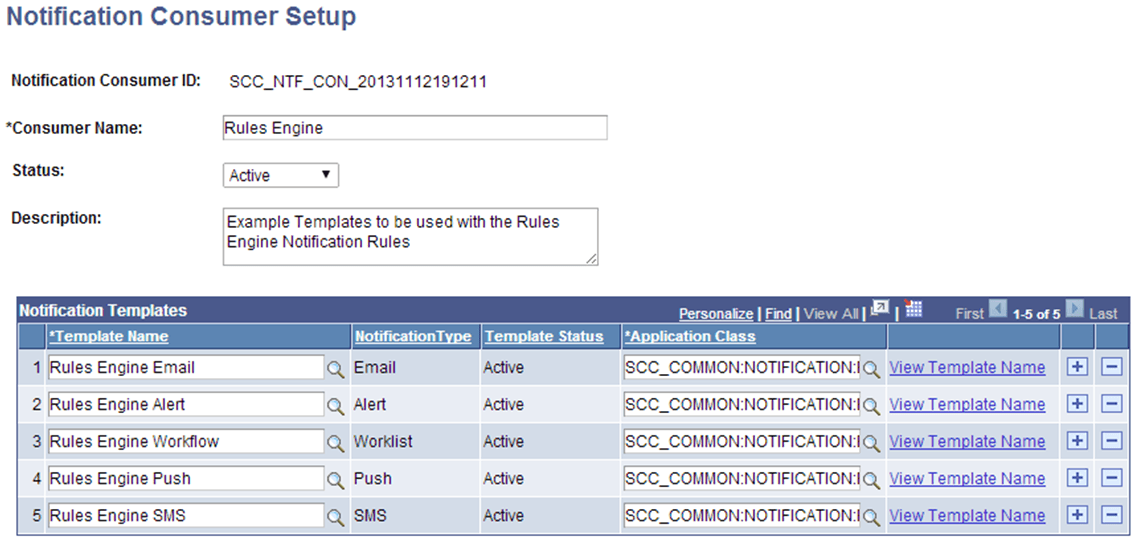
The Rules Engine can create and send a Notification in these Channels:
-
Email
-
Alert
-
Workflow
-
Push
-
SMS
There is a corresponding Notification Setup Template for each channel supported by Rules Engine. The associated application class is a dummy class which has been added as a placeholder. The application class does not contain any logic or functionality but must be added as a default application class for any Institution Template added to Notification Consumer Setup for Rules Engine.
Rules Engine Templates
Templates allow you to set up the recipients for the Notifications. A template has been created for each notification supported by Rules Engine. Oracle delivers these Template ID’s for Rules Engine:
| Template ID | Name | Long Description | Associated Generic Template |
|---|---|---|---|
|
SCC_NTF_TMP_20131112191858 |
Rules Engine Email |
Example Template for sending Rules Engine Notifications of type Email |
SCC_RULES_ENGINE_EMAIL |
|
SCC_NTF_TMP_20140123062439 |
Rules Engine Alert |
Example Template for sending Rules Engine Notifications of type Alert as well as Announcements |
SCC_RULES_ENGINE_ALERT |
|
SCC_NTF_TMP_20140123070158 |
Rules Engine Workflow |
Example Template for sending Rules Engine Notifications of type Worklfow |
SCC_RULES_ENGINE_WL |
|
SCC_NTF_TMP_20140204030502 |
Rules Engine Push |
Example Template for sending Rules Engine Notifications of type Push |
SCC_RULES_ENGINE_PUSH |
|
SCC_NTF_TMP_20140204030858 |
Rules Engine SMS |
Example Template for sending Rules Engine Notifications of type SMS |
SCC_RULES_ENGINE_SMS |
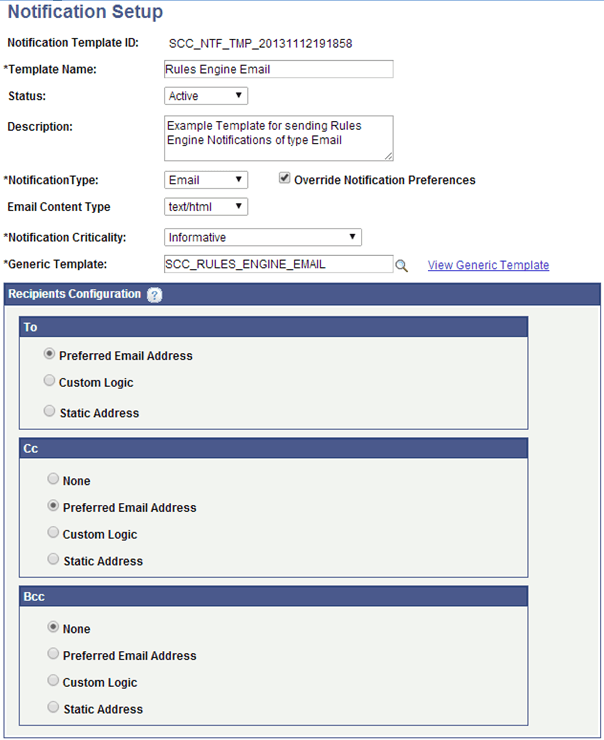
Click on View Template Name on the Notification Consumer Setup Page or navigate to to view delivered Notification IDs. This screen shot shows the delivered Rules Engine Template for channel Email. You can adjust the Template to suit your needs; however, Oracle recommends that you create your own Templates.
This example illustrates the fields and controls for the Notification Setup Page for Rules Engine Example.
Rules Engine Generic Templates
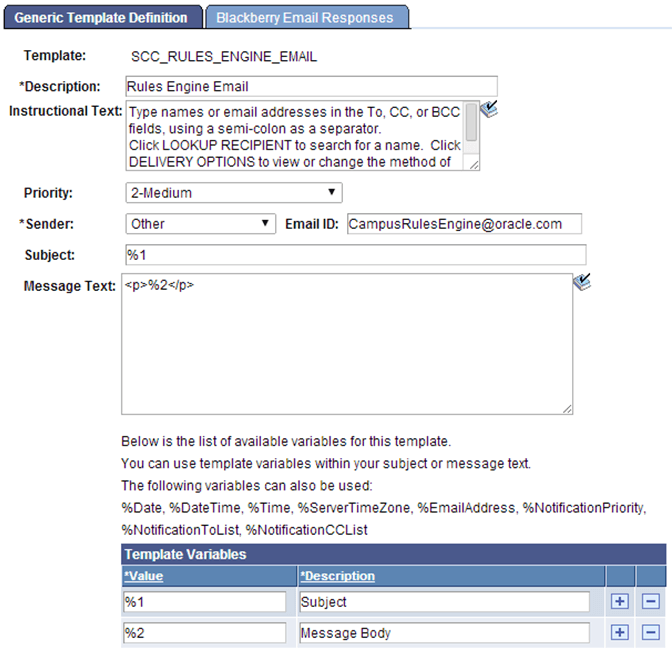
Each Template ID is associated with a Generic template. The Generic Template controls the Message Text and the Variables to include in the Notification Message. The attached Generic Template can be adjusted to suit Institution requirements or can be replaced by an institution specific Template. Access PeopleTools, Workflow, Notifications, Generic Templates to adjust Generic Templates or use the prompt option on the Template ID setup to access. Oracle delivers the following Generic Templates for Rules Engine:
| Template ID | Name | Template Variables |
|---|---|---|
|
SCC_RULES_ENGINE_EMAIL |
Rules Engine Email |
%1 Subject %2 Message Body |
|
SCC_RULES_ENGINE_ALERT |
Rules Engine Alert |
%1 Subject %2 Message Body |
|
SCC_RULES_ENGINE_WL |
Rules Engine Workflow |
%1 Subject %2 Message Body |
|
SCC_RULES_ENGINE_PUSH |
Rules Engine Push |
%1 Subject %2 Message Body |
|
SCC_RULES_ENGINE_SMS |
Rules Engine SMS |
%1 Subject %2 Message Body |
This example illustrates the fields and controls for the Generic Template Definition Example for Rules Engine.
Understanding the Interaction between the Notification Framework and the Notification Rule
The Rules delivered in the Notification Framework Category can be used to send a Notification in one or more notification channels. The following Rules are delivered:
-
Email Notification
-
SMS Notification
-
Alert Notification
-
Announcement Notification
-
Worklist Notification
Access the Rules Engine Manager to access Notification Rules (, select Search for a Rule. Use the prompt to select Rule Category Name Notification Framework. Click Search and select the desired Notification Rule (Email, SMS, Alert, Push, or Worklist).
This example illustrates the fields and controls for the Define Rule Page for Rules Engine Notification Example.
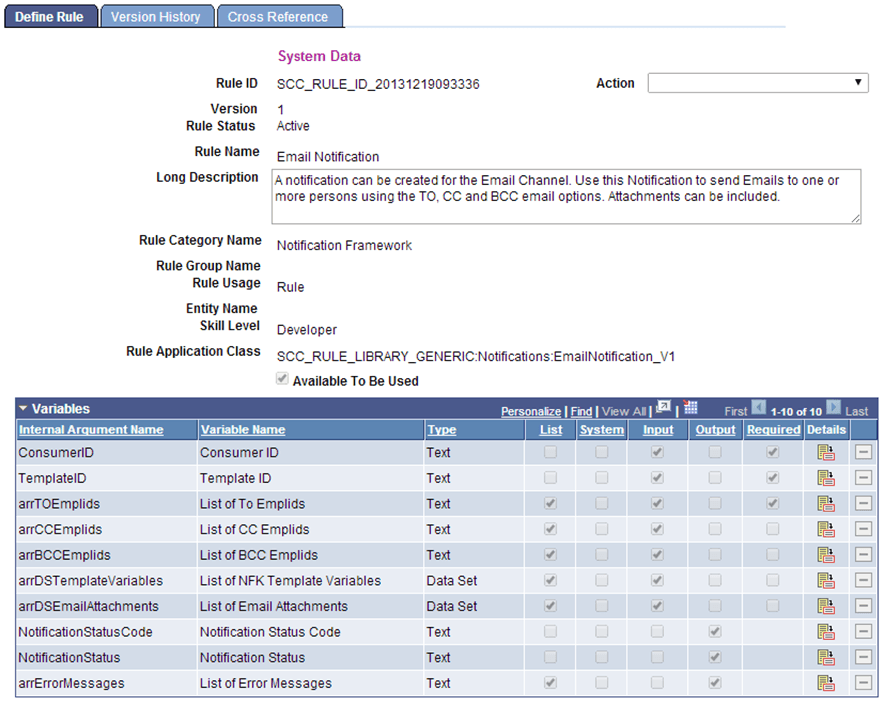
When the Notification Rule completes, you should be able to review the Notification in the Notification Framework Admin Page and view the notification as output by channel (For example, by verifying that an email has been sent). The recipient can review the Notification via Self Service Notifications.
This table describes each variable and its relationship to the Notification Framework Rule functionality:
| Variable Name | Details | How does this relate to Notification Framework setup |
|---|---|---|
|
Emplid List of To Emplids List of CC Emplids List of BCC Emplids |
EMPLID to which the Notification is to be sent. Valid for Notification Channels: ALERT, WORKFLOW, EMAIL, PUSH |
The Rule uses the settings on the Notification Template to determine where the notification needs to be sent. A recipient is selected according to the settings which have been administered on the Notification Template. For example, Preferred Email address. For Template SCC_RULES_ENGINE_EMAIL this could be a Preferred Email Address, Custom Logic or a Static address. For Notification channel email a notification can be sent to the following recipients:
In the Notification Email Rule, it is required to provide an Emplid for the TO recipient. Emplid can be provided for recipients CC and BCC. Multiple recipients can be added for the Email channel. |
|
List of Email Attachments Attachment File Name |
File Name to be added to email Valid for Notification Channels: EMAIL |
The Notification Rule for channel EMAIL allows you to specify an attachment file Path and File Name. The File name is retrieved from the specified file Path, added to the email sent by the Notification Framework, and sent to the listed Recipients. Note: Although not required, when an Attachment file name is specified, the Attachment file path should also be specified and vice versa. Multiple attachments can be added |
|
List of Email Attachments Attachment File Path |
File Location of the File which is to be added to email Valid for Notification Channels: EMAIL |
Refer to Attachment File Name. |
|
Consumer ID |
The Notification Consumer ID of the consumer sending the notification. Valid for all Notification Channels. |
A LOV prompt is attached to this LOV so that only the Consumer ID Rules Engine can be selected. |
|
Template ID |
The Notification Template ID of the template to be used for the Notification. The Notification Template holds information about the notification type and recipients configuration. Valid for all Notification Channels |
A LOV Prompt is to this LOV so that only templates relevant for Consumer ID Rules Engine can be selected. The Notification Template controls the Notification Type and Recipient information. |
|
Template Variables |
The names of the Template Variables which are set up on the Notification Template as Variables. The Variable Names and Order should match those of the Template (for example %1). Valid for all Notification Channels. |
Template Variables can be added to a List Variable. The Template Variables added to the list should correspond to the Variables which have been created on the Generic Notification Template for this specific Notification. The Variables are used to provide the Email with appropriate text for the Message Subject as well as body. |
|
Template Variable Values |
The values to be placed into the Variables which have been defined on the Notification Template. Valid for all Notification Channels. |
Variables can be added to this List Variable. The Variables are used to populate the Template Variables as they have been created on the Generic Template. It is possible to add hard-coded text as well as Variables to the Template Variable Values list. The order in which the text and variables are added to the list must match the order of the Template Variables list. |
|
Notification Type Created |
If the Notification has been generated successfully, the Notification type is filled. Valid for all Notification Channels. |
Possible Values:
Note: The Rule itself does not create the Notification but sends a Notification to the Notification Framework which in turn handles the actual Notification. The Rule can only indicate whether the Notification was handed to the Notification Framework using the appropriate channel. The Rule cannot determine whether the notification (for example email) was sent successfully. |
|
Error Message |
The Notification was not generated successfully Valid for all Notification Channels. |
If the notification has not been generated successfully the following output field contains an error message. Again this only concerns an error which may have occurred passing values to the Notification Framework. |
|
Component |
Component Name Valid for Notification Channels: WORK LIST |
The component to which the Notification applies. For a notification referring to campus community, Personal Information (Student), Add/Update Person, Biographical Details the value would be : SCC_BIO_DEMO. |
|
Menu Name |
Menu Name Valid for Notification Channels: WORK LIST |
The Menu name to which the Notification applies. For a notification referring to campus community, Personal Information (Student), Add/Update Person, Biographical Details the value would be : CC_BIO_DEMO_DATA_STDNT. |
|
Menu Bar Name |
Menu Bar Name Valid for Notification Channels: WORK LIST |
The Menu Bar name to which the Notification applies. For a notification referring to campus community, Personal Information (Student), Add/Update Person, Biographical Details the value would be : USE. |
|
Menu Item Name |
Menu Item Name Valid for Notification Channels: WORK LIST |
The Menu Item name to which the Notification applies. For a notification referring to campus community, Personal Information (Student), Add/Update Person, Biographical Details the value would be : SCC_BIO_DEMO . |
|
Page Name |
Page Name Valid for Notification Channels: WORK LIST |
The Page name to which the Notification applies. For a notification referring to campus community, Personal Information (Student), Add/Update Person, Biographical Details the value would be : SCC_BIO_DEMO_PERS. |
|
Mode |
Mode Valid for Notification Channels: WORK LIST |
The Mode in which the component should be opened. For a notification referring to campus community, Personal Information (Student), Add/Update Person, Biographical Details the value would be: U (Update/Display). |
|
Market |
Market Valid for Notification Channels: WORK LIST |
The Market to which the environments portal applies For a notification referring to campus community, Personal Information (Student), Add/Update Person, Biographical Details the value would be GBL. |
|
URL |
URL Valid for Notification Channels: WORK LIST |
The generated URL which is used by the Notification for the corresponding notification email. This is an example of the value for a generated notification URL referring to Campus Community, Personal information (student), Add/Update Person, Biographical Details: http://<EnvironmentName>/EMPLOYEE/HRMS/c/CC_BIO_DEMO_DATA_STDNT.SCC_BIO_DEMO.GBL?Page=SCC_BIO_DEMO_PERS&ACAD_CAREER=UGRD&EMPLID=<StudentID>&Action=U |
Testing the Notification Rule
In this example, the Email Notification Rule is used. Select the Test Rule Action as shown below:
This example illustrates the fields and controls for the Rules Engine Tester Page for Rules Engine Notification Example
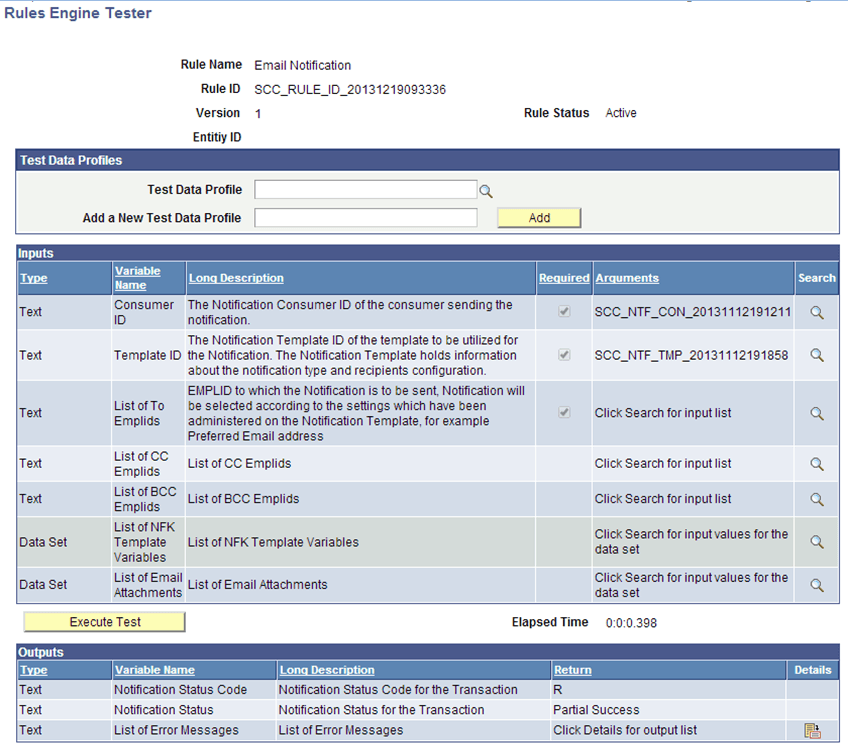
| Variable | Instructions |
|---|---|
|
List of To Emplids |
Provide an Emplid or multiple Emplids. The Emplid selected should have the correct setup in place to receive this notification. For Example, in order to send an email to this EmplID, a valid EmplID must have been entered as Preferred Email address (for example via Campus community, Personal information (student), Biographical (student), addresses/phones, Electronic addresses). |
|
Consumer ID |
Use provided prompt to select the Consumer ID for Rules Engine. |
|
Template ID |
Use the provided prompt to select a Template ID which has been created for Consumer ID Rules Engine. |
|
List of NFK Template Variables |
Use the provided prompt to provide a list of Template Variables. Note: When using the Tester you must provide Text values. When calling the Notification Rule from another Rule, you can provide Variables for all or some list Values. |
Click Execute Test to test the Notification Rule. The Outputs grid displays information from the Notification Framework indicating the successful handling of the Notification; such as the Notification status Code, the Notification Status, and any relevant Error Messages.
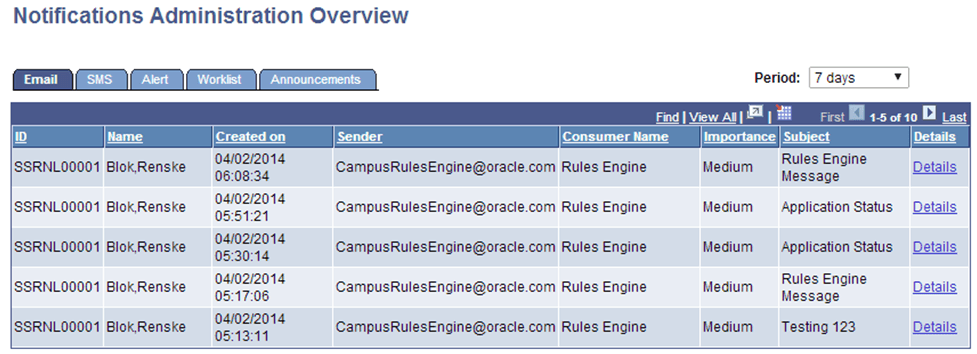
After the Rule completes Generated notifications can be viewed via the Notification Admin component Open the Notification Admin component (Campus Community, Notifications, Admin Notifications). Select the appropriate Notification to view:
This example illustrates fields and controls for the Notifications Administration Overview Page for Rules Engine Notification Example.
Calling the Notification Rule
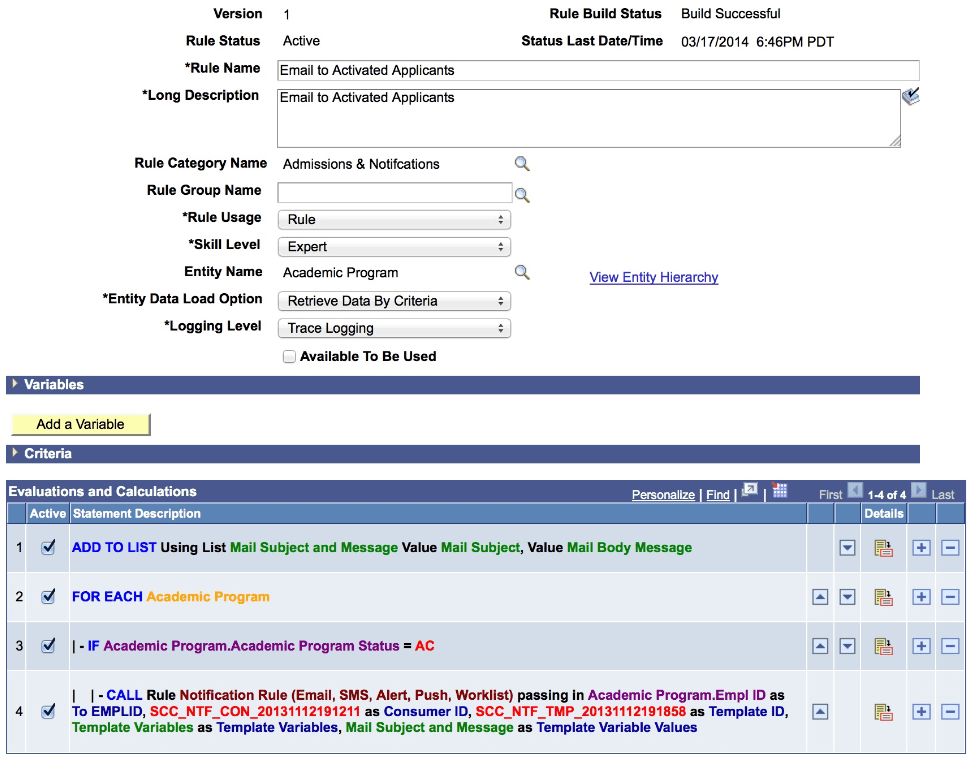
The Notification Rule can be called from another Rule. This allows you to generate Notifications in a notification channel for multiple students which are selected based on the logic you have created in the calling Rule. The following is an example of a Rule calling the Notification Rule. This simple Rule sends a notification to active applicants in a selected career: The call statement has been added simply by selecting the Notification Rule and providing required Input values. The prompt functionality for Consumer ID and Template ID also works on the call statement.
This example illustrates the fields and controls for the Define Rule Page for Notification Rule Call Example.