Step 5: Setting Up a Kiosk
Set up the following on the database of the Kiosk:
-
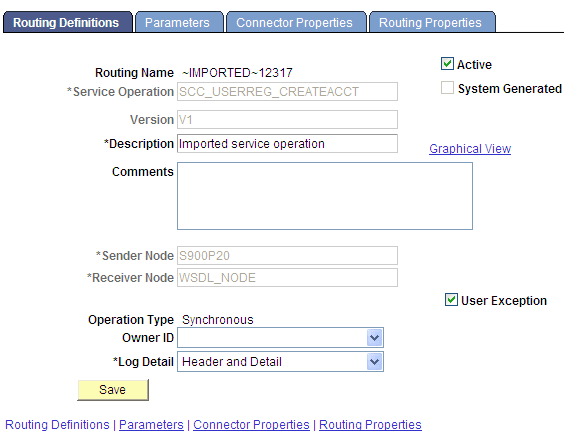
The User Exception check box needs to set on the Routing Definition page of the Kiosk. When the check box is selected, in case an error is encountered during processing it allows the system to capture the SOAP fault and display it. Else, when the check box is not selected the system responds with a HTTP 500 error. To access the Routing Definition page, select
This example illustrates the fields and controls on the Routing Definitions page. You can find definitions for the fields and controls later on this page.
-
Verify that the gateway is active. To access the Gateways page, select .
This example illustrates the fields and controls on the Gateways page. You can find definitions for the fields and controls later on this page.
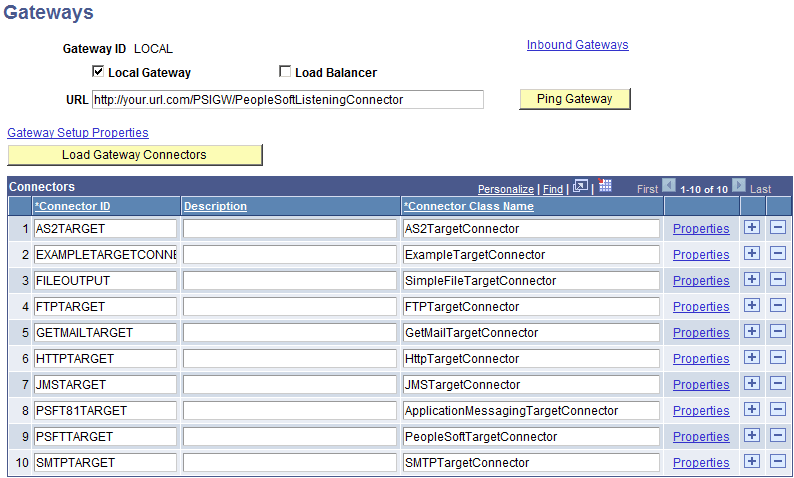
Press the Ping Gateway button to make sure the gateway is active. The Status displays ACTIVE.
Note:
The gateway needs to be active on both the Kiosk as well as the production environments.
-
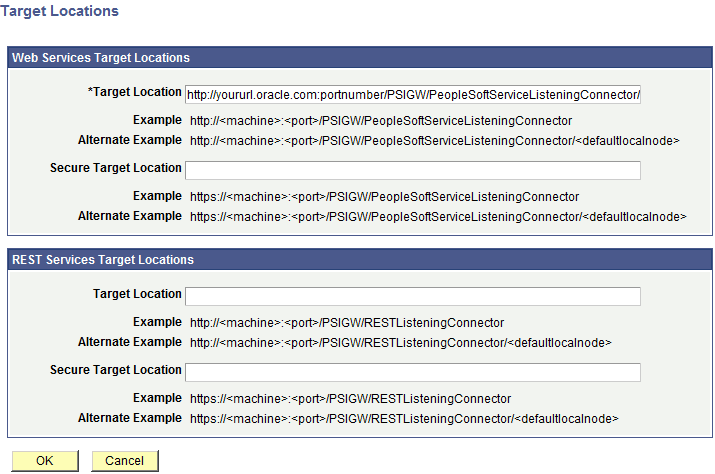
Verify that the setup target location is configured. To access the Target Locations page, select . In the Service Configuration tab, click the Setup Target Locations link.
This example illustrates the fields and controls on the Target Locations page. You can find definitions for the fields and controls later on this page.
-
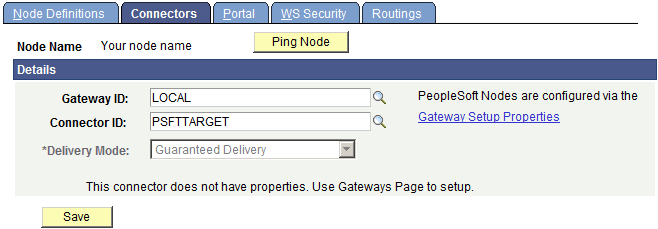
Verify that you can ping the node. To access the Connectors page, select . From the Connectors page, press the Ping Node button.
Click the Ping Node button to verify the results. Make sure Message Text shows Success.
This example illustrates the fields and controls on the Connectors page. You can find definitions for the fields and controls later on this page.
-
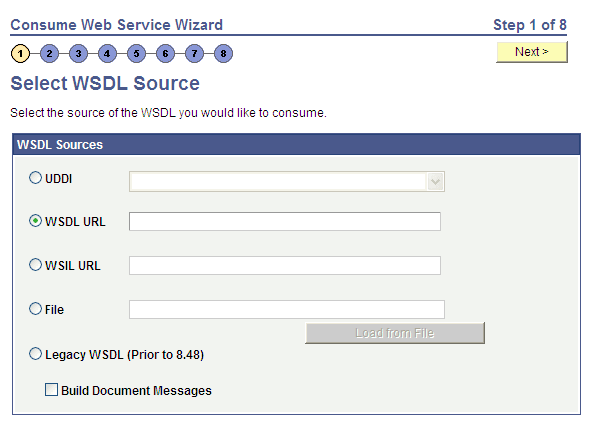
During the consume web services step ensure that the Build Documents Message check box is cleared. To access the Consume Web Services wizard, select .
This example illustrates the fields and controls on the Consume Web Service Wizard page. You can find definitions for the fields and controls later on this page.
-
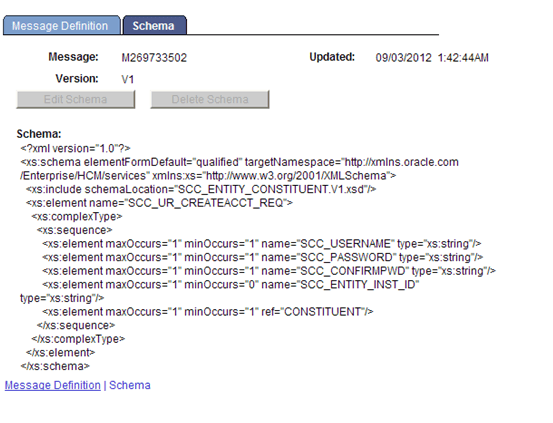
Verify that schema exists for the imported message. To access this schema, first navigate to the General page of the service operation(), then click the View Message link for the message, and finally click the Schema tab.
This example illustrates the fields and controls on the Schema page. You can find definitions for the fields and controls later on this page.