Understanding the Business Process Flow for Visa Processing
In this business process flow, it is assumed that you have completed the SEVIS setup in the PeopleSoft Campus Solutions system. This section discusses the PeopleSoft Campus Solutions-to-SEVIS batch interface functionality business process for student (F/M) visas and for exchange visitor (J) visas.
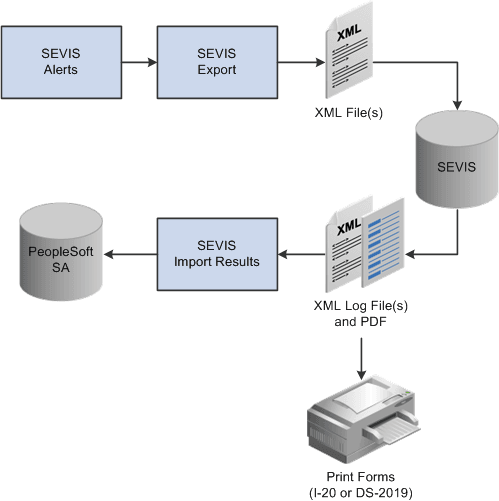
This flowchart illustrates the SEVIS visa processing business process. It shows the flow of the SEVIS alerts through to the XML log and SEVIS processor to the PeopleSoft database and printed I-20 or DS-2019 form.
PeopleSoft business process flow for SEVIS visa processing
Identify New and Changed Data to Submit to SEVIS
Follow these steps for identifying new and changed data to submit to SEVIS.
-
Run the SEVIS Alerts process.
Run the appropriate SEVIS Alerts process (Process SEVIS Alerts - F/M or Process SEVIS Alerts - J). The process identifies information that should be submitted to SEVIS regarding new students (F/M visas) or exchange visitors (J visas) and data changes for existing students or exchange visitors. The process also verifies SEVIS business rules, required fields, and certain eligibility edits.
-
Use pages in the appropriate SEVIS Alerts component to evaluate the results of the SEVIS Alerts process.
Use the Select Alerts to Report - F/M component to evaluate results for all applicable school codes, and use the Select Alerts to Report - J component to evaluate results for all applicable program sponsors.
-
Review all information with errors and take appropriate follow-up action.
Errors indicate transactional data that is missing or that needs to be changed before submission to SEVIS. You can update the SEVIS Master component if errors exist.
-
Review all information requiring additional data.
Certain SEVIS events require you to enter additional data.
-
Review all data set to send to SEVIS on the Alerts Header page.
The SEVIS Alerts process sets the Send to field to SEVIS based on the default value that is set on the SEVIS Event Types page, and includes the event in the XML file to send to SEVIS. If you do not want to include it in the XML file, change the Send to field to either Master or None.
-
Select either Master or None for each remaining event.
Select Master (Master Sync) to directly update the SEVIS Master component with the data for the event without including it in the XML file. Select None to prevent an event from processing until you can review it.
-
Save your changes to the Alerts Header page in the Select Alerts to Report component (Select Alerts to Report - F/M or Select Alerts to Report - J).
-
Export Data to SEVIS Master or to the XML File to Send to SEVIS
Run the SEVIS Export process for the appropriate visa type (Export SEVIS Events - F/M or Export SEVIS Events - J).
For events where the Send To field is set to Master on the Alerts Header page, the export process directly updates the active SEVIS Master row with the data from the event.
For events where the Send To field is set to SEVIS, the export process generates an XML file compliant with the SEVIS XML schema. The process creates multiple XML files if the number of records transmitted to SEVIS exceeds 100. The export process also populates the SEVIS Master component with an inactive row containing the data sent to SEVIS.
Upload XML Batch Documents to SEVIS
To upload the generated XML files to SEVIS, you must use a utility that supports secure sockets layer (SSL) and HTTPS. The XML batch document upload process is completed outside the PeopleSoft Campus Solutions system using the utility program of your choice. Consult the U.S. Immigrations and Customs Enforcement (ICE) web site for information regarding digital certificate registration and batch file transmission.
See SEVIS: Technical Guidance and User Manuals.
Import the upload results transaction log using the SEVIS Import Results process.
Download XML Transaction Log and PDF Files from SEVIS
To download the XML transaction log files and any form PDF files (I-20 forms or DS-2019 forms) generated by SEVIS, you must use a utility that supports SSL and HTTPS. The XML transaction log and PDF files are compressed into a single file in zip format. You print the PDF files outside the PeopleSoft system.
Consult the U.S. Immigrations and Customs Enforcement (ICE) web site for information regarding retrieval and unzipping of the XML transaction log and PDF files.
Note:
Carefully evaluate the Application Program Interface (API) to determine the period during which the batch process results remain available. The DHS SEVIS system automatically deletes files that are not downloaded within the specified period.
Import the XML Transaction Log Results
After the compressed batch result file is successfully downloaded and unzipped, import the XML transaction log result files into the PeopleSoft Campus Solutions system using the SEVIS Import Results process.
Run the SEVIS Import Results process for all applicable result files. Evaluate the transaction log results using the SEVIS Import Results pages. Review all transactions with errors and take appropriate follow-up action.
The import process also updates the SEVIS Master component to reflect the data successfully imported to SEVIS and populates the SEVIS ID Maintenance page with the SEVIS IDs for any new students or exchange students and their dependents.
Note:
You must resolve eligibility errors returned by SEVIS before the next run of the SEVIS Alerts process. Allow enough time between reviewing the SEVIS XML transaction log results and running the process again so that you can modify student or exchange visitor and dependents transactional data to correct any errors.