Using Rules Engine Search
Rules Engine Search is the starting point for the following activities:
-
Searching for Rules.
-
Adding new Rules.
-
Creating a new Rule from an existing Rule.
-
Creating a new Rule for a Rule Group.
Access the Rules Engine Search page ().
This example illustrates the fields and controls on the Rules Engine Manager Search page. You can find definitions for the fields and controls later on this page.
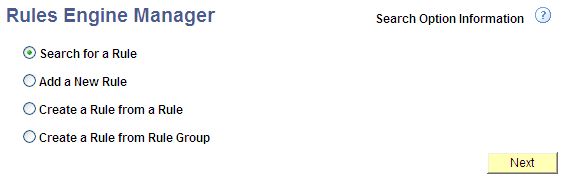
Searching for a Rule
In the Rule Engine Manager search page, select Search for a Rule and click on the Next button to open Rules Search options page.
This example illustrates the fields and controls on the Rule Search Options page. You can find definitions for the fields and controls later on this page.
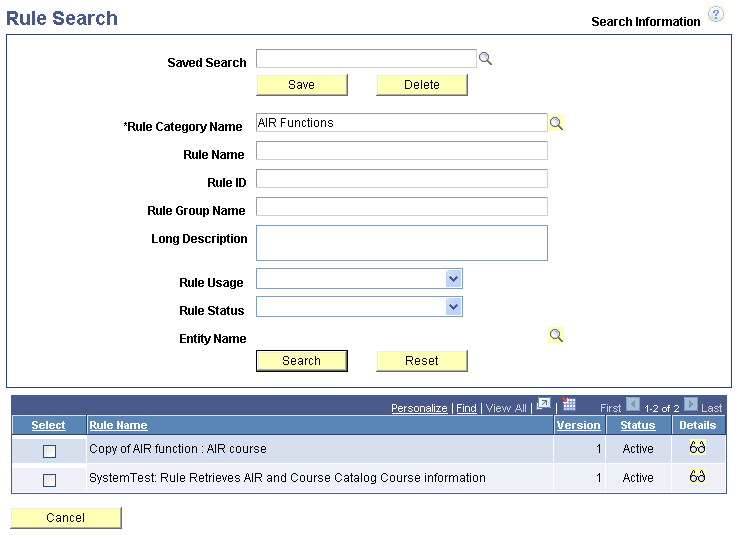
Rule Category Name is a required field. If a unique Rule ID is known and the user has access to the Rule Category, the Rule Category is automatically selected and not required.
The following fields can be used with wildcard search option “%” and are case-sensitive:
-
Rule Name
-
Rule Group Name
-
Long Description
Click the Search button and any results are displayed in a grid below the Search fields. If there are no results, a message appears.
Click the Reset button to clear the Search fields.
Click the Cancel button to return to the Rules Engine Manager search page.
To save the Search, enter a name in the Saved Search field and click the Save button.
To delete a Saved Search, enter the name in the Saved Search field and click the Delete button.
In the Search results grid, select the Select check box or click on the Details icon to select a Rule. Clicking the Details icon also displays a panel below the Search results grid displaying the Long Description, Rule Category, Rule Group Name, Rule Usage, and Entity Name of the Rule.
Click the Next button to open the selected Rule in the Rules Engine Manager and edit your Rule.
Click the Previous button to return to the Rules Engine Manager search page.
Adding a New Rule
In the Rules Engine Manager search page, select Add a new Rule and click on the Next button to open the Rules Engine Manager page where you can define the parameters of your new Rule.
For more information, see Constructing Rules.
Creating a New Rule from an Existing Rule
In the Rules Engine Manager search page, select Create a Rule from a Rule and click on the Next button to open the Rule Search page.
When you have found the Rule you want to clone, click Next to open the Create New Rule from Rule page and provide a New Rule Name and/or Long Description.
This illustrates the Create New Rule From Rule page.
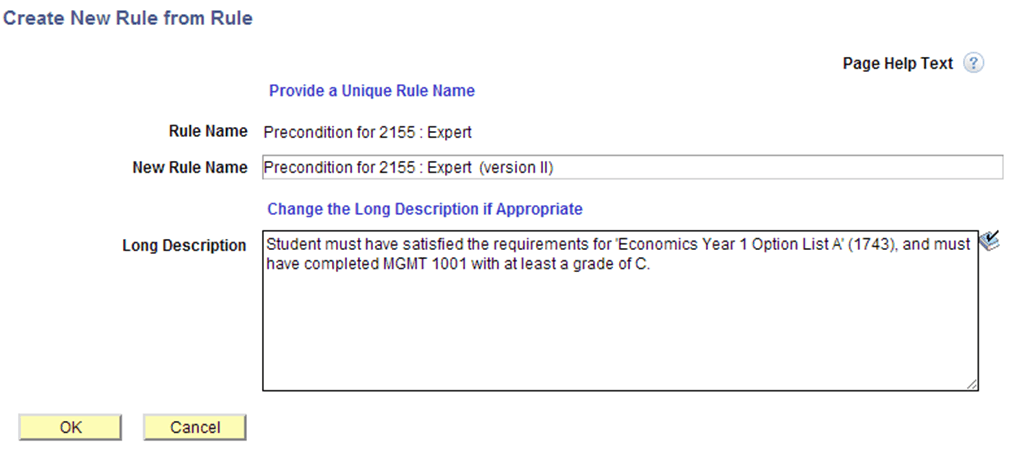
A new Rule is created with Rule Status In Progress , and it inherits all the Variables, Criteria, and evaluative statements from the Rule you selected to clone
| Field or Control | Description |
|---|---|
|
New Rule Name |
Enter a name for the new Rule. The New Rule Name must be different from the original Rule Name. |
|
Long Description |
The Long Description of the original Rule populates this field and can be edited for the new Rule. |
Creating a New Rule from a Rule Group
In the Rules Engine Manager search page, select Create a Rule from a Rule Group and click on the Next button to open the Rule Group Search page, which is similar to the Rule Search page.
When you have found the Rule Group to which you want to add a Rule, click Next to open the Create a New Rule from Rule Group page and provide a New Rule Name and/or Long Description. A new Rule is created with Rule Status In Progress, and it has inherited the Input and Output Variables, Entity Profile, Rule Category Name, Rule Usage, Entity name, and Skill Level of the Rule Group to which it has been added. This means that the Rule Category Name, Rule Group Name, Rule Usage, Entity Name, and Skill Level are predetermined and cannot be altered for this new Rule.
Additional Rule Search Options
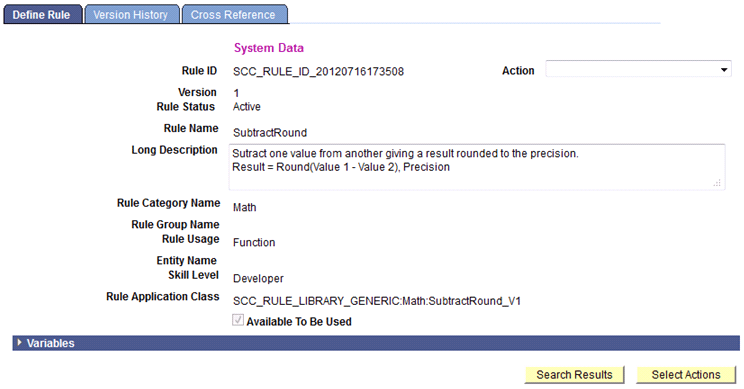
Access the Rule Definition page (, select Search for a Rule, search for and select a Rule, Define Rule).
This example illustrates the fields and controls on the Rule Search Results and Select Action Options Example. You can find definitions for the fields and controls later on this page.
| Field or Control | Description |
|---|---|
|
Search Result |
Click this button to return to the Rule Search Options Page. Search results are displayed from last executed search, and the last selected Rule is highlighted. The Search Results button is only available when the search actions Search for a Rule or Create Rule from Rule are used. |
|
Select Actions |
Click this button to return to the Rules Engine Manager to select a new search action: Search for a Rule, Add a new Rule, Create Rule from Rule, or Create a Rule from Rule Group. |