Configuring Web Services for Person Data
This section provides a summary of Person Data FullSync and Sync Service Operations and Handlers, and discusses how to:
-
Configure Integration Broker Gateway and Nodes.
-
Configure PERSON_BASIC_SYNC Service.
Note:
These instructions describe the setup of CS 9.2 and HCM 9.1/9.2 databases.
Configuring the Integration Broker Gateway and Nodes
To configure the Integration Broker Gateways and Nodes in your CS and HCM databases:
-
Set the Service Configuration in the HCM database.
-
Configure the Gateway in the HCM database.
-
Configure the default local node in the HCM database.
-
Configure the HCM Gateway in the CS database.
-
Configure the CS node in the HCM database.
-
Configure the default LOCAL node in the CS database.
-
Configure the HCM node in the CS database.
-
Update the HCM Gateway nodes in the HCM database.
-
Update the HCM Gateway nodes in the CS database.
-
Update the Single Sign-on nodes.
-
Test Nodes.
-
Setting the Service Configuration in the HCM database.
Navigate toand set up the following:
Field or Control Description Service Namespace
http://xmlns.oracle.com/Enterprise/HCM/services
Schema Namespace
http://xmlns.oracle.com/Enterprise/Tools/schemas
Target Location
http://machinename:port/PSIGW/PeopleSoftServiceListeningConnector
Service System Status
Production
-
Configuring the Gateway in the HCM database.
-
Navigate:
-
Select Integration Gateway ID = LOCAL.
-
Set URL = http://machinename:port/PSIGW/PeopleSoftServiceListeningConnector/databasename.
-
Click the Load Gateway Connectors button. Save after it loads 9 connectors
-
Click the Ping Gateway button. If successful, it displays an Active status.
-
-
Configuring the default local node in the HCM database.
-
Navigate to
-
Select the default local node and set up the following:
Field or Control Description Set Descr
HCM Instance
Authentication Option
Password
Node Password
PS
Default User ID
PS
-
Click the Connectors tab and set the following:
Field or Control Description Gateway ID
LOCAL
Connector ID
PSFTTARGET
-
Click the Portal tab and set up the following:
Field or Control Description Tools Release
8.54.xx
Set Application Release
HCM
Content URI Text
http://machinename:port/psc/databasename
Portal URI Text
http://machinename:port/psp/databasename
Note:
Use <CTRL>+J keys to see the tools release string.
-
Click the WS Security tab and set the following:
Field or Control Description Authentication Token Type
None
Encrypted
Disable the check box.
-
Save.
-
-
Configuring the HCM Gateway in the CS database.
-
Navigate to and select .Add a New Value.
-
Set the following:
Field or Control Description Integration Gateway ID
<Gateway Name for HCM>
URL
http://machinename:port/PSIGW/PeopleSoftListeningConnector/databasename
-
Click the Load Gateway Connectors button. It should load 9 connectors. Save.
-
Click the Ping Gateway button.
If successful, it displays an Active status.
-
-
Configuring the CS node in the HCM database.
-
Navigate to and set up the following:
Field or Control Description Add Node
Name of CS Node
Set Descr
CS Instance
Set Authentication Option
Password
Node Password
PS
Default User ID
PS
-
Click the Connectors tab and set up the following:
Field or Control Description Gateway ID
LOCAL
Connector ID
PSFTTARGET
-
Click the Portal tab and set up the following:
Field or Control Description Tools Release
8.54.xx
Set Application Release
CS release version
Content URI Text
http://machinename:port/psc/databasename
Portal URI Text
http://machinename:port/psp/databasename
-
Click the WS Security tab and set the following:
Field or Control Description Authentication Token Type
None
Encrypted
Disable the check box.
-
Click Save.
-
-
Configuring the default LOCAL node in the CS database.
Note:
The gateway used by this node is the HCM gateway. Node passwords must be consistent between the CS and the HCM databases.
-
Navigate:
-
Select the default local node and set up the following:
Field or Control Description Description
Set Descr = CS Instance
Authentication Option
Password
Node Password
PS
Default User ID
PS
-
Click the Connectors tab and set up the following:
Field or Control Description Gateway ID
Gateway Name for HCM instance
Note: This is not the local gateway.
Set Connector Id
PSFTTARGET
-
Click the Portal tab and set up the following:
Field or Control Description Tools Release
8.54.xx
Set Application Release
CS release version
Content URI Text
http://machinename:port/psc/databasename
Portal URI Text
http://machinename:port/psp/databasename
-
Click the WS Security tab and set the following:
Field or Control Description Authentication Token Type
None
Encrypted
Disable the check box.
-
Click Save.
-
-
Configuring the HCM node in the CS database.
Note:
Each node is defined twice – once in each database. They should each use the same gateway.
-
Navigate to
Field or Control Description Add Node
Name of HCM Node
Set Descr
HCM Instance
Set Authentication Option
Password
Node Password
PS
Default User ID
PS
-
Click the Connectors tab and set up the following:
Field or Control Description Gateway ID
Gateway Name for HCM instance
Note: This is not the local gateway.
Set Connector Id
PSFTTARGET
-
Click the Portal tab and set the following:
Field or Control Description Tools Release
8.54.xx
Set Application Release
HCM release version
Content URI Text
http://machinename:port/psc/databasename
Portal URI Text
http://machinename:port/psp/databasename
-
Click the WS Security tab and set the following:
Field or Control Description Authentication Token Type
None
Encrypted
Disable the check box.
-
Click Save. A Node Saved message box appears. Click OK.
-
-
Updating the HCM Gateway nodes in the HCM database.
Both CS and HCM database nodes should point to the same Gateway. The specific Gateway should also have both nodes listed in the Gateway Advanced Properties.
-
Navigate:
-
Select gateway LOCAL.
-
Click the Gateway Setup Properties link and set the following:
Field or Control Description User ID
administrator
Password
Enter a password.
Click OK.
-
In the Gateway Default App. Server frame, set the App Server URL to ' //machinename:port.
Note:
Your port must match the one specified in your HCM application server.
-
Enter the appropriate User ID and password.
-
Set the tools release to 8.54.xx.
-
Make sure both the HCM and CS nodes are in the PeopleSoft Nodes tab. Ping the HCM node. It should be successful.
-
Click Return.
-
-
Updating HCM Gateway nodes in the CS database.
Follow the process outlined in Step 8 to update the HCM Gateway node in the CS database.
-
Updating the Single Sign-on nodes in both CS and HCM databases.
Single Sign-on is used in this recommended configuration.
-
Navigate:
-
Ensure that both the default local node and the other node you are using are listed.
-
-
Testing Nodes.
Both nodes must be 'pingable' from each database. On each database,
-
Navigate:
-
Enter the node name and click the Ping Node button. It should respond successfully.
-
Configuring the PERSON_BASIC_SYNC Service
The PERSON_BASIC_SYNC service is the primary integration point for syncing core personal data between your CS and HCM systems. The settings on the Biographic Fields page control the data that's included in and processed from PERS_DATA_EFFDT. For information, see Campus Community Fundamentals: Reviewing or Defining Installation Settings For Biographic Fields.
The following tasks detail how to configure the PERSON_BASIC_SYNC service to publish from your CS system and subscribe in the target HCM system.
-
Owner/Subscriber: If you implement the owner/subscriber model, you can configure your PERSON_BASIC_SYNC service to publish from your primary CS system to your target HCM system.
-
Subscriber Only: If you implement the subscriber–only model, you can configure the PERSON_BASIC_SYNC service in both your CS and HCM systems to publish and subscribe.
Note:
The source and target database configuration tasks described are for CS 9.2 (source) and HCM 9.1/9.2 (target) databases on PeopleTools 8.54.xx.
Configuring Campus Solutions as the Source Database
-
Update security by adding the Service Operation(s) to your primary permission list.
-
Navigate to .
-
Select the relevant permission list from the search dialog box.
-
Select the Web Services tab.
-
Enter the corresponding Service(s) for the Service Operation(s) you want to use.
-
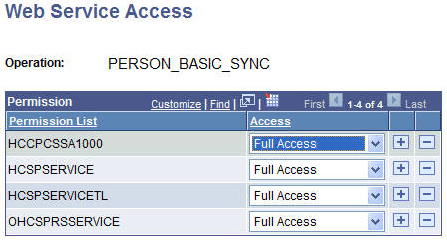
Click the Edit link and select Full Access to provide access to the relevant Service Operation(s) listed on the Web Service Permissions secondary page.
This graphic provides an example of the Web Service Access page for the PERSON_BASIC_SYNC operation.
-
-
Activate Service Operations and Create Routings in CS.
-
Navigate to .
-
Select PERSON_BASIC_SYNC from the search dialog box.
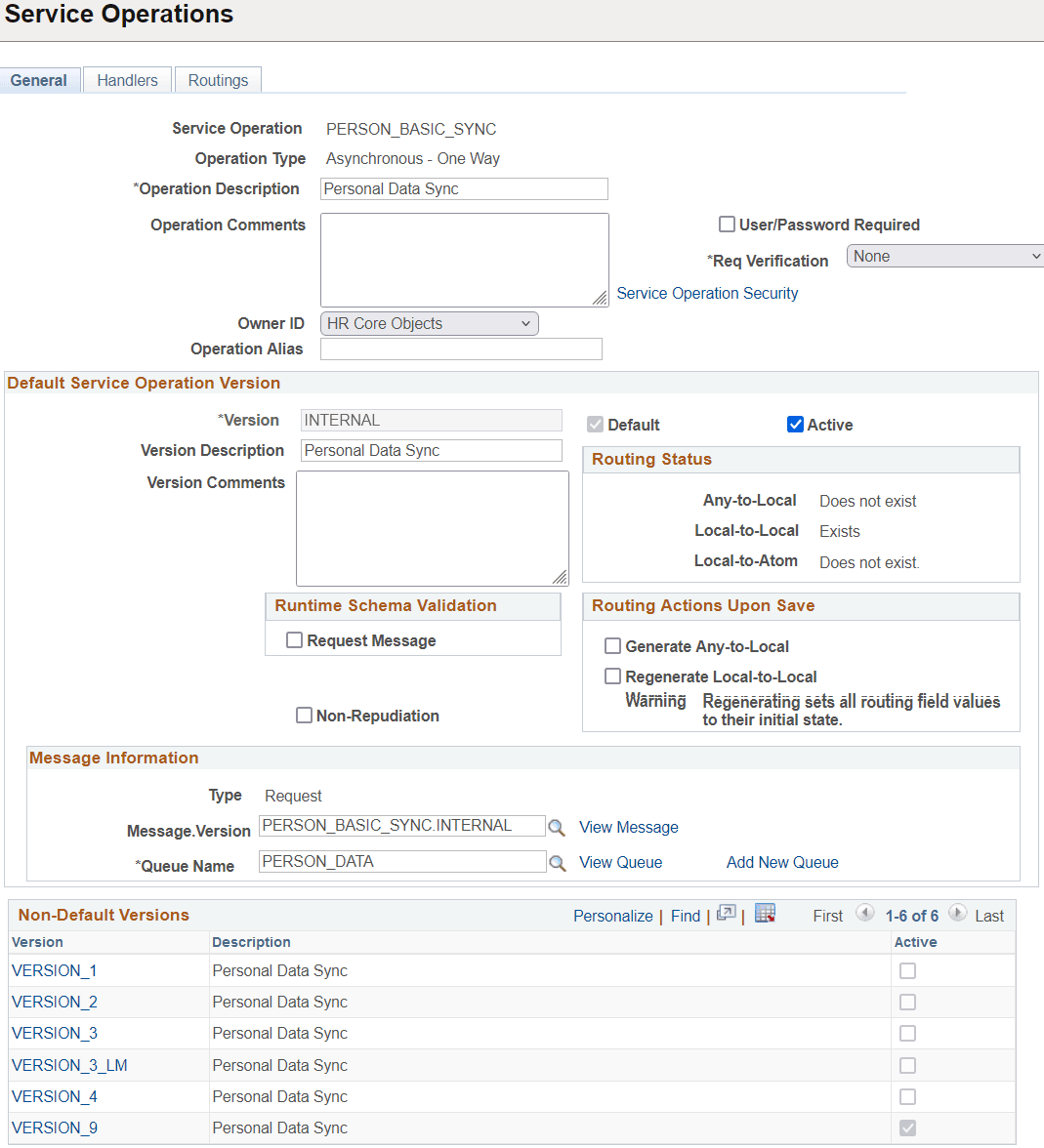
This example illustrates the fields and controls on the PERSON_BASIC_SYNC service operation page. You can find definitions for the fields and controls later on this page.
-
Check the Active check box on the General tab.
-
Make note of the Queue Name field, as you need to verify that the PERSON_DATA Queue is in Running status later.
-
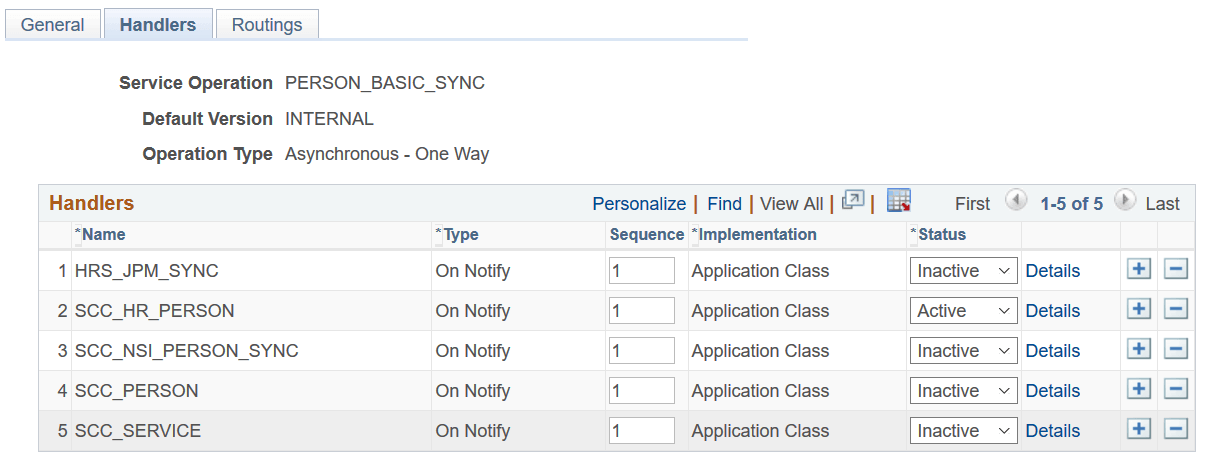
Click the Handlers tab. Set the SCC_HR_PERSON handler to Active.
This example illustrates the fields and controls on the PERSON_BASIC_SYNC Handlers page.
-
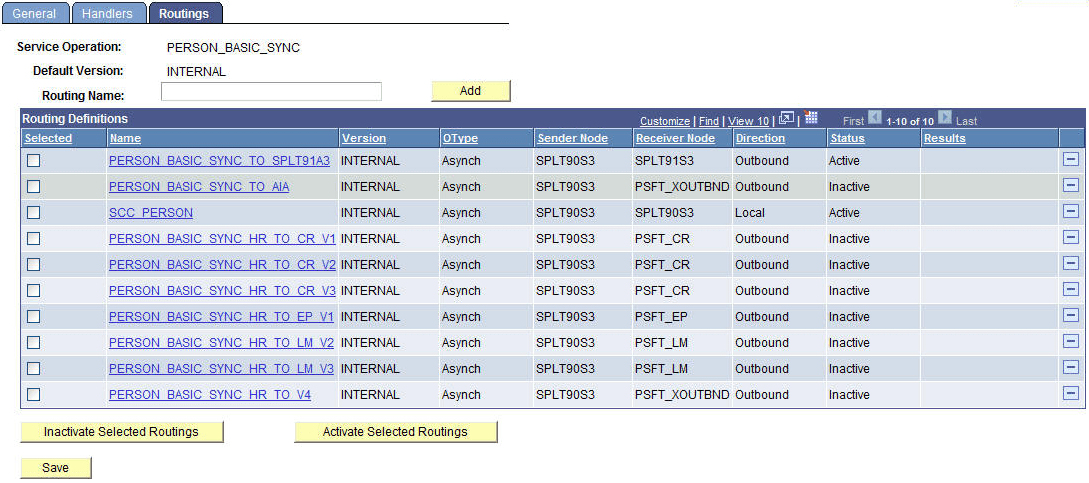
Click the Routings tab and add a new routing for the Service Operation by entering a value in the Routing Name field and clicking the Add button.
This example illustrates the fields and controls on the Routings page for PERSON_BASIC_SYNC.
-
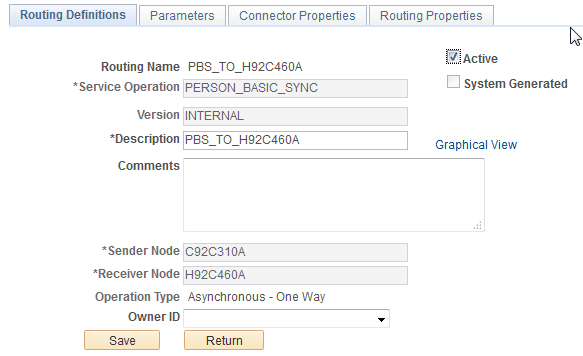
Define a Sender Node and a Receiver Node on the Routings Definition page of the Routings component.
This example illustrates the fields and controls on the PERSON_BASIC_SYNC routing definition page. You can find definitions for the fields and controls later on this page.
-
Verify that the Active check box is checked.
-
Click the Parameters tab and set up the following:
This example illustrates the fields and controls on the PERSON_BASIC_SYNC Routing Parameters page. You can find definitions for the fields and controls later on this page.
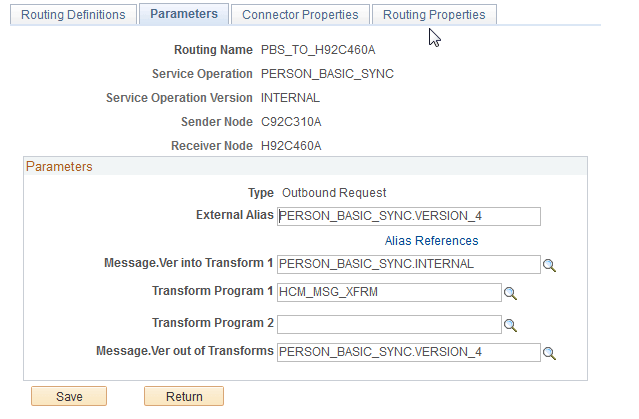
Field or Control Description External Alias
Enter the external alias; for example, PERSON_BASIC_SYNC.VERSION_9.
Message.Ver into Transform 1
For example, PERSON_BASIC_SYNC.INTERNAL.
Transform Program
For example, HCM_MSG_XFRM.
Message.Ver out of Transforms
For example, PERSON_BASIC_SYNC.VERSION_9.
-
Click Save at the bottom of the Parameters page to save the routing.
-
Click Return at the bottom of the Parameters page to return to the Service Operation setup page.
-
Click Save at the bottom of any page in the Service Operations component to save the Service Operation.
-
-
Activate Message Queue.
-
Navigate to .
-
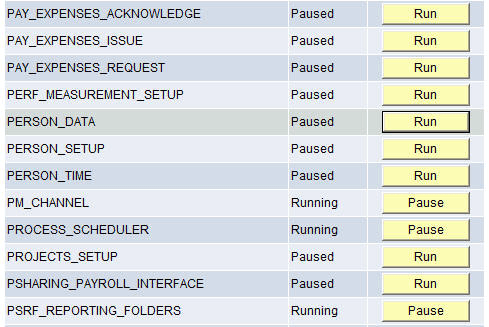
Scroll down the page until you find the relevant PERSON_DATA Queue Name.
-
Review the queue Status and activate the queue by clicking Run, if needed. The queue status should be set to Running before leaving this page.
This example illustrates queue status for PERSON_DATA.
-
Configuring HCM as the Target Database
-
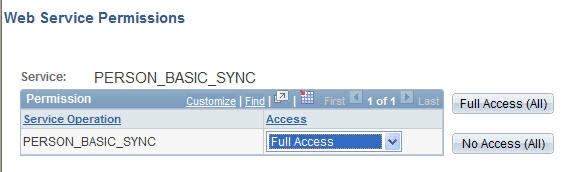
Update security by adding the service operation to the required user’s permission list.
This example illustrates the fields and controls on the Web Service Permissions page for the PERSON_BASIC_SYNC service.
-
Navigate to .
-
Select the relevant permission list from the search dialog box (primary permission list for the user).
-
Click the Web Services tab.
-
Enter the corresponding Service(s) for the Service Operation(s) you want to leverage.
-
Click the Edit link and add access to the relevant Service Operation(s) listed on the Web Service Permissions secondary page.
-
Click OK to return to the Web Services page.
-
Click Save to save the updated Permission List.
-
-
Activate Service Operation(s) and Create Routing(s) and Subscription Handler in HCM:
-
Navigate to .
-
Select PERSON_BASIC_SYNC from the search dialog box.
-
Check the Active check box on the General tab.
-
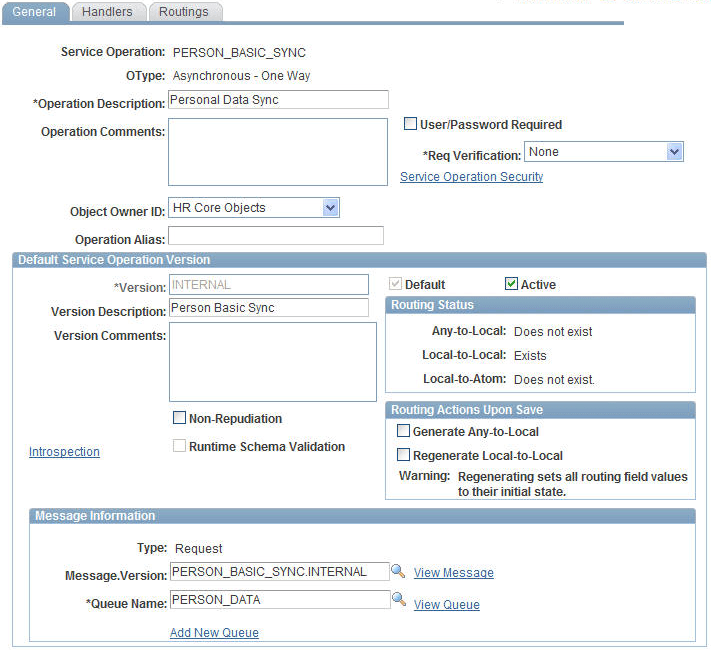
Make note of the Queue Name field, as you need to verify that the PERSON_DATA Queue is in Running status later.
This example illustrates the fields and controls on the General page for the PERSON_BASIC_SYNC service operation in HCM.
-
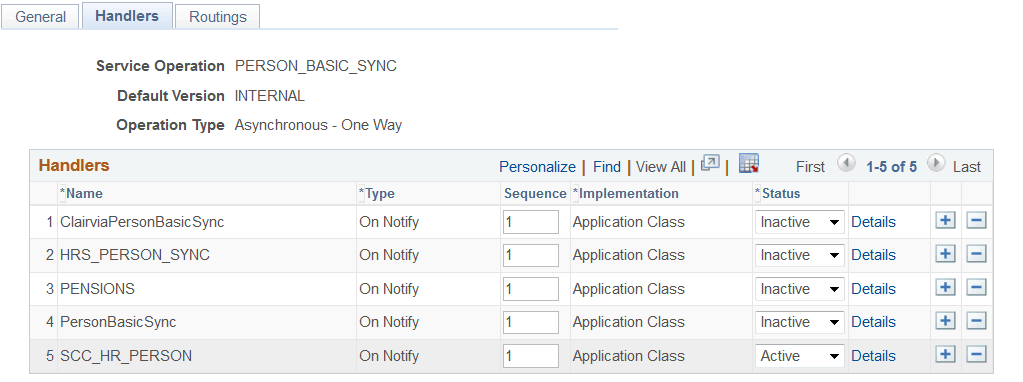
Click the Handlers tab. Set the SCC_HR_PERSON handler to Active.
This example illustrates the fields and controls on the Handlers page for the PERSON_BASIC_SYNC service operation in HCM.
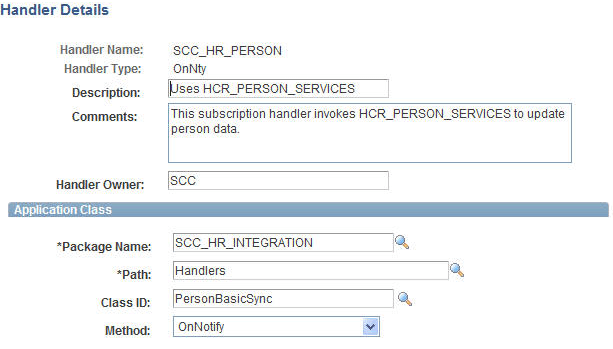
This example illustrates the fields and controls on the Handler Details page for the SCC_HR_PERSON handler in HCM.
-
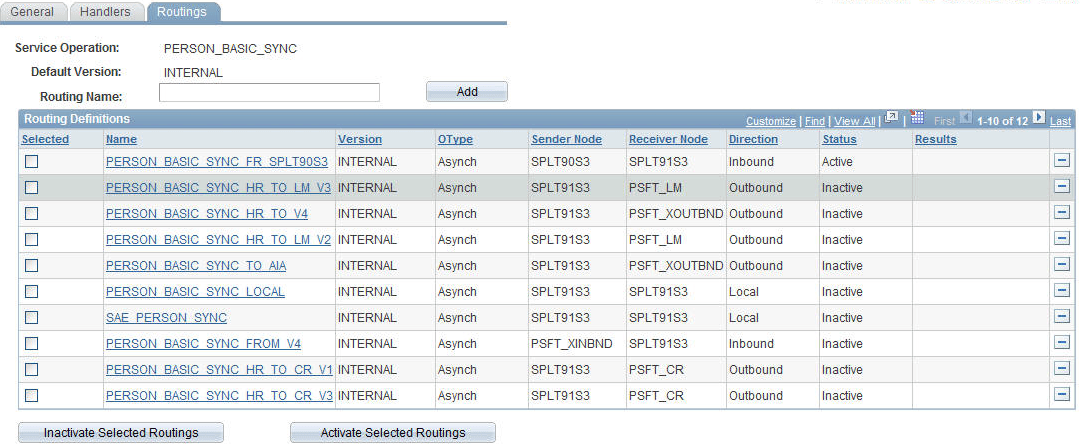
Select the Routings tab and add a new routing for the Service Operation by entering a value in the Routing Name field and clicking the Add button.
This example illustrates the fields and controls on the Routings page for the PERSON_BASIC_SYNC service operation in HCM.
-
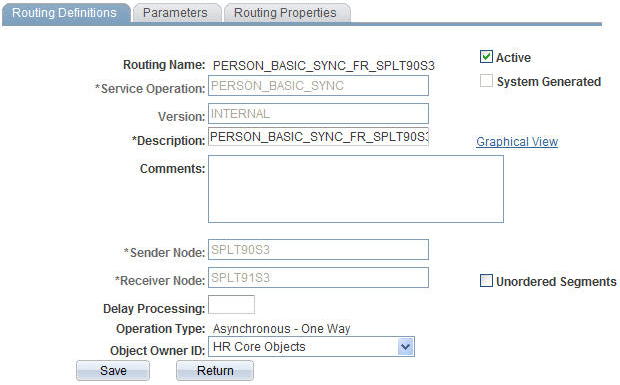
Enter the CS Sender Node and an HCM Receiver Node on the Routings Definition page of the Routings component.
-
Verify that the Active check box is checked.
This example illustrates the fields and controls on the Routing Definitions page for the PERSON_BASIC_SYNC service operation in HCM.
-
Select the Parameters tab and set the following:
This example illustrates the fields and controls on the routing Parameters page for the PERSON_BASIC_SYNC service operation in HCM.
Field or Control Description External Alias
Enter the external alias; for example, PERSON_BASIC_SYNC.VERSION_4.
Message.Ver into Transform 1
For example, PERSON_BASIC_SYNC.INTERNAL.
Transform Program
For example, HCM_MSG_XFRM.
Message.Ver out of Transforms
For example, PERSON_BASIC_SYNC.VERSION_4.
-
Click Save at the bottom of the Parameters page to save the routing.
-
Click Return at the bottom of the Parameters page to return to the Service Operation setup page.
-
Click Save at the bottom of any page in the Service Operations component to save the Service Operation.
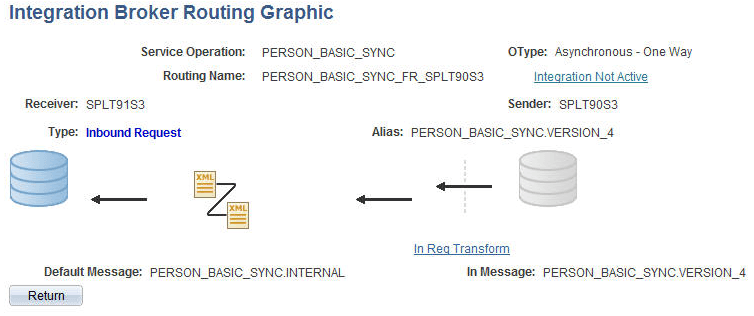
This example illustrates Integration Broker inbound request routing for PERSON_BASIC_SYNC.
-
CS/SFP Integration:
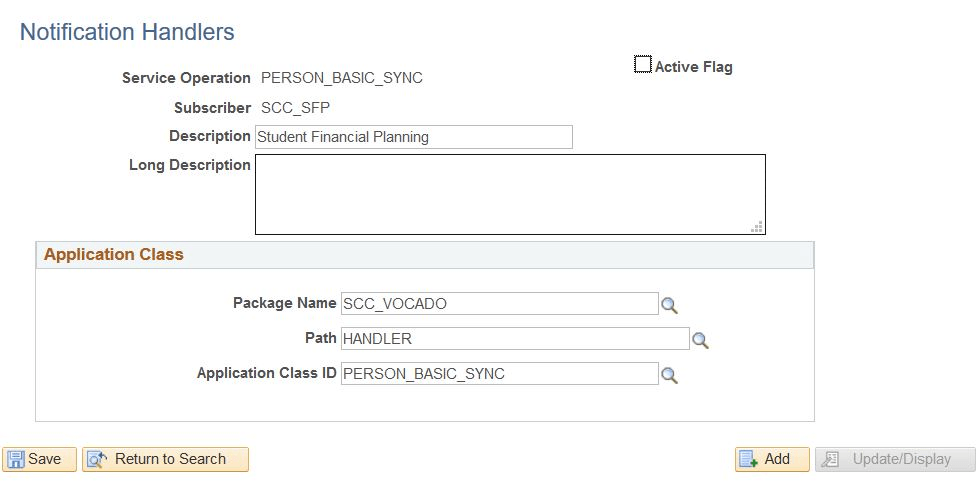
When PERSON_BASIC_SYNC is subscribed (local-to-local routing), it
runs a subscription handler that invokes a POST FasStudentUpdateEvent
to SFP. The Notification Handler SCC_SFP must be
set to Active.
Notification handler for biographic or demographic updates