Online Usage
You use the Equation Editor page to enter information about an equation. You can compile, test, view in XML format, and print equations; the system displays the compile status of the equation. You can also create, edit, and delete the contents of equations. The equation is divided into three main sections: Equation Keyword, Operand Type, and Operand. You use various combinations of these main sections to define and create equations.
Access the Equation Editor page ().
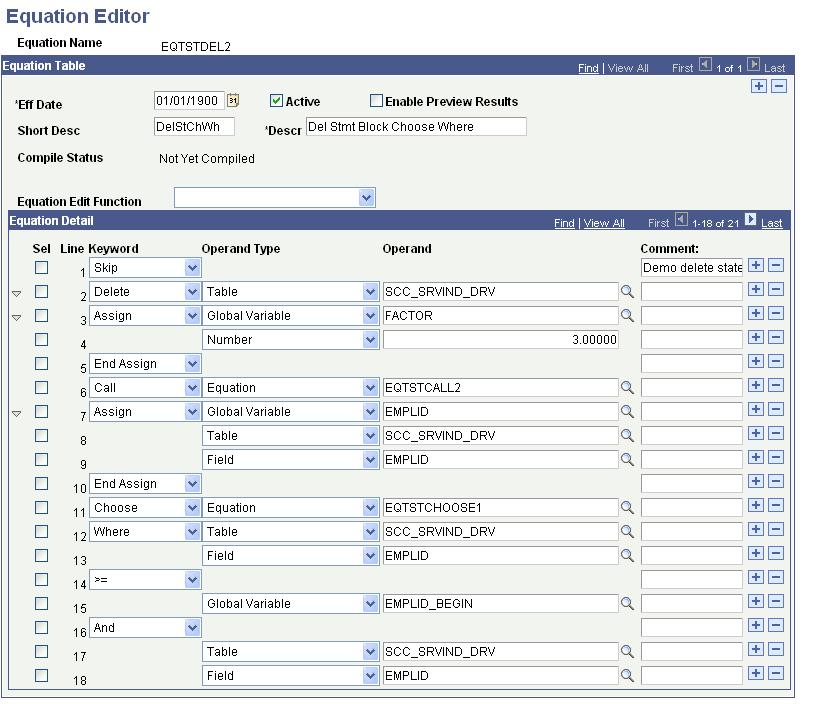
This example illustrates the fields and controls on the Equation Editor page, FAPDPELLELIG example. You can find definitions for the fields and controls later on this page.
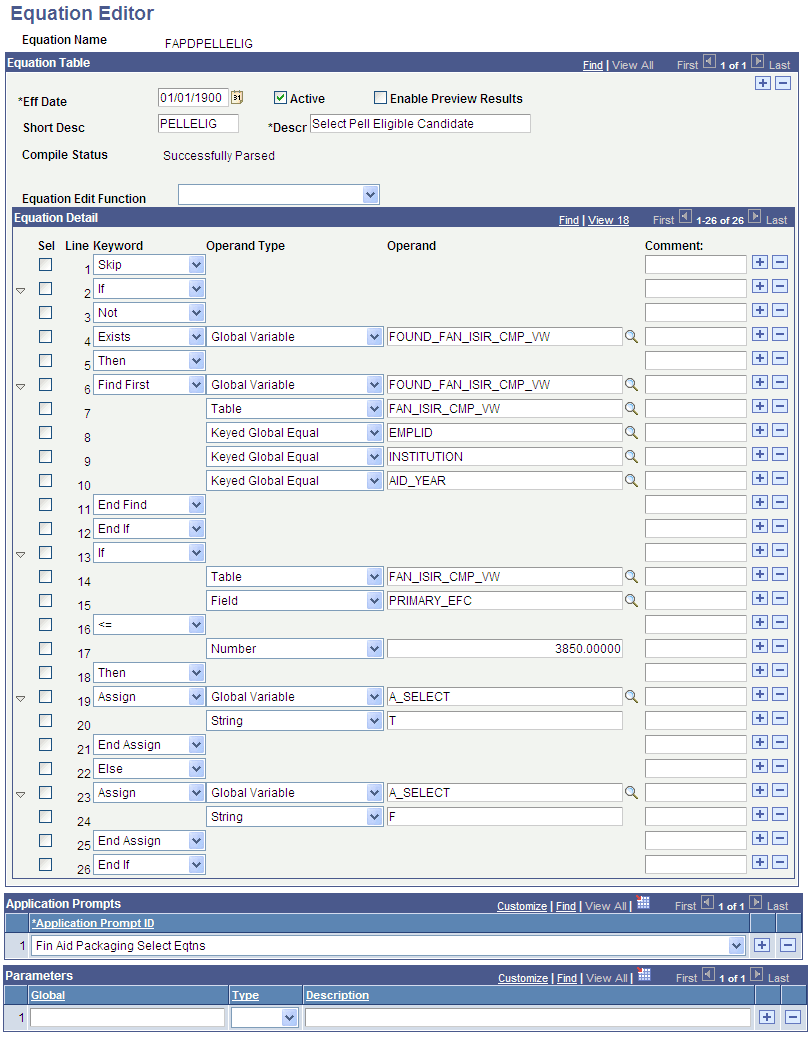
Use the Sel (select) check boxes to select the lines to be affected by the Equation Edit function. Use the Comment fields to enter comments about an equation lines. Comments are information only.
To edit an equation, after you select a Sel check box, select one of the following options from the Equation Edit Function drop-down list box:
-
Collapse Statements
-
Compile
-
Copy and Append to Clipboard
-
Copy to Clipboard
-
Cut and Append to Clipboard
-
Cut to Clipboard
-
Deselect All
-
Expand Statements
-
Paste After row
-
Paste Before row
-
Print
-
Select All
-
Select all between checks
-
Test
-
View in XML Format
Example of the Select All Between Checks Function
On the Equation Editor page, select the Sel check boxes for lines 2 and 12.
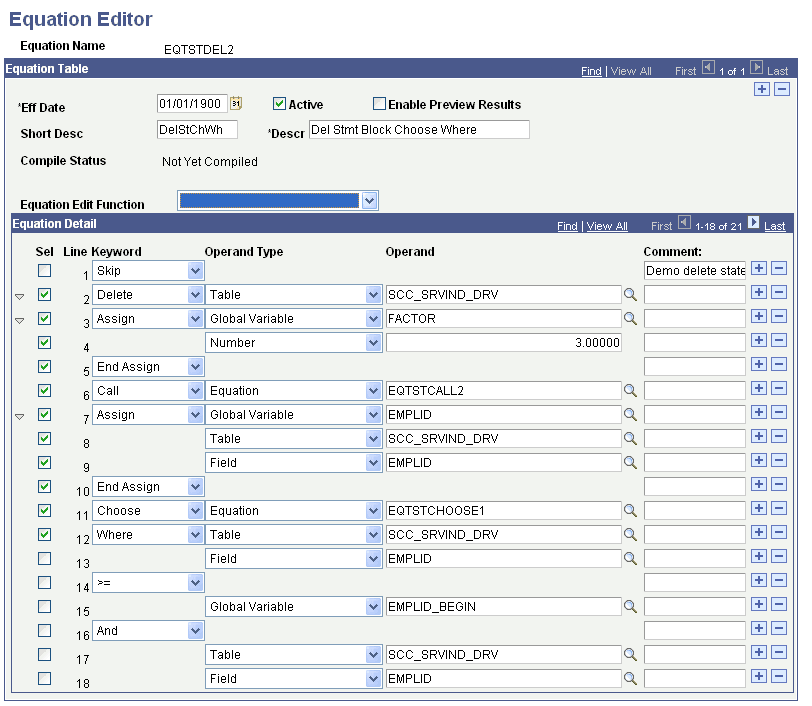
From the Equation Edit Function drop-down list box, select Select All Between Checks. When you click the Select All Between Checks option, the following page displays the selected check boxes for lines 2 through 12.
This example illustrates the fields and controls on the Example for the Select All Between Checks option. You can find definitions for the fields and controls later on this page.
Example of the Cut to Clipboard Function
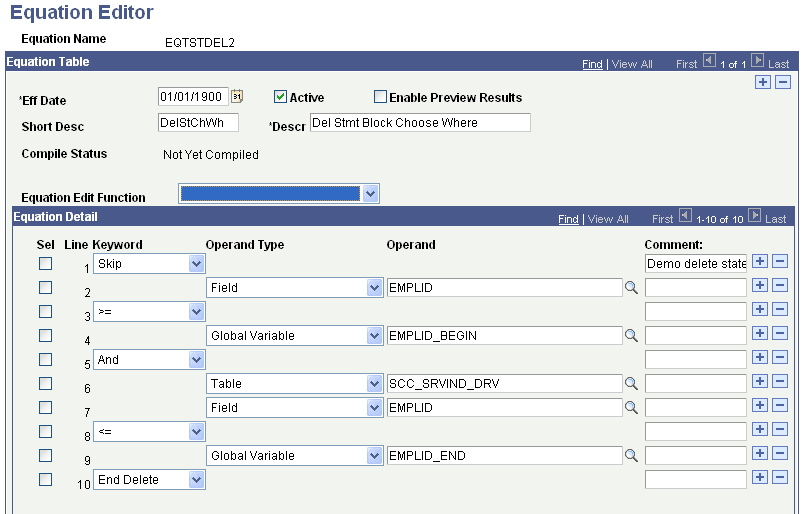
From the Equation Edit Function drop-down list box, select Cut to Clipboard to copy the contents to the clipboard for later use. The selected lines are removed, as shown in the following example.
This example illustrates the fields and controls on the Example for the Cut to Clipboard option. You can find definitions for the fields and controls later on this page.
Example of the Paste After Row Function
Select line 1 from the Sel check boxes.
From the Equation Edit Function drop-down list box, select Paste After row. Lines 2 through 12 are added from the clipboard, as shown in the following example:
This example illustrates the fields and controls on the Example for the Paste After Row option. You can find definitions for the fields and controls later on this page.
Compile Function
From the Equation Edit Function drop-down list box, select Compile to check the syntax of the equation and to generate pseudo-code for the equation. You do not need to compile an equation; because the system compiles it for you when you run the equation. if you choose to compile an equation, you should compile the equation immediately after modifying it to check for syntax errors.
Example of Using the Expand and Collapse Buttons
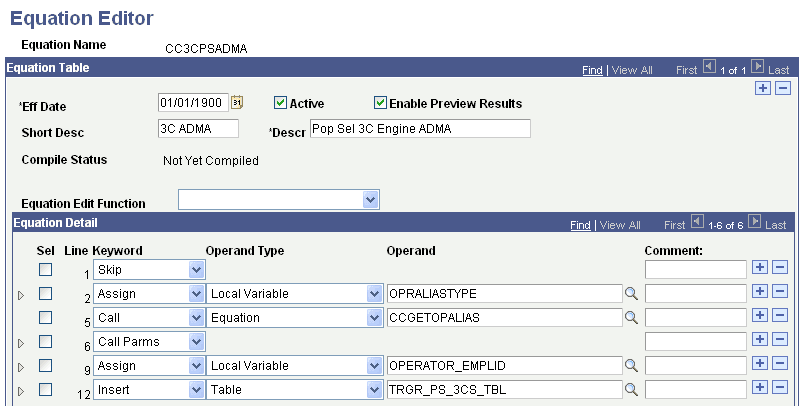
The Equation Edit Function drop-down list box contains collapse and expand functions. To use them, you must first select the lines to be collapsed or expanded; then, you perform the function. For example, when you perform the Select All edit function followed by the Collapse Statements edit function, all collapsible statements in the equation are collapsed.
This is an example of the equation after all statements are collapsed:
This example illustrates the fields and controls on the Example for the Collapse Statements option. You can find definitions for the fields and controls later on this page.
Example of View In XML Format
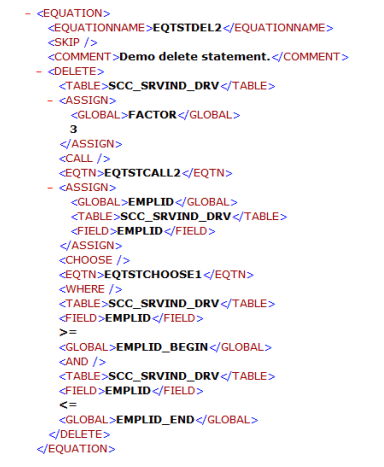
When you select the View In XML Format edit function, the equation appears as an XML document in your browser. Because no style is associated with the XML document, the equation is presented as a document tree, in which the statements are indented and collapsible. The equation cannot be edited from the XML view of the equation.
This example illustrates the fields and controls on the Example EQTSTDEL2 in XML format. You can find definitions for the fields and controls later on this page.
Testing Equations
To test the equation, you may need to set up test data. In the previous example, the function of the equation was to add a few numbers together. No test data was needed because no global variables were needed. However, to test an equation that references keys in the table, passes global variables, or both you must provide the equation with test data.
To define and enter test data, go to the Equation Test Data page and define the name of the variable, its type, and its operand.
Access the Equation Test Data page ().
This example illustrates the fields and controls on the Equation Test Data page. You can find definitions for the fields and controls later on this page.
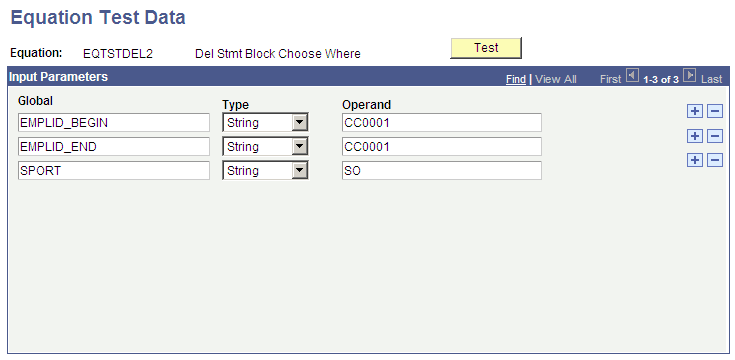
After you define the necessary variables and enter data on the Equation Test Data page, click the Test button.
Note:
You can also run a test from the Equation Editor by selecting Test from the Equation Edit Function drop-down list box.
When you click the Test button, the system displays the Equation Test Results, Process Messages tab:
This example illustrates the fields and controls on the Equation Test Results page, Process Message tab. You can find definitions for the fields and controls later on this page.
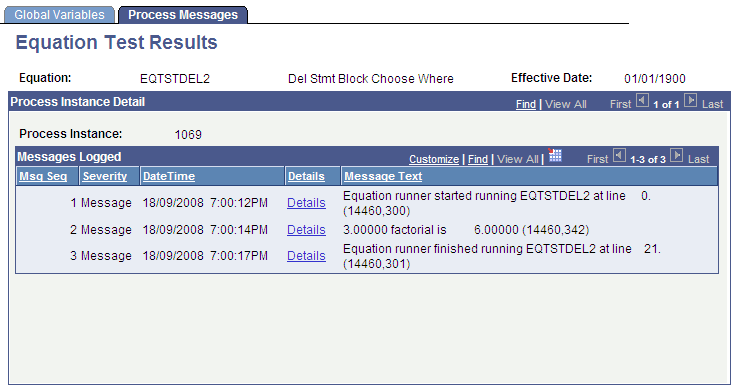
This tab displays the messages associated with the equation test run.
The Equation Test Results, Global Variables tab displays the global variables used within the current equation run:
This example illustrates the fields and controls on the Equation Test Results page, Global Variables tab. You can find definitions for the fields and controls later on this page.
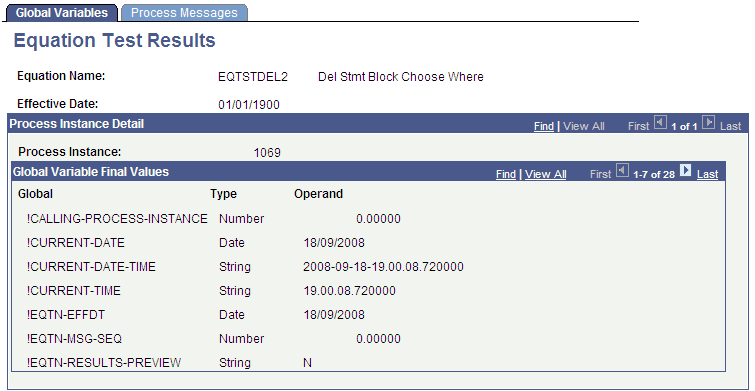
The Print option in the Equation Edit function on the Equation Editor page enables you to print equations in a Crystal report format. When you select the Print option, the Equation Print page displays where you are required to enter a run control ID.
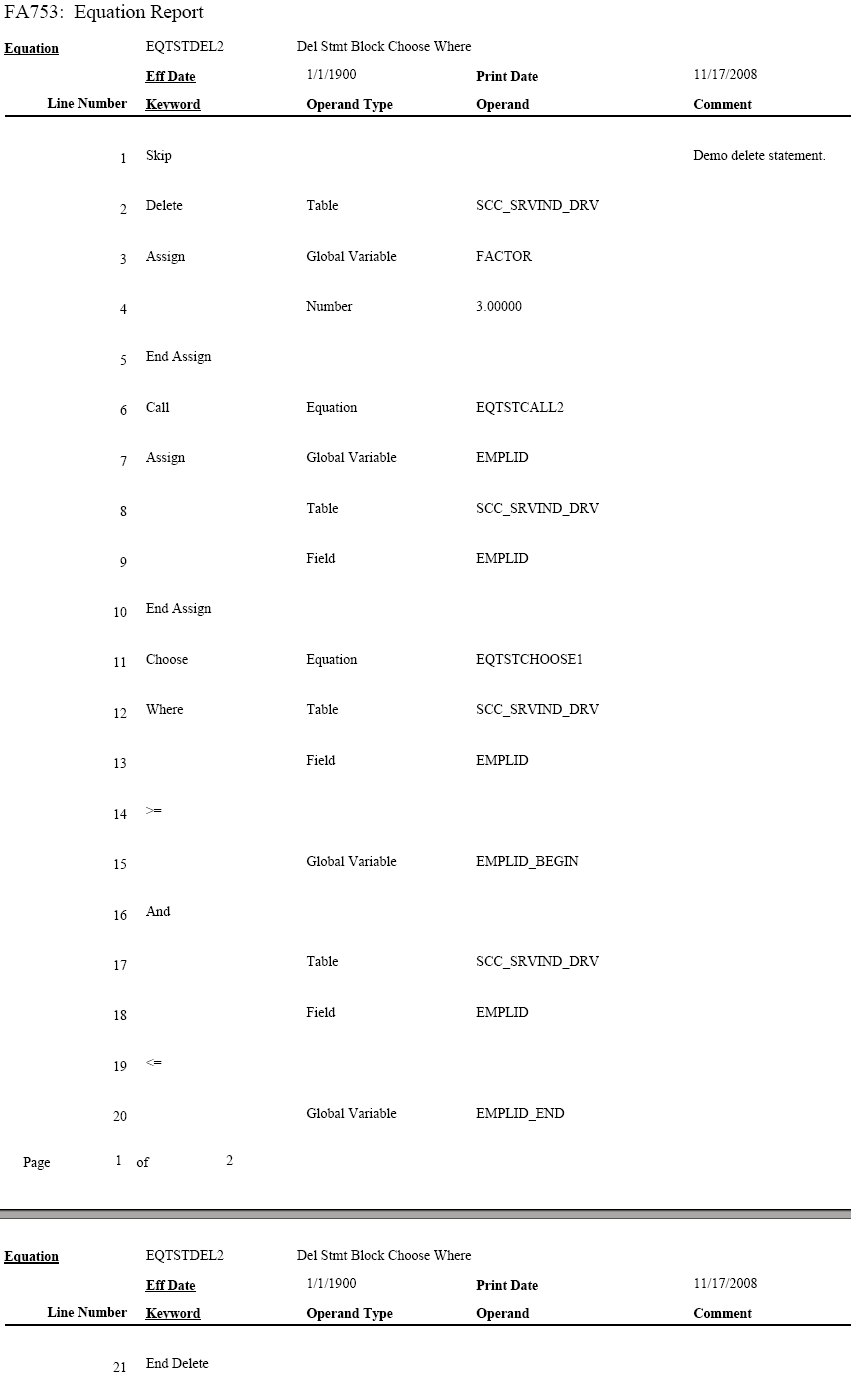
Running the subsequent process yields a report that looks like this:
This example illustrates the fields and controls on the EQTSTDEL2 Report. You can find definitions for the fields and controls later on this page.