Running the File Parser Process
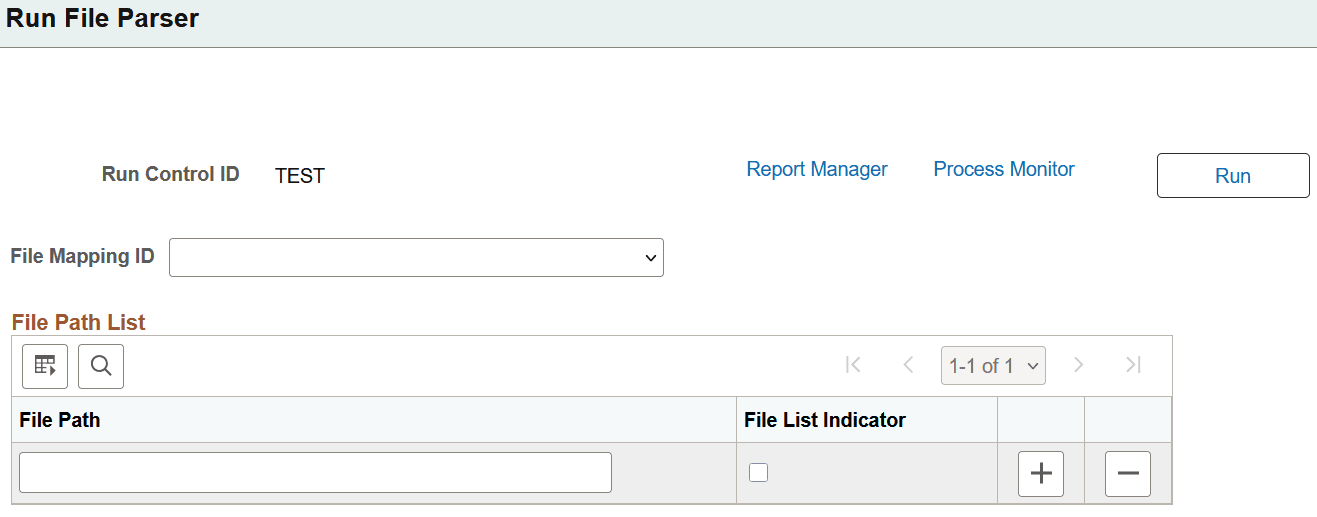
Access the Run File Parser page ().
Run the File Parser process to load the prospect/admissions data from a text file into the staging tables. Each record is loaded as a PDL transaction based on the default transaction code defaulted on SCC_STG_CONSTIT and SAD_PDL_HDR_STG on the Mapping page.
This image shows an example of a Run File Parser page.
From September 2020, before you run the process for ACT CSV files, it’s recommended that you remove the header row in the CSV file, save, then upload the file.
Otherwise, you can do this:
-
Go to .
-
Select Multiple Row Types.
-
Provide values for these fields:
-
Name: Header
-
Section ID Value: Enter your school code.
-
Field Number: 4
-