Setting Up NCEA Test Data

Before you can load, review, post, or purge NCEA test data, you must complete some setup requirements.

This section discusses how to:

  1. Define NCEA test components.

  2. Define NCEA test IDs.

  3. Map NCEA subject codes to each NCEA test ID component.

Pages Used to Prepare for NCEA Test Score Processing

Page Name Definition Name Navigation Usage

Test Component Table

SA_TEST_COMP_TABLE

Set Up SACR, and then Product Related, and then Recruiting and Admissions, and then External Test Scores, and then Test Component Table

Define test components to attach to test IDs.

Test Tables

SA_TEST_TABLE

Set Up SACR, and then Product Related, and then Recruiting and Admissions, and then External Test Scores, and then Test Tables

Define an NCEA test ID and assign test components.

NCEA Subject Code Map

SAD_NCEA_MAPSB_NZL

Student Admissions, and then Processing Admissions NZL, and then NCEA Subject Code Map

Map subject codes.

Defining NCEA Test Components

Access the Test Component Table page (Set Up SACR, and then Product Related, and then Recruiting and Admissions, and then External Test Scores, and then Test Component Table).

This example illustrates the fields and controls on the Test Component Table page.
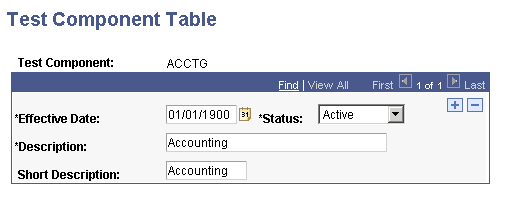
Test Component Table page

Define NCEA test components.

Defining NCEA Test IDs

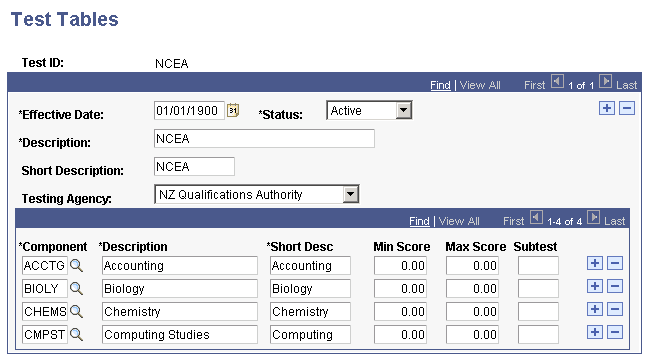
Access the Test Tables page (Set Up SACR, and then Product Related, and then Recruiting and Admissions, and then External Test Scores, and then Test Tables).

This example illustrates the fields and controls on the Test Tables page.

Test Tables page

Add a test ID of NCEA and enter test component details.

Mapping NCEA Subject Codes to each NCEA Test ID Component.

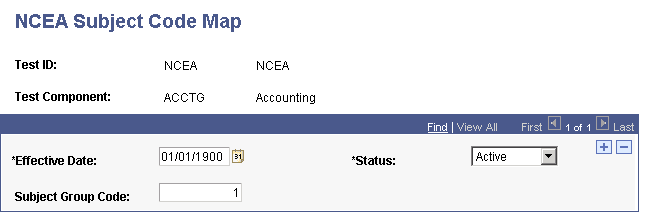
Access the NCEA Subject Code Map page (Student Admissions, and then Processing Admissions NZL, and then NCEA Subject Code Map).

This example illustrates the fields and controls on the NCEA Subject Code Map page.

NCEA Subject Code Map page

For each NCEA test component, map a subject group code.