Viewing Prospects and Applicants by Organization
This section discusses how to:
-
View prospects by organization.
-
View contact information.
-
View applicants by organization.
Pages Used to View Prospects and Applicants by Organization
| Page Name | Definition Name | Navigation | Usage |
|---|---|---|---|
|
Prospects by Organization |
ORG_PRSP_SUMMARY |
|
View lists of prospects that are associated with a particular external organization and display the records in the order you choose. You can narrow the scope to view only certain prospects that are associated with an external organization. |
|
Prospect Programs |
ADM_PRSPCT_P_SEC |
Click the Prospect Programs link on the Prospects by Organization page. |
View a list of programs for a prospect. |
|
Organization Primary Location |
EXT_ORG_PRIM_LOC |
Click the Org Primary Location link on the Prospects by Organization page. |
View the primary address of the organization or school. |
|
Organization School Information |
SCHOOL_INFO |
Click the School Information link on the Organization Primary Location page. |
View additional information regarding a school. |
|
Contact Information |
EXT_ORG_CNTCT_SEC |
Click the Contact Information link on the Prospects By Organization page. |
View any contacts that are associated with this school. |
|
Organization Contact Detail |
EXT_ORG_CNTCT_PHN |
Click the Details link on the Contact Information page. |
View a contact's address, email address, and phone numbers. |
|
Applicants by Organization |
ORG_APPL_SUMMARY |
|
View lists of applicants that are associated with a particular organization or school and display the records in the order you choose. You can narrow the scope to view only certain applicants that are associated with a school. |
|
Applicant Programs |
ORG_APPL_P_SEC |
Click the Applicant Programs link. |
View a listing of academic programs for an applicant. |
Viewing Prospects by Organization
Access the Prospects by Organization page ().
This example illustrates the fields and controls on the Prospects by Organization page. You can find definitions for the fields and controls later on this page.
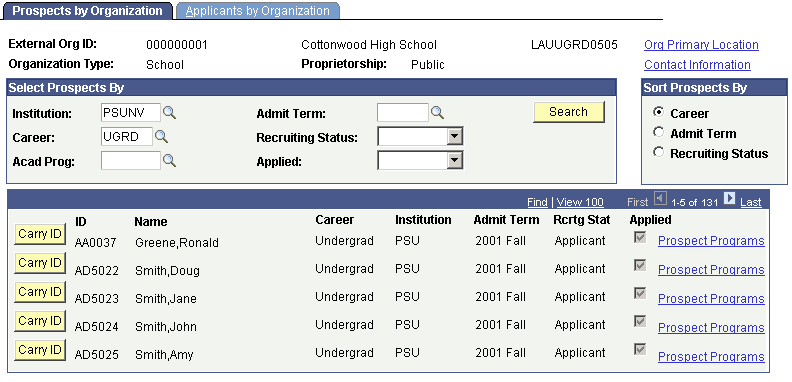
| Field or Control | Description |
|---|---|
|
Institution |
Enter the academic institution for which you want to search for prospect information. |
|
Career |
Enter the academic career for which you want to search for prospect information. |
|
Acad Prog (academic program) |
Enter the academic program for which you want to search for prospect information. |
|
Admit Term |
Enter the admit term for which you want to search for prospect information. |
|
Recruiting Status |
Select the recruiting status for which you want to search for prospect information. |
|
Applied |
Select to view records for prospects who applied to your institution. |
|
Sort Prospects By |
Select whether you want to view prospects by career, admit term, or recruiting status. |
|
Search |
Click this button find the prospects that match your search criteria. the system displays matches in the bottom portion of the page. |
|
Carry ID |
Click this button to carry forward this person's ID to the next page. |
|
Prospect Programs |
Click this link to view a listing of the academic programs for a prospect. The Prospect Programs page appears. |
|
Org Primary Location (organization primary location) |
Click this link to view the primary address of the organization or school. The Organization Primary Location page appears. |
|
Contact Information |
Click this link to view any contacts that are associated with this school. The Contact Information page appears. |
Viewing Applicants by Organization
Access the Applicants by Organization page ().
This example illustrates the fields and controls on the Applicants by Organization page. You can find definitions for the fields and controls later on this page.
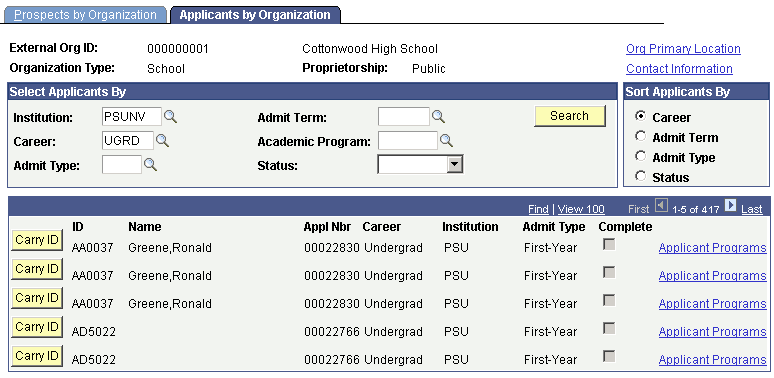
| Field or Control | Description |
|---|---|
|
Career and Institution |
These values are based on your user defaults. Edit the values if necessary. |
|
Admit Type |
Enter an admit type. |
|
Admit Term |
Enter the admit term of the applicants you want to view. |
|
Acad Program (academic program) |
Enter an academic program. |
|
Status |
Select a status to view applicants with a particular program status. For example, you might want to view only those applicants with a Cancelled or Waitlisted status. |
|
Acad Career (academic career), Admit Term, Admit Type, and Status |
Select an option to view prospects by academic career, admit term, admit type, or status. |
|
Search |
Click this button to view the applicants that match your search criteria. The system displays matches in the bottom portion of the page. |
|
Carry ID |
Click this button to carry forward this person's ID to the next page. |
|
Applicant Programs |
Click this link to view the applicant program details. The Applicant Programs page appears. |
|
Org Primary Location (organization primary location) |
Click this link to view the primary address of the organization or school. The Organization Primary Location page appears. |
|
Contact Information |
Click this link to view contacts that are associated with this school. The Contact Information page appears. |